Related Topics
- [Troubleshooting] Why am I unable to access my ASUS router’s settings page?
- [Wireless Router] When Standard Reset Isn’t Working: Hard Factory Reset - Models list
- [Wireless Router] How to update the firmware of your router to the latest version ? (WebGUI)
- [Troubleshooting] Failed Internet access through router
- [Troubleshooting] ASUS router or adapter is No Power/No Boot/Power LED is not ON
[Wireless Router] How to use Rescue Mode (Firmware Restoration)?
To provide you more detailed instruction, you can also click ASUS Youtube video link below to know more about How to use Rescue Mode (Firmware Restoration)
Reminder: The way the indicator light shows when entering rescue mode may vary depending on the model, please check here.
https://www.youtube.com/watch?v=T8YKnpXxhx0
What is Firmware Restoration?
It can help you to upload the firmware in rescue mode when your router fails to upload firmware in a normal way. Required OS: Windows XP/7/8/10/11
Notice: Rescue Mode is not the regular way to update the firmware of your router. Firmware restoration can only be used in rescue mode.
For instruction about how to update the firmware, please refer to the support article :
- [Wireless Router] How to update the firmware of your router to the latest version
- [ExpertWiFi] How to update the firmware of ExpertWiFi router
Under what kind of circumstances can I use Firmware Restoration?
1. When the router fails to update the firmware in a regular way.
2. The power light of your router flashes abnormally.
3. Irregular operation of your router caused by the third-party firmware.
How to Install and Use Rescue Mode
1. Download and Install the utility
Take router [RT-AC68U] and OS Windows 10 as examples.
1-1 Go to https://www.asus.com/, search for the model name of your router.

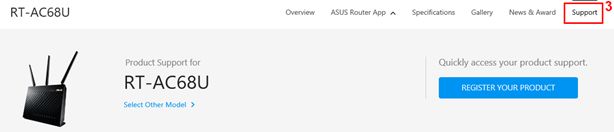
1-2 Under the product page of your model, click [Support]
1-3 According to your router specification, download the latest version of firmware and unzip it.
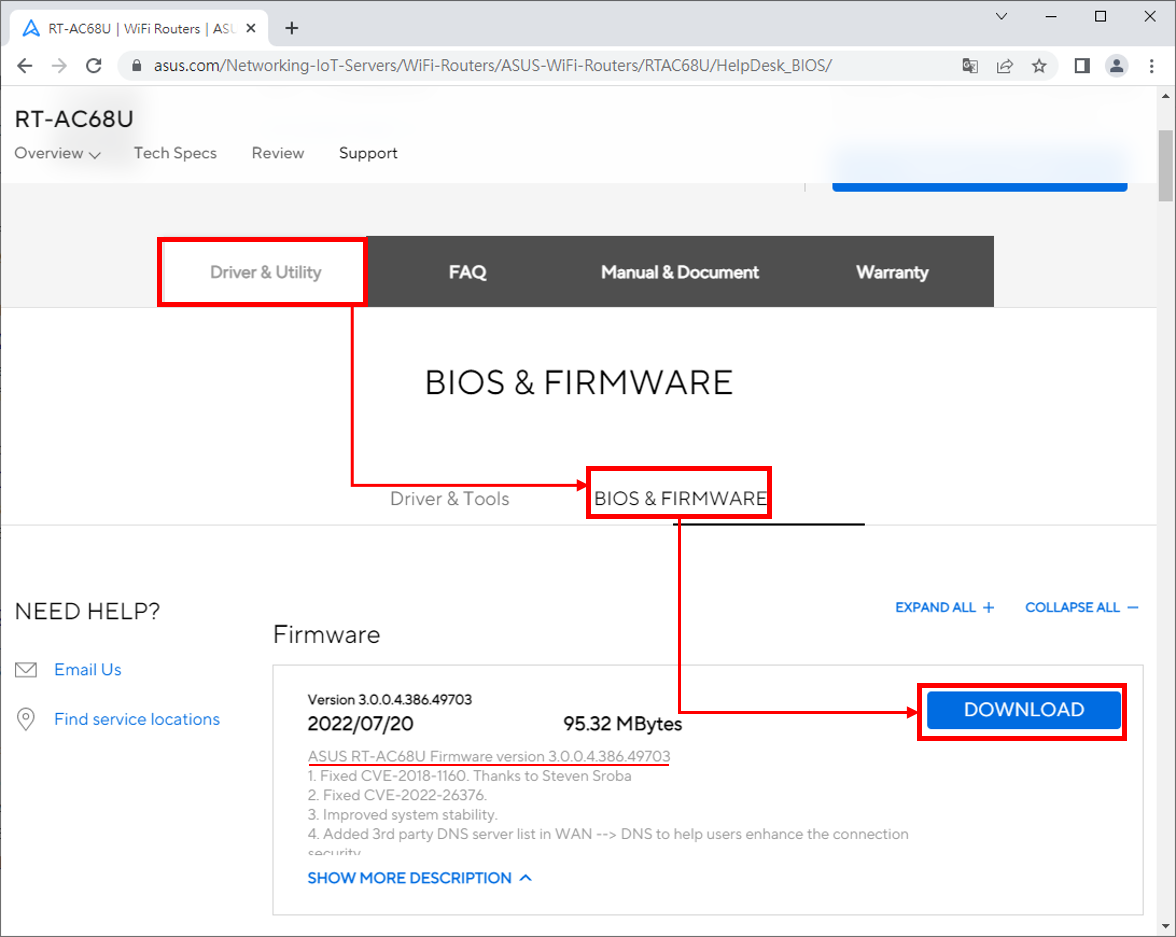
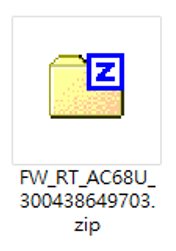
Notice : The firmware you’ve downloaded must be unzipped so that it can be uploaded by the Firmware Restoration.

1-4 Click [Driver & Utility], choose your Operation System.
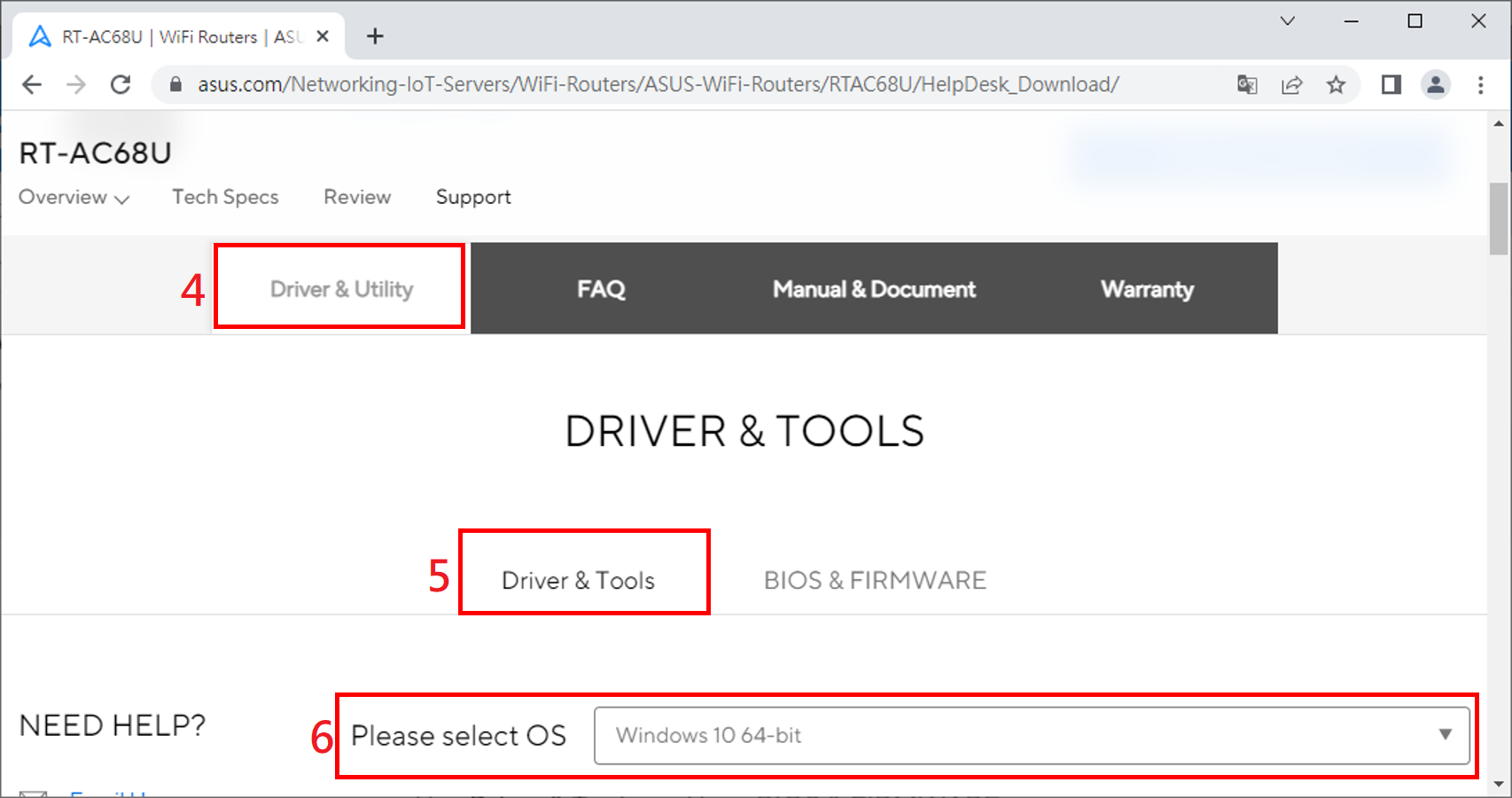
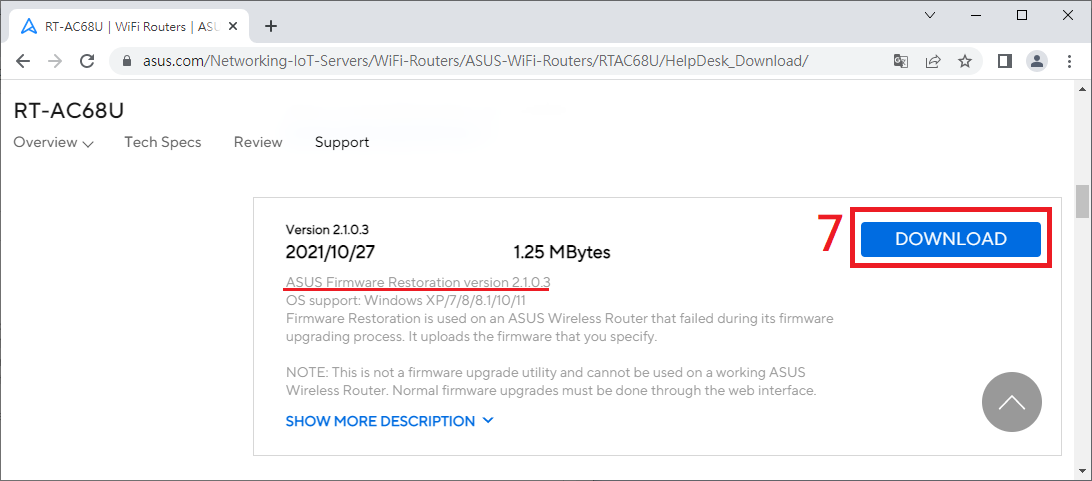
1-5 Find [ASUS Firmware Restoration], and click [Download].
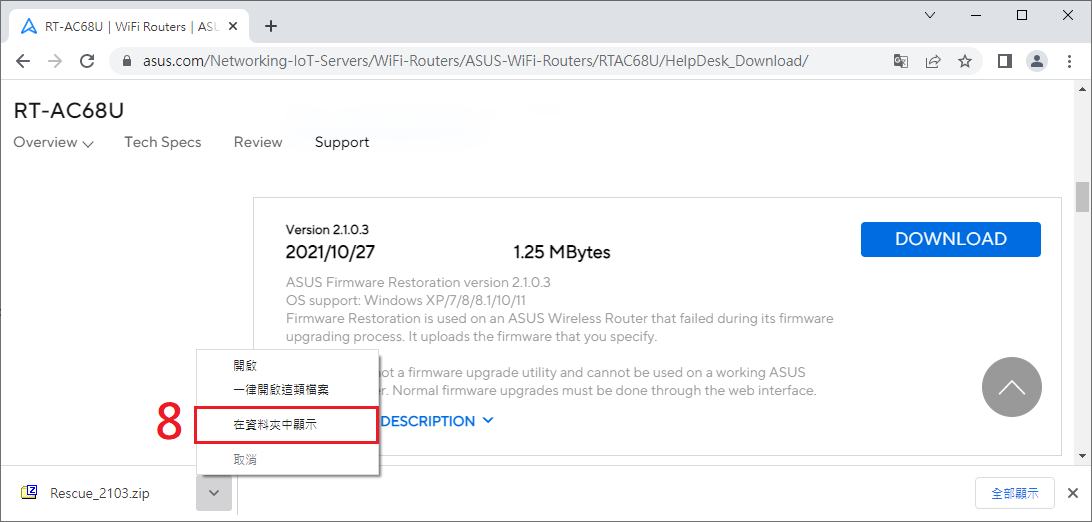
1-6 After the download process is complete, click the zip file.
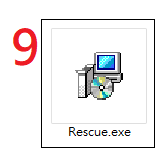
1-7 Click the Application: Rescue
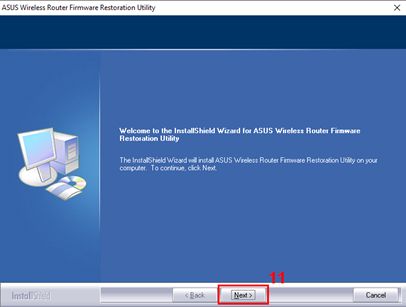
1-8 Choose the language and then follow the InstallSheild Wizard to complete the installation process.
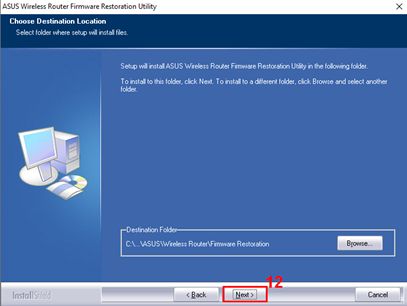
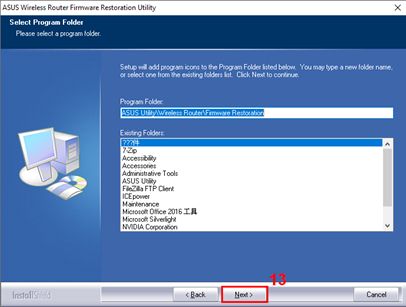
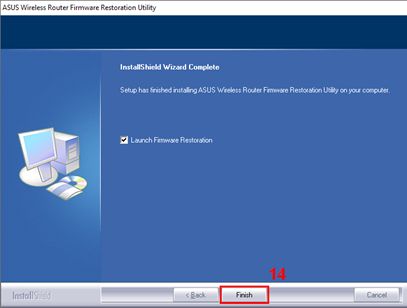
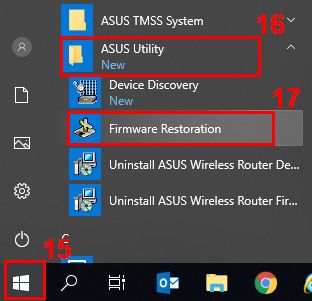
1-9 After the installation completes, you can find Firmware Restoration from [Start]> [Program] > [ASUS Utility].
2. Change Network adapter Settings
2-1 Use the network cable to connect your router with your computer.

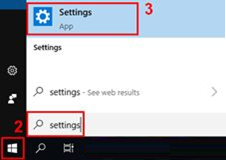
2-2 On your computer, click [Start] > [Settings].
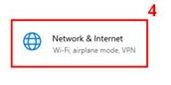
2-3 Click [Network & Internet].
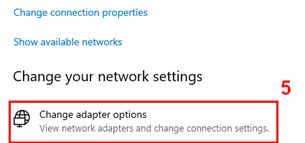
2-4 Click [Change adapter options].
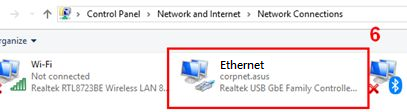
2-5 Choose your LAN.
2-6 Right-click on the [Properties].
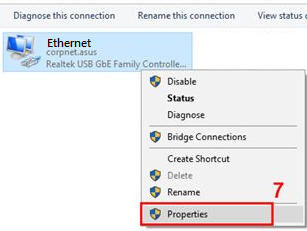
2-7 Click [Internet Protocol Version 4(TCP/IPv4) ] > [Properties].
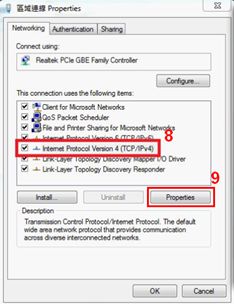
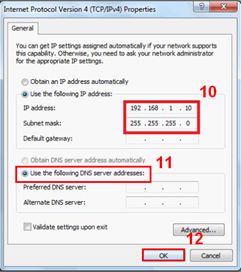
2-8 Change the properties as following:
IP address: 192.168.1.10
Subnet Mask: 255.255.255.0
Then click [OK]
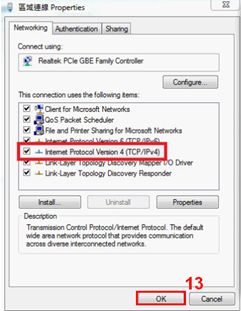
2-9 Finish the setting, then click [OK].
3. Set up the Router Rescue Mode
Different models might have slight differences. If you have any question, please check the user manual.
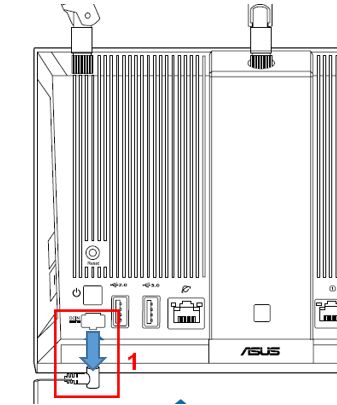
3-2 Press the Reset button.
Keep long pressing the Reset button and plug the cord to DC IN at the same time. Notice: Please DO NOT release the Reset button until the Rescue Mode is enabled.
Different models might have slight differences. If you have any question, please check the user manual.
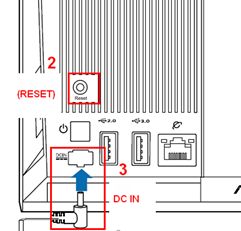
Note: The indicator lights may display differently on different models.
Method 1: Applicable models: GT-BE19000 AI, GT-BE96 AI, GT-BN96X, GT-BN98, GT-BN98 Pro
You’ll see the router’s [AURA LED] stay on (10 seconds) > go dim (3 seconds) > purple light stays on (20 seconds) > finally go off and enter recovery mode.
(The picture below is GT-BN98)

Method 2: This situation applies to models other than Method 1
When you see the router's [Power LED] start blinking, it enters rescue mode.
(The picture below is RT-AC68U)
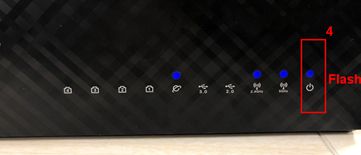
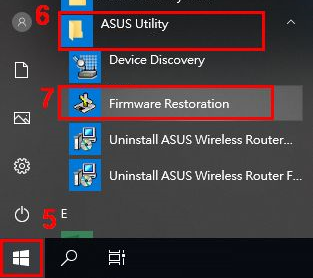
3-4 After the router enters rescue mode, run the Firmware Restoration on your computer. The computer path: [ Start] > [ASUS Utility] > [Firmware Restoration].
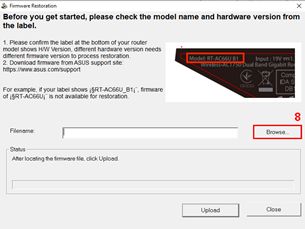
3-5 Click [Browse] on the Firmware Restoration, and choose the Firmware you downloaded previously.
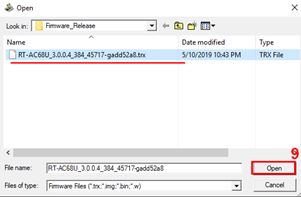
3-6 After choosing the file, click [Open].
3-7 Click [Upload].
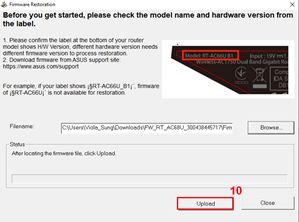
Notice: Before uploading the file, please make sure that you already turn your router to the Rescue Mode.
Otherwise you can't use Firmware Restoration to do the firmware update.
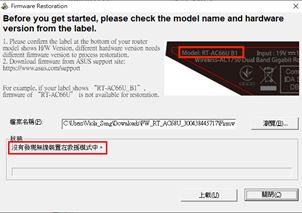
3-8 After you check your router is in the rescue mode.
Click [Upload] and then wait for around 1 min.
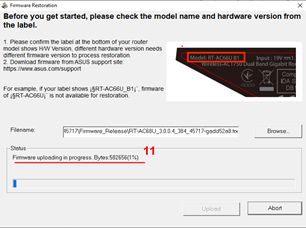
3-9 Steady power light indicates the setting procedure of Rescue Mode has been completed successfully.
Wait for the router to reboot and then click [Close].
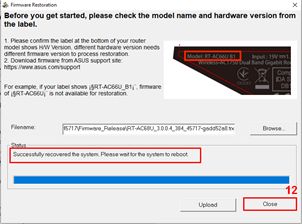
Notice: After the Rescue Mode setting completes, please restore the TCP/IPv4 to the original default settings.
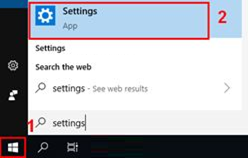
(1). On your computer, click [Start] > [Settings].
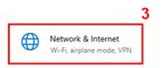
(2). Click [Network & Internet].
(3). Click [Change adapter options].
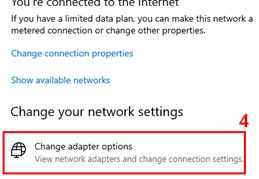
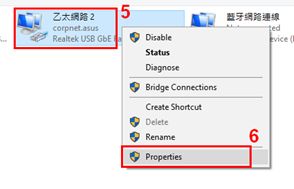
(4). Click your LAN > right-click [Properties].
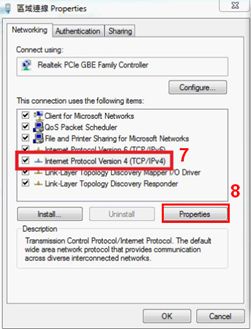
(5). Click [Internet Protocol Version 4(TCP/IPv4)] > [Properties].
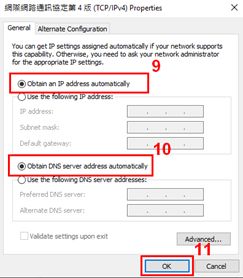
(6). Click [Obtain IP address automatically] & [Obtain DSN server address automatically] > Click [OK].
(7). After completing firmware update and adapter settings, you can enter ASUS router Web GUI( http://www.asusrouter.com ).
How to uninstall Firmware Restoration?
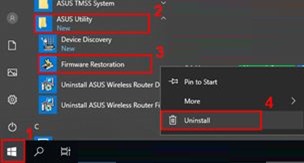
1. On your computer, click [Start] > [Apps] > [ASUS Utility] > [Firmware Restoration] > right-click [Uninstall].
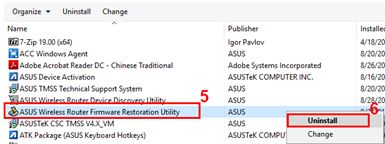
2. Choose ASUS Wireless Router Firmware Restoration Utility, then right-click [Uninstall].
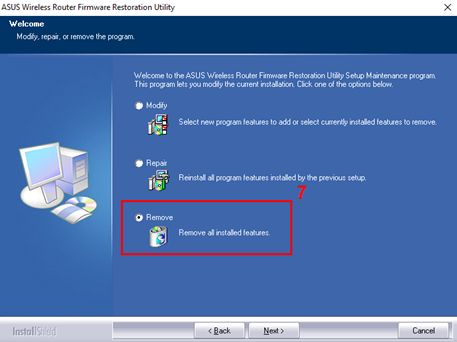
3. Choose [Remove all installed features]
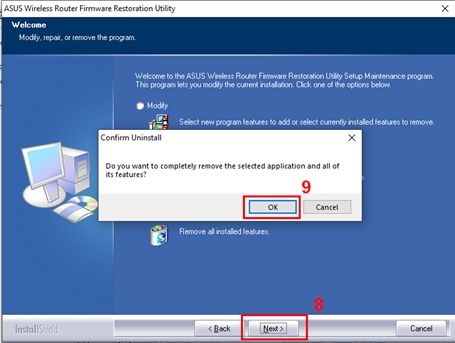
4. Click [Next] > [OK]
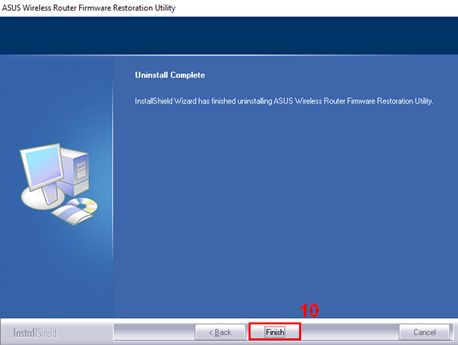
5. Click [Finish] to finish the uninstallation.
FAQ
1. When I use Firmware Restoration to upload the Firmware, it shows [The wireless router is not in rescue mode], what should I do?
(1) First, please make sure your TCP/IPv4 properties setting is set as the following:
- IP Address : 192.168.1.10
- Subnet Mask: 255.255.255.0
(2) Please try the setup steps from 3-1 to 3-3 step again.
2. When I use Firmware Restoration to update firmware but still fails, what should I do?
(1) Please make sure you've downloaded the correct router firmware, and check the router model and the corresponding firmware version.
(2) If your computer has multiple network cards, please disable the other ones first.
(3) Try to replace the network cable or move it to another LAN port on the router.
(4) Try turning off the Windows firewall.
(5) Please repeat the preceding steps to upload the firmware by using Firmware Restoration. If it still fails, please contact ASUS Customer Service Center.
3. Why can't I enter router setting pgae after successfully updating firmware by the Firmware Restoration?
First, please check whether your TCP/IPv4 setting properties is set as [Obtain IP address automatically] & [Obtain DSN server address automatically].
If the problem still occurs after completing the setting, we suggest you that push the RESET button.
If that doesn't work either, please follow the preceding steps to update firmware again by using Firmware Restoration in the Rescue mode.
How to get the (Utility / Firmware)?
You can download the latest drivers, software, firmware and user manuals in the ASUS Download Center
If you need more information about the ASUS Download Center, please refer this link.