Related Topics
[Wireless Router] How to set up ASUS wireless router to access WebGUI/Router App from WAN?
To provide you more detailed instruction, you can also click ASUS YouTube video link below to know more about How to access ASUS Router settings page from the Internet?
This feature allows you to configure the wireless router via the Internet.
Set [Web Access from WAN]/[Remote Connection] in ASUS router, you can remotely access the router settings page from the Internet. For example, if you are in a company, you can connect to the Internet through your device (e.g. mobile phone, computer, etc.) and access the router settings page in your home.
Note: To use this feature on your ASUS router, your router needs to have a public IP(WAN IP) from your ISP's internet service. This will allow devices on the internet to locate your ASUS router via a public IP(WAN IP). If you are not sure of your public IP type, please check your Internet Service Provider (ISP).
You can set up your ASUS router through the ASUS Router App or Web GUI.
How to set up Remote Connection?(ASUS Router App)
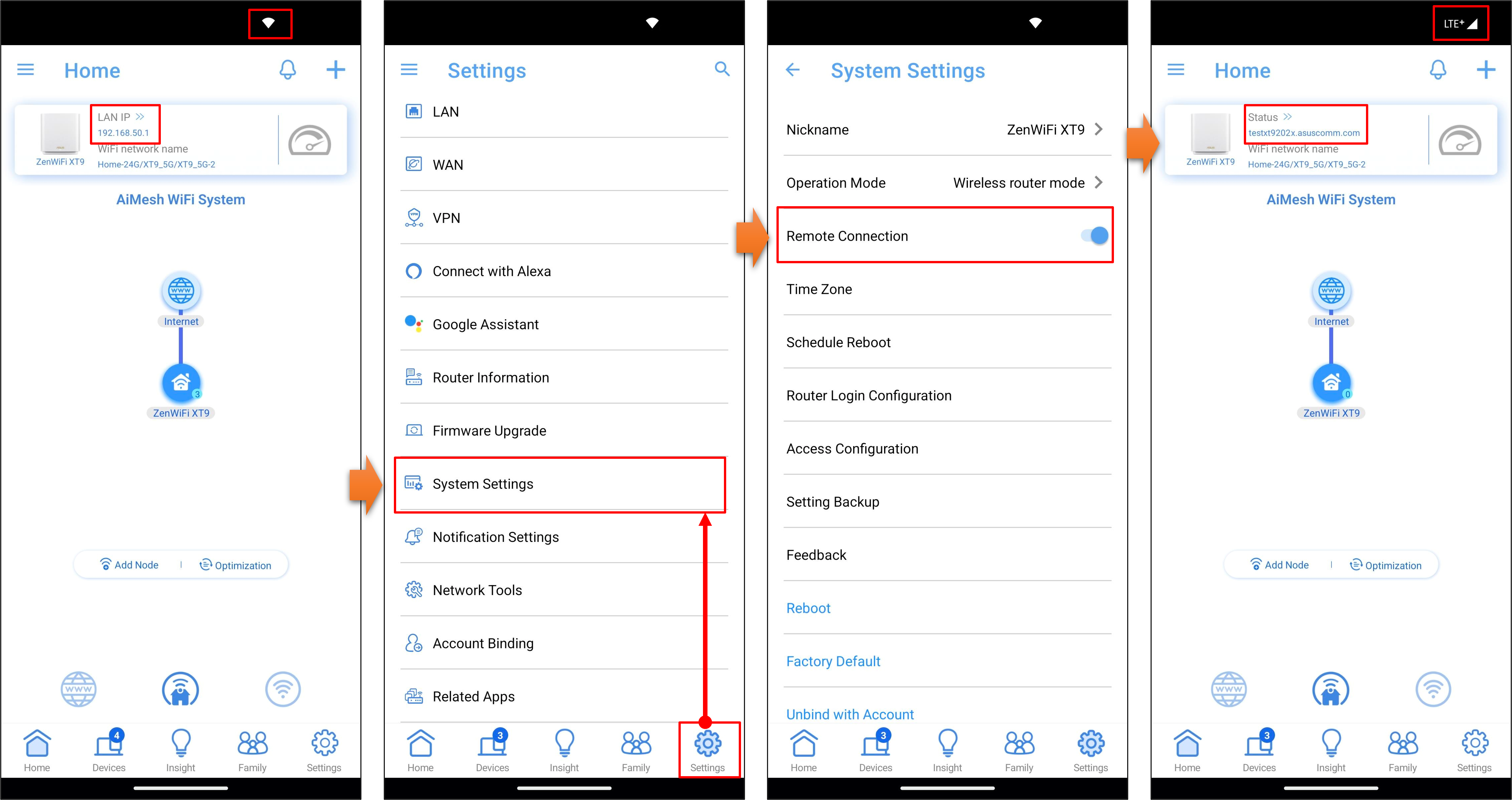
1. If your ASUS router is all set up, please connect your mobile device to the ASUS router's WiFi network and then open the ASUS Router App.
2. Before enabling the [Remote Connection] feature, you need to set up linking your social account and the DDNS feature first.
- [Wireless Router] How to bind trust account to my ASUS router?(ASUS router app)
- [Wireless Router] DDNS introduction and set up
3. After completing the above settings, go to [ Settings ] > [ System Settings ] >  Enable [ Remote Connection ].
4. Connect to other Wi-Fi or 4G/5G mobile network, go to [Home] and confirm that the connection is successful
Now you can use the ASUS router app to configure the settings of your ASUS Wireless Router.
For information about the ASUS router app, please check out the FAQ below
How to set up Remote Connection?(WebGUI)
Note: Before enabling the Remote Connection feature, it's recommended to set up the DDNS function first. If you've already set up DDNS in the ASUS Router App, there's no need to set it again in the Web GUI.
A. Enable remote connection
Step 1. Connect your computer to the router via wired or WiFi connection and enter your router LAN IP or router URL http://www.asusrouter.com to the WEB GUI.
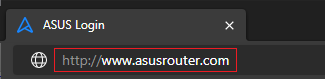
Note: Please refer to How to enter the router setting page(Web GUI) to learn more.
Step 2. Key in your router's username and password to log in.
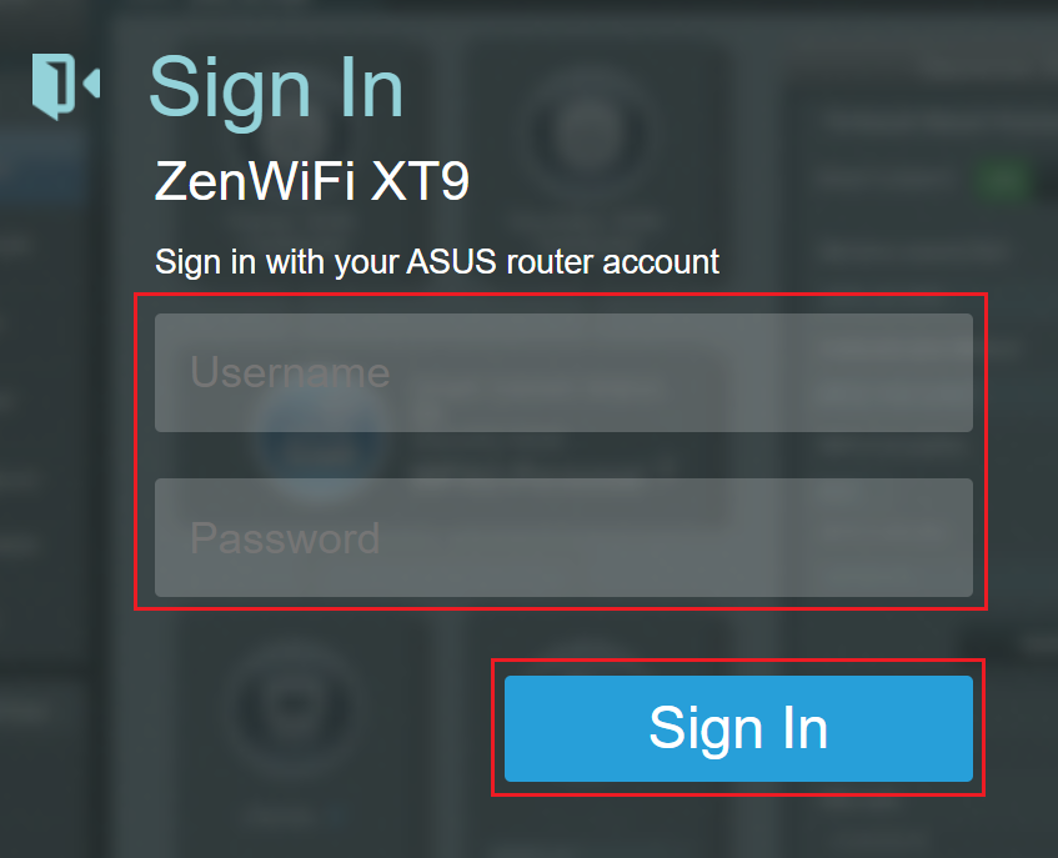
Note: If you forget the user name and/or password, please restore the router to the factory default status.
Please refer to [Wireless Router] How to reset the router to factory default setting? to learn more.
Step 3. Go to [ Administration ] >[ System ] > [ Remote Access Config ].

Step 4. Remote Access Settings
(1) Select [ Yes ] of [Enable Web Access from WAN]. Only HTTPS is supported when accessing the WebGUI.
(2) Use the default setting [8443] of [HTTPS Port of Web Access from WAN]. To specify the port used to config ASUS wireless router from the Internet (1024:65535)
(3) After completing the configuration, click [Apply] to save.

B. Quickly check DDNS name and WAN IP
Step 1. Go to the router login page, enter your ASUS router username and password, then click [Login].
Step 2. On the Network Map page, you can see [DDNS] and [WAN IP].

C. Access the router's web GUI from the Internet
Step 1. Connect your device (like a computer) to an external network (like another router or a hotspot shared from your phone).
Step 2. Open your browser and type https://WAN IP:8443 or https://DDNS name:8443 in the address bar to go to the router login page.
Note: When accessing the ASUS router settings page (Web GUI) from the remote internet, remember to manually type https:// at the beginning of the browser's address bar and add the port at the end. The system uses port 8443 by default.
The default port for HTTPS is 8443. If you changed the port number, please use the one you set.
- DDNS example : https://gxt92025test.asuscomm.com:8443
- WAN IP example : https://36.230.85.147:8443
The example below shows how to use DDNS:
(1) Type the DDNS you found on the Network Map into your browser, like https://gxt92025test.asuscomm.com:8443, and you'll be able to see the router login page.
(2) Key in your router's username and password to log in.

FAQ
1. Does ASUS Router’s web GUI access supported from WAN over IPv6?
No, it doesn’t. Currently only IPv4 is supported.
2. Why does the following warning message appear, indicating that the security certificate of the URL is not trusted, when connecting to the router's configuration page (WEB GUI) via an https URL from an external network?
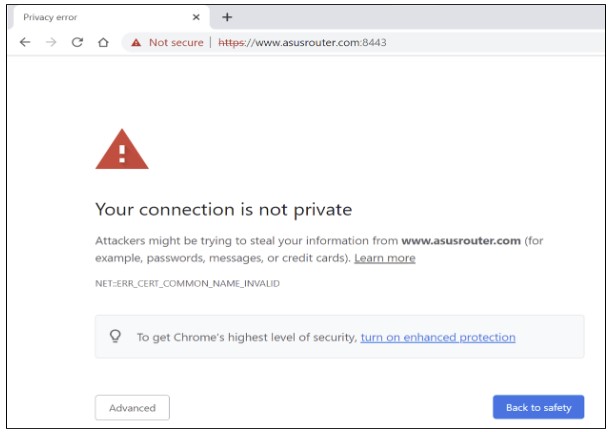
This is because the router’s default certificate is self-signed, which does not comply with the browser’s default SSL policy.
You can use the built-in feature of the ASUS router to download the certificate and update it in your browser to prevent the warning message from appearing again.
For detailed steps, please refer to: [Troubleshooting] How to fix opening ASUS Router WEB GUI appears “Your connection is not private”
3. Can the router use the private IP to set up the remote connection function?
Please note that if the router is using a private WAN IP address (such as connected behind another router/switch/modem with built-in router/Wi-Fi feature), could potentially place the router under a multi-layer NAT network. This feature will not function properly under such environment.
Private IPv4 network ranges:
Class A: 10.0.0.0 – 10.255.255.255
Class B: 172.16.0.0 – 172.31.255.255
Class C: 192.168.0.0 – 192.168.255.255
CGNAT IP network ranges:
The allocated address block is 100.64.0.0/10, i.e. IP addresses from 100.64.0.0 to 100.127.255.255.
4. If you login to the ASUS router Web GUI using computer and then shut down the computer or close the browser without logging out, will you be unable to login to the same router Web GUI?
After logging into the ASUS router Web GUI from your device (e.g., computer), if you shut down the computer or close the browser without logging out, you will need to wait three minutes before you can log into the router again from another computer.
For other ways to log in to your router, please refer to the following FAQ
How to get the (Utility / Firmware)?
You can download the latest drivers, software, firmware and user manuals in the ASUS Download Center.
If you need more information about the ASUS Download Center, please refer this link.