MuseTree introduction
- System required
- Homepage
- Idea Map
- Idea Canvas
- Inspiration Management Library
- Idea Editor
- Style Mixer
- Settings
- Feedback Hub
- Q&A
MuseTree is an AI-powered image-generation app that empowers your inspiration. It revolutionizes how you create and manage images and idea visuals using AI, helping you find endless new ideas effortlessly, even when you’re offline and on the go. We’ve combined the power of AI with an easy-to-use visual interface that helps you quickly generate images, even from your own hand-drawn sketches.
| MINIMUM | RECOMMENDED | |
|---|---|---|
| OS | Windows 10 | Windows 10 |
| GPU | NVIDIA® GeForce RTX™ 4050 | NVIDIA® GeForce RTX™ 5070 |
| VRAM | 6 GB | 8 GB |
| DRAM | 24 GB | 32 GB |
| DirectX | Version 12.0 | Version 12.0 |
| Storage | 12 GB available space | 12 GB available space |
| Driver | NVIDIA Driver 576.52 or later | NVIDIA Driver 576.52 or later |
※ MuseTree is currently pre-installed on the ProArt P16/PX13 and can also be installed on ASUS laptops equipped with ASUS GeForce RTX 50 or RTX 40 series graphics cards. >> Download Here <<
※ MuseTree is compatible with desktop computers equipped with ASUS GeForce RTX 50 or RTX 40 series graphics cards.
※ MuseTree is currently unavailable in China.
You can create the first file on this page, where you can enter any text or description①,and click "Create"②。
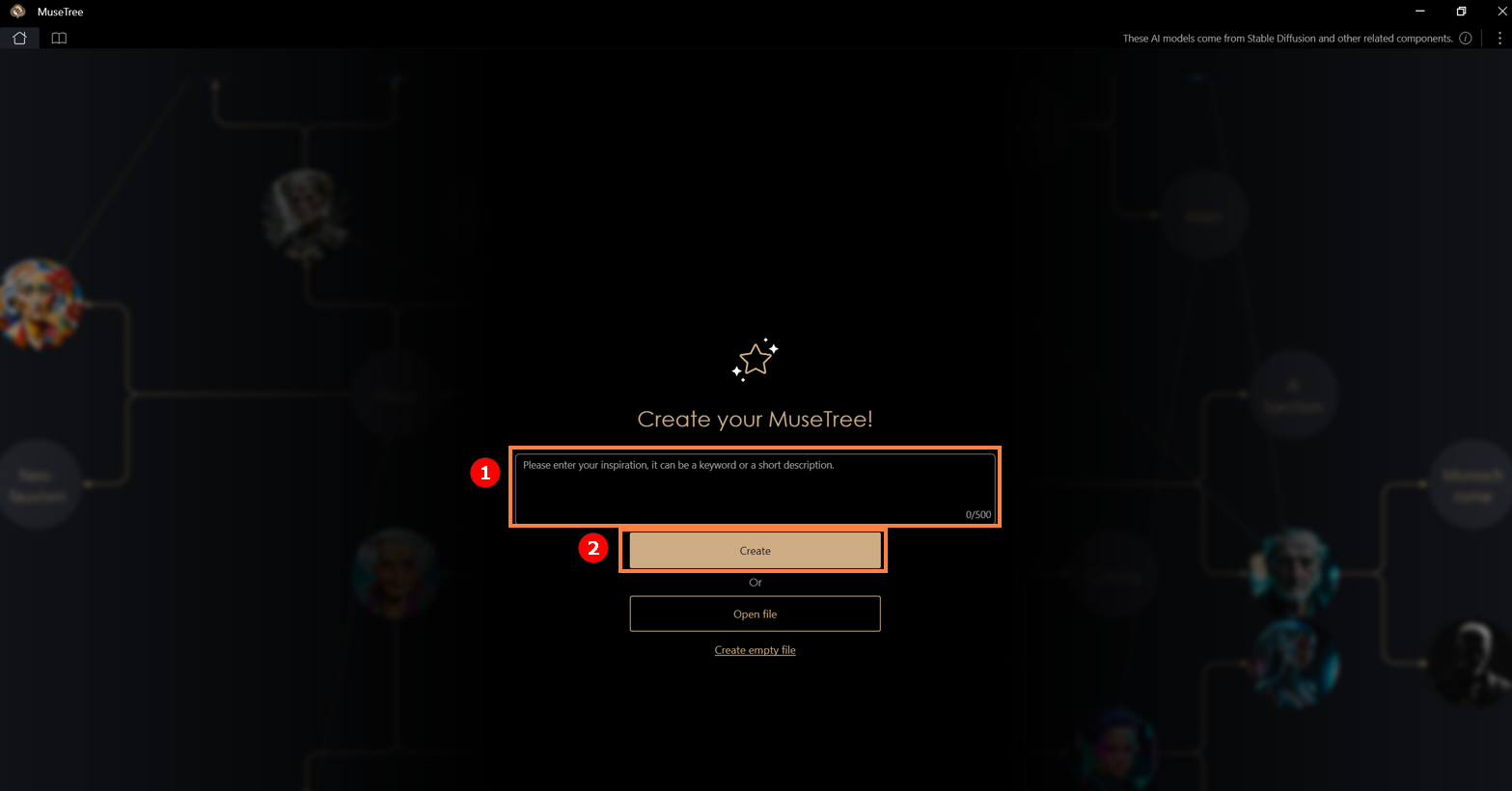
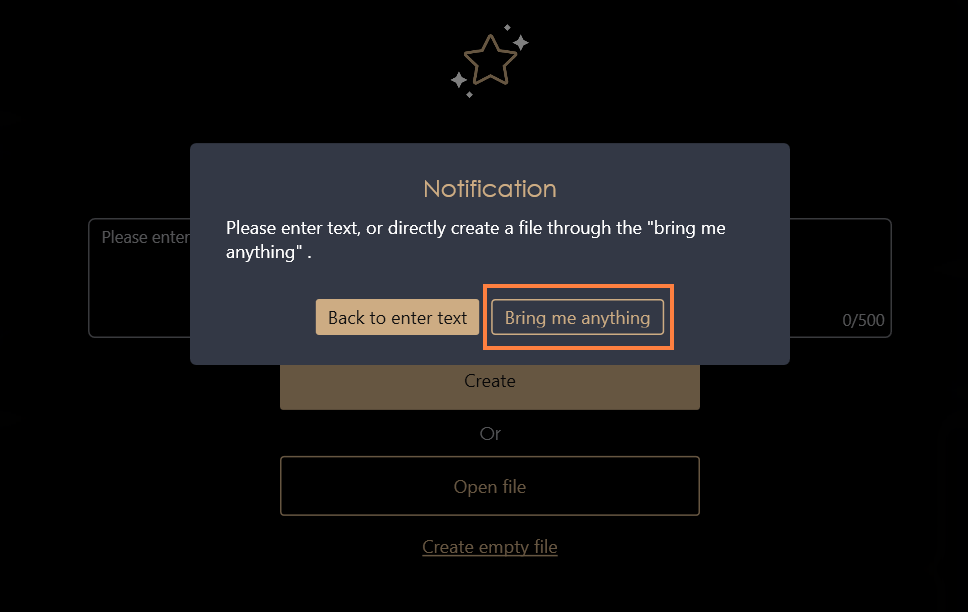
If you don't have any ideas yet, you can simply click “Create” or choose “Bring me anything” to generate random file content, or directly click "Create empty file".
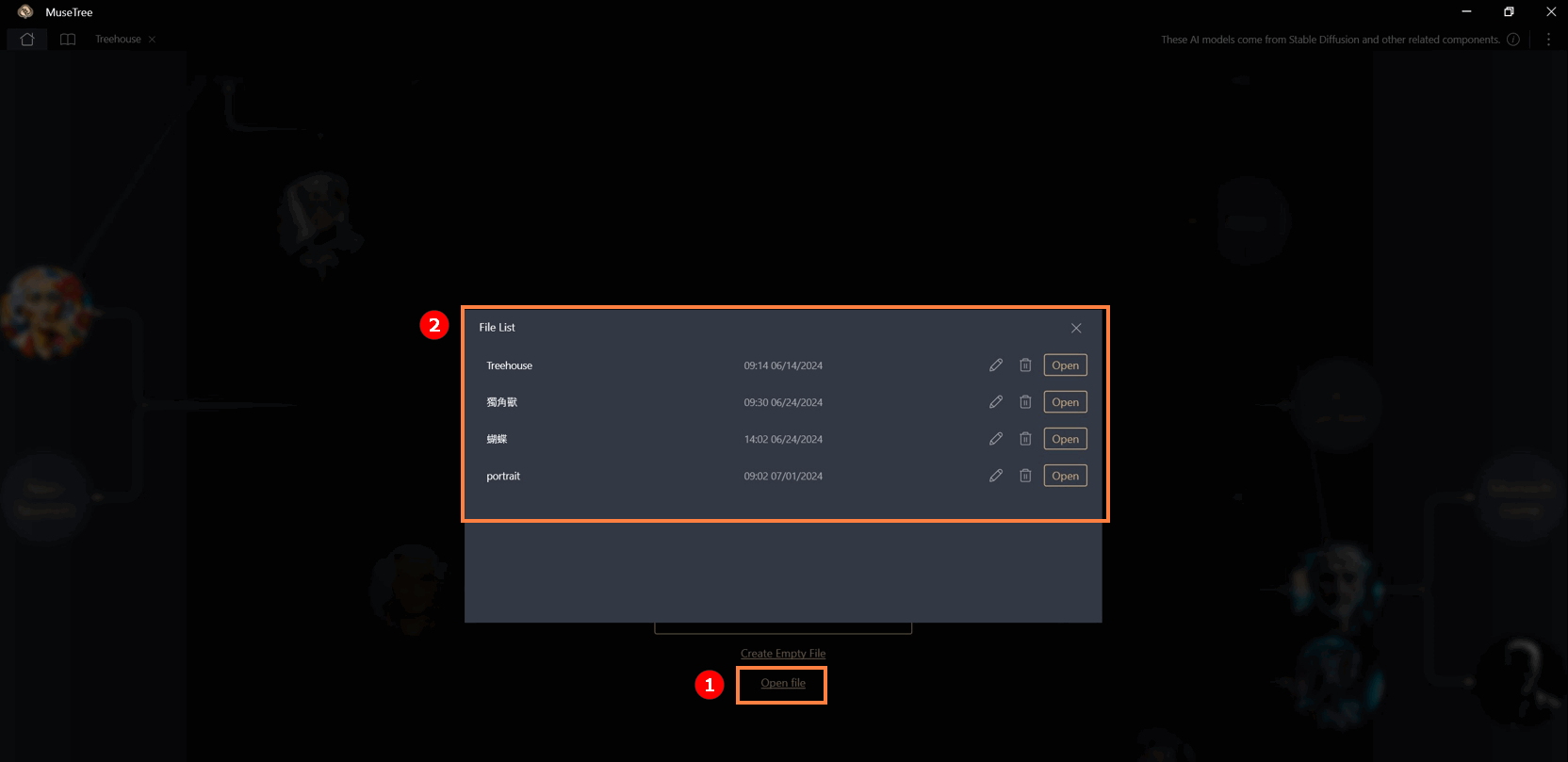
Clicking “Open file” allows you to see the contents of previously created files. You can rename, open, or delete them. When a file is deleted, all the content stored in it will also be removed.
This page is divided into three sections: the Collision Area①, the Search Area②, and the Storage Area③.
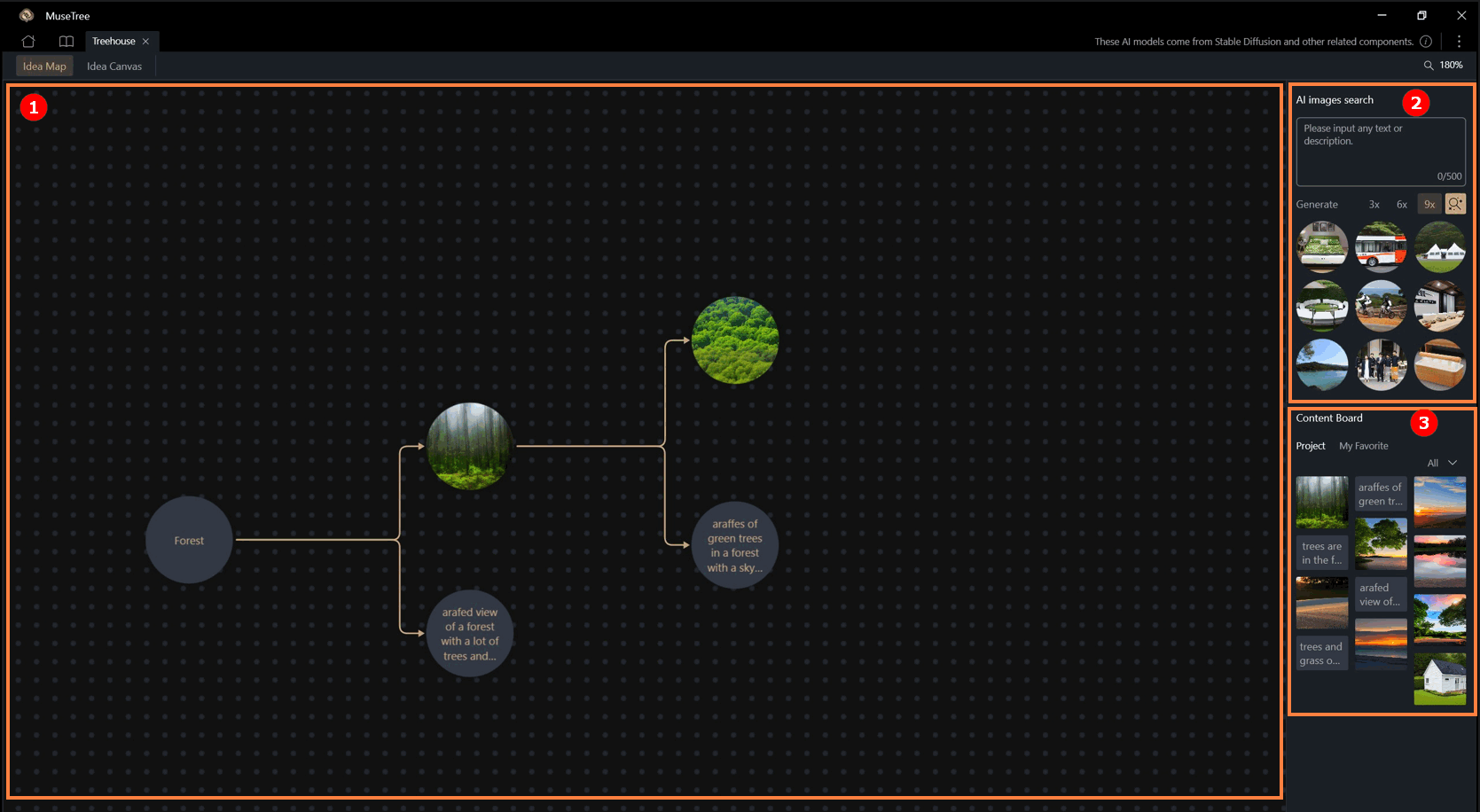
1. Collision Area
Users can freely drag any inspiration ball on the screen and collide it with other inspiration balls, without restrictions on text or images.
-By right-clicking on an inspiration ball, users can "lock," "copy," "delete," "upscale," and "save" it. Saving includes: "Save to Content Board" and "Save as...".
-"Upscale" increases the image size from 512x512 to 1024x1024.
2. Search Area (AI Images Search)
Users can search for AI content by entering keywords or descriptive sentences. The found inspiration balls can also be dragged to the center of the screen for collisions.
3. Storage Area (Content Board)
Users can save any text or image seen on the screen by right-clicking to bring up the function list and selecting [Save to "Content Board"]. The content will be saved into "Project".
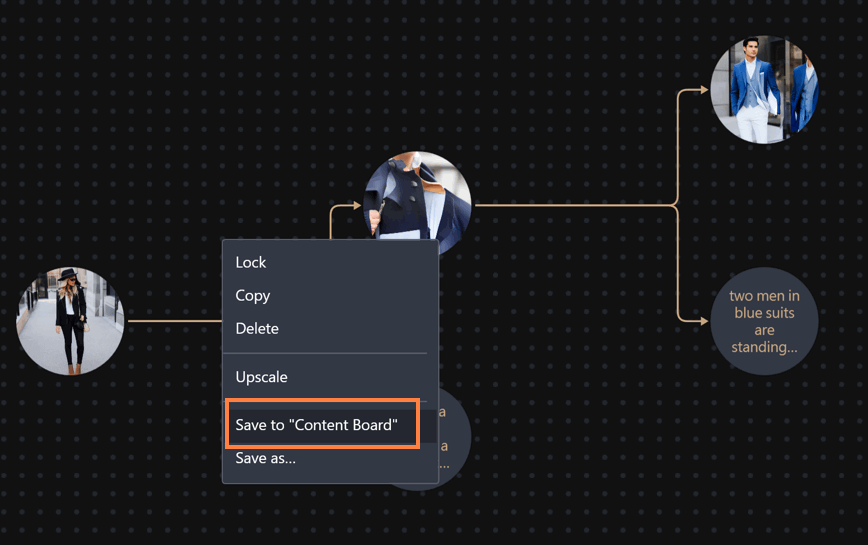
After right-clicking on the content in the "Project" section of the "Content Board" to bring up the function list, select [Save to "My Favorite"], and the content will be saved to [My Favorite].

※"Project" are only stored within that specific project and cannot be seen or used by other projects. "My Favorite" exist across projects and can be used in other projects.
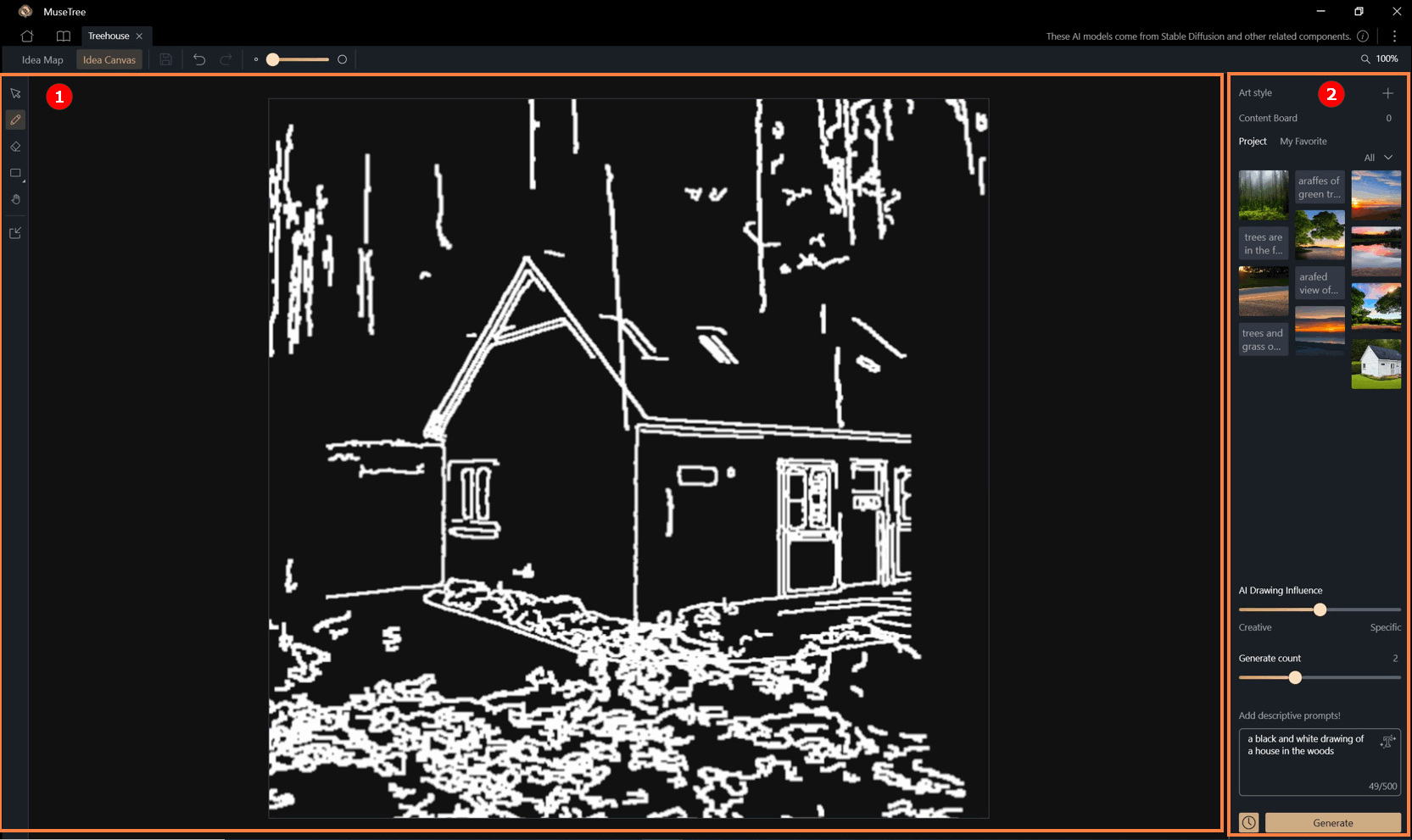
This page is divided into two areas: the Draft Drawing Area① and the Advanced Settings Area②.
1. Draft Drawing Area: Users can draft in this area using the toolbar on the left, which includes tools like brushes, erasers, and geometric shapes.
Images can also be imported directly, converted into draft form, and recreated.
2. Advanced Settings Area: This area includes "Art Style," "Content Board," "Creativity (AI Drawing Influence)," "Generate Count" and "Generation Description."
These parameters, combined with the draft content, can be used to generate AI creations by clicking "Generate."
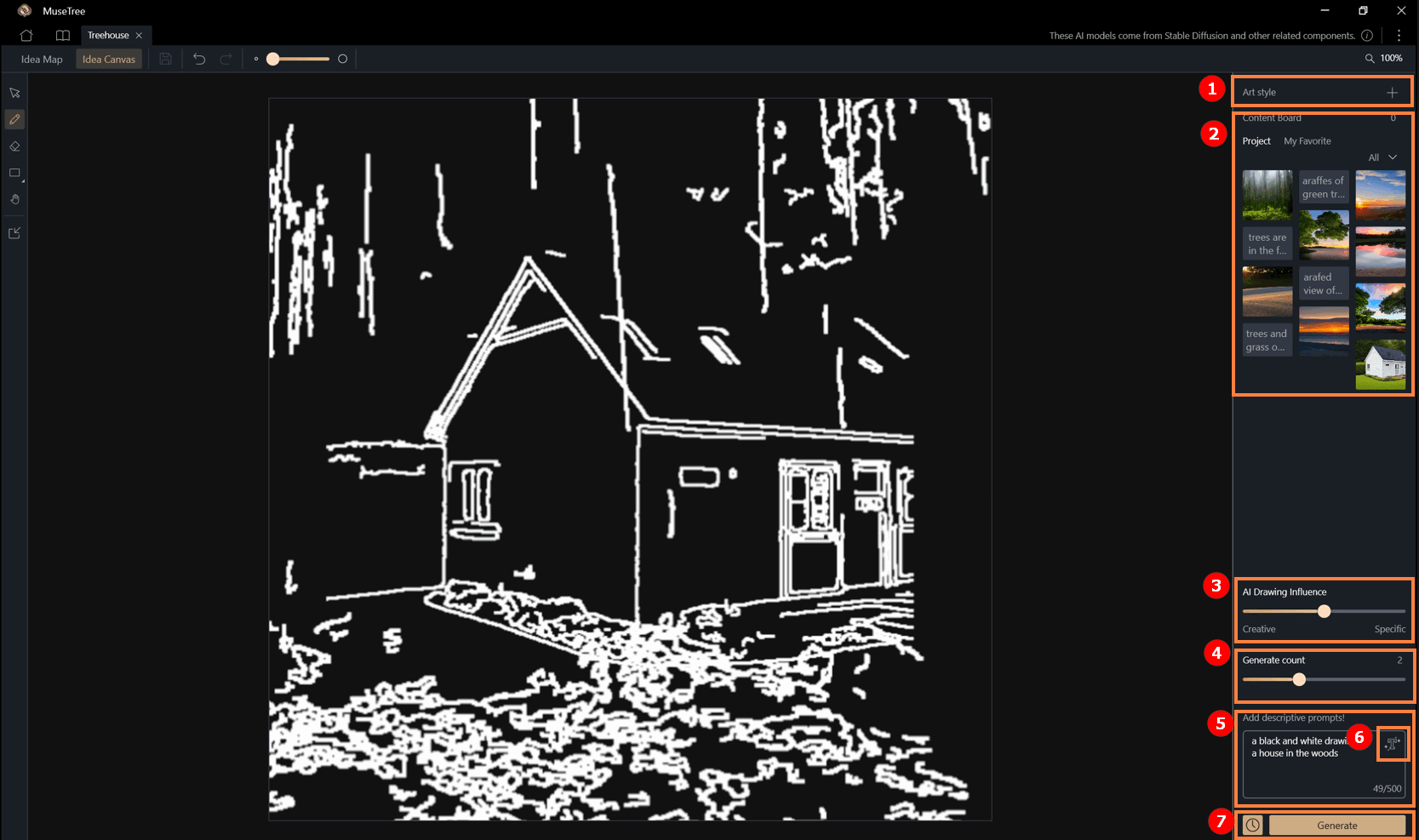
① Art Style: MuseTree provides preset styles for users to apply, enhancing design richness.
② Content Board: Images and texts stored in the content board can be clicked and used as one of the generation parameters.
This content board is the same as the one in the Idea Map.
③ Creativity (AI Drawing Influence): This feature affects the creativity of the generated results.
The closer to "Specific" the closer the result will be to the draft lines; selecting "Creative" will incorporate more AI imagination.
④ Generate Count: The number of generations can be selected for this round.
⑤ Generation Description (mandatory): This feature is mandatory. Users can describe in words the desired result to be generated.
The "AI Text Generation"⑥ function can also assist in generating descriptive text.
⑦ Generate Button and History: Clicking the "Generate" button will combine the advanced settings with the draft to generate AI content.
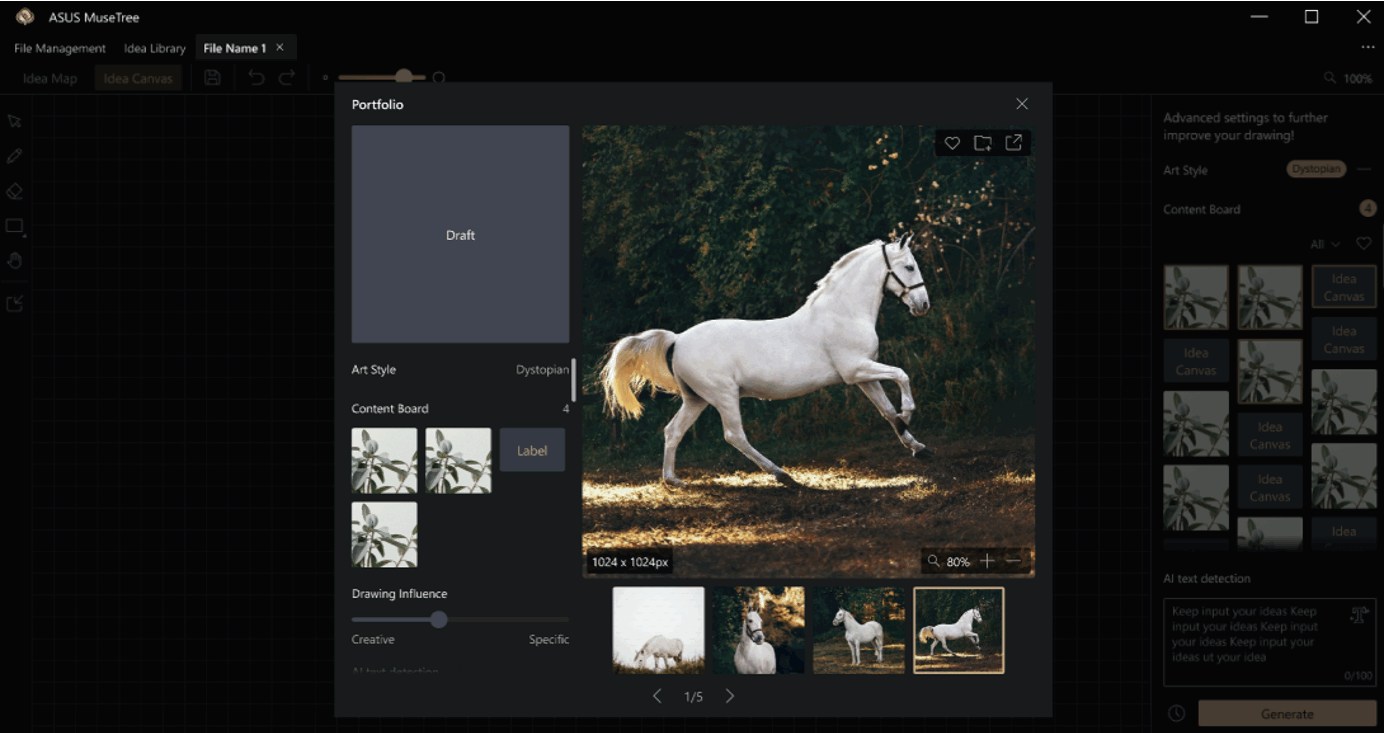
-The generated images can also be "saved to files," "saved to My Favorite," or saved to the computer.
The [History] button  can be clicked to view past generated content.
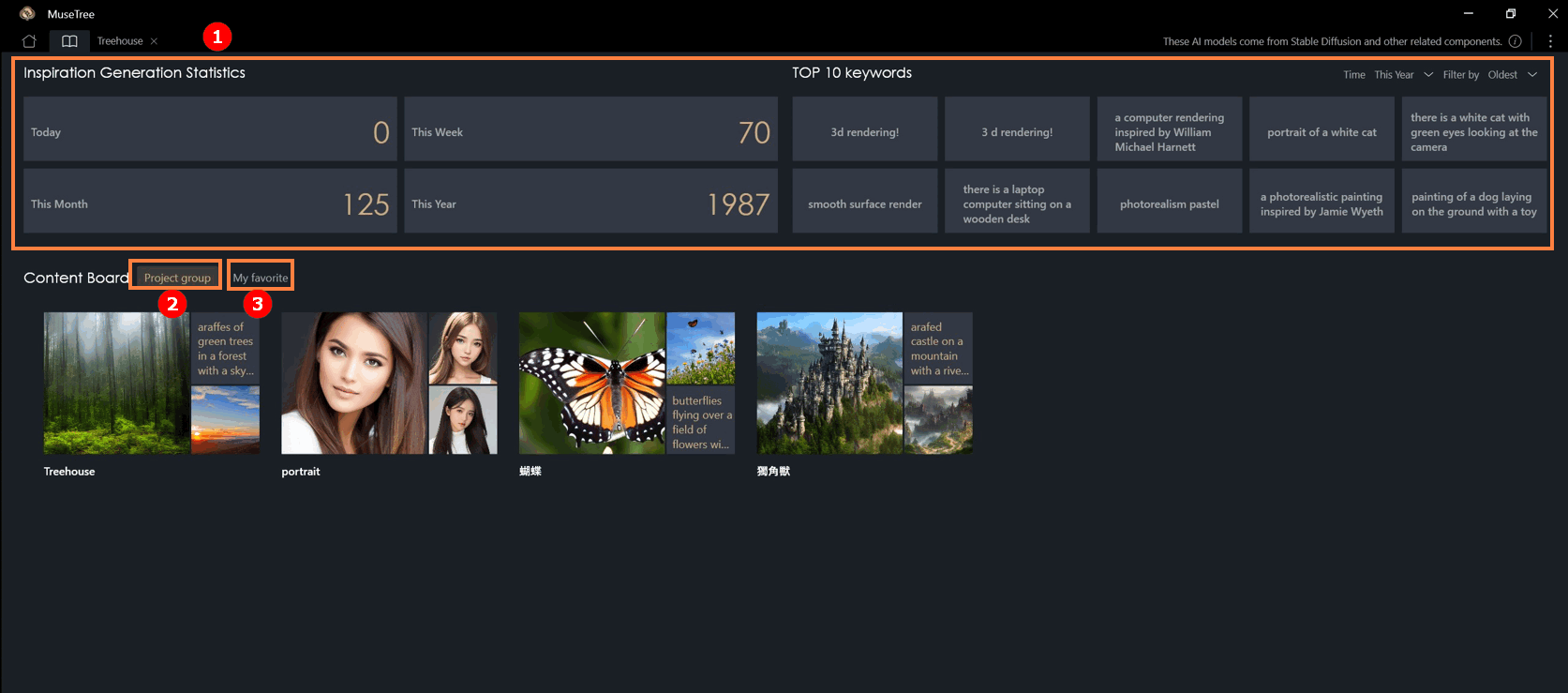
Inspiration Management Library
①This page shows the number of inspirations generated and the top ten keyword rankings.
②In "Content Board" > "Project Group," you can see the galleries created for each file. You can also view them all at once here, including text and images saved by users.
③"Content Board" > "My favorite" is a cross-file storage area where users can reuse content from "My favorite" in any created file.
(1) In the Inspiration Editor page, users can:
①Upload their own images or choose existing materials from the content library for editing.

②Use various selection tools to highlight specific areas and apply creative inpainting modes to modify or extend the image.

(2) After entering the editor, start by selecting the ③[selection tools]on the left panel to define your editing area.
Available tools include:
- Lasso: Freely outline any shape.
- Rectangle: Quickly select square or rectangular regions.
- Magic Pen: Automatically detects and selects similar regions.
Users can freely switch between tools and use the add/subtract area function for more precise selections.

(3) Once the area is selected, users can choose from ④[three inpainting modes] based on their needs:
- Blank Fill – After moving an object, automatically generate content to fill the empty space.
- Full Fill – Directly regenerate the selected area, ideal for small object removal or touch-ups.
- Advanced Fill – Combine text prompts (Prompts) with the selected area to generate specific content as instructed.

(4) Each generation produces ⑤[three output images]. Users can check their preferred results and click “Save” to store them in the History panel on the right, making it easy to review and compare past results anytime. 
(5) To expand or reduce the canvas size, go to the ⑥[Work space] section on the left panel. Any newly ⑦[added blank areas] can also be selected and edited again using the selection tools — allowing for continuous creative exploration. 
(1) The Style Mixer allows users to import an image as a reference for generation, capturing key visual elements such as objects, colors, and overall atmosphere.
After ①[uploading an image], you can ②[name your mixed style] and enter a text prompt to ③[preview the result]. Once the preview meets your expectations, click on the ④[Create New] to add the style to the ⑤[My Style Mixes] on the right panel. 
(2) The mixed styles you create can also be applied to the ⑥[Idea Canvas], serving as stylistic reference elements during generation — helping your creations maintain a consistent tone and personal style.

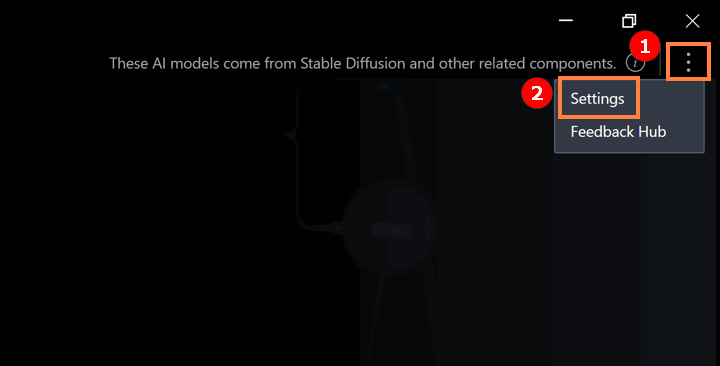
① Click the icon as shown below ② Click "Settings".
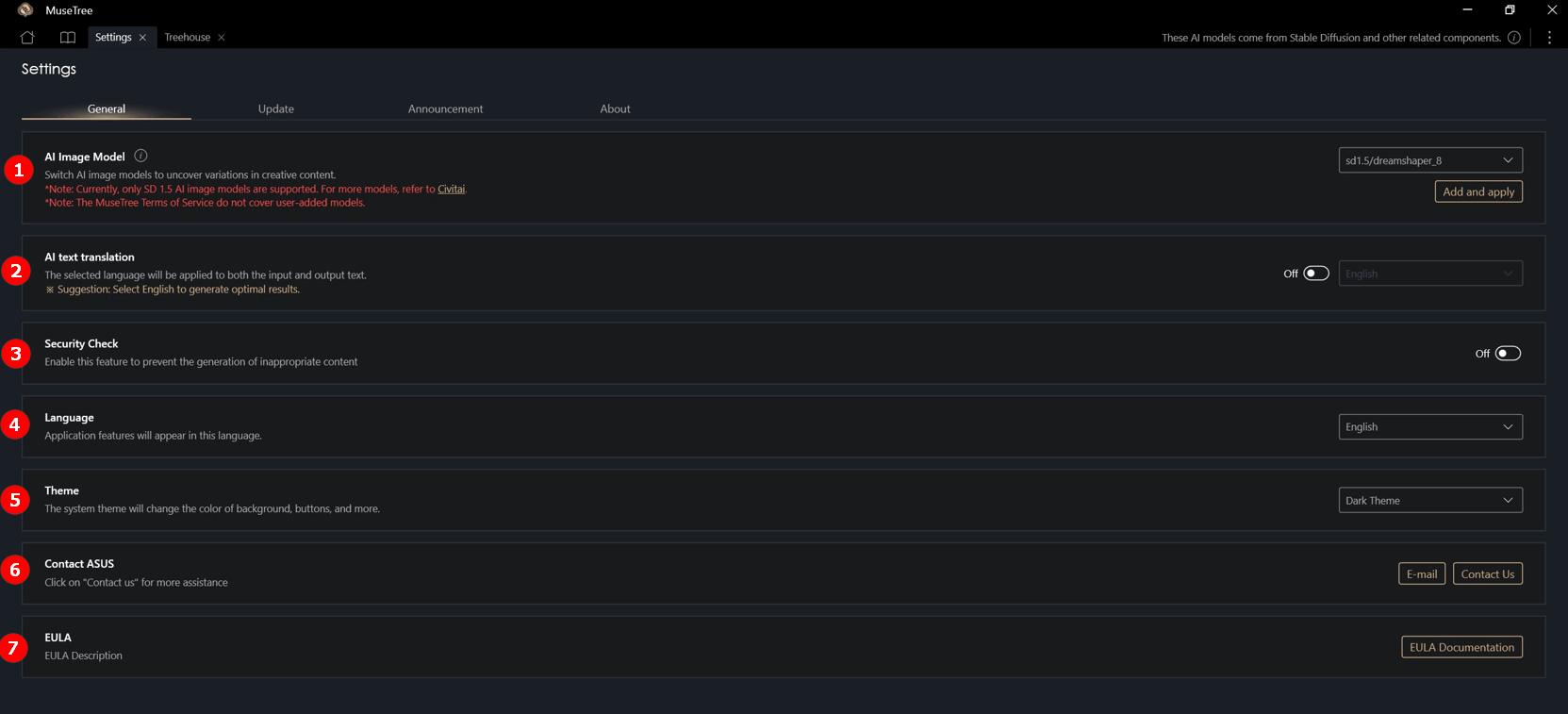
①AI Image Model: Users can download AI models compatible with the software and add them to the software to experience different model generation behaviors.
※Currently, only SD 1.5 AI image models with the .safetensors extension are supported.For more models, refer to: CinitAI.
②AI Text Translation: The software's default input and output display language is English. After enabling this feature, users can change the input and output language.
③ Security Check: Enable this feature to prevent the generation of inappropriate content.
④ System Language: Application features will appear in this language.
⑤ System Theme: The software theme can be switched.
⑥ Contact ASUS: For any issues, click here to contact ASUS.
⑦ EULA: View the End User License Agreement.
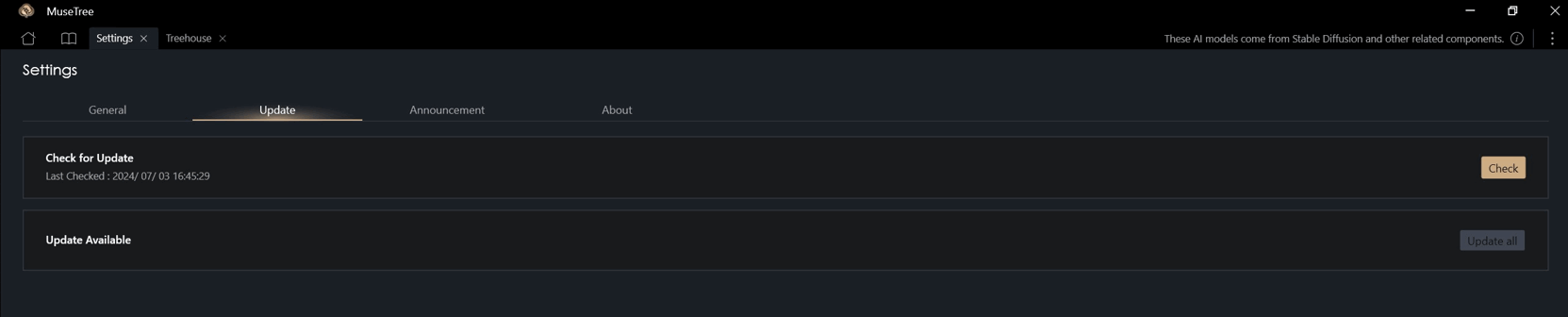
Update: You can update MuseTree version here.
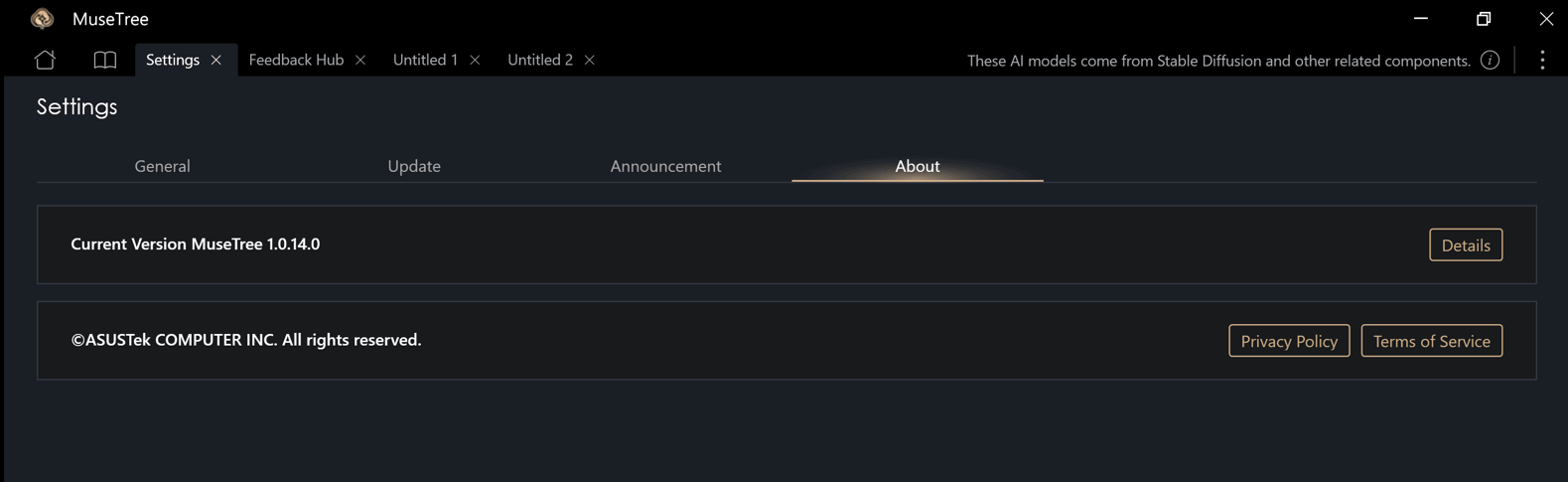
About: Here you can view the MuseTree version, privacy policy, and terms of service.
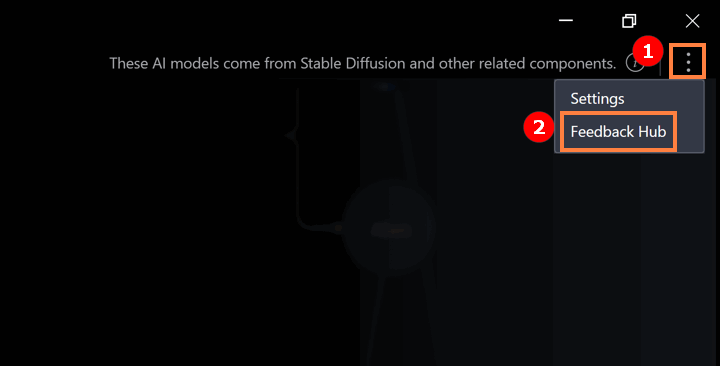
① Click the icon as shown below ② Click "Feedback Hub".
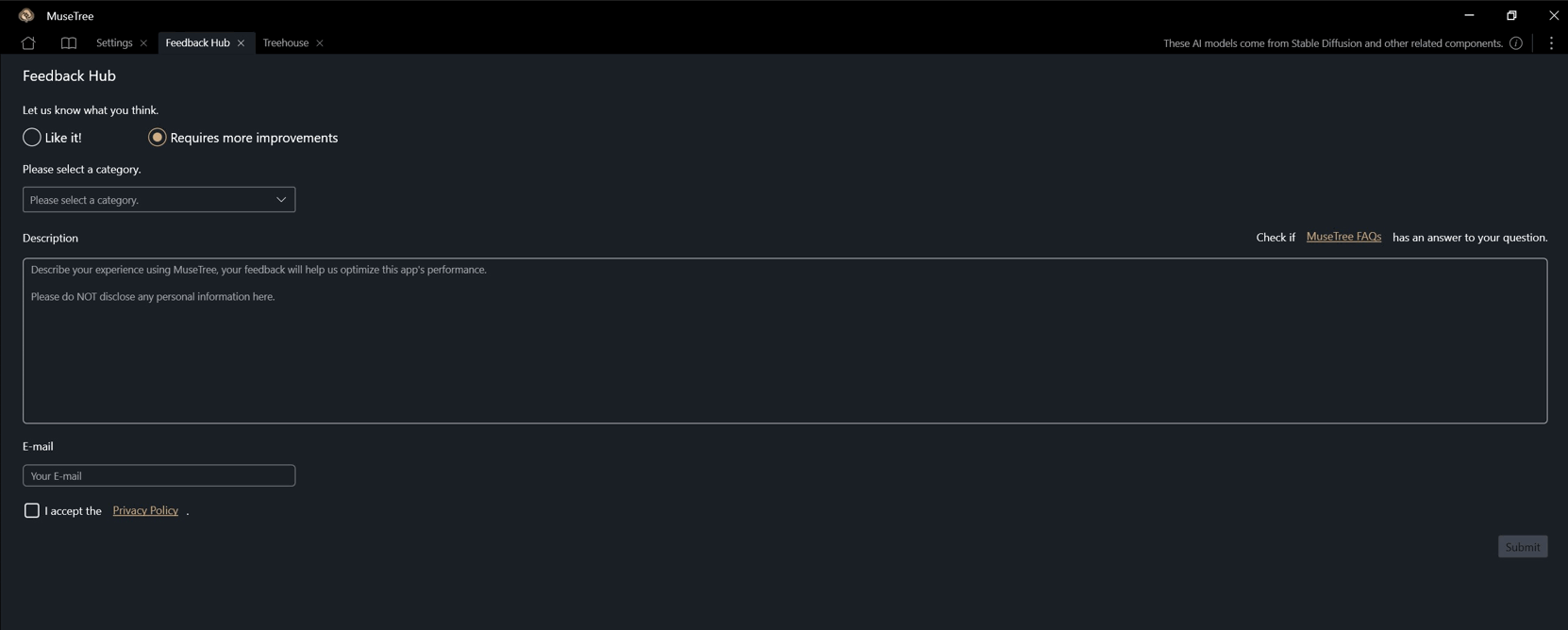
You can provide your feedback as follows.
Question 1 : How to download AI image model?
Answer 1 : As long as the model has a .safetensors file extension and is compatible with SD 1.5, it can be added to MuseTree for switching and use. You can obtain models from CinitAI or choose a model that meets the criteria according to your preference.
Question 2 : How to enlarge the font of MuseTree?
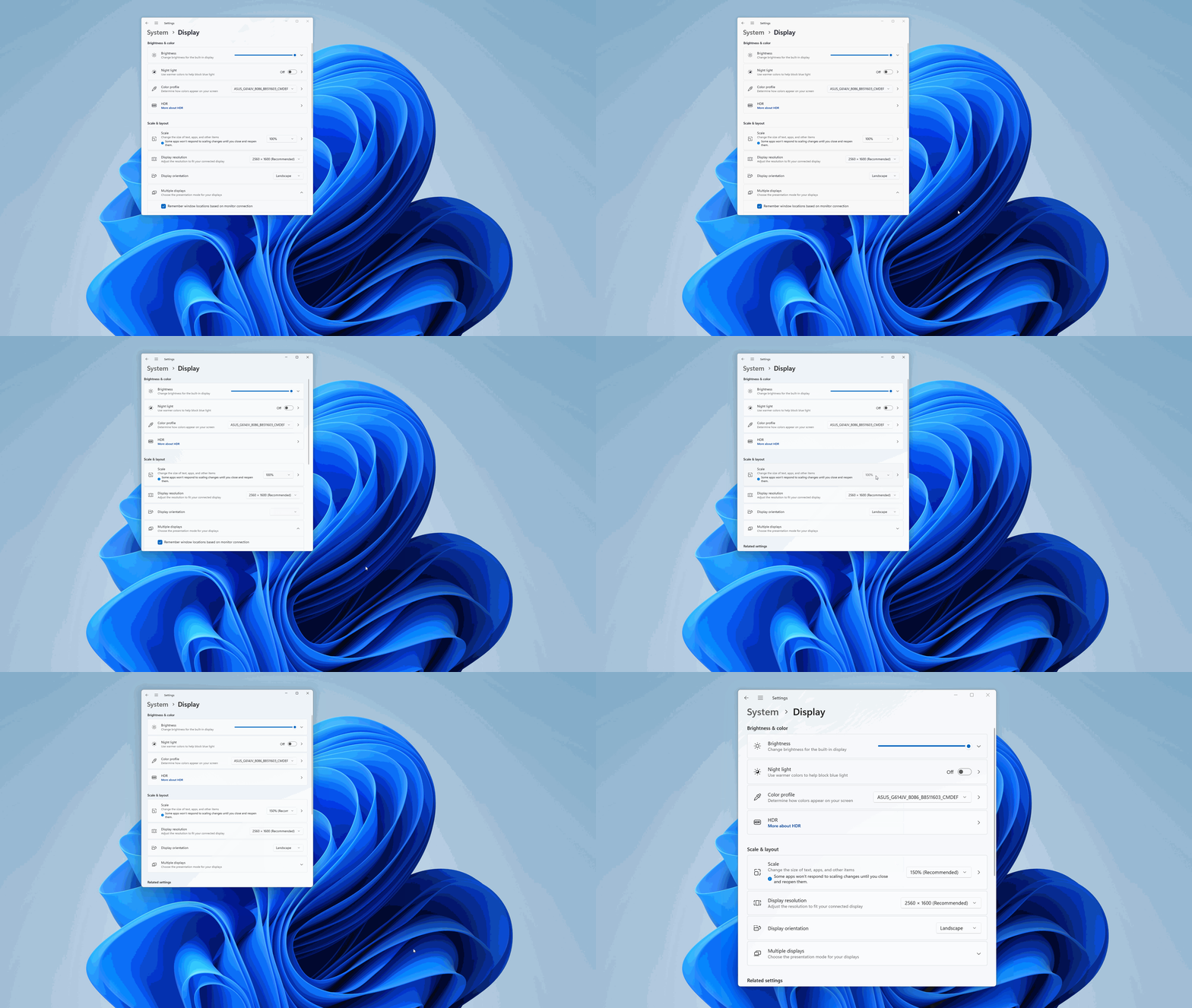
Answer 2 : Right-click the computer desktop, left-click [Display settings], and select the size you want in Scale & Layout.