المواضيع ذات الصلة
[Windows 11/10] Change Lock Screen
The lock screen includes the sign-in screen. You can change the lock screen background image and choose a combination of detailed and quick status notifications to preview upcoming calendar events, social updates, and other app and system alerts.
If you need to step away from your device briefly, press the Windows logo key + L key to lock it instantly.
Please refer to the corresponding instruction based on the current Windows operating system on your device:
Windows 11 operating system
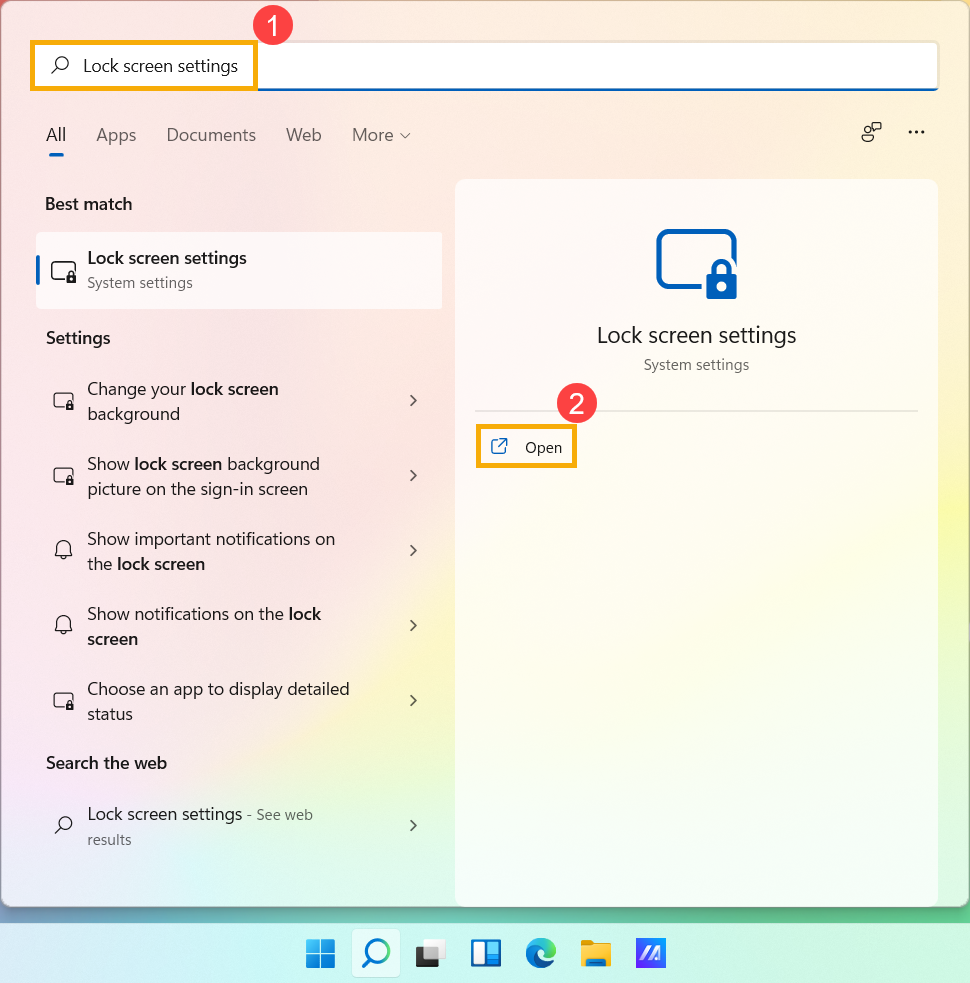
- Type and search [Lock screen settings] in the Windows search bar①, and then click [Open]②.
- In Lock screen, you can select the background as Windows spotlight, Picture, or create a Slideshow of pictures③.
If you choose the Windows spotlight, it will daily update with images from all over the world and auto-show up on your Lock Screen.
- If you would like the sign-in screen is same with the lock screen, please set [Show lock screen background picture on the sign-in screen] to On④. Otherwise, the sign-in screen will display a plain background.
In the Widgets section, you can choose which apps display detailed status information in the background, or which widgets appear as quick status indicators⑤.
Windows 10 operating system
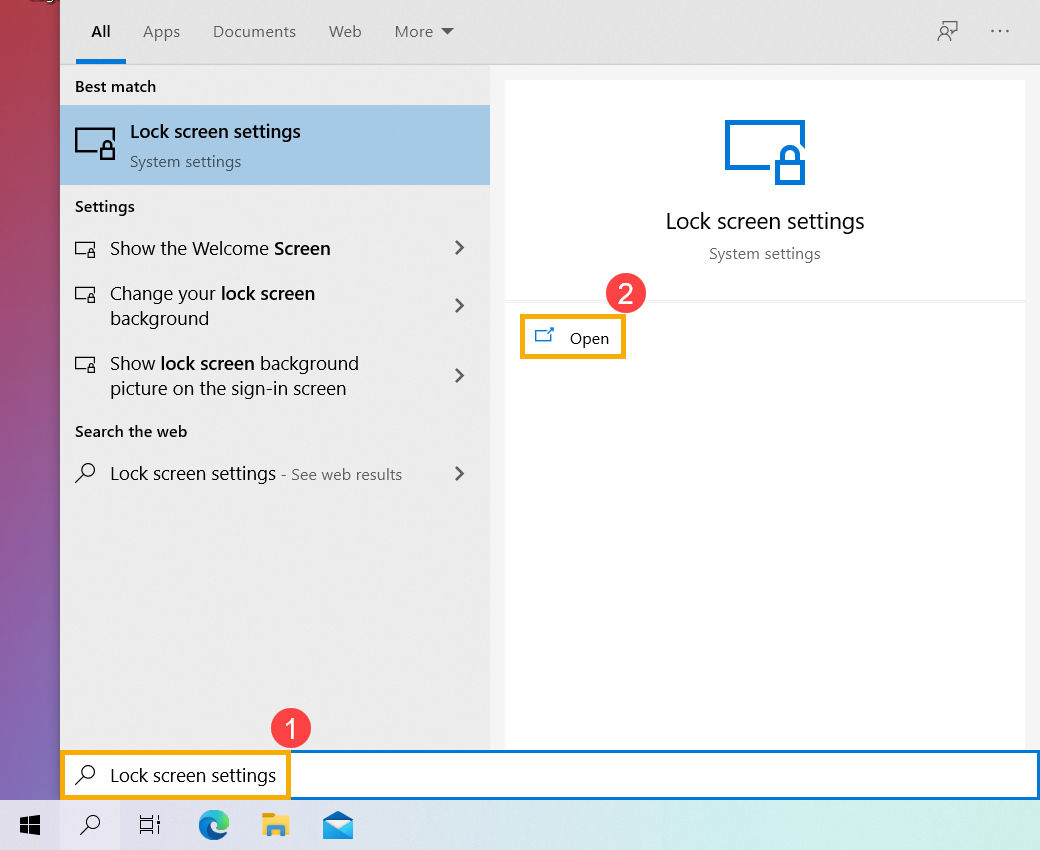
- Type and search [Lock screen settings] in the Windows search bar①, and then click [Open]②.
- In Lock screen, you can select the background as Windows spotlight, Picture, or create a slideshow of pictures③.
If you choose the Windows spotlight, it will daily update with images from all over the world and auto-show up on your Lock Screen.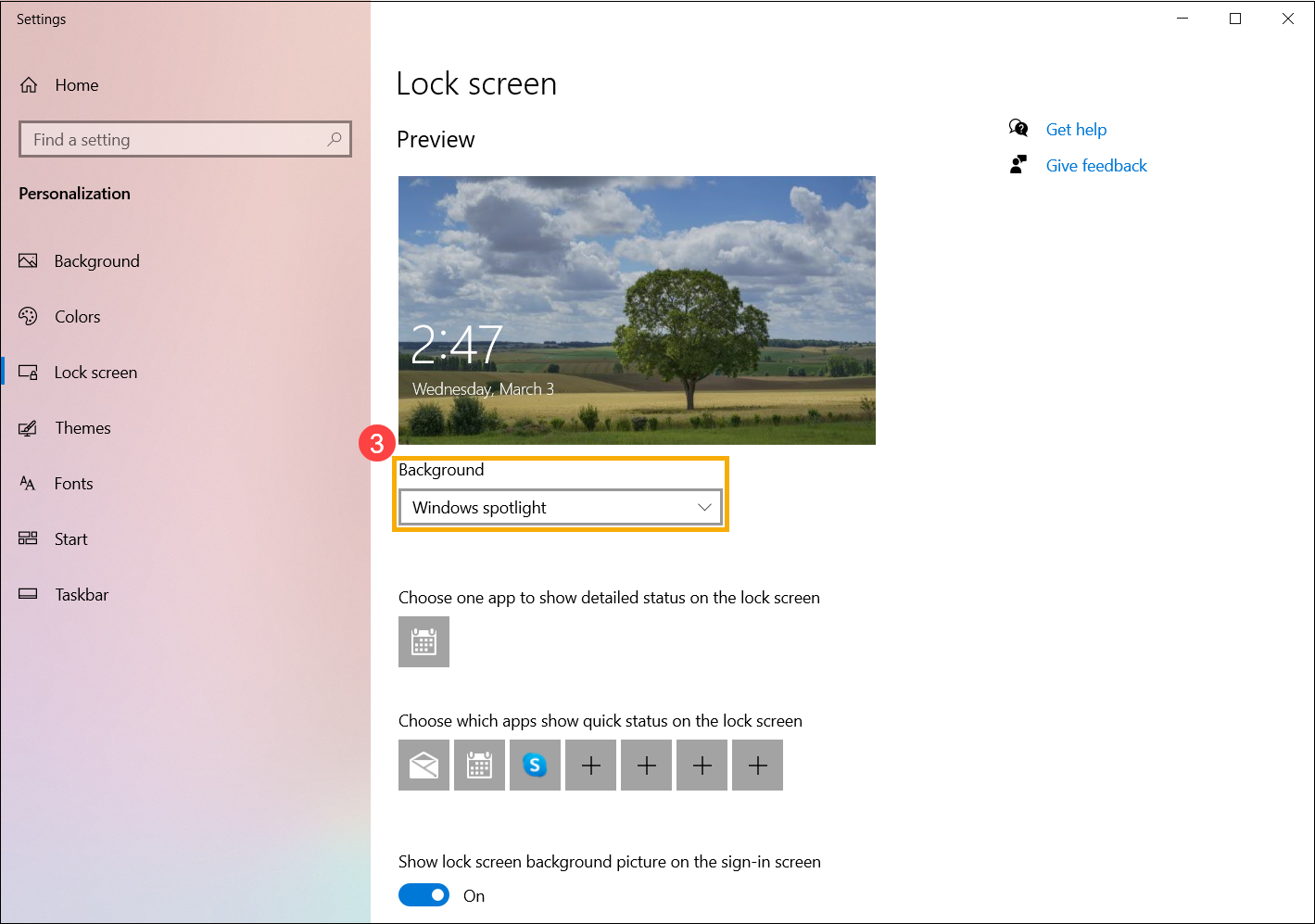
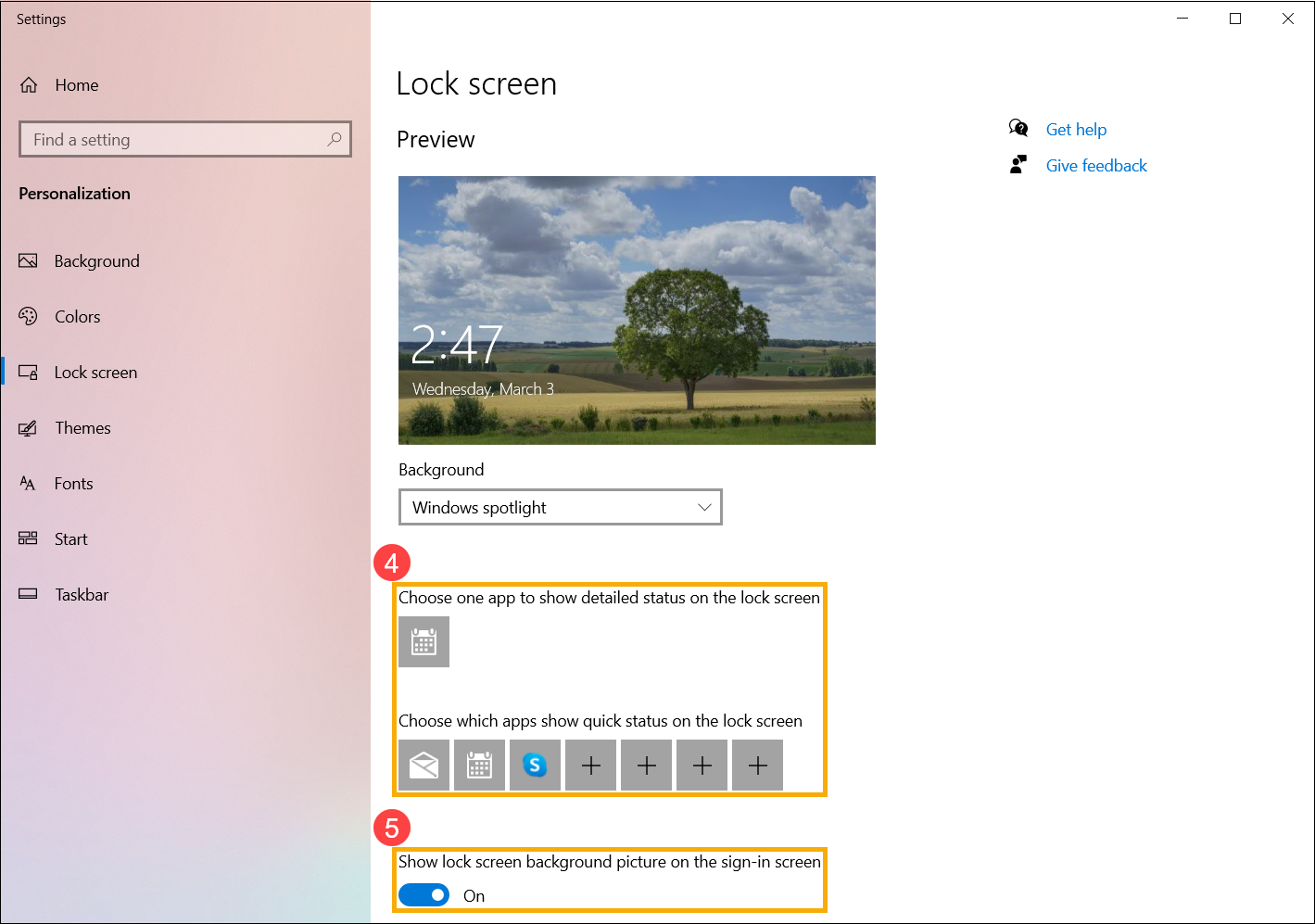
- In the lock screen apps area, you are able to choose which one app to show detailed status or which apps show quick status on the lock screen④.
If you would like the sign-in screen is same with the lock screen, please set [Show lock screen background picture on the sign-in screen] to On⑤. Otherwise, the sign-in screen will display a plain background.