Related Topics
[RT-BE58 Go/RT-AX57 Go] How to Access AiProtection and Navigate Key Router Settings?
What is Sign In?
AiProtection is the kind of router feature that matters most when a home network starts carrying real responsibility: work laptops, school devices, smart TVs, phones, and always-on IoT gear all sharing the same connection. From a reviewer’s perspective, its value is not just that it exists, but that it gives users a straightforward path into security-related controls without forcing them to dig through a maze of settings. The on-screen flow shown in the subtitles suggests a simple admin workflow: sign in first, then open AiProtection, then continue into the next function or submenu. That sequence is exactly what many users need when they want to check protection status, adjust safeguards, or move deeper into router management.
For everyday households, this kind of feature is useful because network security is often ignored until something goes wrong. AiProtection helps make the router feel less like a passive box and more like an active gatekeeper. It is especially relevant for users who want a practical balance between convenience and control: they may not want to become networking experts, but they still want confidence that the router is helping filter threats, monitor risk, and keep the network organized. In that sense, the feature is less about flashy branding and more about giving users a clear, guided entry point into meaningful protection tools.
What are the benefits of Sign In?
- Faster access to security controls: The first advantage is speed. Instead of wandering through multiple menus, the user starts by signing in and then heads directly into AiProtection, which shortens the path to the settings that matter. For a home user or small-office admin, that means less time spent searching and more time spent actually checking protection status, reviewing alerts, or making adjustments. The workflow feels practical because it reduces friction at the exact moment when users are most likely to want reassurance that the network is secure.
- Clearer management for non-experts: AiProtection is valuable because it makes router security feel approachable. Many people do not want to learn advanced networking terminology just to confirm that their devices are protected. A guided click path like the one shown in the subtitles helps turn a technical task into a manageable routine. That matters for users who may only log in occasionally, because the interface gives them a recognizable starting point and a logical next step, lowering the chance of mistakes or hesitation.
- Better visibility into network protection: A major benefit of entering AiProtection is the ability to see and manage security-related functions in one place. That kind of visibility is important in modern homes where multiple devices connect at once and the network can become difficult to monitor manually. By moving from sign-in to AiProtection and then into the next function, the user is effectively stepping into a more organized control center. The result is a stronger sense of oversight, which is especially useful when protecting family devices, work-from-home setups, or smart-home equipment.
Setup Guide
Step 1: Sign in to the router admin interface
Start by clicking Sign In to enter the router’s management page. This is the necessary first step because the security tools are only available after authentication. Once the login screen is cleared, the interface opens the door to the settings area, giving the user access to the controls needed for protection and configuration.
(1) Connect your computer to the router via wired or WiFi connection and enter your router's LAN IP or router URL http://www.asusrouter.com to the WEB GUI.
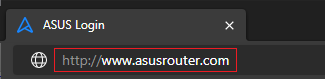
(2) Key in your router's username and password to log in.

Note: If you forget the user name and/or password, please restore the router to the factory default status and setup.
Please refer to [Wireless Router] How to reset the router to factory default setting? for how to restore the router to default status.
Step 2: Open AiProtection
After logging in, click AiProtection to jump into the router’s security section. The screen should shift from the general dashboard to a protection-focused menu, which helps the user quickly locate threat-related tools and status information. This step is useful because it keeps the workflow direct and avoids unnecessary navigation.

Step 3: Continue into the next function menu
Next, click function to proceed into the following submenu or action path shown on screen. Even though the label looks technical, the intent is clear: move deeper into the feature flow after entering AiProtection. This step helps the user continue the setup or review process without losing momentum, making the overall management experience feel more guided and efficient.

Conclusion
AiProtection stands out as a practical router feature for users who want security controls without a steep learning curve. The login-first workflow, followed by a direct move into the protection section, makes it feel accessible even for people who only occasionally manage their network settings. From a reviewer’s point of view, that is a strong advantage: it respects the user’s time while still offering a meaningful layer of oversight. It is a good fit for households, remote workers, and anyone who wants a more hands-on approach to router security without getting buried in technical complexity. The overall experience suggests a feature designed for real-world convenience, not just specification-sheet appeal.
How to get the (Utility / Firmware)?
You can download the latest drivers, software, firmware and user manuals in the ASUS Download Center.
If you need more information about the ASUS Download Center, please refer this link.