Related Topics
[RT-BE58 Go/RT-AX57 Go] How to Switch an ASUS Router into Home or Travel Mode?
What is Sign in to the ASUS router?
ASUS router’s Home / Travel mode is a practical control option for users who want the router to adapt to different networking scenarios without digging through complicated settings. From a reviewer’s perspective, this is the kind of feature that makes a router feel more flexible in everyday use: at home, it can stay aligned with a normal household network setup, while on the road it can be repurposed for travel-friendly connectivity needs. The value is not in flashy branding, but in reducing friction when the same device has to serve different environments. For users who frequently move between a fixed home setup and temporary locations, this mode switch helps keep the router useful, organized, and easier to manage. It also gives owners a clearer sense of control, since the active mode is visibly confirmed after activation. That makes the feature especially appealing for people who want a straightforward way to reconfigure their ASUS router without spending extra time guessing whether the change actually took effect.
What are the benefits of Sign in to the ASUS router?
- Quickly adapts the router to different usage scenarios: This mode is useful when the same ASUS router needs to support more than one kind of environment. Instead of treating the device as a one-purpose tool, the user can switch it into a setup that better matches home use or travel use. That flexibility is valuable for people who move the router between locations or want a simpler way to adjust behavior without rebuilding the entire network from scratch.
- Reduces setup complexity for non-technical users: The workflow shown in the interface is direct and easy to follow: sign in, open Administration, choose the multi-function button option, select Home / Travel, and activate it. From a reviewer’s point of view, this lowers the barrier for users who do not want to navigate advanced router menus. The feature turns a potentially confusing configuration task into a guided action that feels manageable even for casual users.
- Provides clear confirmation after activation: A strong part of this feature is that the selected mode appears as active after the change is applied. That visual confirmation matters because it reassures the user that the router accepted the setting and is now operating in the intended mode. For anyone who values certainty in device management, this reduces second-guessing and makes the router feel more trustworthy in daily use.
Setup Guide
Step 1: Sign in to the router dashboard
Start by logging in to the ASUS router’s admin interface so the configuration options become available. This is the necessary entry point for changing operating behavior, and it ensures the user is working from the correct control panel before making any adjustments.
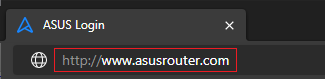
(1) Connect your computer to the router via wired or WiFi connection and enter your router's LAN IP or router URL http://www.asusrouter.com to the WEB GUI.
(2) Key in your router's username and password to log in.

Note: If you forget the user name and/or password, please restore the router to the factory default status and setup.
Please refer to [Wireless Router] How to reset the router to factory default setting? for how to restore the router to default status.
Step 2: Open Administration settings
Click Administration to reach the section where system-level router functions are managed. This step matters because the mode controls are not in a basic status page; they are placed in the administrative area where deeper device behavior can be adjusted.

Step 3: Find the multi-function button option
Select Muti-function button from the Administration menu to access the feature tied to the router’s configurable button behavior. This narrows the settings down to the control that handles mode switching, making the next choice more direct and easier to understand.

Step 4: Select Home / Travel mode
Choose Home / Travel from the available options so the router is prepared for the intended usage profile. This is the key decision point in the process, because it tells the device which operating mode the user wants to apply for the current situation.

Step 5: Activate the selected mode
Click to activate the mode after selecting it, which applies the configuration to the router. This step completes the change and moves the setting from a choice on screen to an active operating state that the router can use immediately.

Step 6: Verify the mode is active
Check that the selected mode appears as active on the screen to confirm the change was successful. This final confirmation is useful because it gives the user immediate feedback and removes uncertainty about whether the router has switched to the intended mode.

Conclusion
For ASUS router owners who want a simple way to adjust the device for different environments, Home / Travel mode is a genuinely practical feature. It does not try to impress with complexity; instead, it focuses on making the router easier to repurposed and easier to trust. The interface flow is straightforward, the activation is clear, and the visible active status adds confidence after setup. This makes the feature especially suitable for users who split time between home and temporary locations, or for anyone who prefers a cleaner, less technical way to manage router behavior. In real-world use, that combination of flexibility and clarity is exactly what makes a router feature worth recommending.
How to get the (Utility / Firmware)?
You can download the latest drivers, software, firmware and user manuals in the ASUS Download Center.
If you need more information about the ASUS Download Center, please refer this link.