[Motherboard] Intel® Management Engine Firmware Update Instructions(ME)
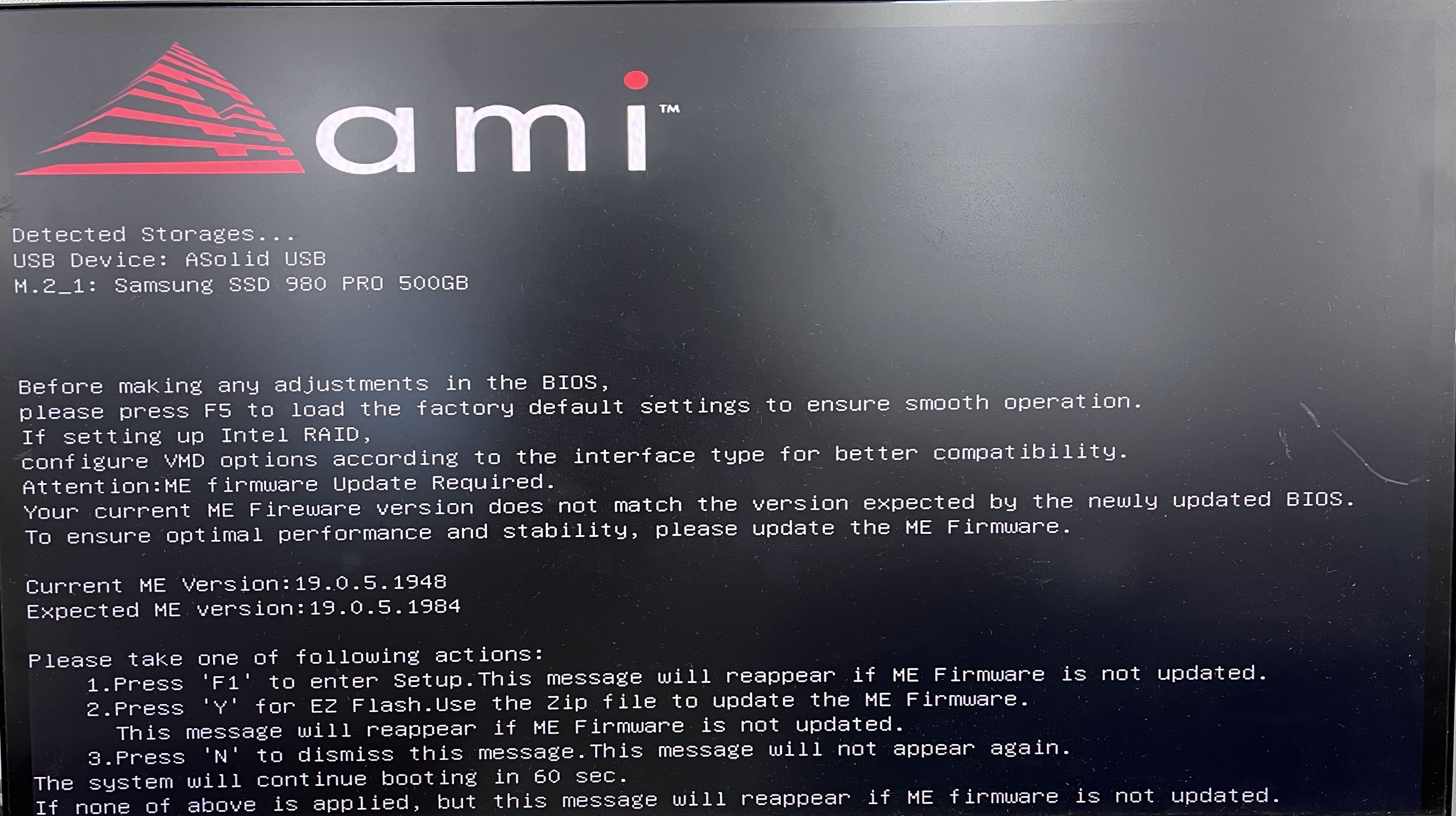
Note: If you encounter the following screen when starting up, you must update your Intel ME Firmware to avoid the risk of security issues for the platforms that may be affected by Intel's release.
Contents
1. How to confirm the ME version?
2. How to install Intel® Management Engine firmware?
2.1 Method 1: Use ASUS EZ Flash to update along with the BIOS through the BIOS compressed file
2.2 Method 2: Update via ME Update Tool
1.How to confirm the ME version?
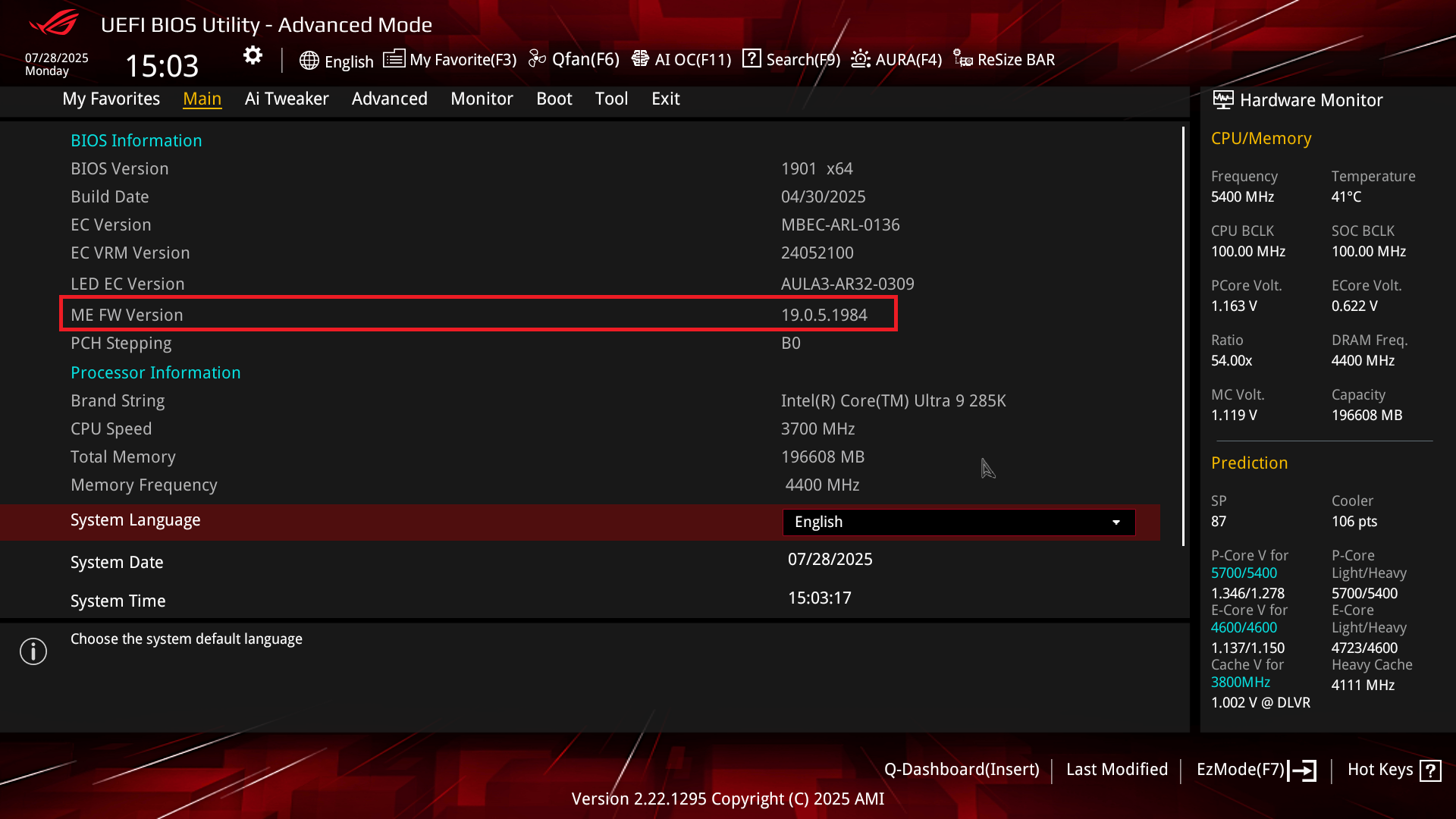
When the computer is turned on, press the F2 or Del key to enter the BIOS setting page, and confirm the ME FW Version in the Main menu under Advanced Mode.

2.How to install Intel® Management Engine firmware?
Method 1: Use ASUS EZ Flash to update along with the BIOS through the BIOS compressed file
Note: This method is currently only supported on ASUS Intel 800 series and later ASUS Intel models. For other old Intel series models, please refer to Method Two.
(1)Download the latest BIOS file corresponding to your motherboard model from the ASUS Download Center and save it to the USB flash drive.
Enter the model number -> click on [Product information]
(For example: ROG STRIX Z890-E GAMING WIFI)
(2)Click on the [Driver & Tools] page, then select [BIOS & Software], choose the BIOS version you need to update (it is recommended to use the latest version), and download it.
(3)After downloading the required BIOS file from the official website, save the BIOS ZIP format compressed file (no need to unzip) to the USB flash drive.
(4)Insert the USB flash drive into the motherboard's USB port.
(5)After powering on, when the ASUS logo appears, press the DEL or F2 key on the keyboard to enter the BIOS.
(6)When the BIOS screen appears, press the F7 key on the keyboard or click on Advance Mode with the mouse to enter the advanced mode.

(7)Click on the Tool page, then select ASUS EZ Flash.

(8)Click on the drive where the USB flash drive containing the BIOS file is located, and then select the BIOS ZIP file you want to update.

(9)Click YES to read this BIOS file.

(10)Confirm the BIOS version information you want to update, then click YES to start the update.
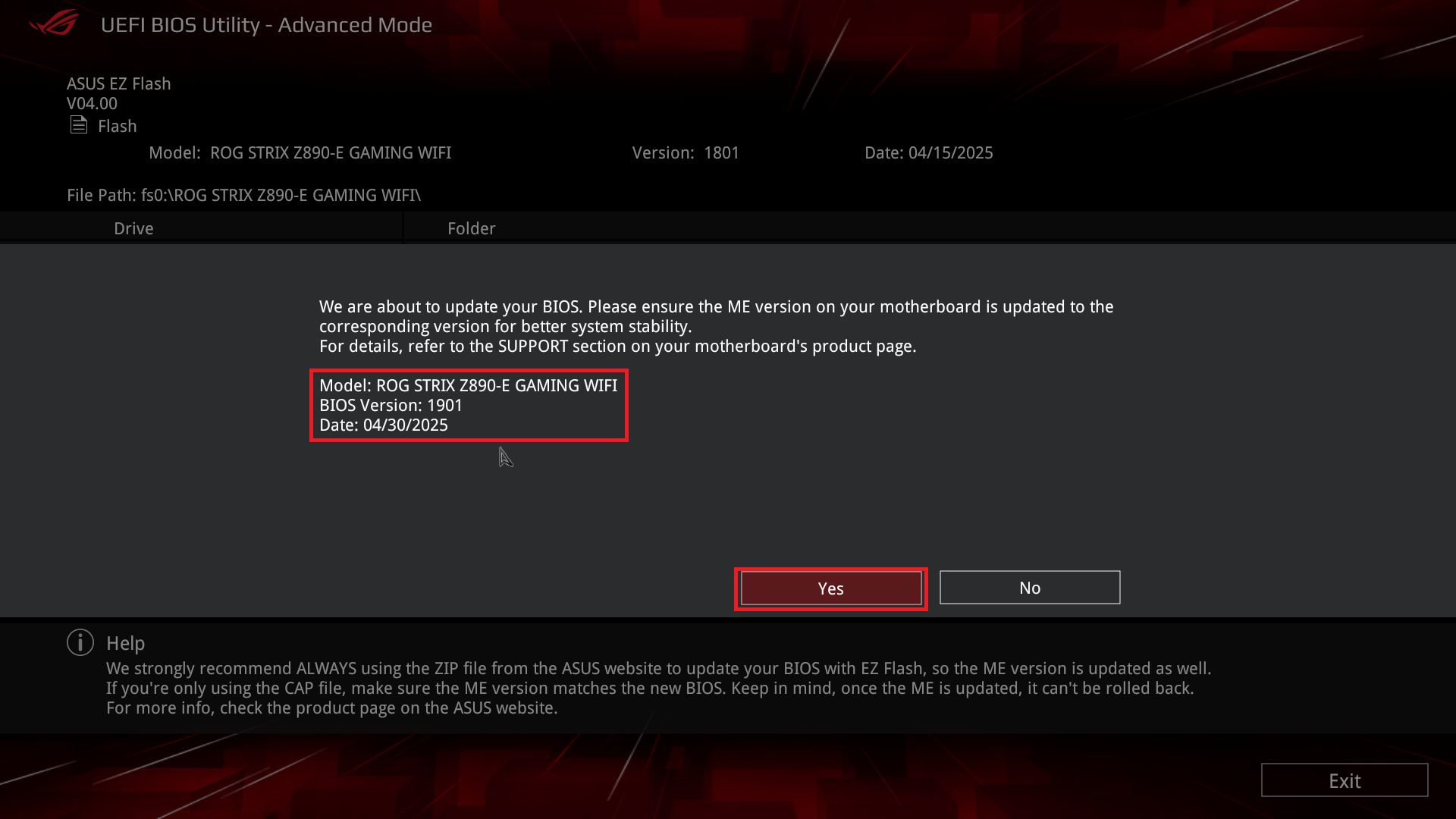
(11)Once the progress bar is complete, an OK prompt will appear. Click it, and the system will reboot, completing the update.

(12)Confirm whether the ME version has been updated
When the computer is turned on, press the F2 or Del key to enter the BIOS setting page, and in the Main menu under Advanced Mode, confirm the version of ME FW Version.
Method 2: Update via ME Update Tool
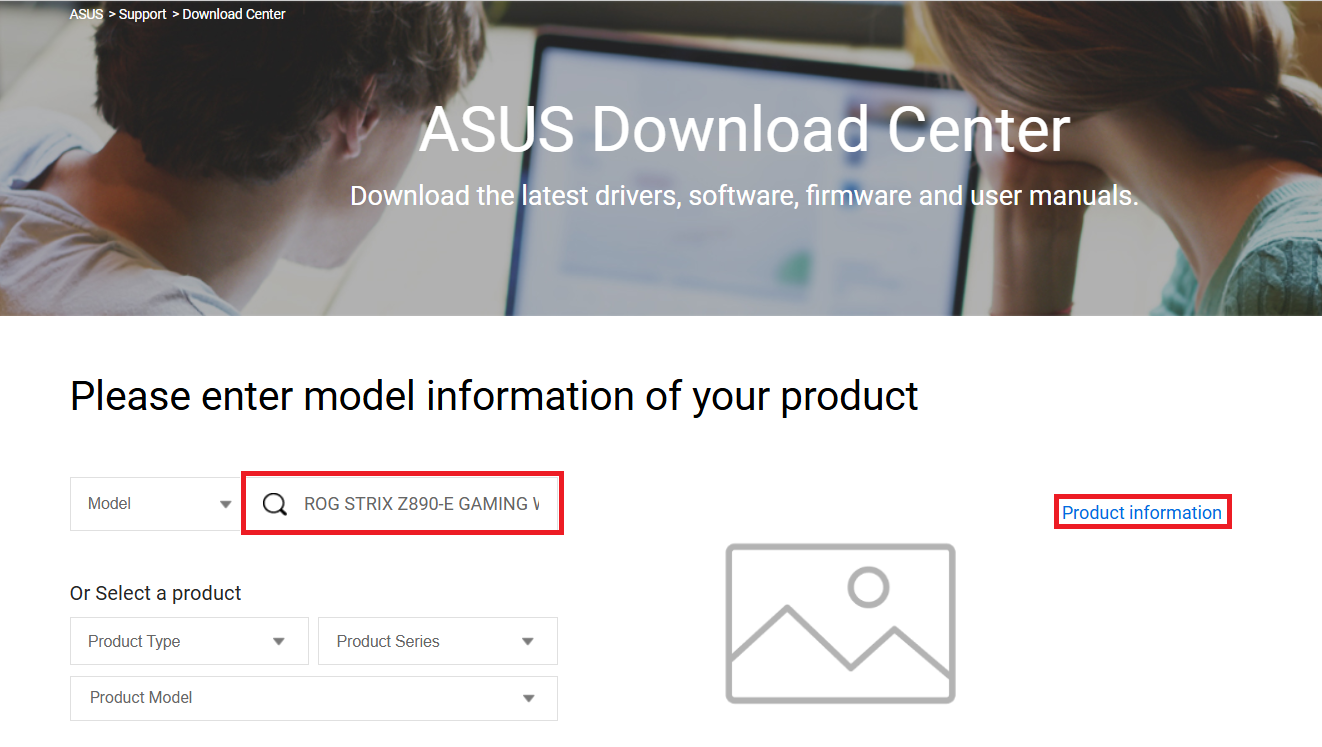
(1)Download the latest Intel ME file corresponding to your motherboard model from the ASUS Download Center and save it in the operating system.
Enter the model number -> click on [Product information]
(For example: ROG STRIX Z890-E GAMING WIFI)
(2)Click Drivers and Utilities -> BIOS and Firmware, select the required Intel ME version and download it (the latest version is recommended).
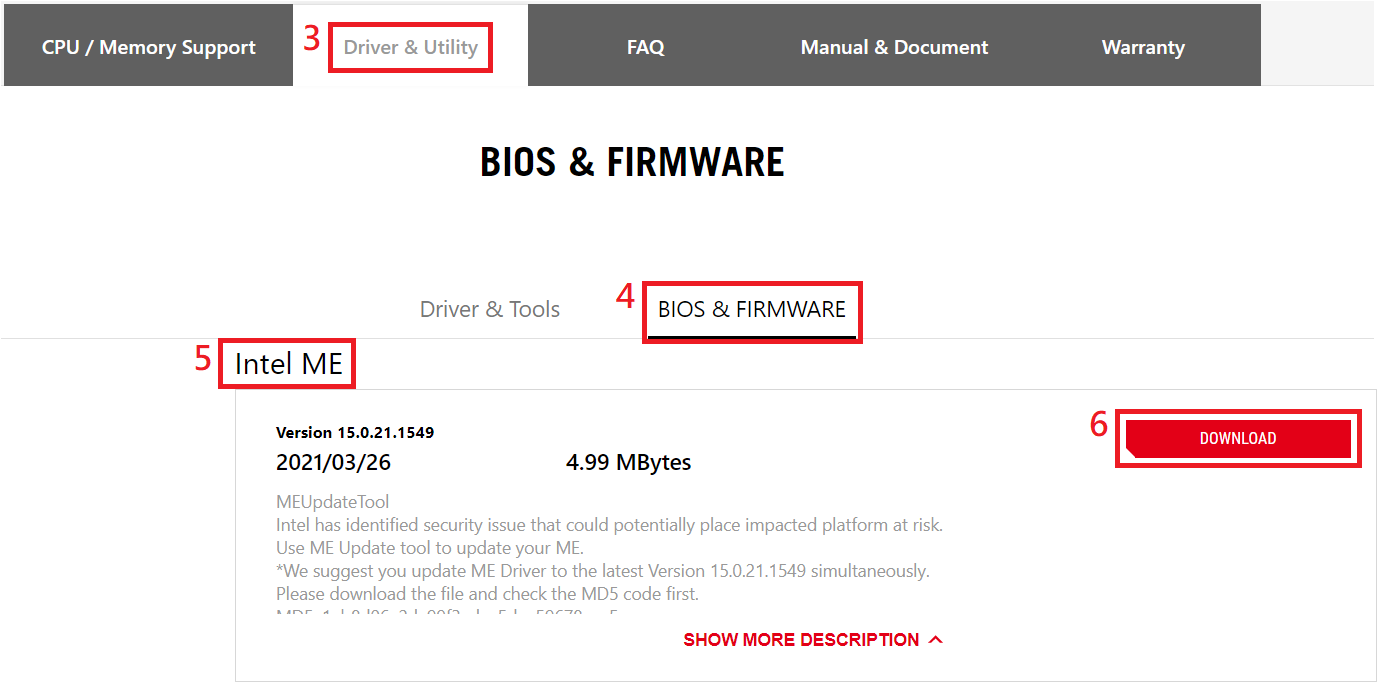
(3)Save the downloaded Intel ME zip file in the operating system folder.
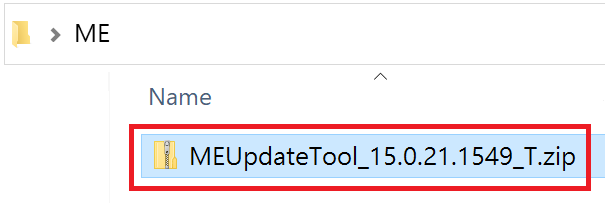
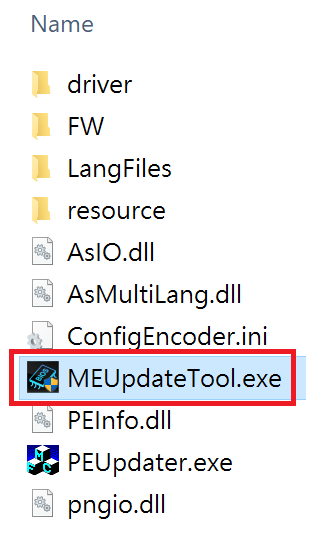
(4)Unzip the Intel ME file. Double-click “MEUpdateTool.exe” to execute Intel ME update.
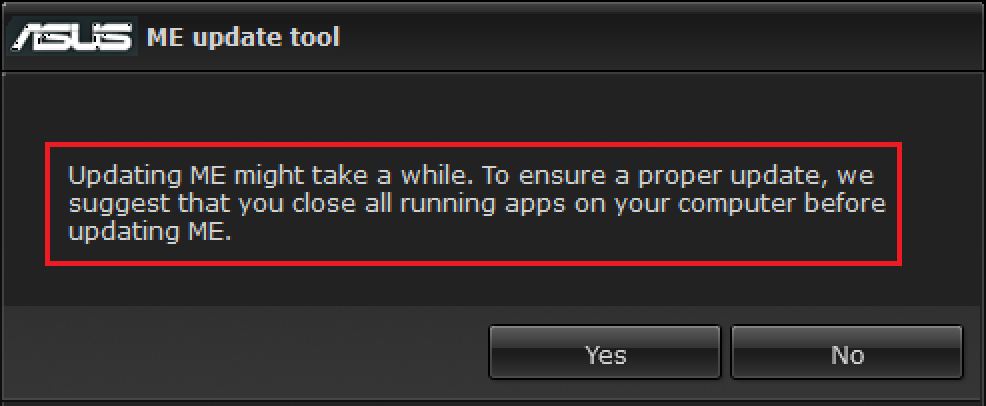
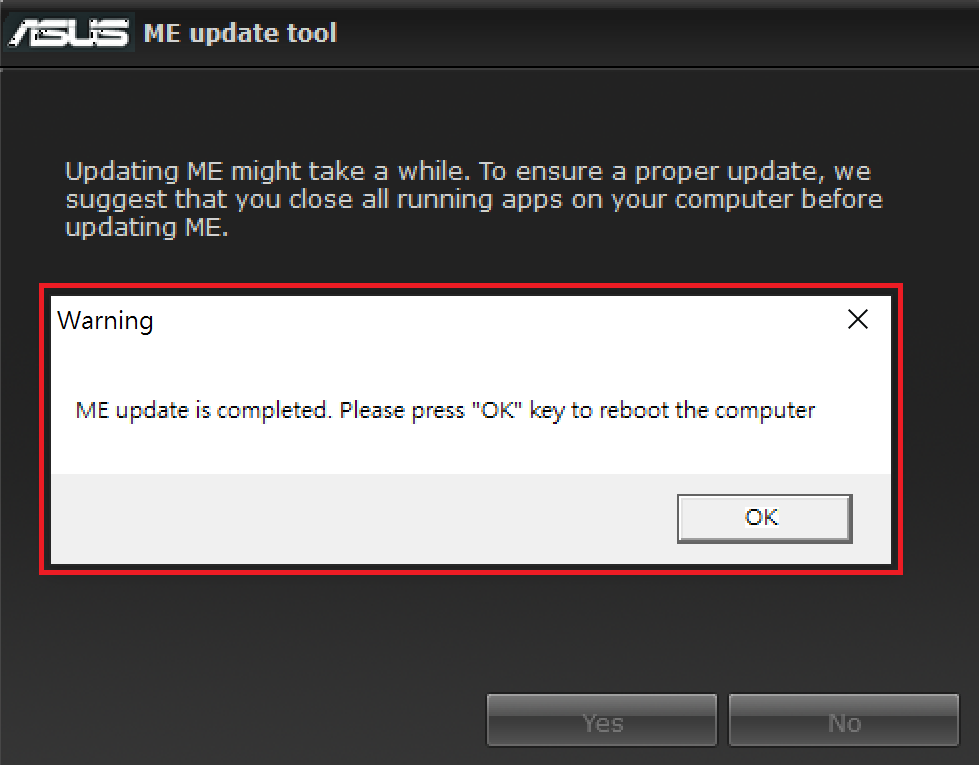
(5)It takes a while to update Intel ME. To ensure a proper update, we suggest that you close all running apps on your computer before updating ME. Click Yes to update.
(6)After ME update is completed, click OK to restart the computer.
(7)Confirm whether the ME version has been updated
When the computer is turned on, press the F2 or Del key to enter the BIOS setting page, and in the Main menu under Advanced Mode, confirm the version of ME FW Version.