[Wireless] How can I improve router security and protect my home WiFi network?
To provide you more detailed instruction, you can also click ASUS Youtube video link below to know more about How to make my Router more secure.
https://www.youtube.com/watch?v=cYKG28jtXz4
To improve router security, start by enabling strong WiFi encryption, using separate passwords for your WiFi network and router login, keeping your router updated with the latest firmware, and turning on firewall protection. These key settings strengthen network protection, reduce security risks, and help protect your home network and connected devices.
General Setting
1.Use WPA2 or WPA3 encryption for WiFi security
WPA2-AES or WPA3 encryption helps protect your wireless network from unauthorized access and improves overall home network security. For most users, keeping WPA2-AES or WPA3enabled is the safest default setting.
2. Use strong and separate passwords for your WiFi network and router login
To improve router security, use separate passwords for your WiFi network and router login, because using the same password can increase security risk. ASUS routers require passwords to meet strong password rules, such as combining uppercase and lowercase letters, numbers, and special characters. If needed, you can change your WiFi password through the ASUS Router app or Web GUI to help maintain home network security.
[Wireless Router] How to modify Wireless(WiFi) Name and Password in ASUS Router
[Wireless Router] How to change ASUS router / ExpertWiFi router login name and password
3. Use long and more complex passwords
Use passwords with more than 10 characters mixed with capitalized letters, numbers, and special characters to increase the security level of your devices. Do not use passwords with consecutive numbers or letters, such as 1111111111, 1234567890, abcdefghij, or qwertyuiop.
4. Firmware updates for router security
Keeping automatic firmware updates enabled helps strengthen router security because the latest firmware often includes security patches for newly discovered vulnerabilities. ASUS routers can automatically install the latest firmware when auto upgrade is enabled. You can check for firmware updates through the ASUS Router app or Web GUI to help maintain network protection and stable performance.
[Wireless Router] How to update the firmware of your router to the latest version
5. Enable firewall protection and AiProtection
To improve router security, enable firewall protection to block suspicious inbound traffic and strengthen home network security. AiProtection adds advanced threat detection to improve network protection and internet security for your router and connected devices.
[Wireless Router] Introduction of Firewall on ASUS router
ASUS Network Security – AiProtection and Router Security | ASUS Global
[AiProtection] How to set Network Protection in ASUS Router ?
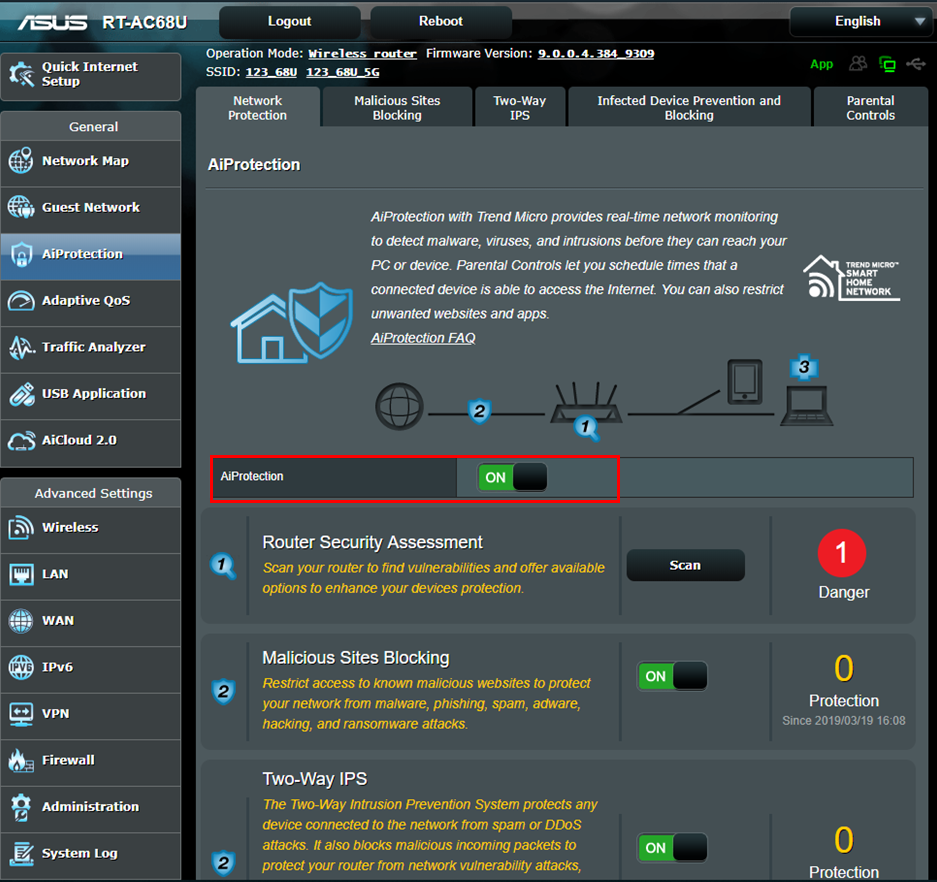
6. What is network security and why does it matter for a router?
Network security on a router refers to the settings and protection features that help prevent unauthorized access, online threats, and suspicious traffic across your home network. This includes WiFi encryption, firewall protection, secure passwords, and firmware updates to improve internet security for connected devices. Your network security key usually refers to the WiFi password used to connect devices securely to your wireless network.
7. Why should WAN access stay disabled for better router security?
Keeping WAN access disabled helps improve router security because it prevents the router management page from being exposed directly to the internet. Unless remote management is required, disabling WAN access reduces exposure to external attacks and helps protect your home network.
[Wireless Router] How to set up ASUS wireless router to access WebGUI/Router App from WAN?
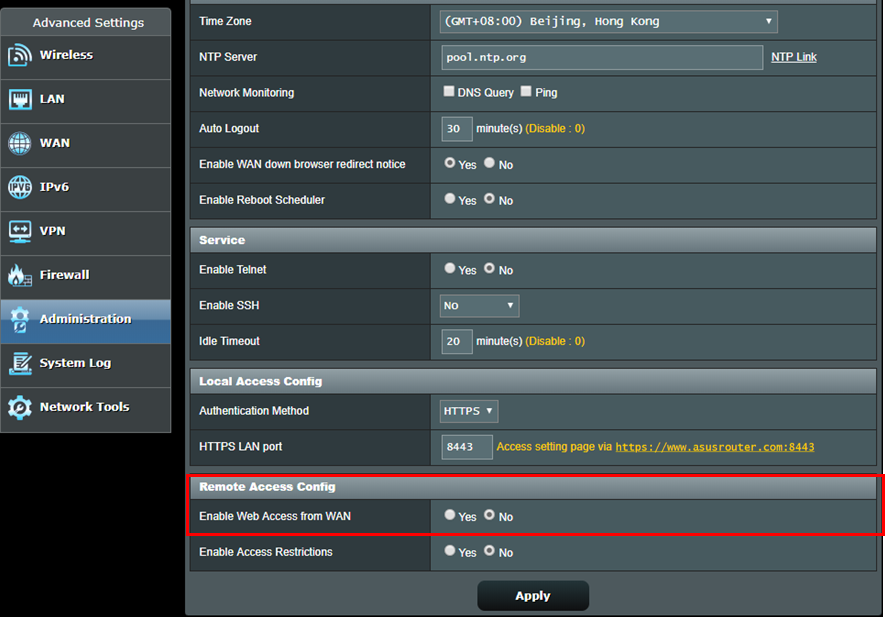
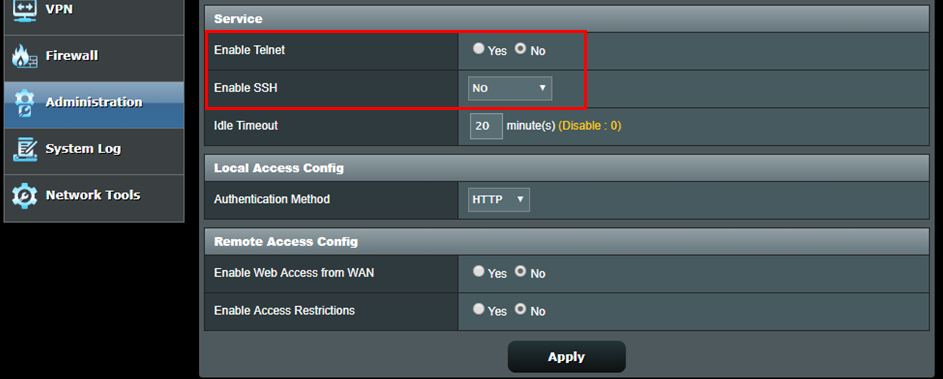
8. Why should Telnet and SSH stay disabled for router security?
Keeping Telnet and SSH disabled helps improve router security when remote access is not required. Because these features allow command-level remote access, leaving them enabled unnecessarily may increase security risk and reduce network protection for your home network.
[Wireless Router] How to log in ASUS router via Telnet?
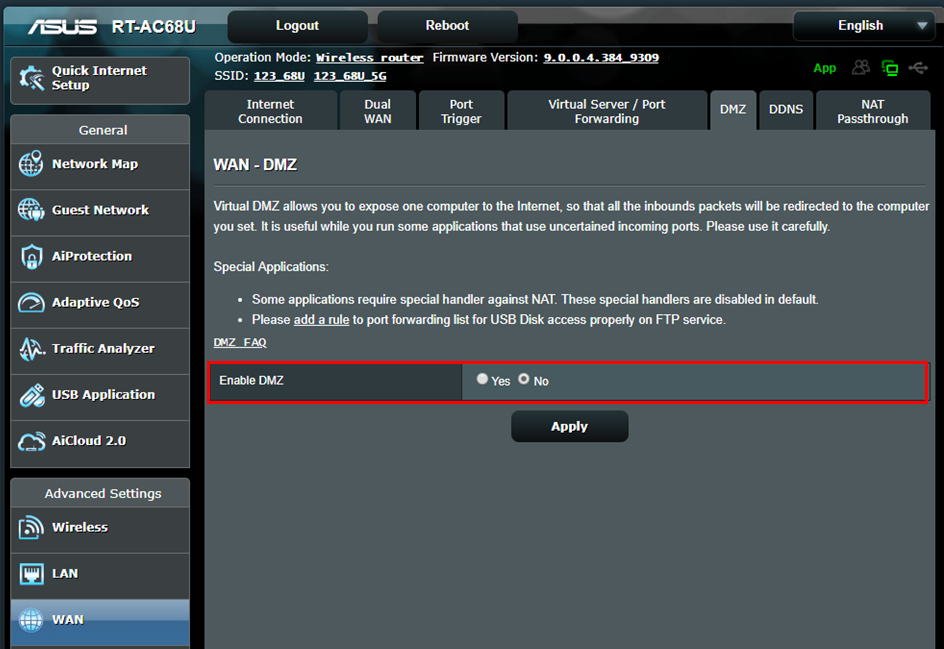
9. Does enabling DMZ increase network security risk?
Enabling DMZ can expose one device directly to the internet, which may increase network security risk if not configured carefully. For most home networks, using Port Forwarding for specific services is safer because only required connections are opened. We highly suggest not to do so.
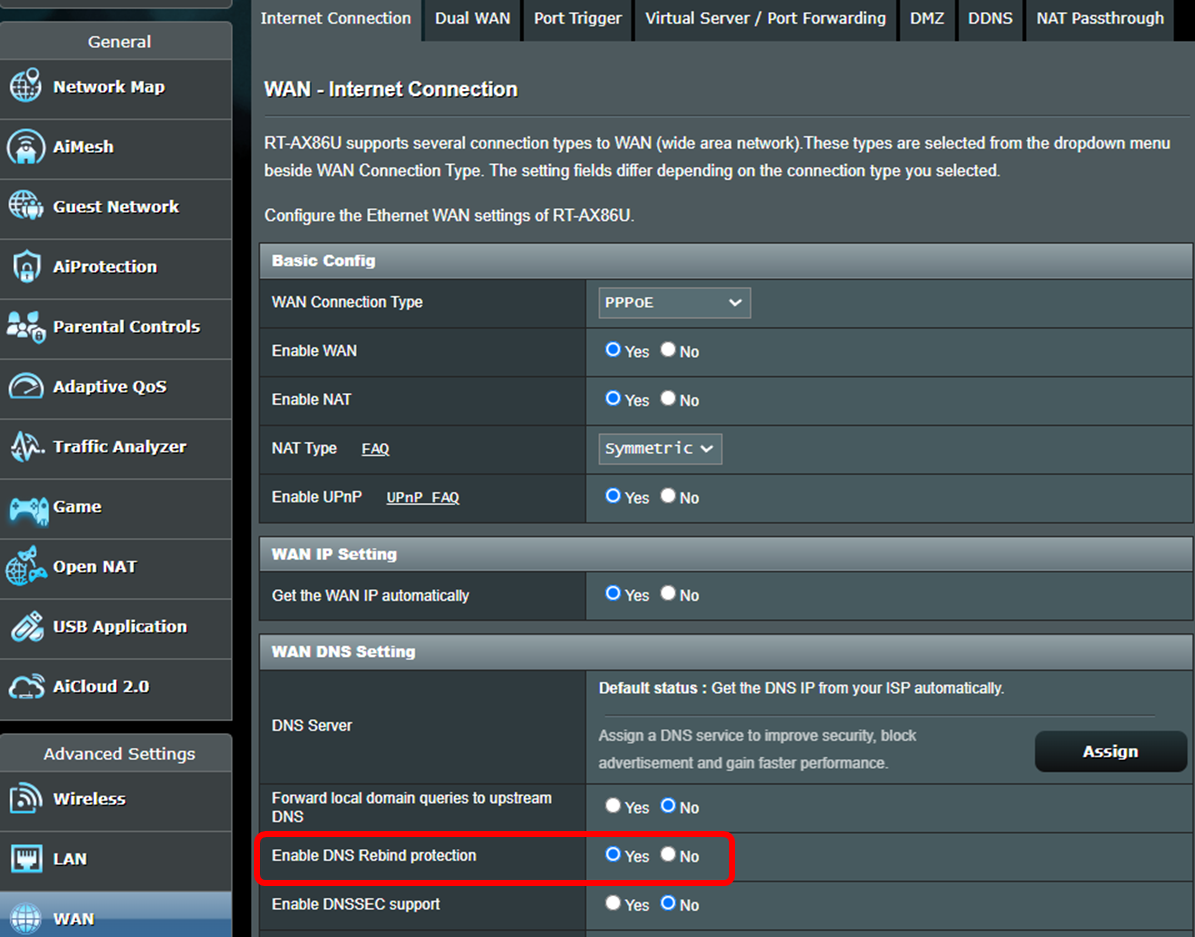
10. How does DNS Rebind Protection improve network security?
DNS Rebind Protection helps improve network security by checking DNS responses for abnormal or incorrect IP addresses. This reduces the risk of malicious redirection attacks and helps protect devices inside your home network.
[Wireless Router] How to set up an Internet Connection?(WAN connection types)
11. How can I check whether my WiFi security needs attention?
Unknown devices, unusual connection activity, or unexpected setting changes may indicate that your WiFi security should be reviewed. Updating strong passwords, firmware, and router security settings can help reduce hacking risks.
12. What is parental control and how does it work on a router?
Parental Control is a router feature that helps parents manage internet access by setting schedules, blocking inappropriate content, and controlling online activity for selected devices. On ASUS routers, parental control settings can be managed through the ASUS Router app or Web GUI for easier home network management. On supported models, Kids Network* can further simplify setup by grouping children's devices under one dedicated network. This helps improve home network management for families through both the ASUS Router app and Web GUI.
*Feature support may vary by model. Please check individual product pages for detailed specifications.
Advanced Setting
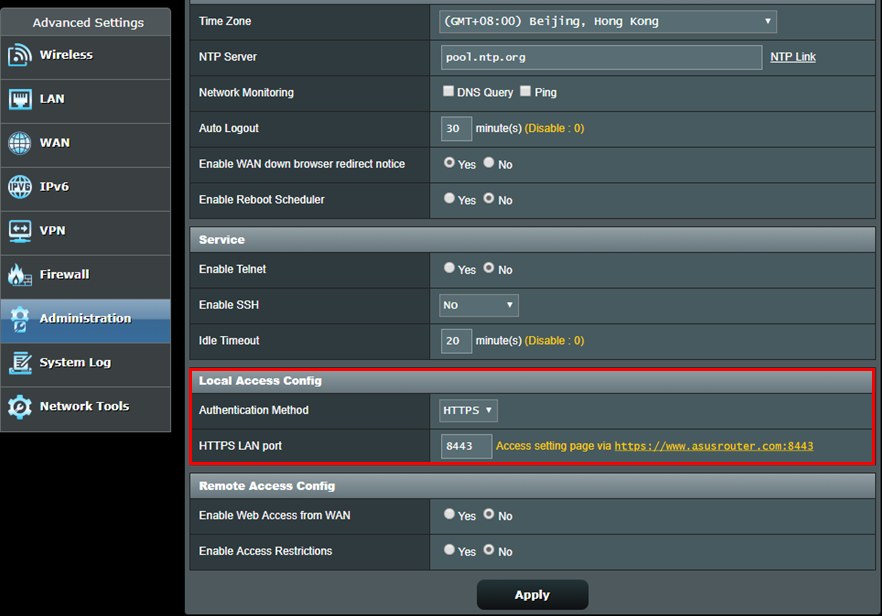
1. Enable https to log in ASUS router setting page(Web GUI)
Https is a standard HTTP protocol covered with a layer of SSL/TLS encryption when you are using WPA-AES encryption. ASUS router setting page(Web GUI) with WPA-AES encryption default connects you with http considering its ease-of-use. You can visit Advanced Settings-> Administration-> System-> Local Access Config to change Authentication Method to https. After enabling https, remember to manually input https:// in the beginning of the URL, and add port number 8443(default port) at the end of the URL (http://www.asusrouter.com:8443).
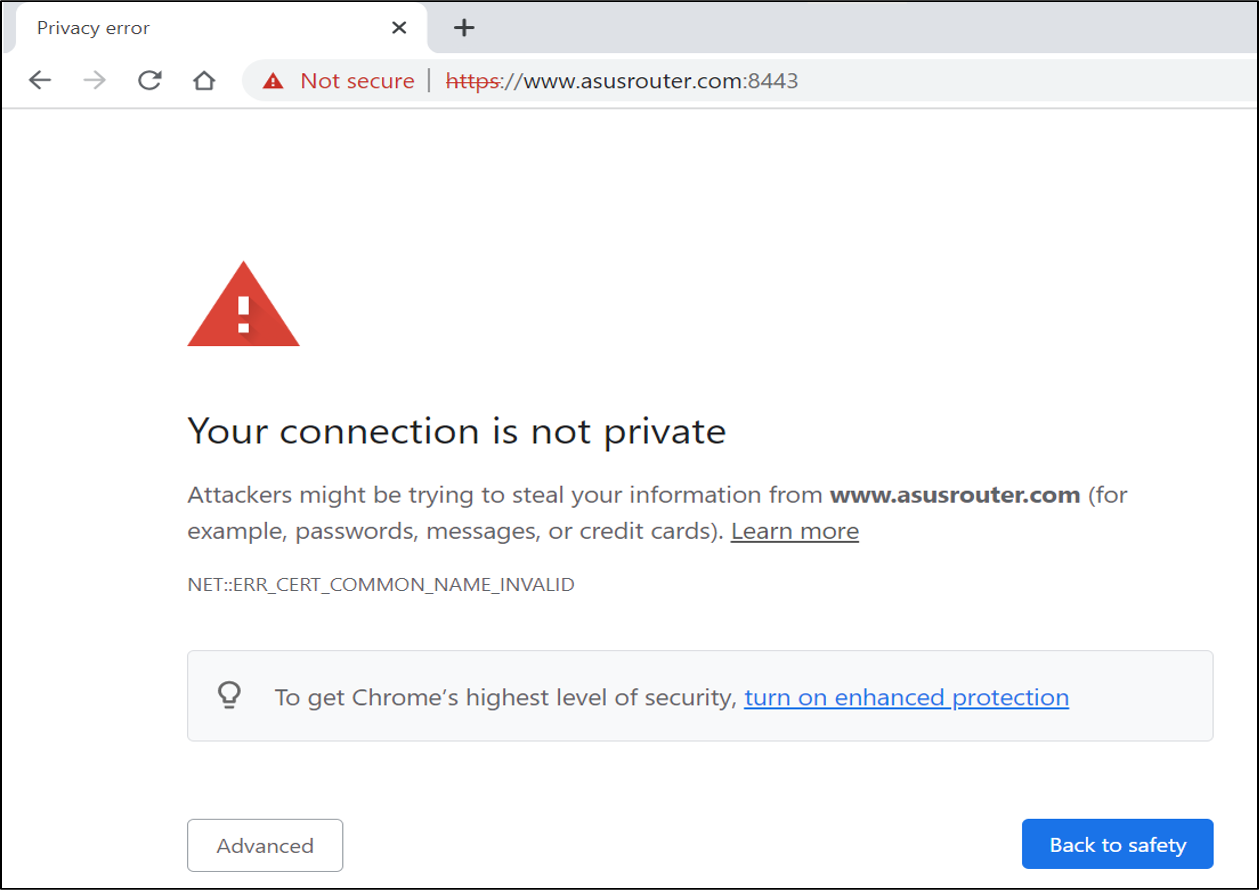
Because routers use self-signed certificates, the browser will show the warning message as shown in the following screenshot. You can ignore the warning because your router is a trusted device. Please click Advanced and visit ASUS router setting page(Web GUI).
*When you see this warning with connecting to other websites instead of ASUS router setting page(Web GUI), please stay alert. This might be a dangerous website.
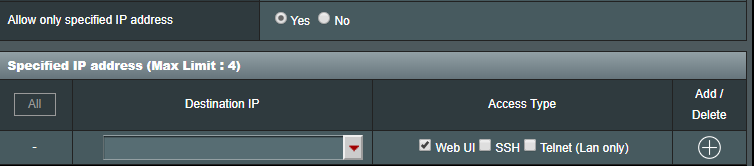
2. Only allow specified IP address to log in ASUS router setting page(Web GUI)
Go to Advanced Settings > Administration > System > Specified IP Address to allow specific IP to login to the ASUS router setting page(Web GUI). This will increase the security level for your network.
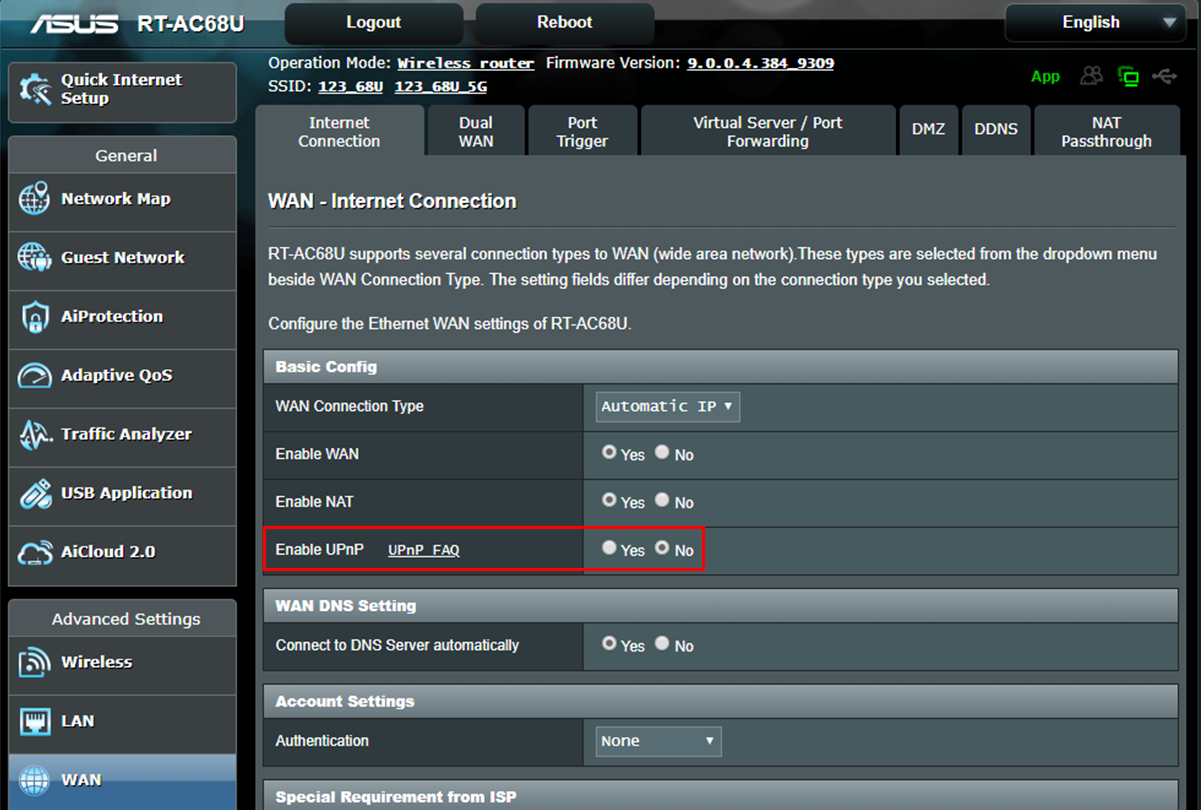
3. Disable UPnP
Some devices use the UPnP for the ease-of-use. Users can visit Advanced Settings > WAN > Basic Config > Enable UPnP to disable UPnP. You can keep UPnP disabled if there is no trouble that occurs after disabling it.
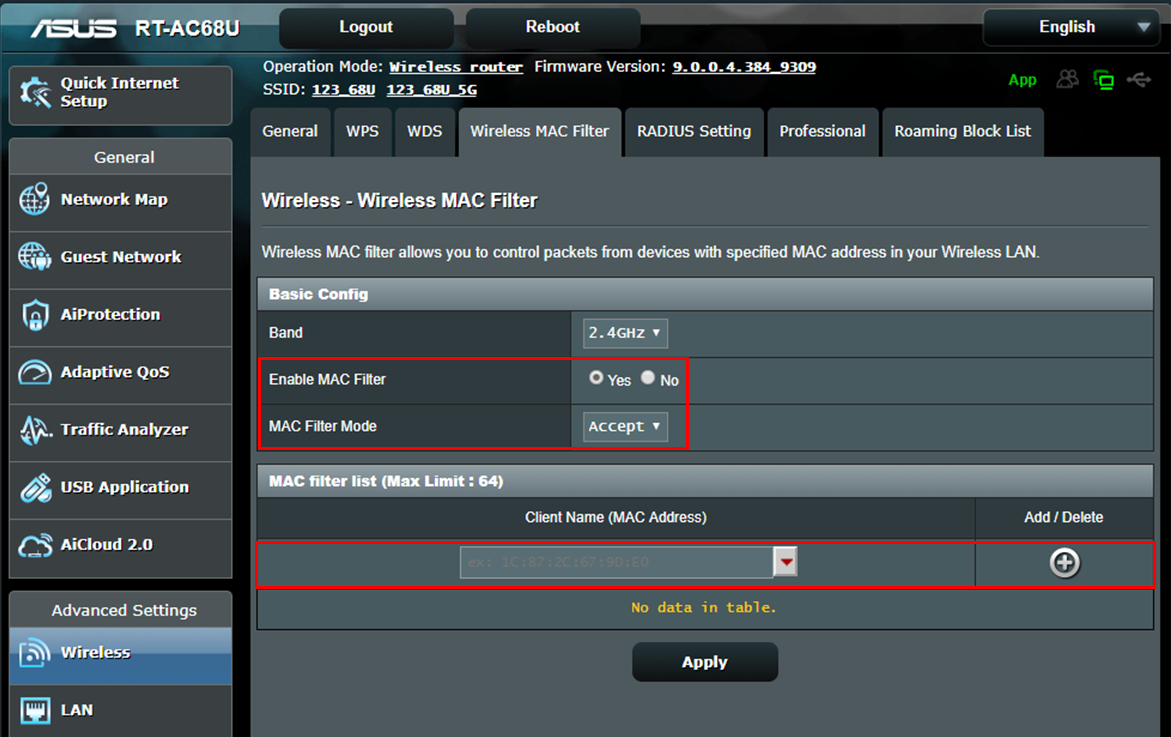
4. Setting up the Wireless MAC Address Filter for your wireless network
If your connecting client does not always change, you can set up a white list in the Wireless MAC Address Filter that only allows the specified MAC address to get connected to your router. Visit Advanced Settings > Wireless > Wireless MAC Filter > Change MAC filter mode to Accept and add specific MAC address to your list. Only those devices in the list are allowed to connect to your router.
[Wireless Router] How to set up Wireless MAC Filter on ASUS Router(WiFi Deny List)
How to get the (Utility / Firmware)?
You can download the latest drivers, software, firmware and user manuals in the ASUS Download Center.
If you need more information about the ASUS Download Center, please refer this link.