Related Topics
[Windows 11/10] Sound settings and Volume Mixer
Sound settings allow you to choose the output or input device (such as external speakers or microphone), or you can use Volume Mixer to adjust the volume for each app.
Please refer to the corresponding instruction based on the current Windows operating system on your device:
Windows 11 operating system
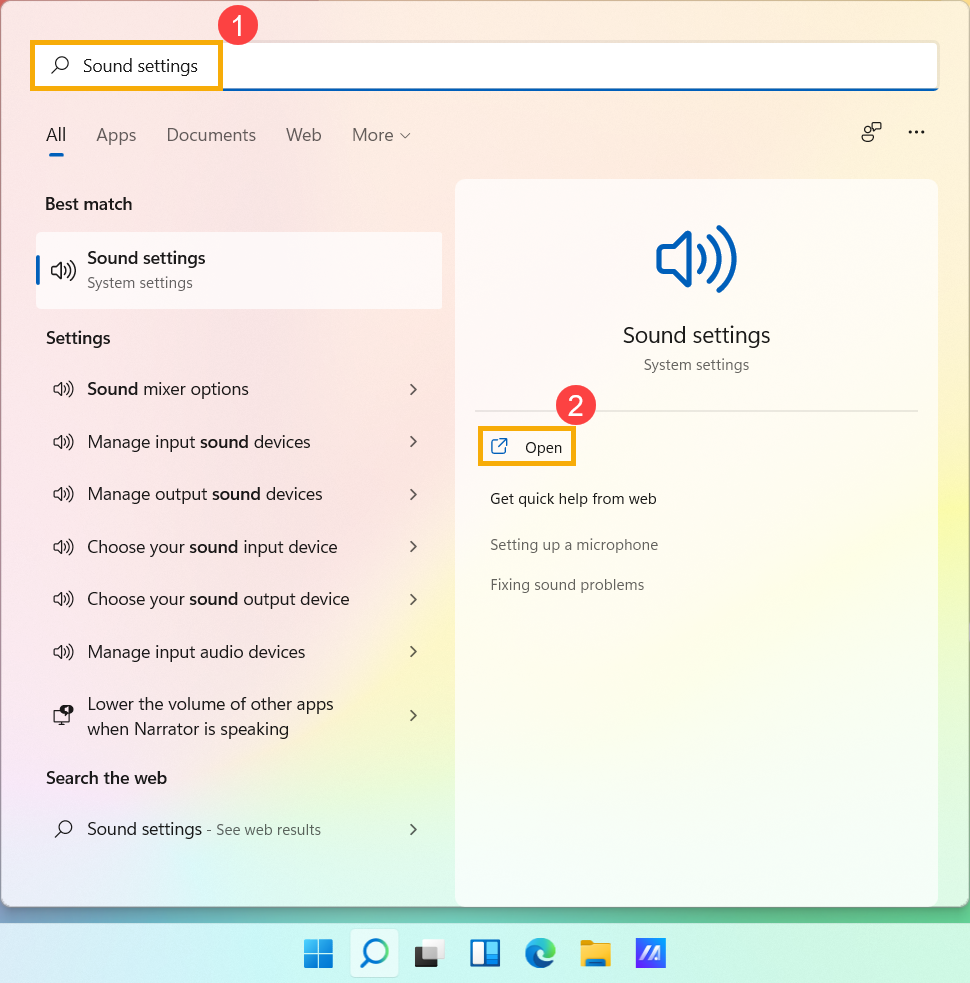
- Type and search [Sound settings] in the Windows search bar①, and then click [Open]②.
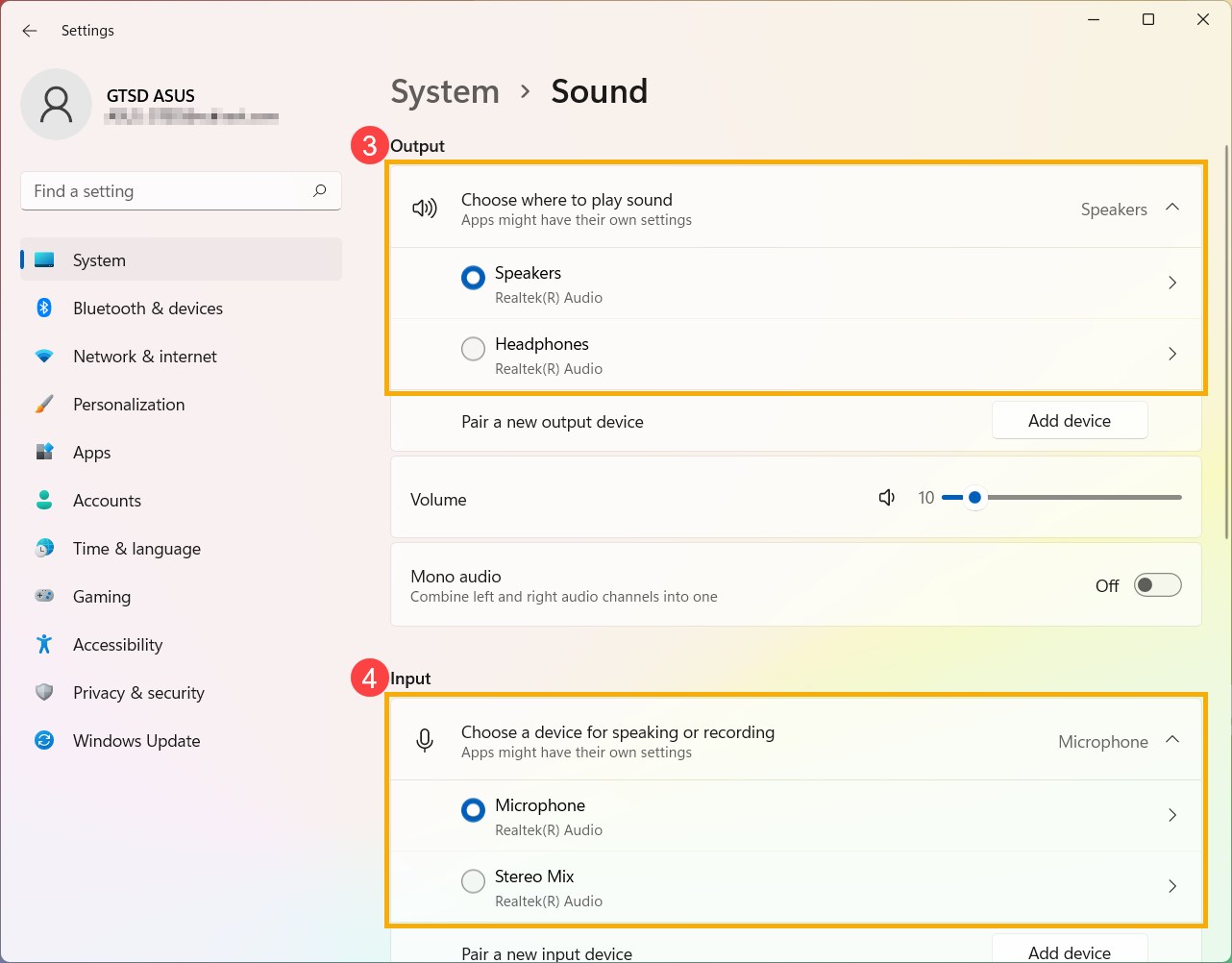
- In Sound settings, you are able to choose the Output device③ (such as internal speakers, external speakers, or headset) and the Input device④ (such as internal microphone, external microphone, or earphone).
If the speaker icon of master volume is , it means your computer is at mute mode. Click the speaker icon again to turn the volume on.
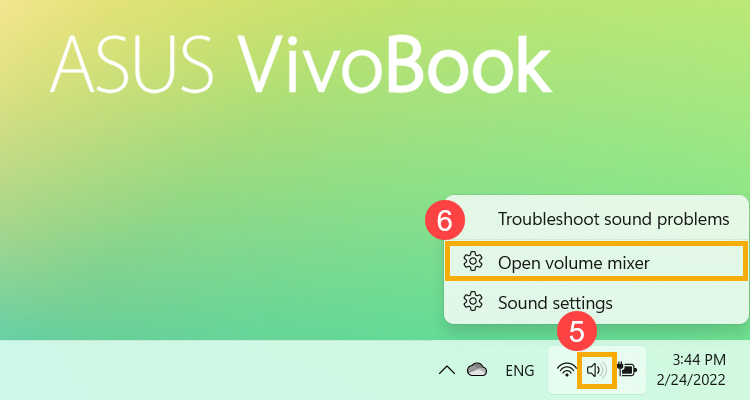
- Getting to use Volume Mixer. Right-click [Speakers icon] on the taskbar⑤, and then select [Open volume mixer]⑥.
- In the Apps filed, by dragging the slider to adjust volume for each app⑦.
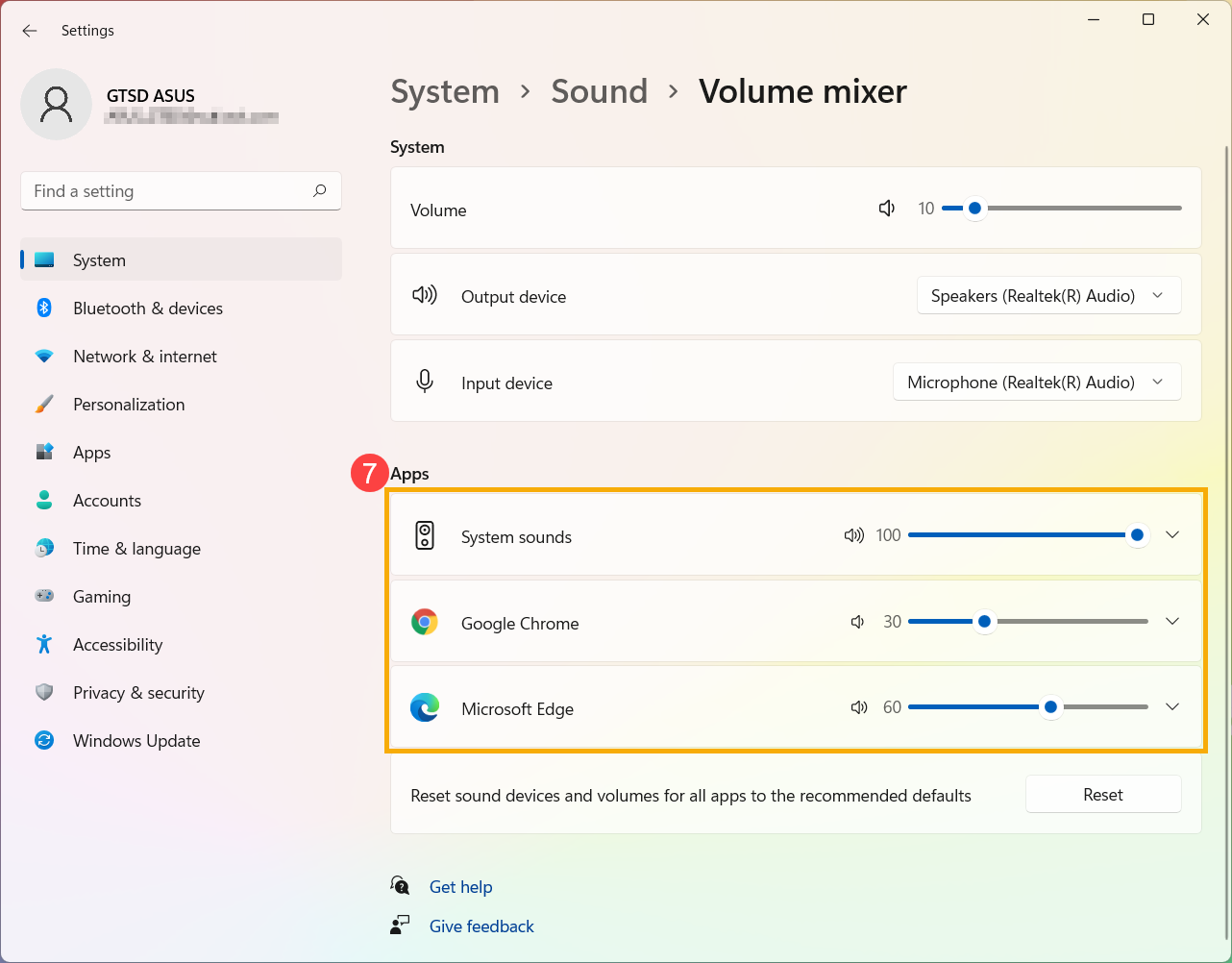
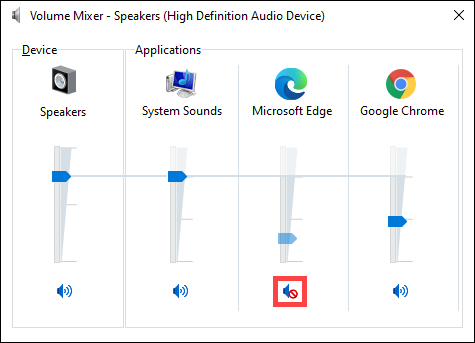
If the speaker icon of the app is , it means the app is at mute mode. Click the speaker icon again to turn the volume on.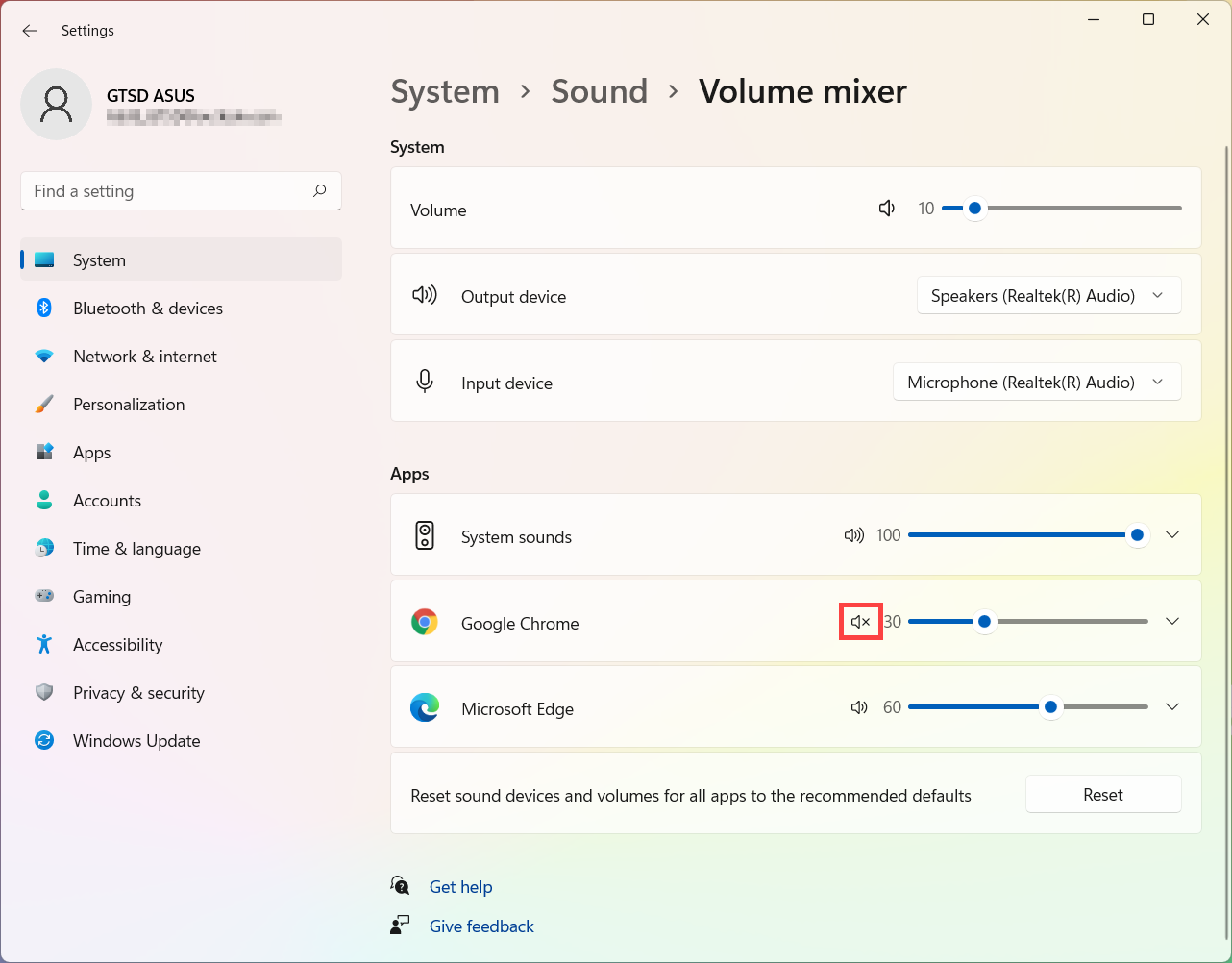
Windows 10 operating system
- Type and search [Sound settings] in the Windows search bar①, and then click [Open]②.
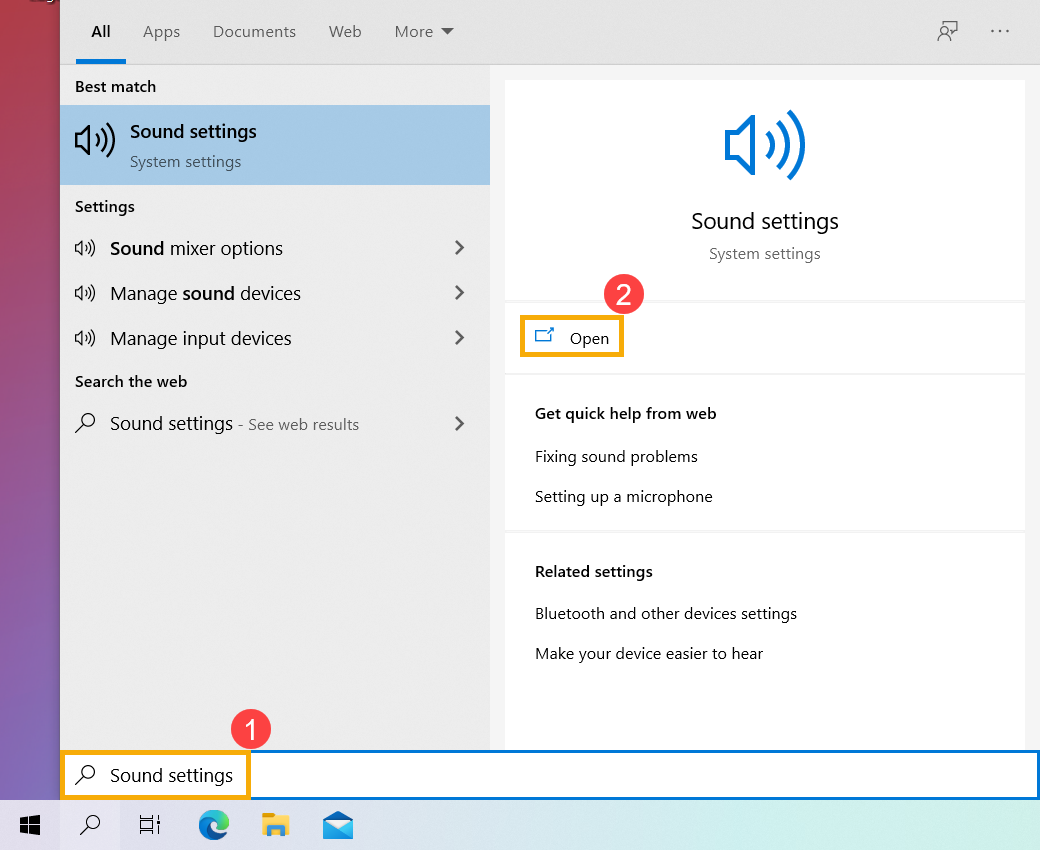
- In Sound settings, you are able to choose the output device③ (such as internal speakers, external speakers, or headset) and the input device④ (such as internal microphone, external microphone, or earphone).
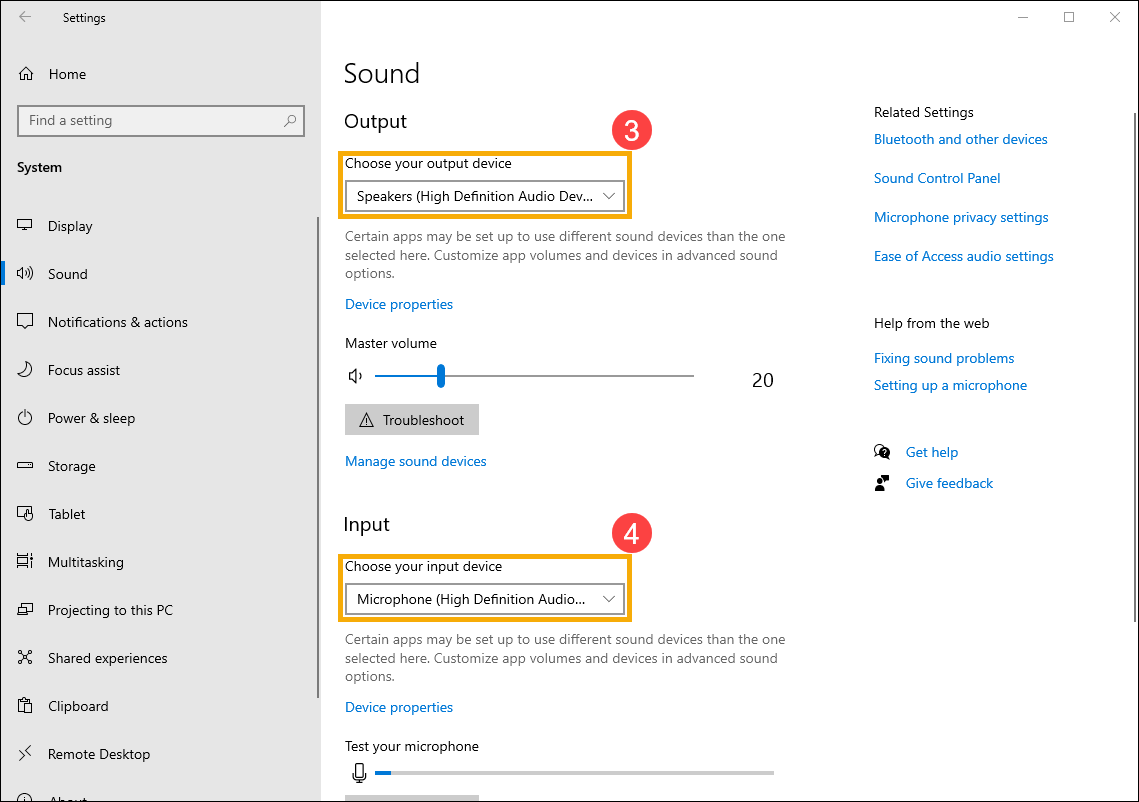
If the speaker icon of master volume is, it means your computer is at mute mode. Click the speaker icon again to turn the volume on. 
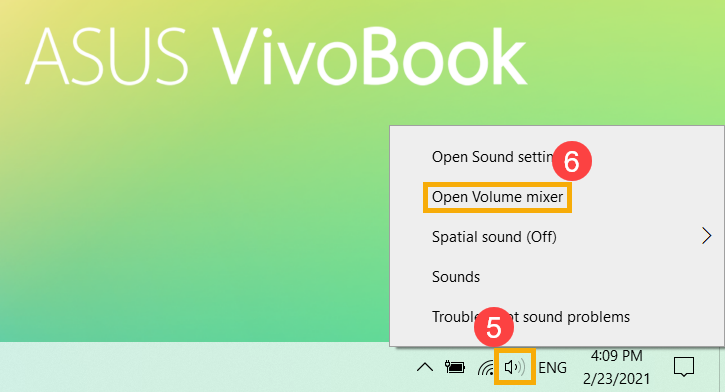
- Getting to use Volume Mixer. Right-click [Speakers icon] on the taskbar⑤, and then select [Open Volume mixer]⑥.
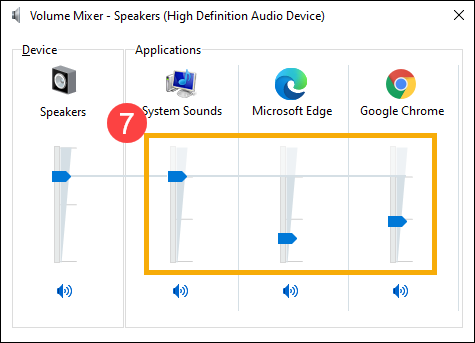
- In Volume Mixer, by dragging the slider to adjust volume for each app⑦.
If the speaker icon of the app is , it means the app is at mute mode. Click the speaker icon again to turn the volume on.