Related Topics
[Windows 11/10] Change Default Apps
If you would like to customize which apps Windows automatically uses to open the specific file types (such as photos, web browser, and music, etc.), please refer to the following method.
Please refer to the corresponding instruction based on the current Windows operating system on your device:
Windows 11 operating system
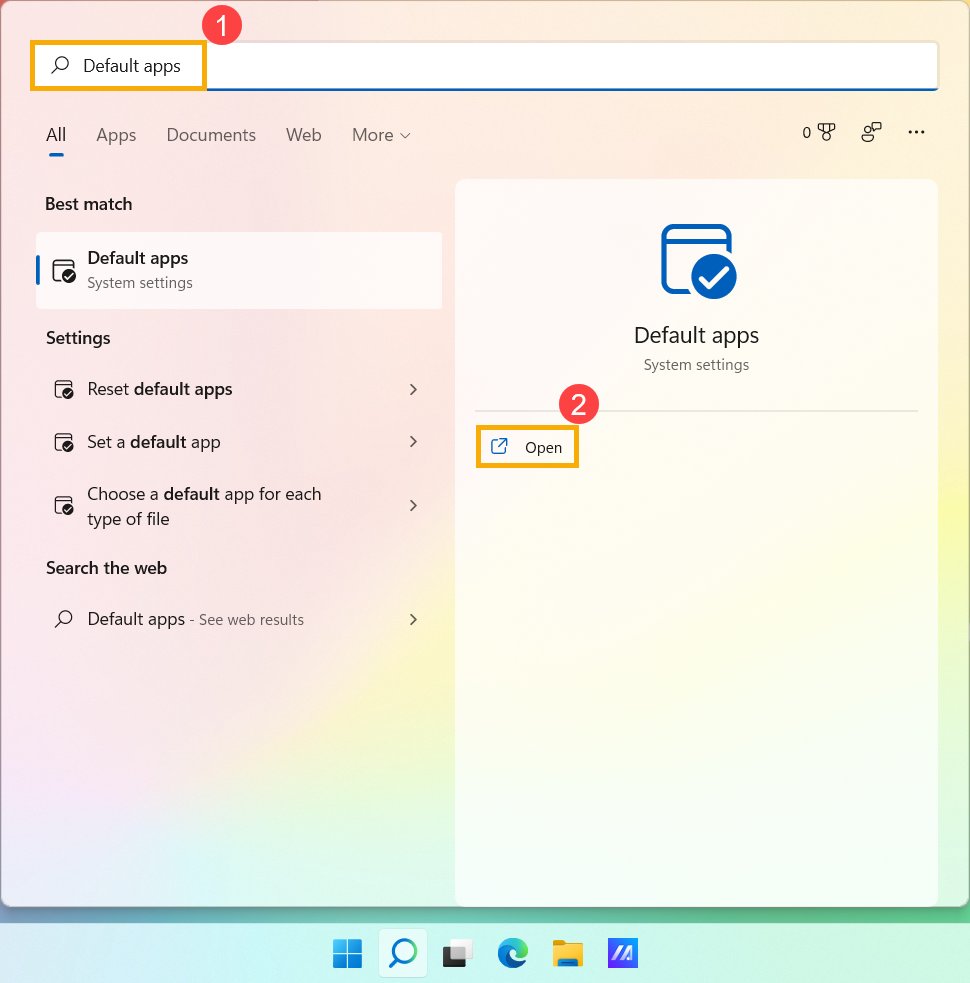
- Type and search [Default apps] in the Windows search bar①, and then click [Open]②.
- To change the default app, you can do either of the following:
Method 1: Set a default for a file type or link type
1. In the search bar, enter the file type or link type you want to change①, then the default app shows on the list of results②. (The following takes .MP4 file type as a reference.)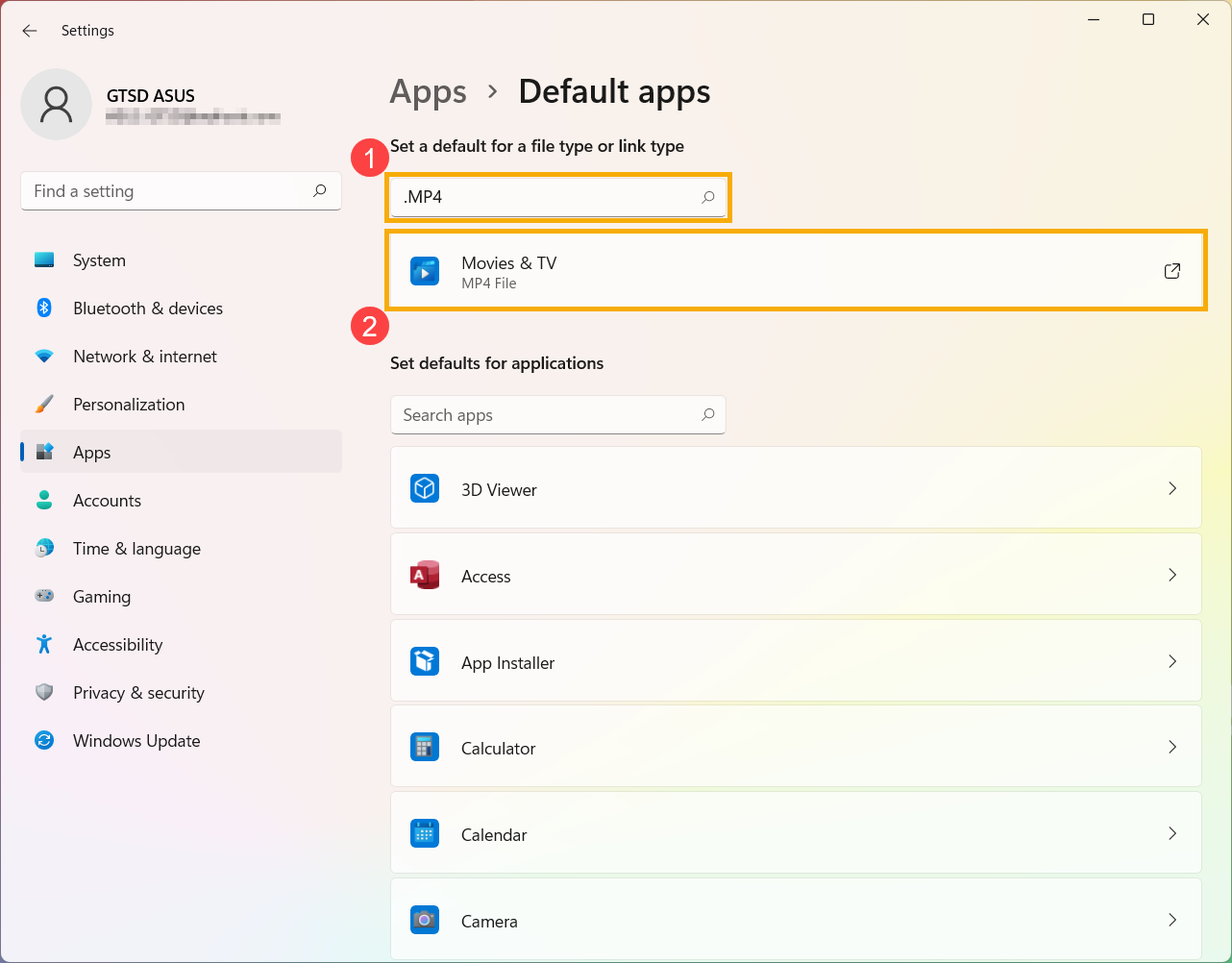
2. Select it from the list of results, then you can choose which app can open that file or link type③.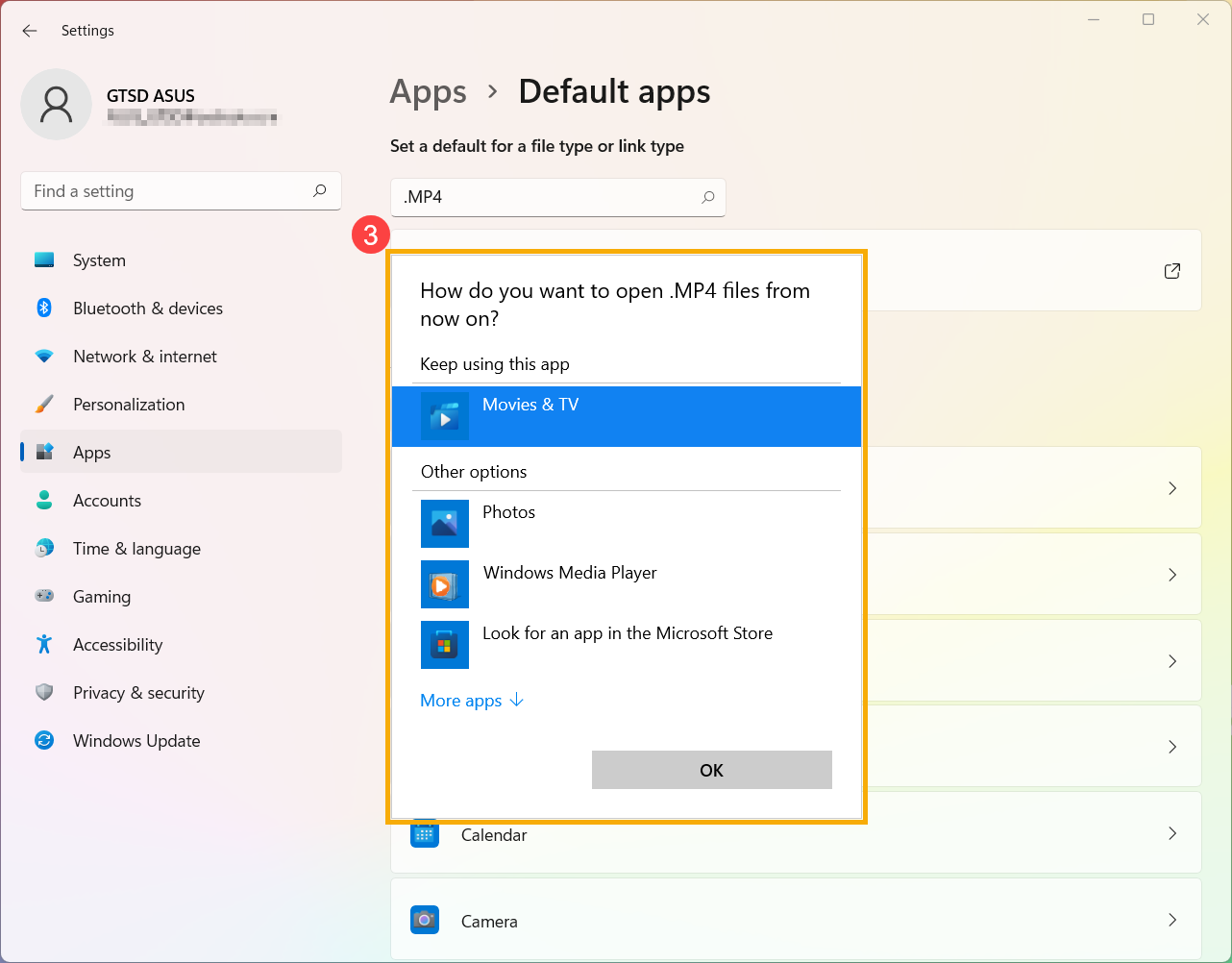
Method 2: Set defaults for applications
1. In the list of results, select an app you want to change①, then see what file types or link types it can open.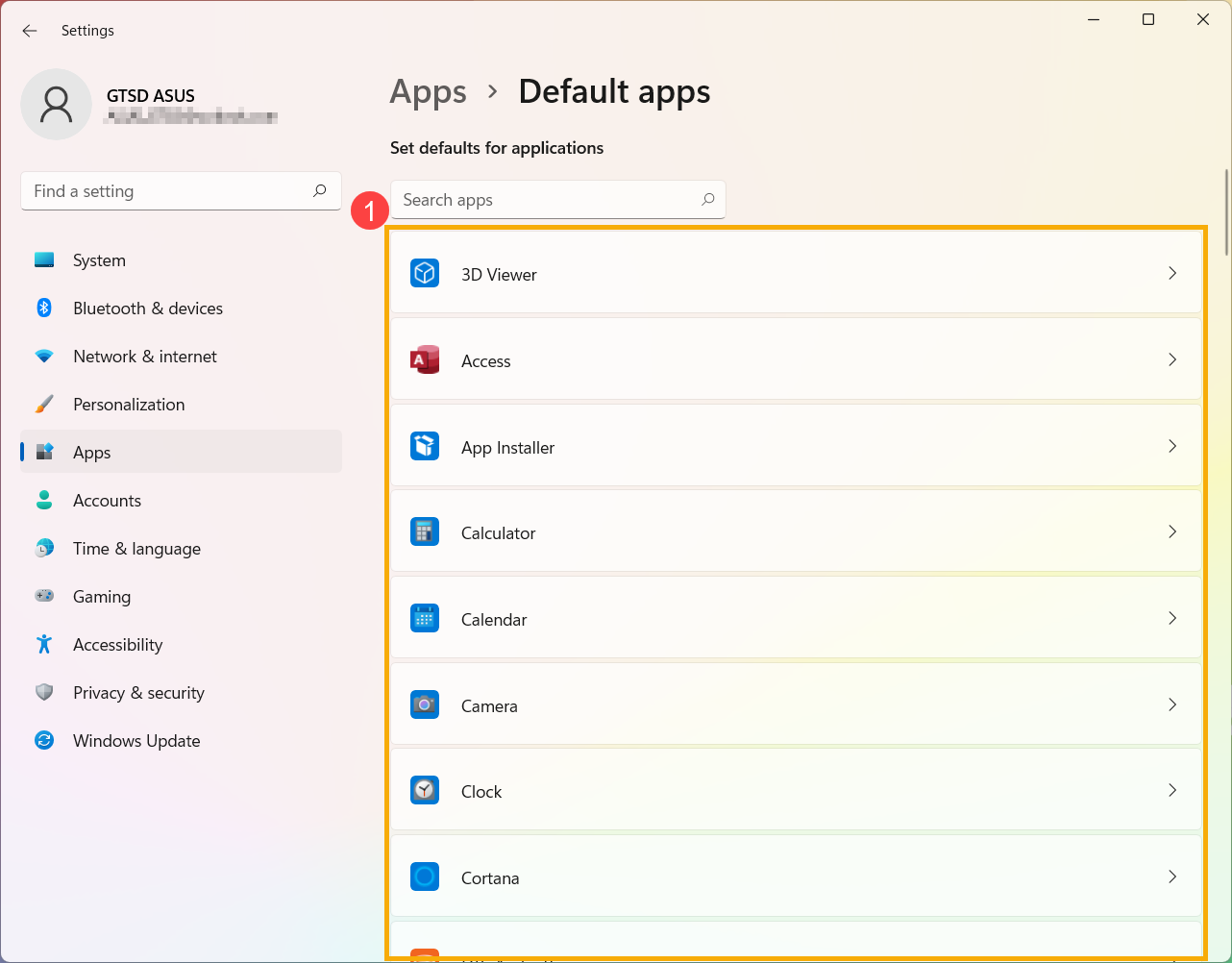
2. Select the file or link type you want to change, then choose your preferred app②.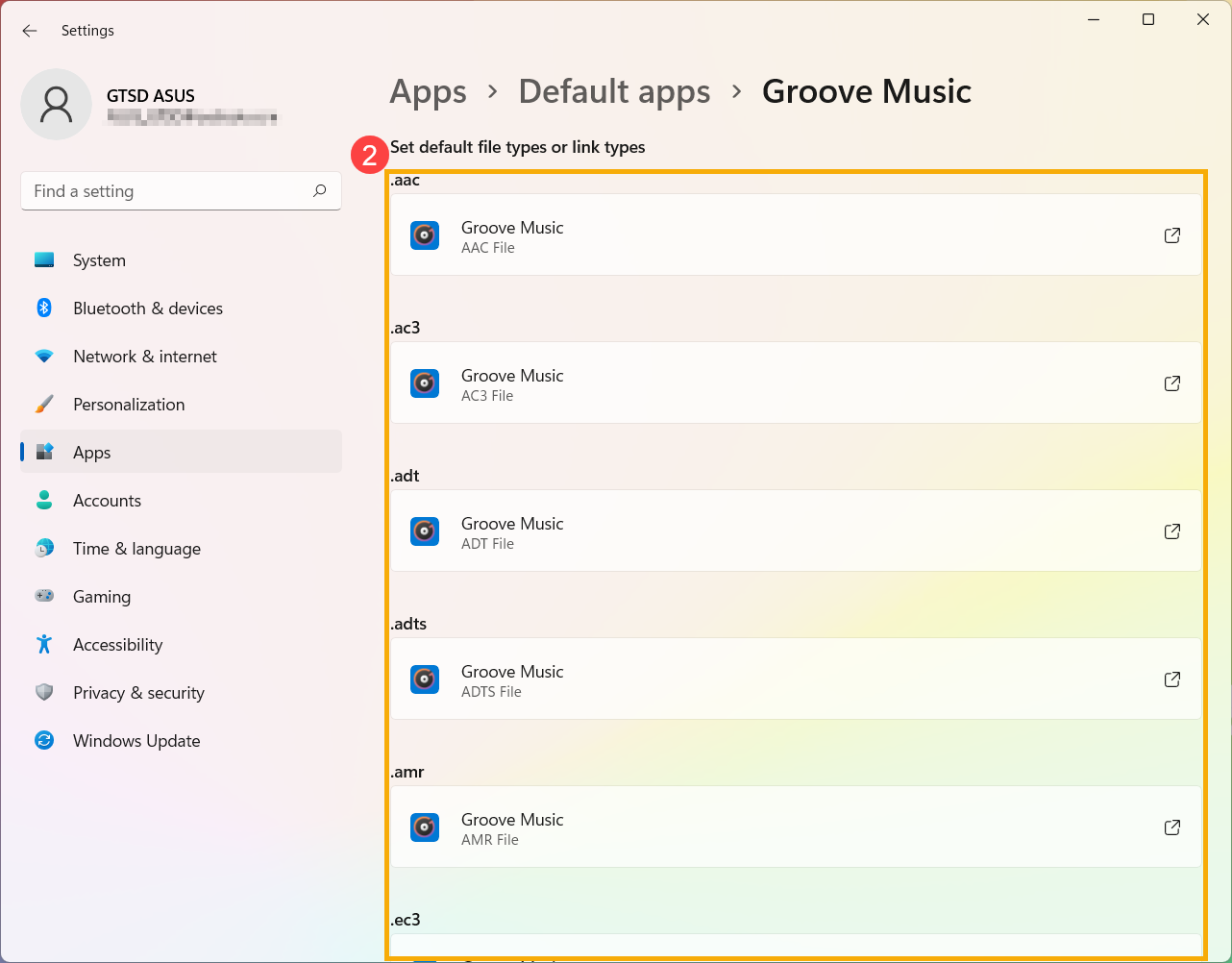
Windows 10 operating system
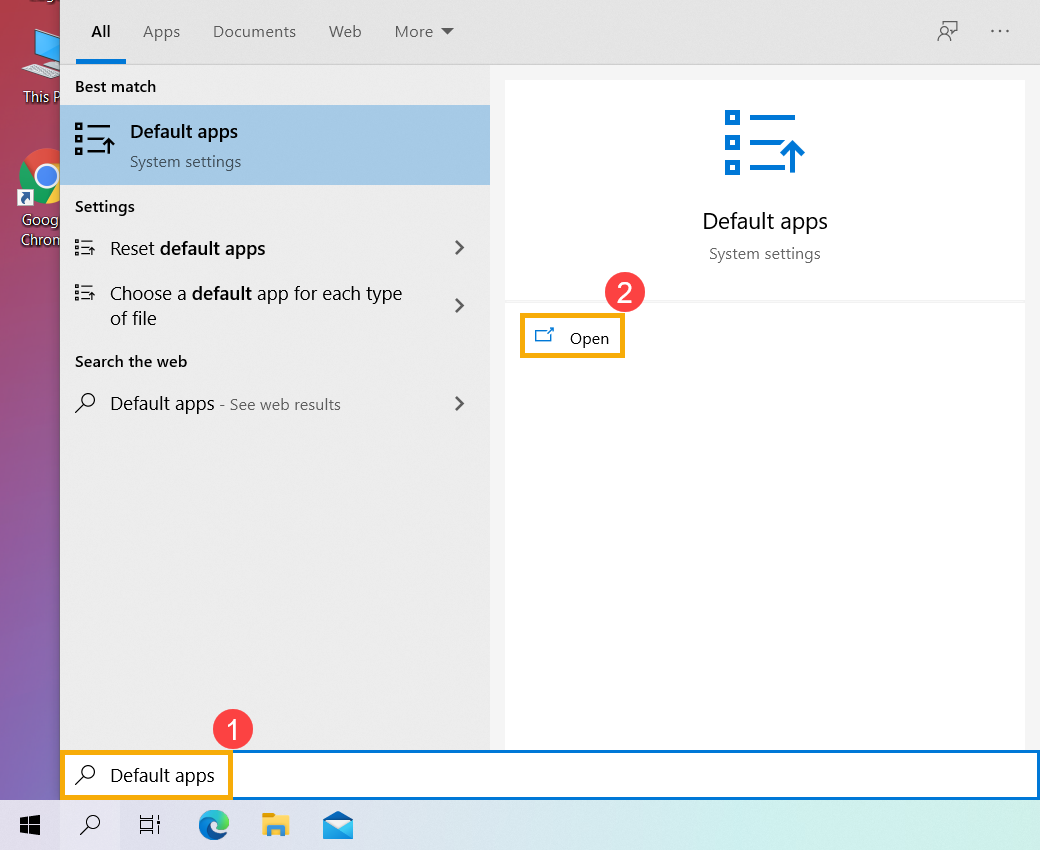
- Type and search [Default apps] in the Windows search bar①, and then click [Open]②.
- Select the default app that you want to change③, and then select your desired app④.
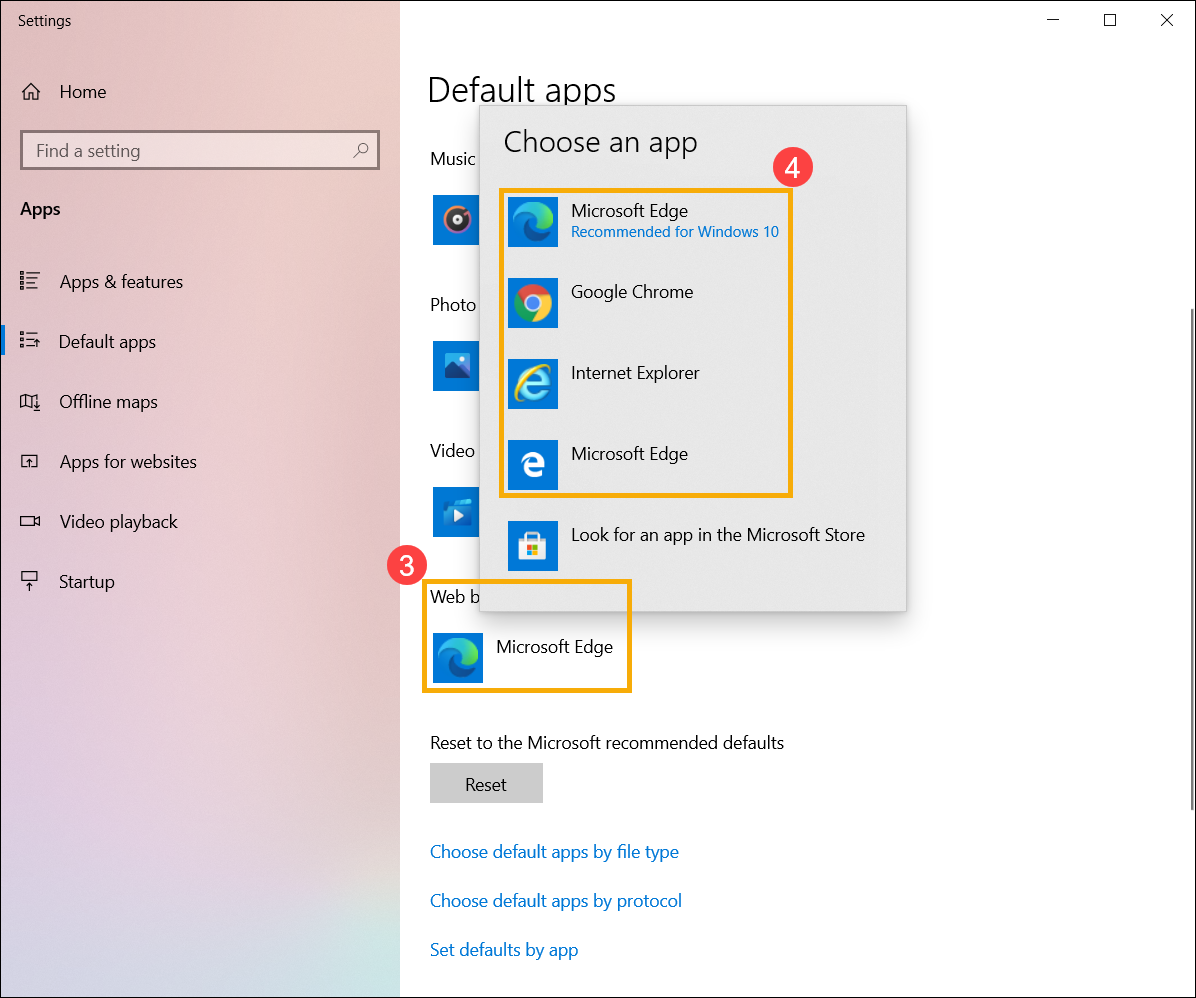
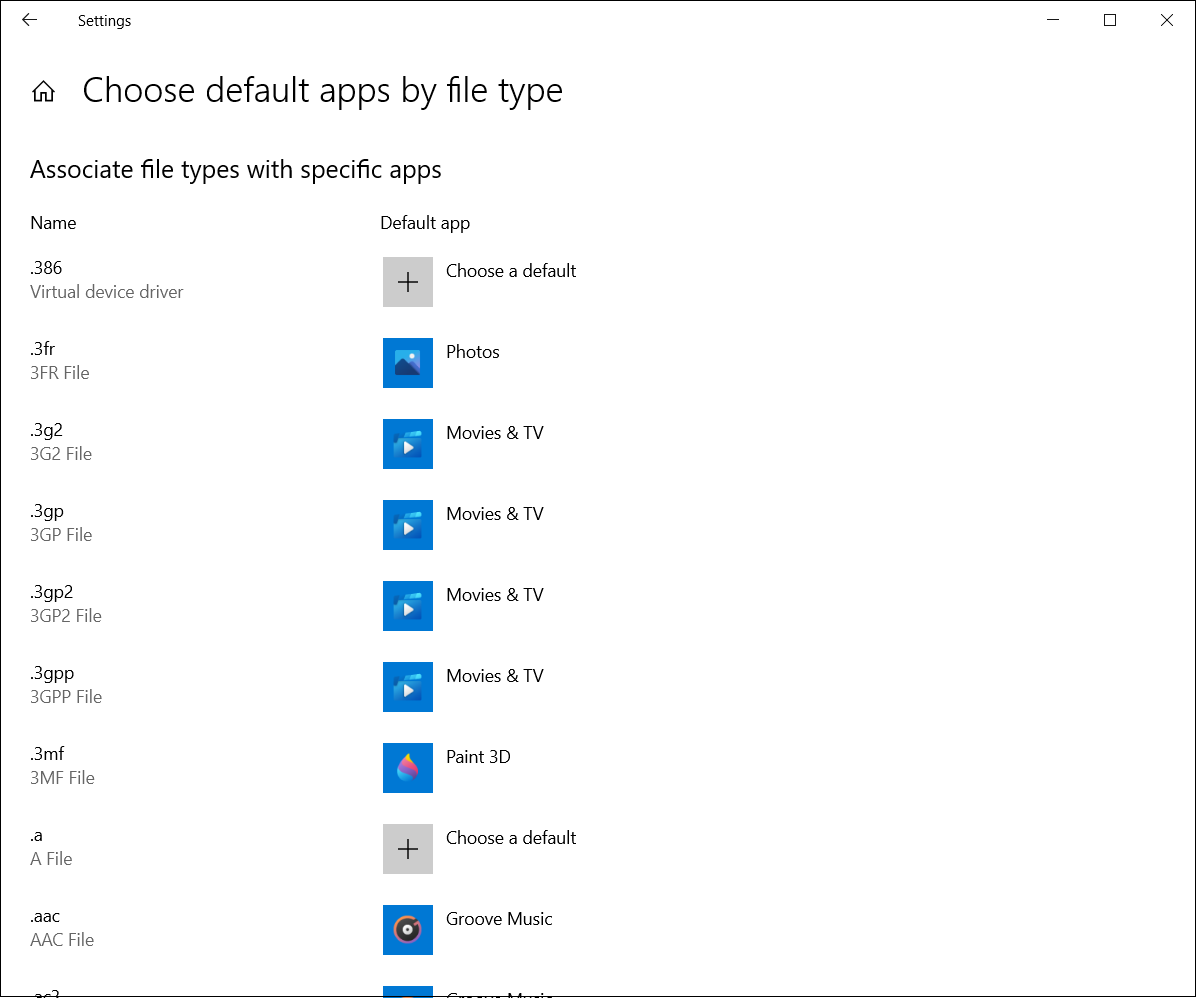
- If you would like to associate file types with specific apps, you can select [Choose default apps by file type]⑤.
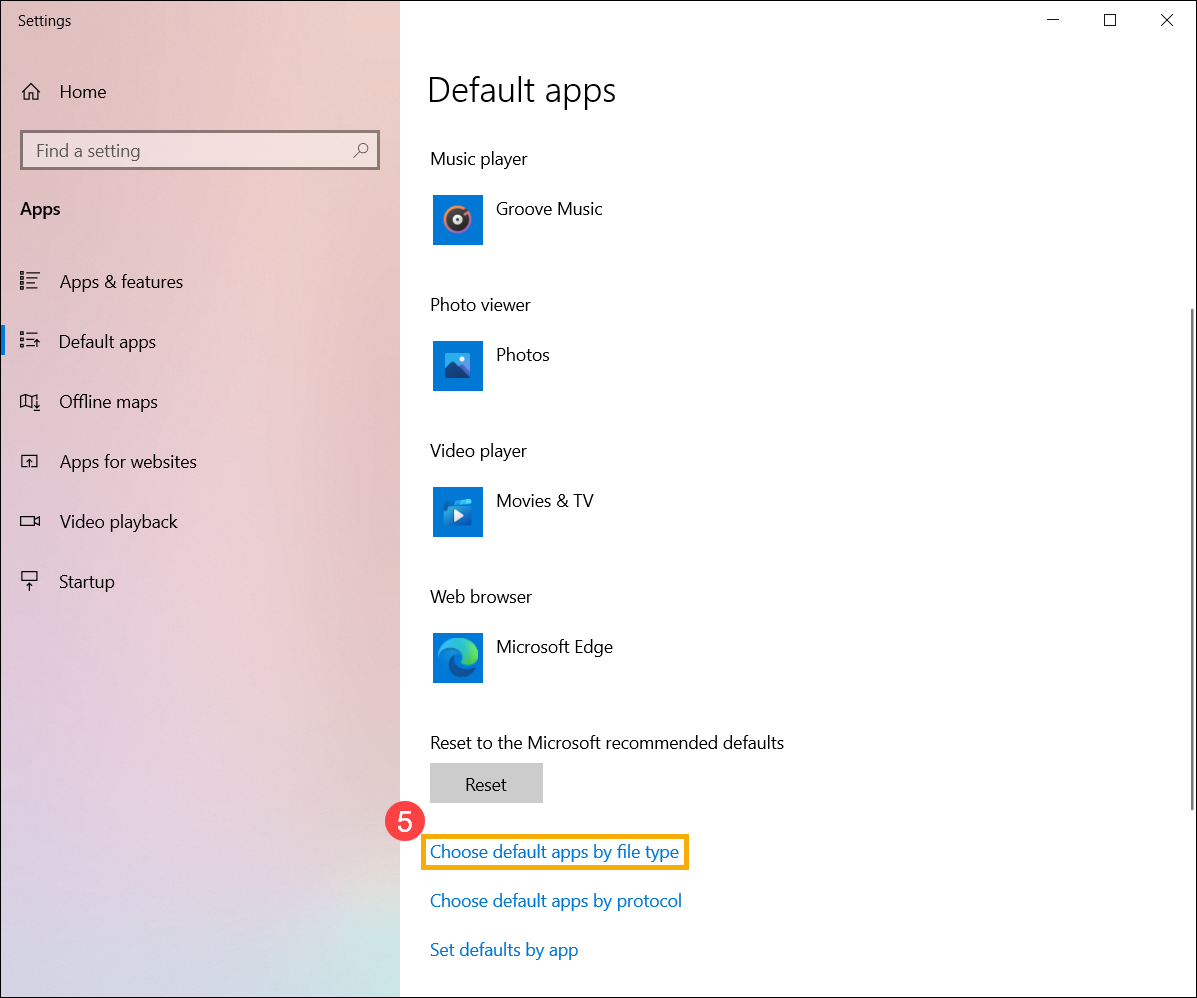
- Find the file type that you want to change, and then select your desired app.