How to set keyboard and mouse macros through Armory Crate
Through Armory Crate software, software macros can be set for the keyboard and mouse, simplifying complex commands or operations through custom macros such as keyboard key combinations or frequent mouse clicks.
Preparation:
Install Armory Crate software in the system, please refer to [ASUS Armoury Crate] Armoury Crate FAQ | Official Support | ASUS Global for details
Table of contents:https://www.asus.com/support/FAQ/1041654
Part 1: Recording Custom Macros
Part 2: Macro Content Modification
Part 3: Specify Macros to Devices
Q&A
Part 1: Recording Custom Macros
1. Click on the Start menu under the windows system, find the Armory Crate software and open it, as shown in the following figure:
2. Click on the button  and select [Macros] in the Armory Crate menu, as shown in the following figure :
3. Click on the button  in the middle to open the macro [Settings] page, as shown in the following figure:


On the [Settings] page, you can select Delay setting and Repeat settings as needed:
Delay settings : used to set the delay time between the actions of the macro, accelerating or slowing down the runtime of the macro
Record delay: Record the delay time in the macro, for example, if the action is delayed by 0.35 seconds during recording, it will be delayed by 0.35 seconds when actually running the action
Fixed delay: Set a fixed delay time, for example, after setting 500 milliseconds, each action delay time is 500 milliseconds
No delay: No delay, after setting, the delay time for each action is 0.000s
Repeat settings : used to set the method and number of repetitions for macro execution
Trigger switch: Starting from pressing the button, the macro starts executing and repeating until the next button is pressed, until the macro's current execution ends
Press switch: Press and hold the button, the macro starts executing and repeats until the button is released, and the macro execution ends
notes: Only some devices support press mode, please refer to [ASUS Armoury Crate] Armoury Crate Macros shift compatible devices for details
Multiple times: specify the number of times the macro is repeated
Single time: The macro only executes once and ends
Record delay settings: Used to set the countdown for the start of macro recording
Delay: Set recording countdown time, 1/3/5 seconds
No delay: No countdown before recording begins
4. After completing the macro settings, click on [OK] to save the settings, as shown in the following figure:
5. Click on [Record] to start recording the macro, such as multiple mouse clicks, keyboard keys, or keyboard and mouse combinations, as shown in the following figure: 
If multiple mouse clicks are required, simply click on the mouse. Example is shown in the following figure, the recording content is: Left click twice and then right click twice
If you need to record keyboard operations, you can actually operate the keyboard. Example is shown in the following figure, the recording content is, the recording content is: press the number 1, then press L-Shift+number 2, and then press Caps+letter A
6. After the macro recording is completed, click on [Stop], then click on [Save] in the bottom right corner. The macro profile name is displayed in the top right corner, as shown in the following figure:
Part 2: Macro Content Modification
After the macro recording is completed, you can add, modify, delete, and other operations to the recorded content. You can also add, delete, import or export macro settings files
1. Select the macro settings file that needs to be operated in the upper right corner, as shown in the following figure:
2. Add macro action:
Select the node that needs to be manually inserted, click on [Insert], select [Keyboard Button] or [Mouse Click]:
Note: Select [keyboard key], default insertion action: click on [A] key on the letter
Select [Mouse Click], default insertion action: click on mouse button on the left
Example 1: Insert [keyboard key], as shown in the following figure


Example 2: Insert [mouse click], as shown in the following figure


3. Modify macro content:
Click on the macro step that needs to be modified on the left and modify it through the [Parameters] on the right. As shown in the following figure, change the macro content from "Left click with mouse, delay 0 second" to "Enter the number A on the keyboard, delay 0 second":
Note: Macro actions are recorded in pairs, so modifications are also made in pairs.
Before modification
After modification
4. Delete macro action:
Select the action that needs to be deleted, click on the icon on the right to delete the corresponding macro action, as shown in the following figure:
Note: Macro actions are recorded in pairs, so deleting them is also done in pairs.

5. Clear all macro contents in the current macro settings file:
Click on [Clear All] on the right to clear the recorded content, and then you can rerecord the macro, as shown in the following figure:
6. Create/modify/delete/export/import macro settings file:
Click on the dropdown menu next to the macro profile name in the upper right corner to create/rename/delete/export/import macro profiles, as shown in the following figure:
Part 3: Specify Macros to Devices
1. Click on [Device] on Armory Crate menu and select the device that needs to be specified, as shown in the following figure:
(Example: Keyboard TUF GAMING K7)

2. On the [Keys] page, click on the key that needs to specify the macro, as shown in the following figure:
3. In the menu on the right, choose [Macro], and then choose the macro settings file name to complete the macro assigned function, as shown in the following figure:
Example: According to the content of the macro01 settings file for example 2 in step 5 of the first part above (press the number 1, then press L-Shift+number 2, and then press Caps+letter A (macro settings: fixed delay: 1 second/multiple repetitions: 3/no recording delay)), press the button on the left front of the mouse that has just been specified for the macro, the output of macro content is delayed by 1 second in each step to output "1@A1@a1@A"substring, as shown in the following figure:
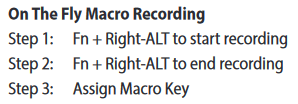
Q1: Can I record and assign a macro without using Armory Crate?
A1: A macro that does not pass through Armory Crate is a device hardware macro. Only the keyboard can achieve this, the mouse can't.
For specific methods, please refer to the Quick Guide on the keyboard official website.
Take ROG Strix Scope as an example:
Q2: Can we record a macro on PC1 and apply it to PC2?
A2: Of course. By using the export function of creating/modifying/deleting/exporting/importing macro settings in step 6 of the second part above, export the current macro on PC1, then copy the file to PC2 using a mobile storage device, and then use the import function to import the macro on PC1 into the Armory Crate. This can be achieved.
Q3: How to set Macro in Gear Link?
A3: Macro feature is not ready now in Gear Link. We will roll them out gradually in Q2 of 2026.