[Gaming NB] XSplit VCam Introduction
●XSplit VCam
XSplit VCam allows you to remove a live webcam's background without a green screen, blur the background for enhanced focus, and give user immersive presentations.
●Minimum System Requirements
The software standard: Windows 10 OS (With the latest INTEL or NVIDIA graphics drivers)
The hardware standard: Equipped 6th generation INTEL i5 CPU or Ryzen 5 (3nd Gen+) (CPU acceleration)
*You can also use this application on a laptop or desktop computer if it meets the specification requirements on the XSplit VCam official website.
Please refer to the XSplit VCam official website.
●Models Preloaded
ROG Zephyrus Duo 15 series notebooks.
For more preloaded models, please visit the Gaming Series Notebook Product from ASUS official website.
●Application Install and uninstall
Application Install: Please refer to XSplit VCam official website.
Application Uninstall: Please refer to below Link for application uninstall.
●Getting started XSplit VCam
Please type and search ①[XSplit VCam] in the Windows Search Box, and then click on ②[Open].

●XSplit VCam Menu
① Setting  : To setup Image Quality、Hardware Acceleration、Language, or Check for update and view Quick start guide.
② Webcam Settings  : To select a webcam source connected to your computer, and video quaality.
③ Backgrounds: To select the background to apply.
④ Viewscreen: The screen will display the actual camera image for current status preview.

For more details, please refer to XSplit VCam official website.
●XSplit VCam Update
Method A: When you launch XSplit VCam, you will receive an update notification automatically as below illustration, and you can click ①[Update now] to continue the process.

Then you will see the pop-up screen as below, please click ②[Update].

Method B: Launch XSplit VCam, and select  ①[Setting]→ ②[Help]→ ③[Check for update], then XSplit VCam will automatically check for updates, and you can follow the guided process to update it.
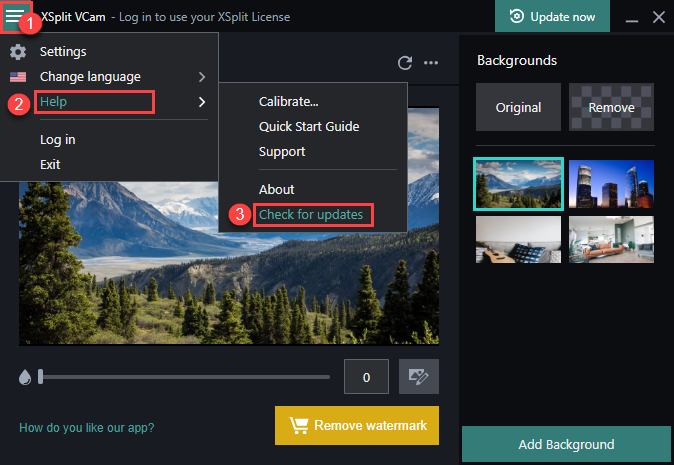
Please click ④[Update].

For more details, please refer to below link from XSplit VCam official website.
· XSplit VCam Support and Helps