Related Topics
- [Windows 11/10]「Game Bar」Feature
- [Windows 11/10]「Game Bar」Feature
- [Windows 11/10]「Game Bar」Feature
- [Windows 11/10]「Game Bar」Feature
- [Windows 11/10]「Game Bar」Feature
- ROG Ally Series Frequently Asked Questions
- ROG Ally Series Frequently Asked Questions
- ROG Ally Series Frequently Asked Questions
- ROG Ally Series Frequently Asked Questions
- ROG Ally Series Frequently Asked Questions
[ROG Ally] Armoury Crate SE Introduction
Armoruy Crate SE Install& Uninstall
Armoury Crate SE - Game Library
Armoury Crate SE - User Center
Armoury Crate SE is designed to be single platform for controlling and optimizing the ROG Ally. It provides a simple design for gamers to easily control their devices, manage their Game Library, configure Control Modes, customize Aura Sync lighting, and monitor real-time system information.
Armoury Crate SE is currently only supported on the ROG Ally series.
Armoury Crate SE application required V3.1.7 or later version.
Armoruy Crate SE Install& Uninstall
For complete instructions on how to download and install Armoury Crate SE Installer, please refer to the ASUS official website.
For complete instructions on how to uninstall Armoury Crate SE, please refer to the ASUS official website.
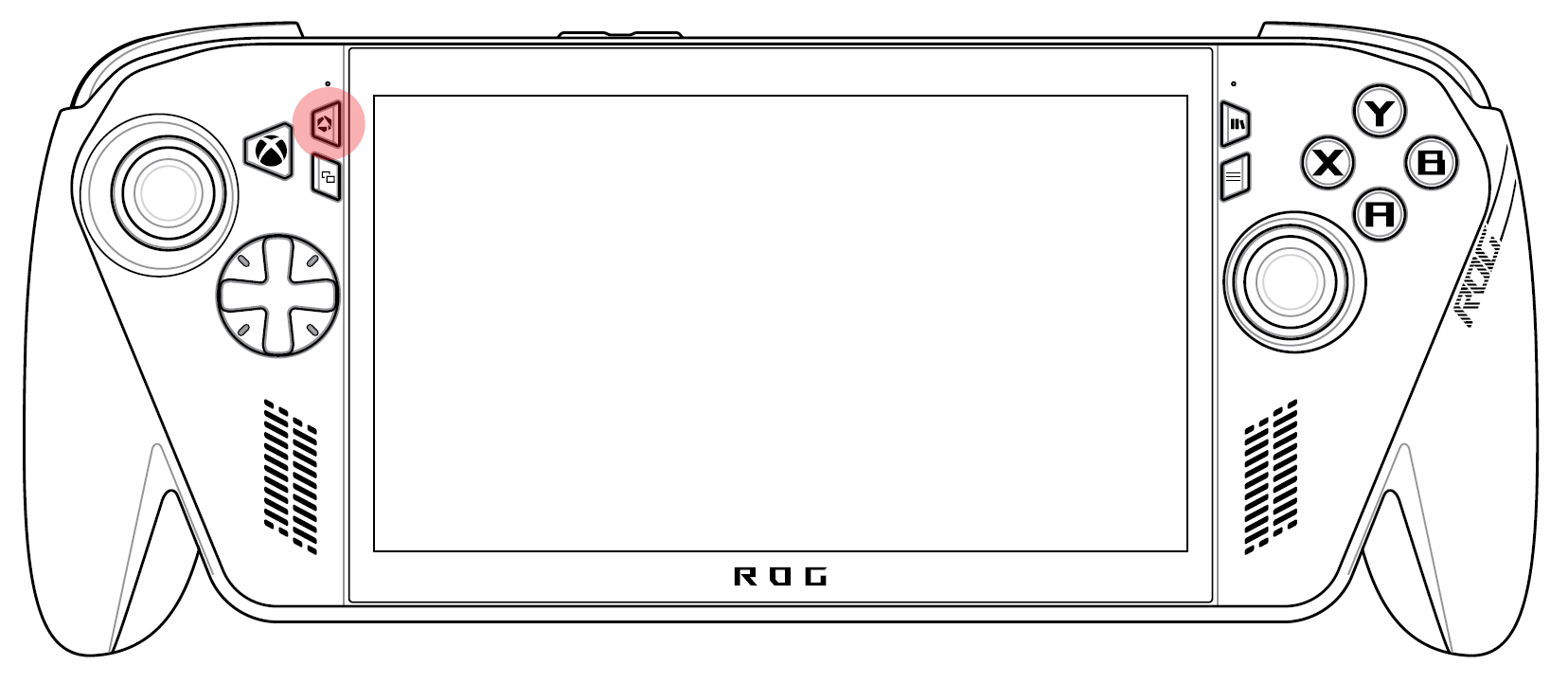
For using RC73 series and later models
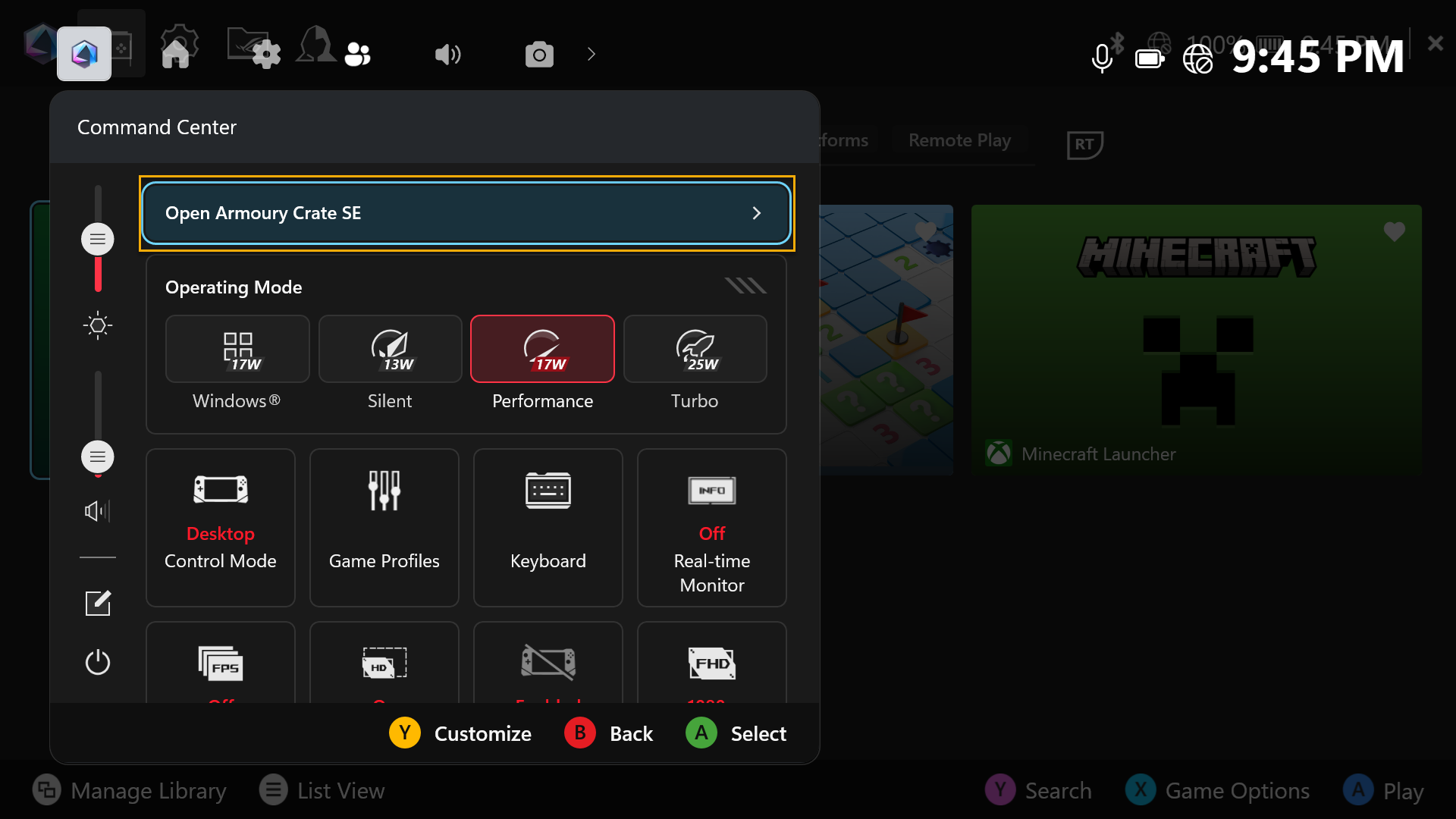
●Press the [Command Center] button to open the Command Center.
●Long press the [Command Center] button to open the Armoury Crate SE. (Requires the latest BIOS and MCU firmware.)
Click [Open Armoury Crate SE] to open Armoury Crate SE application.
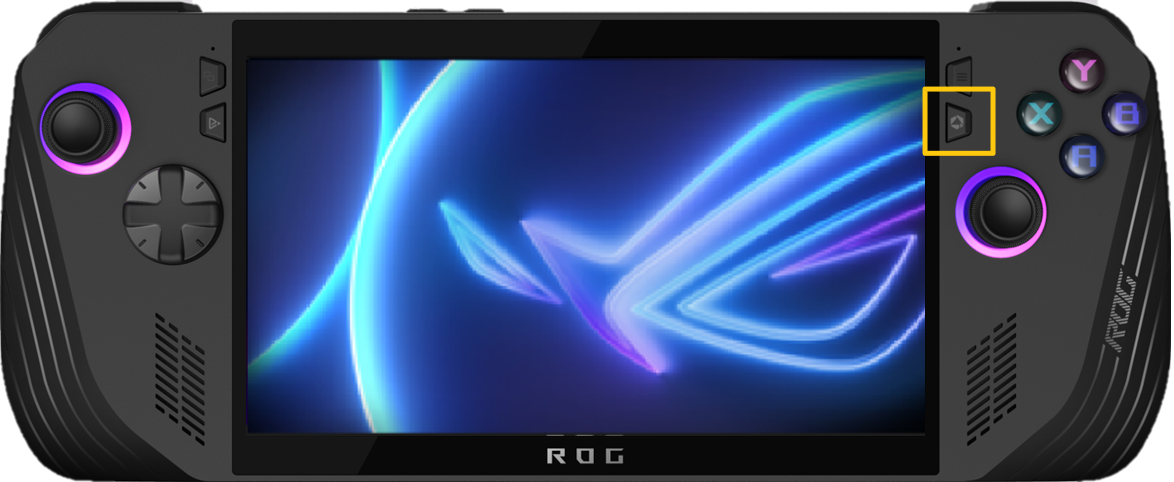
For using RC71/RC72 series
Press the [Armoury Crate] button to open the Armoury Crate SE application and enter the homepage.
Armoury Crate SE - Game Library
The main menu offers a view of your currently installed games and applications, with the ability to quickly launch them. Thru the trigger keys, user can switch page between Favorites and Game Platforms.

①Manage Library: Players can add games to the game library and customize the layout and visual appearance of the library in *Customize Library.
②List View: Switch to list view or grid view in the Game Library.
③Search: Find your game or application quickly through keywords or tags.
④Game Options: Players can edit individual game profiles, such as control mode (buttons, joysticks setting), configuration and external controller. Also, player can delete games from the game library or uninstall them through Windows settings.
*Customize Library: Provides various layout configurations and visual appearances, allowing you to customize them in managing your game library.

The settings section for various functions, including General, Performance, Update Center, Calibration, Power Management, Lighting, Audio, Display, Connection, Shortcuts& Key Binding and Devices.

General
Players can customize the launch animation or interface theme of Armoury Crate SE in the personalization. Also, they can check the Device Info and their device storage. In the [About], the Armoury Crate SE version, Service Version, and App Diagnostics tool will be displayed.

*Real-time Monitor can keep track of your system performance at a glance while gaming, with customizable layouts and monitoring options.

*Command Center Layout (Only support RC71/RC72 series products)
Players can choose their preferred Command Center layout within the Command Center.

Performance
Provides multiple options to adjust system performance for any scenario. Additional CPU Settings and GPU Settings can also be adjusted in Performance.

Update Center
Click [Check for Updates], and the utility will automatically check whether drivers or firmware are required to update.

Calibration
Calibration advanced settings, select left/right stick, left/right trigger or Gyro to calibrate.

Recalibrate stick, press [A key] to start stick calibration, then follow the guidance to calibrate.

Recalibrate trigger, press [A button] to start trigger calibration, then follow the guidance to calibrate.

Recalibrate Gyro, press [A button] to start Gyro calibration, then follow the guidance to calibrate.

Power Management
Optimize battery health, standby efficiency, and charging behavior with intelligent power management features for everyday use and travel.

*The Travel Mode (RC73 and later) in the Charging item, Improves charging compatibility when connected to low-power outlets, such as those on planes. (Requires the latest BIOS.)

Lighting

Device Lighting: Select from preset Aura effects and change the RGB lighting colors to create the exclusive style.

Aura Sync: Pair the ROG Ally with other Aura Sync compatible devices for synchronized lighting.

Audio
Select the desired microphone and speaker mode, and enable or disable the AI Noise-Canceling solutions.

Display
GameVisual: A screen color management tool that provides a variety of options to alter the screen color depending on game genre and personal preference.

OLED Settings: Optimize your OLED display with built-in features designed to enhance visual quality and help extend panel lifespan. (OLED models only.)

Connection
Access to available Wi-Fi networks and Bluetooth devices.

Shortcuts & Key Binding
Create your own keyboard shortcut to open Armoury Crate SE or Command Center with an external keyboard.

Button Actions (RC73 and later): Remap CC the Command Center and Action buttons to your preferred system functions. (Requires the latest MCU firmware.)

XBOX Experience Mode (RC71/RC72 only): Switch hotkeys between the Default button layout or an XBOX button layout. (Requires the latest BIOS and MCU firmware.)

Device
When you install peripherals compatible with Armoury Crate SE, all information will be displayed on this page. Players can also use the Update Center to receive additional feature updates for compatible devices.

Control Mode - Configure
The Control Mode provides [Gamepad Mode] and [Desktop Mode] two preset modes, it allows for customization of the buttons, sticks, triggers, vibration, Gyro and External Controller when the device is either in Gamepad Mode or Desktop Mode.

*Configure Setup
Key Mapping
The preset Gamepad Mode and Desktop Mode allow for complete control over key mapping the main buttons.
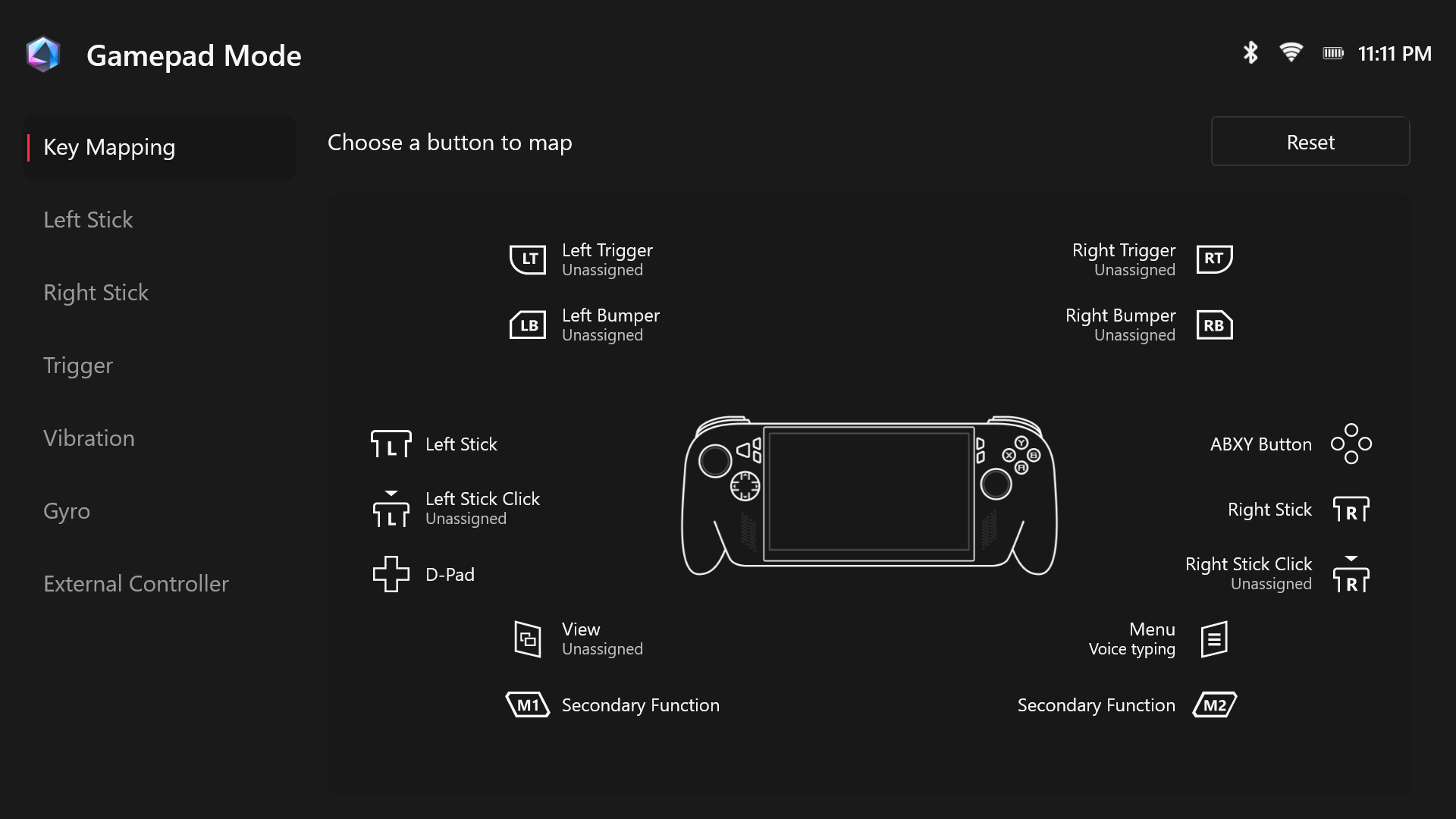
a. While key mapping, one function will be mapped as the [Primary Function] and the second will be mapped as the [Secondary Function], with the secondary function accessible by holding one of the rear paddles and pressing the button.
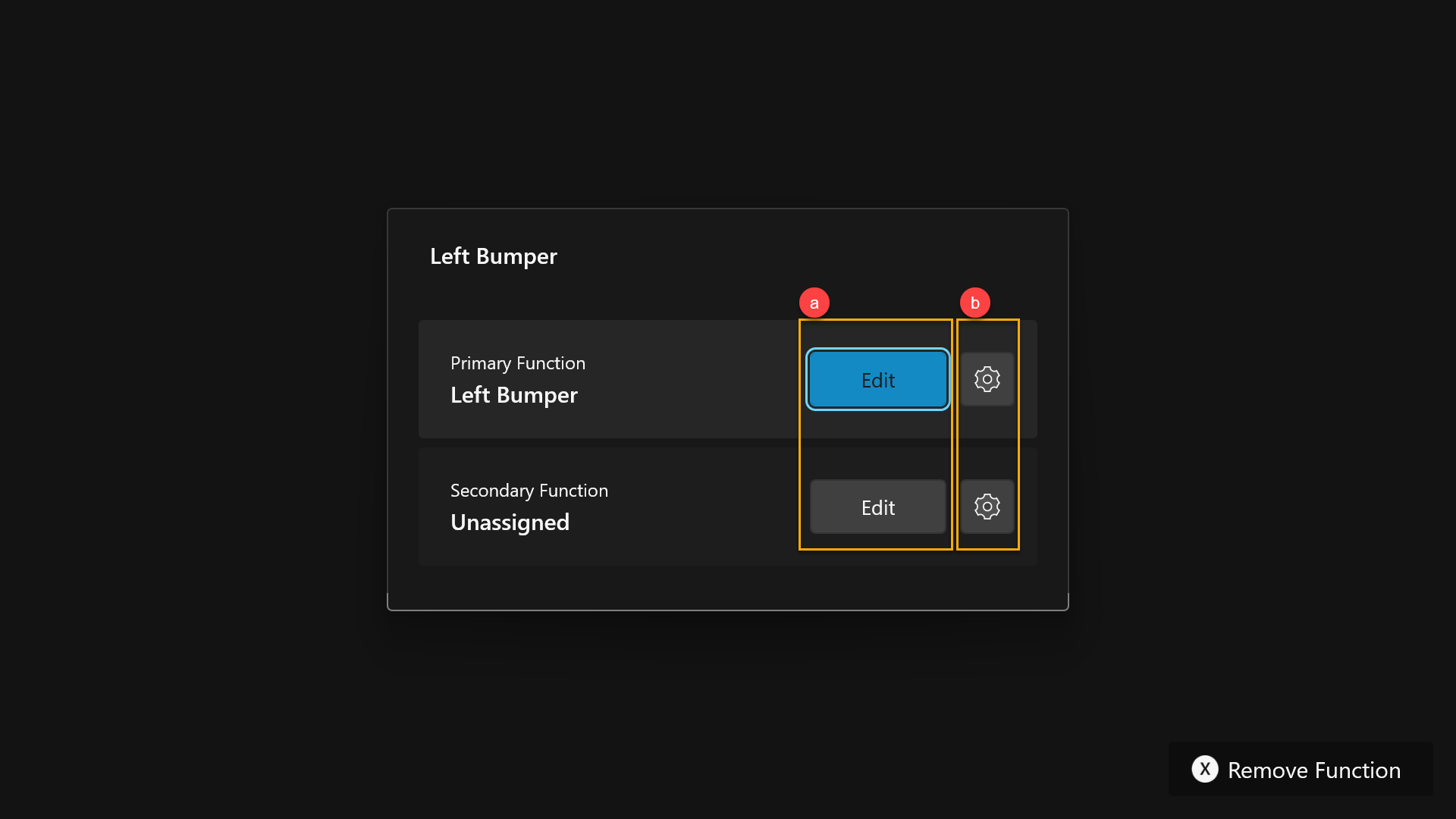
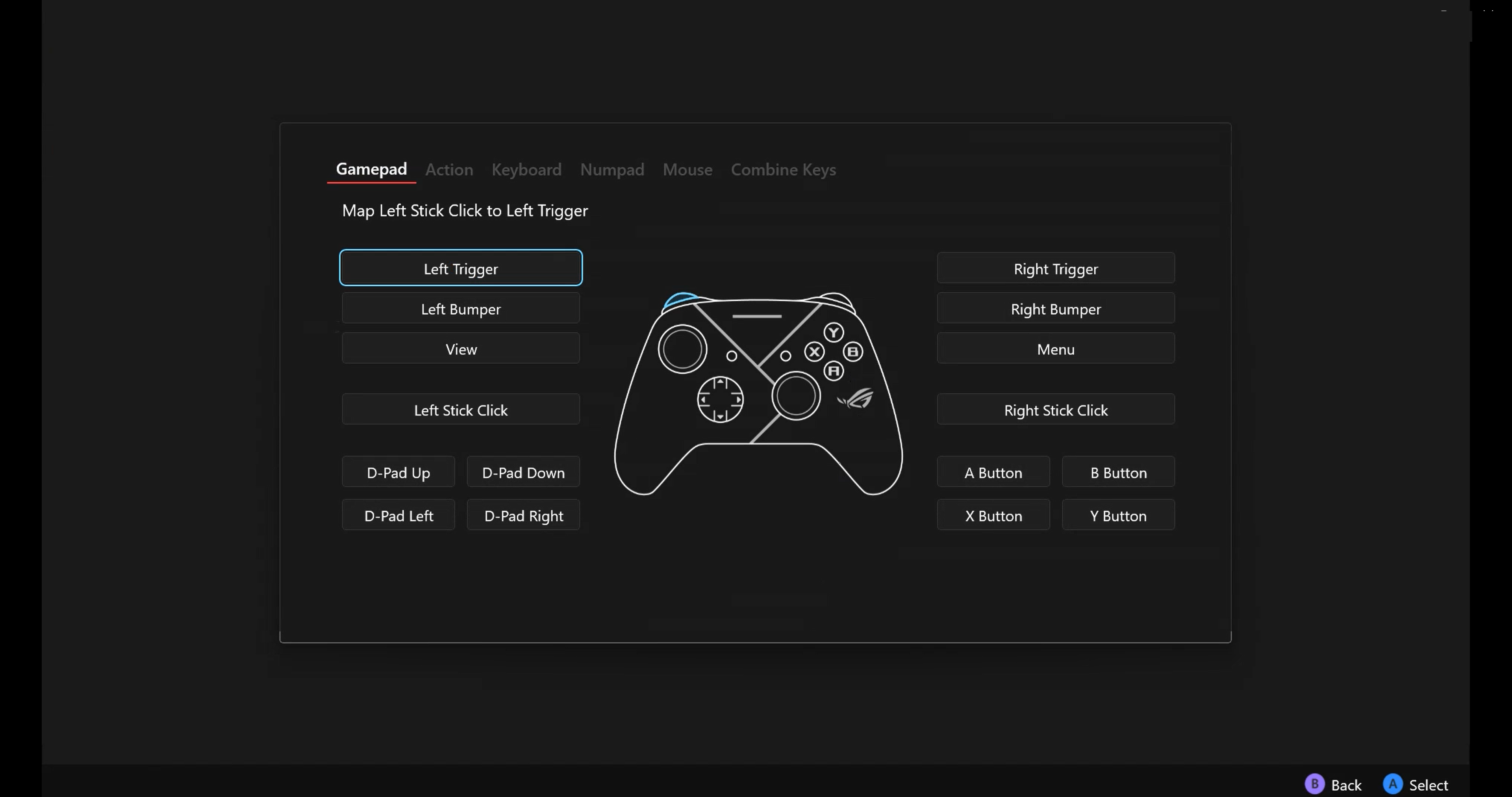
Button Function Setup: All mappable buttons can be customized as either a Gamepad, Action, Keyboard, Numpad, Mouse, or Combine Keys function.
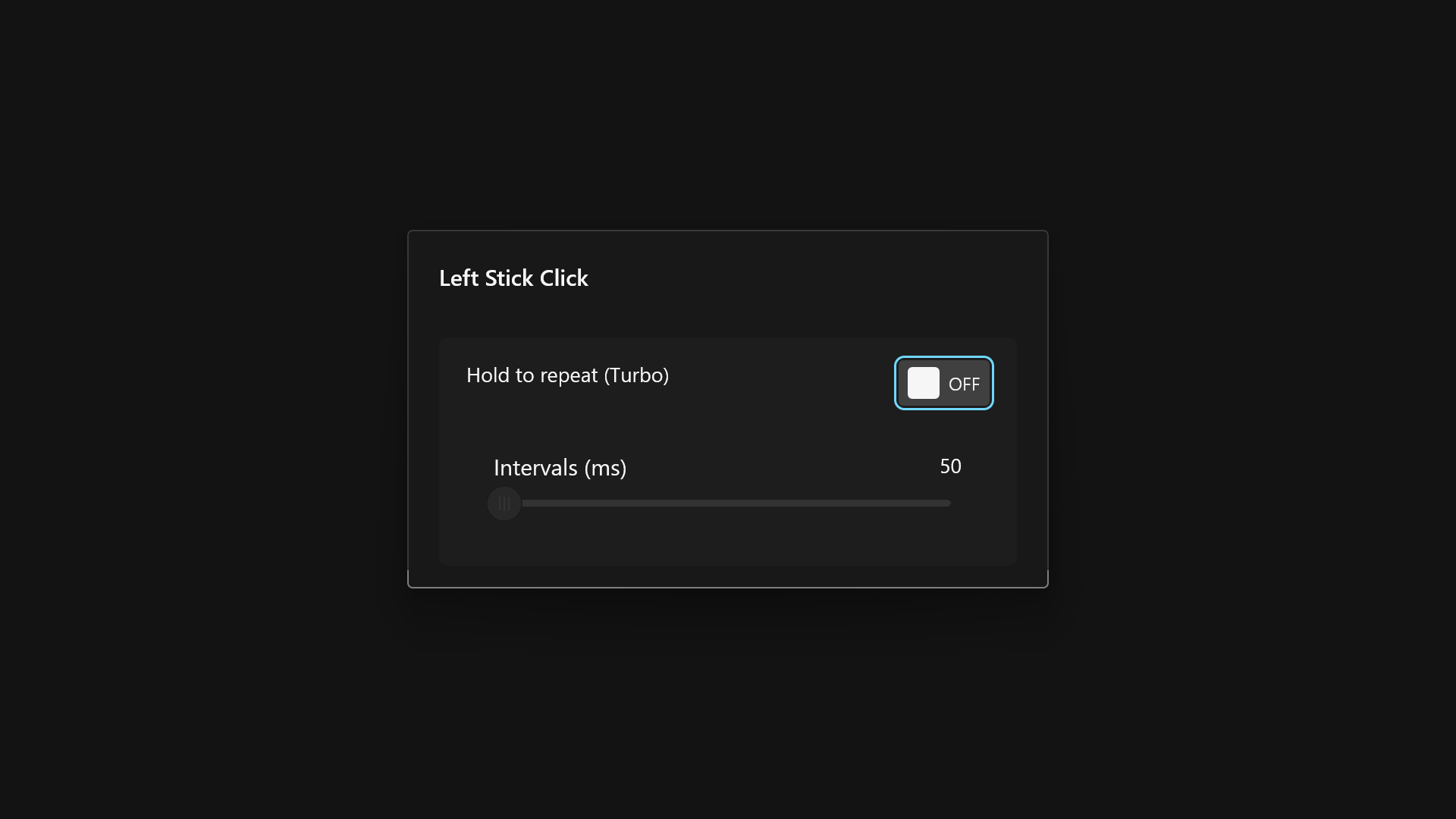
b. Button repeat: Turn on [Hold to repeat], then the button will perform the action repeatedly. The time interval of the repeated action is also configurable.
Left& Right Sticks
The joystick’s inner [Dead zone] and outer threshold are both fully configurable.
Response Curve: To provide user with different sensitivity settings for joystick control.
Anti-Deadzone, many games have their own dead zone setup. If the joystick does not cause movement in the game with slight joystick movement, you can remove this using the anti-deadzone setting.
*A dead zone is the amount your control stick can move before it’s recognized. The dead zones trade off slower responsiveness to avoid accidental inputs.

Trigger
Trigger sensitivity can be customized individually, or select [Mirror triggers] to align both sensitivities.

Vibration
The haptics for each half of the device are fully customizable.

Gyro
The Gyro function can be customized to align sensitivities.

External Controller
Set your external controller mapping.

This section provides access to the Campaign, Help Center, Game Deals, Content Platform, Recommended, Redemption and Feedback Hub sub-menus.

Help Center

①Guided Tour: The introduction video to the basic operations of the ROG Ally.
②FAQ: Frequently asked questions about ROG Ally.
③Hardware Guide: The hardware information about ROG Ally.
Game Deals
Discover, explore, and pick-up great games.

Content Platform
Provide ROG Ally exclusive wallpapers, launch animation and more ROG materials to download.

Recommended
Applications recommended or supported for your ROG Ally.

Redemption
Log in to your ASUS member account to review redemption records.

Feedback Hub: Your feedback will help us optimize this app's performance.

The login portal for your ASUS member account, with access to My Profile, My Products, Registered Events, and Notifications.

Please refer to ROG Xbox Ally and ROG Xbox Ally X user's manual to know more about device shortcut and button combinations.
Question 1: What is Dead Zone?
A1: A dead zone is the amount your control stick can move before it’s recognized. The dead zones trade off slower responsiveness to avoid accidental inputs.
Question 2: Why does my Armoury Crate SE display a warning that the battery connector plug in unsuccessful?
A2: If the battery charge indicator  is also continuously flashing at this time, please open the device to check the battery connection or reconnect the battery. If the problem still persists, please consult a specialist for further inspection.

Battery charge indicator location
