Liknande ämnen
[Windows 11/10] Desktop icon settings
You are able to create, show, hide desktop icons, or change their size.
Please refer to the corresponding instruction based on the current Windows operating system on your device:
Windows 11 operating system
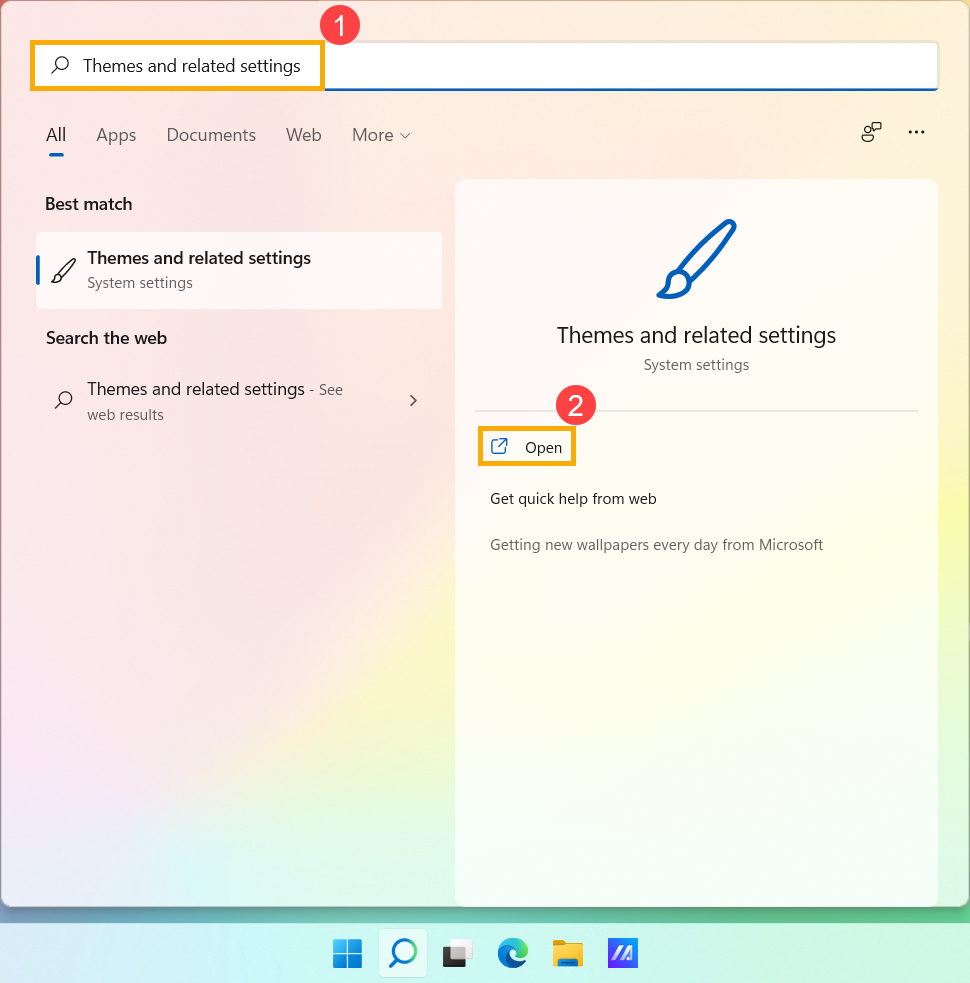
- Type and search [Themes and related settings] in the Windows search bar①, and then click [Open]②.
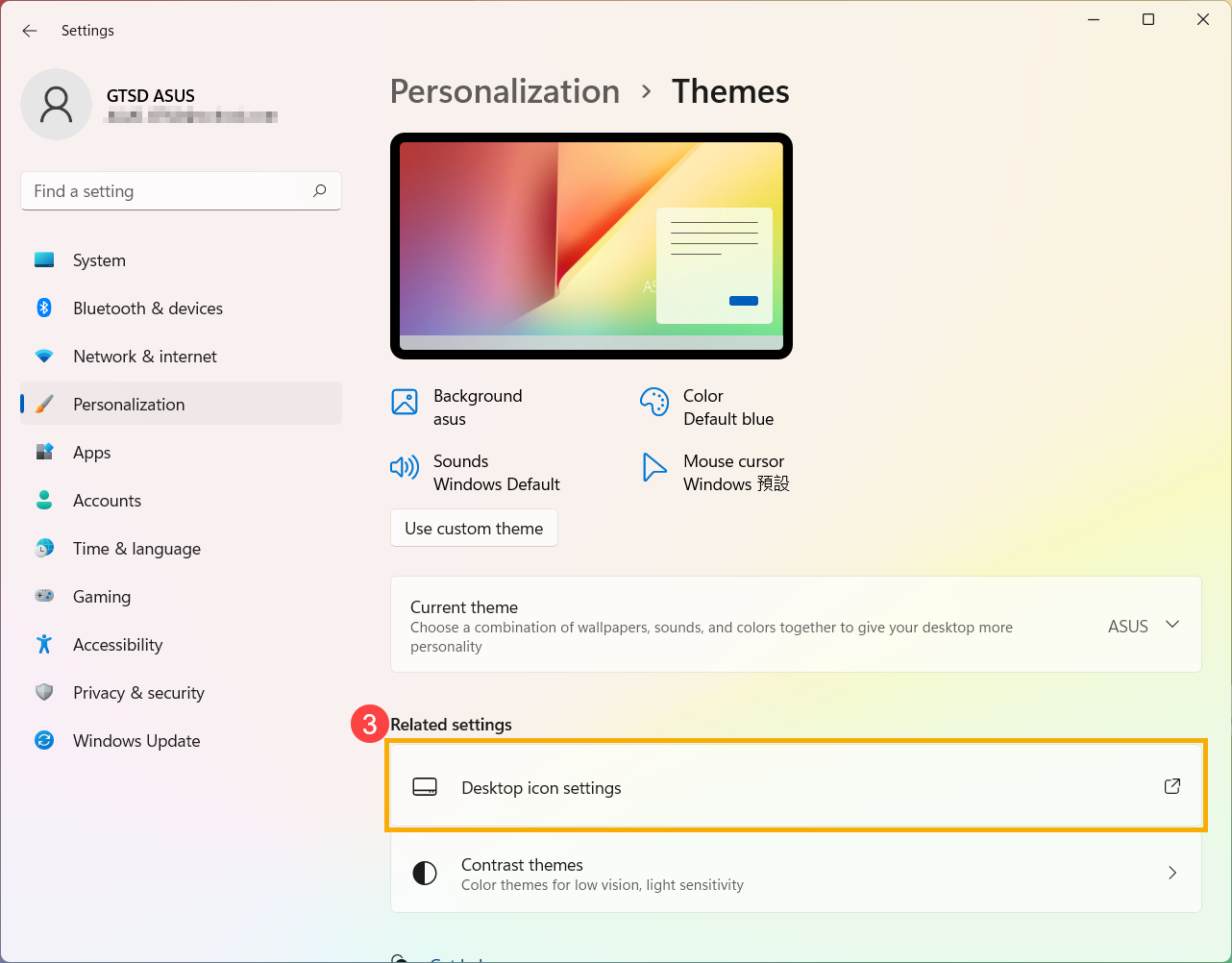
- In Related Settings, select [Desktop icon settings]③.
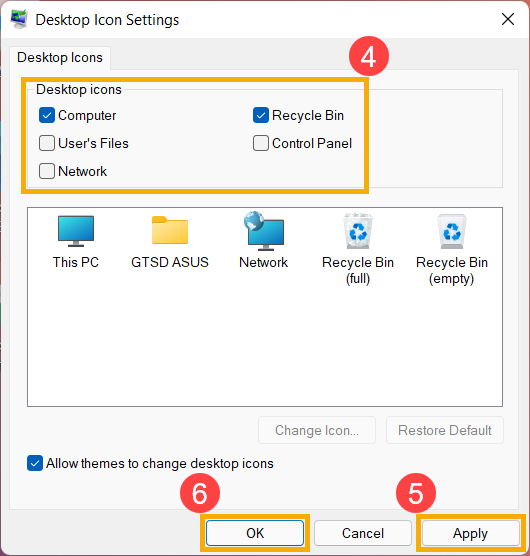
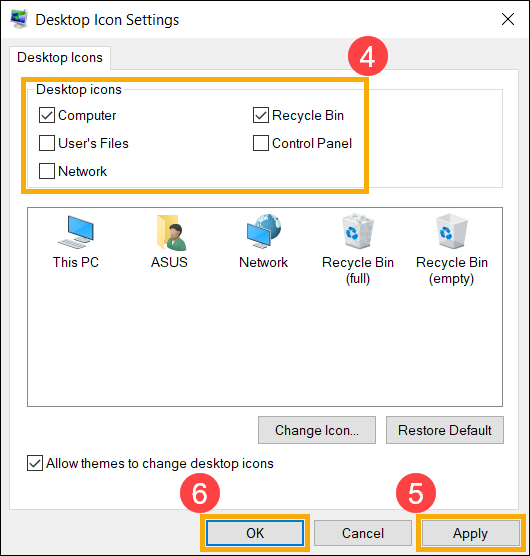
- You can choose the icons you would like to have on your desktop④, then select [Apply]⑤ and [OK]⑥, the selected icons will display on your desktop.
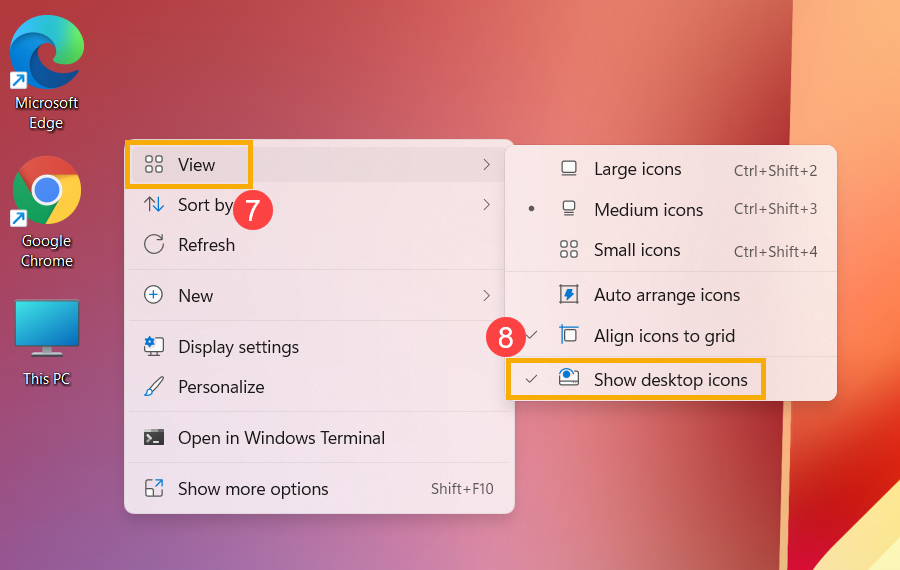
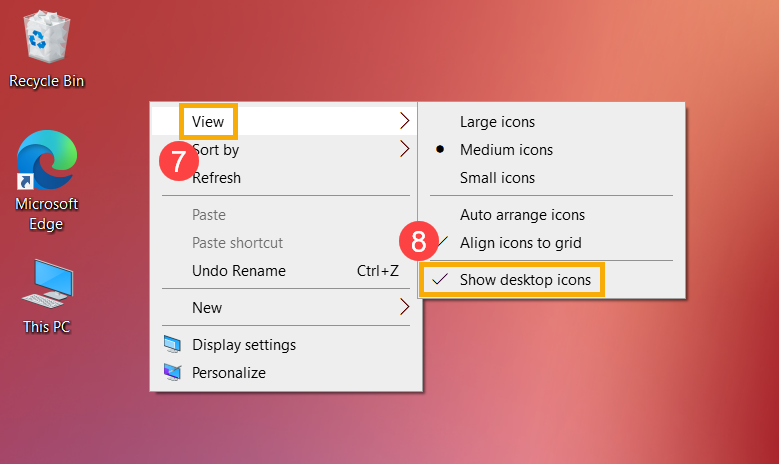
- If you would like to show or hide the desktop icon, right-click anywhere of the desktop, point to [View]⑦, and then select or unselect [Show desktop icons]⑧.
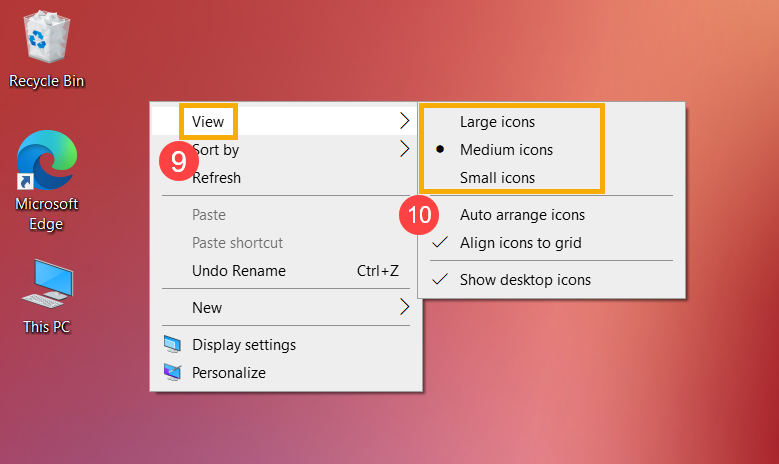
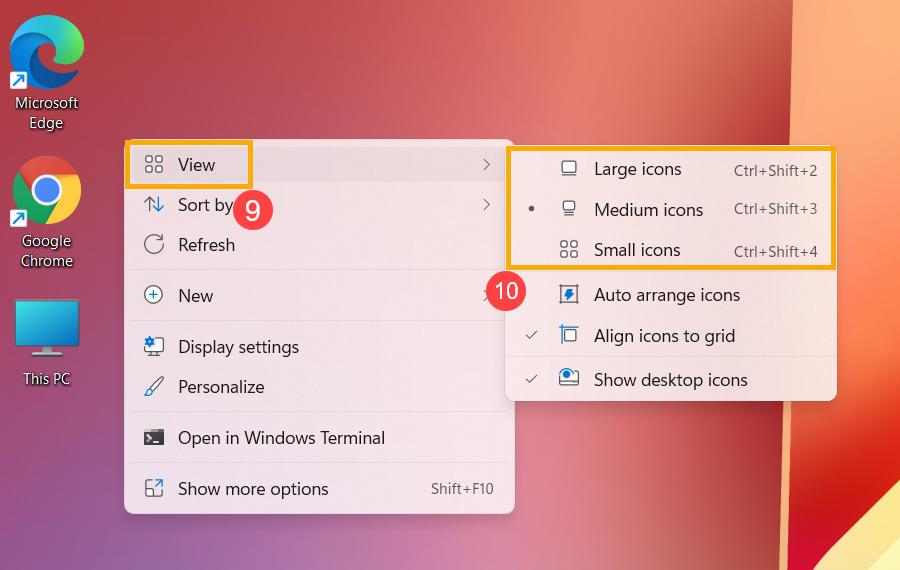
- If you would like to adjust the size of desktop icon, right-click anywhere of the desktop, point to [View]⑨, and then select [Large icons], [Medium icons], or [Small icons]⑩.
Windows 10 operating system
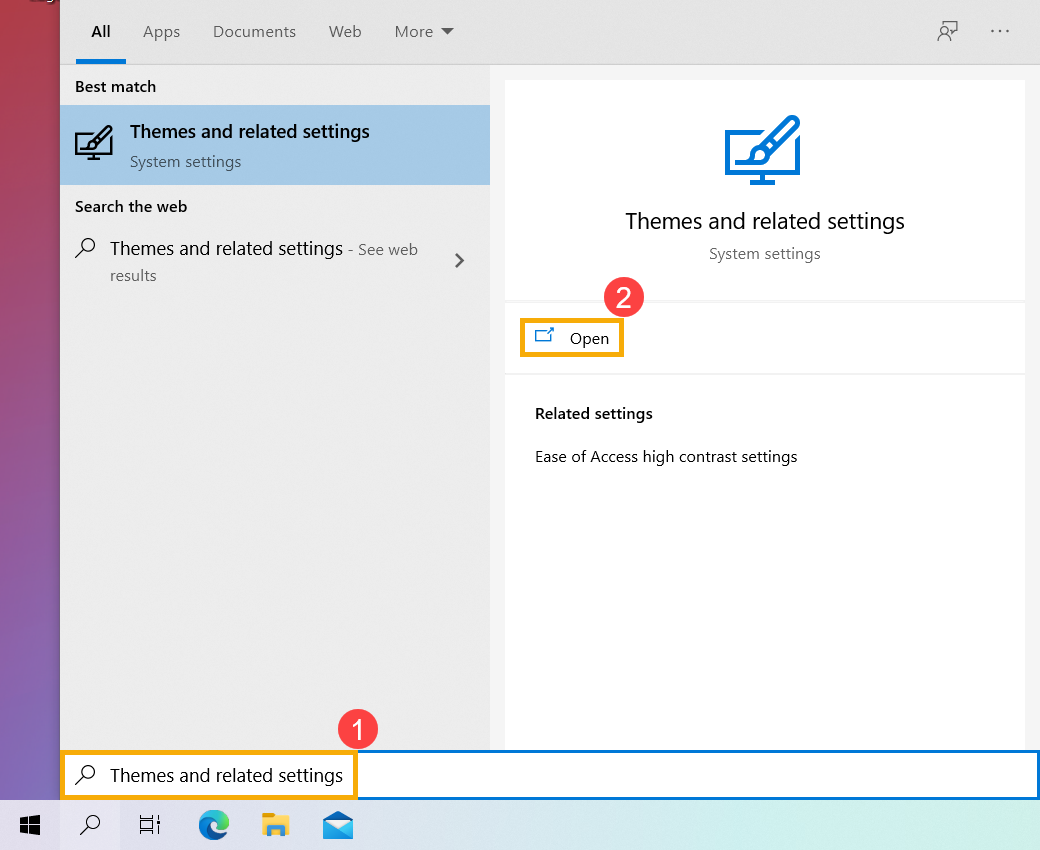
- Type and search [Themes and related settings] in the Windows search bar①, and then click [Open]②.
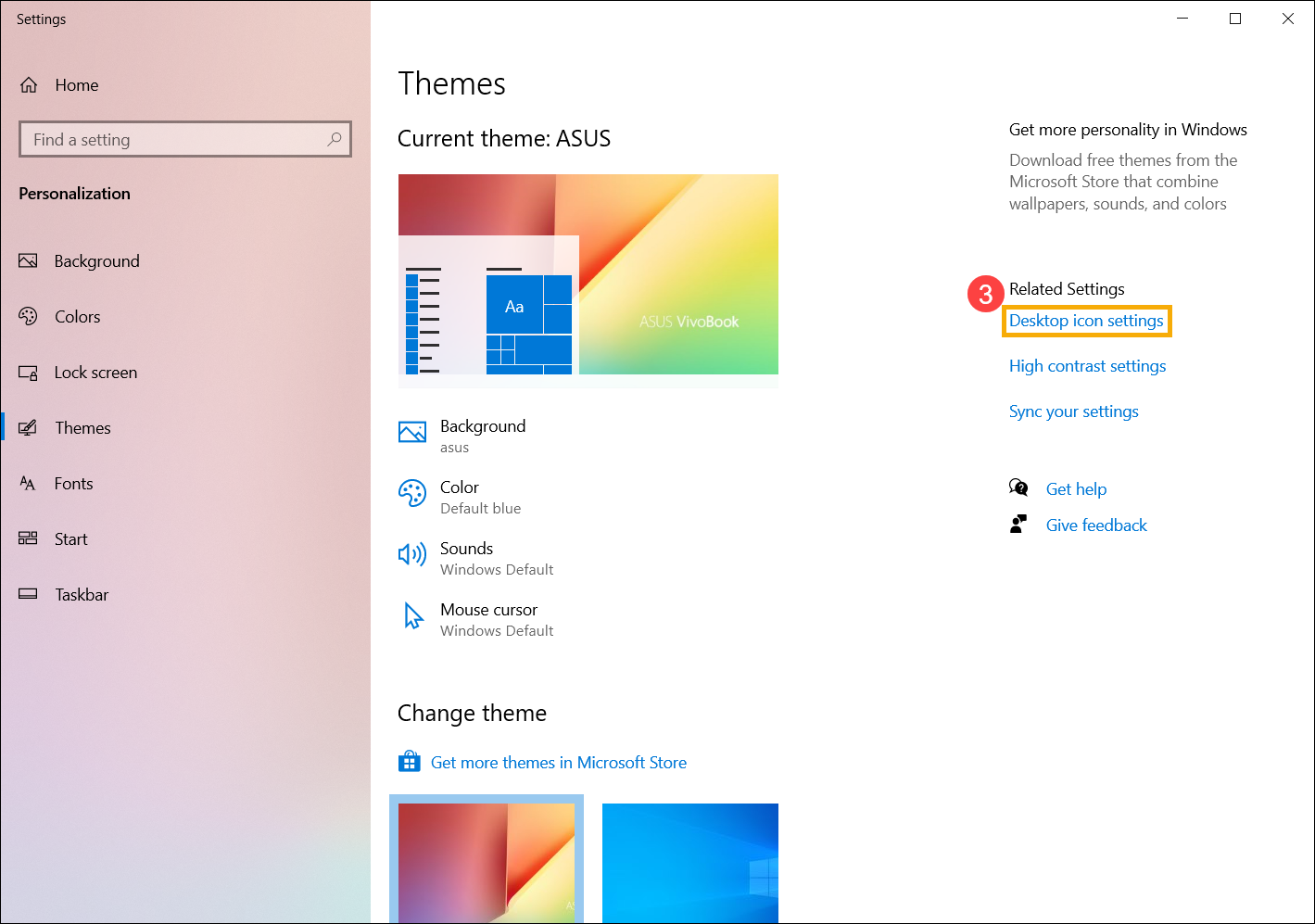
- In Related Settings, select [Desktop icon settings]③.
- You can choose the icons you would like to have on your desktop④, then select [Apply]⑤ and [OK]⑥, the selected icons will display on your desktop.
- If you would like to show or hide the desktop icon, right-click anywhere of the desktop, point to [View]⑦, and then select or unselect [Show desktop icons]⑧.
- If you would like to adjust the size of desktop icon, right-click anywhere of the desktop, point to [View]⑨, and then select [Large icons], [Medium icons], or [Small icons]⑩.