Related Topics
- Troubleshooting - Device’s Battery not supplying power/charging, Battery not charging to full, Unable to power on via battery
- Battery and Power Adapter (Charger) Specifications and Recommended Usage
- [Notebook] ASUS Battery Information Center
- Troubleshooting - Slow Charging / Battery Draining while Plugged in
- [Windows 11/10] Troubleshooting - Short Battery Life (Rapid Battery Drain)
- Laptop Frequently Asked Question (FAQ)
Troubleshooting - An Exclamation Mark Appears on the Taskbar Battery Icon or a “Slow Charger” Message Is Displayed
Applicable Products: Notebook, Gaming Handheld
If you are charging your device via USB Type‑C and notice an exclamation mark on the taskbar battery icon or a pop-up warning that reads 「Slow Charger」, please refer to the statement below.

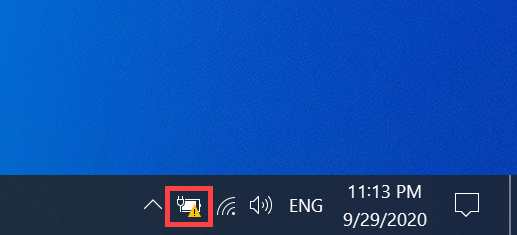

First, verify that you are using either the original ASUS charger included with your device or a certified charger whose output power meets or exceeds the device’s recommended charging wattage. Learn more about How to check the power adapter specifications and the recommended wattage.
The exclamation mark and warning message are system alerts indicating that the wattage of the current charging equipment may be insufficient. This can result in reduced device performance, suboptimal charging efficiency, and—when using the device while charging—continued battery drain.
To avoid compromising your experience, it is recommended that you use the bundled ASUS charger whenever possible. If the warning persists even with the original charger, please visit an ASUS service center for inspection.
If your ASUS product supports both DC-IN power (via an AC adapter) and USB Type‑C charging, please note the following:
Even if your USB Type‑C charger meets the model’s recommended USB Type‑C rated wattage, the system may still display a 「Slow Charger」 message if that wattage is lower than the AC adapter’s recommended wattage. This is normal behavior.