[GlideX] How to connect device(s) via Wi-Fi or USB cable
There are two ways to connect devices via GlideX for Screen Mirror and Screen Extend: Wi-Fi wireless network and USB cable connection:
Connect to a mobile device via Wi-Fi wireless network
- Android side: Connect to the PC via the same wireless network, and make sure the GlideX app on the mobile device has enabled the Discoverable feature. (For detailed steps, please refer to the following section.)
- iOS side: Connect to the PC via the same wireless network, and make sure the GlideX app on the mobile device has enabled the Discoverable feature and remains running in the foreground, and avoid letting the mobile device enter the lock screen.
Connect to a mobile device via USB cable
- Android devices: Use a USB cable to connect the mobile device to the PC, and make sure the mobile device has enabled “Developer options” and “USB debugging”. When connecting, select “Allow” on the mobile device to allow this computer to perform USB debugging. (For detailed steps, please refer to the following section.)
- iOS devices: First download and install the 64-bit version of iTunes on the PC. Do not use the Microsoft Store/UWP version to avoid potential compatibility issues. Then use a USB cable to connect the PC and the mobile device, and select Trust This Computer on the mobile device. During the connection, keep GlideX running in the foreground and avoid letting the mobile device enter the lock screen. (For detailed steps, please refer to the following section.)
Enable the Discoverable feature on an Android mobile device
Note: The mobile device must be connected to the same wireless network as the PC.
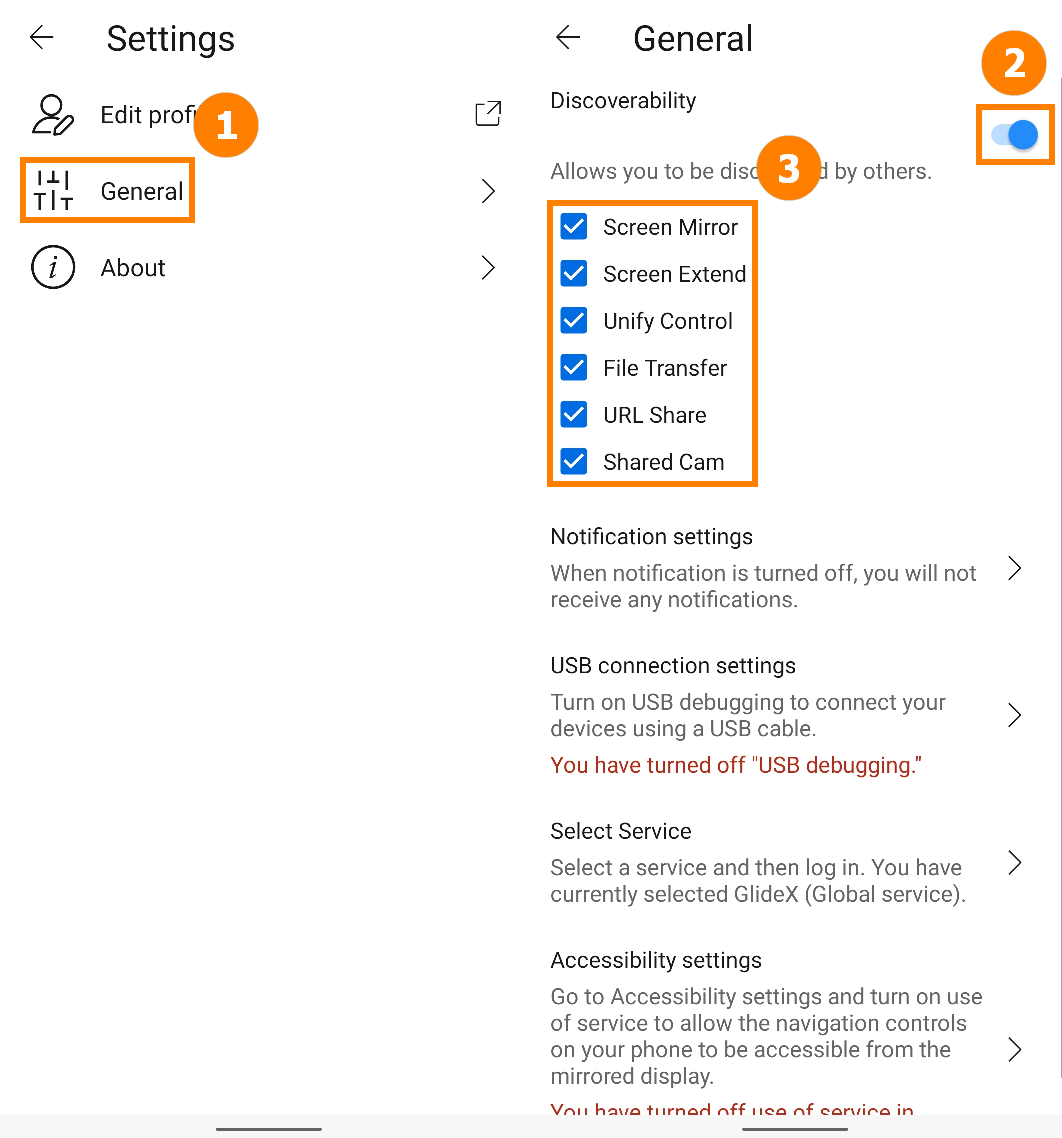
On the mobile app, open the side panel on the right, tap [General]①, tap to enable [Discoverable]②, and enable [Screen Mirroring]③ or [Screen Extension]③.
Enable Developer options and USB debugging on an Android mobile device
Note: The mobile device must be connected to the PC via USB.
1. Enable Developer options: Open the GlideX app on the mobile device, go to the USB cable connection page, and tap [Developer options] to enter the [About phone] page. Tap [Software information] 7 times to enable Developer mode.
(The method to enable Developer options varies by brand. Please search online for how to enable it on your mobile device, or click here.)
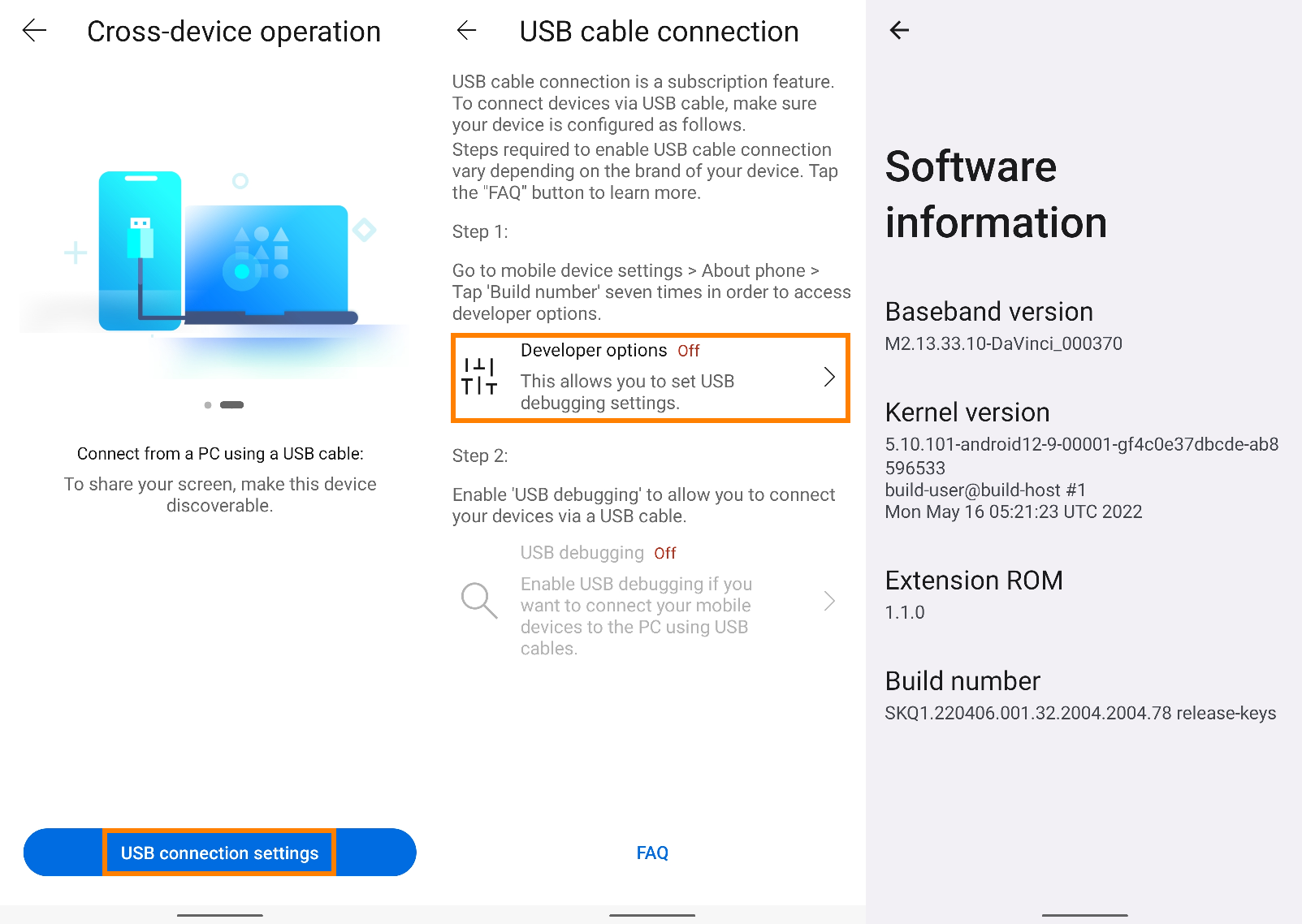
2. After Developer options are enabled, return to the [USB cable connection] page and tap [USB debugging], or find and enable [USB debugging] in [Developer options]. A pop-up window will appear; tap [Confirm] to enable USB debugging.
Use a USB cable to connect your PC and mobile device. A pop-up will appear on the mobile device. Select [Always allow from this computer], then tap [Allow], then tap [Yes] to complete the connection between the PC and the mobile device.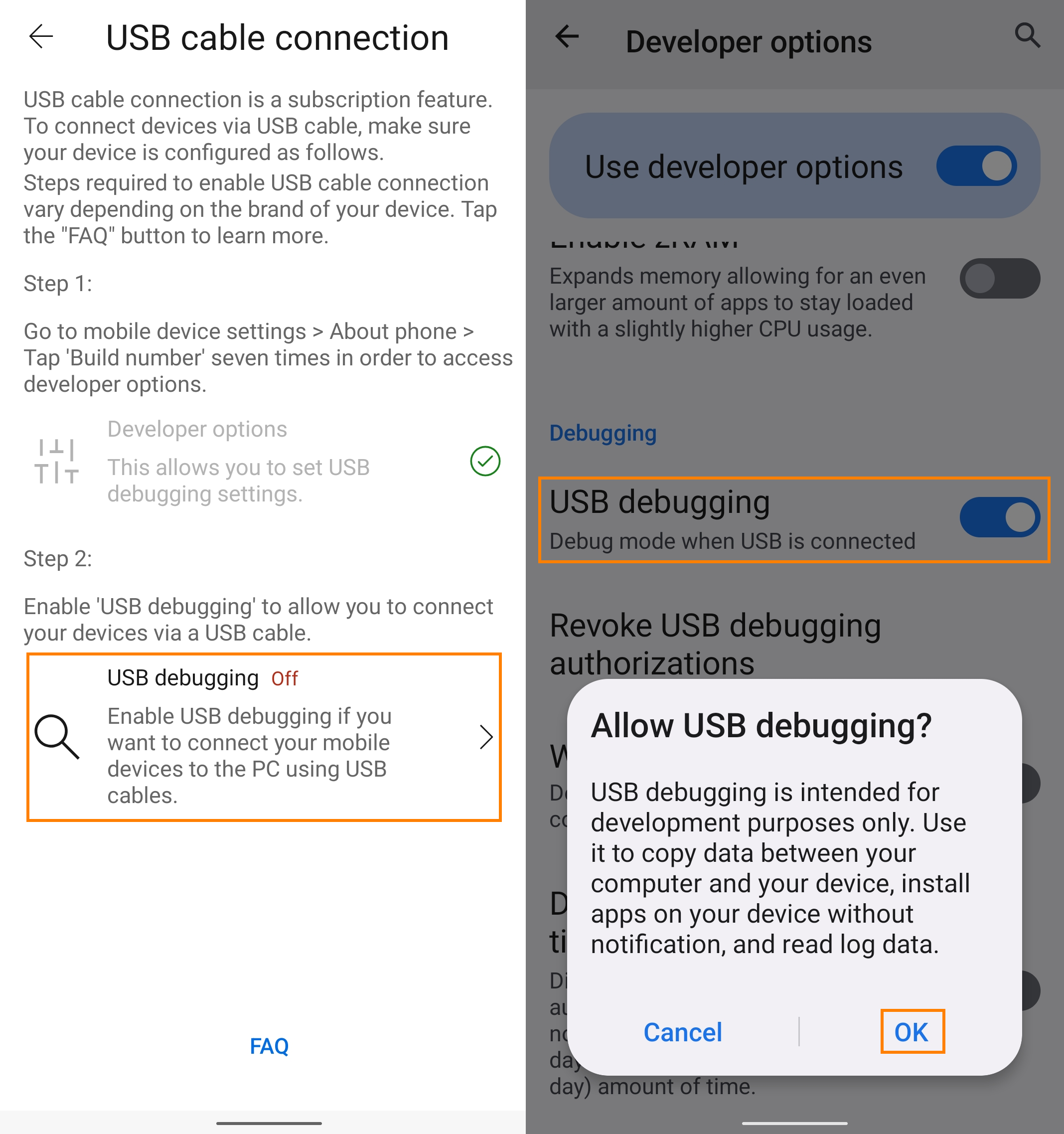
3. Now connect the mobile device in GlideX on the PC. Your mobile device will be displayed, and a USB connection icon will appear.
Download and install iTunes on an iOS mobile device and connect to the PC via USB
1. First install iTunes to install the related USB drivers. (Please download the Windows 10 64-bit version of iTunes. Click the link for the download address.)
2. When your iOS mobile device connects to the PC via USB for the first time, please make sure your iPhone or iPad is recognized in the Windows version of iTunes. (If you encounter issues in this step, please refer to Apple Support for help and restart AMDS accordingly.) When the dialog box [Trust This Computer?] appears, please tap [Trust].
3. Now connect the mobile device in GlideX on the PC. Your mobile device will be displayed, and a USB connection icon will appear.
4. If you cannot find the iOS device in Mirror & Extend mode, please try opening iTunes, and then it should be discoverable.