[Motherboard] SSD Secure Erase in BIOS?
Solid-state drives (SSD) will slow down with time and usage. You can regularly clear the SSD to maintain good speed. The Secure Erase function in the ASUS motherboard BIOS can safely clear the SSD and improve performance. Please refer to the following steps for details:
Note: Secure Erase will erase all data in the selected SSD, and cannot be recovered. Please back up the data in the drive first
Contents
1. How to confirm if the motherboard supports Secure Erase?
2. Steps for Secure Erase in BIOS
3. Q&A:
Q: How to confirm if the SSD supports Secure Erase?
1. How to confirm if the motherboard supports Secure Erase?
You can download the BIOS manual from the ASUS Support website to check. If [ASUS Secure Erase] is in the Tool menu of the BIOS manual, it is supported, as shown in the picture below: 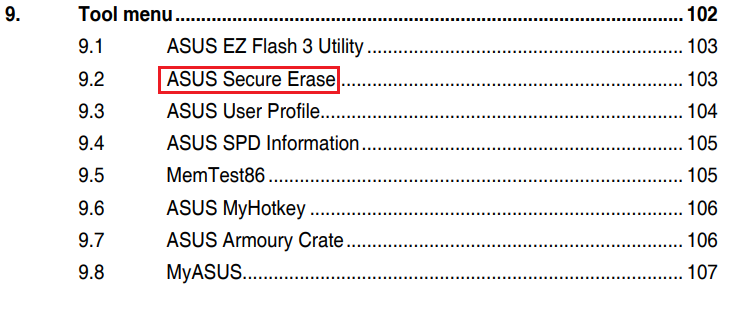
2. Steps for Secure Erase in BIOS
(Example: TUF GAMING Z890-PLUS WIFI)
1. After turning on the computer, immediately press the "delete" or "F2" key on the keyboard to enter BIOS [EZ Mode] 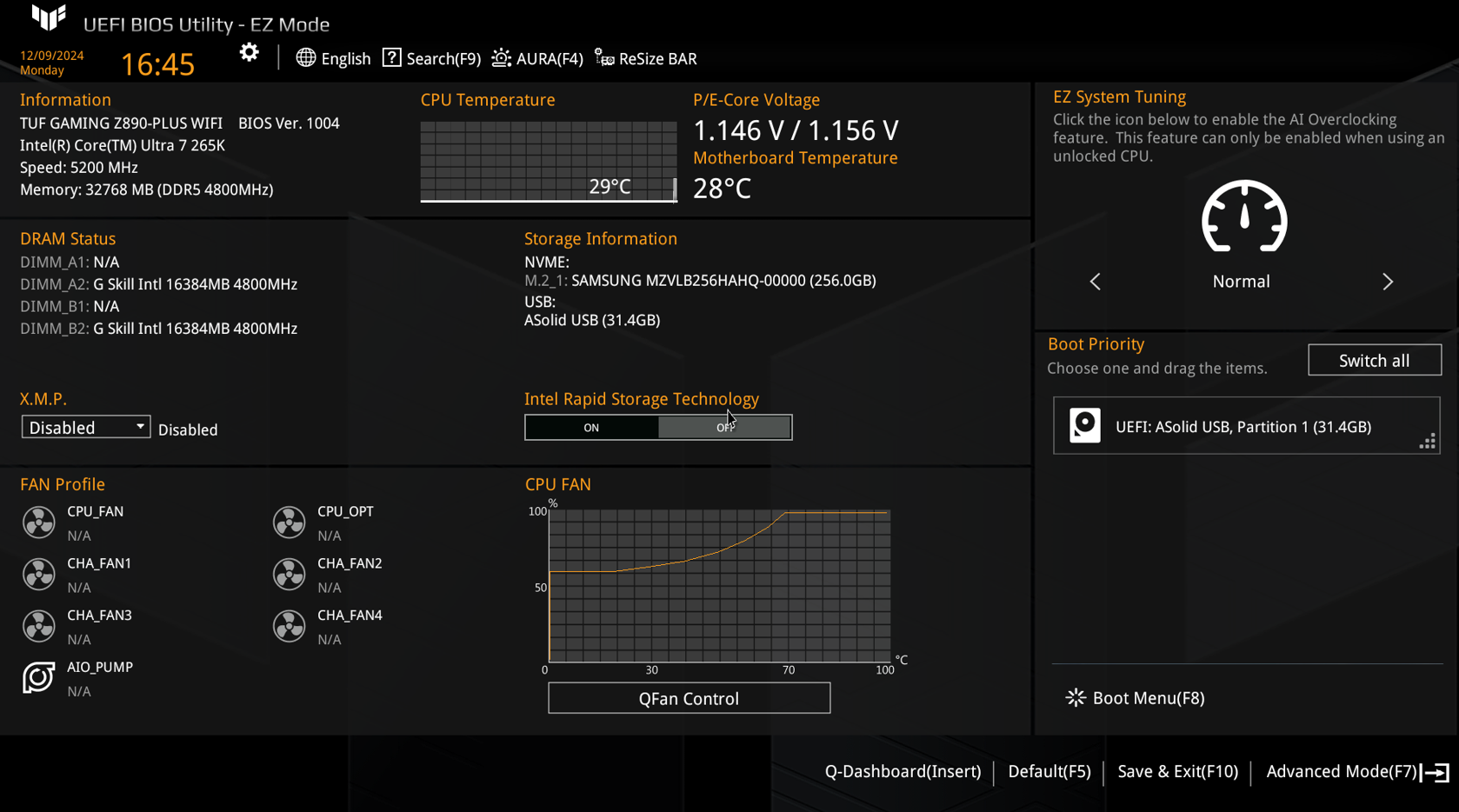
2. Press the F7 key on the keyboard to enter [Advance Mode], and select the [ASUS Secure Erase] option under the [Tool] page, as shown in the picture below: 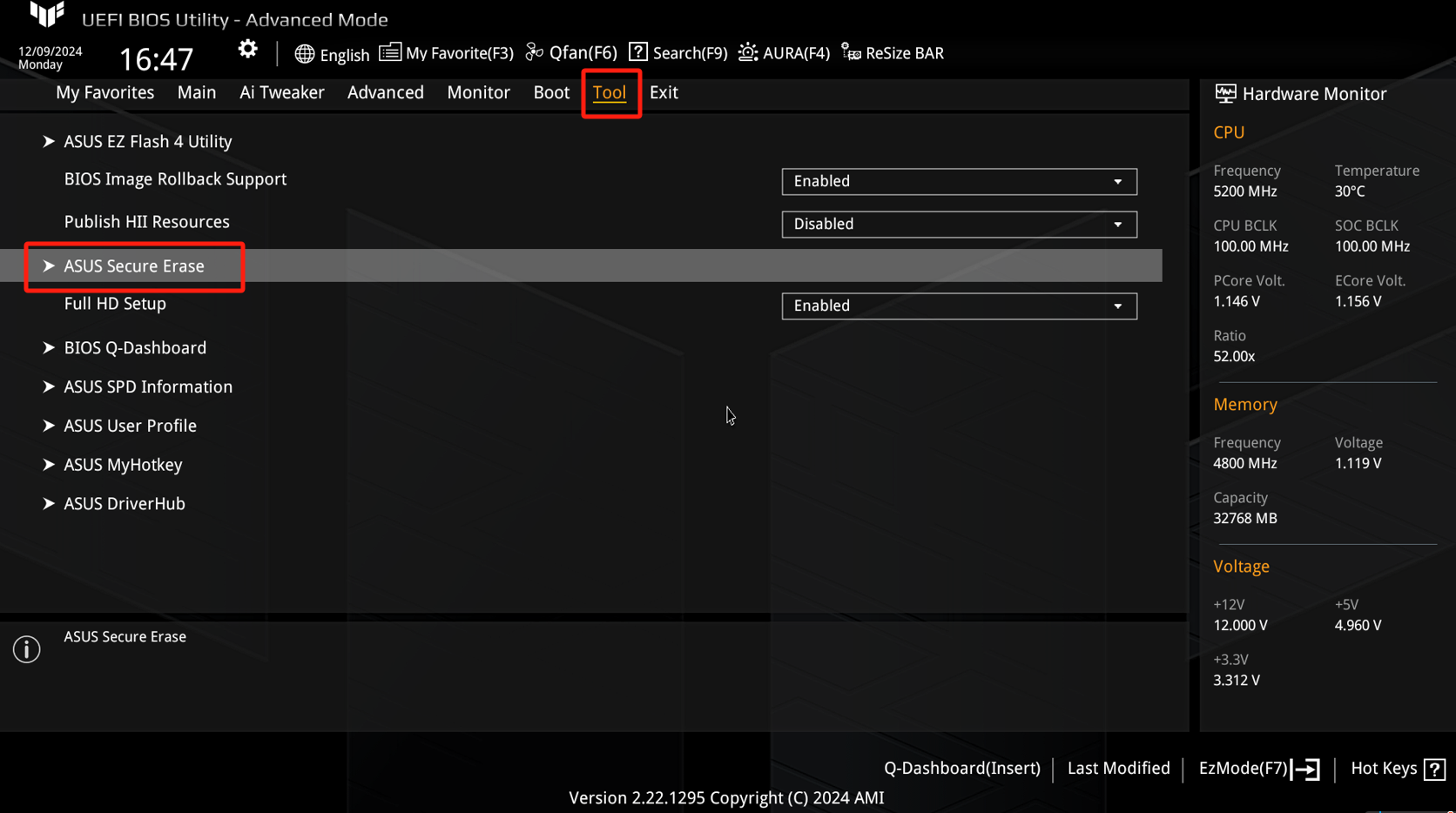
3. Select the hard drive for Secure Erase, as shown below: 
4. When prompted to choose the formatting unit size, select [512B] by default and press the keyboard [Enter] key, as shown below: 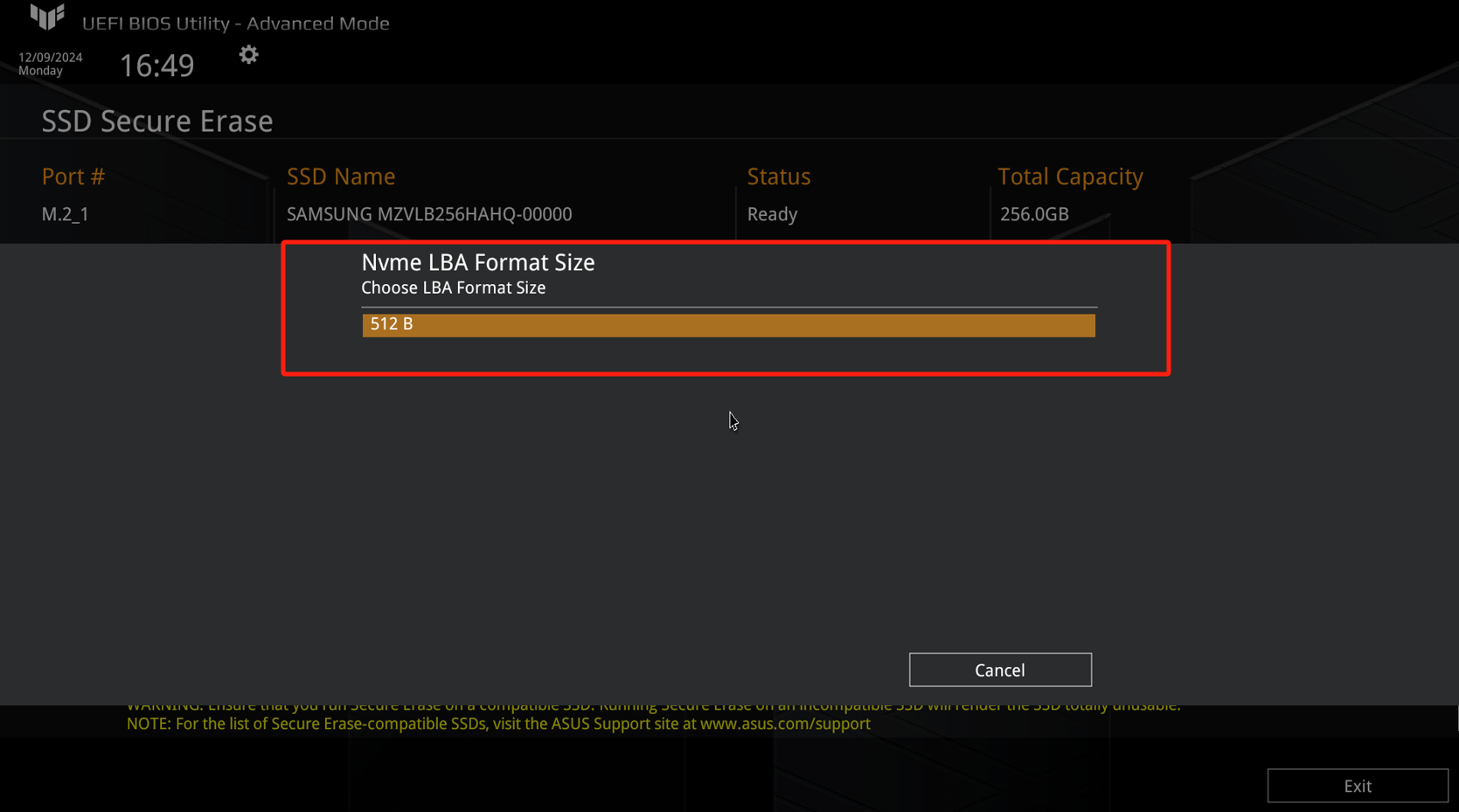
5. A warning appears, informing you that all data will be erased. Select [Yes], as shown below:
Note: Secure Erase will erase all data in the selected SSD and cannot be recovered. Please remember to back up any important data from the hard drive first. 
6. Another warning appears, reminding you that all data will be erased. Select [Yes] to start Secure Erase, as shown below:
Note: When performing Secure Erase on the SSD, do not shut down or reboot the computer. 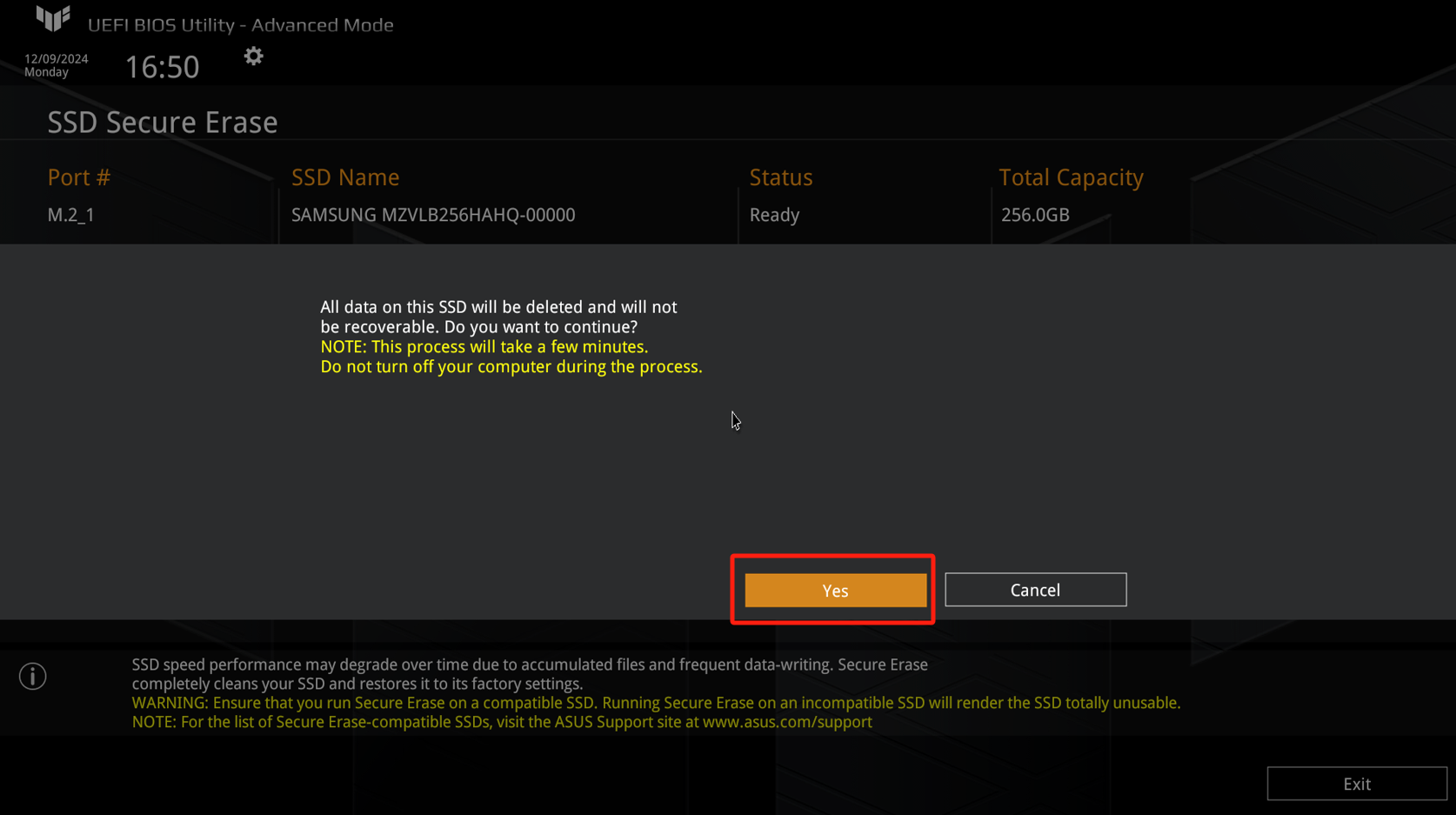
7. After completion, a prompt appears stating Secure Erase is finished. Select [OK], as shown below: 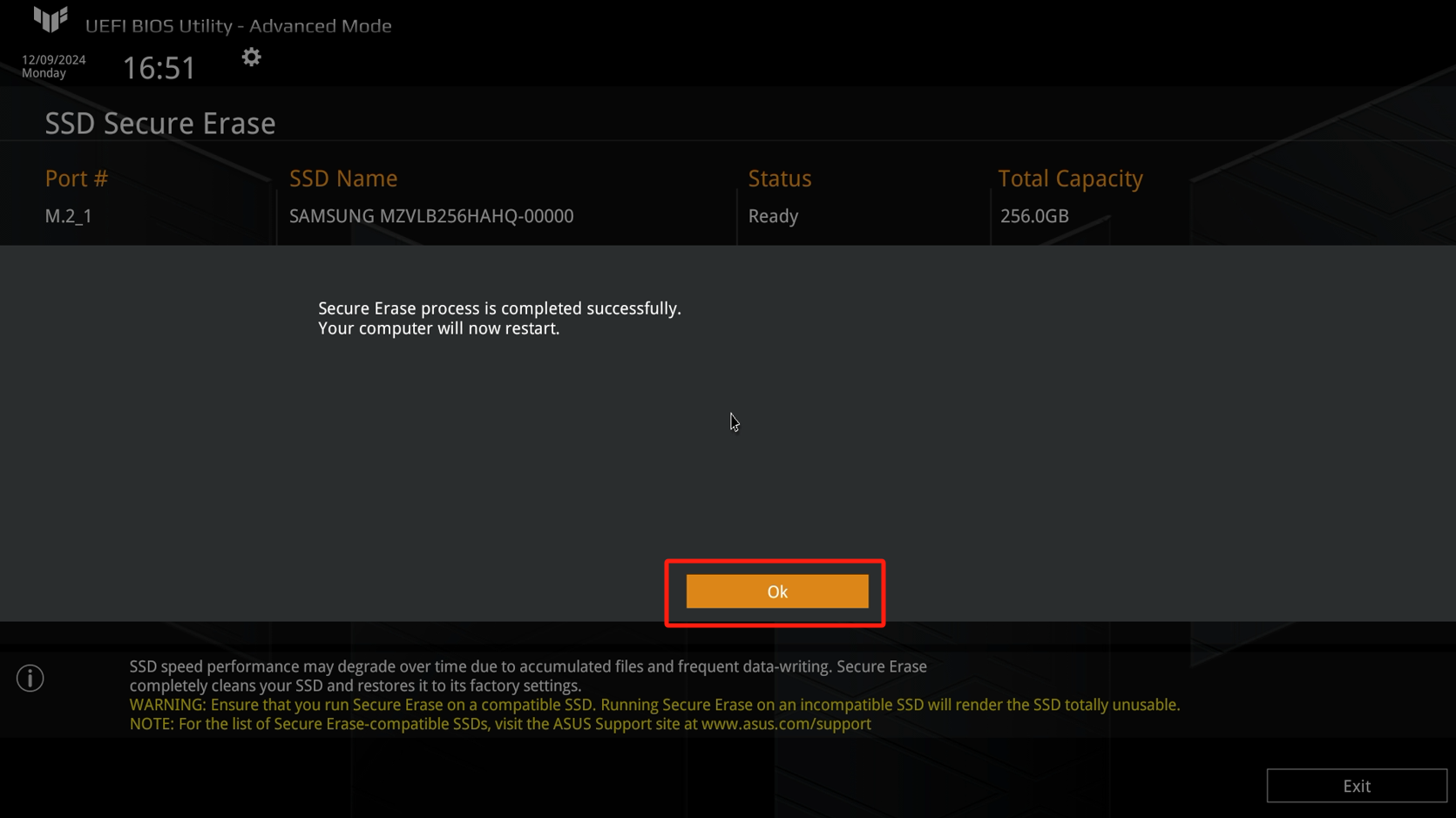
3. Q&A
Q: How do I check if my SSD supports Secure Erase?
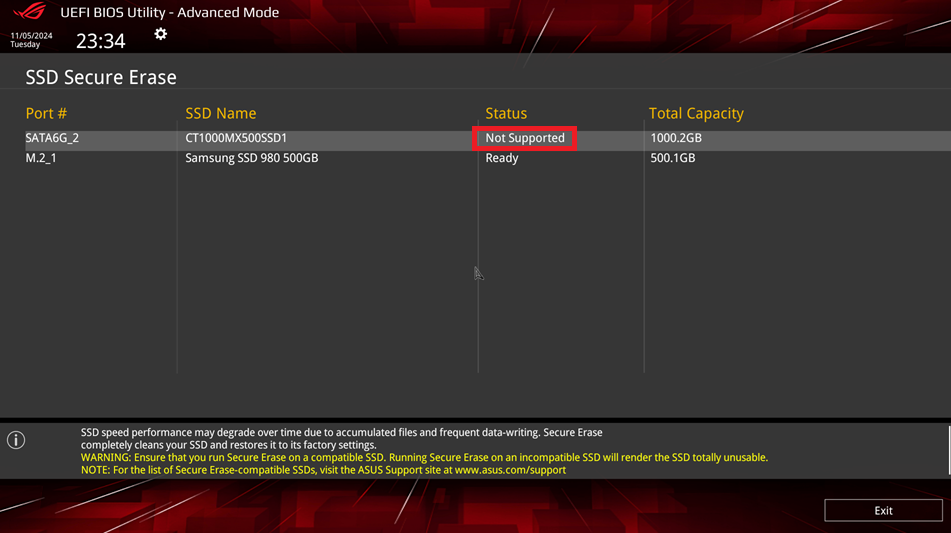
A: Please check your SSD manufacturer's instructions or follow the steps above to enter the BIOS [ASUS Secure Erase] page. If the selected SSD displays [Not supported], it does not support Secure Erase. If it displays [Ready], it is supported.
As shown below: