Zenbook DUO (UX8406MA/UX8406CA/UX8407AA) Exclusive Feature Frequently Asked Question (FAQ)
Zenbook DUO(UX8406MA/UX8406CA/UX8407AA) comes with a dedicated Bluetooth keyboard and a built-in kickstand. Together with apps such as ScreenXpert and Control Panel, it helps you maximize productivity with dual screens.
For detailed specifications of Zenbook DUO, please refer to: ASUS Zenbook DUO (UX8407)|Laptops For Home|ASUS Global
2. Screen Gesture Introduction
3. Exclusive ScreenXpert function
4. Zenbook DUO Exclusive Bluetooth Keyboard
(1) Dual-screen Mode (with Bluetooth keyboard)
When the Kickstand at the bottom of the computer is unfolded, both screens will be displayed at the best angle. While you're in an online meeting to share your latest knowledge, Zenbook DUO's dual-screen mode allows you to focus on your work in real time without constantly switching tabs or windows.

(2) Sharing Mode
When you are discussing design details face-to-face with clients, Zenbook DUO’s Sharing mode allows everyone to view the screen and focus on the content discussion.
※ This function needs to be used with ScreenXpert. For detailed steps, please refer to section 3-(3) of this article.

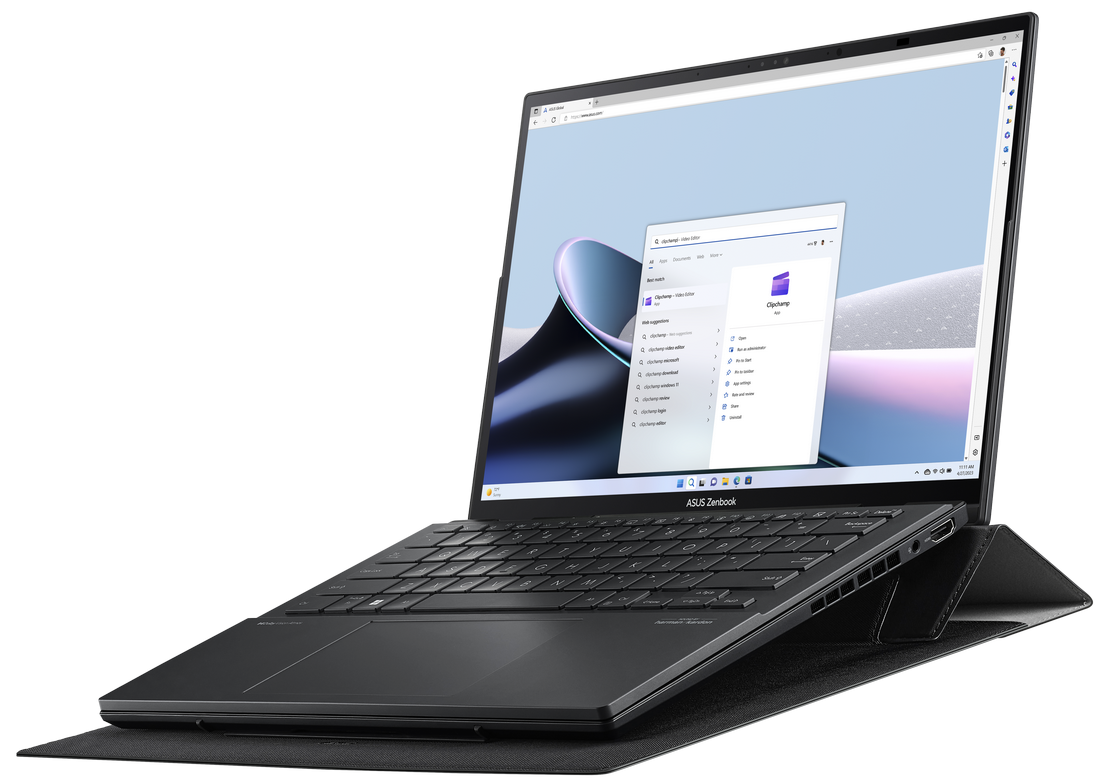
(3) Sleeve Stand Mode
The multifunction laptop sleeve (optional) not only protects your computer with a silky leather-like feel, but can also be simply folded to support the Zenbook DUO on top. The multifunction laptop sleeve (optional) not only raises the keyboard by 12° for more comfortable typing with both hands, but also lifts the Zenbook DUO to improve airflow for faster cooling.
※ The multifunction laptop sleeve (optional) has space for storing the ASUS Pen 2.0 (optional).
(4) Laptop Mode (with Bluetooth keyboard)
Place the ASUS ErgoSense Bluetooth keyboard and touchpad on the lower screen to enjoy the experience of using a traditional laptop.

(5) Desktop Mode
Unfold the Kickstand on the bottom of the PC and place the PC vertically; Zenbook DUO enters Desktop mode. Display your productivity applications on one screen while showing reference materials, documents, or research sources on the other screen.
※ In Desktop mode, the PC may be opened slightly more than 180°, which provides a more stable posture.

(6) Laptop Mode (with Virtual Keyboard)
The lower screen can be set to a full-size virtual keyboard. With dual screens, not only can you improve productivity, you can also enjoy a more immersive entertainment experience.

2. Screen Gesture Introduction
Screen Gestures need to be used with ScreenXpert. For details, please refer to: [Notebook] ScreenXpert 3 - Introduction | Official Support | ASUS Global
If you encounter fluency or other problems when using screen gestures, please update the latest version of the BIOS and ScreenXper before using it.
(1) Six-finger Control Mode
On the lower screen of Zenbook DUO, tap the screen with six fingers to bring up the virtual keyboard. Swipe up again to display the virtual keyboard in full screen. Swipe down with six fingers to close functions in the order they were opened. Swiping down with six fingers within the bottom one-third area of the second screen will directly close all functions.

(2) Two-finger Control Mode - Widget Switching
Before using this function, you need to enable widgets in ScreenXpert. Please place the widgets on the second screen as shown in the figure below. The virtual keyboard needs to be enabled during placement. After placement is complete, you can quickly switch widgets with two fingers. The next time you use the six-finger function, the widgets will open first; you need to swipe up again to open the virtual keyboard.

If the widgets do not appear on the second screen, please place them on the second screen manually.

※ Widgets need to be placed in the same position to support the two-finger switching function.
※ If you only want to use the virtual keyboard function, please click the X to close the widget, then use the six-finger function to enable only the virtual keyboard function.
Control Panel supports personalization settings. For details, please refer to: ASUS Control Panel - Introduction | Official Support | ASUS Global
(3) Five-finger Control Mode
For example, if you open MyASUS, then tap and spread outward with five fingers on the screen, the window will be displayed in full screen.
If you tap and pinch inward with five fingers on the screen, the window will be displayed in full screen on the main screen.

(4) Three-finger Control Mode
On the second screen of Zenbook DUO, tap the screen with three fingers to bring up the virtual touchpad. The virtual touchpad supports moving to any position, and when you close and reopen it, it will remain in the last position before it was closed.

(5) One-finger Control Mode
With just one finger, drag the window and swipe lightly, and the window will be displayed in full screen on the other screen.

3. Exclusive ScreenXpert Function
After opening ScreenXpert, from top to bottom are: ①Brightness adjustment, ②Virtual keyboard switch, ③Bluetooth device status, ④Switch on the second screen, ⑤Sharing mode, ⑥Rotation lock.
※ Virtual keyboard switch - If the PC is not connected to a Bluetooth keyboard, when you tap a text box with your finger, the virtual keyboard will open automatically.

(1) ①Brightness adjustment
Click [Brightness adjustment], and you can quickly adjust the brightness of the main screen and the second screen manually. When you check [Sync Brightness across both screens], the brightness of both screens will be adjusted synchronously.

(2) ③Bluetooth device status
Click [Bluetooth device status], and it will display the real-time battery level of the Bluetooth keyboard. If you have not yet connected the Zenbook DUO dedicated Bluetooth keyboard, it will guide you to connect.

(3) ⑤Sharing Mode
Click [Sharing mode], select the mode you want, and then share. If you do not want to use [Sharing mode], click [Reset] to restore the default display settings.
Screen sharing modes are divided into the following two types:
Duplicate - Suitable for sharing the same screen with clients, so both parties can align details more quickly.
Extend - The screen farther from the presenter will become an extended screen, and at the same time a small window will be displayed on the screen closer to the presenter, making it convenient for the presenter to control.

4. Zenbook DUO Exclusive Bluetooth Keyboard
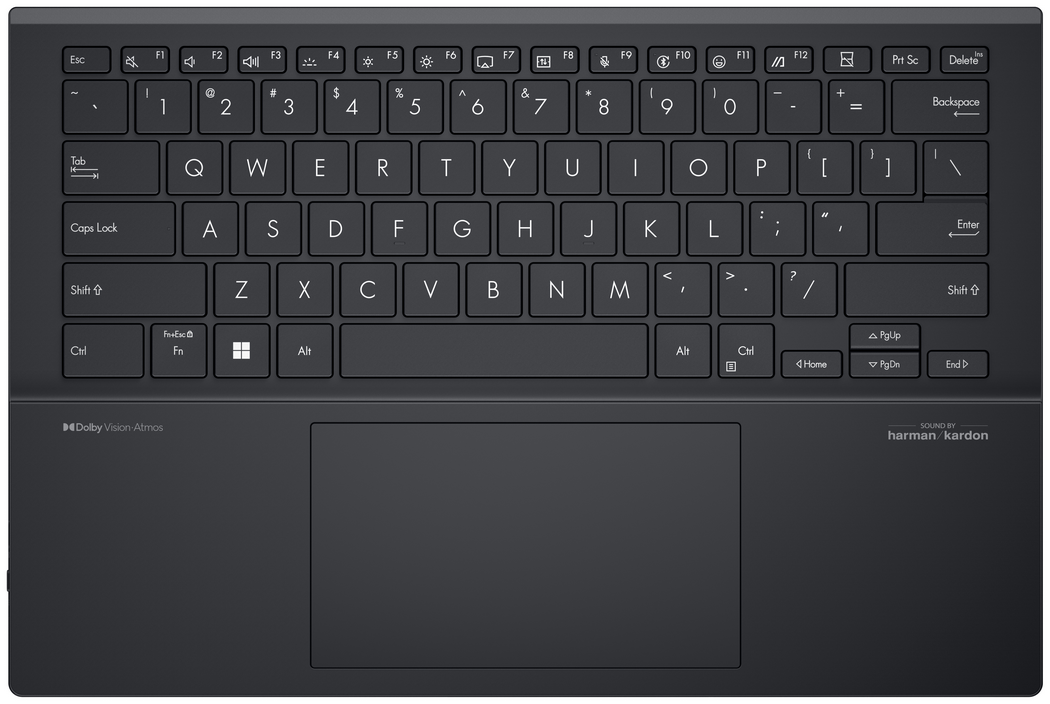
Zenbook DUO Exclusive Bluetooth Keyboard has POGO PIN port, USB-C port, charging indicator and Bluetooth on/off key.
※ The Zenbook DUO Exclusive Bluetooth keyboard can be connected to an ASUS computer, so you can use all functions. Connecting to non-ASUS computers may result in restrictions on the use of shortcuts or certain keys (Fn).
※ The keyboard can be charged through POGO PIN and USB-C interface.
※ The USB-C port does not support the data transfer function of the Bluetooth keyboard.
(1) Connect to the Zenbook DUO Bluetooth keyboard
※ Before connecting the Bluetooth keyboard, please go to MyASUS and update your computer driver to the latest status. If you encounter problems during the connection process, please refer to: [Windows 11/10] Troubleshooting - Bluetooth Functionality Anomaly Issue | Official Support | ASUS Global
Press and hold the keyboard’s F10 or F11 key until the indicator light starts flashing. A pop-up window will appear in the lower-right corner of the main screen. Click [Connect].
※ If no pop-up window appears, please go to Windows Settings -> Bluetooth & devices -> Add device, and connect the Bluetooth keyboard manually.

On the Bluetooth keyboard, enter the PIN code in order, and then press the Enter key on the Bluetooth keyboard to complete the connection.

(2) Take the Zenbook DUO Exclusive Bluetooth keyboard from the computer.
The keyboard is magnetically attached to the second screen, and the place with the greatest suction power is at the bottom of the keyboard. It is recommended that you lift the keyboard from the upper corners of the Bluetooth keyboard and remove it.
(3) Zenbook DUO's Exclusive Bluetooth keyboard backlight.
You can use the shortcut key F4 or Fn+F4 to switch the backlight of the Bluetooth keyboard, turning on the backlight will increase the power consumption. With the backlight off and fully charged, the Bluetooth keyboard can be used for more than 24 hours.
(4) Charging of the Zenbook DUO Exclusive Bluetooth Keyboard.
The Zenbook DUO Exclusive Bluetooth Keyboard can be placed on the second screen, connected to the POGO PIN, or charged via the USB-C port.
※ When the battery level of the Zenbook DUO Exclusive Bluetooth keyboard is less than 5%, there will be a pop-up window in the lower right corner of Windows to remind you to charge.
Q1: Will the Bluetooth keyboard scratch the screen?
A1: The Zenbook DUO exclusive Bluetooth keyboard has been rigorously tested and will not damage your screen. But before you place the Zenbook DUO Exclusive Bluetooth keyboard or close the computer screen, please make sure that there are no other clutter on the screen and keyboard.
Q2: There will be reflections during the use of the second screen.
A2: You can use the multi-function laptop sleeve bag (optional) to raise the angle of the second screen to reduce reflection. You can also turn on the Kick Stand and use both screens at the best angle with the Zenbook DUO's exclusive Bluetooth keyboard.
Q3: Zenbook DUO (UX8406MA/UX8406CA/UX8407AA) is on the lock screen, and the second screen is not displayed.
Q3: This status is set by Microsoft, and the second screen is not displayed when the screen is locked, which can also effectively reduce power consumption.
Q4: Why do the two screens have color difference?
A4: Very slight chromatic aberration is normal, this is because the two screens are not at the same angle when in use.
If you feel that the color difference is obvious, please go to MyASUS -> Device Settings -> Audio & Vision -> Splendid to check whether the Splendid mode of the two panels is the same.

Or you can also go to Windows Settings -> Display-> Color profile & Use HDR to check if the two screens are the same.

Q5: Why is the second screen of my Zenbook DUO (UX8406MA/UX8406CA/UX8407AA) black and no screen?
A5: Please check whether the [Switch on the second screen] function is turned on in ScreenXpert.
Or please switch Windows Settings -> System -> Display -> Extend these displays.