[NUC] NUC Element 제품의 부팅 불가, 자동 종료 또는 멈춤 문제
시스템이 부팅되지 않거나 전원이 켜지지 않는 경우 해결하기가 어려울 수 있습니다. 아래는 부팅/전원 문제의 가장 일반적인 원인에 대한 문제 해결 지침입니다.
| 참고 | 이러한 단계는 모든 경우에 문제를 해결하지는 않지만, 많은 고객의 문제를 해결하는 데 증명되었습니다. 아래의 모든 단계를 시도해도 인텔 NUC가 올바르게 시작되지 않으면 인텔 고객 지원에서 추가 문제 해결 또는 보증 교체를 지원할 수 있습니다. 인텔 고객 지원 연락처 정보는 이 페이지 하단의 지침을 참조하십시오. |
자세한 내용을 보려면 클릭하거나 주제를 선택하십시오:
단계 1: BIOS 설정을 변경한 경우 공장 기본값으로 설정합니다.
다음 단계를 따라 BIOS 설정을 기본값으로 되돌립니다.
- 부팅 중에 F2를 눌러 BIOS 설정으로 들어갑니다.
- F9를 눌러 기본값으로 설정합니다.
- F10을 눌러 BIOS를 저장하고 종료합니다.
또는
- 인텔 NUC가 꺼져 있을 때, 전원 버튼을 약 3초 동안 누르고 있습니다, 그리고 놓습니다. 전원 버튼 메뉴가 나타납니다.
- F2를 눌러 BIOS 설정으로 들어갑니다.
- F9를 눌러 BIOS 공장 기본값을 복원합니다.
- F10을 눌러 BIOS 설정을 저장하고 종료합니다.
단계 2: 부팅 문제가 과열로 인한 것인지 확인합니다.
이러한 증상은 Intel NUC에 설치된 구성 요소가 과열되었을 때 발생할 수 있습니다:
- 시스템이 부팅되지 않음.
- 시스템이 무작위로 종료됨.
과열 증상이 나타나면 다음을 확인하십시오:
- Compute Element를 설치하기 전에 열전도 재료를 보호하는 히트싱크의 얇은 플라스틱 시트.
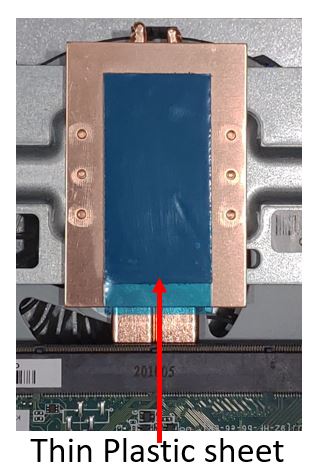
- Intel NUC가 단단한 표면 위에 있습니다.
- 케이스 뒷면과 바닥의 환기구가 막히지 않았습니다 (팬 없는 Chassis Element CMCR1ABx의 경우 해당되지 않음).
- Intel NUC가 왼쪽이나 오른쪽으로 수직으로 설정되어 있습니다 (팬 없는 Chassis Element CMCR1ABx의 경우 해당되지 않음).
단계 3: 컴퓨터 시작 시 오류 식별.
다음 오류가 발생하는 경우 다음 단계를 따르십시오:
부팅 가능한 장치가 감지되지 않았습니다.
BIOS에서 드라이브가 감지되는지 확인하십시오:
(USB 키보드를 사용하십시오. Bluetooth 키보드는 BIOS에 액세스할 수 없습니다.)
- 부팅 중 F2를 눌러 BIOS 설정으로 들어갑니다.
- 고급 > 부팅 메뉴에서 부팅 드라이브 순서를 확인합니다.
- F10을 눌러 BIOS 설정에서 나옵니다.
- 부팅 드라이브 순서에 부팅 가능한 드라이브 없음이 표시되면 NUC 내부 드라이브가 고장난 것일 수 있습니다. 이 경우 BIOS 복구 (아래 단계 5)를 수행하여 드라이브를 복원하십시오. 첫 번째 부팅에서이 문제가있는 경우 드라이브를 보드에 다시 연결하십시오. 스토리지 드라이브가 올바르게 삽입되었고 소켓에 완전히 맞춰졌는지 확인하십시오.
Intel NUC Element Won't Start Troubleshooting
If your Intel NUC Element won't start, try the following troubleshooting steps:
Step 1: Check the Power Adapter and Cable.
Make sure the power adapter is plugged into a working electrical outlet and the cable is securely connected to both the power adapter and the Intel NUC Element.
Step 2: Check the Memory Module.
Make sure the memory module is securely installed. If you have more than one memory module, try removing one and see if the Intel NUC Element starts. If not, try switching the memory modules and try again.
Step 3: Check the SATA Drive Connection.
If you use a SATA drive inserted into a daughter card, make sure the SATA power and data wires are connected to the board. If your NUC is only equipped with one SATA wire, check that it's fully inserted to the connector on the board.
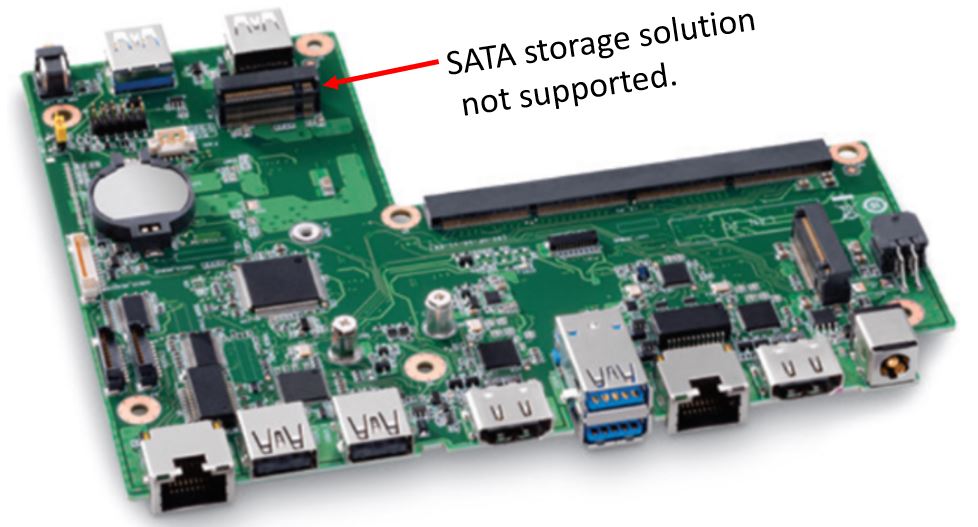
On a CMCR1ABx or CMCM2FB/CMCM2FB chassis element, the M.2 connector perpendicular to the 300-pin connector has support for PCIe NVMe storage solutions only. SATA storage solution is not supported.
Step 4: Try a BIOS Recovery.
The Intel NUC Element might not start properly if BIOS becomes corrupted. Try a BIOS Recovery.
Step 5: Try a EC Firmware update.
The Intel NUC Element might become unstable if Embedded Controller (EC) firmware is not updated. Try a EC firmware update.
Step 6: Contact Intel Customer Support for further investigation.
If you've tried all the steps listed above and your Intel NUC still does not start properly, Intel Customer Support can help. Be ready to explain the troubleshooting steps you tried when contacting Customer Support.