[Notebook] How to enable eSIM on my device
This article describes how to enable eSIM on your laptop, you can also refer to Microsoft document Use an eSIM to get a cellular data connection on your Windows PC.
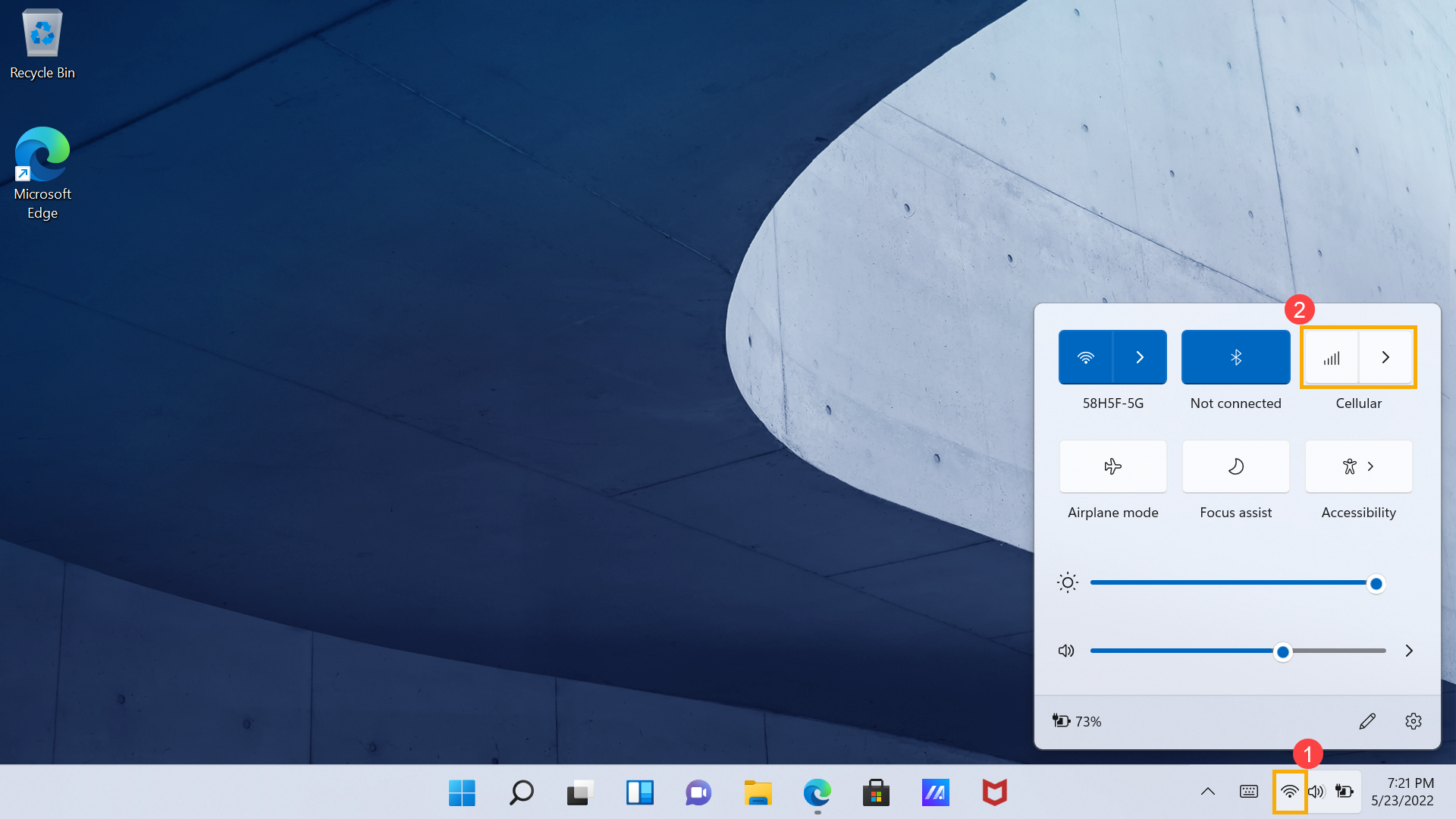
- Click the [Internet access] icon① near the bottom right corner, and then select the [Cellular] button②.
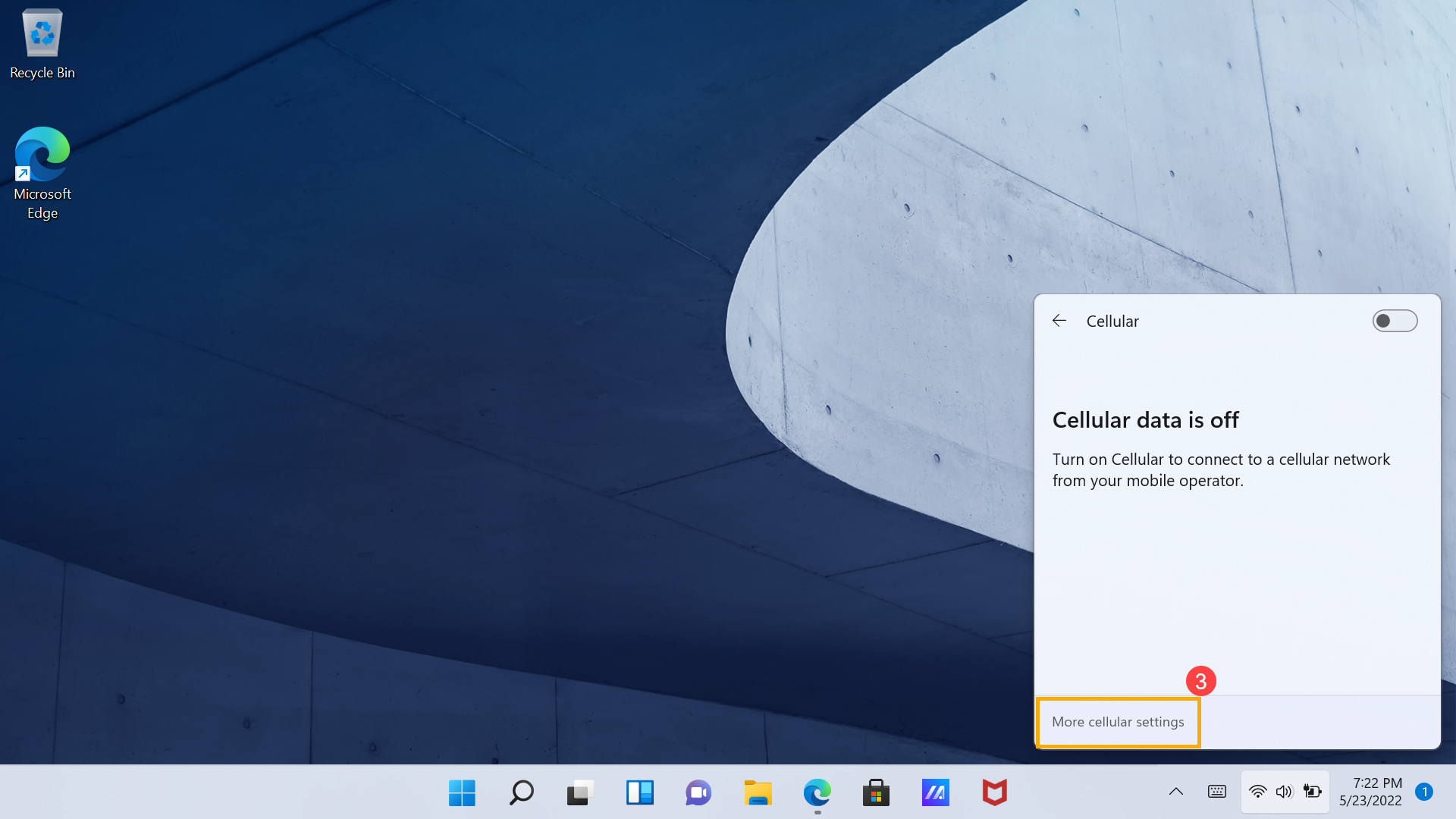
- Click [More cellular settings]③.
- After entering Network & internet settings, turn on Cellular data④.
Select the drop-down box to see if SIM or eSIM option is available. (Please check the device specification for actual support.)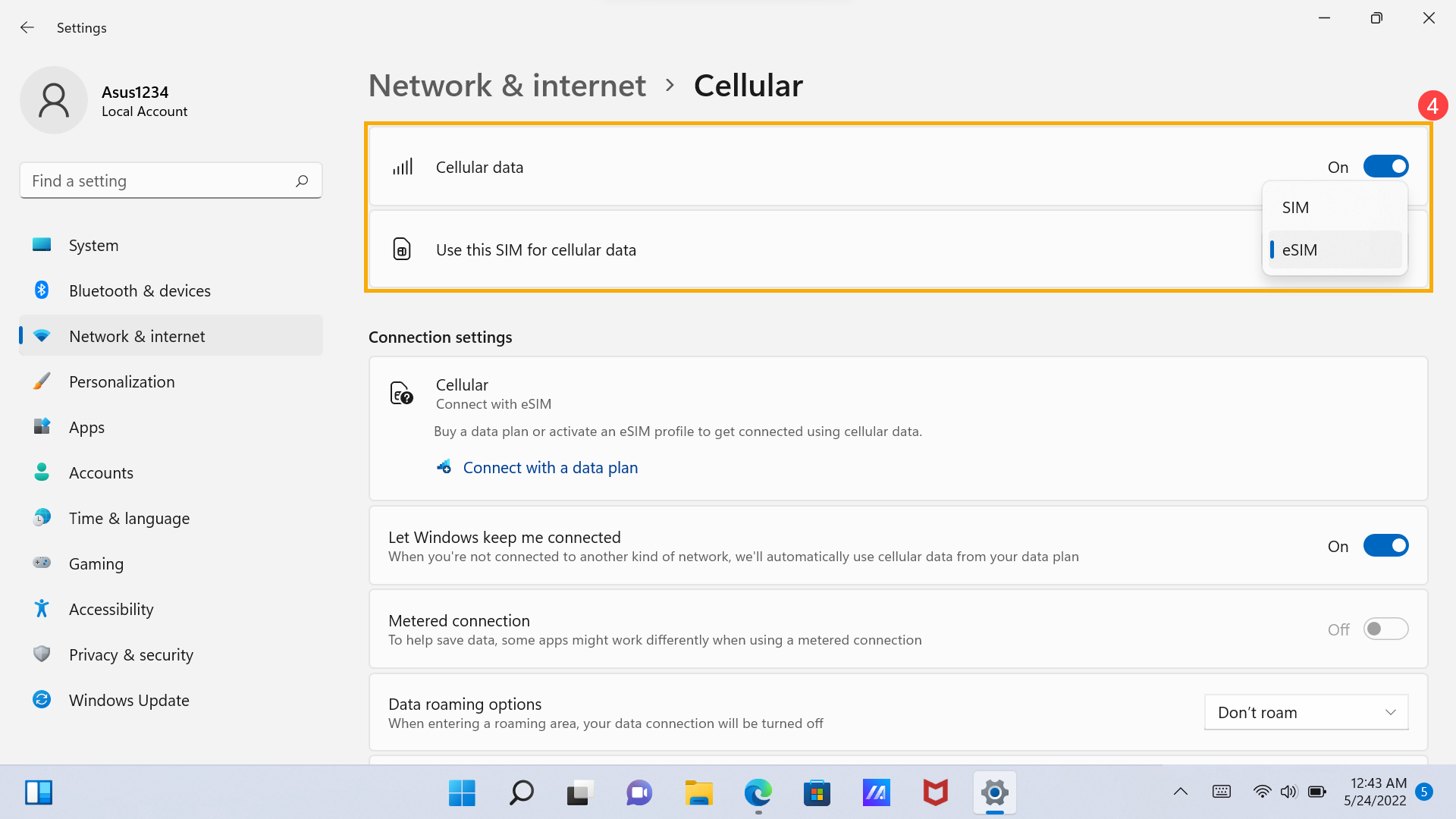
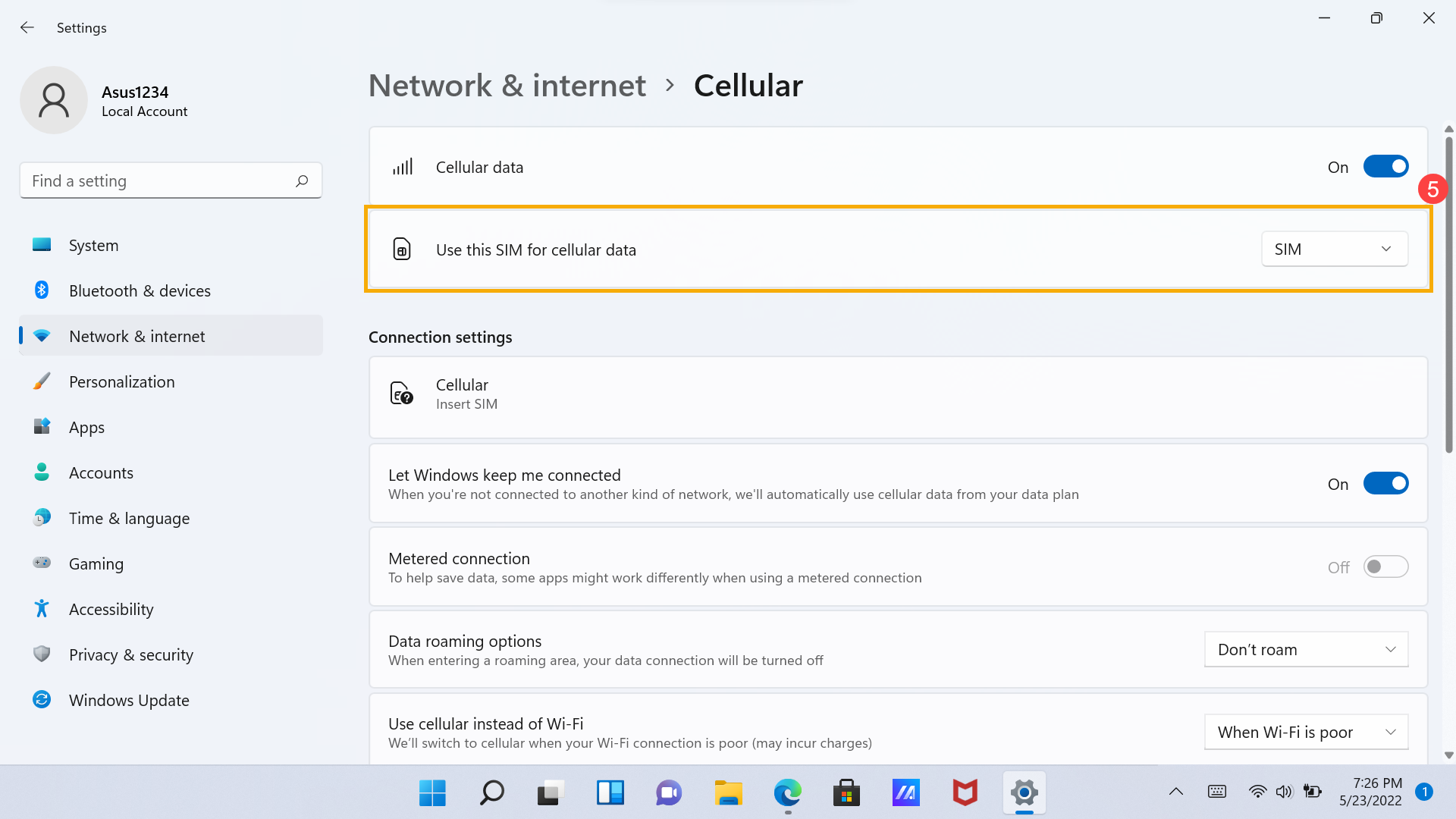
- If you need to use physical SIM card, insert SIM card to the device and select [SIM]⑤ in the Use this SIM for cellular data item.
If you need to use eSIM, select [eSIM]⑥ in the Use this SIM for cellular data item and continue the following steps.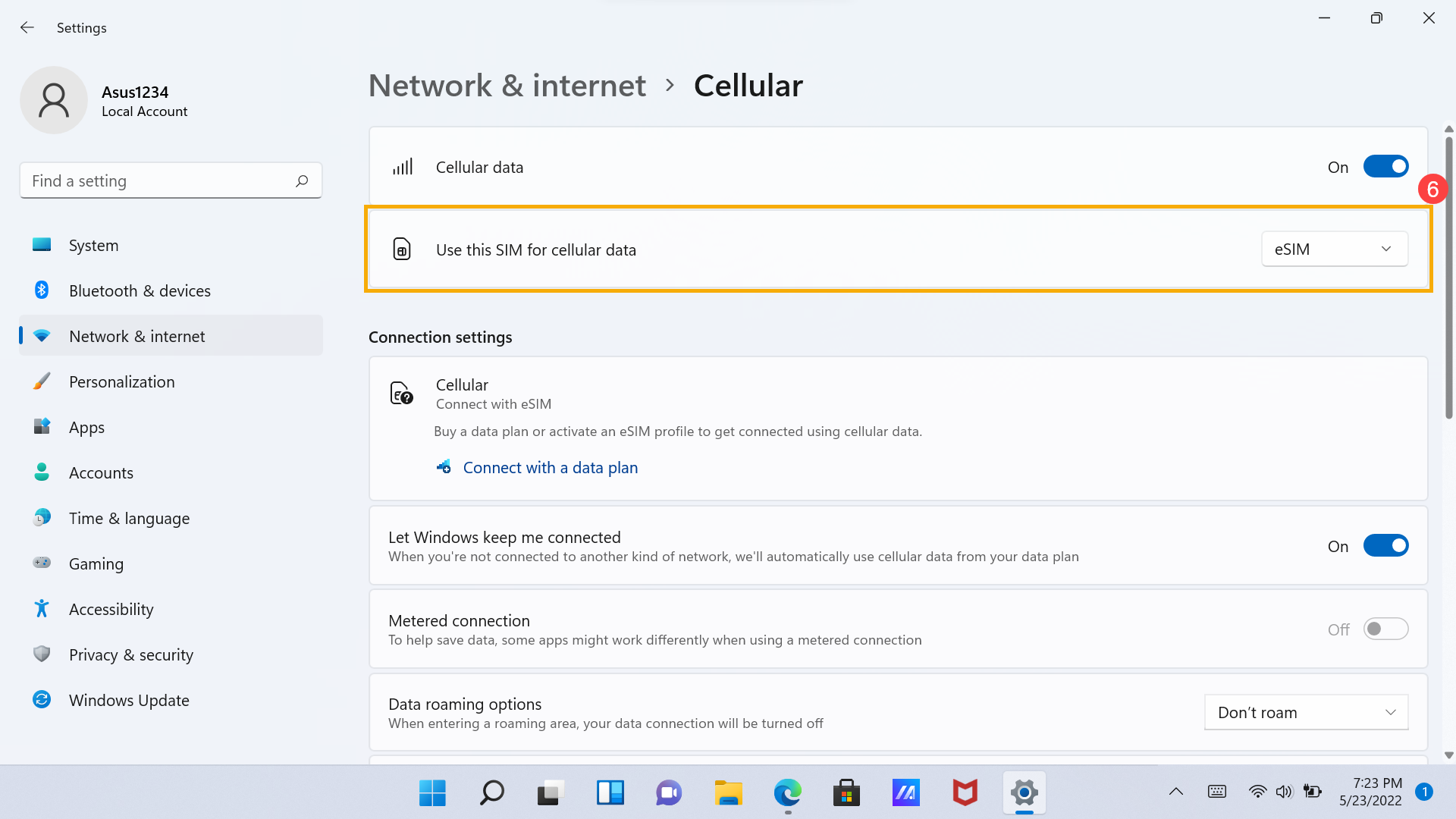
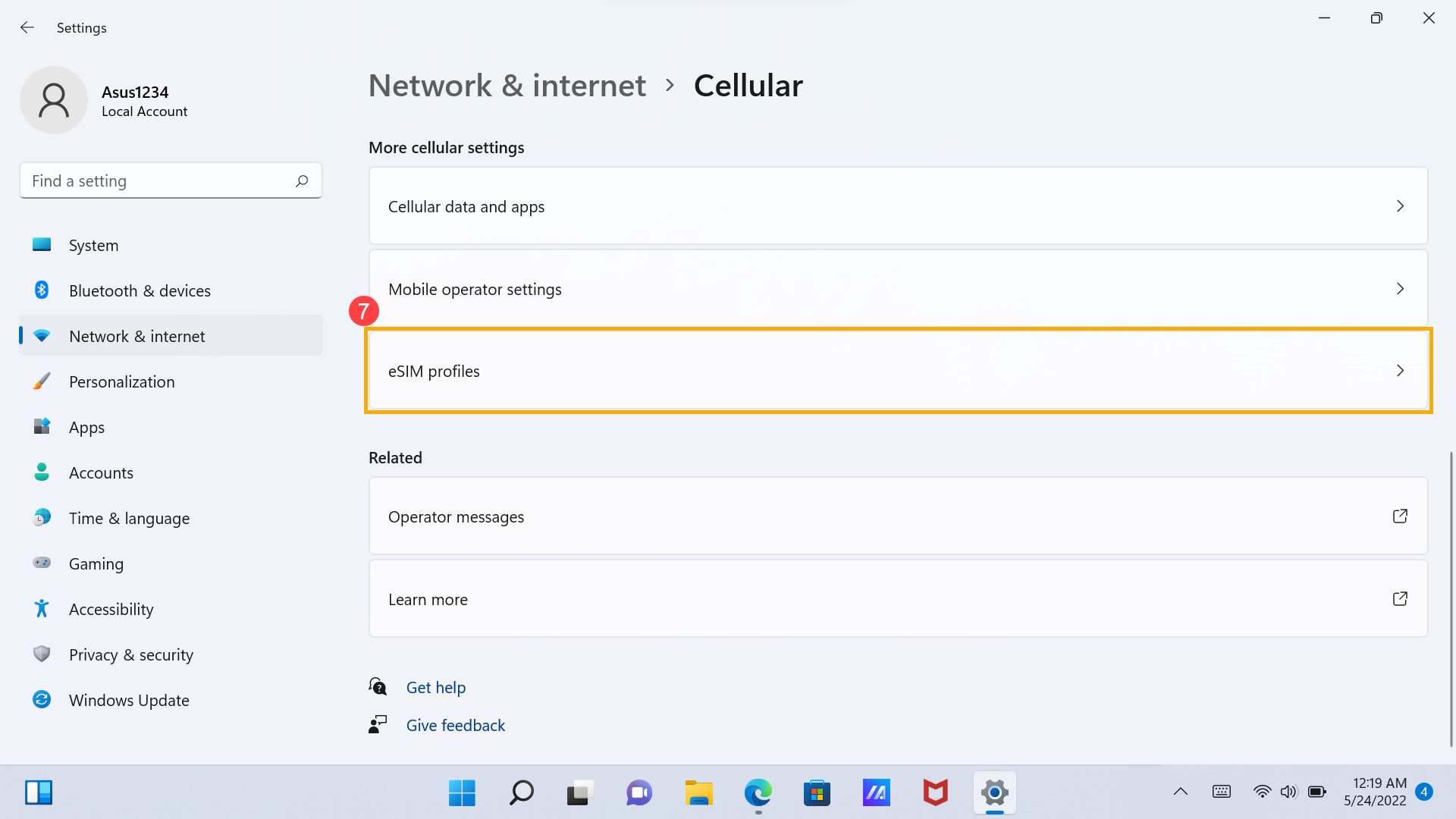
- Scroll down this page, and then select [eSIM profiles]⑦.
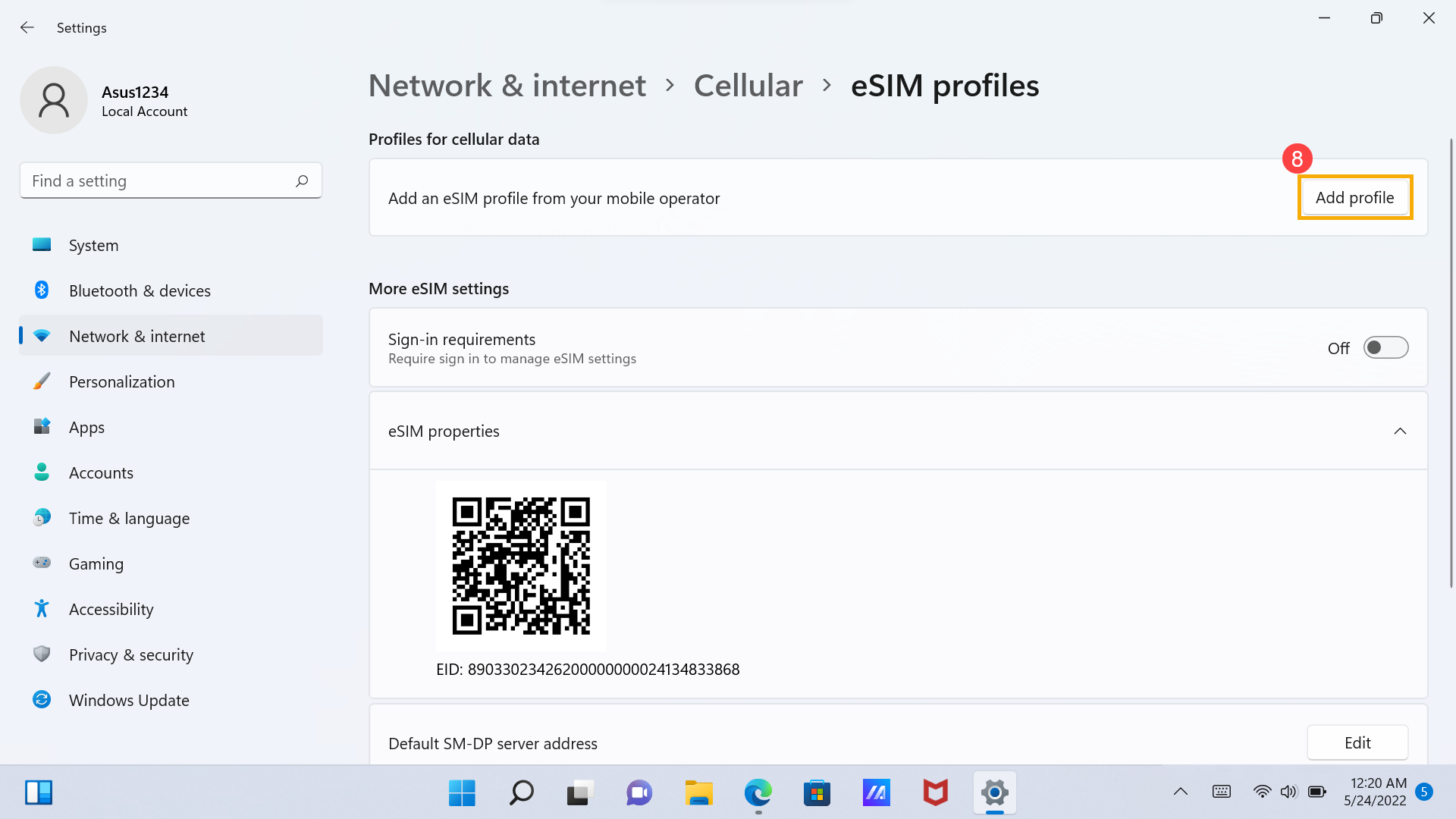
- After entering eSIM profiles, click [Add profile]⑧ in the Add an eSIM profile from your mobile operator item.
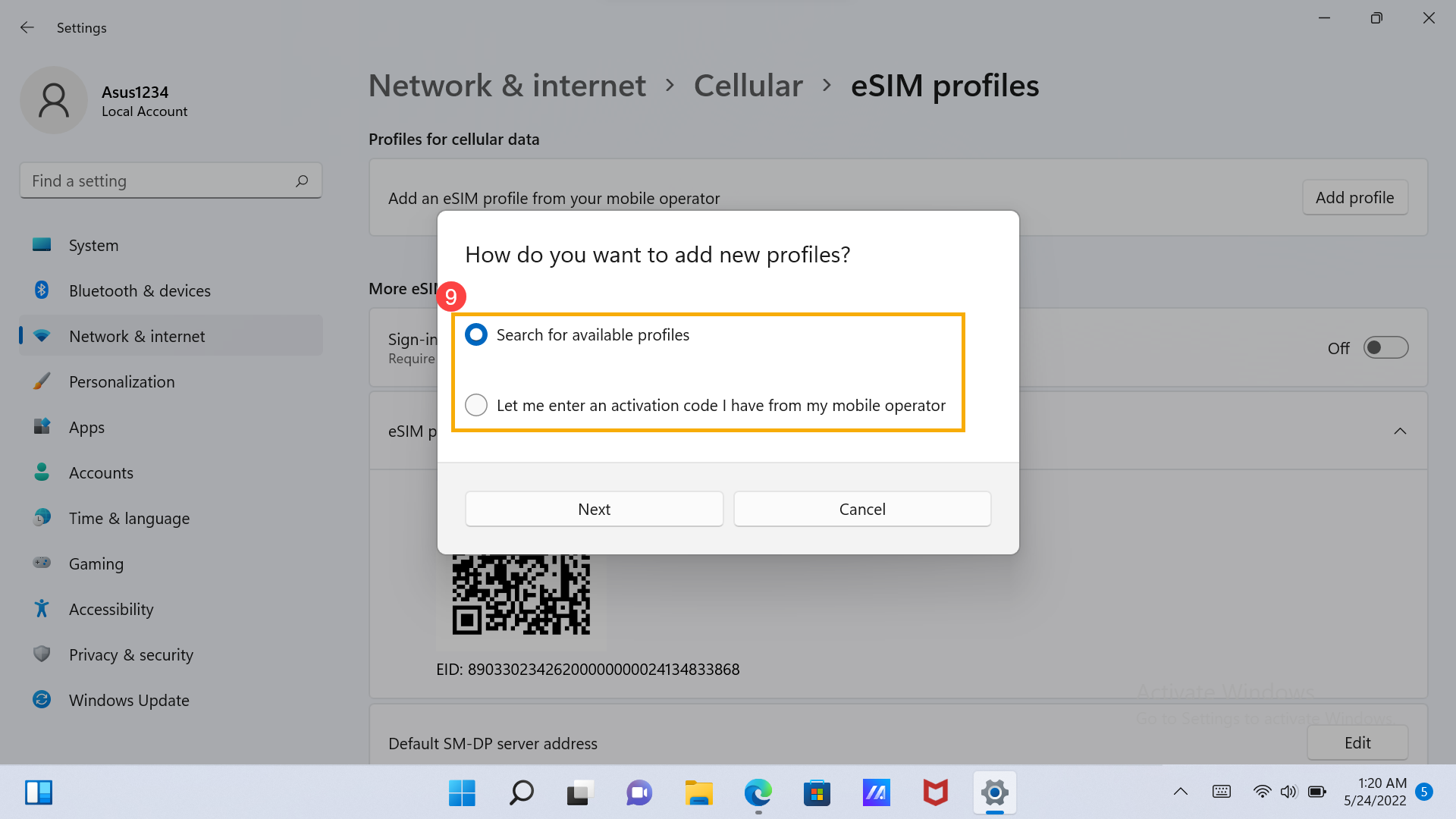
- Select either option, Search for available profiles, or Enter an activation code from my mobile operator⑨, and then follow the on-screen prompts to complete the cellular setting.