Relaterte emner
ASUS Battery Health Charging - Introduction
Index
- Introduction
- Information
- Functions and settings
- How to get ASUS Battery Health Charging
- How to uninstall ASUS Battery Health Charging
- Q&A
Since users usually keep their AC adapter connected while using their computer, the battery is often in a state of high-power(98-100%) for extended length of time which causes a reduction in battery life.
In order to protect the battery, Battery Health Charging allows you to set your battery's maximum power of RSOC (Relative State Of Charge) which helps extend the battery's lifespan.
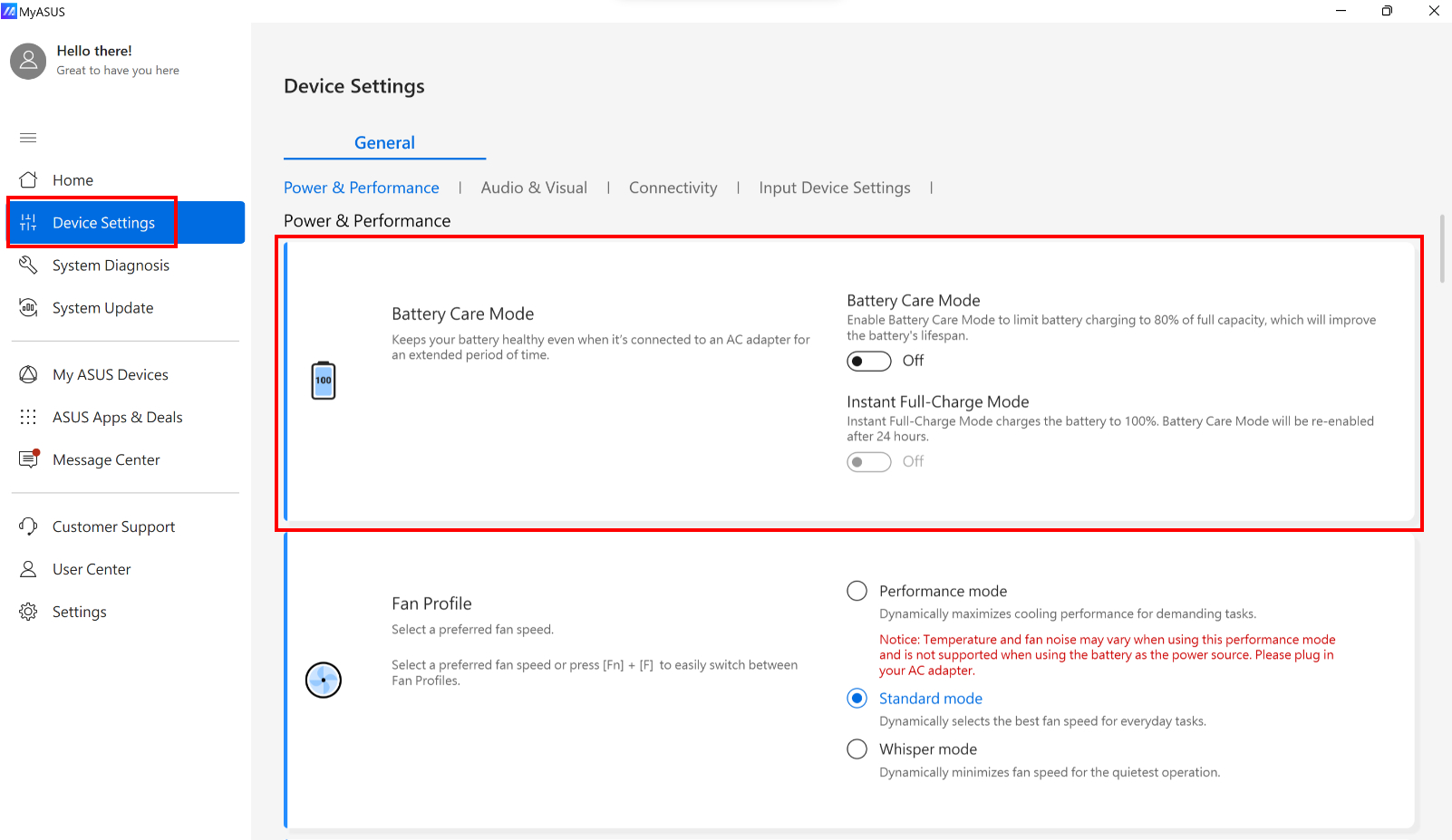
For most models, the Battery Health Charging is integrated into the MyASUS application. You can check Battery Care Mode in Device Settings of MyASUS as shown below. For more information about device settings in MyASUS, please refer to this article: MyASUS - Device Settings.
Note: If your MyASUS application does not include this feature, please refer to this model list to check whether your computer supports the standalone installation of "ASUS Battery Health Charging". To download the application, please refer to the final section of this article: How to Download the Standalone Version of ASUS Battery Health Charging.
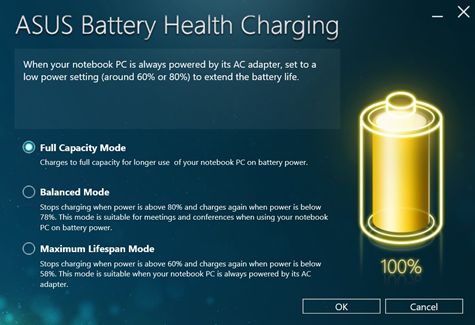
When this app is activated, there are three modes to choose from, depending on your usage:
1. Full Capacity Mode: Default setting.
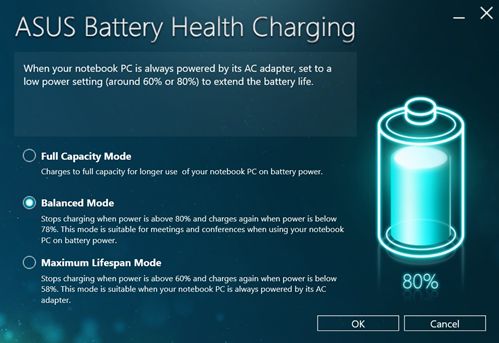
2. Balanced Mode
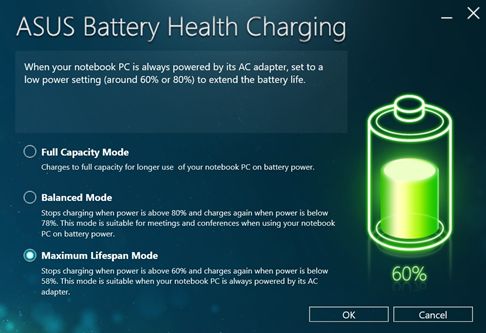
3. Maximum Lifespan Mode
1.Ten minutes after your first OS login, the message "Battery power setting is in Full Capacity Mode now" will automatically pop up. Please click ‘X’ to close this message.
If you choose to keep the current mode, the message will pop up again after 90 days. When you switch to either of the other two modes (Balanced Mode/ Maximum Lifespan Mode), this message won't pop up again until you change back to the Default mode (Full Capacity Mode).
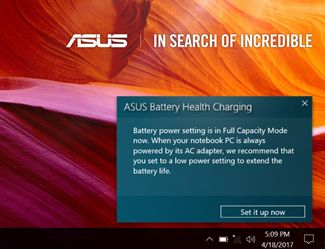
2. You can change the setting by clicking Set it up now in the pop-up message,then close the dialog window.
Move the mouse cursor over the Tray icon and right-click the Battery icon to select the mode you want to use. The current mode can be confirmed by the color shown in the Tray icon.
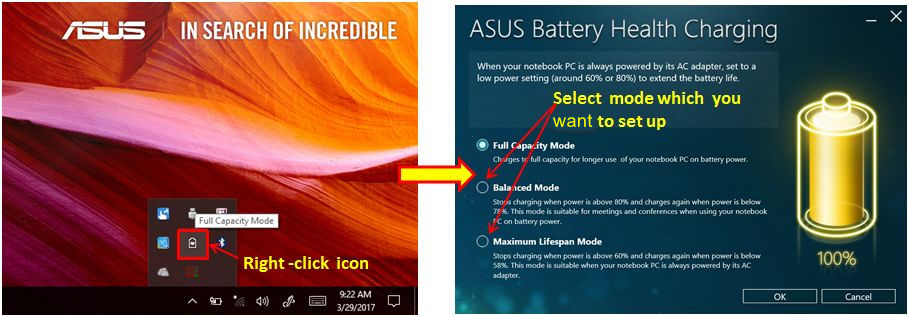
A. Full Capacity Mode(Yellow color): Battery is charged to its full capacity for longer use on battery power.
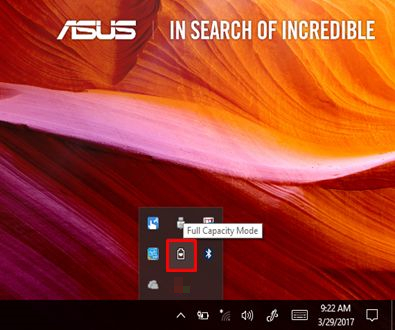
B. Balanced Mode(Blue color): Stops charging when power is above 80% and resumes charging when power is below 78%. This mode is recommended when using the computer on battery power during meetings or conferences.

C. Maximum Lifespan Mode(Green color): Stops charging when power is above 60% and resumes charging when power is below 58%. This mode is recommended when the computer is always powered by AC adapter.

How to get the standalone installation of ASUS Battery Health Charging
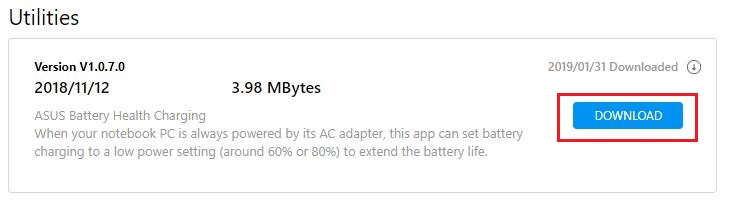
ASUS Battery Health Charging is preinstalled in ASUS computers. You can also download it from the Asus Official Website by following the steps in the link below:
https://www.asus.com/support/FAQ/1035376/
Find “ASUS Battery Health Charging” in Utilities. Click “DOWNLOAD”.
How to uninstall ASUS Battery Health Charging
If you want to uninstall the app, please refer to the link below.
https://www.asus.com/support/faq/1013598
Question 1: Why does the battery briefly charge beyond the configured charging limit after the device has been connected to the AC adapter for some time and is then restarted, or when it remains on the BIOS screen or performs a Windows Update? (The battery indicator may temporarily turn amber and then switch back to white/green after a few seconds.)
Answer 1: This is normal behavior and does not indicate a malfunction. Each time the device starts up, including during a restart or while entering the BIOS setup screen, the system temporarily resets the charging limit to 100%. The user-defined charging threshold (for example, 80%) is reapplied only after Windows has fully loaded and the desktop is reached.
As a result, during the period before Windows is fully launched, including while the system is displaying the BIOS screen or processing Windows Updates, the battery may briefly charge beyond the configured limit. Once Windows has successfully loaded, the charging restriction will automatically return to the value you specified, and charging will once again be limited accordingly. Please rest assured that this is an intended design feature.
Question 2: If I shut down the device directly from the BIOS setup screen and then connect the charger, why does the battery charge to 100% instead of stopping at my configured limit (for example, 80%)?
Answer 2: If the device is powered off before Windows has fully loaded, such as while remaining in the BIOS setup screen, the temporarily reset 100% charging limit has not yet been overwritten by your custom setting. Consequently, charging during that shutdown period will continue until the battery reaches 100%.
This is expected behavior and is part of the system design. If you would like the charging limit to remain in effect while the device is powered off, we recommend allowing the system to boot completely into Windows before shutting down or restarting. Avoid powering off the device directly from the BIOS screen. After the next successful boot into Windows, your configured charging threshold will be restored automatically.
Question 3: If the battery temporarily exceeds the configured charging limit and, after Windows loads, I continue using the device while connected to the charger, why does the charge level not automatically decrease back to the configured limit?
Answer 3: In certain situations, if the battery charge level has already exceeded your configured charging threshold and the device remains connected to the charger, the battery may simply maintain its current charge level rather than actively discharging back to the specified limit.
If this occurs, disconnect the charger and allow the battery to discharge naturally until the charge level falls below your configured threshold (for example, below 80%). Once it has dropped beneath the limit, reconnect the charger. Battery Care Mode will then resume normal operation, charging the battery only up to the configured threshold before stopping.
*Battery Replacement Determination
Battery replacement shall not be determined based on battery charge cycle counts. The number of charge cycles alone does not constitute a basis for battery replacement. ASUS determines battery replacement eligibility based on a comprehensive evaluation of overall battery health, functional performance, and safety criteria, using ASUS-defined diagnostic methods. This approach helps ensure appropriate product longevity and waste-reduction practices. If users experience battery-related issues during normal use, please contact the ASUS Support website or visit an authorized ASUS service center for evaluation.
Download MyASUS now to experience perfect service. Click below!
