Relaterte emner
[Motherboard] Introduction to Fan Xpert 4 in Armoury Crate
Fan Xpert 4 is a tool embedded in Armoury Crate software that controls fans connected to the motherboard. It can detect various fans on the motherboard and provide various adjustment options, such as adjusting fan speed, setting fan curves, and setting temperature measurement points, to meet user needs.
**The Fan Xpert option is not available in the device list of the Armoury Crate software.
Please ensure that your motherboard is an Intel 600 series, AMD AM5 series, or newer motherboard to support Fan Xpert 4 in the Armoury Crate software.
If you are using an older Intel 500 series or AMD 500 series motherboard or an earlier series motherboard, you can still use Fan Xpert 4 in Ai Suite 3.s, please refer to the Fan Xpert 4 introduction in the [Motherboard] Fan Xpert 4 in Ai Suite 3- Introduction
How to control the fan using Fan Xpert 4 tools through Armoury Crate software?
(Example: ROG MAXIMUS Z690 EXTREME GLACIAL)
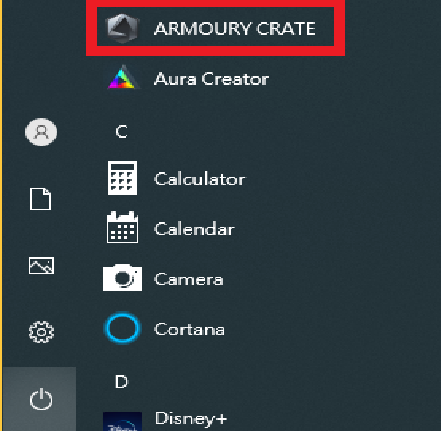
1. Click the Windows "Start" menu and then click the "Armoury Crate" software.
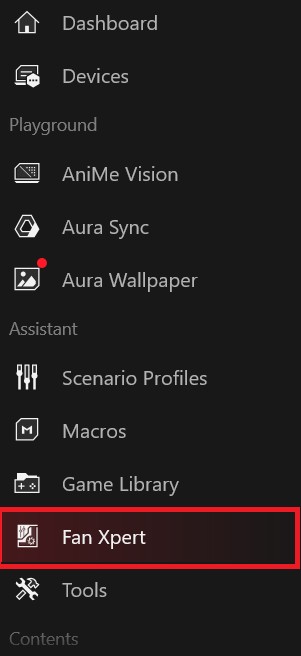
2.In the Armoury Crate software, click "Fan Xpert".
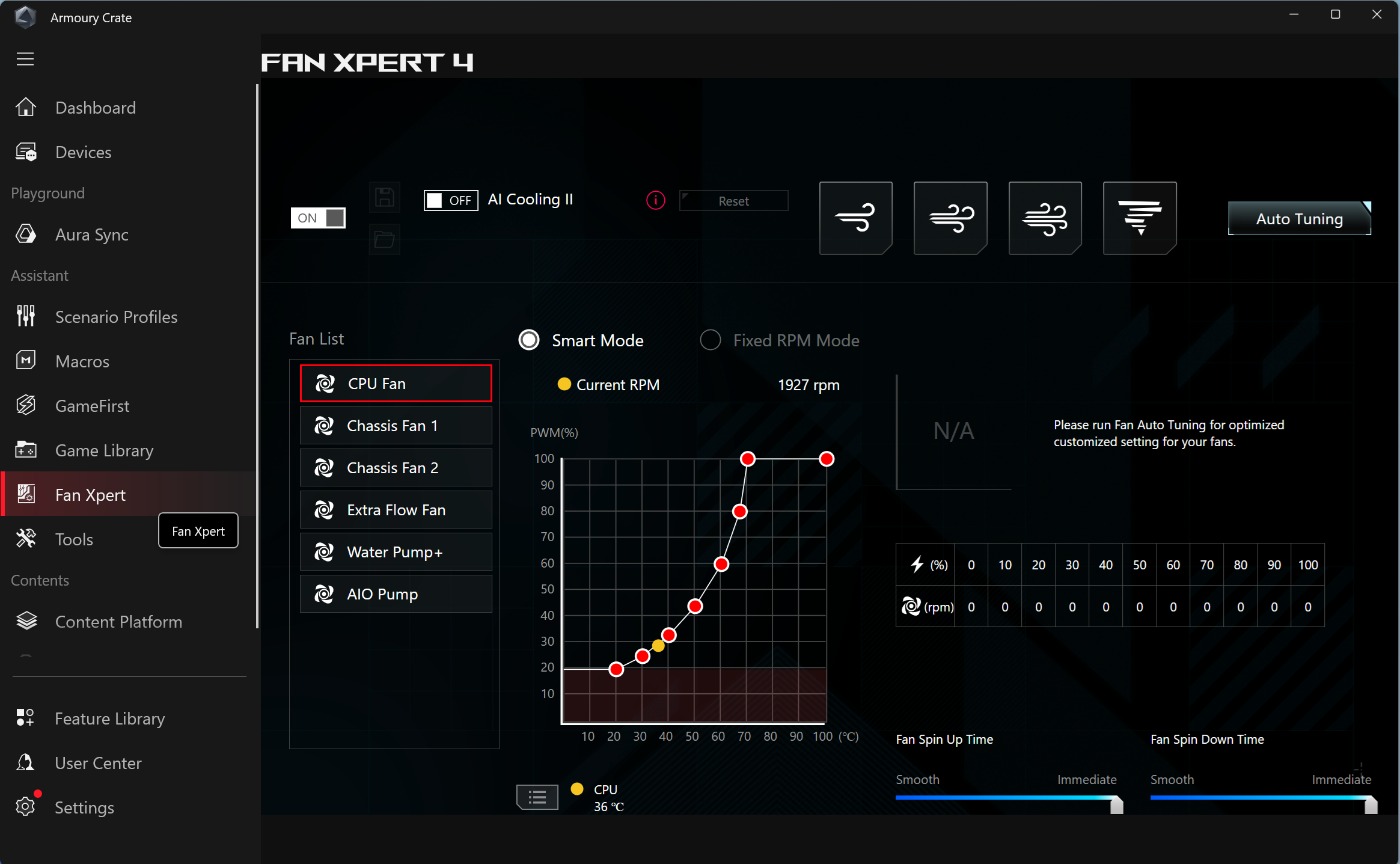
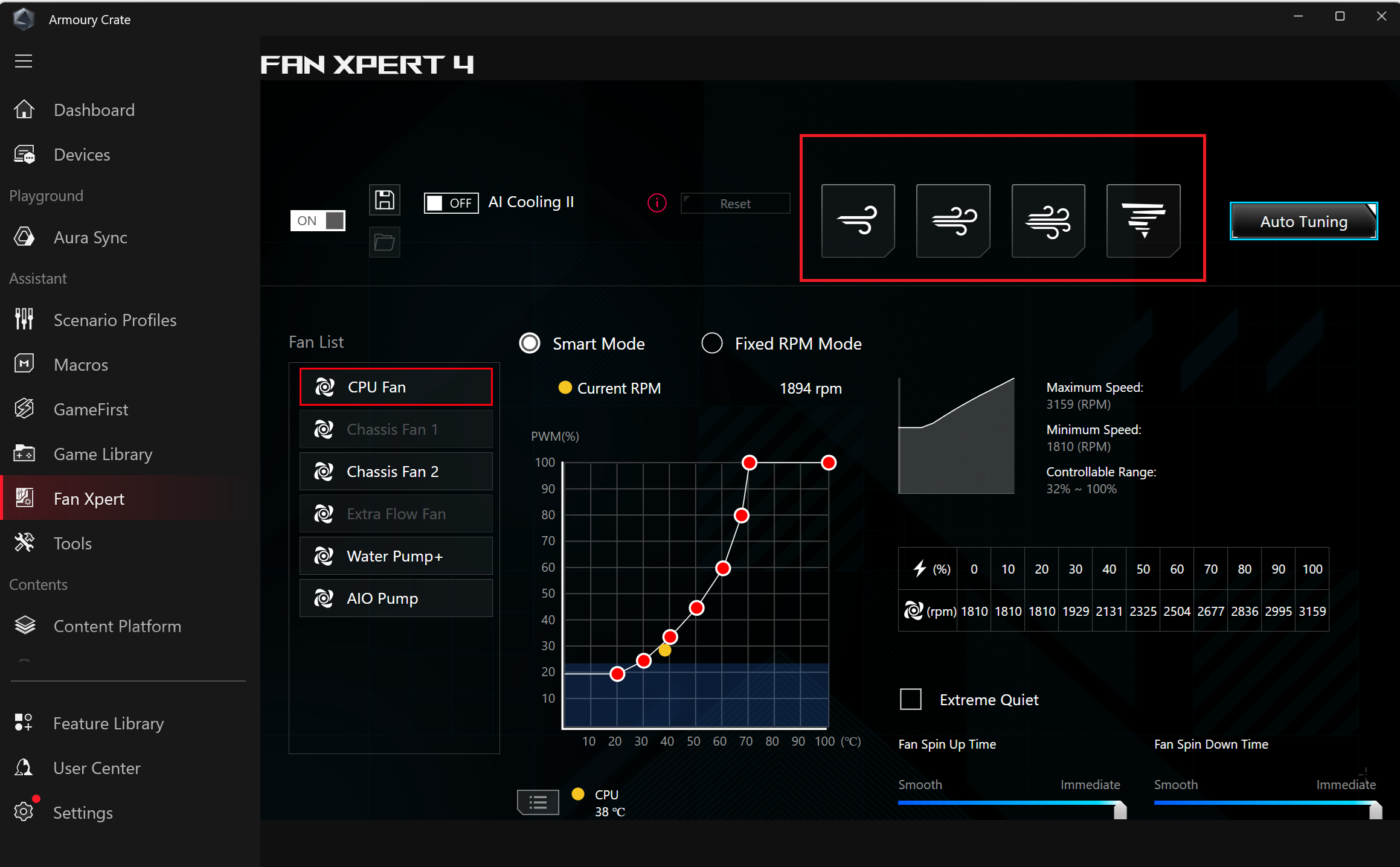
3. In Fan Xpert 4, click "Auto Tuning" to apply the best customized settings for your installed fan.
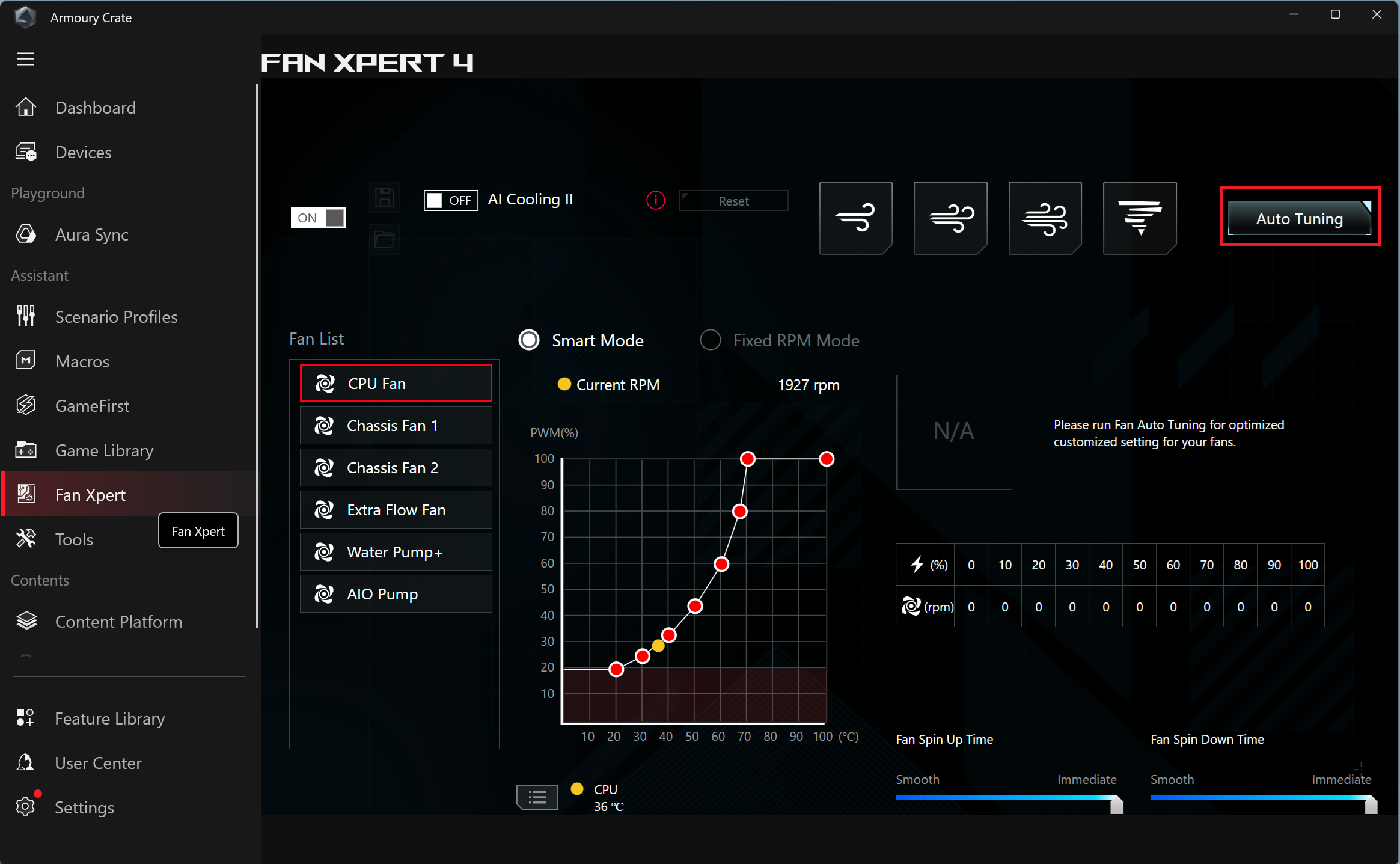
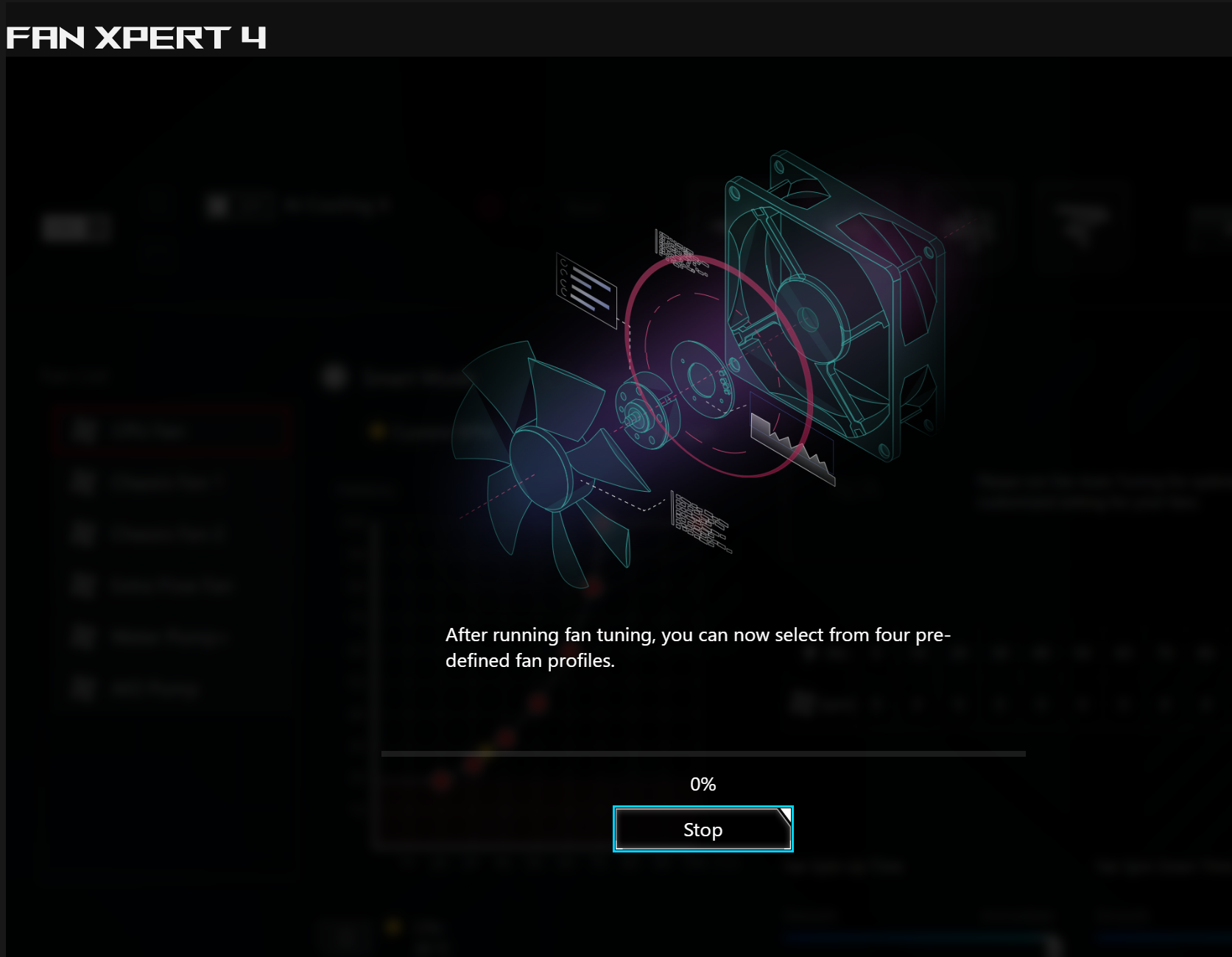
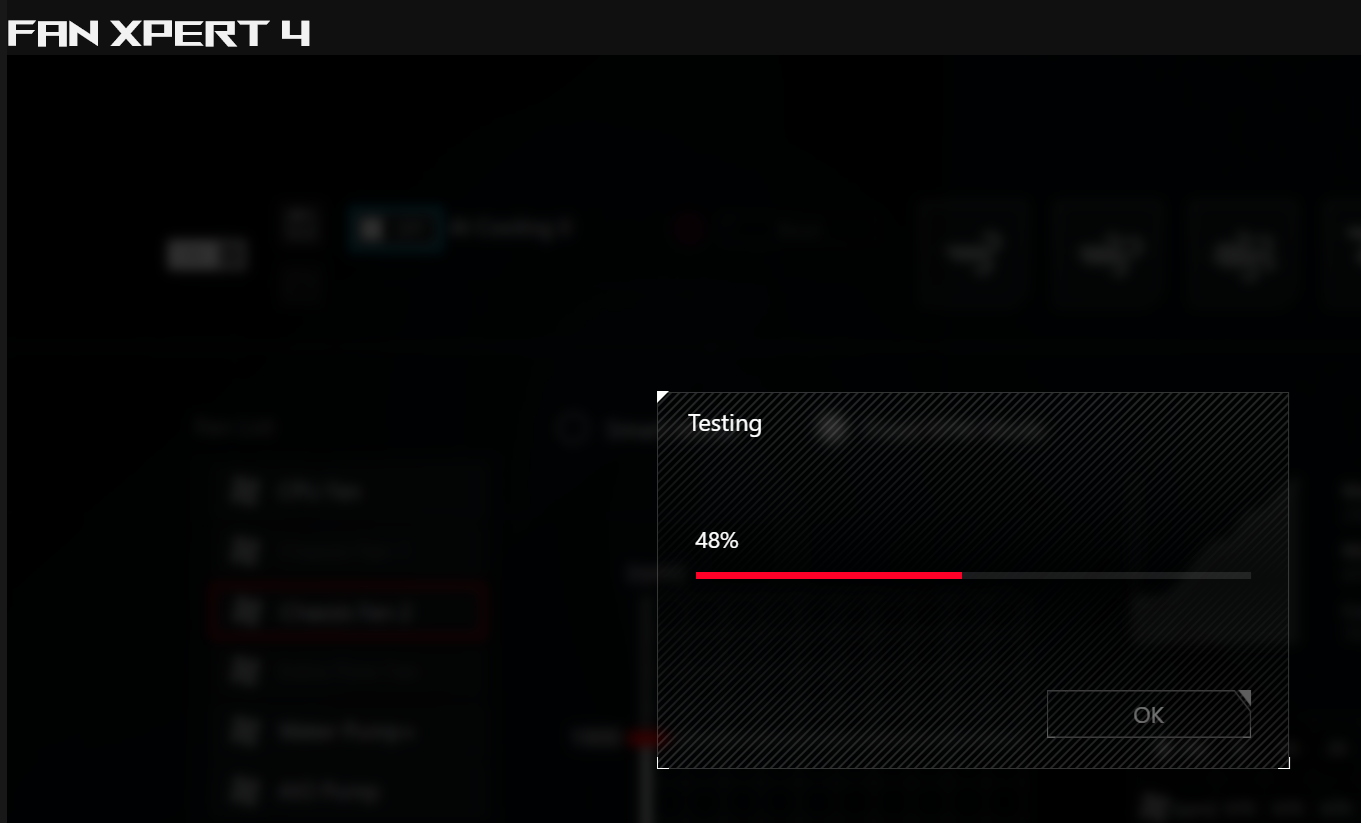
4. Fan Tuning in progress.
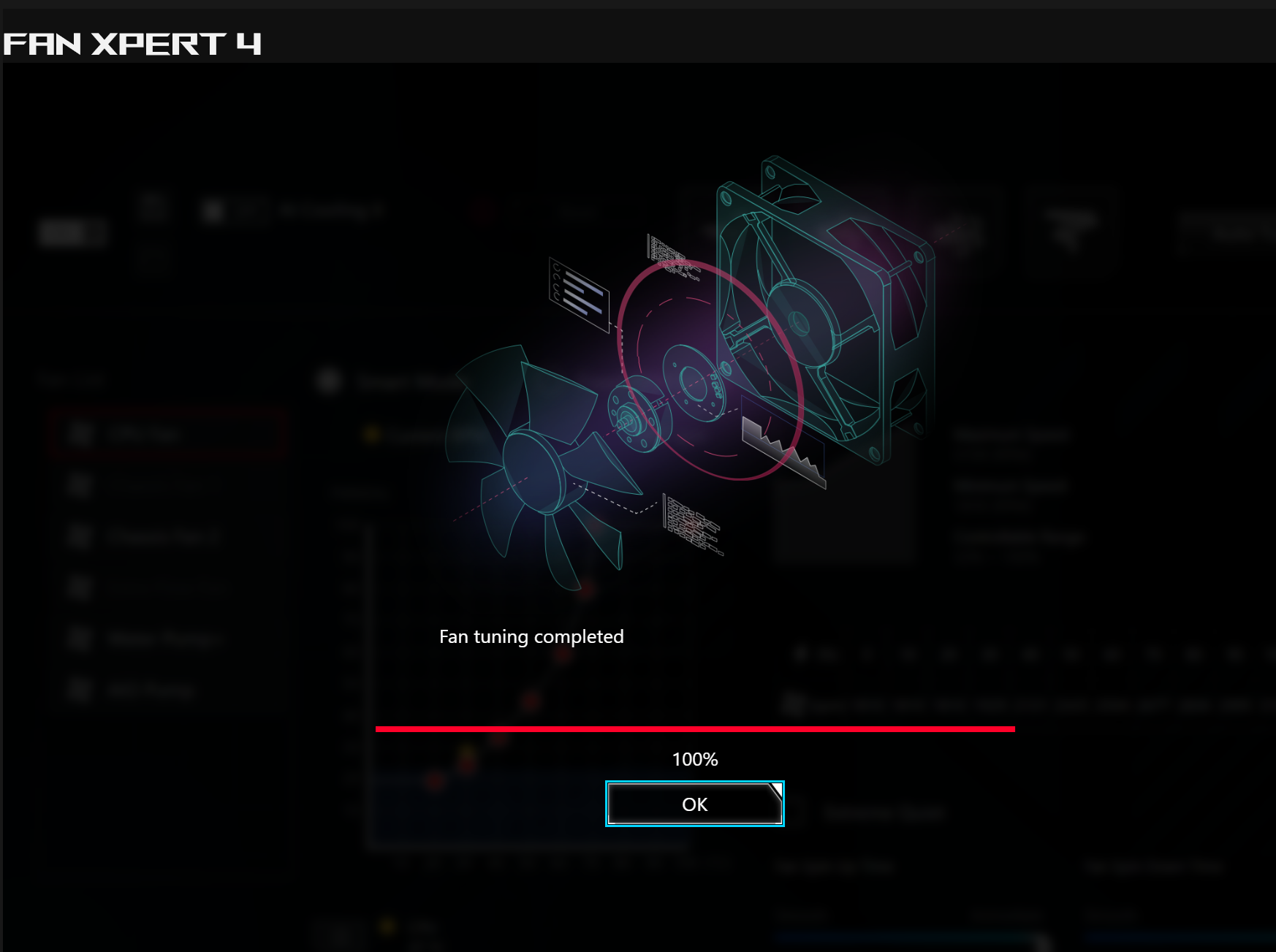
Fan Tuning Completed
5. After tuning is complete, if you need to quickly adjust all fan speed settings, you can choose a preset mode from the following two methods:
1. In Fan Xpert 4, select from the four preset modes: Silent, Standard, Turbo, and Full Speed
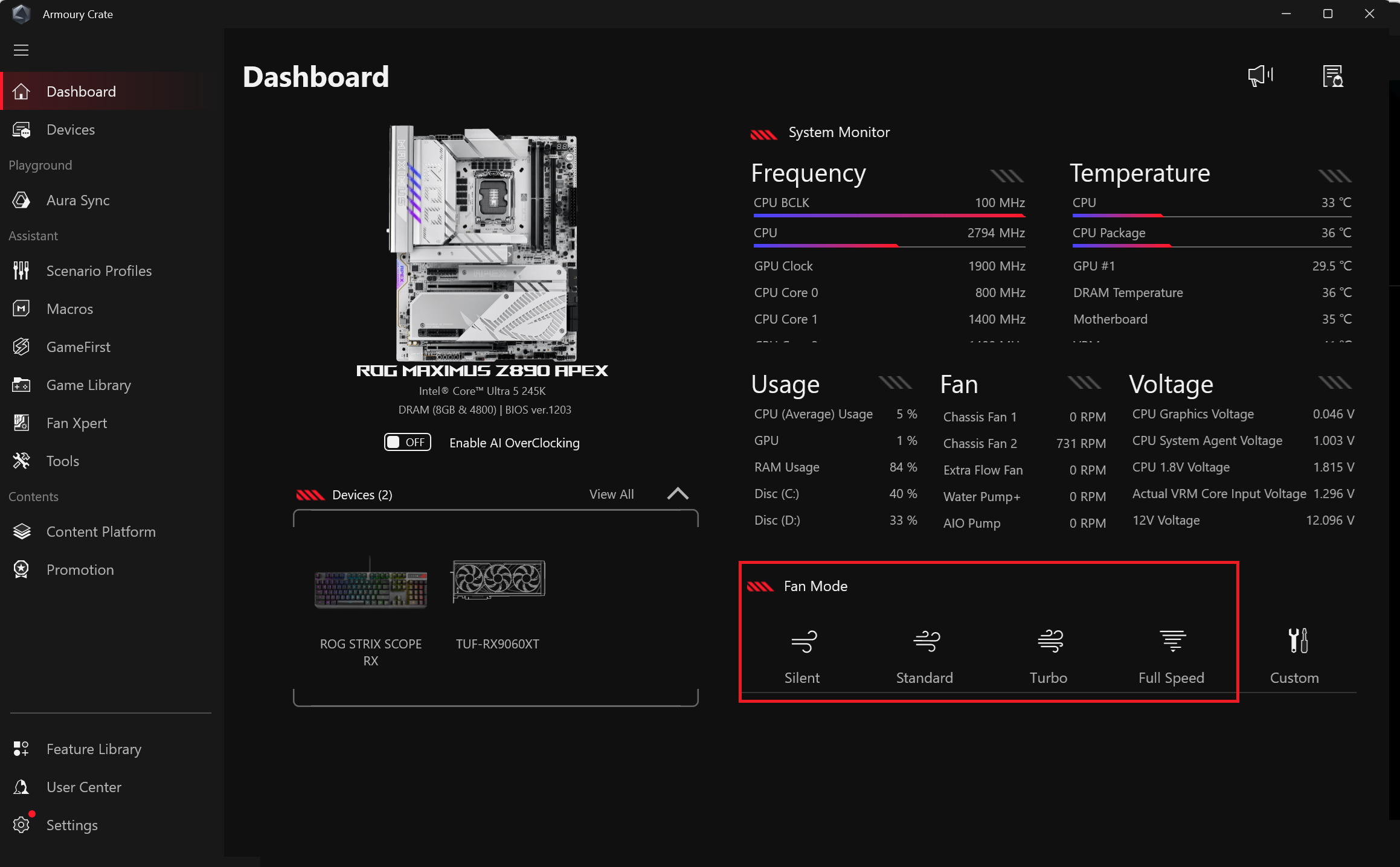
2. Alternatively, you can select from the four preset modes (Silent, Standard, Turbo, and Full Speed) in the "Fan Speed" module within the "Control Panel" section of the Armoury Crate software.
6. You can also select and customize individual fans from the fan list. (Example: CPU Fan)
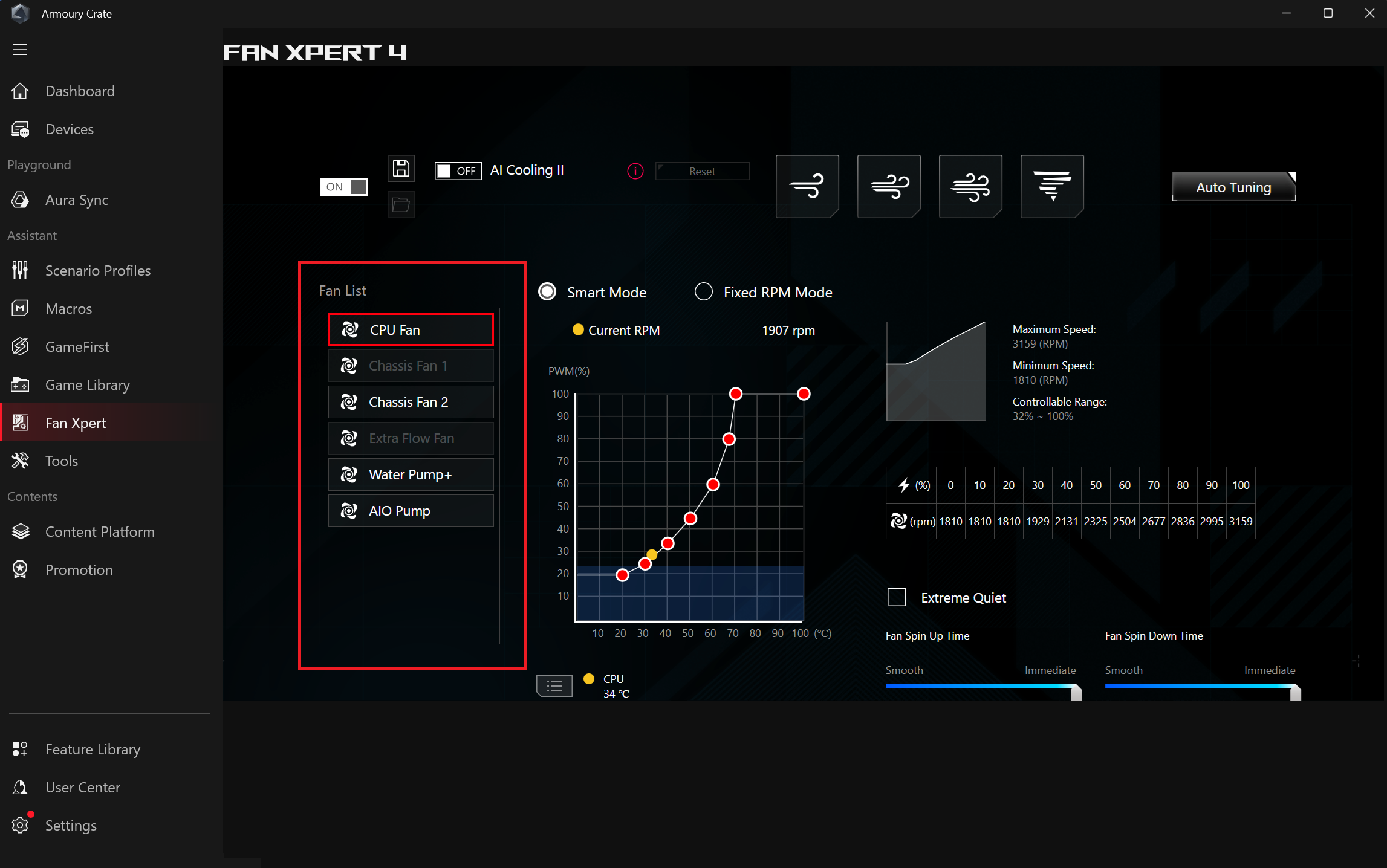
7. In Smart Mode, click and drag the red button to adjust the settings. Adjust the power at which the fan operates at different temperatures (refer to the table on the right to find the minimum RPM for that power).
Note: Do not set the fan speed too high or too low, as this may affect performance or cause overheating
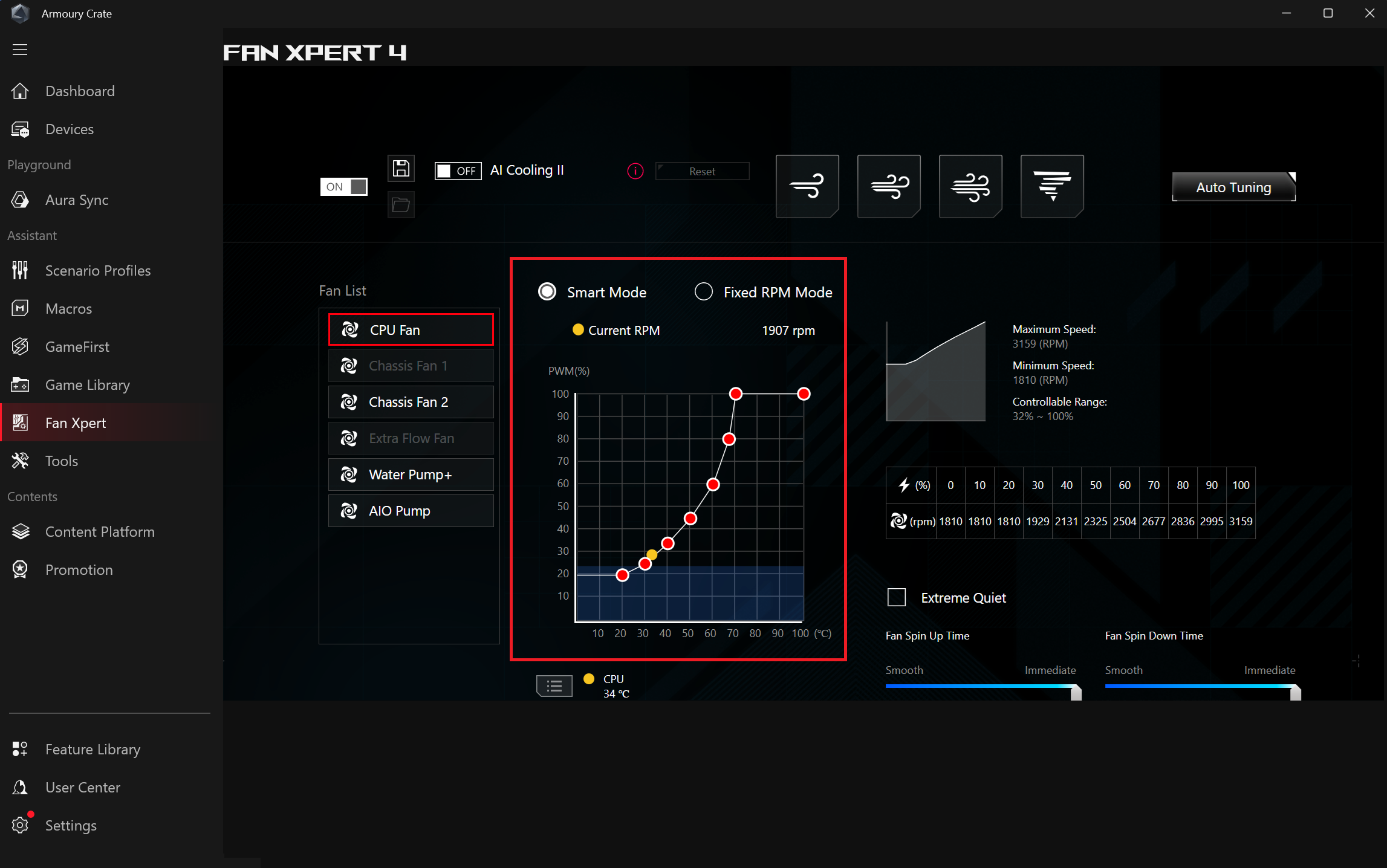
8. In Smart Mode, you can adjust the Fan Acceleration Time and Fan Deceleration Time to prevent drastic changes in fan speed within a short period.
At this time, you can choose to enable the Extreme Quiet Mode to minimize noise levels, which will reduce fan speed. After enabling Extreme Quiet Mode, you can also choose to enable the Fan Stop feature. When the fan speed is too low, the fan will automatically stop.
Note: To enable Extreme Quiet Mode, you must first perform Fan Tuning.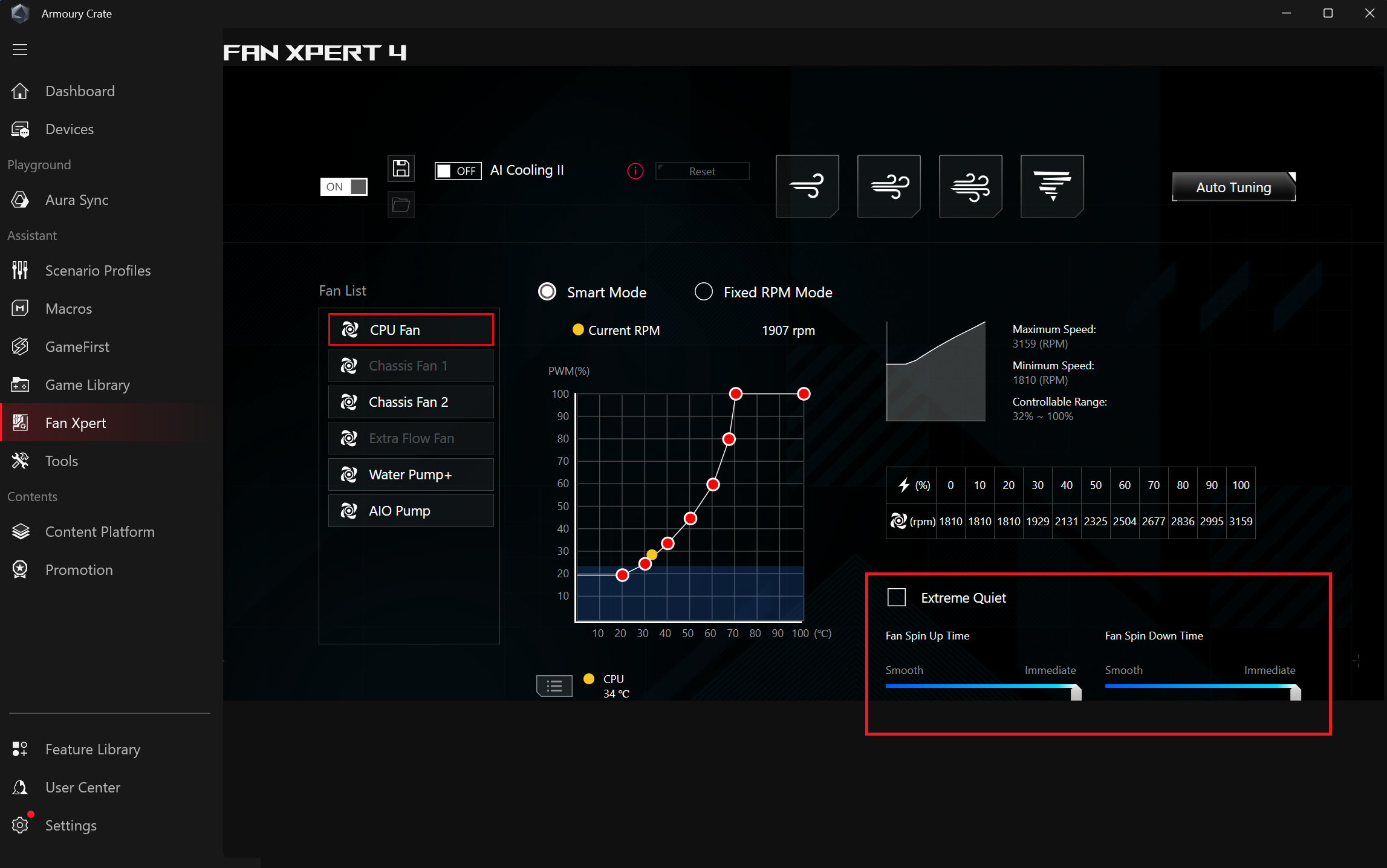
9. [Chassis Fan 2] Clicking the temperature source icon will display the temperature source menu.
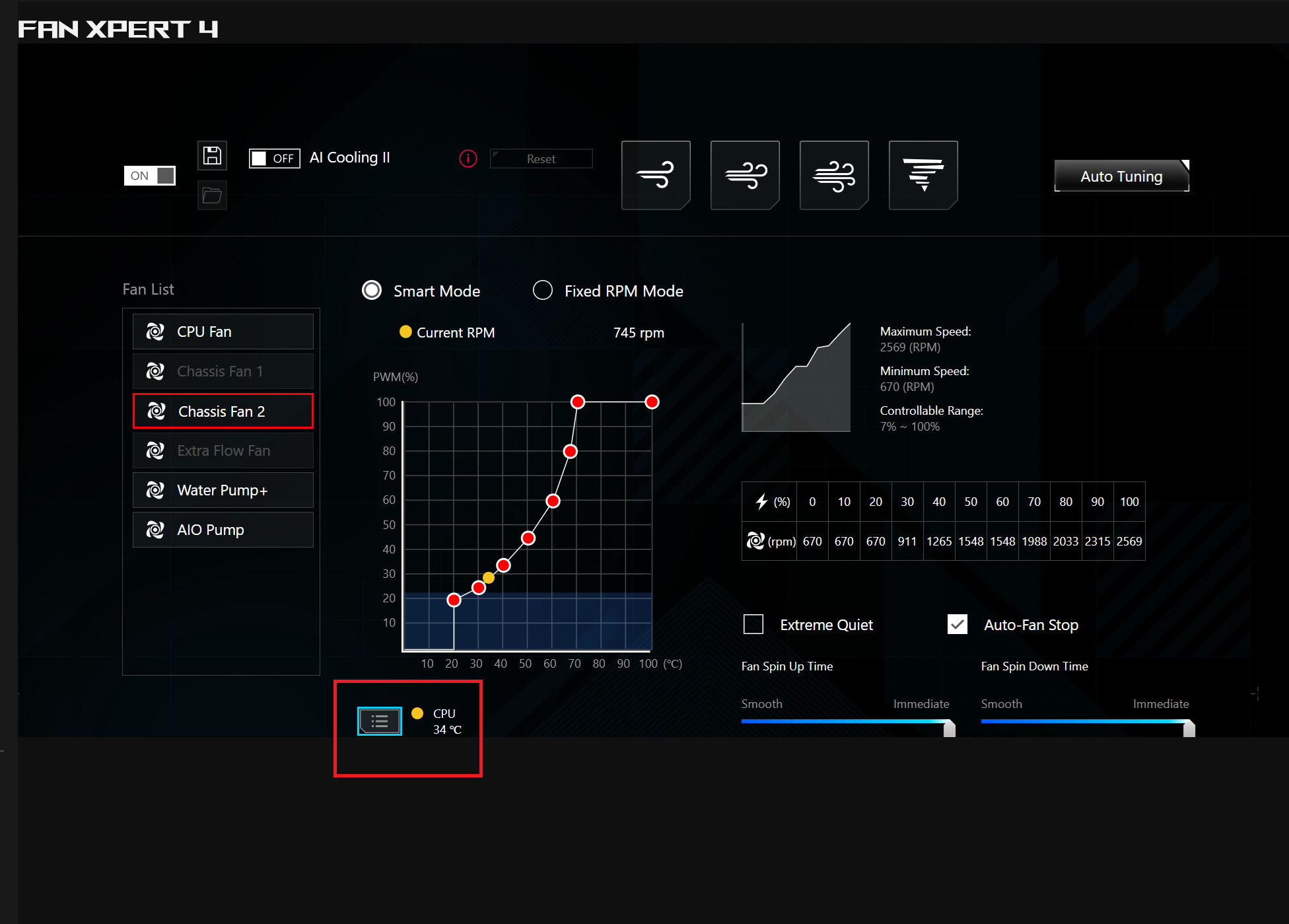
You can select a maximum of three temperature sources, and the fan speed will be adjusted according to the highest temperature among those selected.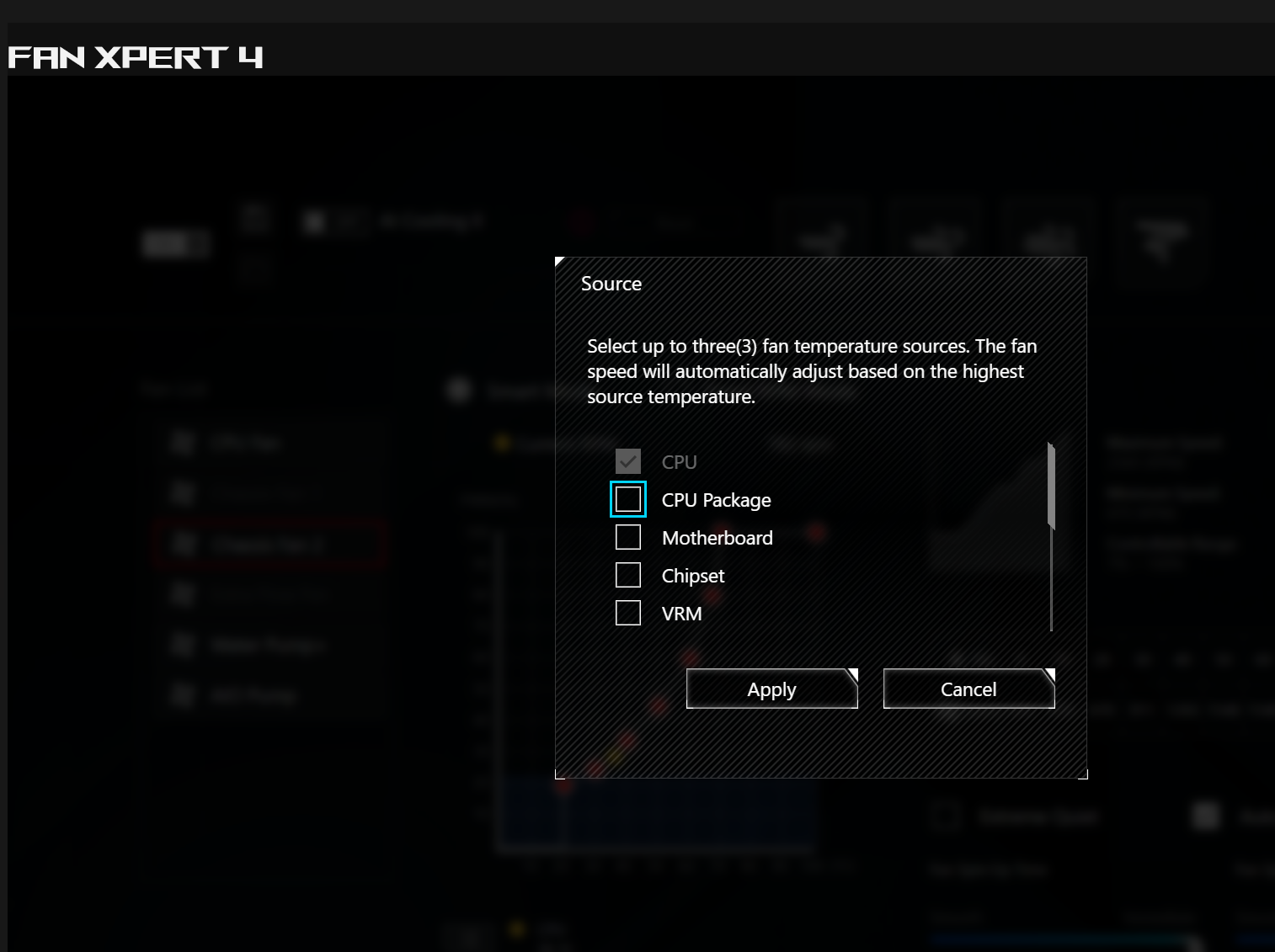
10. In Fixed RPM Mode, drag the arrow to customize the fan speed to a fixed value.
Note: Do not set the fan speed too high or too low, as this may affect performance or cause overheating.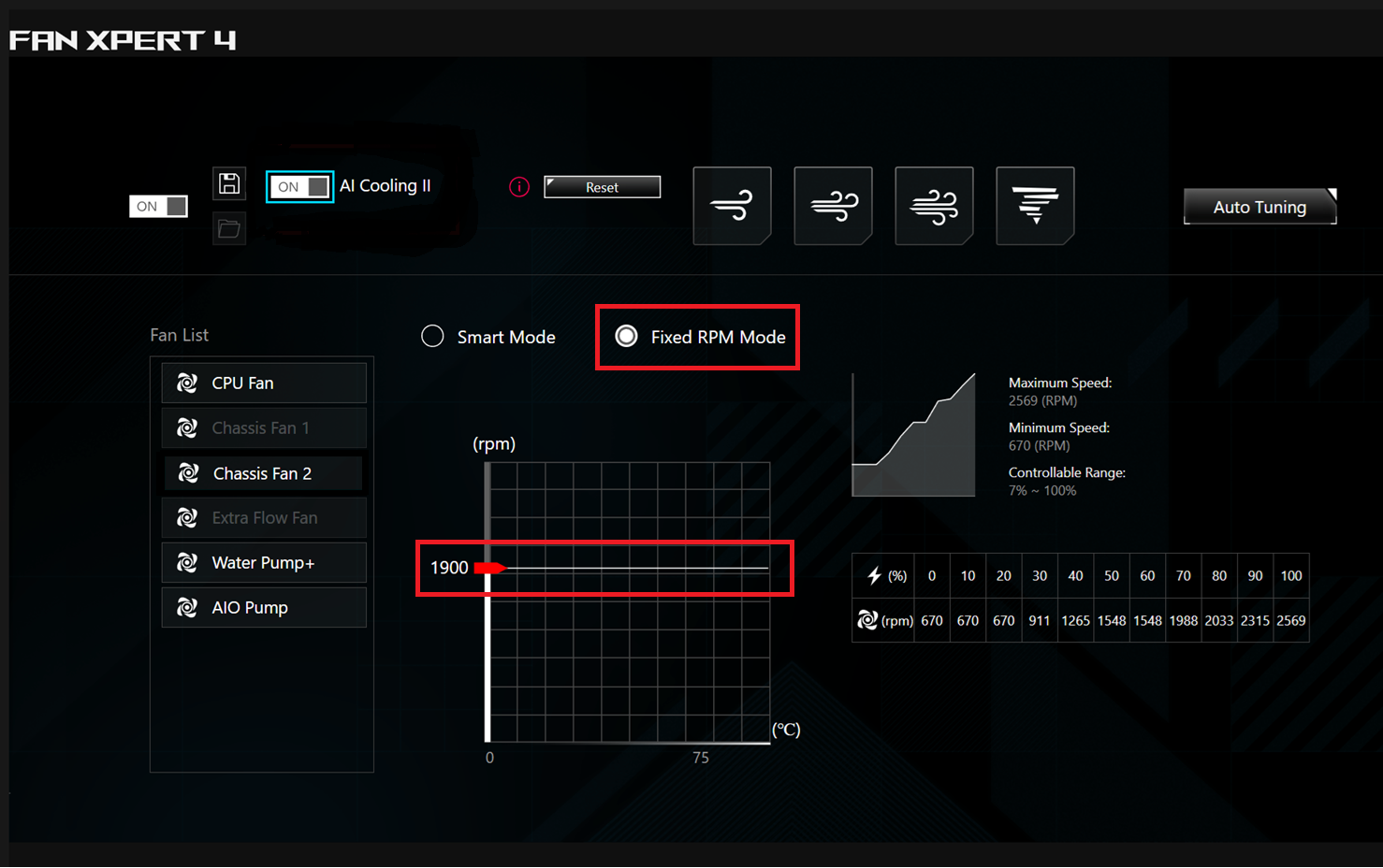
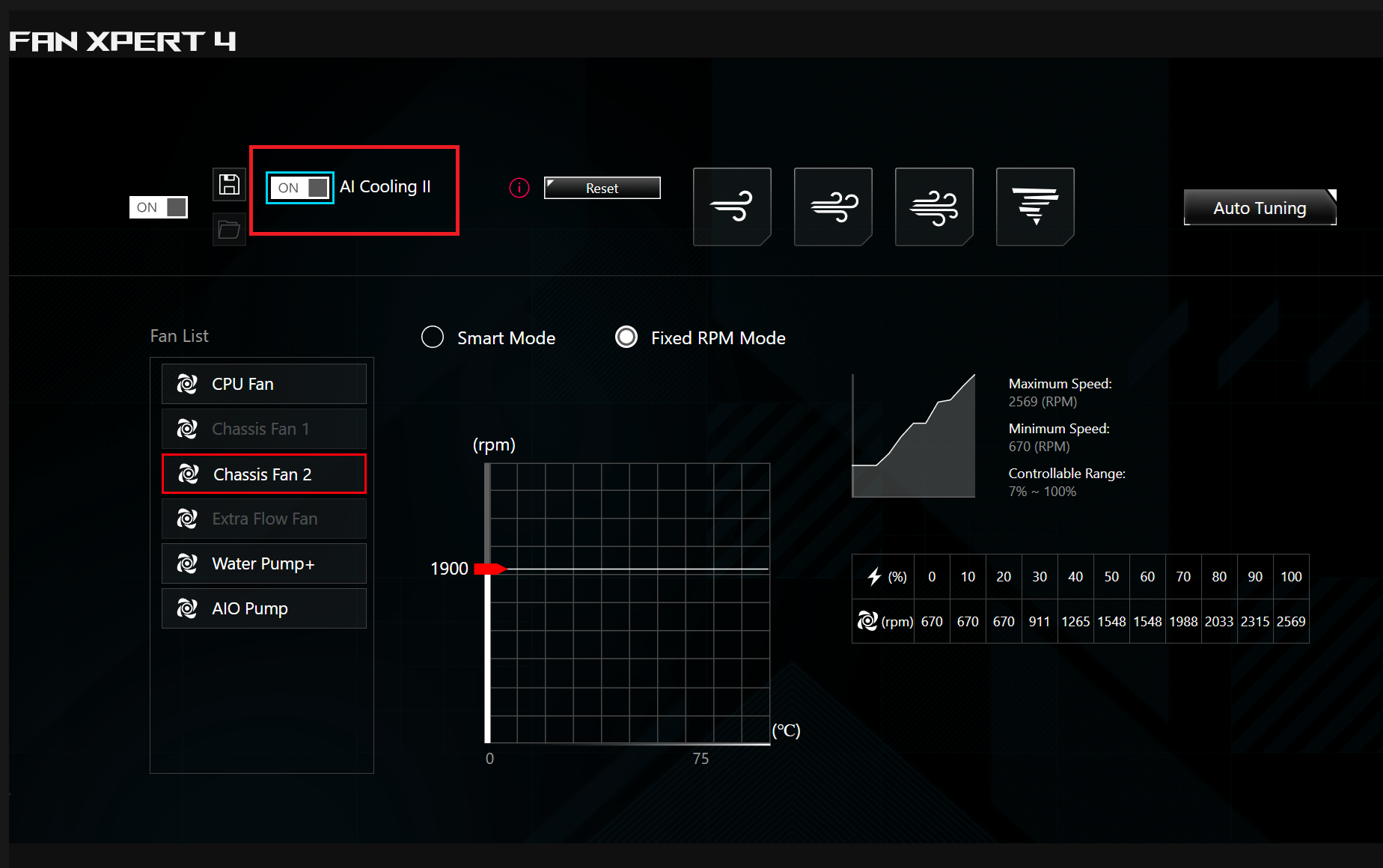
11. AI Cooling
Enabling the AI Cooling function will reduce the speed of all fans to lower system noise without affecting current performance when the system enters a stable load state
Note: After enabling the "AI Cooling" function, the "Extreme Quiet" function in Smart Mode will be overridden.
Q1: There is no Fan Xpert option in the Device section of the Armoury Crate software
A1: Fan Xpert is supported within Armoury Crate on Intel 600 series, AMD AM5 series motherboards, and newer. If you are using an older Intel or AMD motherboard, you can continue to use Fan Xpert in AI Suite 3. Please refer to this FAQ link for more details. [Motherboard] Introduction to Fan Xpert 4 in Ai Suite 3
Q2.Why doesn't the Fan Xpert 4 option appear on Intel/AMD 600 series or later motherboards?
A2. 1. In Settings -> Update Center, select FanXpert Installation.
2. In Feature Library, select Assistant (insatell).
3. Restart Armoury Crate.
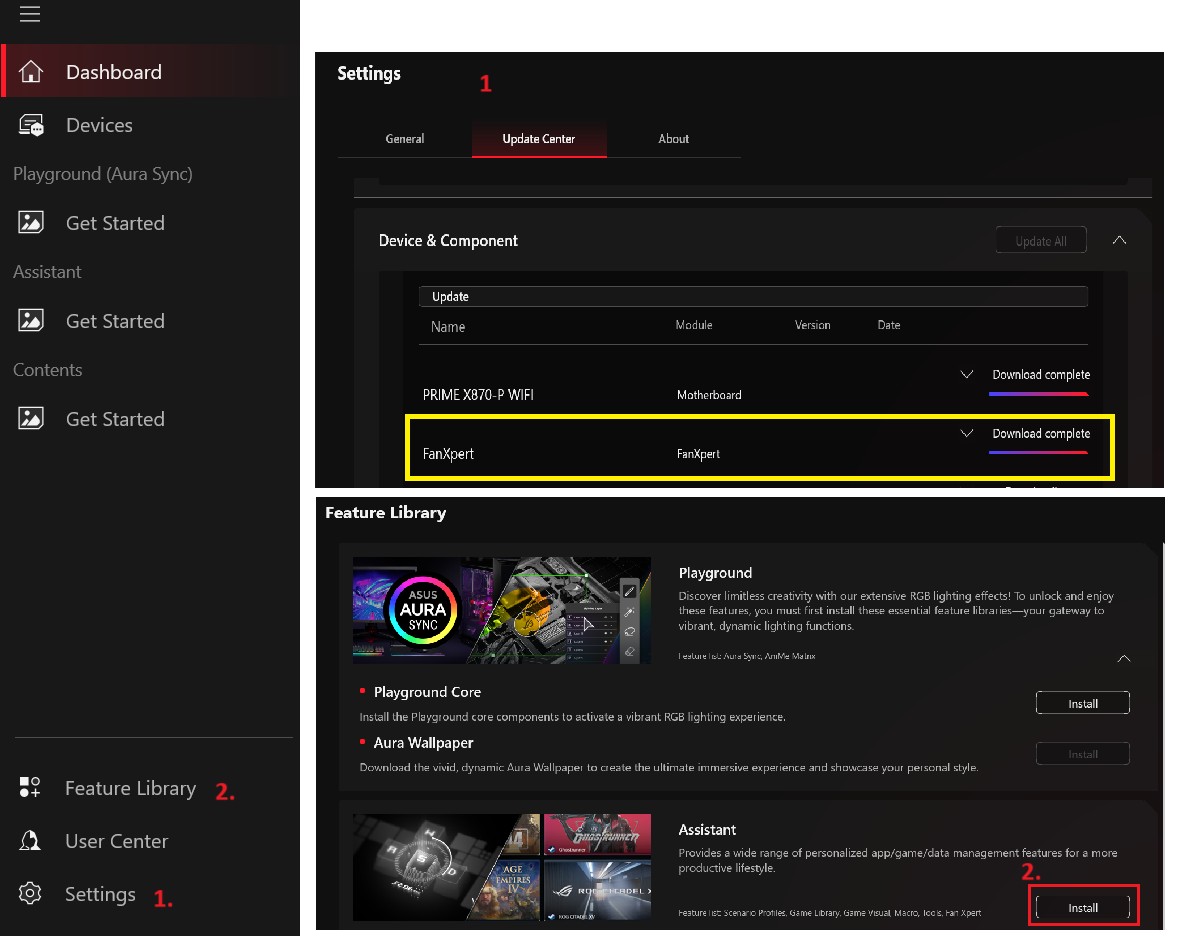
4.Can display Fan Xpert 4