[NUC] Clearing BIOS Passwords on NUC

Caution 
Caution icon
To guard against electrical shock, always power off and unplug your computer from the electrical outlet before opening the cover.

Before you start

  1. Make sure the computer and any attached devices are powered off.
  2. Disconnect the computer from the power source.
  3. Remove the computer cover.
NoteSee Section titled BIOS Security Jumper of the technical product specification for your NUC model for complete details.

Clearing the password

For these modelsInstructions
Second generation (4th generation processor) and later NUC models
  1. Find and remove onboard configuration jumper.
  2. Plug in the computer to a power source and power on the computer.
  3. The computer displays the Config Menu.
  4. Select [2] Clear BIOS User and Supervisor Passwords.
  5. Power off the computer and disconnect it from the power source.
  6. Place the configuration jumper back to its original position.
  7. Replace the cover.
  8. Plug in the computer to the power source and power on the computer.

First generation NUC models:

D33217CK 
D33217GKE 
DCP847SKE 
D53427RKE 
DC3217BY 
DC3217IYE 
DCCP847DYE 
DC53427HYE

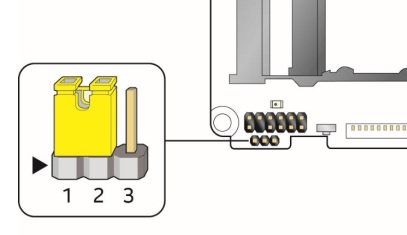
  1. Find the yellow configuration jumper on the motherboard.
  2. Move the configuration jumper from the default pins 1-2 to pins 2-3. 
    Configuration jumper
  3. Plug in the computer to the power source and power on the computer.
NoteThe computer will start in Visual BIOS in Maintenance Mode.
  1. Select Maintenance Mode. A Maintenance Mode prompt is displayed.
  2. Select Clear User and Admin Passwords. A confirm prompt is displayed. Select Yes.
  3. Close the Maintenance Mode prompt.
  4. Press F10 to save the current values and exit setup. A confirm prompt is displayed. Select Yes.
  5. Power off the computer and disconnect it from the power source.
  6. Place the configuration jumper back to its original position.
  7. Replace the cover.
  8. Plug in the computer to the power source and power on the computer.