Related Topics
[Headphone] ROG PELTA Frequently Asked Questions
Tri-mode RGB gaming headset with ROG SpeedNova wireless technology, 50 mm ROG titanium-plated diaphragm drivers, refined wireless sound signature, 10 mm super-wideband boom microphone, lightweight 309-g design, plus ASUS Aura Sync RGB lighting.
Q1: After updating the firmware to version 4.0.5.0, why does the software show “Device not found” or fail to connect after the headset enters sleep mode?
A1: To optimize battery performance, firmware version 4.0.5.0 includes adjustments to the headset’s sleep mechanism. When there is no audio output and the microphone is not in use, the headset will enter sleep mode after the default 5 minutes. The sleep timer can be adjusted in Armoury Crate.
If the headset is in sleep mode and you open Armoury Crate via a 2.4 GHz connection, the software may display “device not found.” This is normal behavior.
Please press the Function Button or the Mic Mute Button on the headset to wake it. The device will automatically reconnect and resume normal operation.
Q2: What should I do if I hear static, interference, or a possible electrical noise in the headphones?
A2:
Step 1:
In some specific situations, using USB 3.0 devices (such as hard drives or flash drives) together with USB wireless devices that operate on the 2.4GHz frequency band may cause interference. The high-speed signals from USB 3.0 can disrupt the performance of wireless devices, reducing transmission efficiency.
You can refer to the following official ASUS support article: [Notebook] Using USB 3 and 2.4GHz USB wireless device at the same time may experience radio frequency interference
to learn how to minimize USB 3 interference with wireless devices.
Step 2:
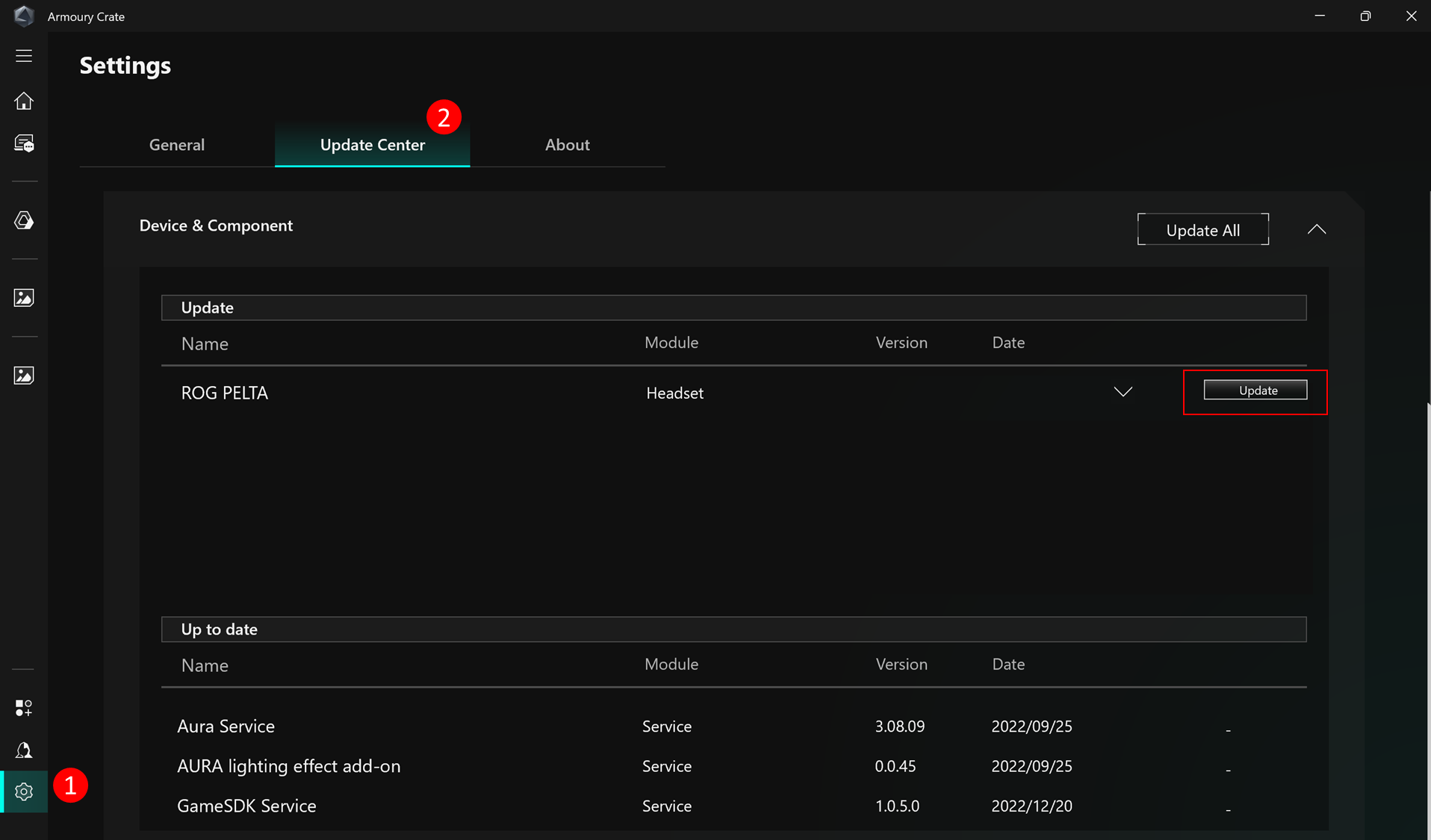
After eliminating the interference issue, we recommend updating to the latest firmware via Armoury Crate, following the steps shown in the image. This can help resolve the issue and improve overall audio stability.
Q3: Why doesn’t the red indicator light turn on when I mute the microphone on my ROG Pelta?
A3: Please make sure the microphone is fully and securely plugged in. If it is properly connected, the indicator light will function normally when the microphone is muted.
Q4: Why is there no sound from my ROG Pelta microphone?
A4: Please ensure that the microphone is fully and securely plugged in. Once properly connected, the microphone should function as expected.