[Microsoft AI Feature] Photos Restyle Image and Image Creator - Introduction
Restyle Image and Image Creator let you reimagine your photos or create new imagery with the help of AI. With Restyle Image, you can add original, contextual AI-generated styles to your photos, by either choosing one of our curated, pre-built style options and adjusting the creativity level, or by creating your own custom style with a text description.
Photos Restyle Image and Image Creator are features in Microsoft Photos app. For details, please refer to: Microsoft Photos Restyle Image and Image Creator - Microsoft Support
※ To use Restyle Image and Image Creator, you must be connected to the internet and signed into your Microsoft account.
※ Photos Image Creator and Restyle Image currently supports only images.
Minimum System Requirements
Photos Restyle Image and Image Creator supports all Copilot+ laptops.
If your laptop is not a Copilot+ model, please refer to the following information to check if your device supports the Photos Restyle Image and Image Creator feature.
Supported processors and an NPU with a minimum of 40 TOPS are required: AMD Ryzen™ AI 300 series, Intel® Core™ Ultra 200V series, Snapdragon® X, Snapdragon® X Plus, Snapdragon® X Elite
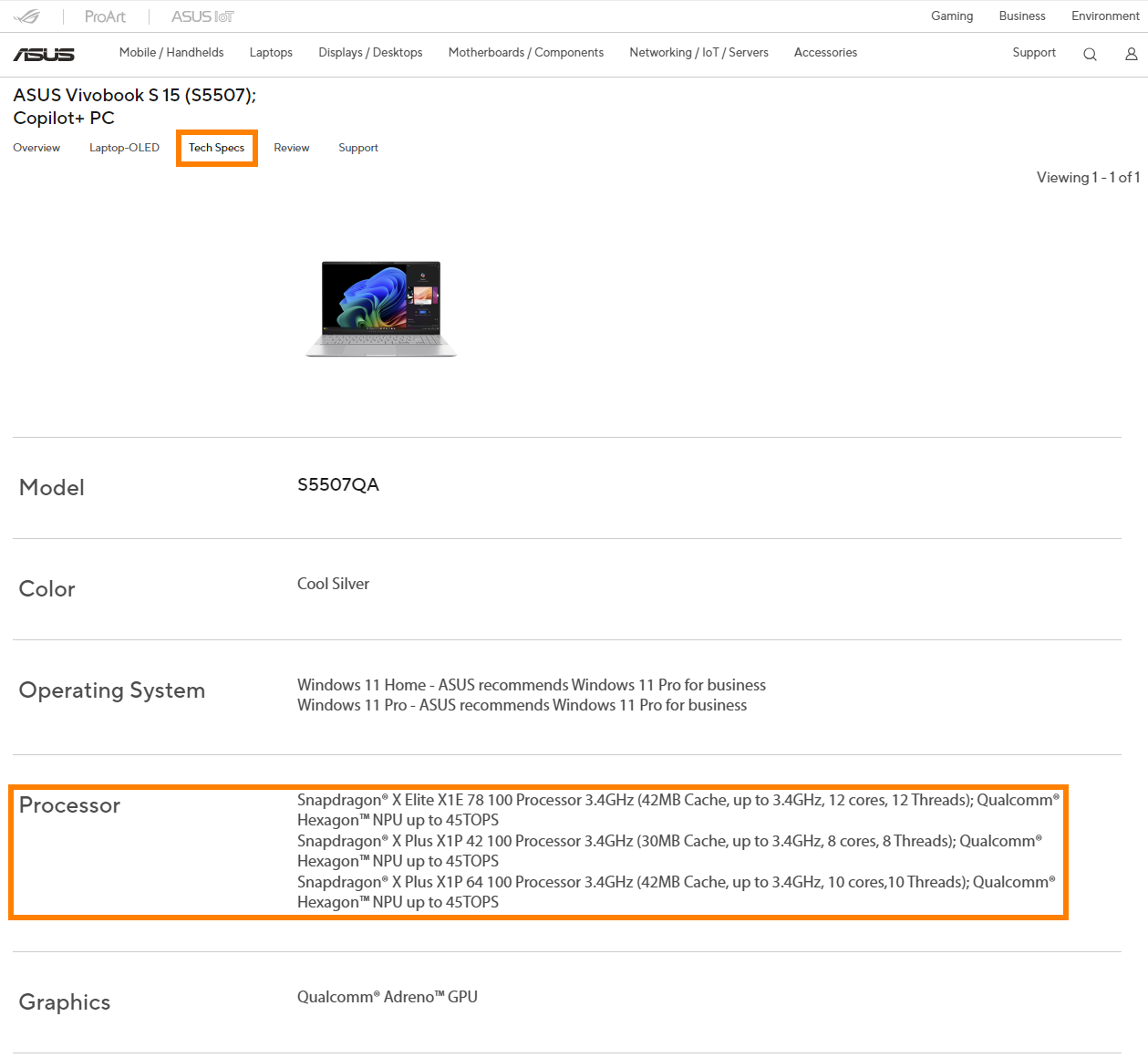
If you're unsure about your laptop's NPU performance, visit the ASUS official website, search for your laptop model in the top-right corner, Click [Tech Specs] -> [Processor], and check if the NPU’s TOPS meets Photos Restyle Image and Image Creator’s requirement (≥40 TOPS). (Take S5507QA as an example)
Operating System Requirement
Please update your Photos app to version 2025.11060.5006.0 and higher.
How to use Restyle Image?
(1) After opening Photo, you can click on ①[Edit] in the top-left corner to open Photos Restyle Image.

(2) Please click on ②[Restyle Image] to make the light settings.
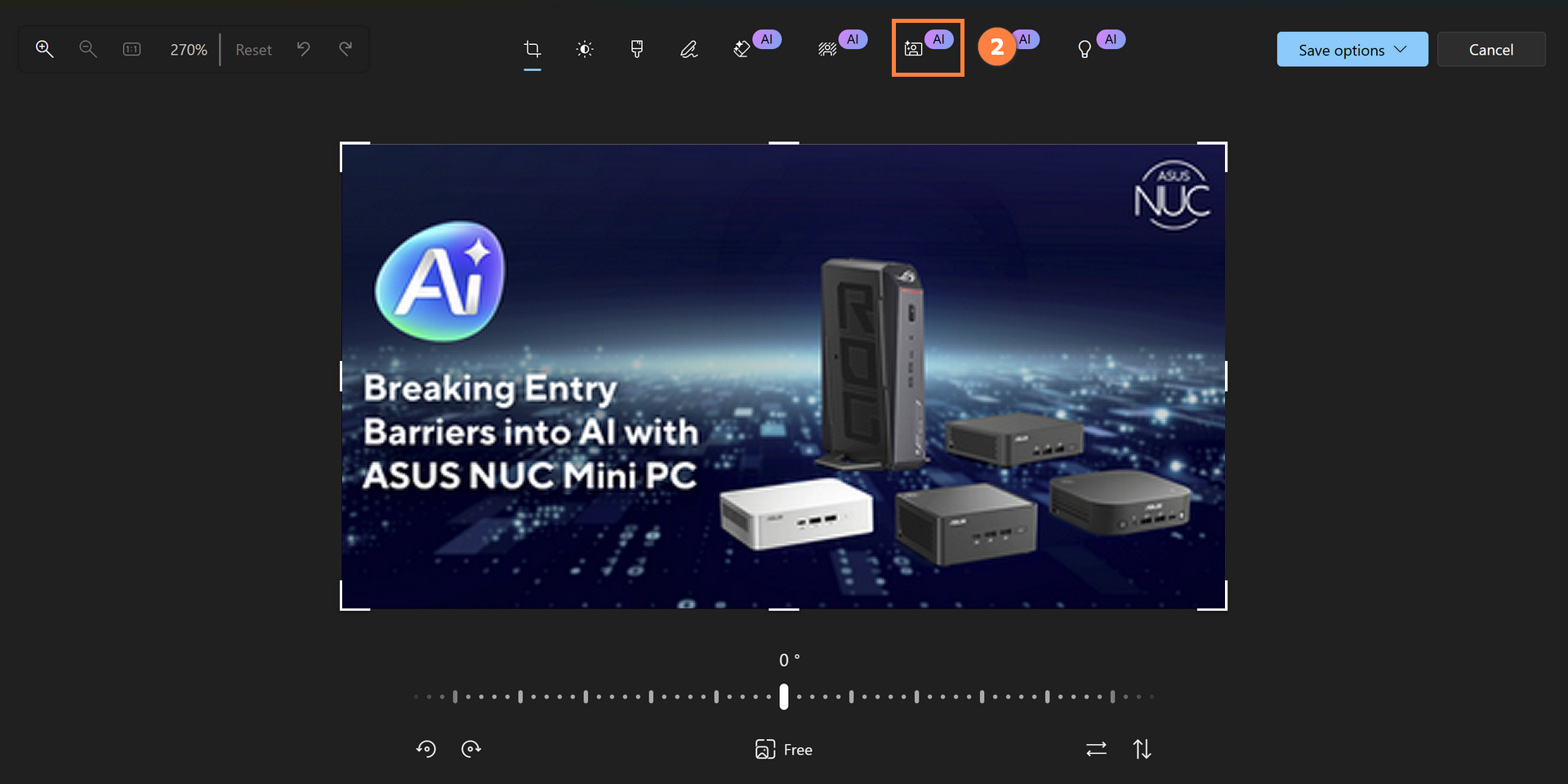
(3) You can add the text at ③[Describe what style you'd like to apply] on the right side, or alternatively, ④[select one of the preset prompts].

(4) The preview of the processed image effect can be viewed in the ⑤[left-side display], and you can also adjust the ⑥[Creativity level].
Please click ⑦[Save options] in the top-right corner after adjusting the image.

How to use Image Creator?
(1) Open the Microsoft Photos app and select the ①[Image Creator] in the navigation panel on the left.
Enter a ②[text prompt] into the box or ③[select one of the preset prompts]. The Photos app will start creating images based on your description.
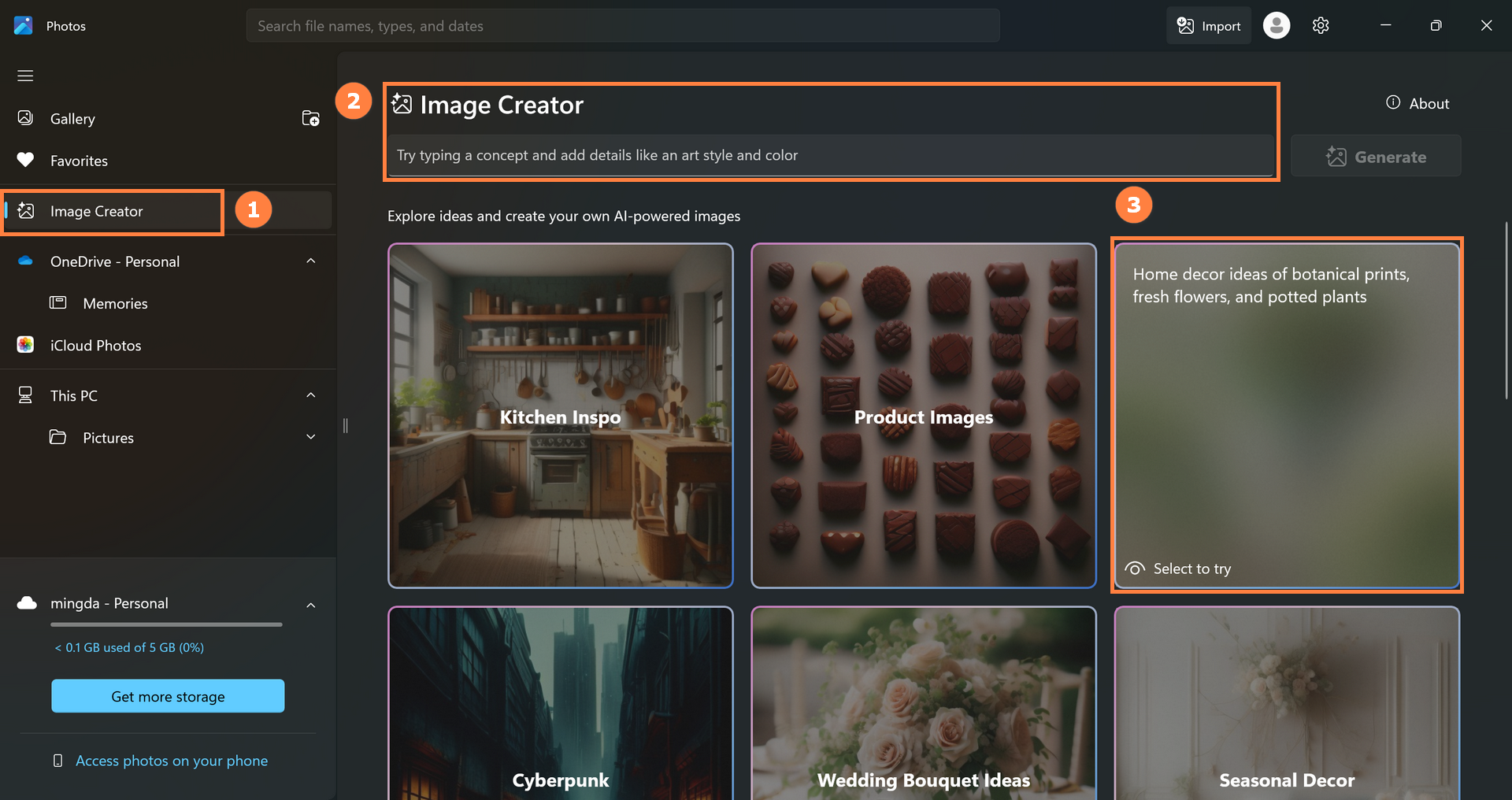
(2) You can also adjust the ④[Creativity level and image style].
Continue to scroll down the page to keep generating new images. Once you’ve found an image you like, you can ⑤[Stop generating] and save it or use it to generate other similar images.

Q&A
(1) My laptop meets the minimum requirements and has updated Windows to the latest version, so why can't I find Photos Restyle Image and Image Creator?
Photos Restyle Image and Image Creator requires the use of NPU. Please follow the steps below to check whether the NPU driver meets the minimum requirements.
Right-click the Windows icon in the lower left corner of the Windows desktop, then click [Device Manager]. Find and expand [Neural processors] in Device Manager. Quickly click [NPU Compute Accelerator Device] twice with the left mouse button. Click [Details] in the new window to query the current NPU driver version.
- AMD NPU minimum driver version: 32.0.203.240
- Intel NPU minimum driver version: 32.0.100.3717

If your laptop's NPU driver does not reach the minimum version, you can update it manually.
Please go to the ASUS official website, find your laptop in the search box in the upper right corner, and then find and install the driver in [Support] -> [Diver & Tools] -> [Chipset].
- For AMD platform Laptops, please select [AMD Graphics Driver] to download and install.
- For Intel platform Laptops, please select [Intel NPU Driver] to download and install.
AMD Graphics Driver (Include NPU Driver)

Intel NPU Driver

The above information comes from Microsoft's official website. If you have any questions, please contact Microsoft for further information.
If you would like to learn more about Copilot+ PC, please visit the [Frequently asked questions] & [Copilot+ PC and Windows AI features] sections at the following link: Shop Copilot+ PCs: A New Era of Windows AI PCs and Laptops | Microsoft Windows