ASUS Device Activation - Aktualizacja bezpieczeństwa dla notebooków ASUS
● Jak sprawdzić wersję ASUS Device Activation:
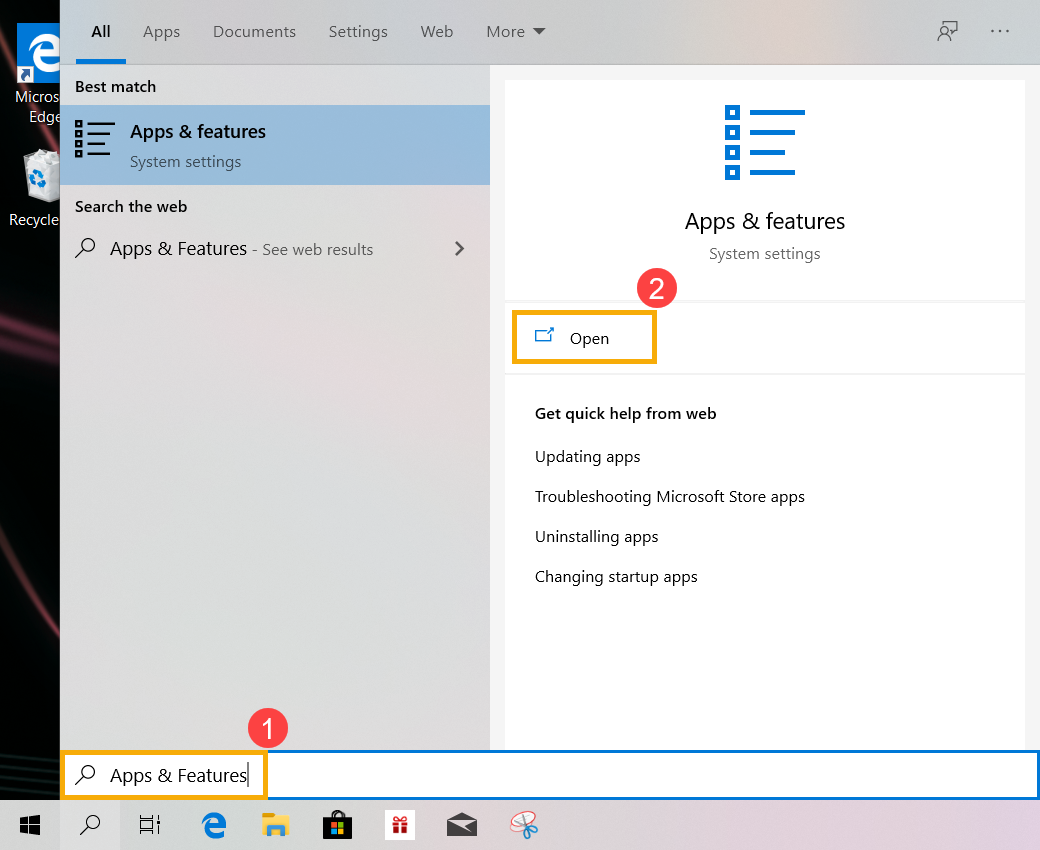
a. Wpisz [Aplikacje i funkcje] w pasku wyszukiwania Windows(1), następnie kliknij [Otwórz](2).
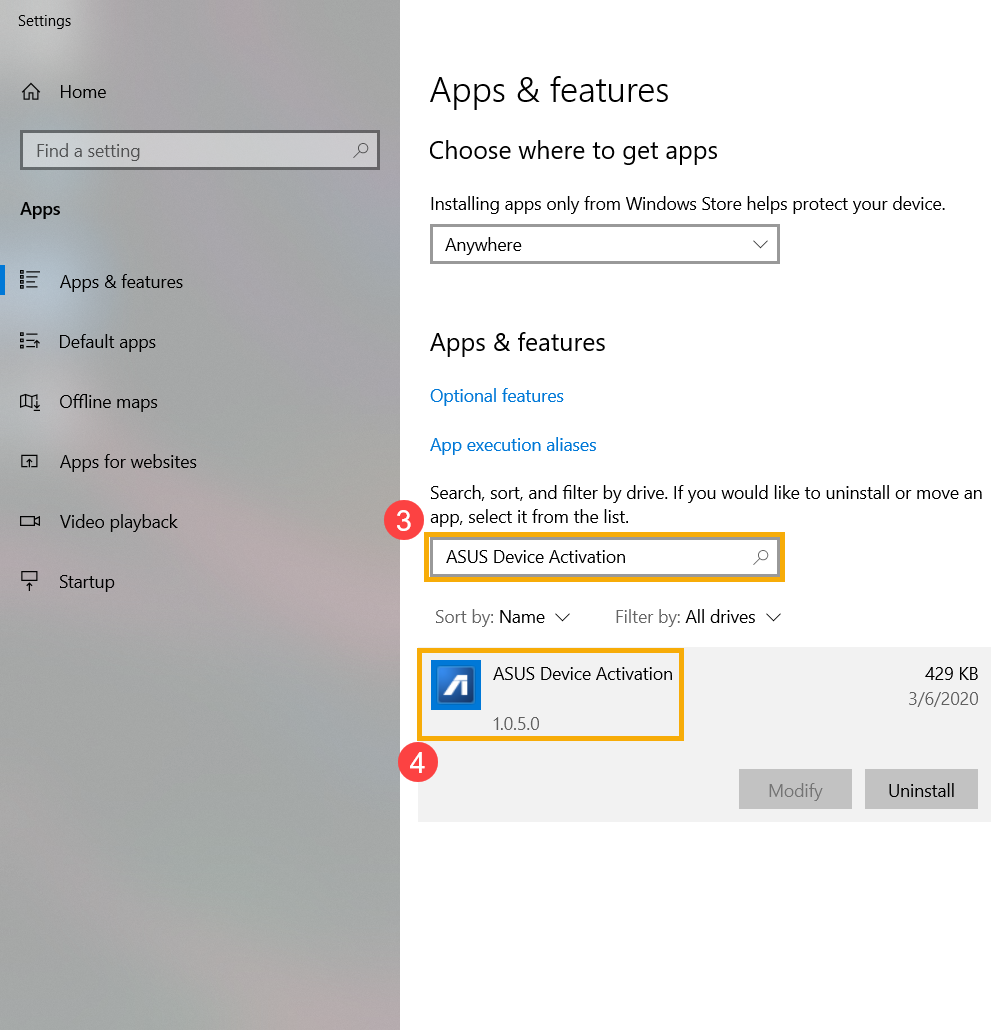
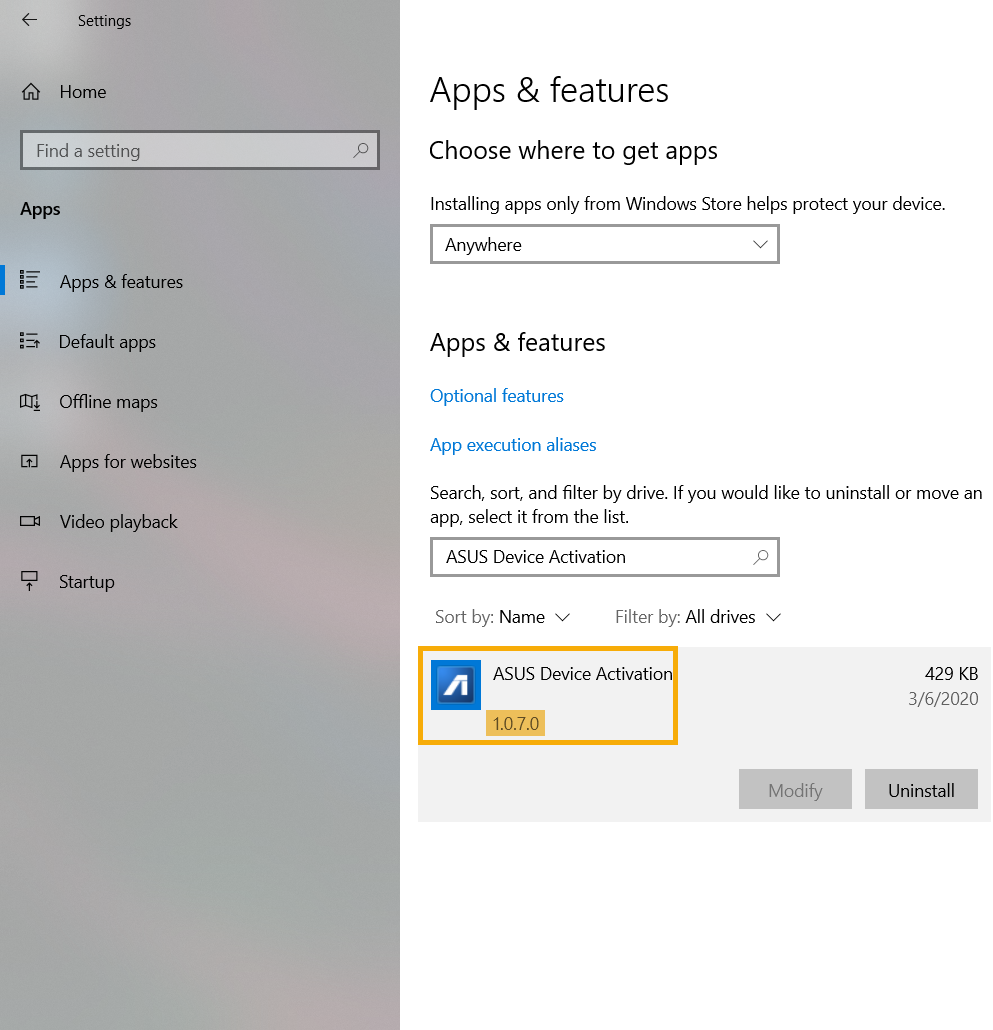
b. Wpisz i wyszukaj [ASUS Device Activation](3) w pasku wyszukiwania, a następnie kliknij ASUS Device Activation, aby zweryfikować bieżąca wersję(4).
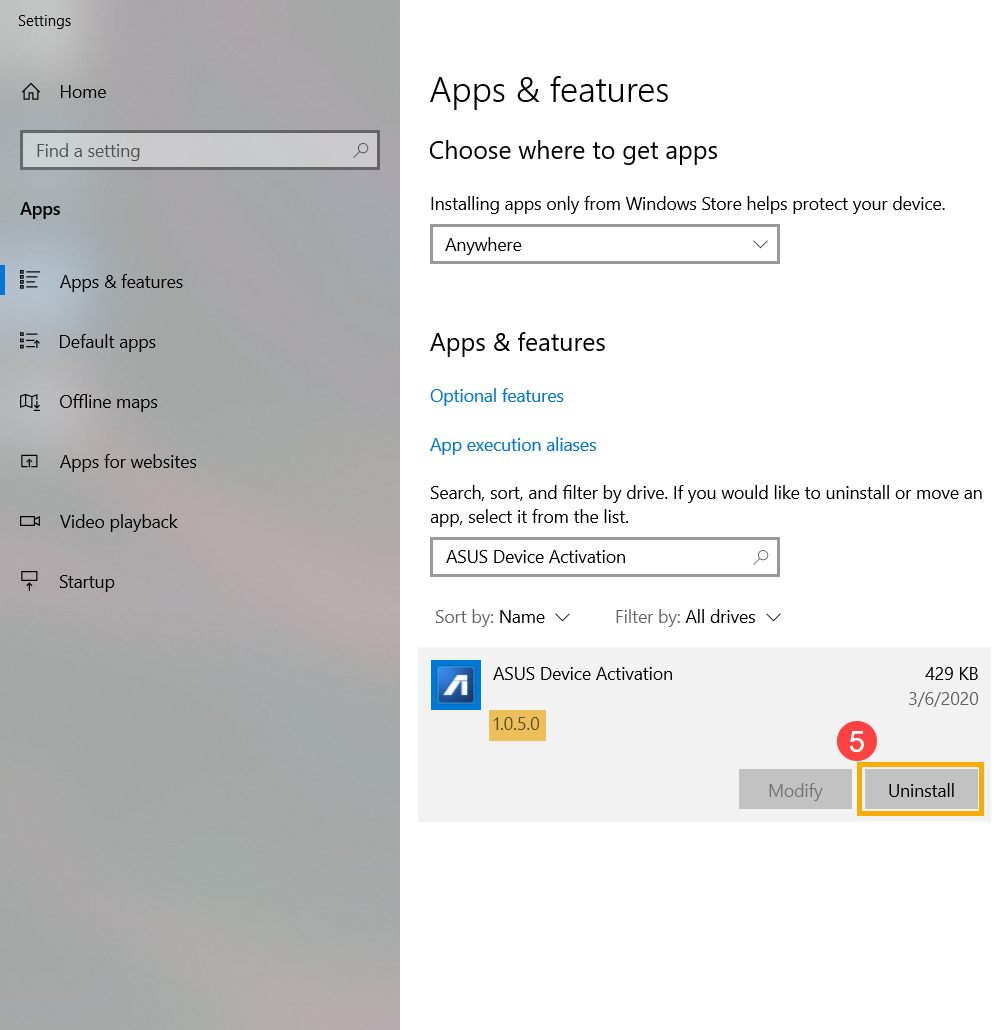
c. Jeśli zainstalowana wersja ASUS Device Activation jest wcześniejsza niż 1.0.7.0, kliknij [Odinstaluj](5), aby ja usunąć.
● Jak zaktualizować ASUS Device Activation
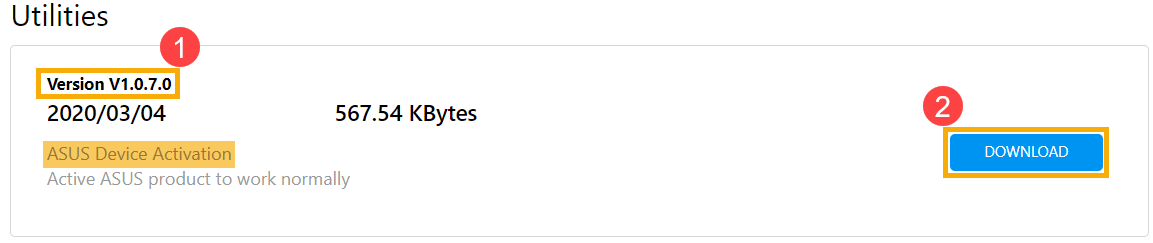
a. Przejdź do strony pomocy technicznej ASUS, aby pobrać i zainstalować narzędzie [ASUS Device Activation], dowiedz się więcej o tym, Jak wyszukiwać i pobierać narzędzia. (Poniższe zdjęcia stanowią aktualną wersję jako odniesienie, pobierz najnowszą wersję ze strony pomocy technicznej ASUS.)
※ Uwaga: Upewnij się, że [Wersja sterownika] pokazuje się jako wersja 1.0.7.0 lub nowsza(1), następnie [pobierz i zainstaluj] narzędzie(2).
b. Po zakończeniu instalacji sprawdź ponownie, czy zainstalowana wersja ASUS Device Activation to (1.0.7.0 lub nowsza) i zweryfikuj czy jest poprawnie zainstalowana.
Skontaktuj się z nami, jeśli powyższe informacje nie rozwiążą Twojego problemu
Above information might be partly or entirely quoted from exterior websites or sources. please refer to the information based on the source that we noted. Please directly contact or inquire the sources if there is any further question and note that ASUS is neither relevant nor responsible for its content/service
This information may not suitable for all the products from the same category/series. Some of the screen shots and operations could be different from the software versions.
ASUS provides the above information for reference only. If you have any questions about the content, please contact the above product vendor directly. Please note that ASUS is not responsible for the content or service provided by the above product vendor.