Related Topics
[AiProtection] How to set Network Protection in ASUS Router ?
ASUS AiProtection leverages powerful cybersecurity solutions and cloud data centers from Trend Micro ™ to shield your smart home and all connected devices from cyber threats.
Introduction:
- Router Security Assessment : Scan your router to find vulnerabilities and offer available options to enhance your devices protection.
- Malicious Sites Blocking : Restrict access to known malicious websites to protect your network from malware attacks.
- Two-Way IPS : The Two-Way(Intrusion Prevention System) protects any device connected to the network from spam or DDoS attacks.
- Infected Device Prevention and Blocking : This feature prevents infected devices from being enslaved by botnets or zombie attacks which might steal your personal information or attack other devices.

Prepare
1. Please first confirm that your router supports AiProtection features. You can visit the ASUS official website to check the detailed specifications.
The image below is an example of the specifications from the official website.

2. Please update your router firmware to the latest version. For instruction about how to update the firmware, please refer to the FAQ How to update the firmware of your router to the latest version
3. Access Point(AP) mode do not support AiProtection.
4. When WAN aggregation and load balance mode of dual WAN are enabled, it cannot be used at the same time as the AiProtection feature. The AiProtection feature is only available when there is a single WAN source or in failover mode with dual WAN.
Please follow the instructions below to set up AiProtection on your ASUS router
Enable AiProtection
1. Connect your computer to the router via wired or WiFi connection and enter your router's LAN IP or router URL http://www.asusrouter.com to the WEB GUI.
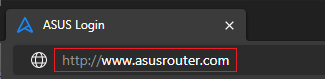
Please refer to How to enter the router setting page(Web GUI)? to learn more.
2. Key in your router's username and password to log in.
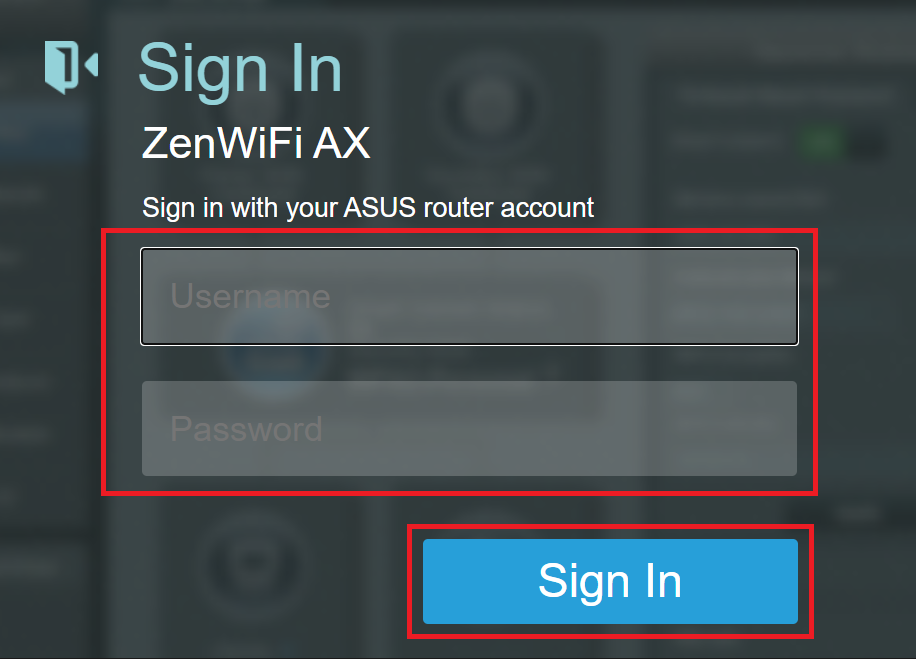
Note: If you forget the user name and/or password, please restore the router to the factory default status and setup.
Please refer to [Wireless Router] How to reset the router to factory default setting? for how to restore the router to default status.
3. Go to [AiProtection] > [Network Protection] > Enabled AiProtection.
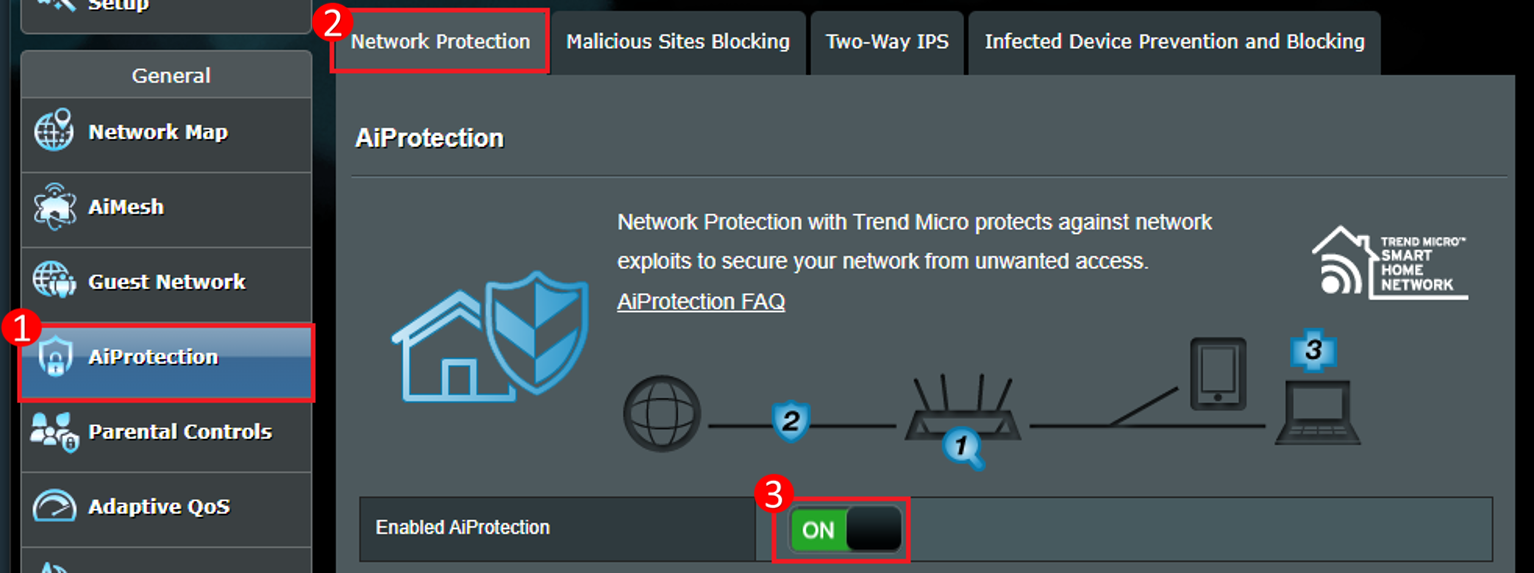
AiProtection Settings
Router Security Assessment
1. The router will check every security related configurations automatically and show a report to the user as below after user click [scan] button.

2. User can review them and check if security related configurations are set as safe status. If not, they can click [No] linking to setting page for configuration change.
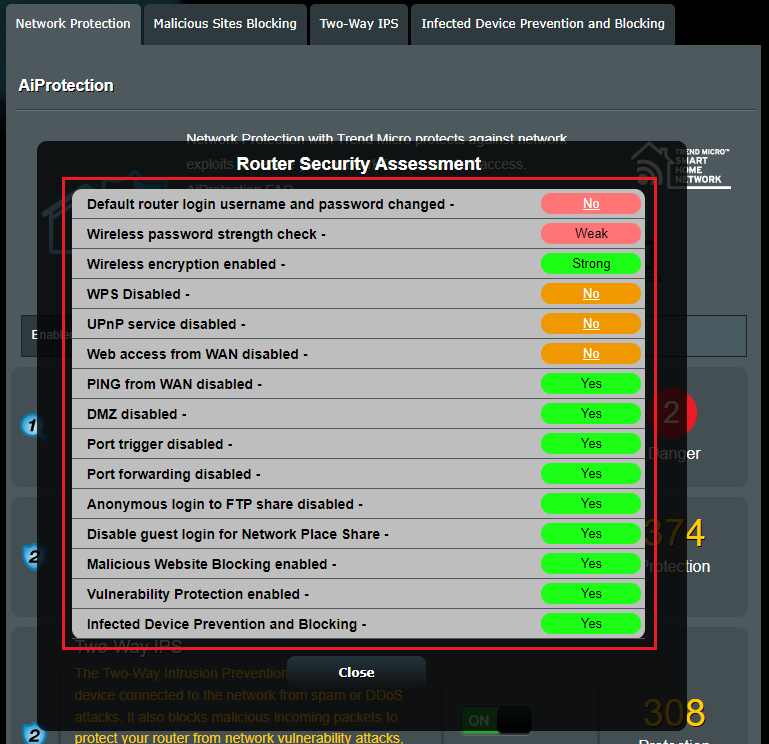
Malicious Sites Blocking
1. This function will block browsing malicious websites. For example, you can see that the events have been blocked 244 times.

2. Go to [Malicious Sites Blocking] to check detailed data analysis.
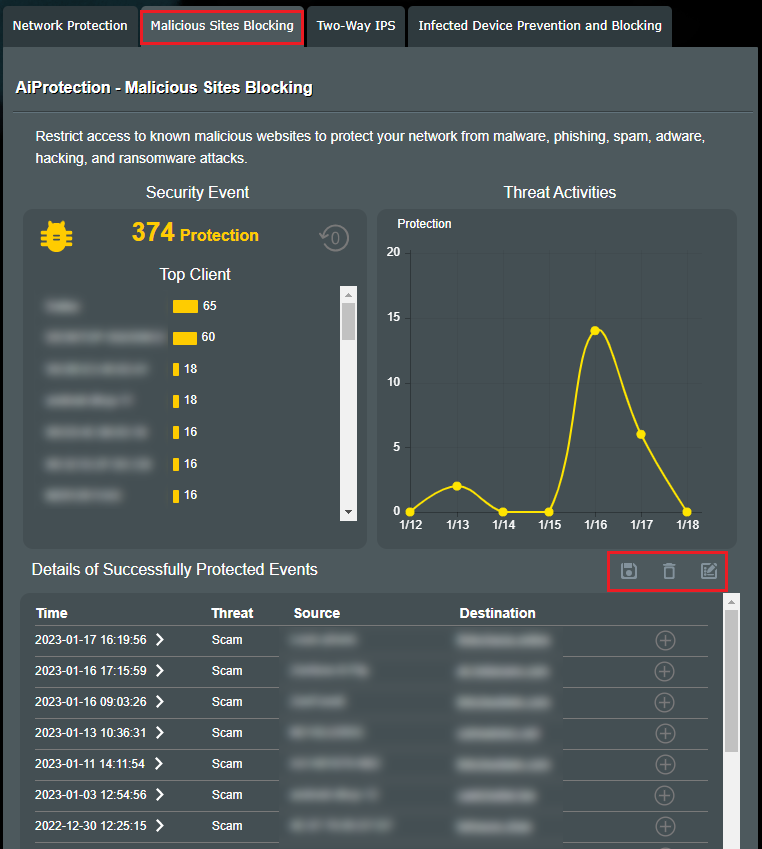
- Details of Successfully Protected Events : If you want to export the list, click [Save]
 to save the event file to your device.
Click [Delete] to delete events.
 - Allow List : Click [Add]
 and [Manage whitelist]
 , you can add and manage domains that you trust.
Two-Way IPS
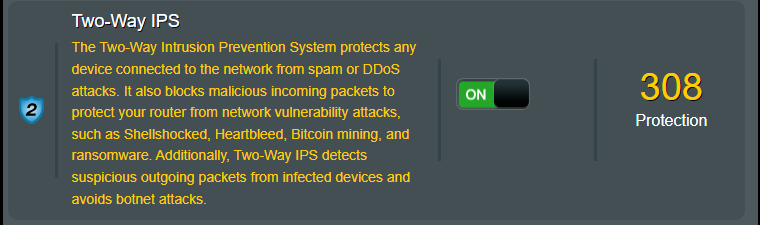
Two-Way IPS also blocks malicious incoming packets to protect your router from network vulnerability attacks. Additionally, Two-Way IPS detects suspicious outgoing packets from infected devices and avoids botnet attacks.
For example, you can see that the events have been blocked 308 times.
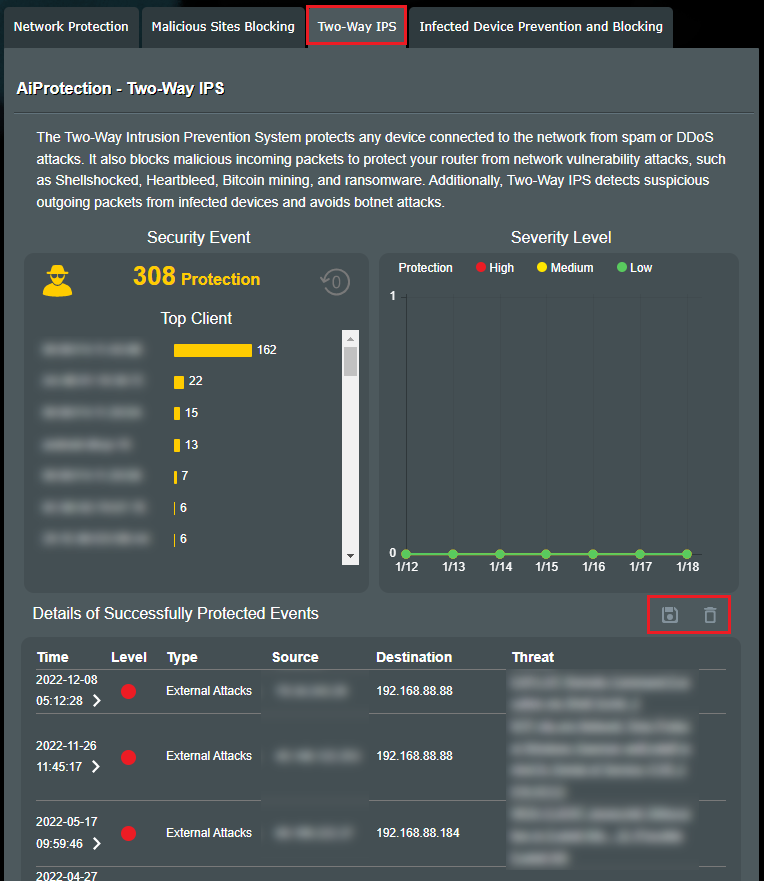
2. Go to [Two-Way IPS] to check detailed data analysis.
If you want to export the list, click [Save] to save the event file to your device.
Click [Delete] to delete events.
Infected Device Prevention and Blocking
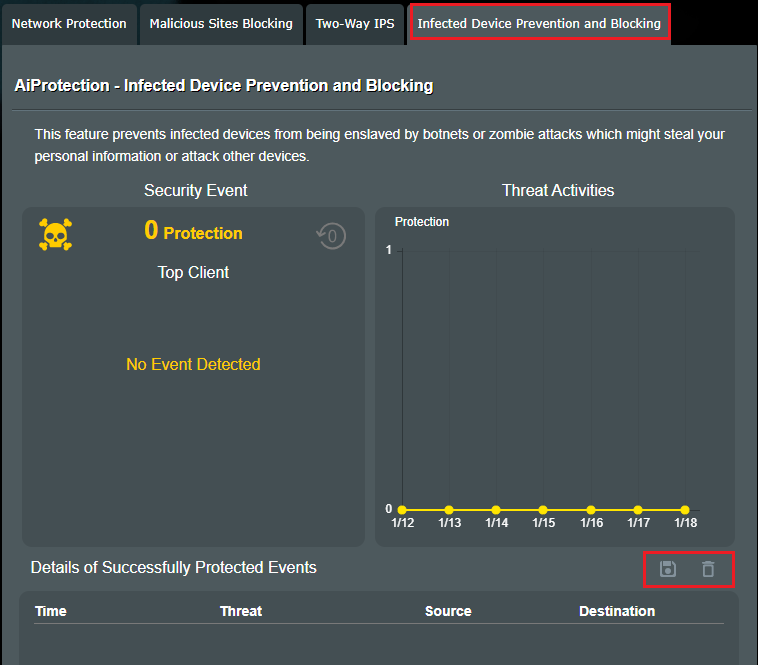
1. This feature protects the devices you connect to the router such as computers, mobile phones.

2. Go to [Malicious Sites Blocking] to check detailed data analysis.
If you want to export the list, click [Save] to save the event file to your device.
Click [Delete] to delete events.
FAQ
1. How to get more information about blocked malicious websites?
Please refer to Trend Micro https://global.sitesafety.trendmicro.com/
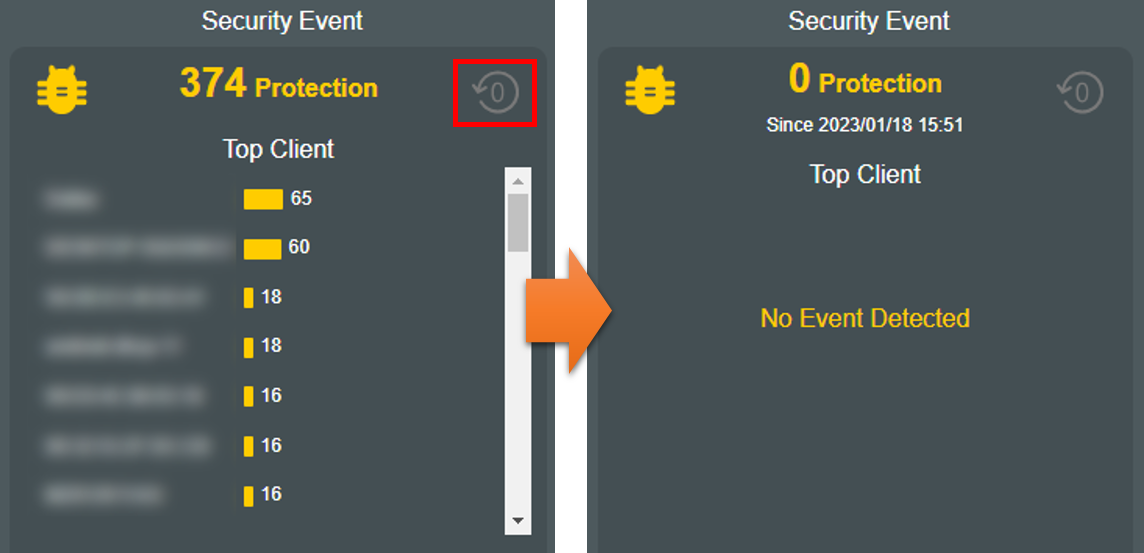
2. How to clear the list of security events?
Click [clear] to delete events.
3. Why is there no Two-Way IPS feature in the router?
a. [Two-Way IPS] function is only supported on certain models, you can visit the ASUS official website to check the detailed specifications.
b. Please update your router firmware to the latest version. For instruction about how to update the firmware, please refer to the FAQ How to update the firmware of your router to the latest version
c. Please restore the router to its factory settings, and then follow the instructions in this guide to complete the setup.
How to restore the router to factory default settings, please refer to the FAQ [Wireless Router] How to reset the router to factory default setting?
4. After installing a VPN on a device (e.g. mobile phone, TV), will AiProtection still work?
When the device is installed with a VPN, all data will be connected through the VPN, and the device's network connection data will be protected through the VPN connection, so AiProtection cannot decrypt it to detect.
How to get the (Utility / Firmware)?
You can download the latest drivers, software, firmware and user manuals in the ASUS Download Center.
If you need more information about the ASUS Download Center, please refer this link.