Related Topics
[Wireless Router] How to manage multiple ASUS routers by ASUS router app?
To provide you more detailed instruction, you can also click ASUS Youtube video link below to know more about How to manage your AiMesh extendable network with the ASUS Router app.
After setting up your first ASUS router in the ASUS Router app, if you need to set up a second or additional Asus routers, you can use the ASUS Router app to manage multiple routers.
Before starting the setup, please make sure that your ASUS router is supported and that the ASUS Router app is installed.
If you want to know more about the ASUS Router App, such as supported models, system version requirements, and initial setup, please refer to the FAQ [Wireless Router] How to set up ASUS WiFi router via ASUS Router App? (QIS, Quick Internet Setup)
For example, if you need to log in to a second ASUS router that has already been set up, please follow these steps:
1. Before you set up, please make sure the router firmware and ASUS router app is up to date.
Please refer to the FAQ How to update the firmware of your router to the latest version via ASUS Router App
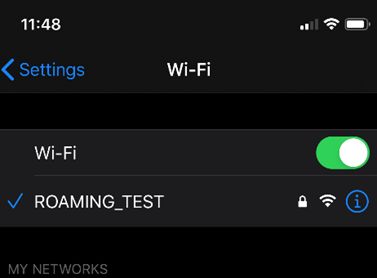
2. Connect your phone directly to the WiFi network of the ASUS router you want to manage.
3. Launch the ASUS Router app.
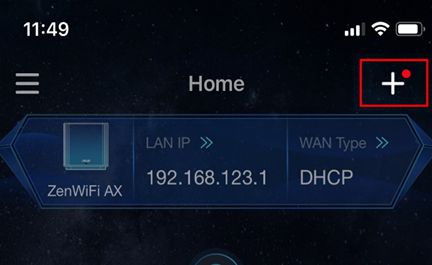
4. On the top-right corner ,you will find a red-dot beside the [+] button.
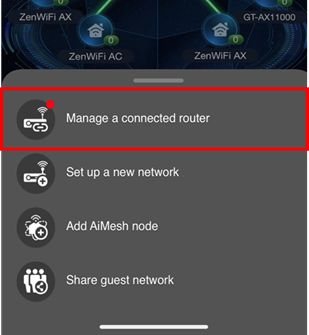
5. Click the plus button, and select [Manage a connected router].
6. Key in the router login name and password to sign in.
Note: If you forget the username and/or password, please restore the router to the factory default status and setup.
Please refer to [Wireless Router] How to reset the router to factory default setting? for how to restore the router to default status.
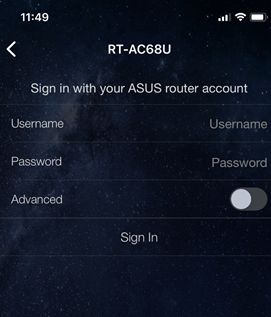
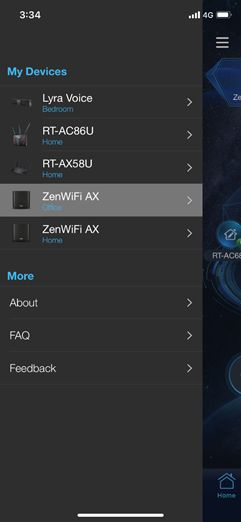
7. After you sign in, you can find the routers you just added on the side menu (drawer). In addition, you can find all routers under your management and you can click to switch between different routers that you want to manage.
Note: For ASUS router app supported list, go to iOS App Store or Google Play and search for ASUS Router app.
Note: For updating the firmware, please refer to : [Wireless Router] How to update the firmware of your router to the latest version via ASUS Router App
FAQ
1. How to remove a logged-in router from the ASUS Router app?
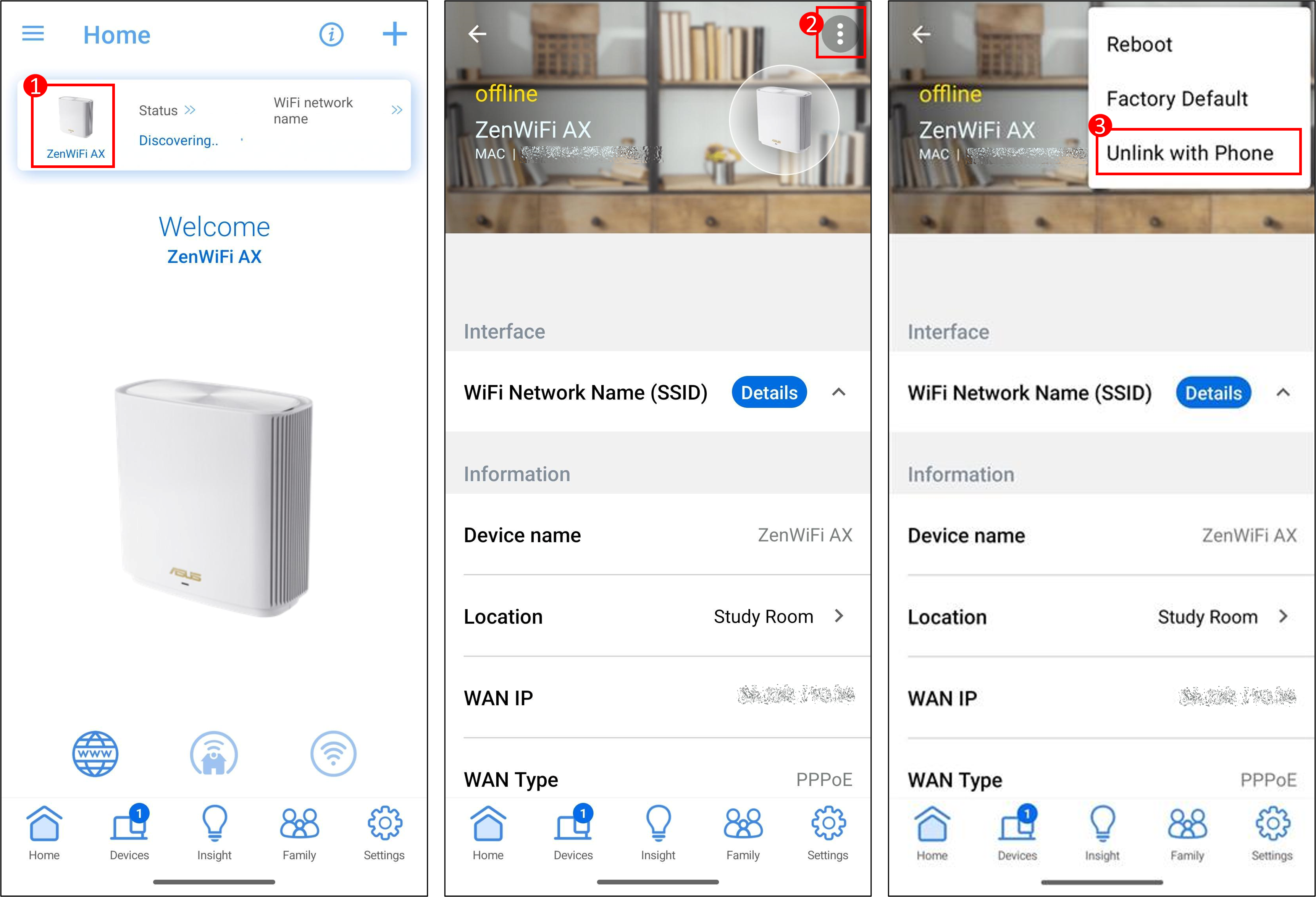
As shown in the example below, on the App homepage, click the router > click the  icon > click [Unlink with Phone] to complete the process.
If you are using the account binding feature, please [unbind your account] first.
For instructions on account binding, please refer to another FAQ [Wireless Router] How to bind trust account to my ASUS router?
2. How to find the router's default username and password?
- For security concern, if you have previously changed your username or password, you will not be able to log in to the router using the default username or password.
- How to find the router's default username and password:
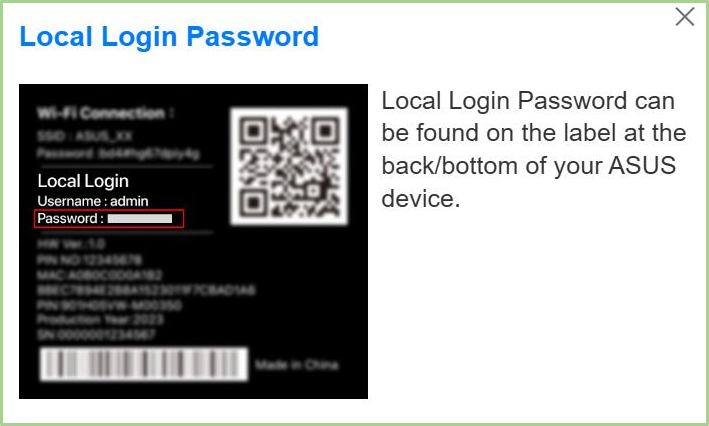
(1) Some models have default username and password on the router's label, which you can find on a sticker on the back or bottom of the router. The default username and password are [admin].
(2) Some models have default username and password on the router's label, which you can find on a sticker on the back or bottom of the router. The default username and password are based on what is shown on the label, as in the example below.
The location of labels for different models will vary.
3. I can't log in to the ASUS router app on my phone?
Please refer to the following:
a. Please check whether you are connected to the correct WiFi name. Your phone needs to be connected to the WiFi of the router you want to log in to.
b. If the username and password entered to log in to the router cannot log in, please refer to FAQ [Wireless Router] I cannot log in to my ASUS router's Web GUI/App using my username and password
c. When you have problems with your phone or router, restarting them can fix the problem. Try restarting your phone and router to see if this improves.
d. Please make sure the router firmware and ASUS router app is up to date. Please refer to the FAQ How to update the firmware of your router to the latest version via ASUS Router App
How to get the (Utility / Firmware)?
You can download the latest drivers, software, firmware and user manuals in the ASUS Download Center.
If you need more information about the ASUS Download Center, please refer this link.