[Wireless Router] How to manually assign WAN DNS server to ASUS router?
What is a DNS (Domain Name System) server?
DNS server can translate the URL name entered in the browser into the IP address, allowing your device to connect to the web page. When the ASUS router is connected to the Internet, it will automatically obtain the IP of the DNS server from your Internet Service Provider (ISP) by default.
If you need to change the Internet DNS server, you can change the IP address of the Internet DNS in the router to connect to a different DNS server. For example, Google DNS servers 8.8.8.8 and 8.8.4.4.
Note: By changing DNS server, there will be a temporary internet disconnect.
Please refer to the following instructions for setting according to the firmware version of the router.
- For firmware version is newer than 3.0.0.4.388.xxxxx, please refer to Method 1
- For firmware version is older than 3.0.0.4.388.xxxxx, please refer to Method 2
For instruction about how to update the firmware, please refer to the support article : How to update the firmware of your router to the latest version
Step 1. Connect your computer to the router via wired or WiFi connection and enter your router LAN IP or router URL http://www.asusrouter.com to the WEB GUI.
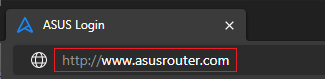
Please refer to How to enter the router setting page to learn more.
Step 2. Key in your router's username and password to log in.
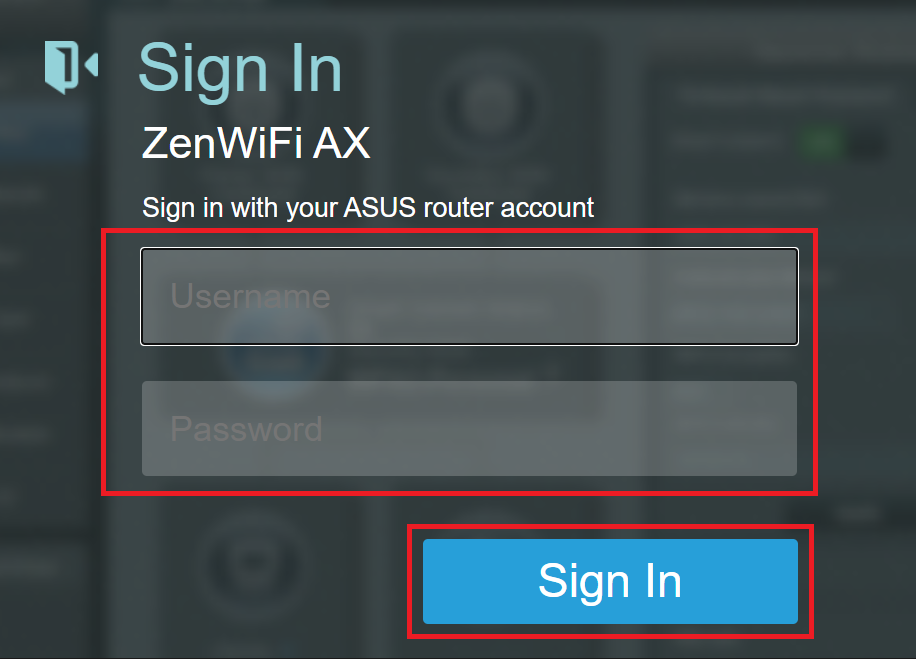
Note: If you forget the user name and/or password, please restore the router to the factory default status and setup.
Please refer to [Wireless Router] How to reset the router to factory default setting? for how to restore the router to default status.
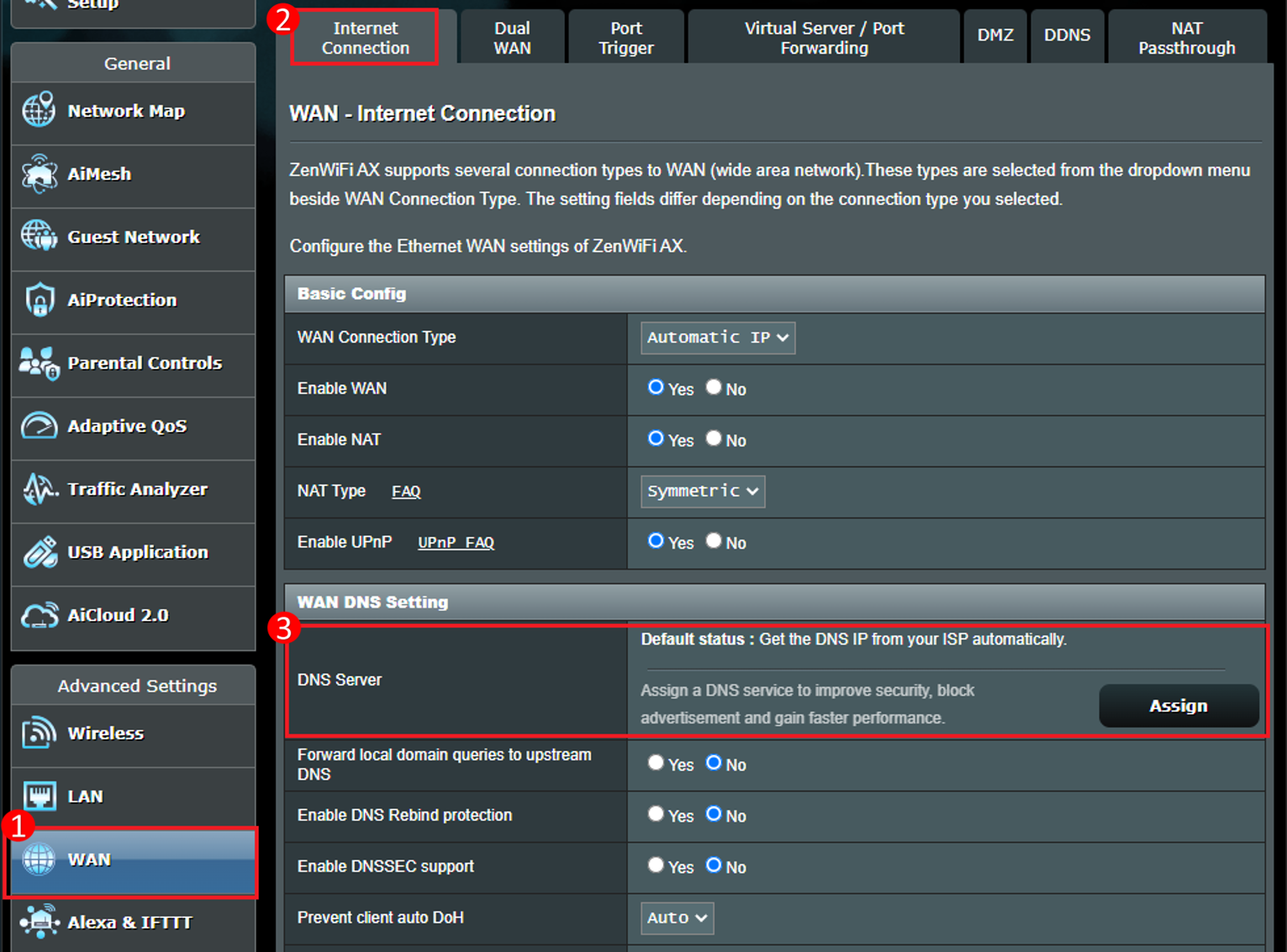
Step 3. Go to WAN > Internet Connection > WAN DNS Setting > DNS server (Default status : Get the DNS IP from your ISP automatically)
Click [Assign] to change the settings.
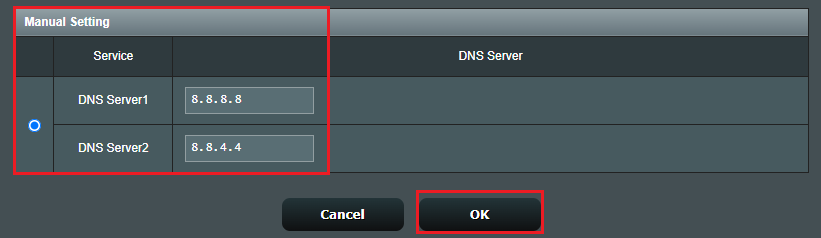
Step 4. Select one of them in the DNS list and click [OK] to save.
For example, Google DNS server is 8.8.8.8 or 8.8.4.4.
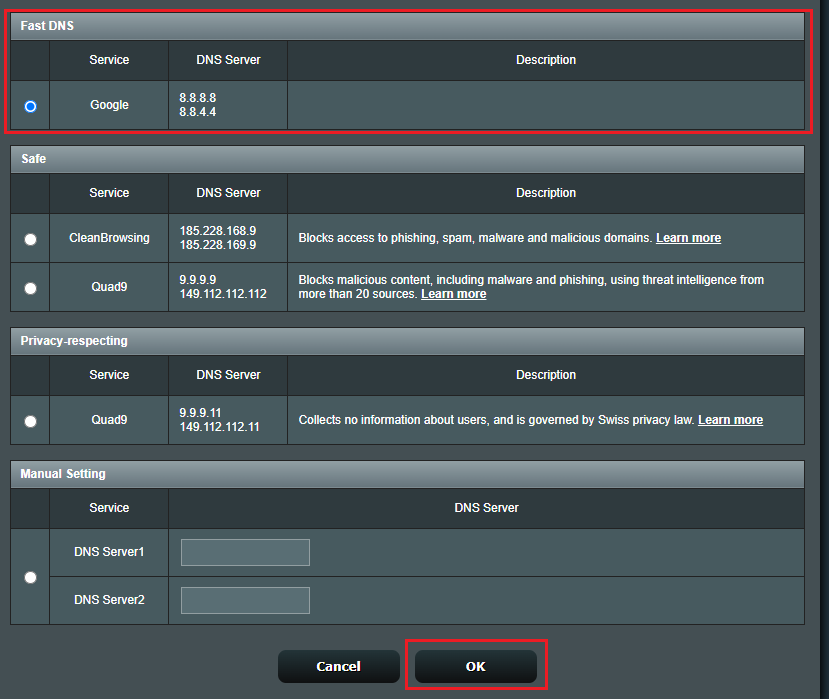
Or enter your own DNS server, select [Manual Setting] in the DNS list.
You can enter 2 DNS server, one is primary, another one is secondary. And click [OK] to save.
For example, Google DNS server is 8.8.8.8 or 8.8.4.4.
Step 5. Check the DNS Server Information.
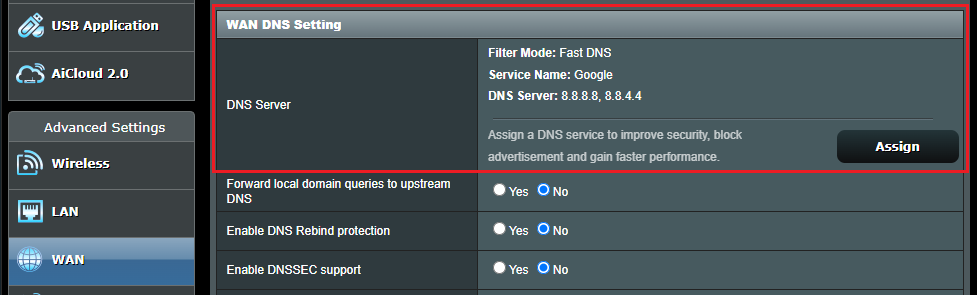
Step 6. Click [Apply] to complete the setting.

Step 1. Connect your computer to the router via wired or WiFi connection and enter your router LAN IP or router URL http://www.asusrouter.com to the WEB GUI.
Please refer to How to enter the router setting page(Web GUI) (ASUSWRT)? to learn more.
Step 2. Key in your router's username and password to log in.

Note: If you forget the user name and/or password, please restore the router to the factory default status and setup.
Please refer to [Wireless Router] How to reset the router to factory default setting? for how to restore the router to default status.
Step 3. Go to WAN > Internet Connection > WAN DNS Setting > Connect to DNS Server automatically(Default status : Get the DNS IP from your ISP automatically).
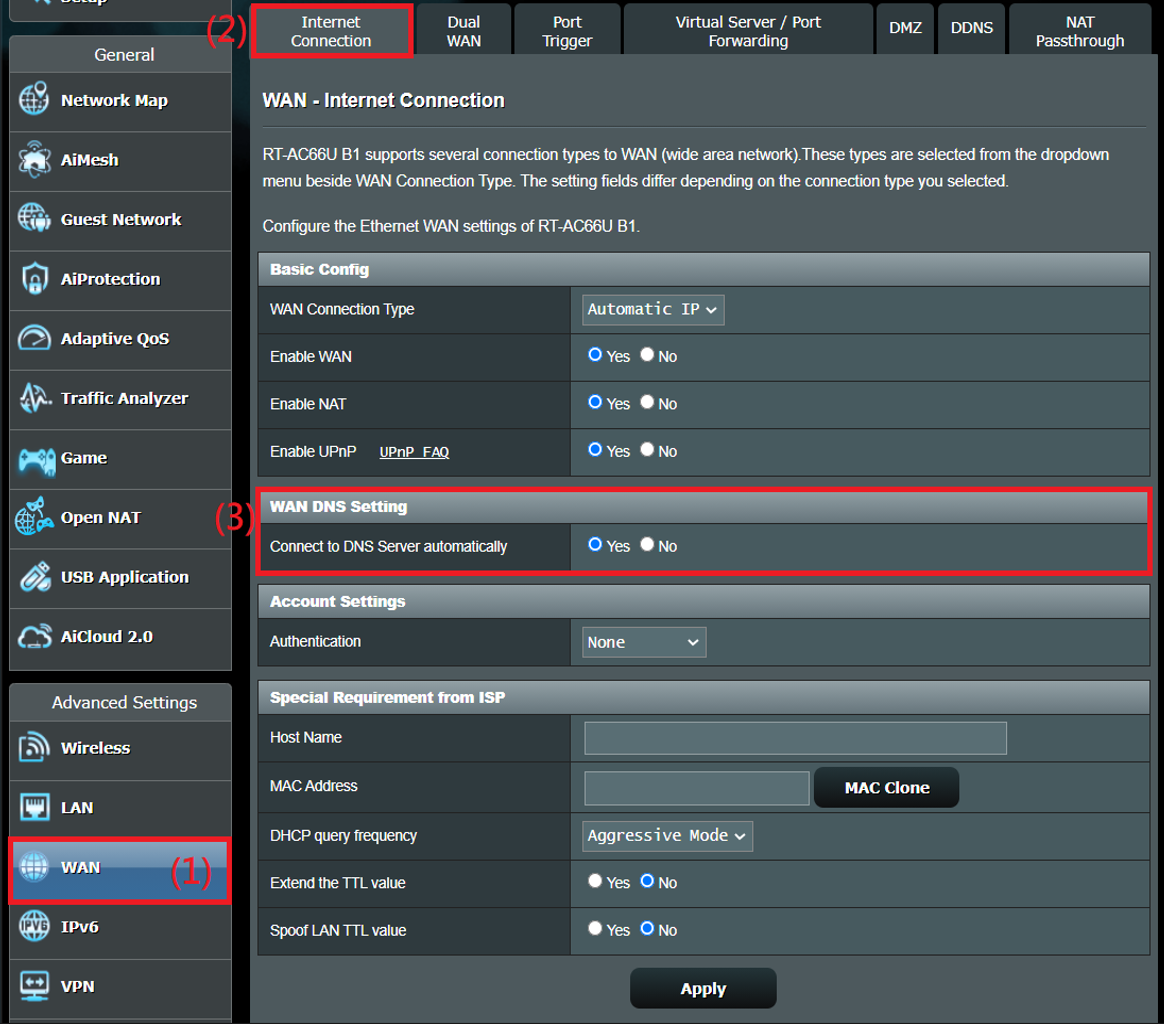
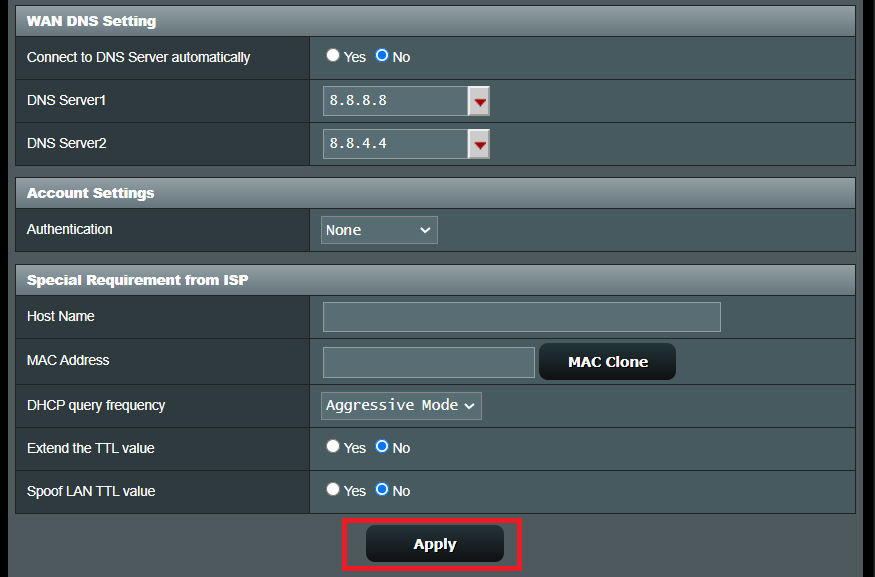
Step 4. Set [ Connect to DNS server automatically ] to [ No ].
Enter your own DNS server, you can enter 2 DNS server, one is primary, another one is secondary.
For example, Google DNS server is 8.8.8.8 or 8.8.4.4.
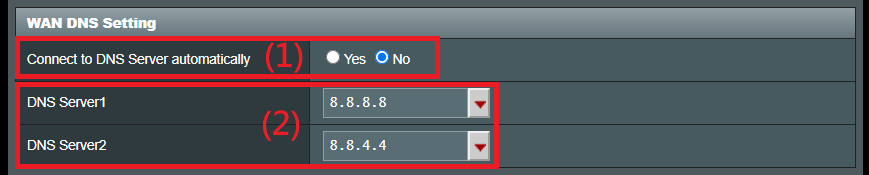
Step 5. Click [ Apply ] to save.
FAQ
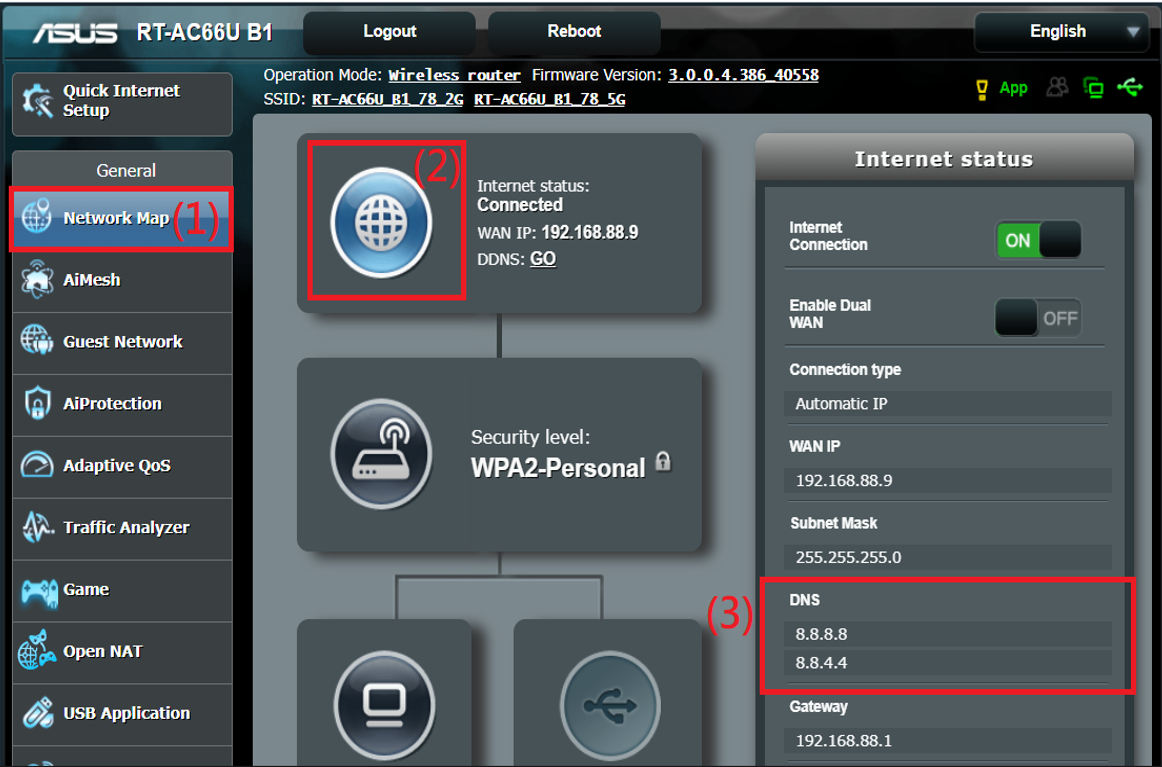
1. How to see DNS Server infomation?
Go to Network Map > Click Internet icon > You can see DNS server information in Internet Status.
2. After manually changing the Internet DNS, why does the webpage start slowly or cannot be opened?
Try the following troubleshooting:
a. Please check whether the DNS IP you entered is correct, DNS IP cannot enter the value arbitrarily, please contact your DNS service provider for correct information.
b. Please change back to the default automatic connection to Internet DNS, the router will automatically obtain the IP of the DNS server from the Internet Service Provider (ISP) by default.
c. After connecting your connected device such as your computer directly to the modem, set the same Internet DNS IP address on your computer to confirm whether it can be used normally.
d. Please upgrade your router to latest firmware and reset your router to default status and try again DNS Server settings.
- For how to do firmware upgrade, please refer to: [Wireless Router] How to update the firmware of your router to the latest version?
- For how to reset router, please refer to: [Wireless Router] How to reset the router to factory default setting?
3. How to set the DNS IP address when using Pi-Hole?
The DNS IP address to be set by Pi-Hole is different from the Internet DNS introduced in this article.
If you need to configure Pi-Hole, please refer to [Wireless Router] How to configure Router to use Pi-Hole?
4. DNS error page (DNS probe finished) or [Time out] when visiting a web page?
It is recommended that you change the DNS server (e.g. Google DNS servers 8.8.8.8 and 8.8.4.4).
How to get the (Utility / Firmware)?
You can download the latest drivers, software, firmware and user manuals in the ASUS Download Center.
If you need more information about the ASUS Download Center, please refer this link.