[ASUS VivoWatch 5 AERO] Sharing Data With ASUS Healthy Group in the ASUS HealthConnect App
What is the ASUS Healthy Group?
The ASUS Healthy Group feature of ASUS VivoWatch is an innovative service that combines IoT technology and cloud-based information sharing. Health data collected by ASUS VivoWatch is transmitted to the user's mobile phone through Bluetooth and uploaded to the ASUS cloud when the user logs on to the ASUS HealthConnect App.
The benefit of cloud sharing allows the user to invite friends and family to join their ASUS Healthy Group on the ASUS HealthConnect App.
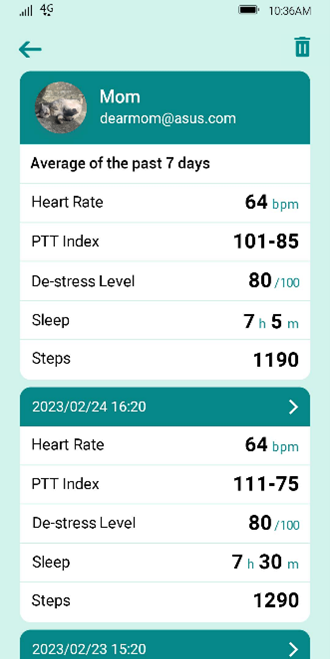
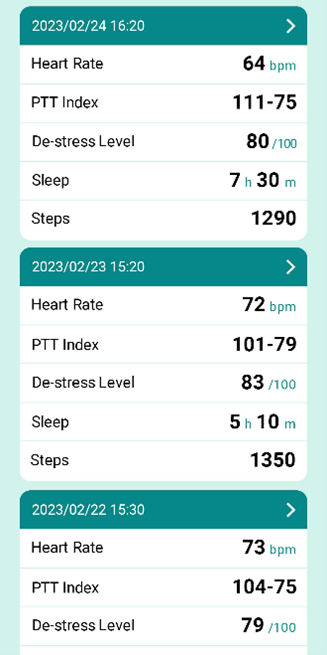
Participants can view each other's health data of the past seven days, including pulse index, heart rate, relaxation index, sleep, steps, and more. The data is presented in daily reports and a comprehensive overview of the past week.
Setting up the ASUS Healthy Group in ASUS HealthConnect App
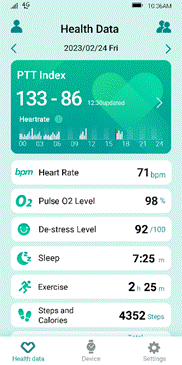
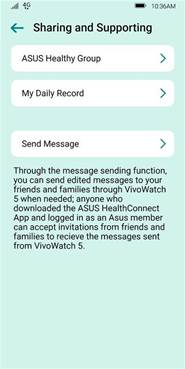
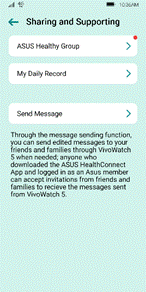
(1) Open the ASUS HealthConnect App and click on the top right icon on the main screen to enter the Share & Support page. Then, select the ASUS Healthy Group feature and go to the setup screen.
•To enter the ASUS Healthy Group page: Homepage > Dual person icon in the upper right corner > ASUS Healthy Group |
|
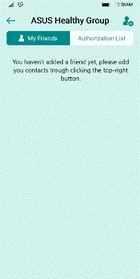
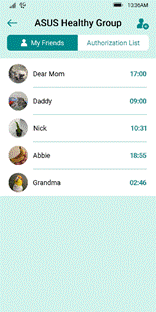
(2) The page displays a list of approved members in the ASUS Healthy Group. To add a friend or relative to the ASUS Healthy Group, click the upper right corner icon and add their ASUS account. Once approved, you can view their health information.
•Set up screen for " ASUS Healthy Group."
•ASUS Healthy Group List 1. Friends and Family: The person whose health data I can see. For example, if my father is on my Friends and Family list, I can see his health data. 2. Authorized List: People who can see my health data. For example: If I allow my son to view my health data, he will appear in the Authorized list.
|
Add a Friend in the ASUS Healthy Group
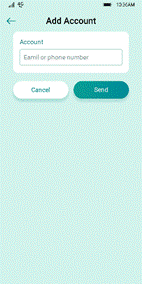
•Press the icon in the upper right corner and add the person's account (email or personal phone number with country code).
•The recipient will receive a notification (represented by a red dot) on their ASUS HealthConnect App's health data page. They can go to the ASUS Healthy Group page and view the invitation.
•Invitees simply press "Confirm" to agree to share their health information with you. You will then appear in their "Authorized List." Also, this person will appear in your Friends and Family list, and you can start to view their health data.
(1) A son wants to add his father to his Friends and Family list: The son goes to the ASUS Healthy Group page in the App and clicks the dual-person icon in the upper right corner. Then, he clicks "Add Account" and inputs the father's ASUS account in the dialogue box.
(2) The father authorizes his son to view his health data:
The father opens the ASUS HealthConnect App on his phone and taps on the top right corner of the screen to access the "Share and Support" page. Then, he taps the ASUS Healthy Group to view the red dot notification.
After reading the content and pressing "Confirm" to allow access, his son can view his father's health data.
(3) After the father allows the son to access his information, the father will appear in the son's Friends and Family list.
|
•A son wants to view his father's health data:
(1) A son wants to add his father to his Friends and Family list: The son goes to the ASUS Healthy Group page in the App and clicks the dual-person icon in the upper right corner. Then, he clicks "Add Account" and inputs the father's ASUS account in the dialogue box.
(2) The father authorizes his son to view his health data:
The father opens the ASUS HealthConnect App on his phone and taps on the top right corner of the screen to access the "Share and Support" page. Then, he taps the " ASUS Healthy Group " to view the red dot notification.
After reading the content and pressing "Confirm" to allow access, his son can view his father's health data.
(3) After the father allows the son to access his information, the father will appear in the son's "Friends and Family" list.
|
Deleting a Person from the ASUS Healthy Group:
• Navigate to the person's name in the Friends and Family list; click on the person's name; and then click on the trash bin icon in the top right corner to remove them from your list.
• By clicking the trash bin icon after highlighting the person's name, that person will no longer be able to see your health information.
• No notification will be sent to that person.
Why I can’t see my friend's latest health information even though they are already on my Friends and Family list?
• Verify that "Automatic Backup" in the Backup Data settings is active. If "Automatic Backup" is off, the App's data will not be uploaded to the cloud. Therefore, your friends and family's recent health information cannot be viewed in the ASUS Healthy Group feature.
Protecting User Privacy in the ASUS Healthy Group:
(1) To utilize the sharing feature in the ASUS Healthy Group, it is necessary for users to create an ASUS account, the system will then upload their data to the ASUS cloud.
Without logging into an ASUS account, the system cannot establish a connection with the cloud and, as a result, will not be able to use the ASUS Healthy Group sharing feature.
(2) Health data is highly personal and private information. To align with privacy principles, the sharing and receipt of health data requires the consent of the parties involved.
(3) Due to privacy principles, personal health information in the ASUS Healthy Group cannot be directly shared or forwarded to others. Access to a friend or family member's data is only possible through the ASUS Healthy Group.