[NUC] How to Use UEFI Shell to Update Your NUC with Visual BIOS
Resolution
The UEFI Flash BIOS update utility allows you to update the Visual BIOS from the EFI Shell.
| Note | Most NUCs that shipped in 2019 and later use the Aptio V* BIOS core and not the Visual BIOS. |
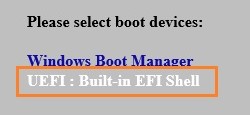
1. Download the UEFI Flash BIOS Update file (*.UEFI.zip). Example:
Please follow the link to learn how to download BIOS for corresponding model: [NUC] Where Can I Download the BIOS File?
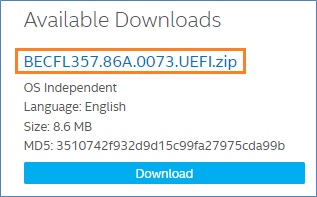
2. Double-click the *.UEFI.zip to extract its files.
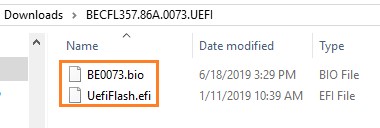
3.Copy UefiFlash.efi and the .bio file to the bootable USB device.
4.Connect the USB drive to a port on the NUC.
5.Configure the BIOS of the target computer to boot to the EFI Shell:
a. Press F2 during start to enter BIOS setup.
b. Go to Advanced > Boot > Secure Boot.
c. Disable Secure Boot, if enabled.
d. Go to Advanced > Boot > Boot Configuration.
e. In the Boot Devices pane, enable Internal UEFI Shell.
f. Press> F10 to save changes and exit BIOS Setup.
6. Press F10 during start to open the Boot Menu.
7. Select UEFI: Built-in EFI Shell.
8. Change the current directory to the USB flash drive by entering the command fsX: where X is the drive number of the USB flash drive from the device mapping list.
Example: if your USB drive is fs3, then type fs3: and press Enter.
9. At the command prompt, type UefiFlash.efi XXX.bio, where XXX.bio is the filename of the .bio file and press Enter.
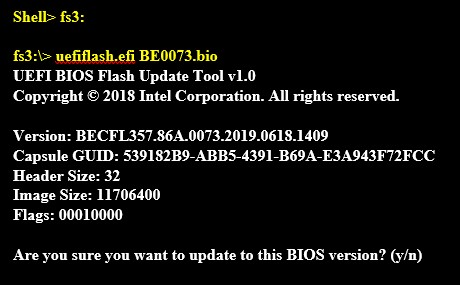
10. Press Y to begin the update.
11. Wait for the BIOS update to complete.
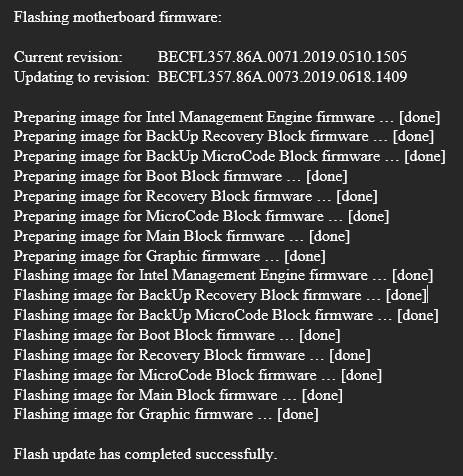
12. The computer will restart when finished.
13. Set the BIOS back to original settings:
a. Restart the computer.
b. Press F2 during start to enter BIOS setup.
c. Go to Advanced > Boot > Boot Configuration.
d. In the Boot Devices pane, disable Internal UEFI Shell.
e. Go to Advanced > Boot > Secure Boot.
f. Enable Secure Boot, if it was originally enabled.
g. Press F10 to save changes and exit BIOS Setup.