[NUC] Troubleshooting WiFi and Bluetooth Issues on NUC Products
If you see WiFi or Bluetooth related issues on your NUC, refer to the table below for troubleshooting tips and useful information.
| Note | We recommend you update your BIOS version, wireless driver, and Bluetooth driver as the first step in resolving wireless or Bluetooth issues. BIOS and drivers are available on Download Center. |
| Issue or question | How to fix it |
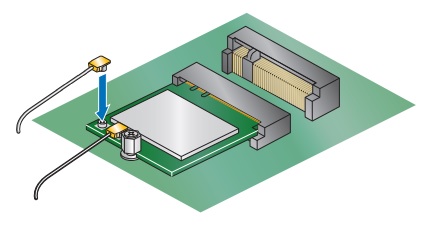
| No wireless connectivity | Open the NUC chassis and check that the antenna connections to the wireless component are secure.
|
| Intermittent wireless connectivity |
|
| Can't wake NUC using Bluetooth mouse or keyboard | Wake from Bluetooth isn't supported on all NUC models. See the Wake-up Devices and Events section of the technical product specification for your NUC to find out what types of devices can wake it up. |
| How to disable wireless/Bluetooth | Wireless and Bluetooth can be disabled in BIOS Setup:
The wireless/Bluetooth solution on an NUC may be either a soldered-down component on the motherboard or an adapter card installed in an M.2 slot, which can be physically removed from the device.
|