[Lyra Trio][Setup]What should I do when the firmware upgrade fails?
Please follow the below steps to manually update the firmware for Lyra Trio.
Firmware restoration flow
1. Download the latest firmware and Rescue Mode Utility and install it.
2. Unplug the Lyra Trio from the power source.
3. Press and hold the Reset button and re-plug Lyra Trio into the power source at the same time.

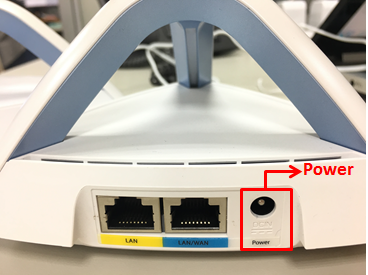
4. Do not release the Reset button until you see solid purple light shows up, which indicates that Lyra Trio is in Rescue Mode. Then wire connect your NB/PC to Lyra Trio LAN port
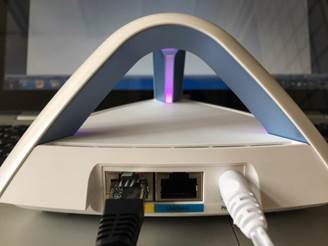
5. Set a static IP on your computer. Click Start >Control Panel > Network and Internet > Network Connections > Change adapter settings.
6. Right click on the LAN > Properties

7. Click Internet protocol version4 (TCP/IPv4) > then click the Properties
8. Revise the Internet protocol version4 (TCP/IPv4) as below:
- IP address:192.168.1.10
- Subnet mask:255.255.255.0
- Press OK after all revision is applied.

9. From the desktop of computer, go to Start> All Programs > ASUS Utility> Firmware Restoration

10. After entering Firmware Restoration, click Browse and choose the latest firmware file.

11. Click Upload after choosing the latest firmware file. When the below message shows, it means firmware restoration process is done and you can close this window.
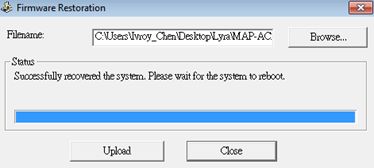
12. While the new Firmware is uploading, you can see LED is blinking with green and purple colors. After a while, Lyra Trio will blink in blue (Rebooting).
13. When you see a solid white light appear, the Rescue mode is finished.
14. If Lyra Trio LED does not turn to solid white light, please reset Lyra Trio via the Reset button.
Note: After the above setup steps complete, please resume your setting of Internet protocol version 4(TCP/IP4) to Obtain IP address automatically.