Product
ELMGR7093DX4, ELMGR7093DX6, ELMGR709HXX4, ELMGR709HXX6, GR70, MINIPC PB50, MINIPC PB60V, MINIPC PB61V, MINIPC PB62, MINIPC PN52, MINIPC PN80, PA90, PB40, PB40-B, PB50, PB50-B, PB60, PB60-B, PB60G, PB60S, PB60S-B, PB60V, PB61S, PB61V, PB61V-B, PB61V-H, PB62, PB62-B, PB63, PB63-B, PB63V, PB64, PB64-B, PL63, PL63-A, PL63-B, PL64, PL64-B, PL64-D1, PL64-D1-B, PN30, PN40, PN40Q, PN41, PN41-A, PN41-B, PN41-S1, PN41-S1-B, PN41-S1-M, PN41-S1-MI, PN42, PN42-B, PN42-E1, PN42-E1-B, PN42-M, PN42-S, PN42-S-B, PN43, PN43-B, PN43-S, PN43-S-B, PN50, PN50-B, PN50-E1, PN50-E1-B, PN50-F, PN50F2, PN50-S1, PN51, PN51-B, PN51-E1, PN51E1-B, PN51-S1, PN51-S1-B, PN52, PN52-B, PN53, PN53-B, PN53-S1, PN53-S1-B, PN54, PN54-B, PN54-S1, PN54-S1-B, PN60, PN60-B, PN60-R, PN61, PN61-B, PN61S, PN61T, PN62, PN62-B, PN62S, PN63, PN63-B, PN63-S1, PN63-S1-B, PN64, PN64-B, PN64-E1, PN64-E1-B, PN64-M, PN65, PN65-B, PN80, PN865
[Windows 11/10] Change Background image and Theme
Please go to the corresponding instruction based on the current Windows operating system on your computer:
Change desktop background image
- Type and search [Background image settings] in the Windows search bar①, and then click [Open]②.
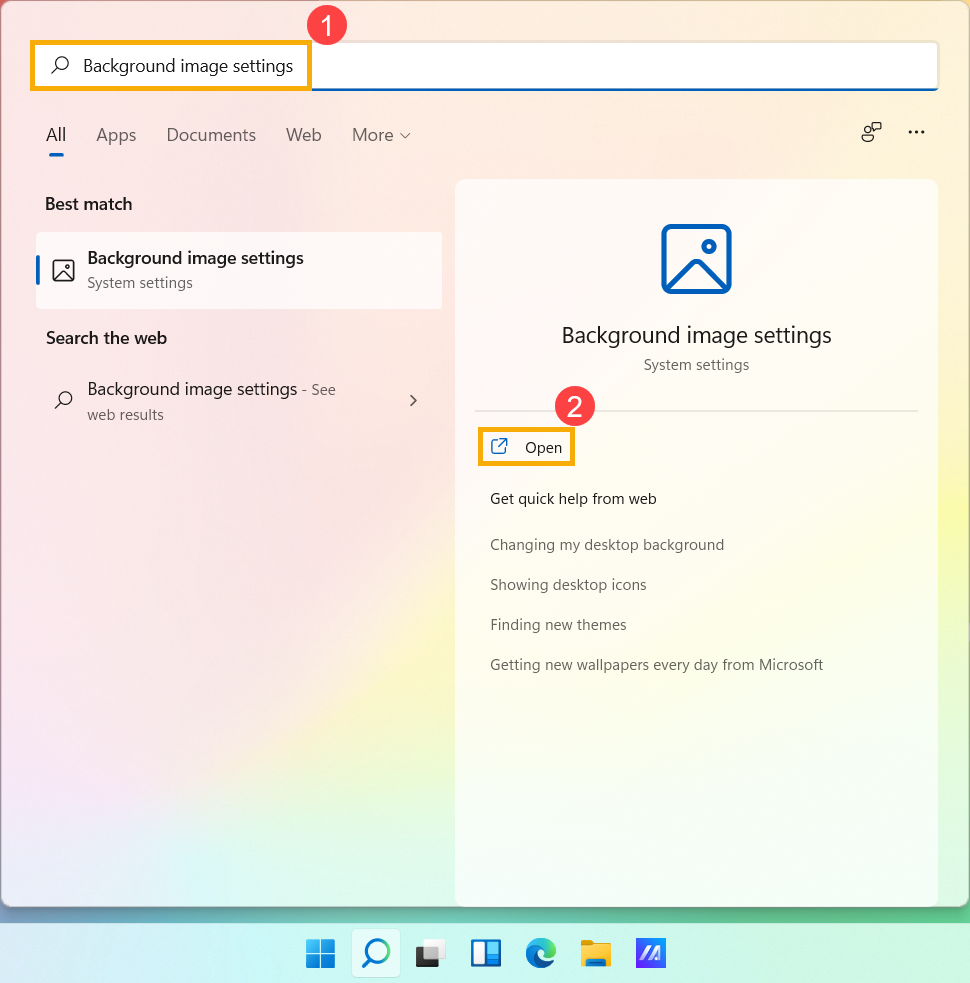
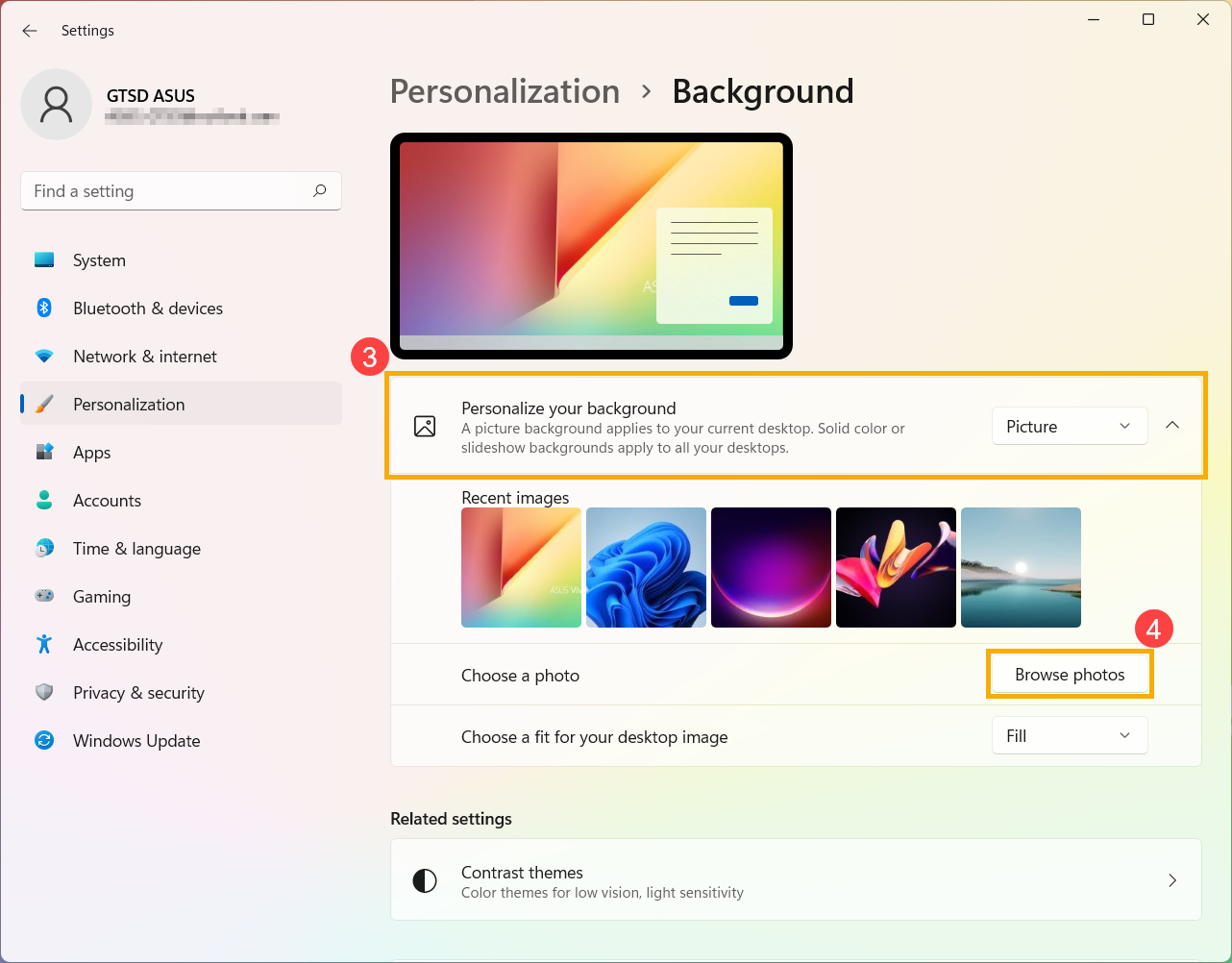
- On the Personalize your background filed, you can select a picture, solid color, or create a slideshow of pictures③. You can also select [Browse photo]④ to choose other pictures as the desktop background.
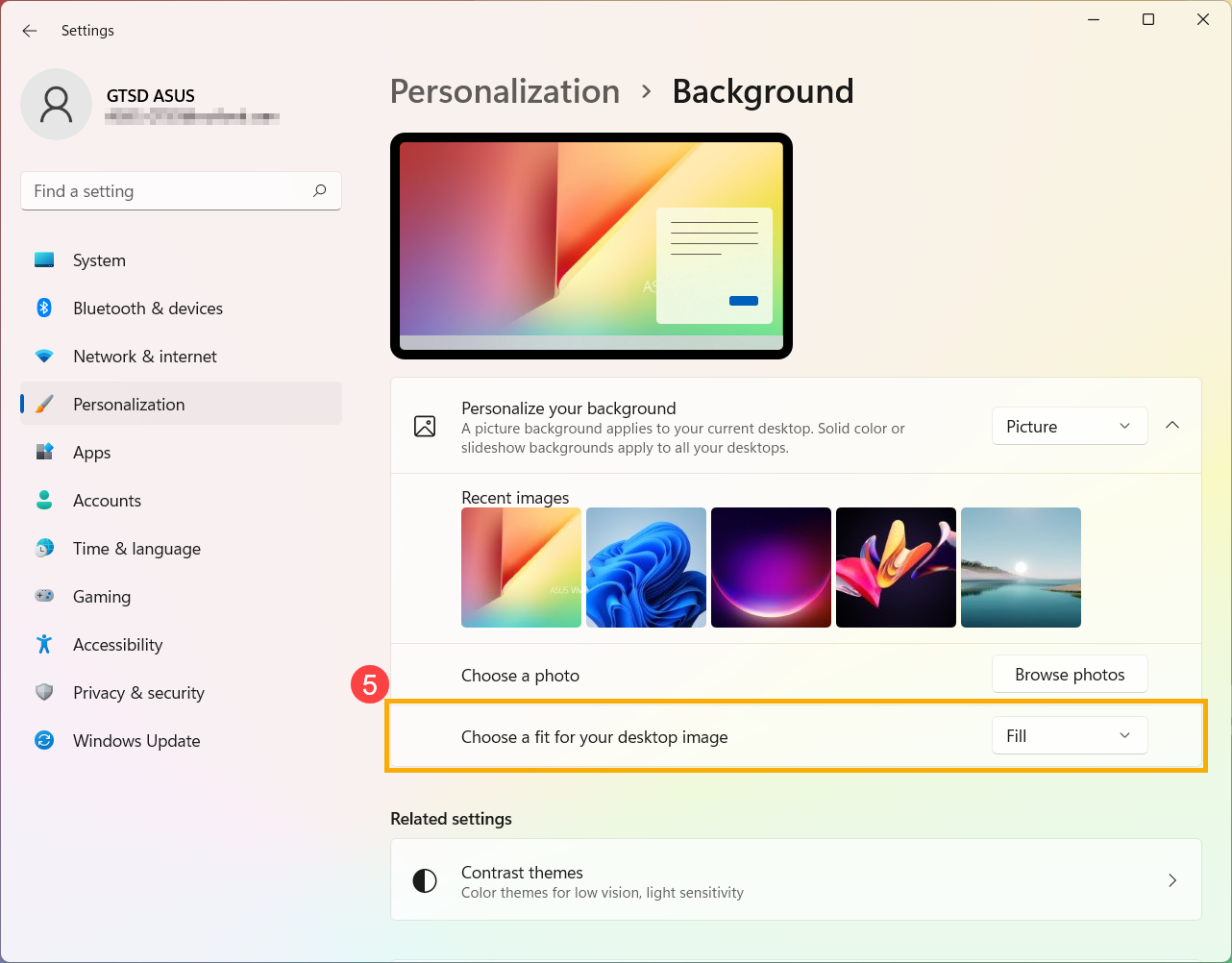
- If you would like to change the way the picture displays on the background, you can select Fill, Fit, Stretch, Tile, Center, or Span on the Choose a fit for your desktop image field⑤.
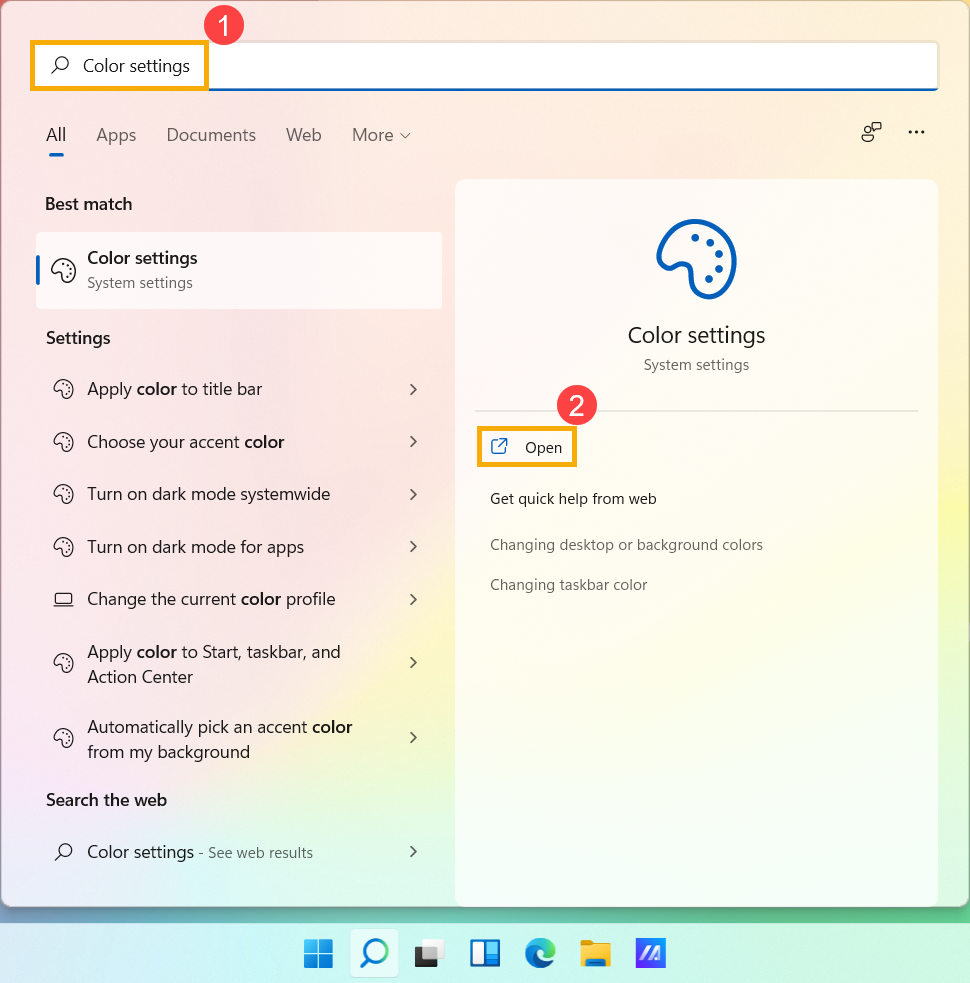
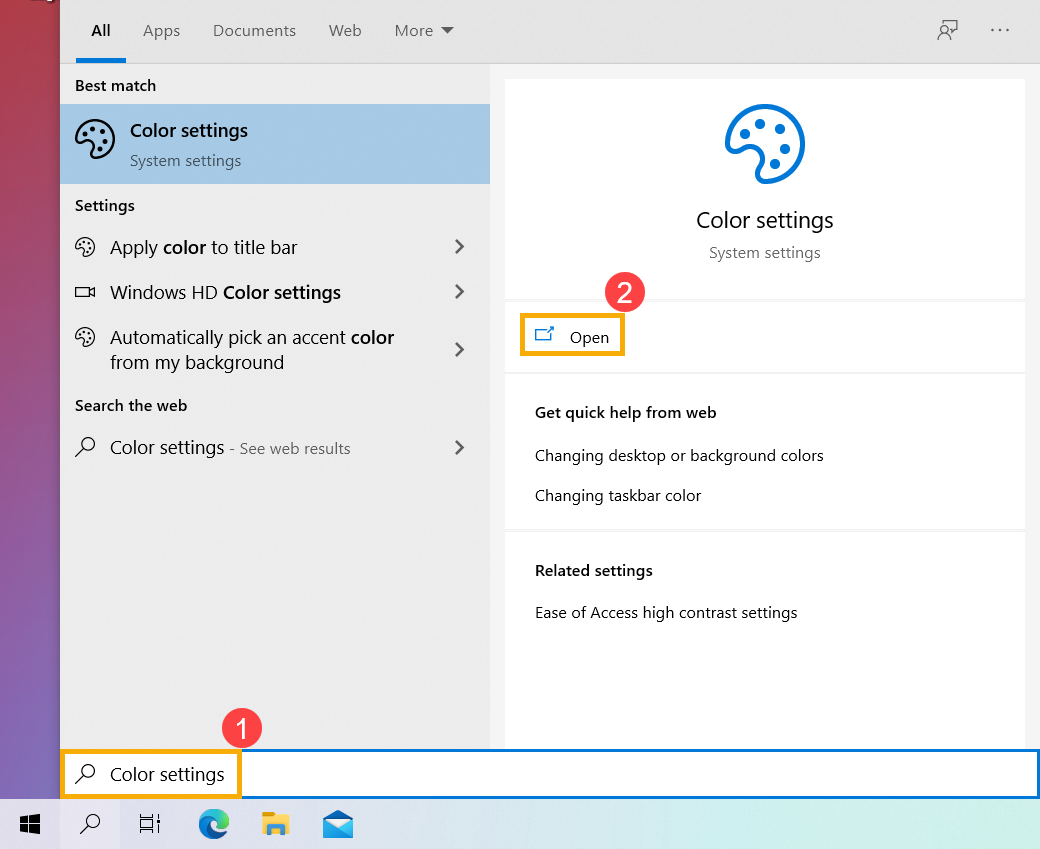
- Type and search [Color settings] in the Windows search bar①, and then click [Open]②.
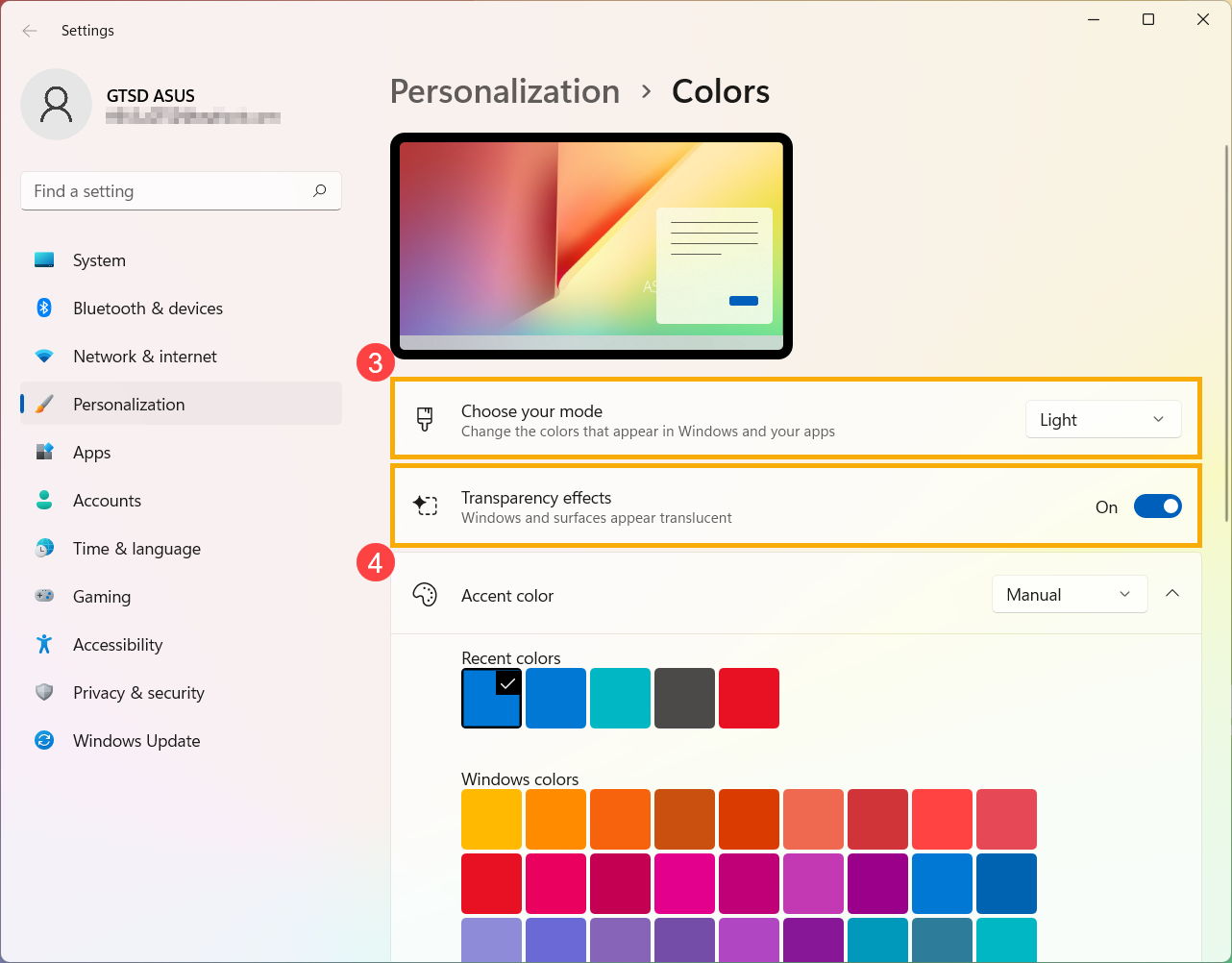
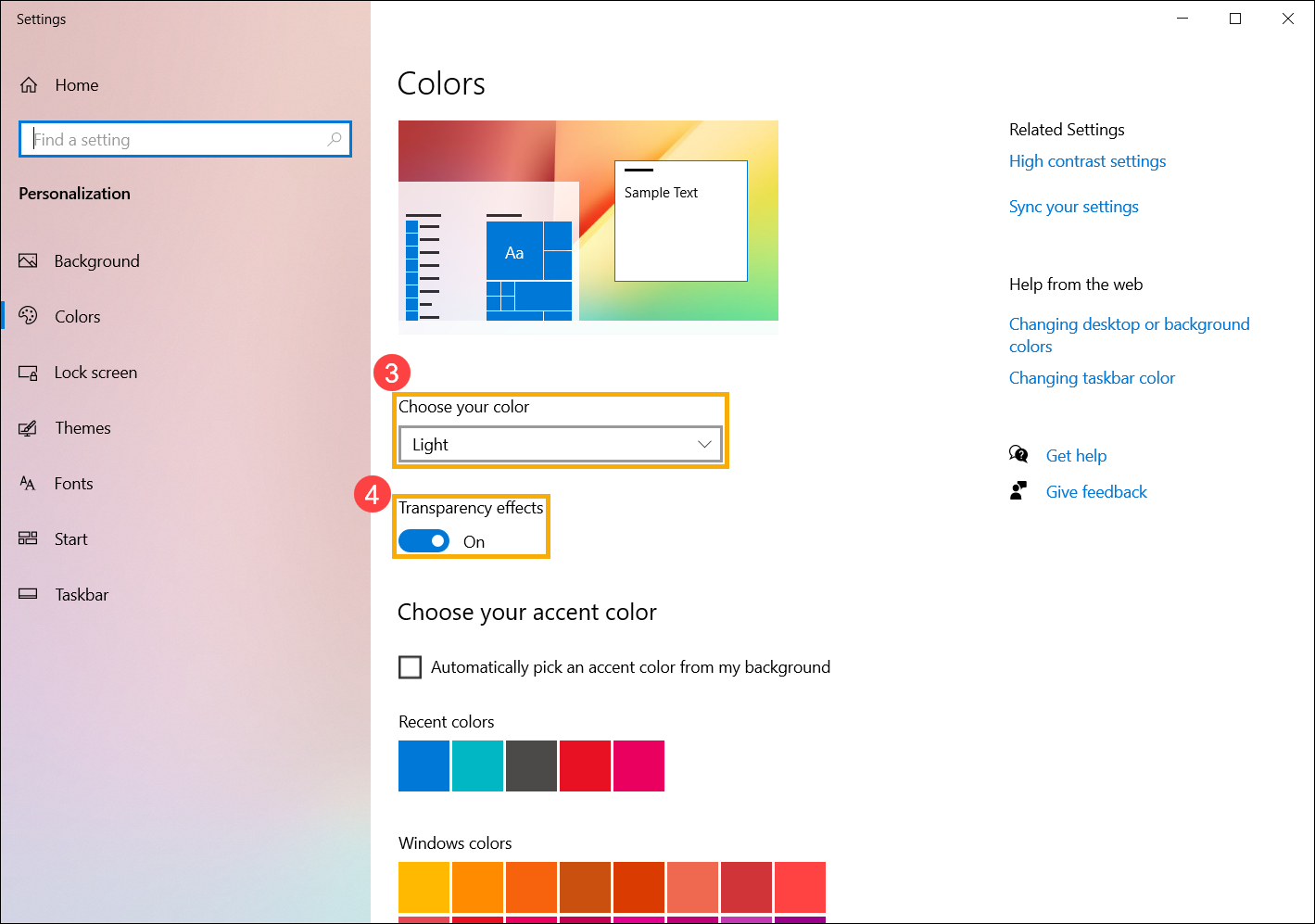
- In Colors, you can choose your mode as Light, Dark, or Custom③. You can also turn on or off Transparency effects④.
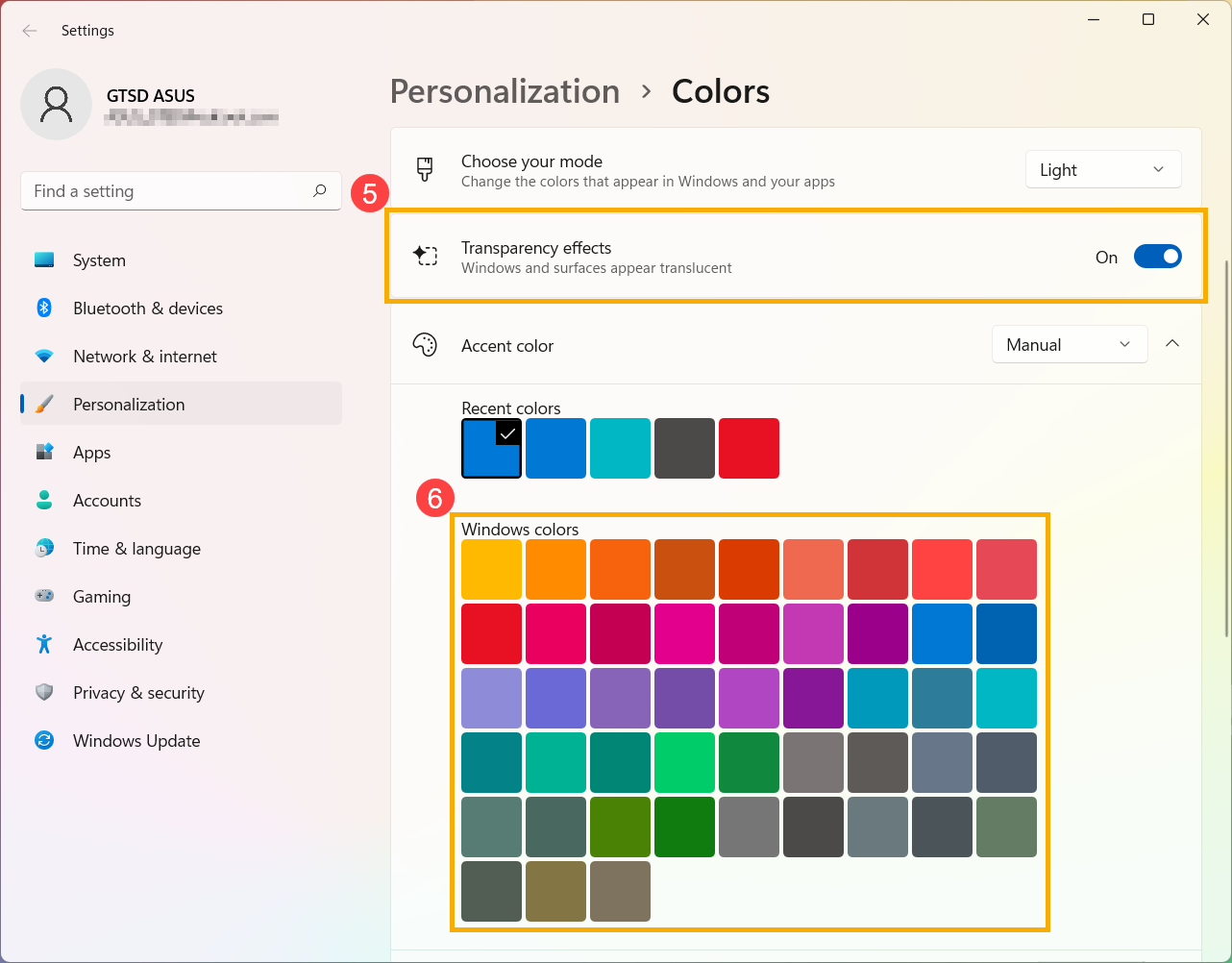
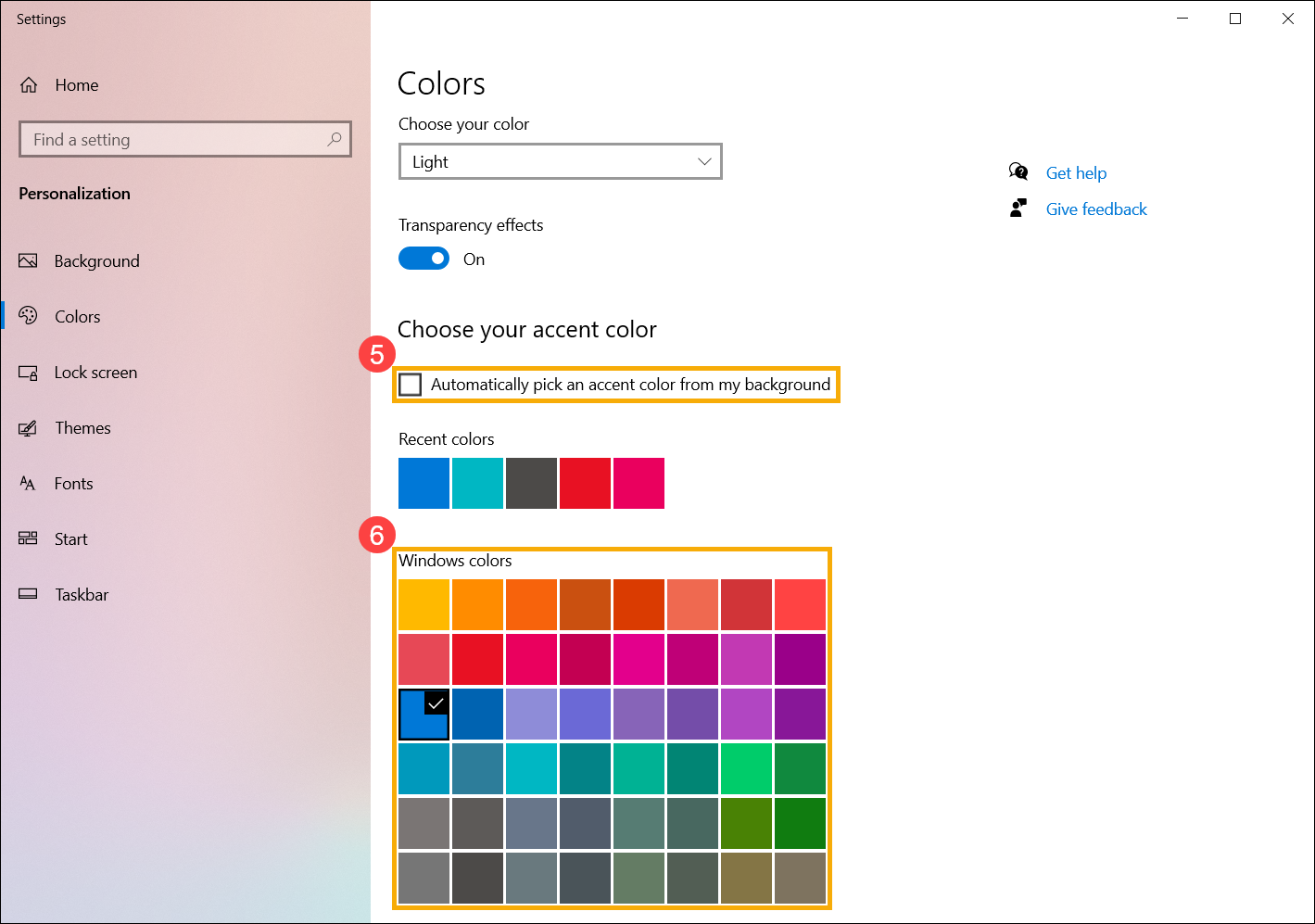
- In accent color, you can let Windows automatically pick an accent color from your background⑤, or choose your own color adventure⑥.
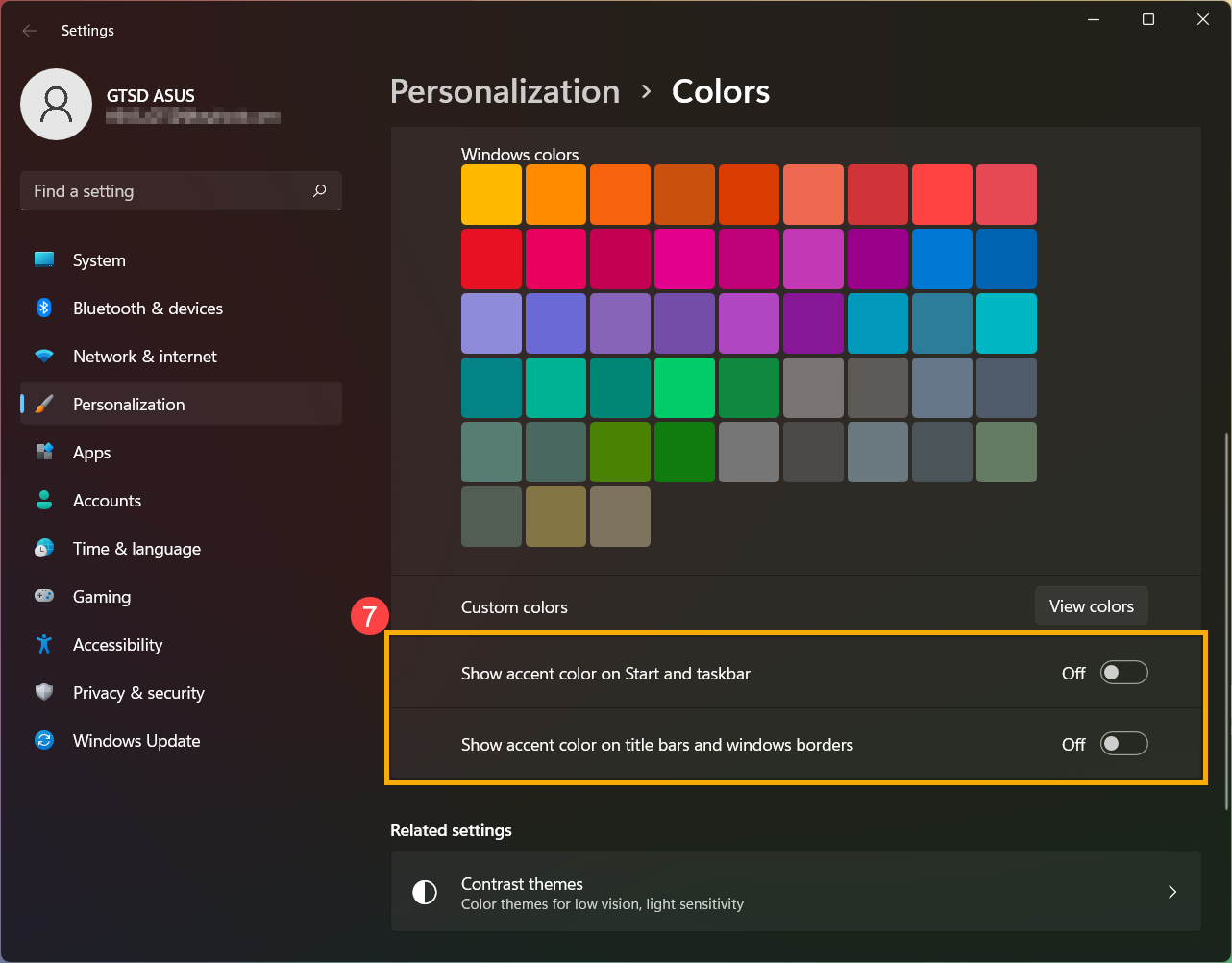
- Scroll down this page, and you can decide where you want the accent color to show up⑦. (The option of Start and taskbar is only available while the color sets to dark.)
Theme is a combination of background image, window color, and sounds. You can directly apply the built-in theme of Windows, or get more themes in Microsoft Store.
- Type and search [Themes and related settings] in the Windows search bar①, and then click [Open]②.
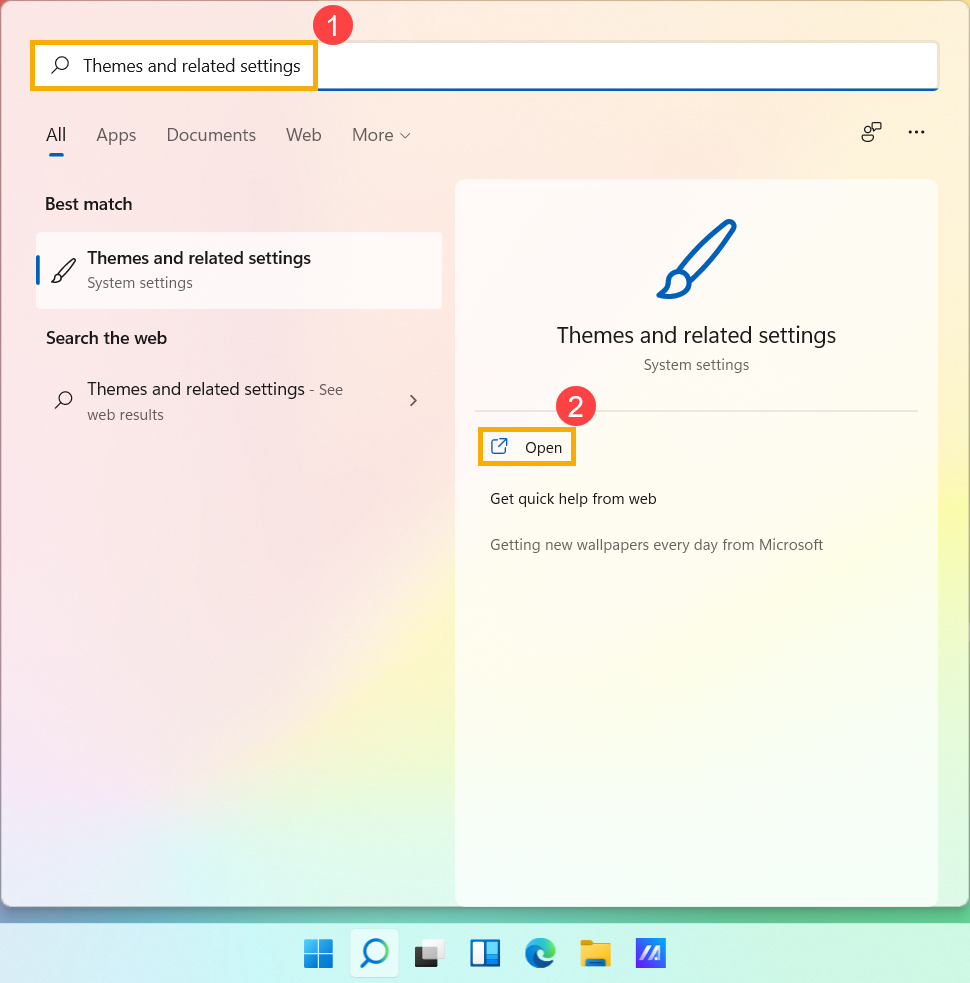
- In Themes, you can select a built-in theme of Windows③, or click [Browse themes]④ to get more various and colorful themes from Microsoft Store to personalize your computer.
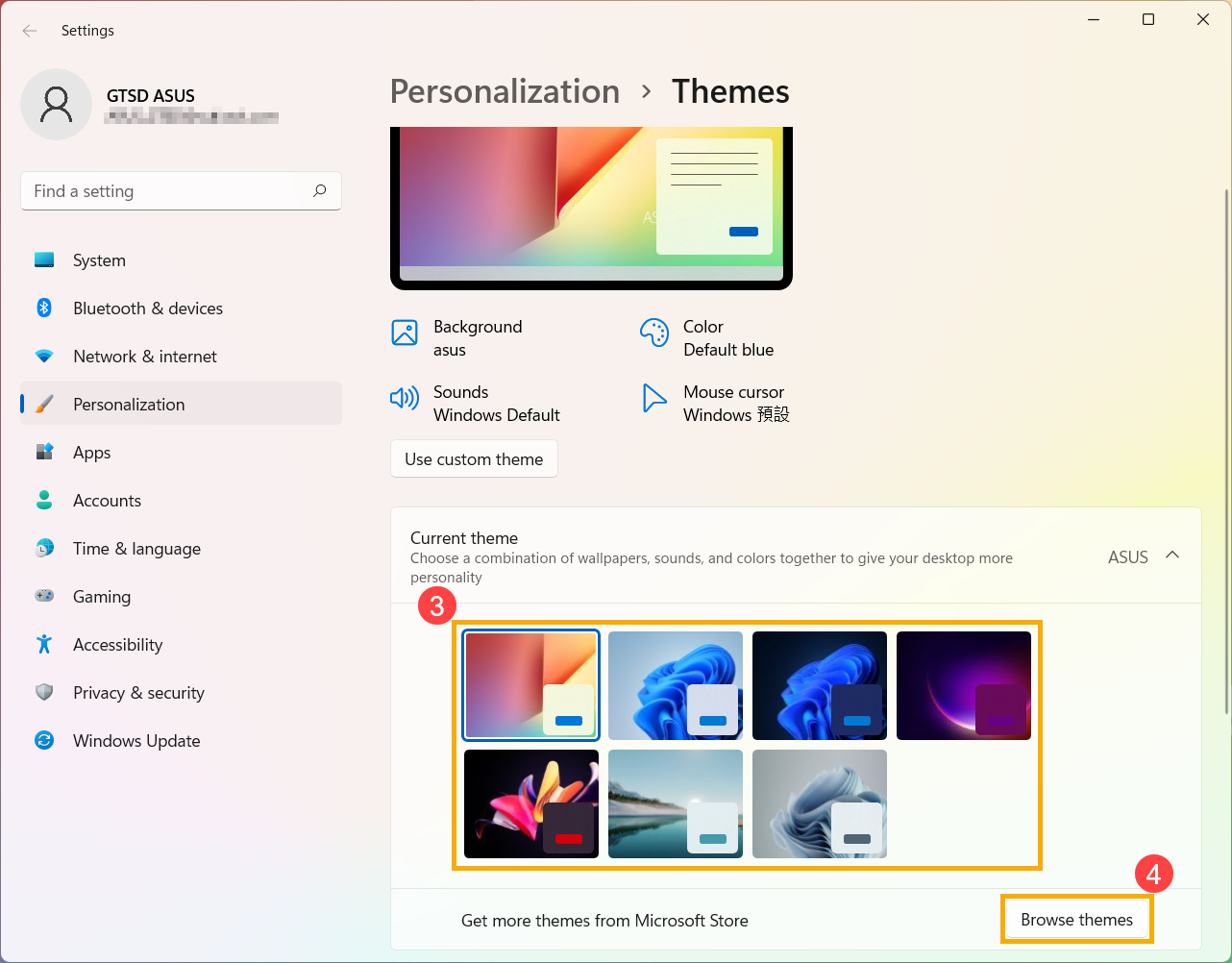
Change desktop background image
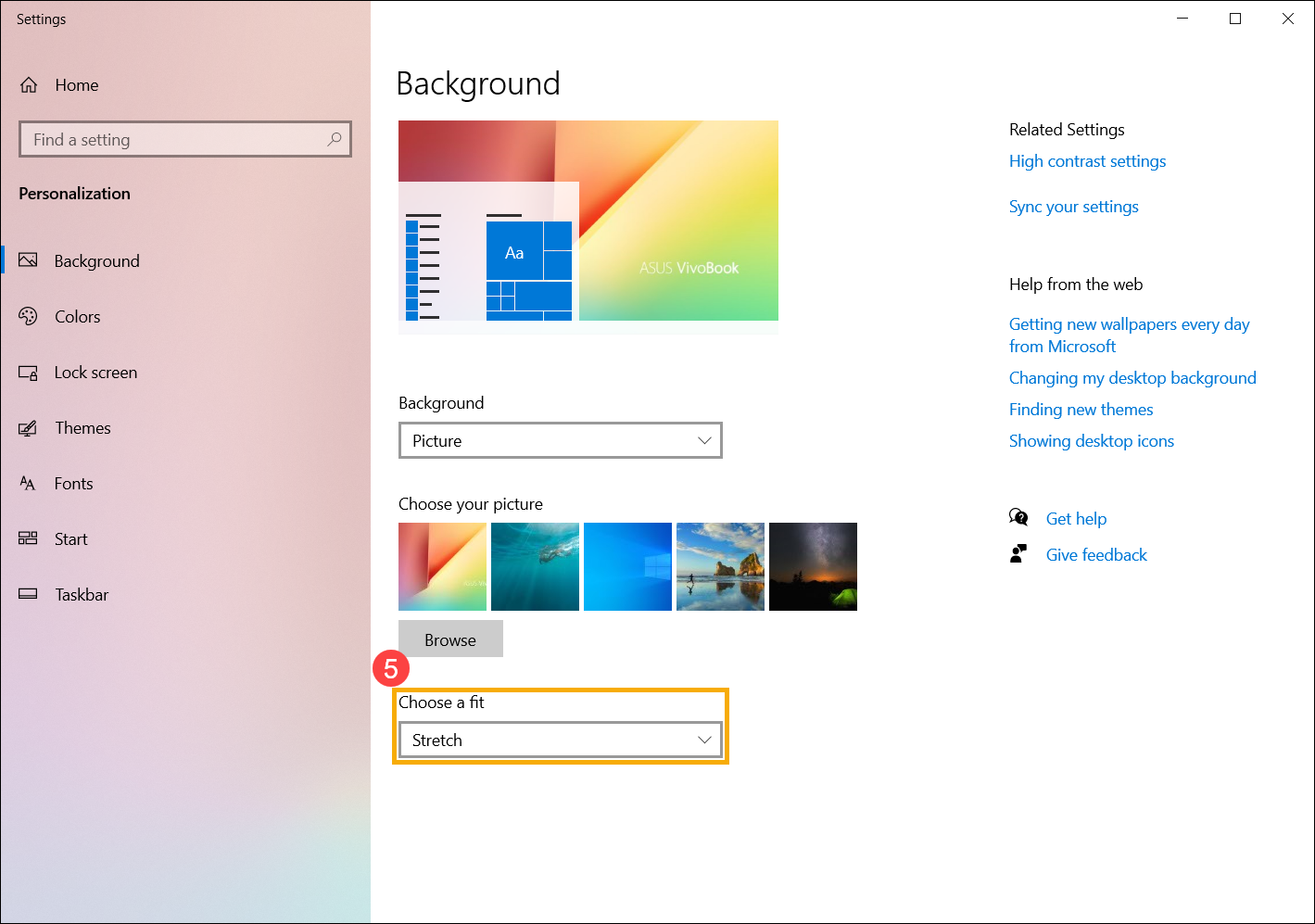
- Type and search [Background image settings] in the Windows search bar①, and then click [Open]②.
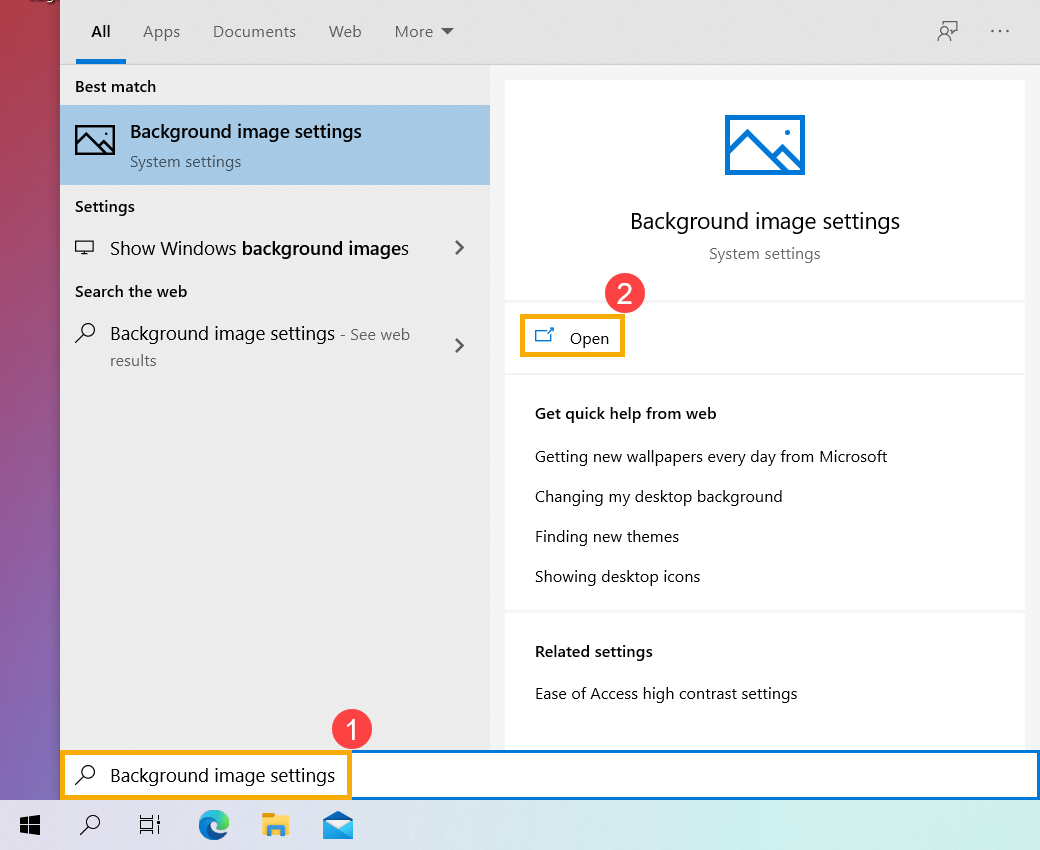
- In Background, you can select a picture, solid color, or create a slideshow of pictures③. You can also select [Browse]④ to choose other pictures as the desktop background.
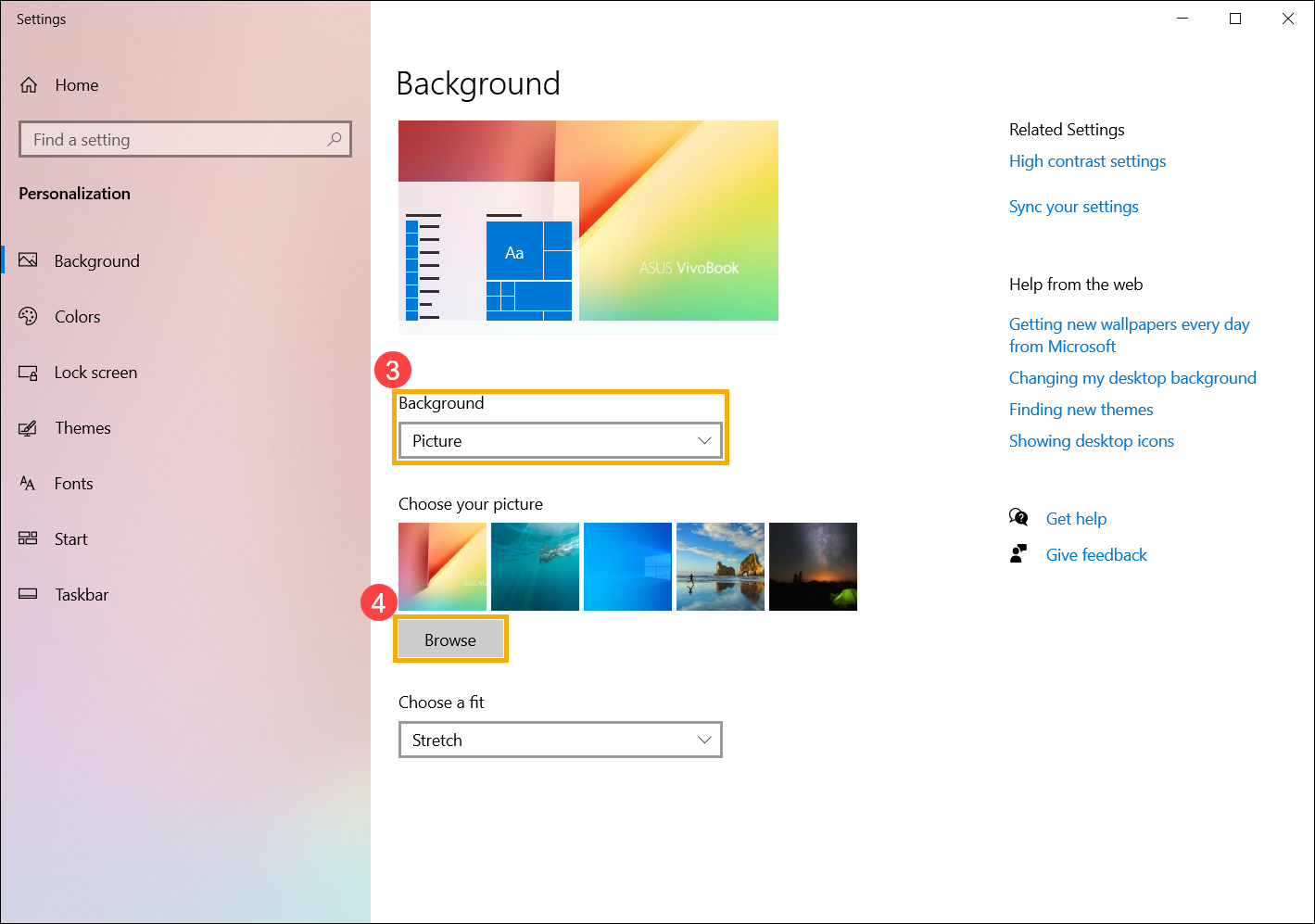
- If you would like to change the way the picture displays on the background, you can select Fill, Fit, Stretch, Tile, Center, or Span in the Choose a fit section⑤.
- Type and search [Color settings] in the Windows search bar①, and then click [Open]②.
- In Colors, you can choose the window color as Light, Dark, or Custom③. You can also turn on or off Transparency effects④.
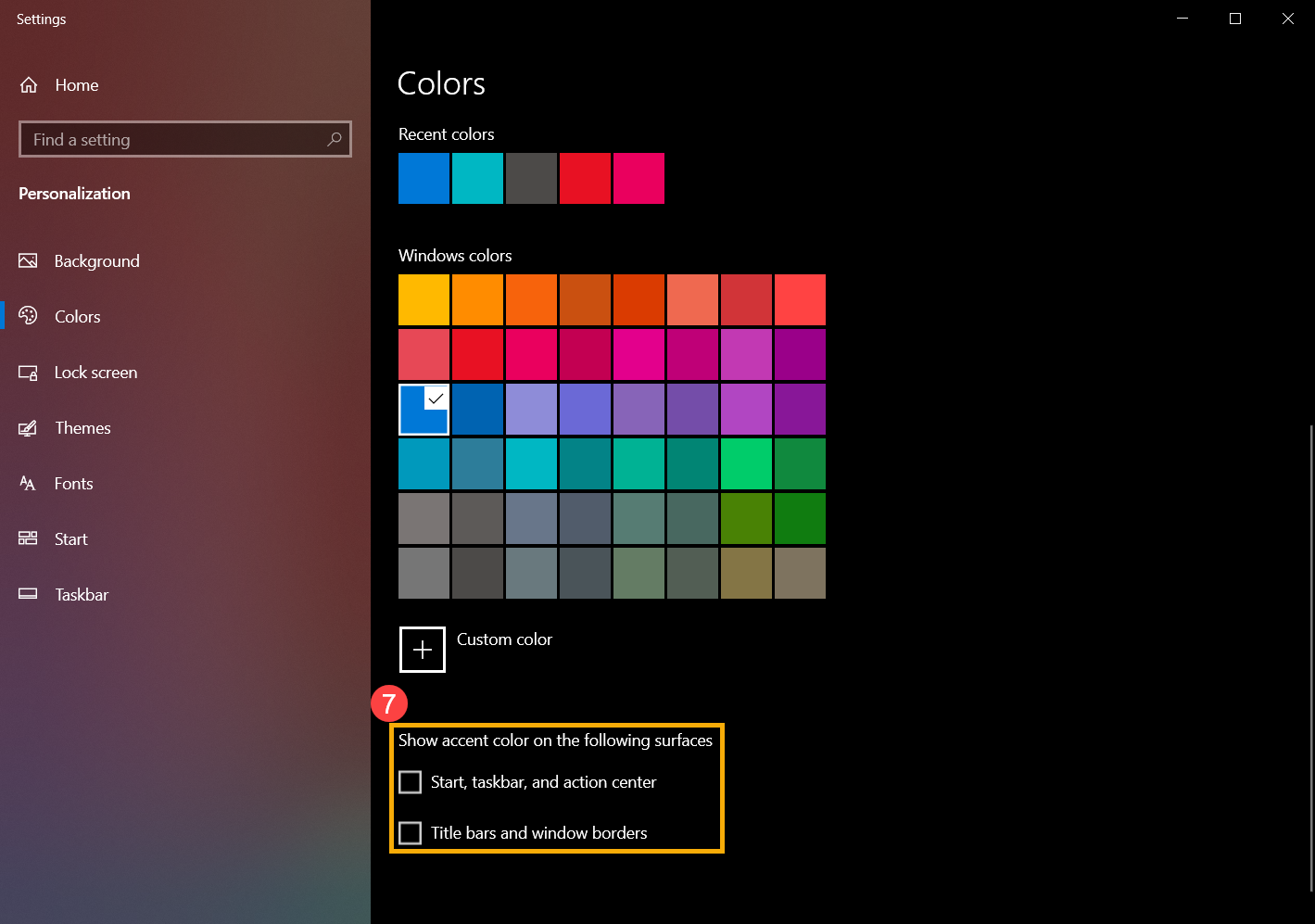
- In accent color, you can let Windows automatically pick an accent color from your background⑤, or choose your own color adventure⑥.
- Scroll down this page, and you can decide where you want the accent color to show up⑦. (The option of Start, taskbar, and action center is only available while the color sets to dark.)
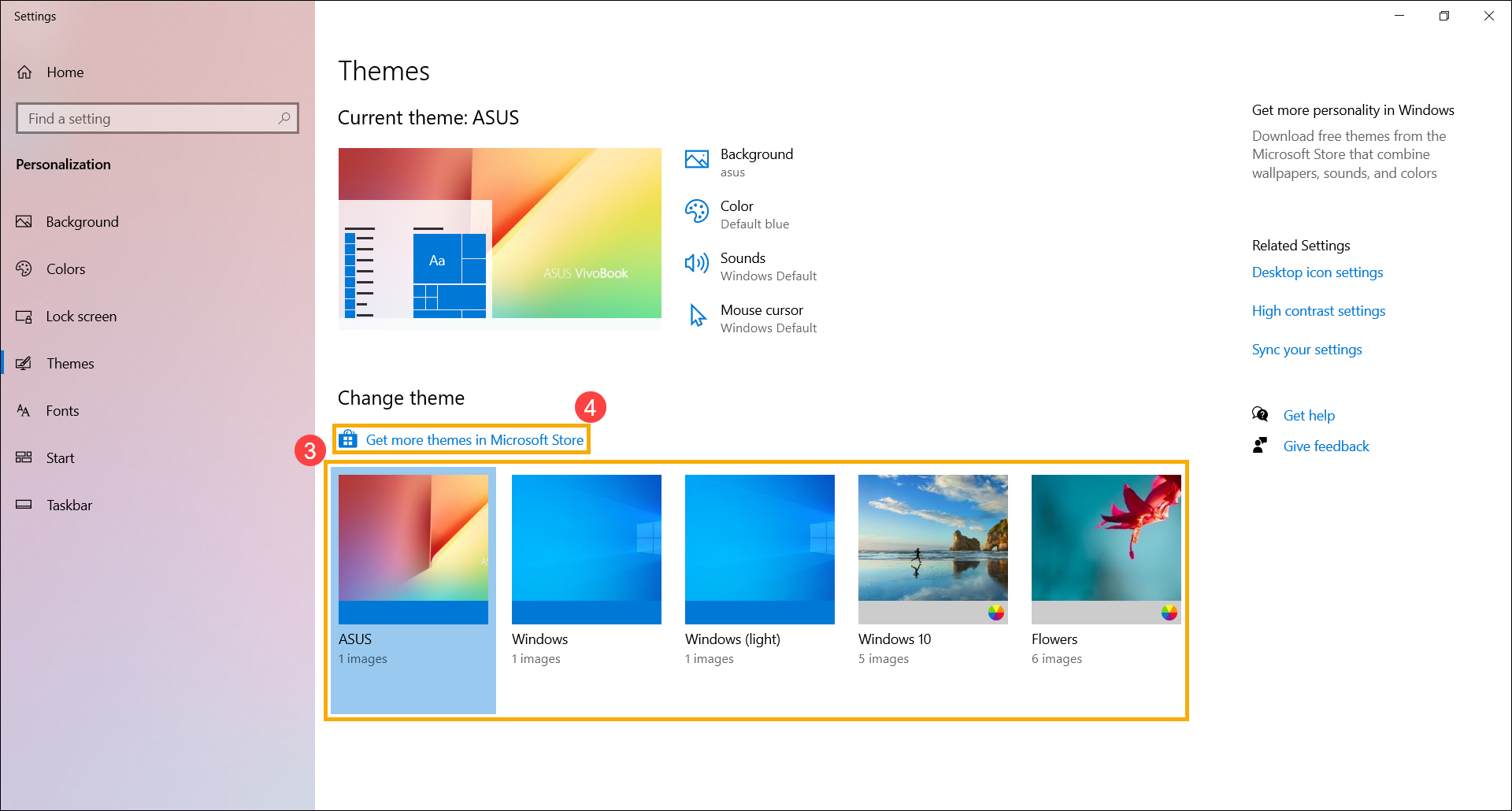
Theme is a combination of background image, window color, and sounds. You can directly apply the built-in theme of Windows, or get more themes in Microsoft Store.
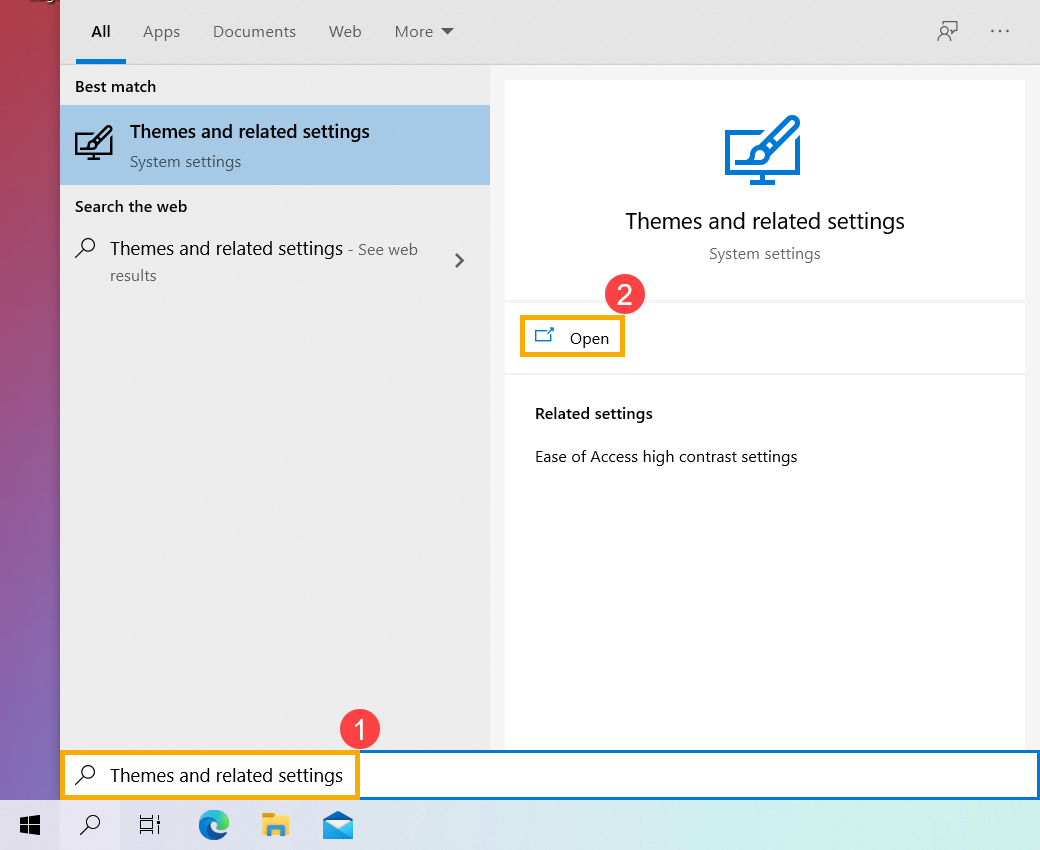
- Type and search [Themes and related settings] in the Windows search bar①, and then click [Open]②.
- In Themes, you can select a built-in theme of Windows③, or click [Get more themes in Microsoft Store]④ to get more various and colorful themes to personalize your computer.