Product
B1400CEAEY, B1400CEPEY, B1500CEAEY, B1500CEPEY
[B1400CEAEY/CEPEY & B1500CEAEY/CEPEY] Troubleshooting - ASUS SimPro Dock 2 is not working
Update the BIOS on your PC to v312 or the latest version. Here you can learn more about How to update BIOS in Windows.
Install ASUS SimPro Dock Tool v2.2.3.0 or the latest version
- Please visit ASUS SimPro Dock 2 product support site. In the Software and Utility category, download [ASUS SimPro Dock Tool], and the version is v2.2.3.0 or above. Here you can learn more about How to search and download utilities.
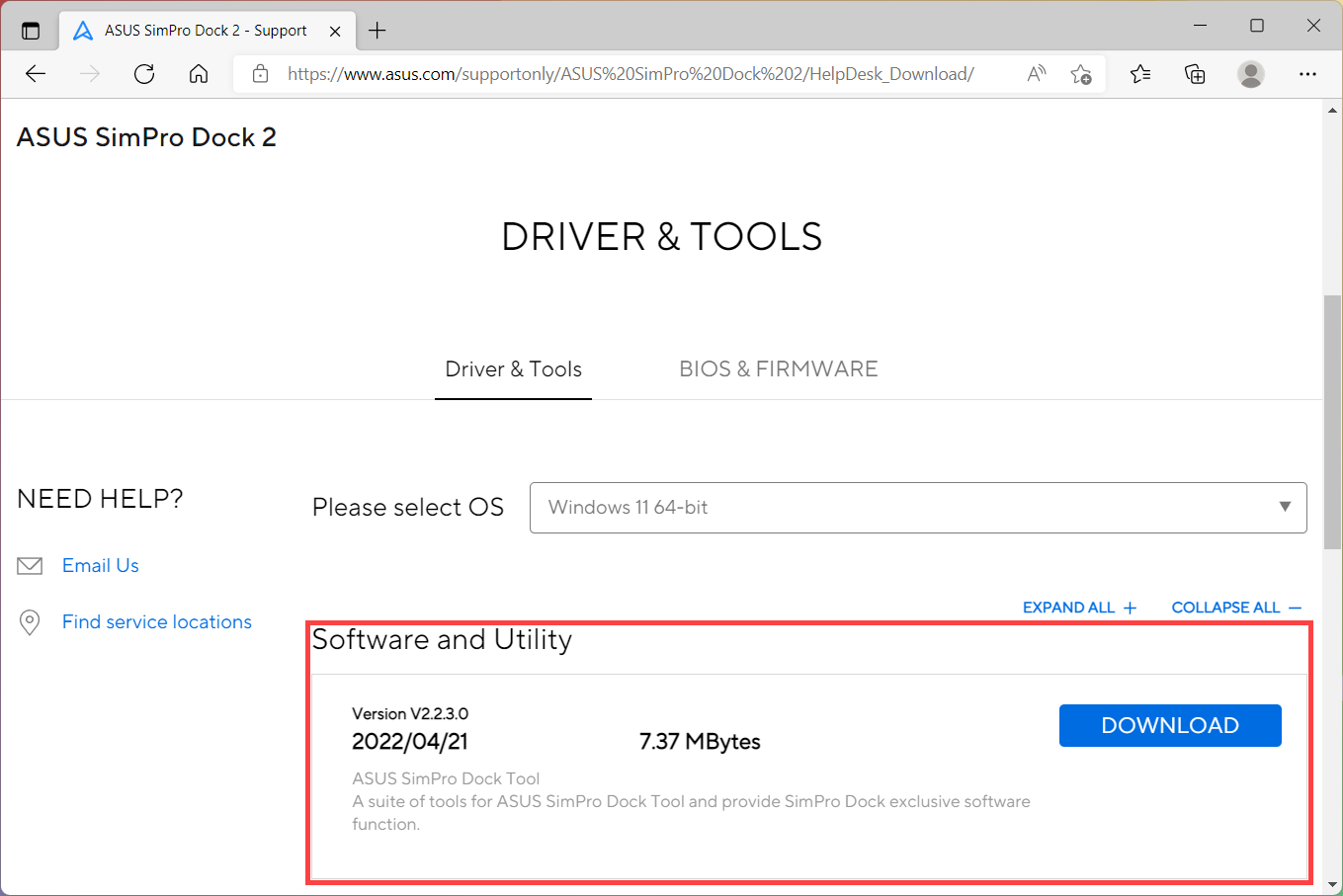
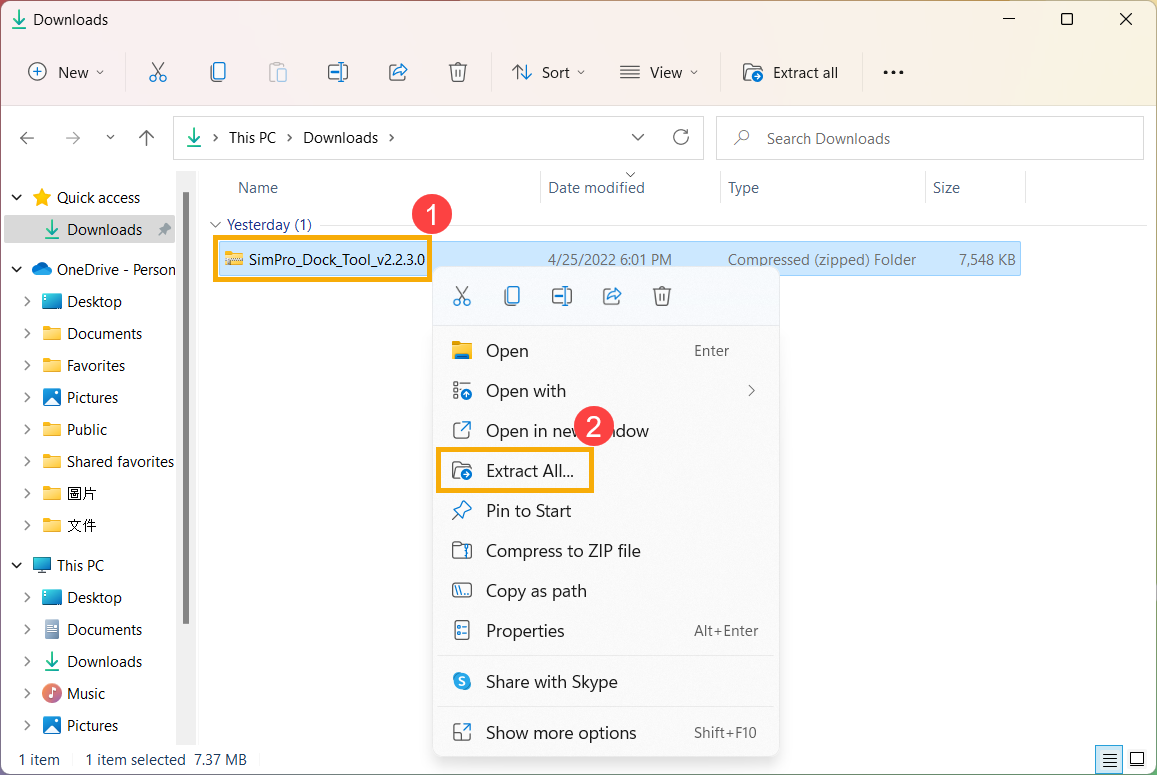
- After downloading the file, right-click the [SimPro_Dock_Tool_v2.2.3.0] compressed file①, and then select [Extract All]②.
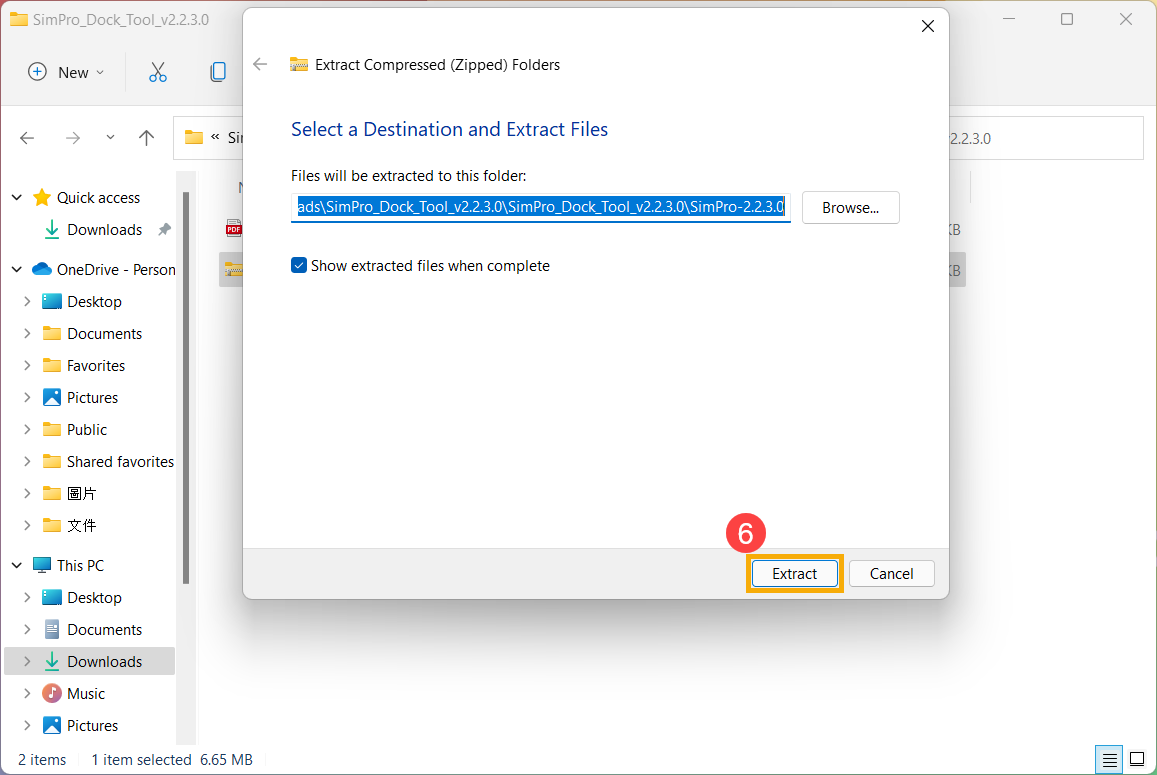
- Select [Extract]③.

- After the extraction is complete and entering the SimPro_Dock_Tool_v2.2.3.0 folder, right-click the [SimPro-2.2.3.0] compressed file④, then select [Extract All]⑤.

- Select [Extract]⑥.
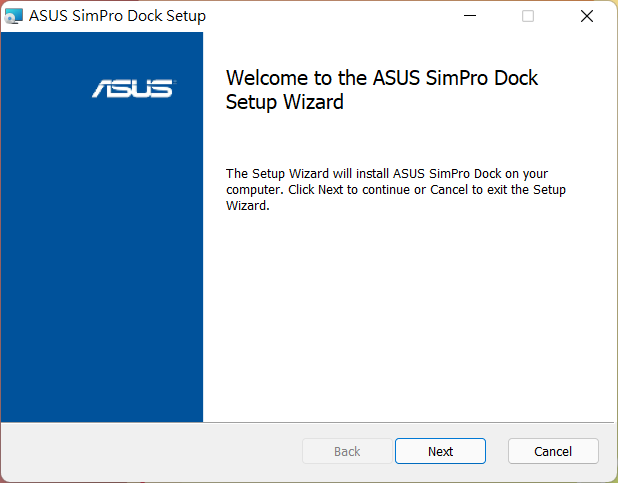
- After the extraction is complete, double-click the [AsSimProDockSetup] installer package⑦.

- After ASUS SimPro Dock Setup Wizard pops up, please follow the on-screen prompts to continue the next to complete the installation.
Install ASUS SimPro Dock One Click Updater v4.0 or the latest version
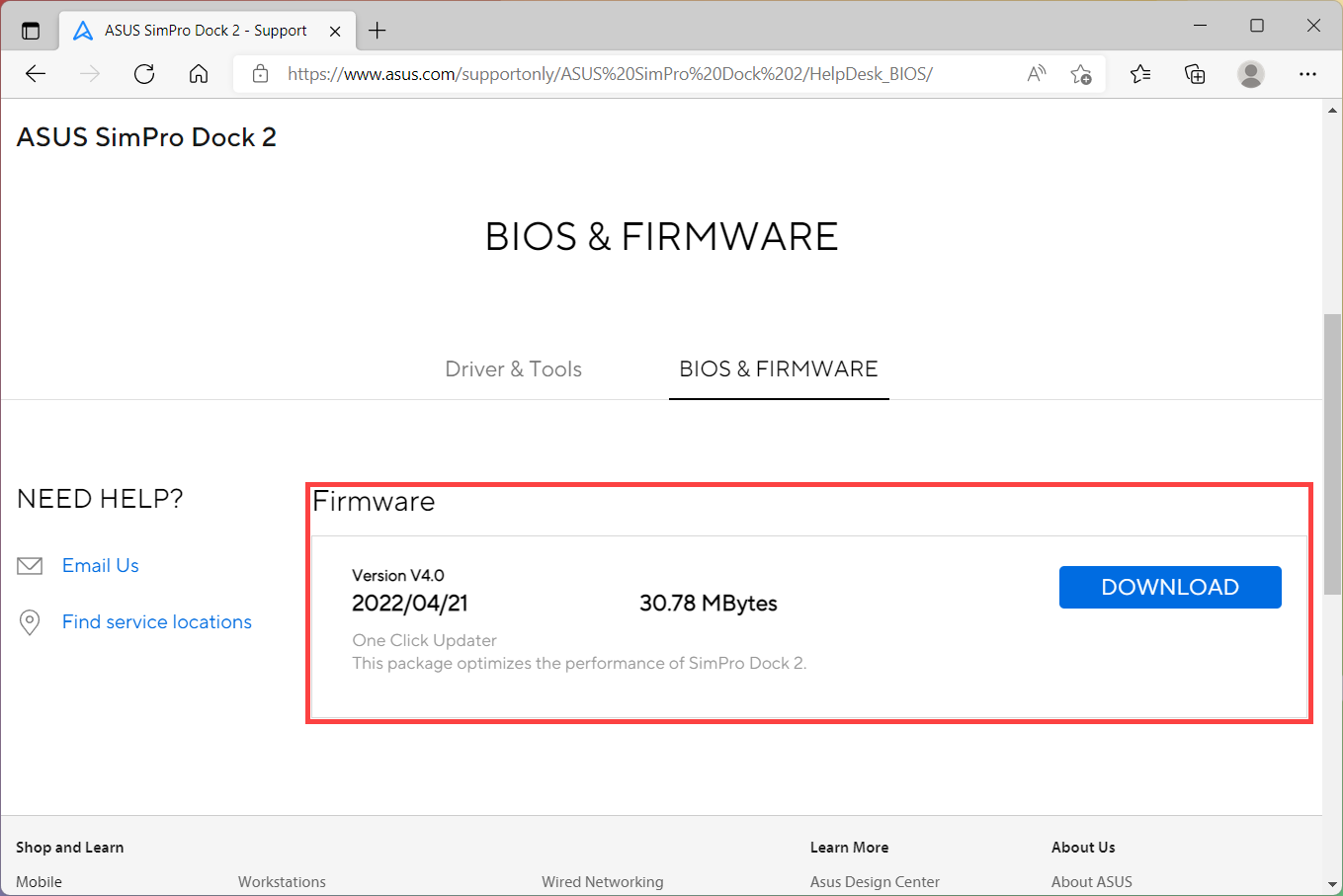
- Please visit ASUS SimPro Dock 2 product support site. In the BIOS & FIRMWARE category, download [One Click Updater], and the version is v4.0 or above. Here you can learn more about How to search and download utilities.
- Before installing ASUS SimPro Dock One Click Updater, please follow the steps below to enable the firmware upgrade mode of ASUS SimPro Duck.
Step 1. Disconnect your ASUS SimPro Dock 2 from your PC.
Step 2. Connect your ASUS SimPro Dock 2 to your PC again, without the dock adapter.
Step 3. Connect your dock adapter to your ASUS SimPro Dock 2. - After downloading the file, right-click the [ASUS_SimPro_Dock_One_Click_Updater_v4.0] compressed file①, and then select [Extract All]②.

- Select [Extract]③.

- After the extraction is complete and entering the ASUS_SimPro_Dock_One_Click_Updater_v4.0 folder, select the file folder based on the Windows OS version in your computer④.

- Double-click [ASUS_SimPro_Dock_One_Click_Updater_v4.0_Win11_v4.0] application⑤, and the program will be installed automatically.

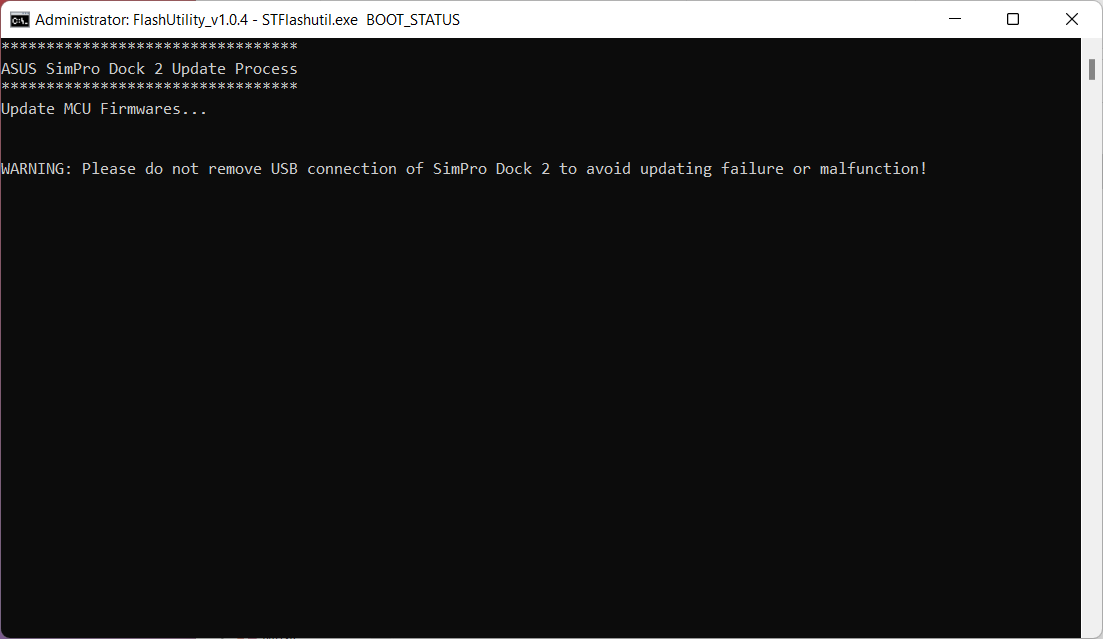
Note: If you get the notification below after clicking the installer package, please click [More info]⑥ and select [Run anyway]⑦, and then the application will continue to complete the installation automatically.

- After the ASUS SimPro Dock One Click Updater installation is complete, you can use ASUS SimPro Dock 2. If the upgrade process fails, please repeat the above steps to try it again.
The above pictures are just for reference, and it may be various depending on the different versions.
If your problem is not worked out with above solution and information, please contact ASUS customer service center for further information.