[Notebook] StoryCube - Introduction
StoryCube - One-Stop Smart File Management Hub
Create your personal story by capturing content from your imaging devices such as phones and cameras. Quickly import and organize everything in StoryCube.
StoryCube is an intelligent digital asset management app designed to provide you with a seamless and efficient file organizing experience. Easily collect photos, videos, and audio from various devices and cloud platforms, and organize and categorize them according to your preferences. Al helps you effortlessly identify different people or scenes automatically.
StoryCube x GoPro: StoryCube enables direct GoPro Cloud downloads - edit your footage wirelessly, no cables or SD cards required. For detailed steps, please refer to this article: Import from Cloud - GoPro Cloud
For more information about StoryCube, please visit: StoryCube - One-Stop AI Media Hub | ProArt | ASUS Global
1. StoryCube supports media formats
- 8.1 Select Media
- 8.2 Detail
- 8.3 Edit Media
- 8.4 Rename
- 8.5 Move & Copy & Duplicate
- 8.6 Compress
- 8.7 Favorite & Tags
- 10.1 GoPro - Media Library
- 10.2 Editing 360° Videos in StoryCube
- 10.3 .360 format video
- 10.4 GlideX Phone Album
14. How to Update and Uninstall StoryCube
1. StoryCube supports media formats
Currently StoryCube supports Media formats:
Image -> jpg, jpeg, heic
Video -> mp4, mov, 360
Audio -> mp3
※ If you do not have the HEVC decoder installed, StoryCube cannot edit HEVC format Media due to copyright issues.
※ .360 format is for preview only.
StoryCube only supports ASUS products and can be downloaded using this link.
The system recommends Windows 11 paired with Intel Core™ Ultra 7, Qualcomm Snapdragon® X Elite, or AMD Ryzen™ AI 9 HX 370 or higher for the best experience.
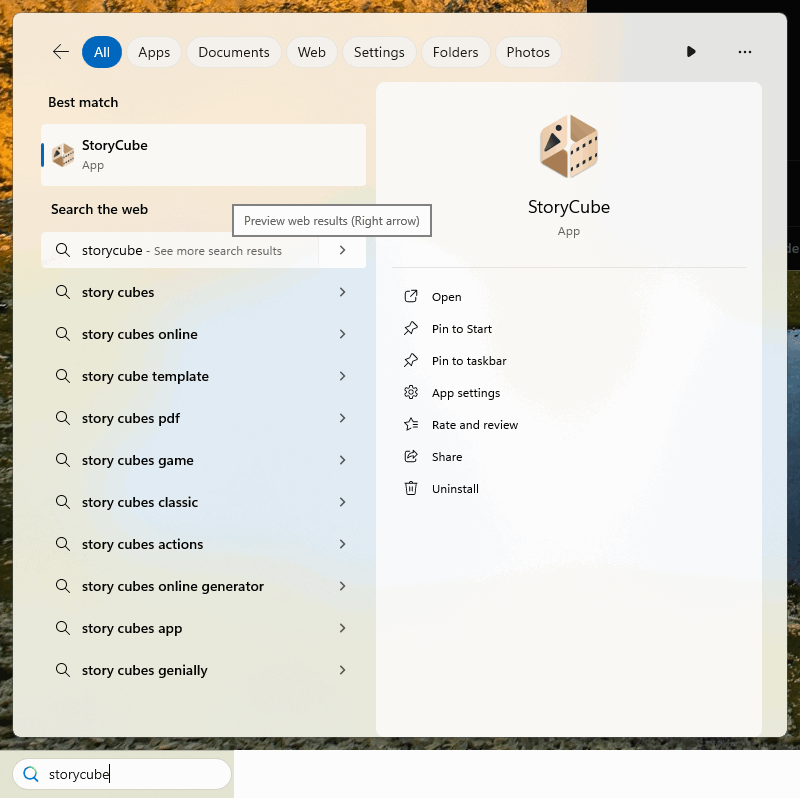
(1) Search for [StoryCube] in the search bar, and click [StoryCube], StoryCube will open.
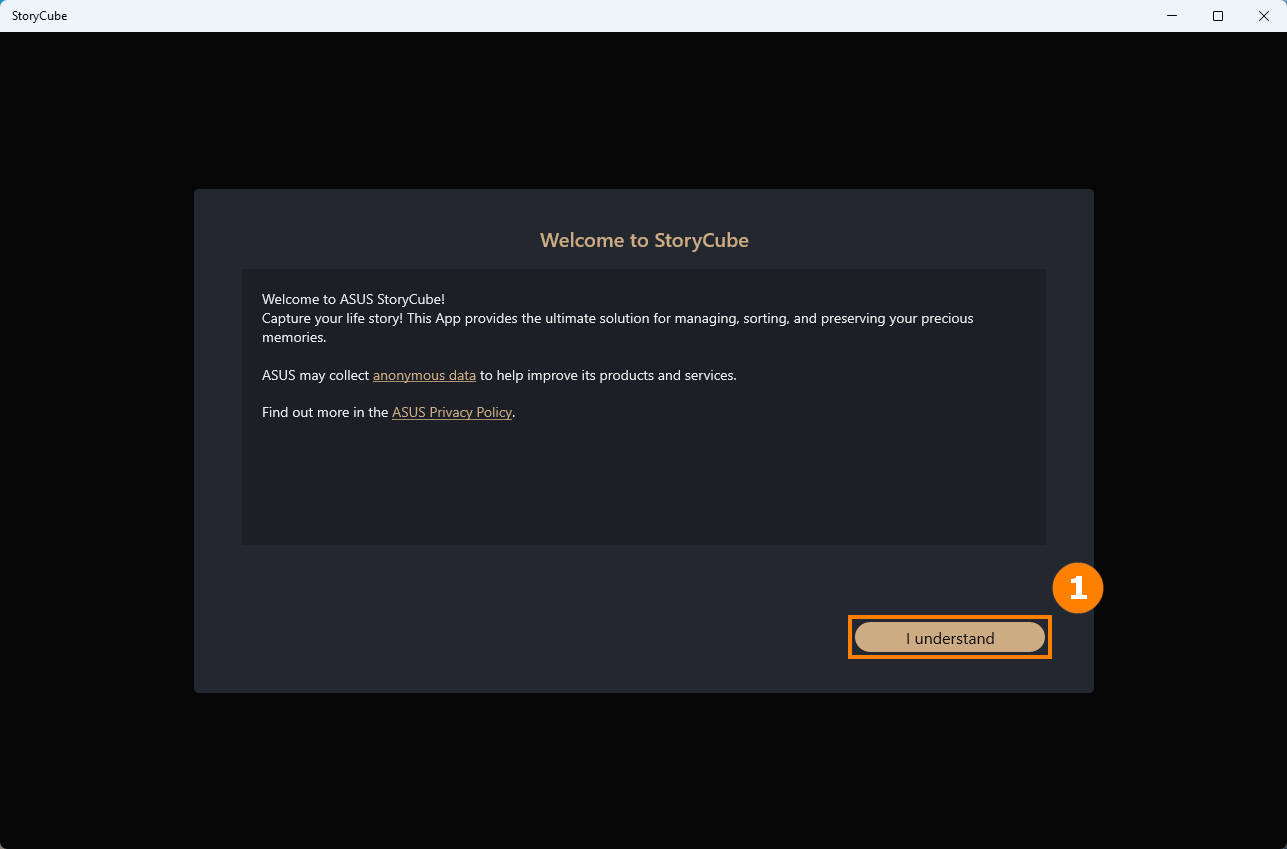
(2) When you enter StoryCube for the first time, you will see "Welcome to StoryCube", please click ①[I understand].
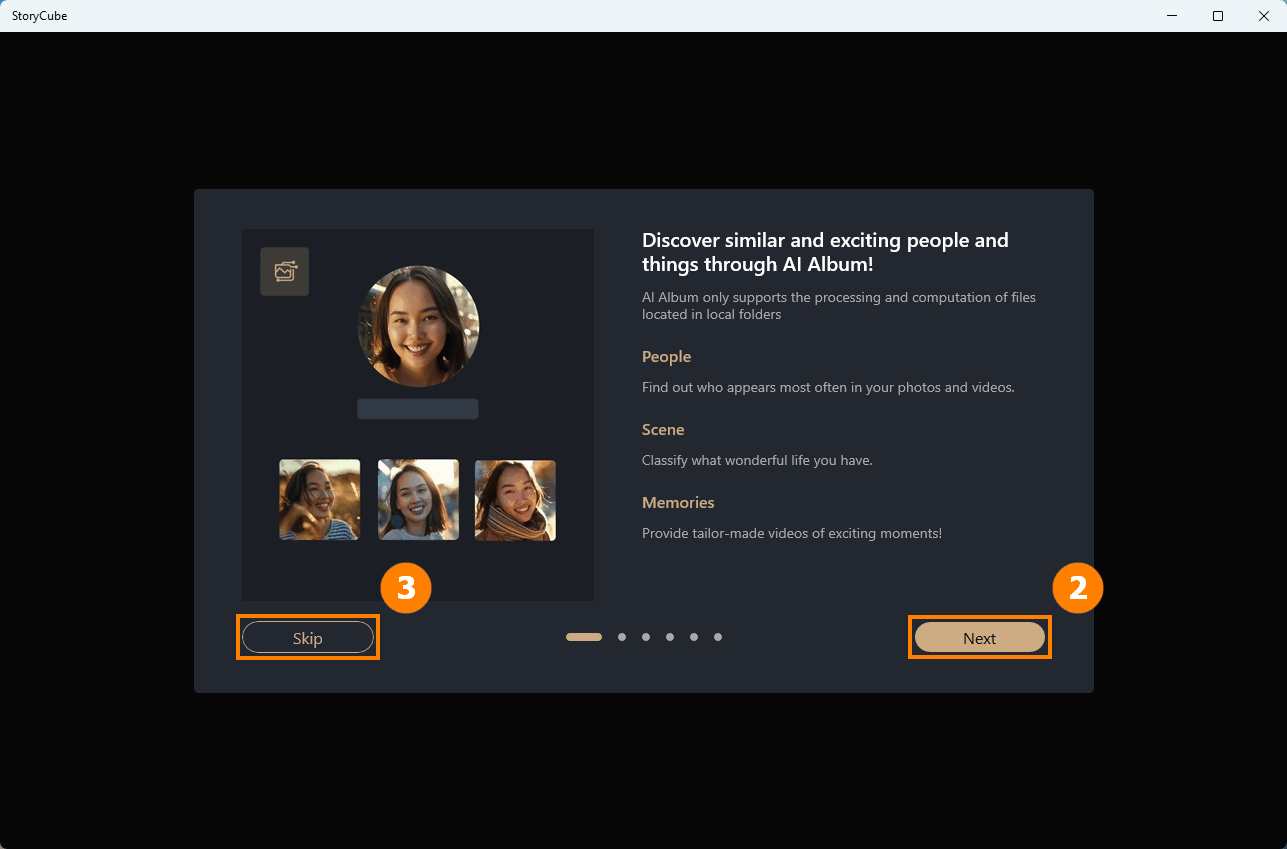
(3) The Feature Guide will introduce you to the features in StoryCube in an animated way, click ②[Next] to watch the introduction of the remaining features, or you can click ③[Skip] to skip it.
(1) If you are using StoryCube for the first time, import your media, click ①[Start], select the ②[Folder] you want to import, and click ③[Select Folder].
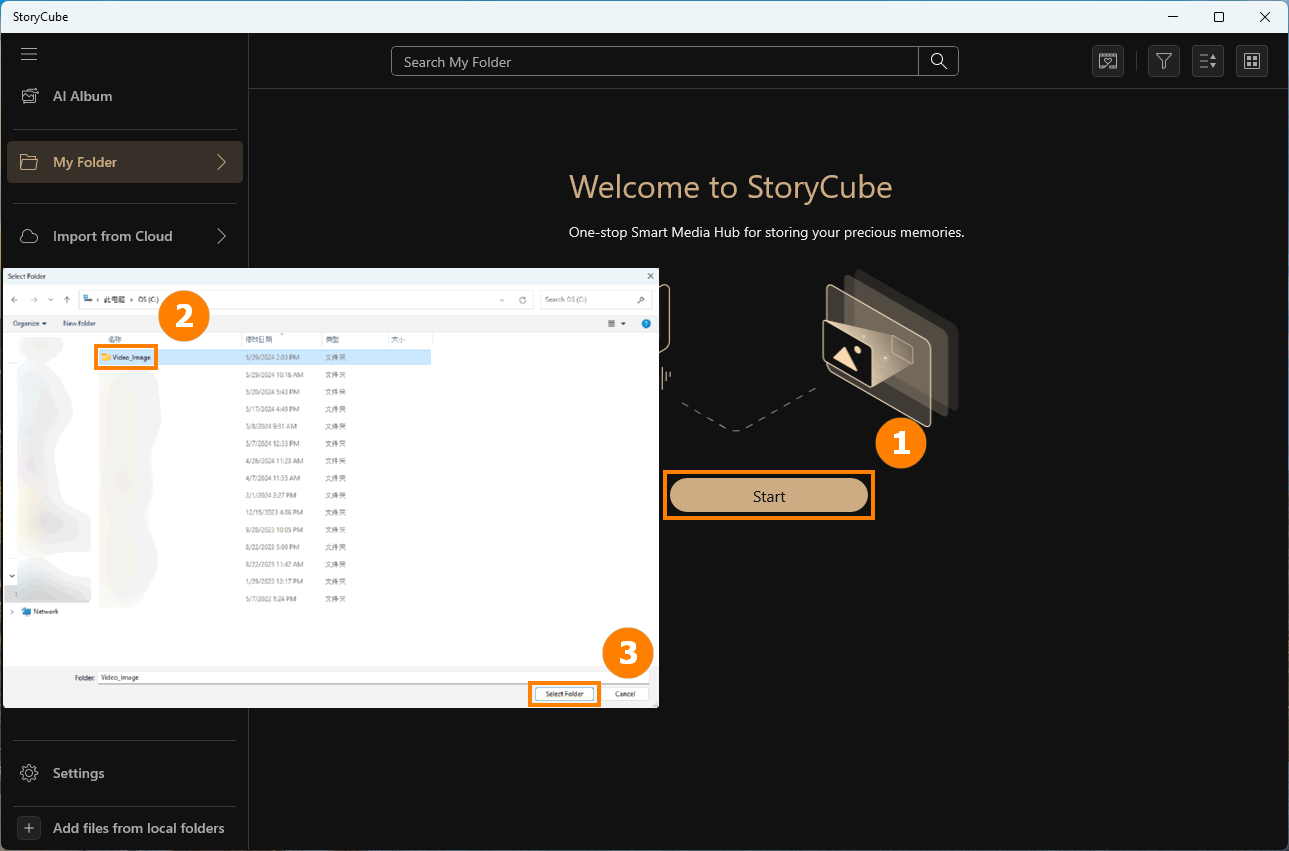
(2) The folder has been imported, and when you right-click ④[Folder], ⑤[Menu] will pop up.
Create new folder - A new folder will continue to be created under the existing folder. When you copy or transfer media, you can move the media to created folder to facilitate your media management.
Remove from my folder - Maybe you added the wrong folder, you can remove it from StoryCube and the folder and the archives in it won't have any effect.
Open in explorer - Open the folder where the Media are located.
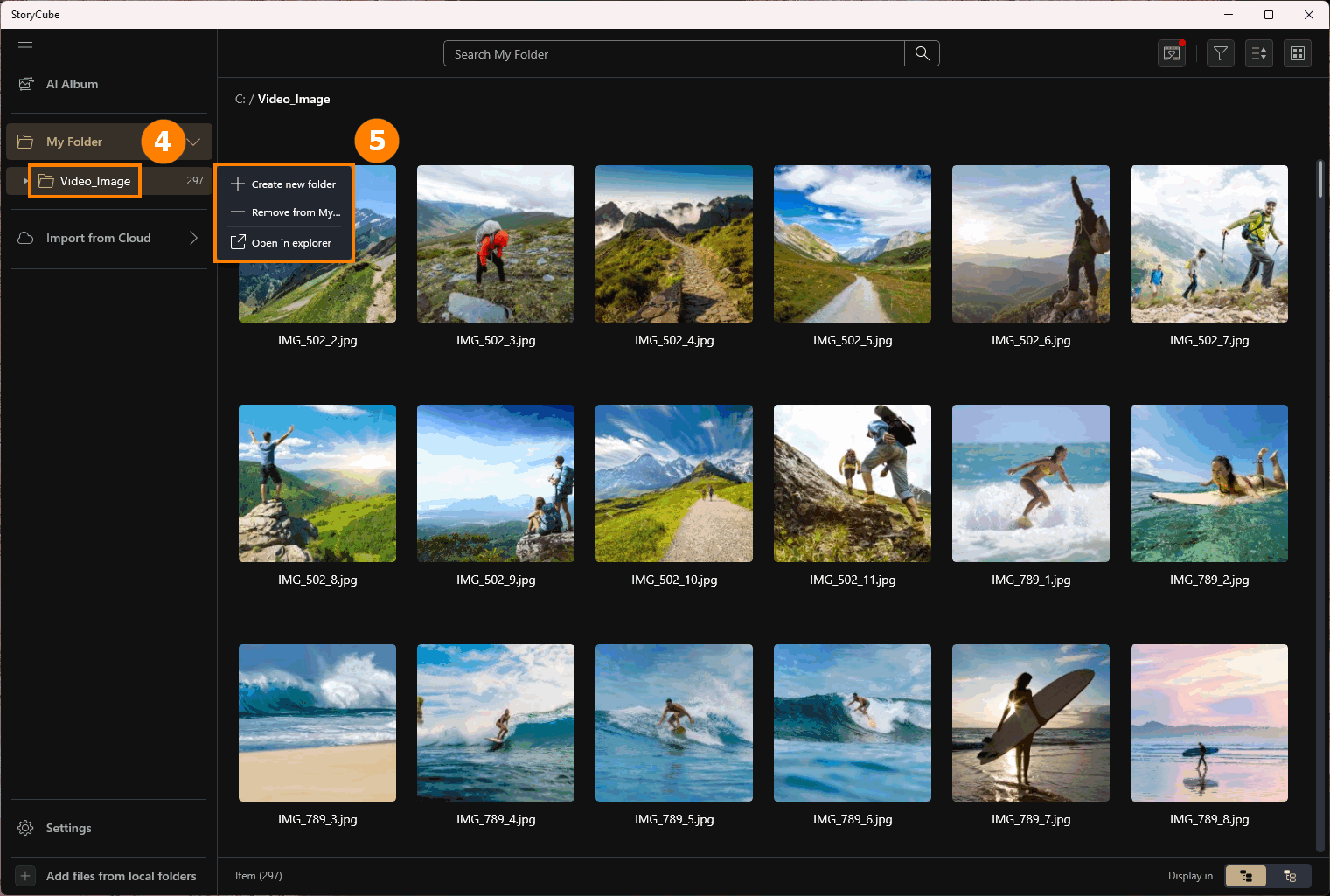
The following content will introduce StoryCube's interface and features.
①AI Album - Leverage AI to recognize Scene and People and automatically generate videos. Includes : People, Scene and Memories functions.
②Media Folder - Show local or cloud Media folders.
③Search - Search for media in the current folder.
④Memories - The StoryCube will automatically generate a highlight video based on the media you imported.
④Filter - Click to open filter functions, such as Favorite, Edit, etc.
④Sort - Sort by time.
④View - Choose the display method: Grid, TimeLine, Map.
⑤Tools - After selecting one or more Media, you can use the above tools to perform operations on Media.
⑥Media - You can left-click any Media to select it, and then click the box in the upper left corner of another Media to continue selecting it. You can also double-click any Media with the left mouse button to enlarge the Media.
⑦Add files from local folders - Continue to add Media to StoryCube from other folders.
⑧Item - Displays the number of Media in the current Folder.
⑨Display in - Select whether to display the media in the subfolder.

The new version of StoryCube supports AI fuzzy search. Just describe what you're looking for in one simple sentence, and StoryCube will use AI models to find the content for you.

The new version of StoryCube also supports reverse image search for pictures and videos. Simply upload an image or copy/paste it (from apps like Windows Photos using Ctrl+C) into StoryCube—it will instantly display visually matching results.

(1) AI Album will use local artificial intelligence to analyze and filter the media you import, saving you the time of manual filtering. It currently supports recognizing over a dozen common outdoor activity scenarios such as skiing, surfing, camping, and more.
Click ①[AI Album], ②[Processing] will vary depending on the computer processor speed and the number of Media. AI Album has three important functions, namely ③[Memories], ④[People], and ⑤[Scene].
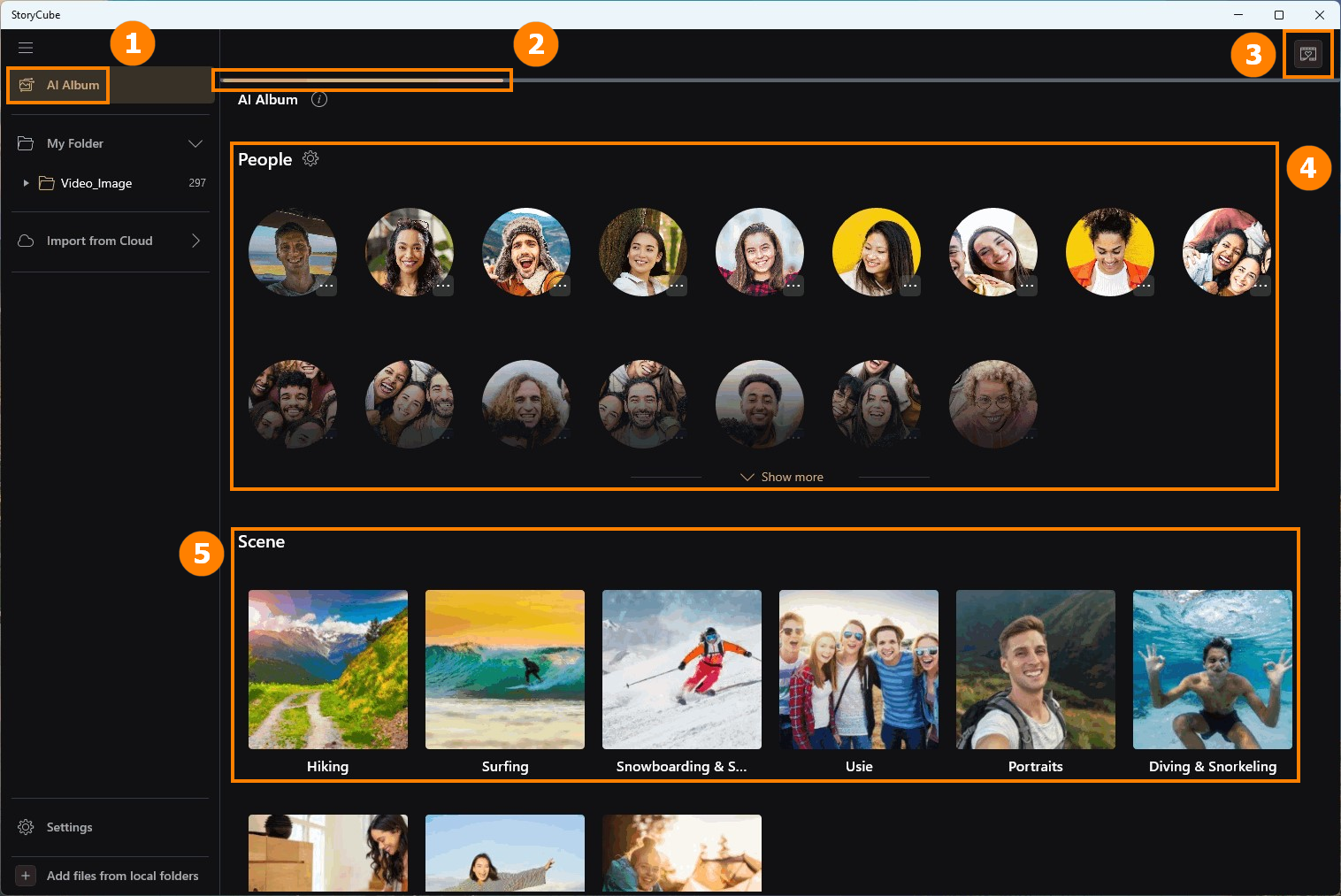
⚠️Notice: Reminder [AI recognition may not be 100% accurate].

(2) If you think the media is not suitable, you can ⑥[Remove this scene or Remove this people].

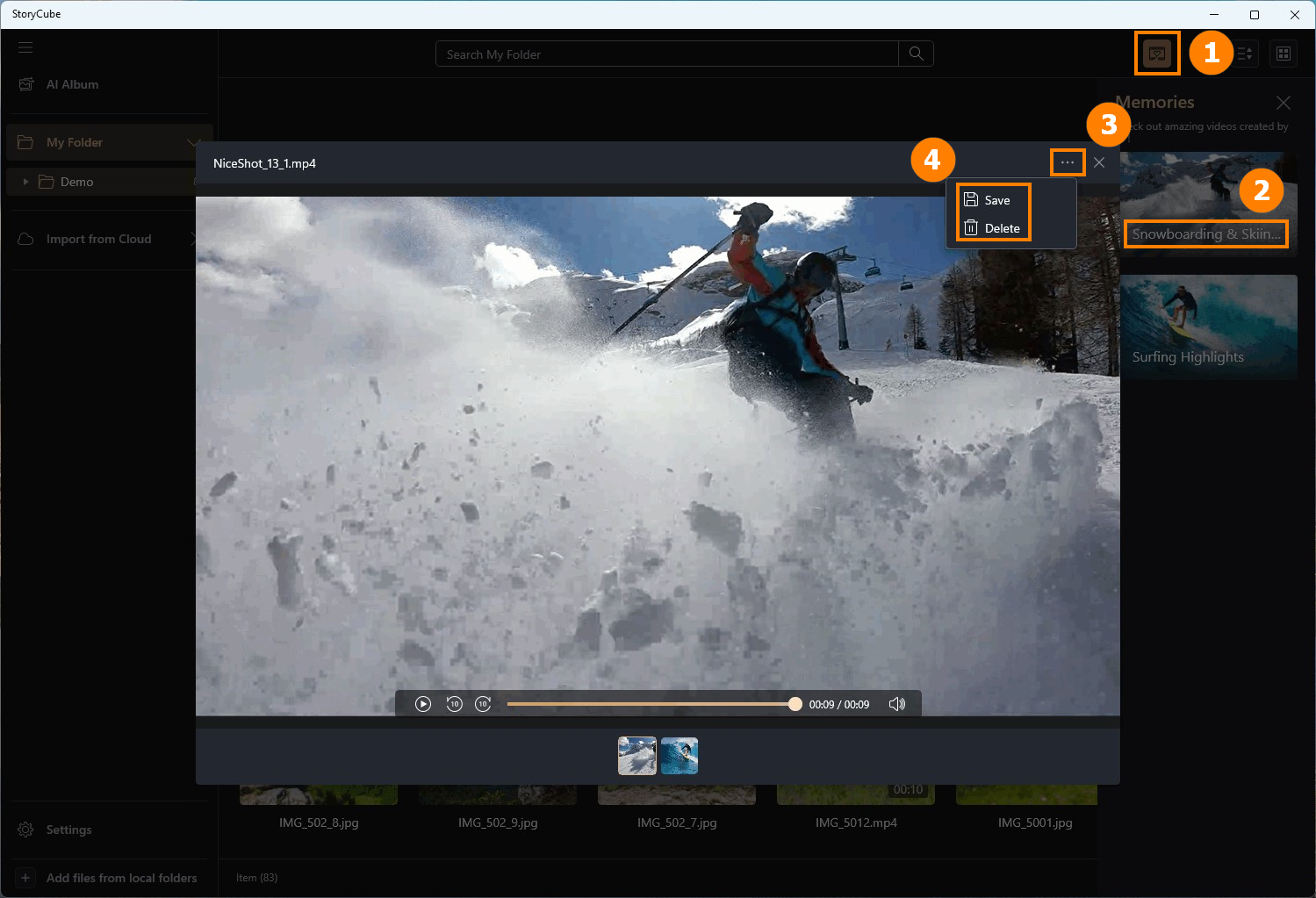
Click ①[Memories], double-click with the left mouse button ②[Generated Media] to view, click ③[Options], and select ④[Save & Delete].
Even if you import the same Media each time, Memories may generate different videos. If you feel that the currently generated video meets your needs, please save it.
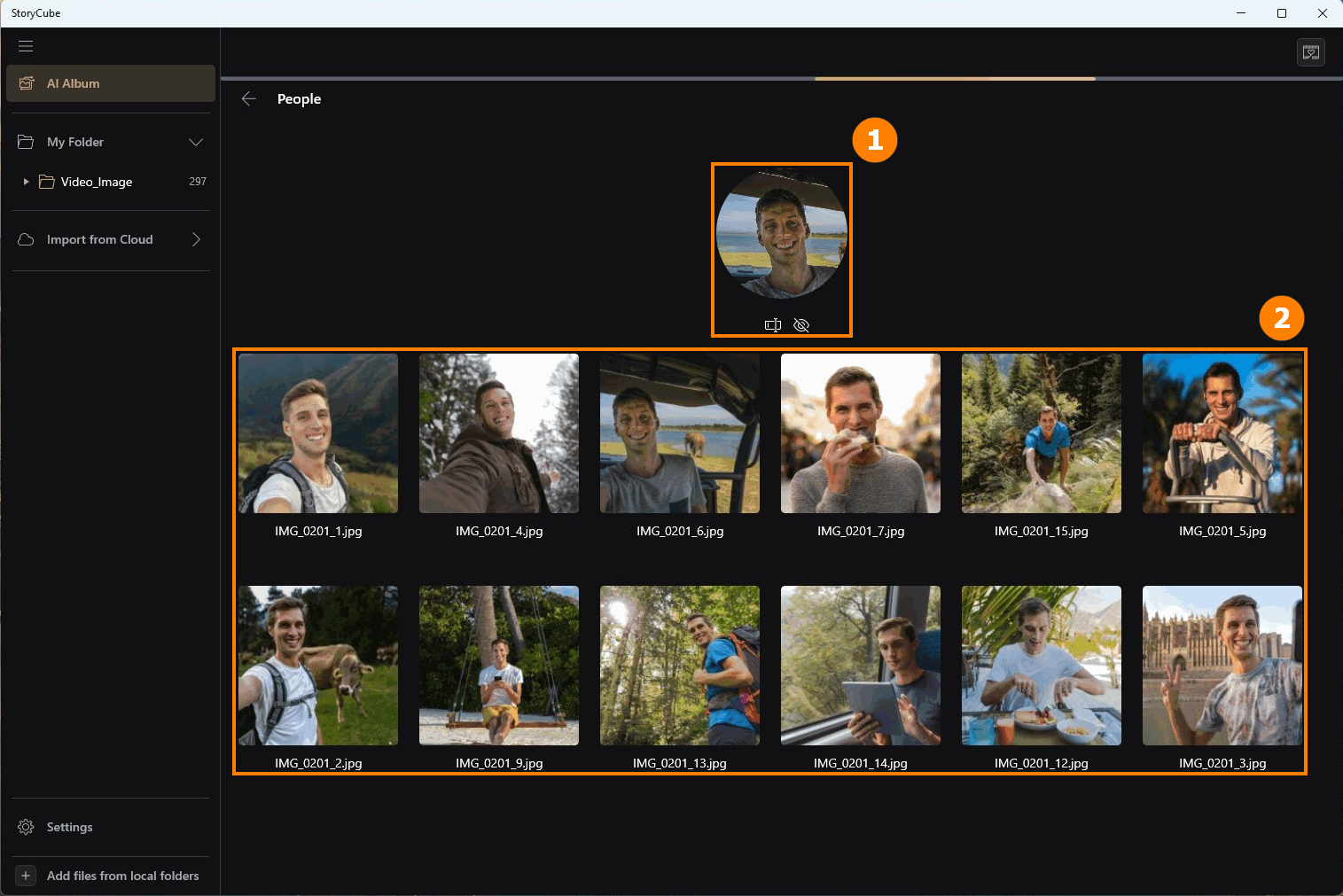
Click [People] to view all the media about this person in ①[Photo post] and ②[Media]. There are two options under ①[Photo post], namely [Rename] and [Hide]. If you click [Hide] by mistake, you can go to settings to unhide it.
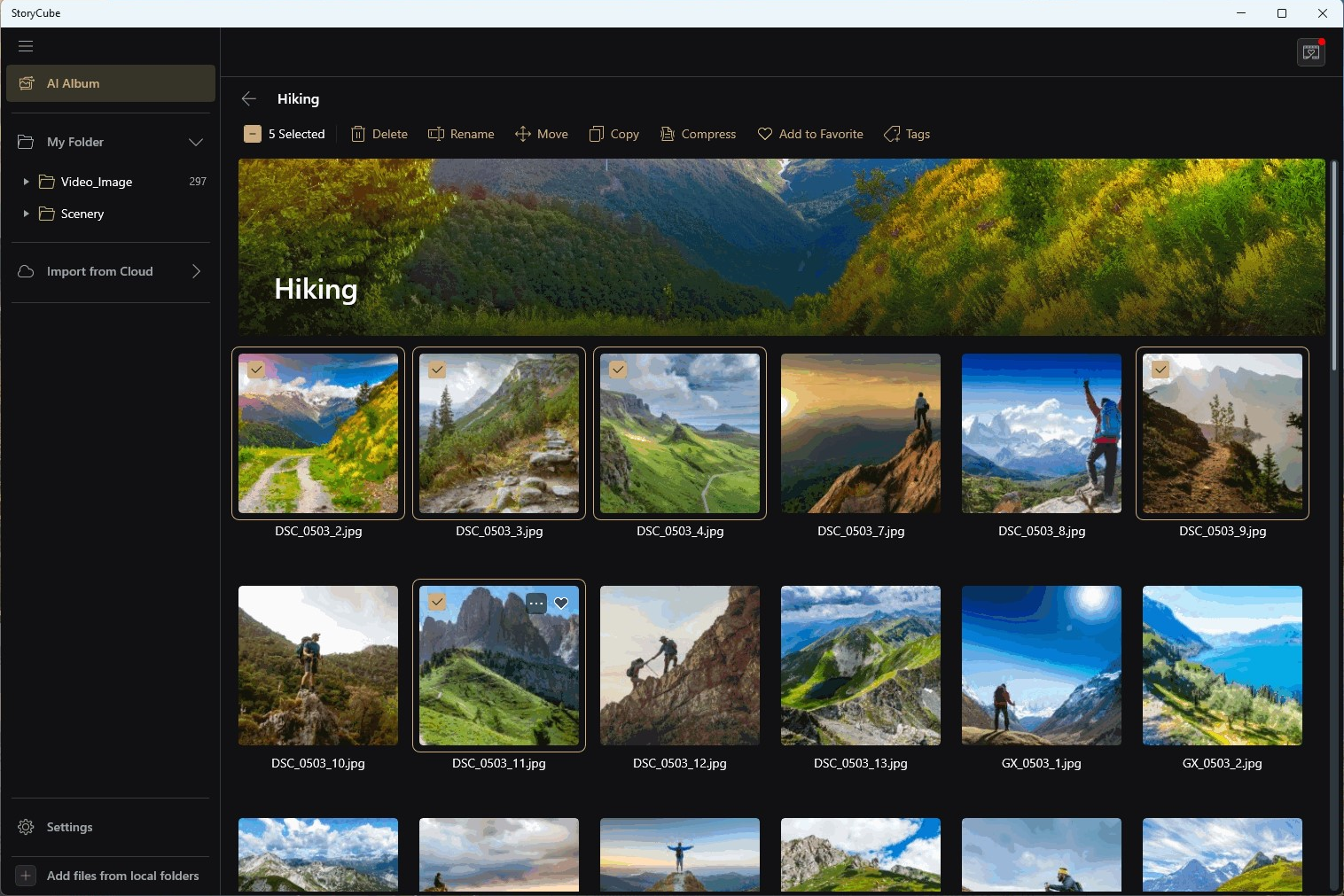
Click [Scene] to view all Scene-related Media.
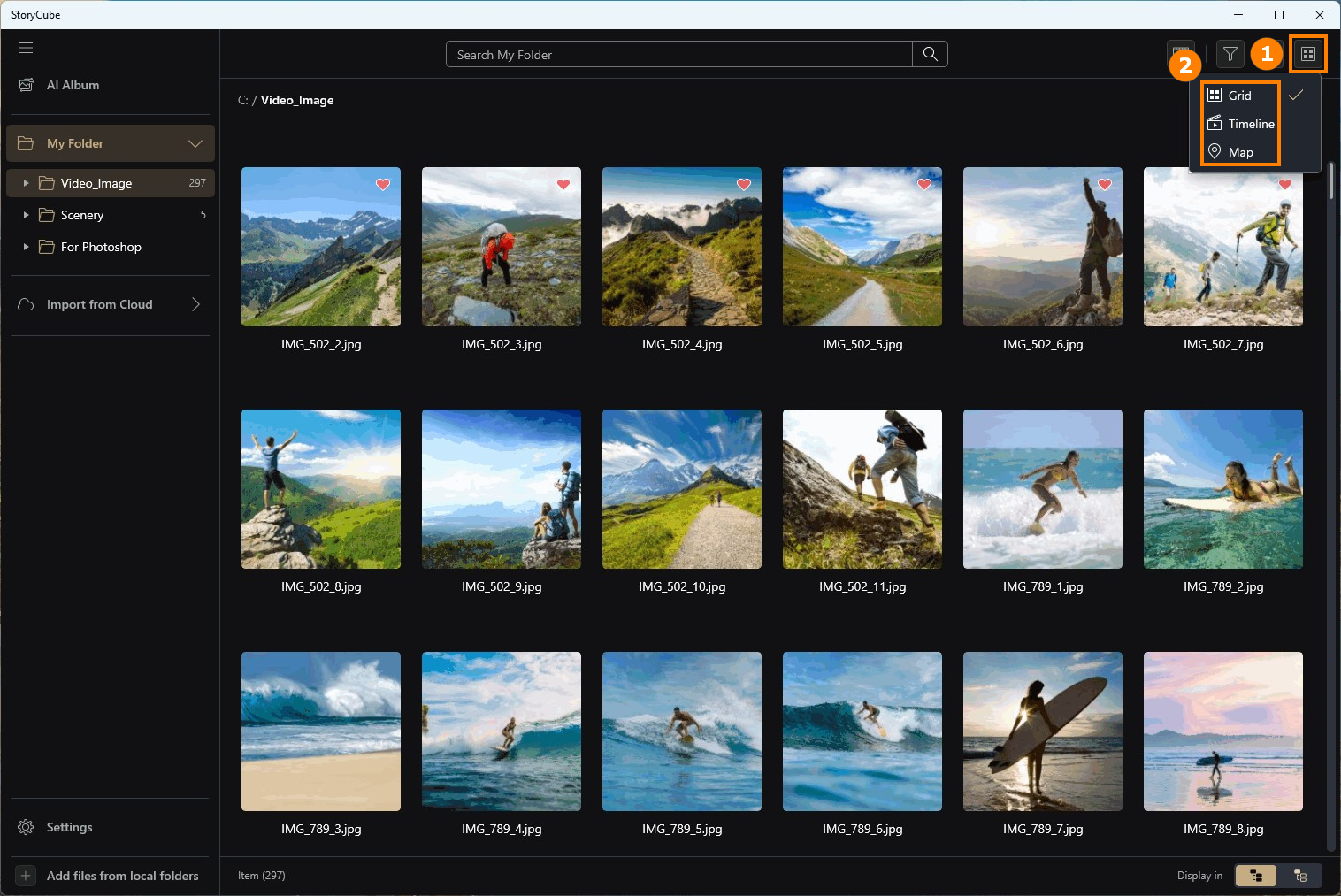
StoryCube not only provides AI AIbum filtering methods, but also provides three advanced filtering methods: ②[Grid, Timeline, Map] View.
The system default filter is Grid. Click ①[View] to open ②[Options].
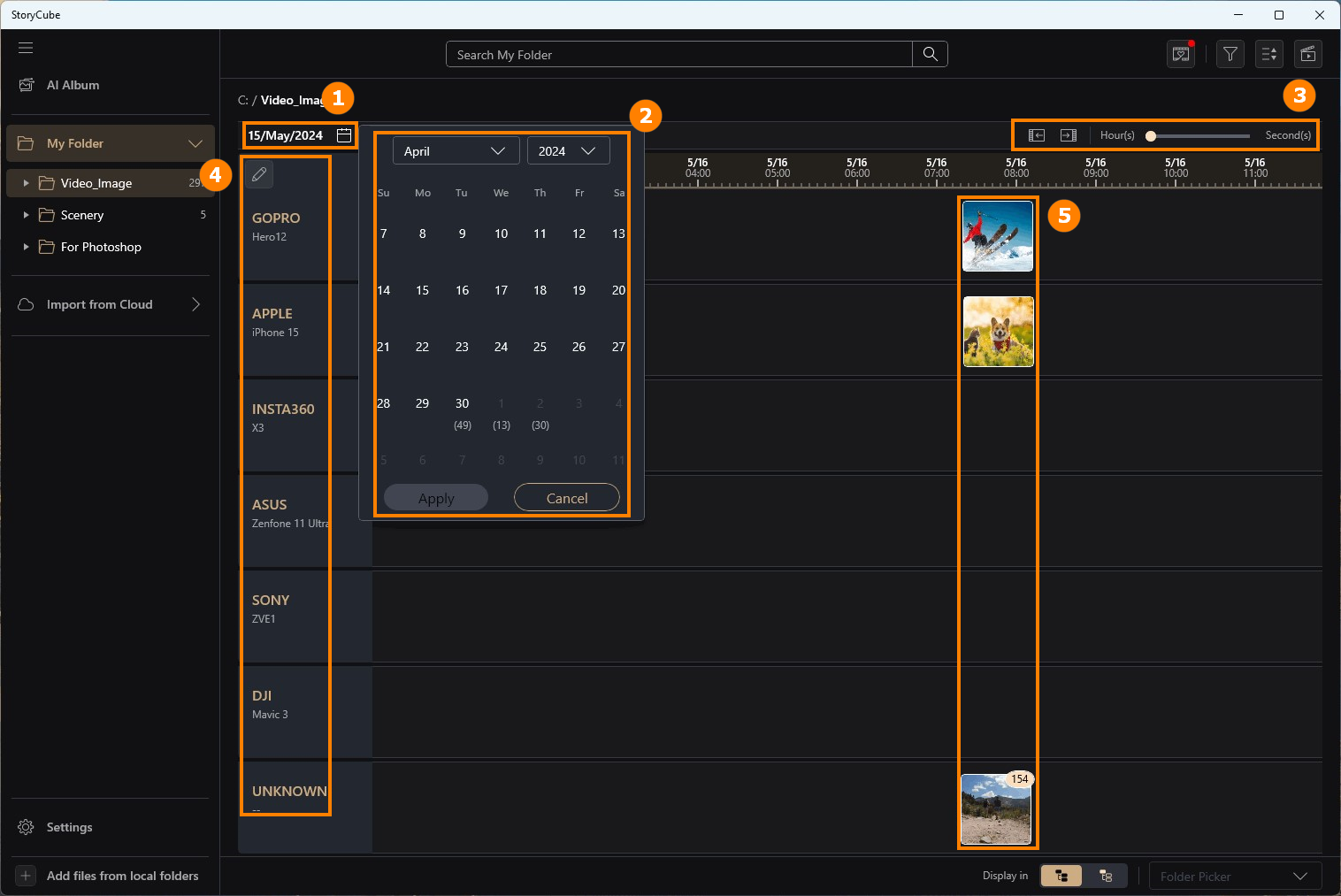
Click [Timeline], click ①[Calendar], select the specific ②[time] you want, you can lengthen or shorten the timeline by adjusting ③[Hour - Second], and the ④[Device] you took will also be displayed on the left, ⑤[Media] will be displayed on the timeline.
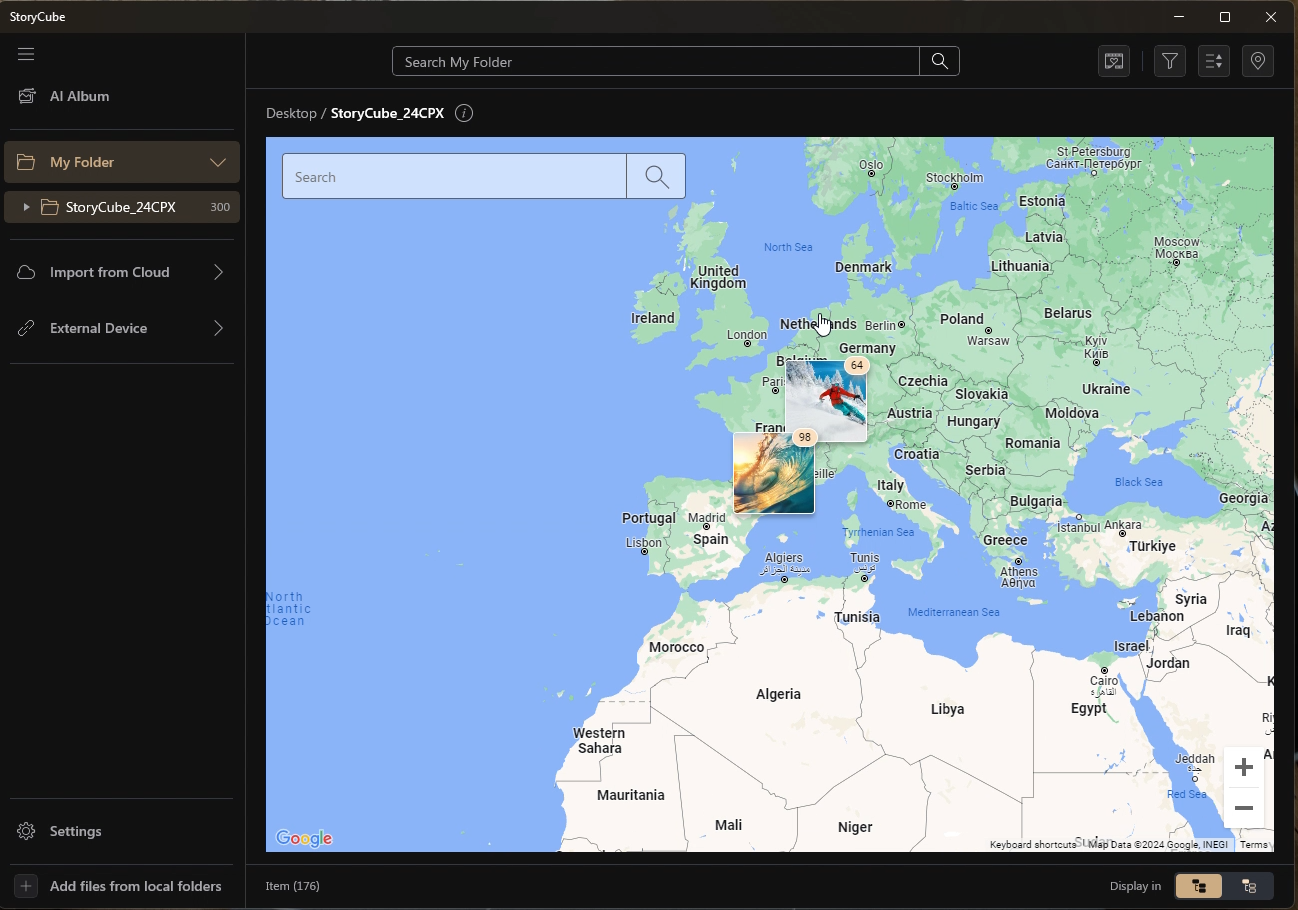
By clicking [Map], you can see where the Media of the current Folder was taken.
※ Map View requires an Internet connection.
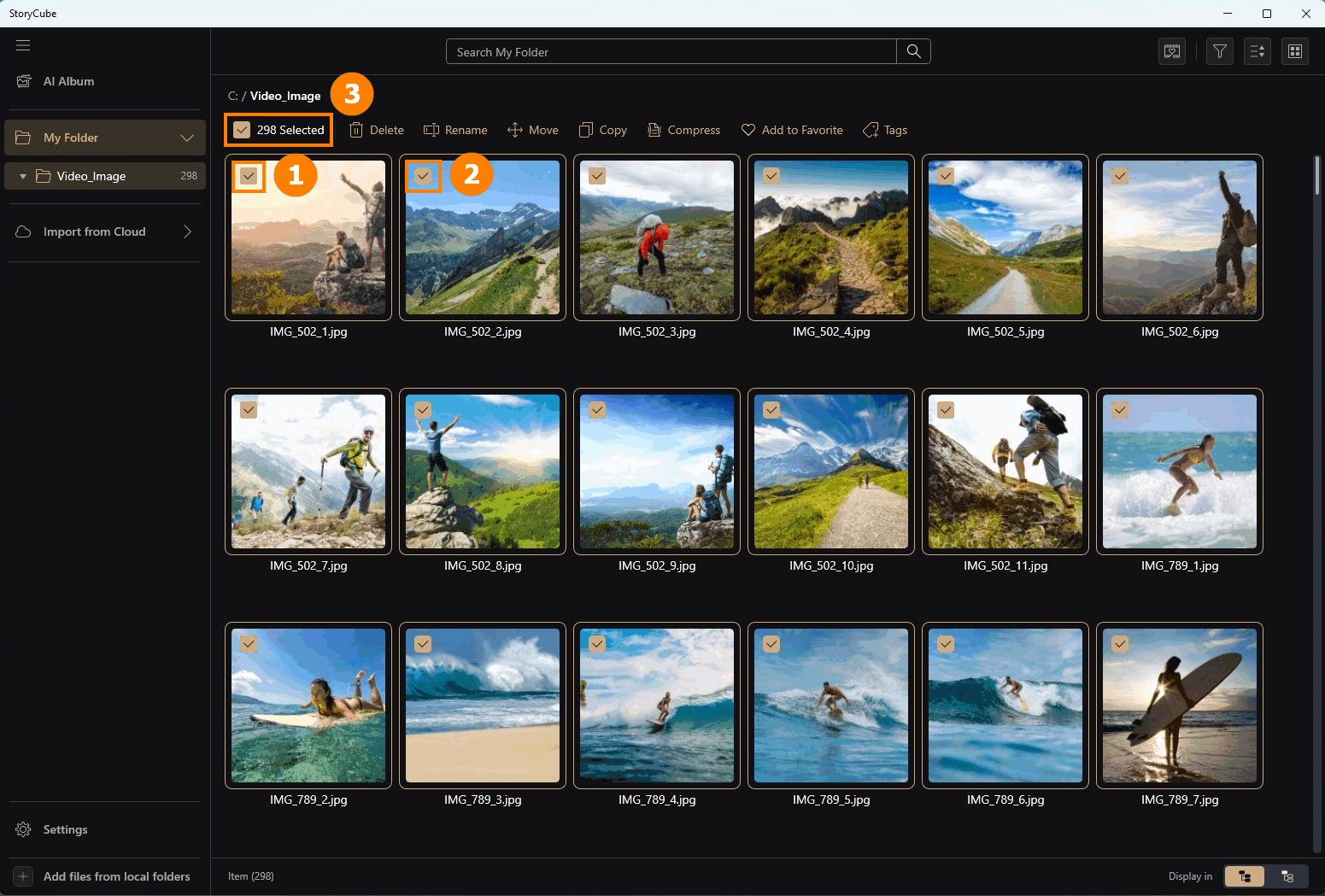
StoryCube supports batch move, copy, and compress media functions.
Click any ①[Media], you can also continue to manually check ②[Media], or click ③[select all].
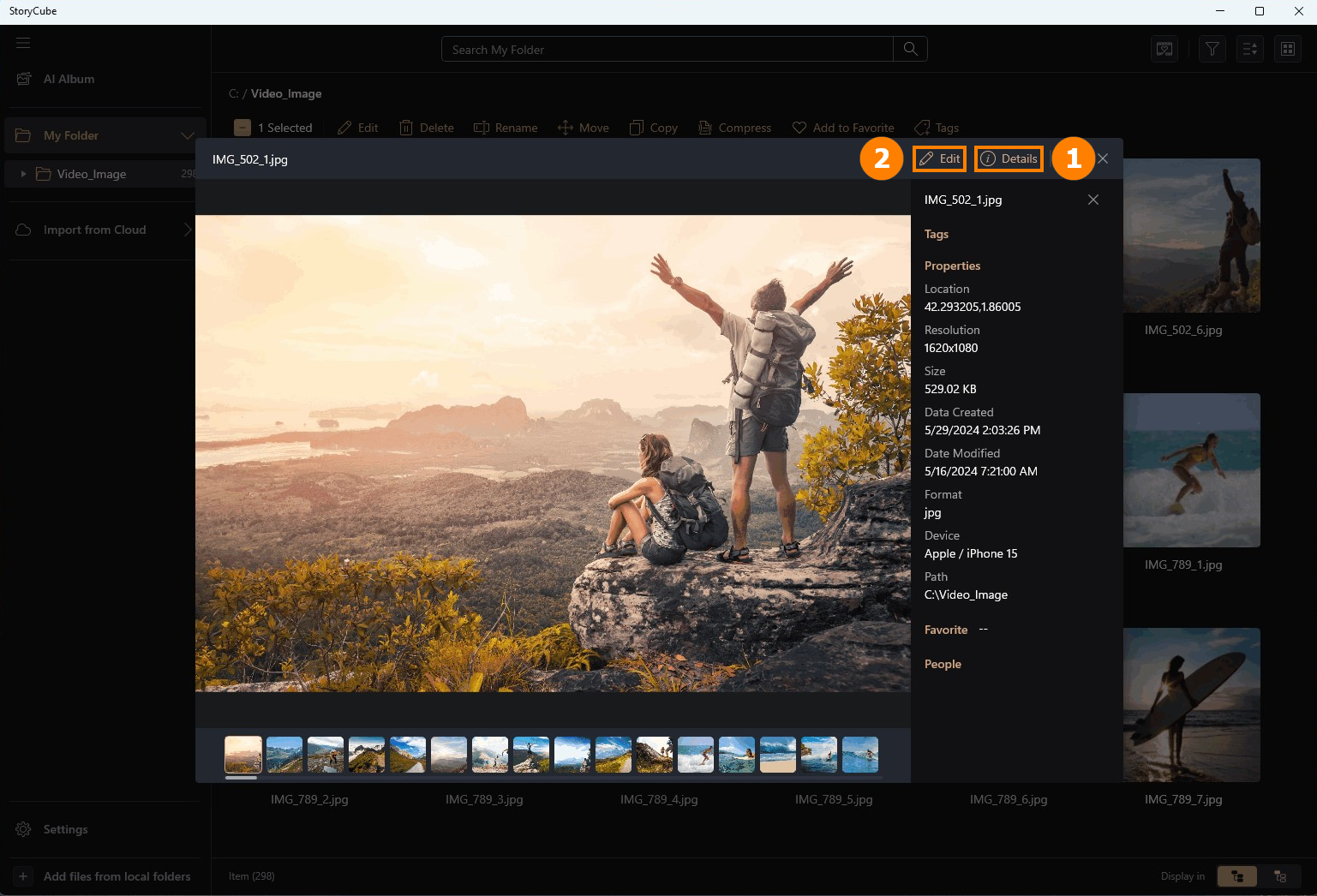
Double-click the media with the left mouse button to view the media. You can click ①[Details] to view the detailed information of the media. Click ②[Edit] to edit this Media.
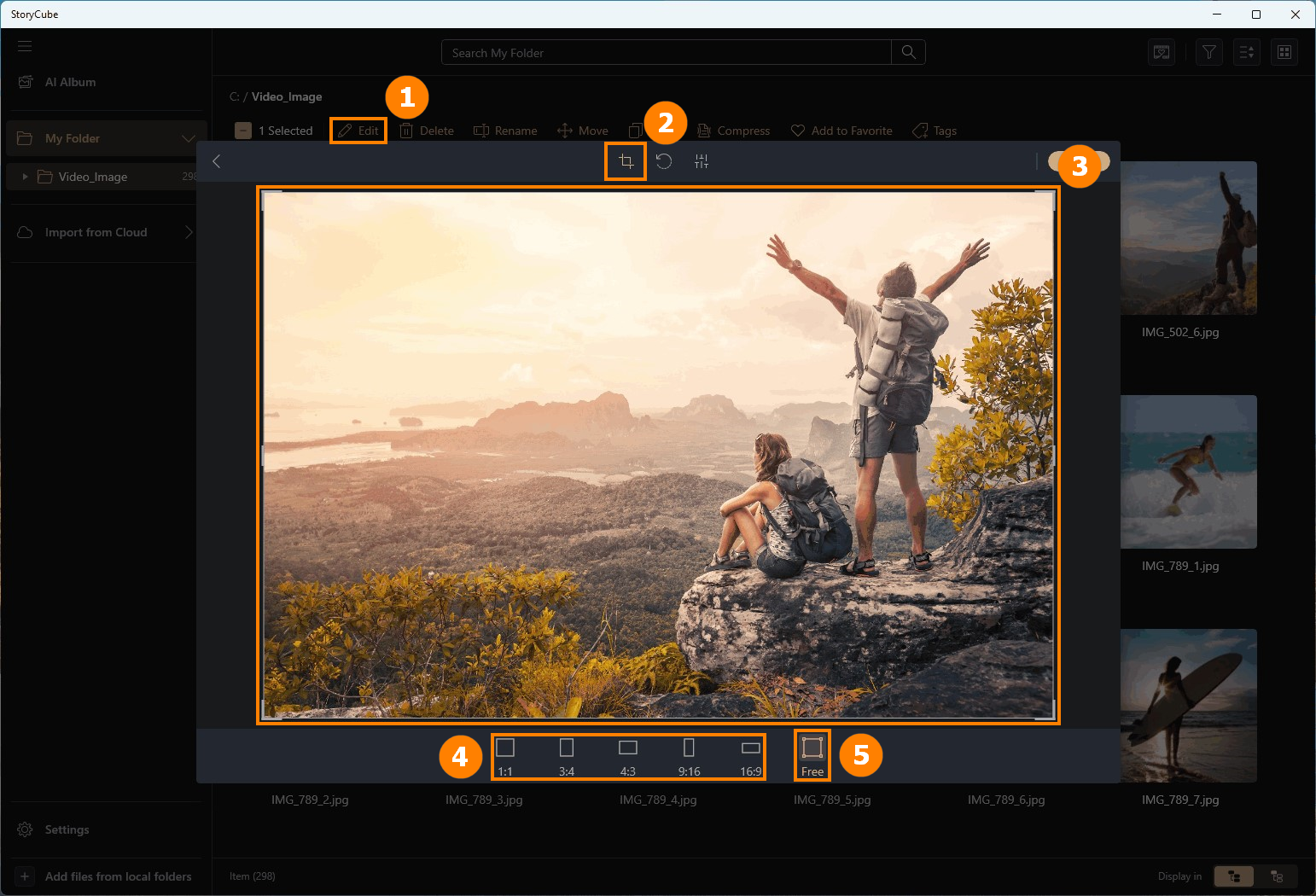
StoryCube supports the editing functions of Media. The following uses picture editing as an example.
(1) Cropping
Click ①[Edit], click ②[Crop], you can manually ③[Crop] the image, or you can choose the system default ④[Style]. If you are not satisfied with the modification, you can click ⑤[Free] to restore to the original style.
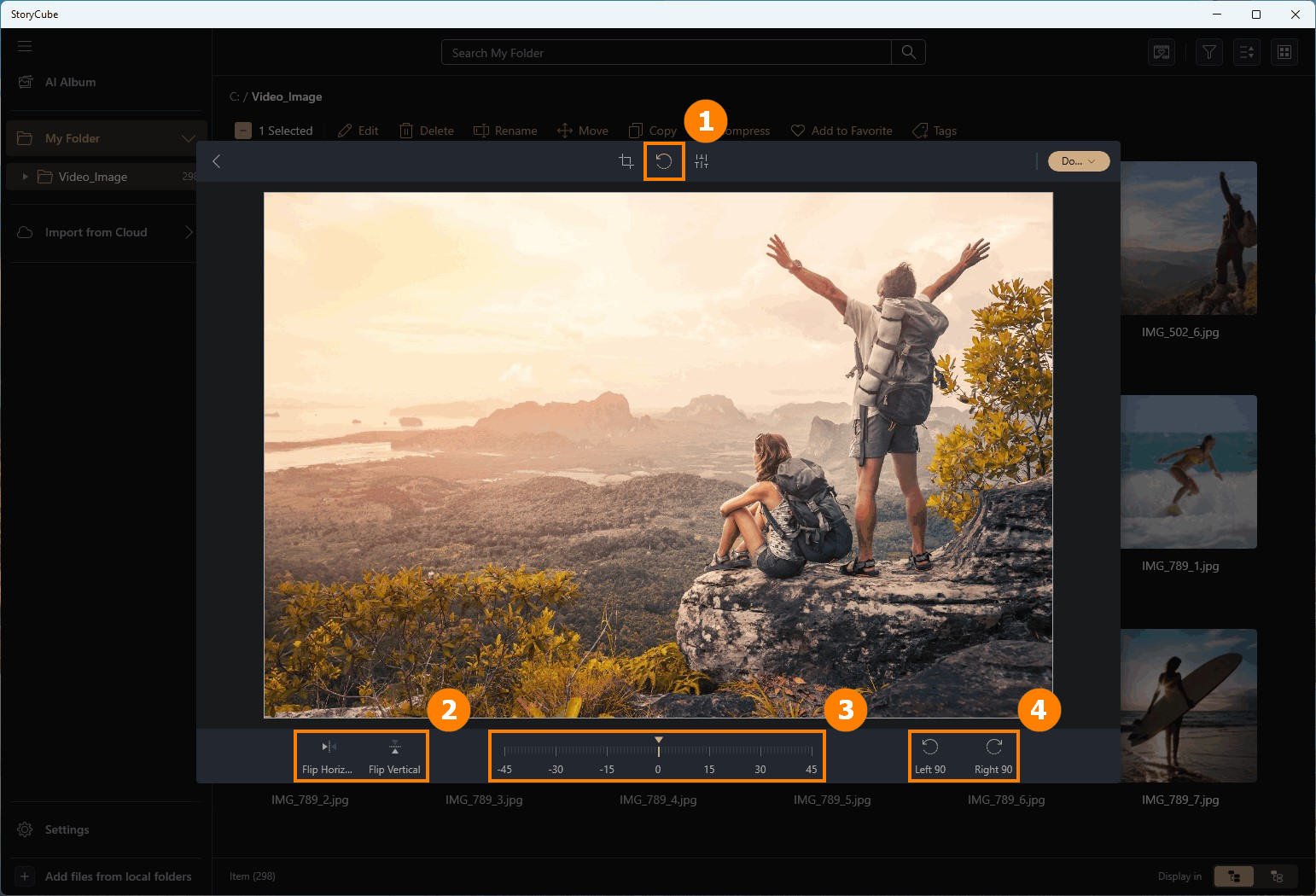
(2) Rotation
Click ①[Rotation], you can select ②[Flip Horizontal & Flip Vertical], or manually adjust ③[Angle], or select ④[Left 90 & Right 90].
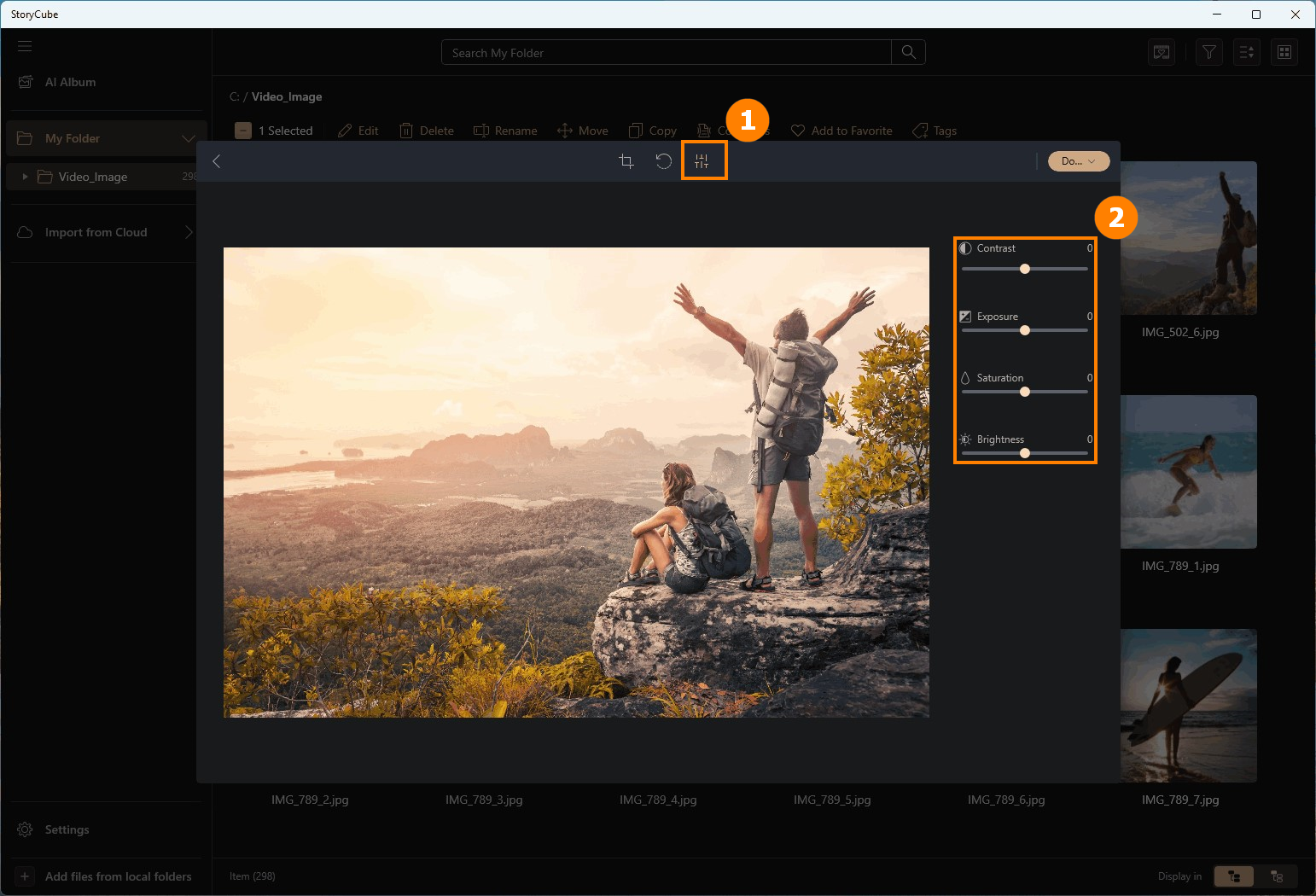
(3) Brightness
Click ①[Brightness], and adjust the Brightness parameter of the image in ②[Brightness].
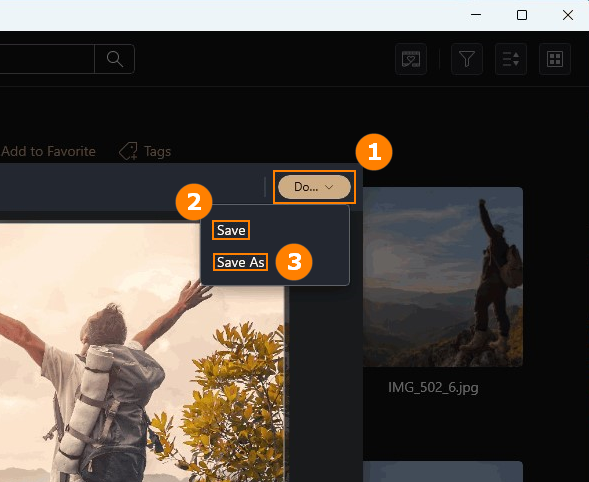
(4) Save
After completing editing, move the cursor to ①[Done] and select ②[Save] or ③[Save As] to save the image.
※ Clicking ②[Save] will overwrite the original file. Please use ③[Save As] to save the edited picture.
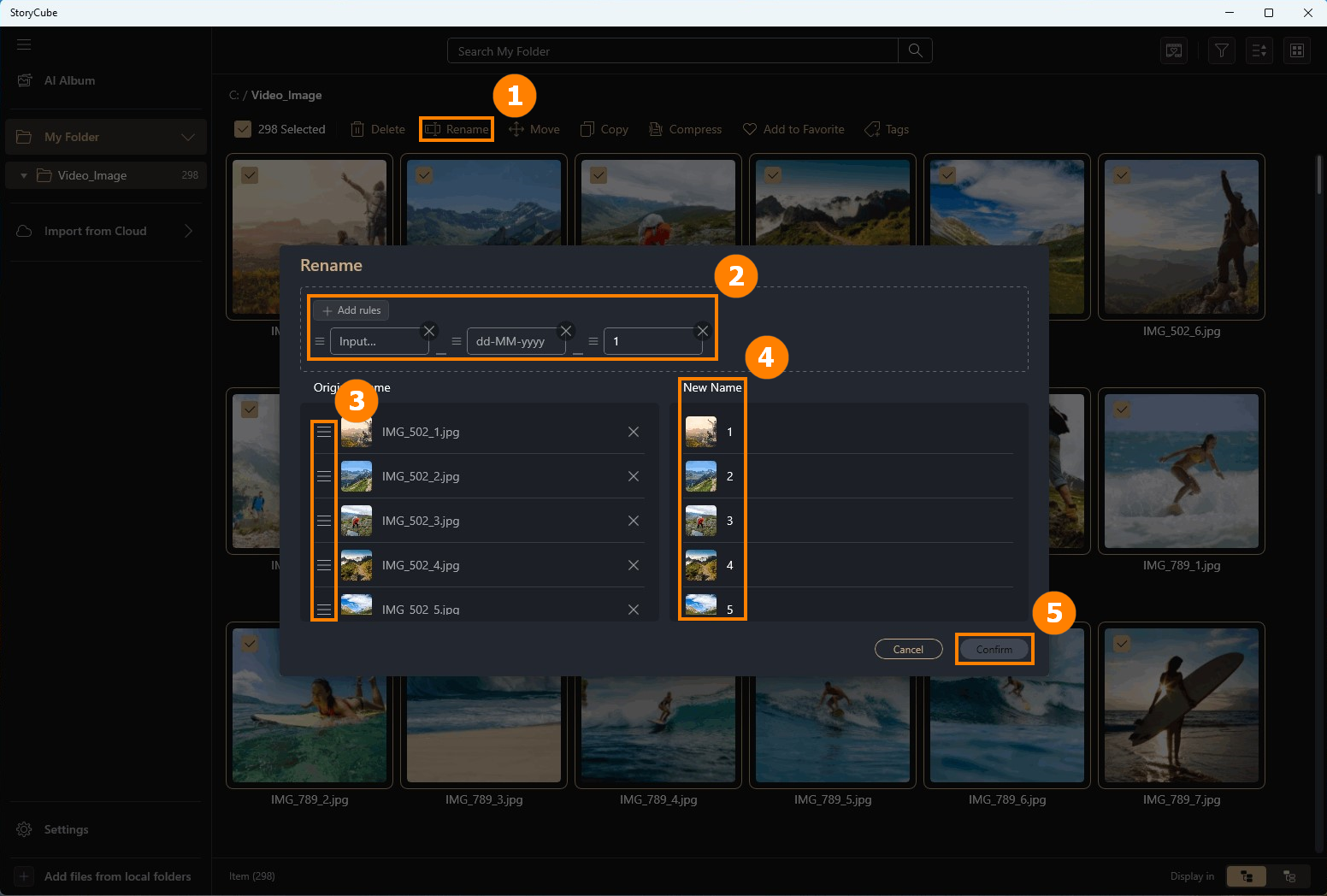
After selecting the Media you need, click ①[Rename] and select the new naming ②[Rules]. You can manually move ③[Media to be named] to adjust its order. You can preview ④[New Name] on the right, and then Click ⑤[Confirm].
In the new version 1.1.30.0, the original [Copy] will be changed to [Duplicate], and [Copy] will be added.
Move: Move your photos to other folder.
Copy: You can copy photos to clipboard, and paste them to other apps.
Duplicate: Create duplicates of your photos.
※ The Move operation will move the original file, and the Duplicate operation will not move the original file but only a copy of the original file.
①[Click photo], you can operate ②[Move], ③[Copy], ④[Duplicate].

Move: Select the folder you want to move, then click ⑤[Move].

Copy: You can copy photos to the clipboard and paste them into other app.
You can ③[click Copy or press Ctrl + C]. Upon success, a ⑥[Copied to clipboard] message will appear.

Duplicate: Select the folder you want to duplicate, then click ⑦[Duplicate].

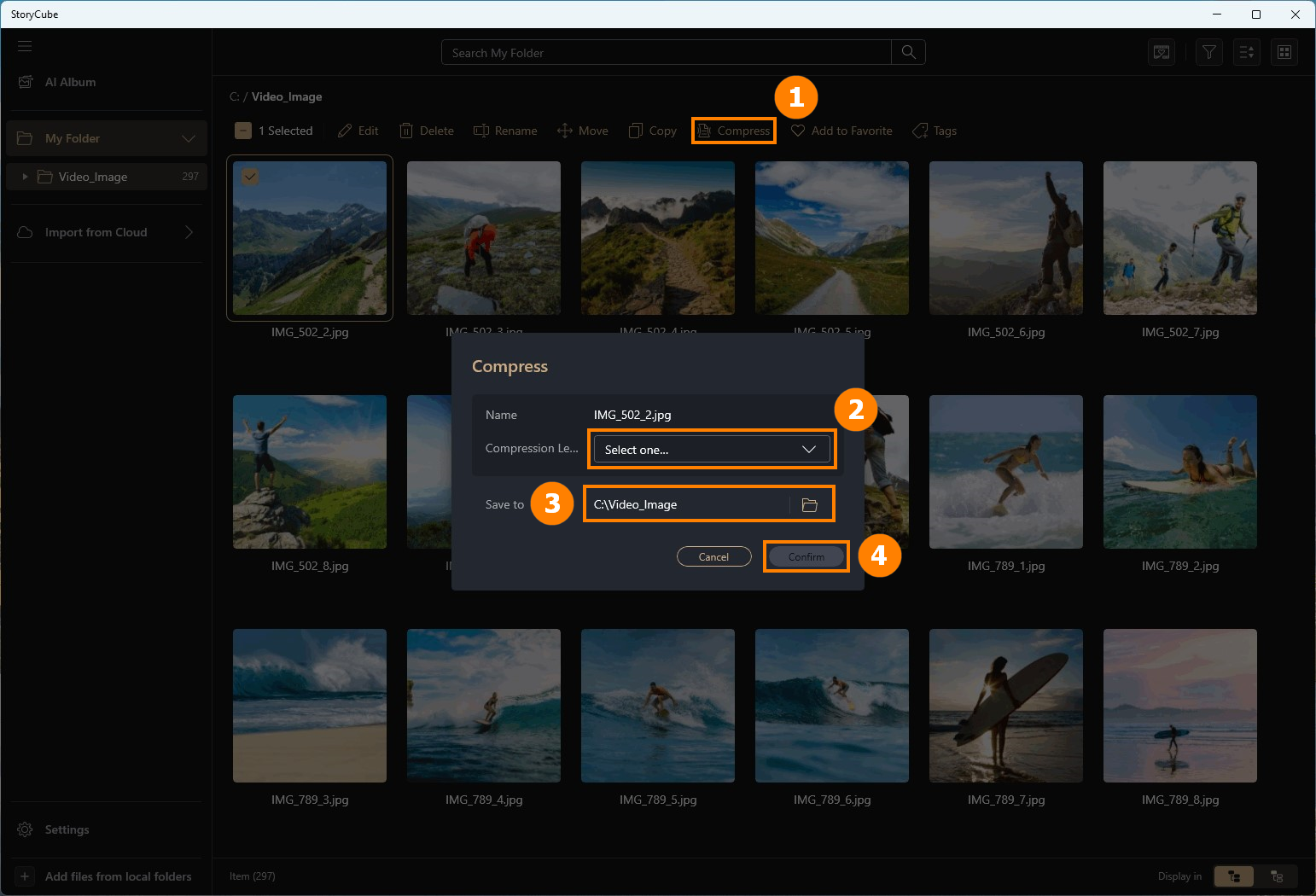
Click ①[Compress], select ②[Compression Quality], select ③[Folder to be saved], and click ④[Confirm] to complete the operation.
※ Please do not save it in the current Folder, otherwise the original file will be overwritten by the new file.
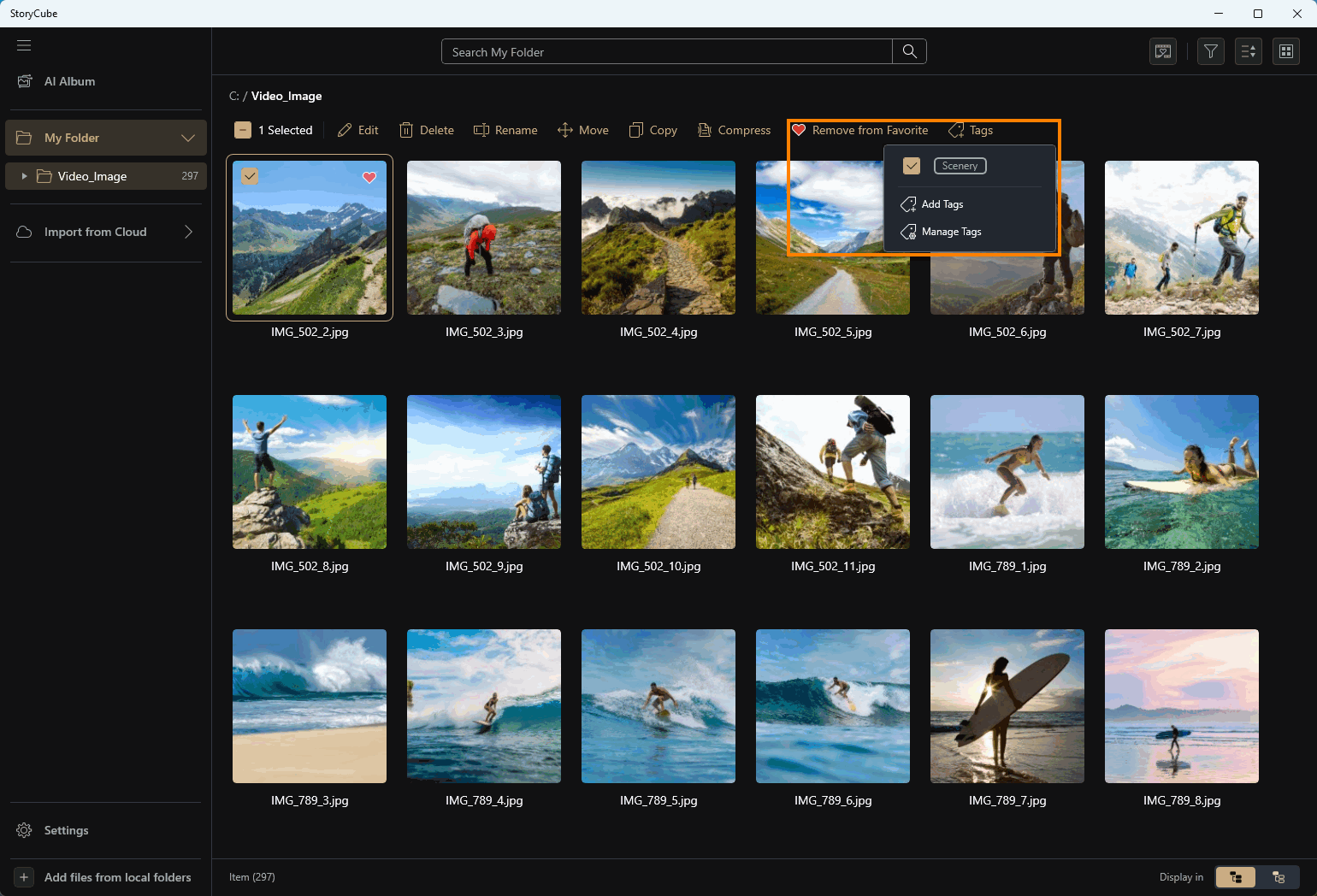
After selecting the media you want to tag, you can click Favorite & Tags to tag the media. The marked media will be specially displayed when you search or filter.
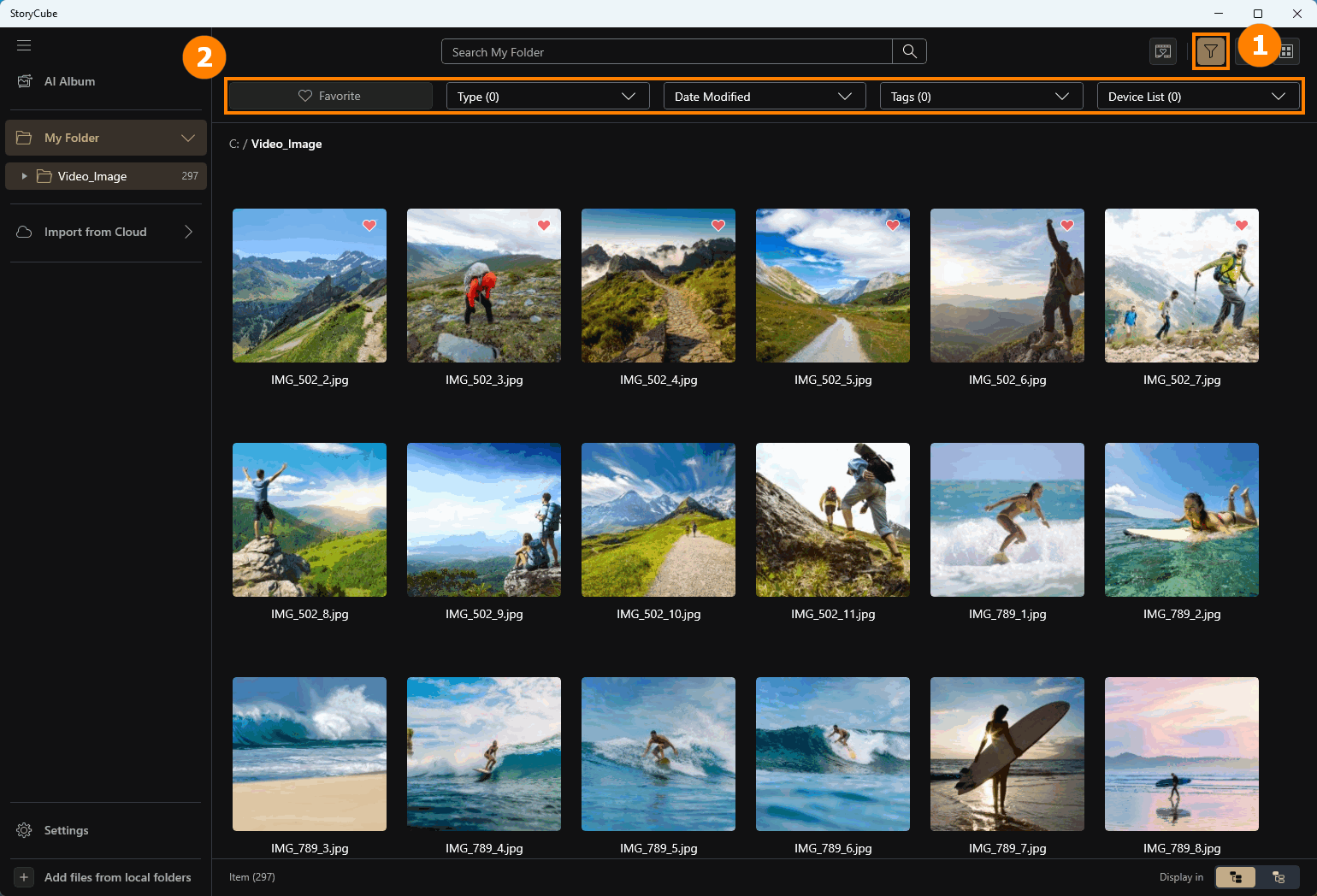
Click ①[Filter] to open filter functions, such as ②[Favorite, Edit, etc].
StoryCube supports importing media from cloud services.
10.1 GoPro - Media Library
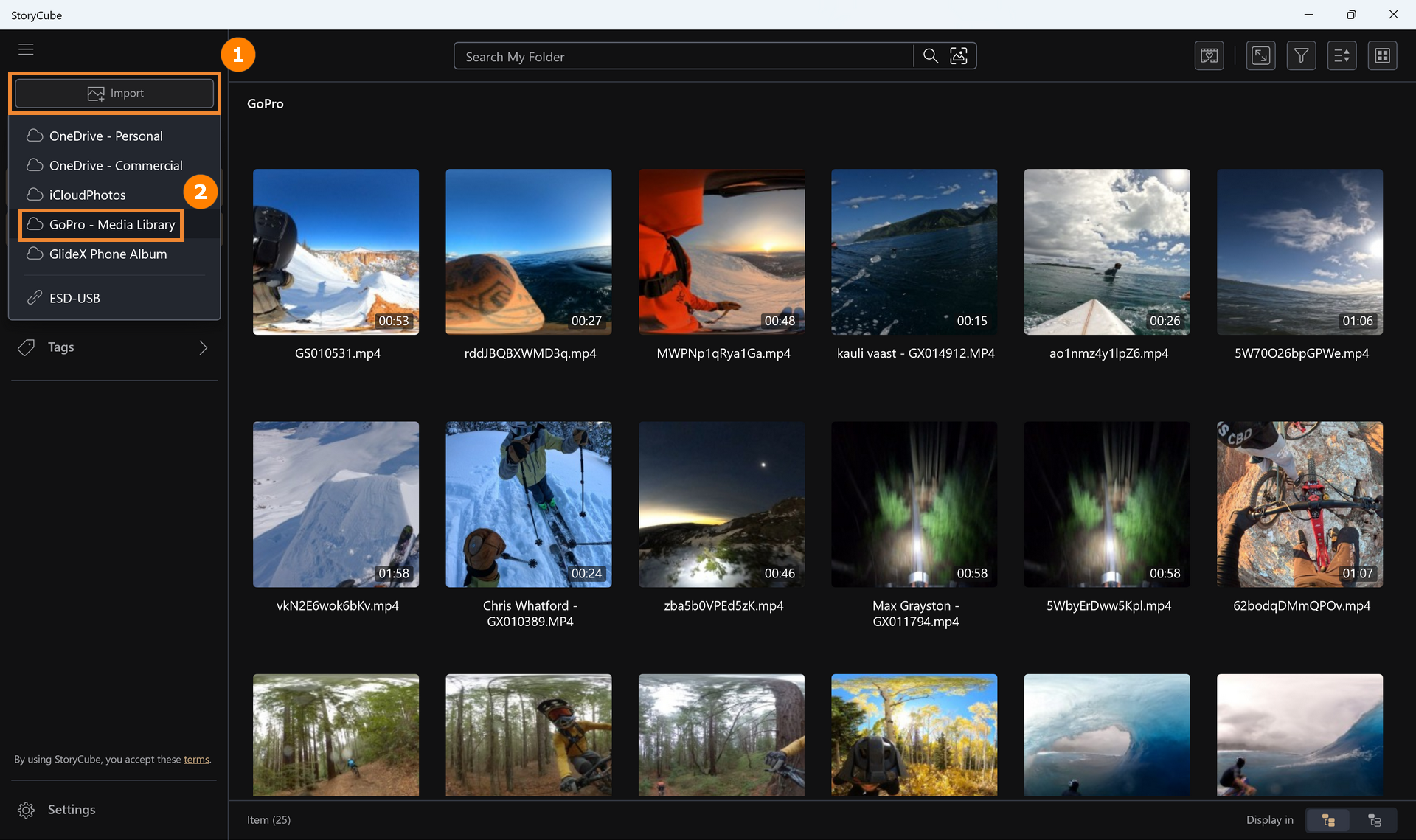
(1) Take GoPro as an example, click ①[Import], click ②[GoPro - Media library].
(2) Input your GoPro ③[Email and Password], click ④[Login].
※ To use the GoPro Cloud feature, you need a GoPro Premium account.

(3) Select the ⑤[files] you want to import (click any file and press Ctrl+A to select all), then click ⑥[Import].

(4) Select the ⑦[folder], or you can click ⑧[Create new folder], then click ⑨[Select] to import.
The import speed from GoPro Media Library depends on your network connection. The imported files will be saved on your computer's hard drive. To view the exact location, right-click the [folder] and select [Open in Explorer].

(5) If you attempt to import files with the .360 video format, the ⑩[following prompt] will appear:
- If you click [Yes], the system will first convert the .360 file to .MP4 format before saving it locally. This file can then be previewed and edited in panoramic mode within StoryCube.
- If you click [No], the .360 video will be imported directly without conversion. However, StoryCube cannot edit .360 videos—they can only be previewed. This is because the .360 format uses GoPro's proprietary protocol. If you want to edit .360 videos, the ⑪[Notice panel] will reminder to convert the format of video.
If you wish to import and edit a .360 video in StoryCube, we recommend: Uploading it to GoPro Media Library first. Then, when importing into StoryCube, select the format conversion option.


10.2 Editing 360° Videos in StoryCube
(1) Double-click any ①[file] to open the preview window.

(2) In the preview, you can click ②[360°] to toggle the panoramic preview on or off. Click ③[Edit] to edit the panoramic video.
In [360° view on] mode, you can click and hold the left mouse button, then move the mouse to view from different angles.

(3) In the editing interface, panoramic videos will automatically switch to [360° view off] mode. For instructions on editing video content, please refer to Section 8.3 Edit Media in this article.

(4) In the recently updated version 1.1.30.0, you can also browse 360 content, whether videos or images, through the following methods.
Click ④[360 content] to view all 360 content globally. To filter 360 content by different folders, click ⑤[Filter by] and select ⑥[360 content].
1. The ④[360 content] allows you to view 360 content globally.
2. The ⑥[360 content] enables filtering of 360 content for different folders.

(1 )StoryCube supports previewing .360 format panoramic videos. Double-click any .360 file with the left mouse button.

(2) You can preview this panoramic video by holding down the left mouse button and dragging to explore different angles.
StoryCube does not support editing .360 format files. If you click the [Edit] button in the upper right corner, the following screen will appear.

(3) This is because the .360 file format uses GoPro's private format. You can upload the .360 video to GoPro Media Library, then select to convert it to MP4 format when importing into StoryCube for editing.

You can use GlideX to connect your phone with Storycube.
(1) Click ①[Import] and select the ②[GlideX Phone Album].

(2) A QR code will appear. Please scan the QR code with your mobile phone. If GlideX is not installed on your phone, you will be redirected to install GlideX; if GlideX is already installed, please ensure all devices are on the same network and that the firewall settings allow the connection. Then ③[scan the QR code] with your phone to connect, and you can browse, copy, and import media from your mobile album into Storycube.

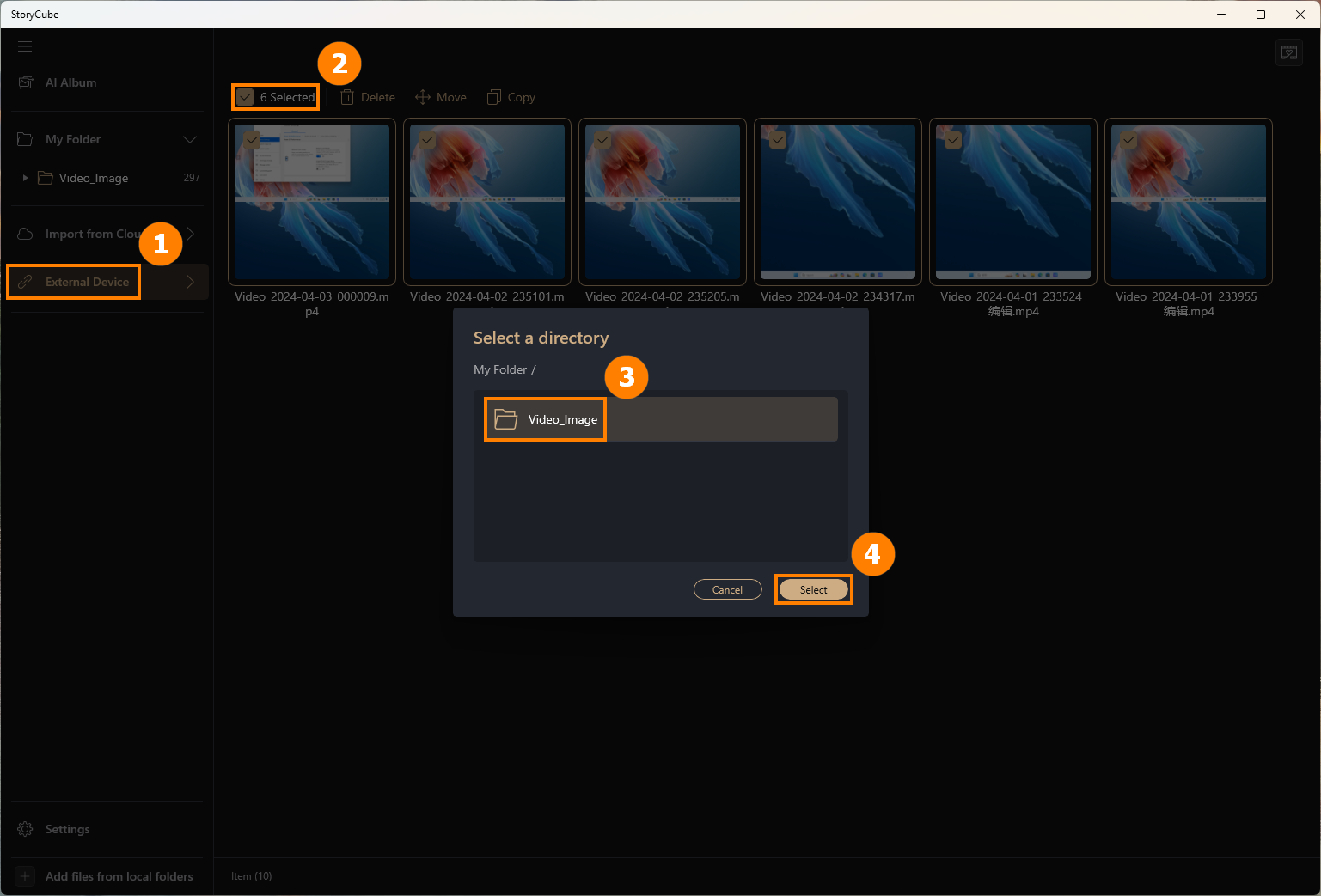
When you insert an SD card, USB flash drive, or removable hard drive, StoryCube will automatically detect it.
Click ①[External Device], select the ②[Media] you want to import, select ③[Folder], and click ④[Select] to import the Media of the External Device into the Folder of your choice.
(1) Plese click on ①[Photo stack] and select the Photo stack on.

(2) AI will stack photos from the same day that meet the similarity standard together (for example, the changes from ② to ③ shown below), while photos from different days, even if they are very similar, will not be stacked together.


(3) If you do not want to stack the photos, please select the stack assembly, right-click, and then choose ④[Unstack]. Or you can use another method to unstack: select the stack assembly, then click ⑤[More], and then click ⑥[Unstack].


(4) You need to click on ⑦[Confirm], but note: if you unstack the photos, AI will no longer automatically stack them. You can only stack them manually.

(1) If the photos cannot be stacked automatically, you may stack them manually. First, ①[Select the photos], and then ②[Click on Stack] to combine them.

(1) ①[Double-click] the stack collection with the left mouse button.

(2) Click ②[icon] or ③[double-click] the stack to View stack.

(3) This way, only ④[the images within the same stack] will be displayed.

(4) If the photo is set as the cover photo, please ⑤[check the photo]. There are two functions for this stack: ⑥[Keep selected, delete others] and [Remove selected from stack].

(5) If the photo is not set as the cover photo, please ⑦[check the photo]. This stack has three functions: ⑧[Set selected as cover], [Keep selected, delete others] and [Remove selected from stack].

12.4 Stack Setting - Photo stack similarity level
- Standard is the default.
- Strict means that only photos with very similar conditions will be stacked together. Loose is the opposite.
When switching between three different stacking levels, the AI will recalculate and adjust the stack composition according to similarity.
Combinations that were previously 'disbanded stacks' may still be restacked by AI, because the similarity settings have been reset. However, combinations manually stacked by the user will not be affected by changes in similarity.

Click ①[Settings], click ②[General], choose whether to enable ③[AI computing optimization], select StoryCube's ④[Color], in ⑤[Manage Tags & Hidden People] unhide Peoples, in ④[Cloud Drive] you can log in or manage logged-in accounts.

(1) Click ①[User guide], ②[Feature guide] to read the introduction of StoryCube's built-in functions, ②[Tutorial] to open the StoryCube tutorial in the browser, and②[FAQ] to open this article in the browser. Click ③[Feedback hub].

(2) Your feedback is crucial for ASUS's improvement. If you encounter any issues while using StoryCube, you can click ④[Requires more improvements], ⑤[fill in your feedback, upload screenshot, enter Email], and then click ⑥[Send]. Our engineers will contact you via the email address you provided for further assistance.

14. How to Update and Uninstall StoryCube
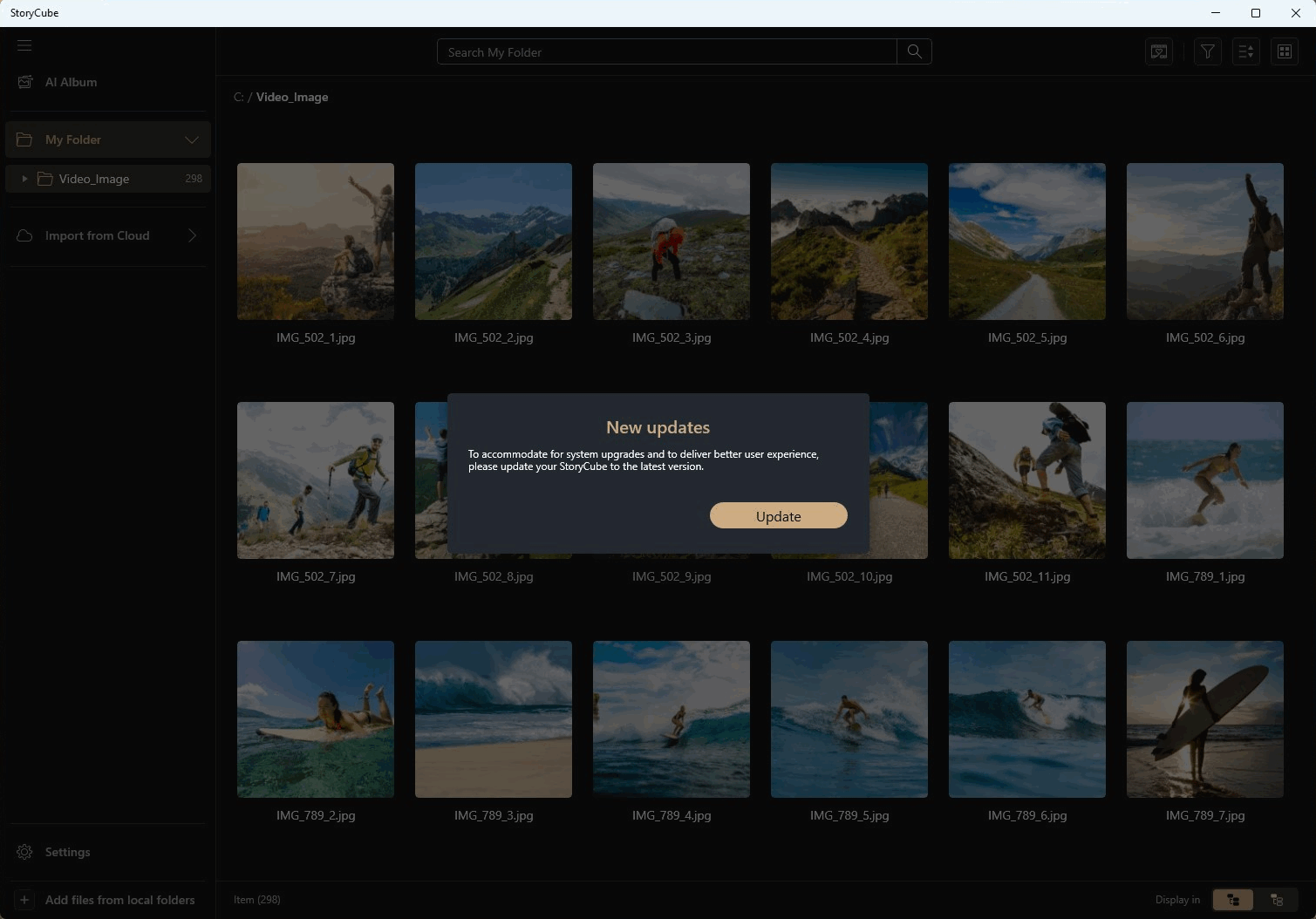
(1) When you are connected to the Internet and there is an update in StoryCube, StoryCube will automatically prompt you to update, please click [Update] and wait patiently for the update to complete.
(2) Uninstall StoryCube: If you want to remove this application, click: [Windows 11/10] How to uninstall Apps, Windows installed updates, Drivers | Official Support | ASUS Global
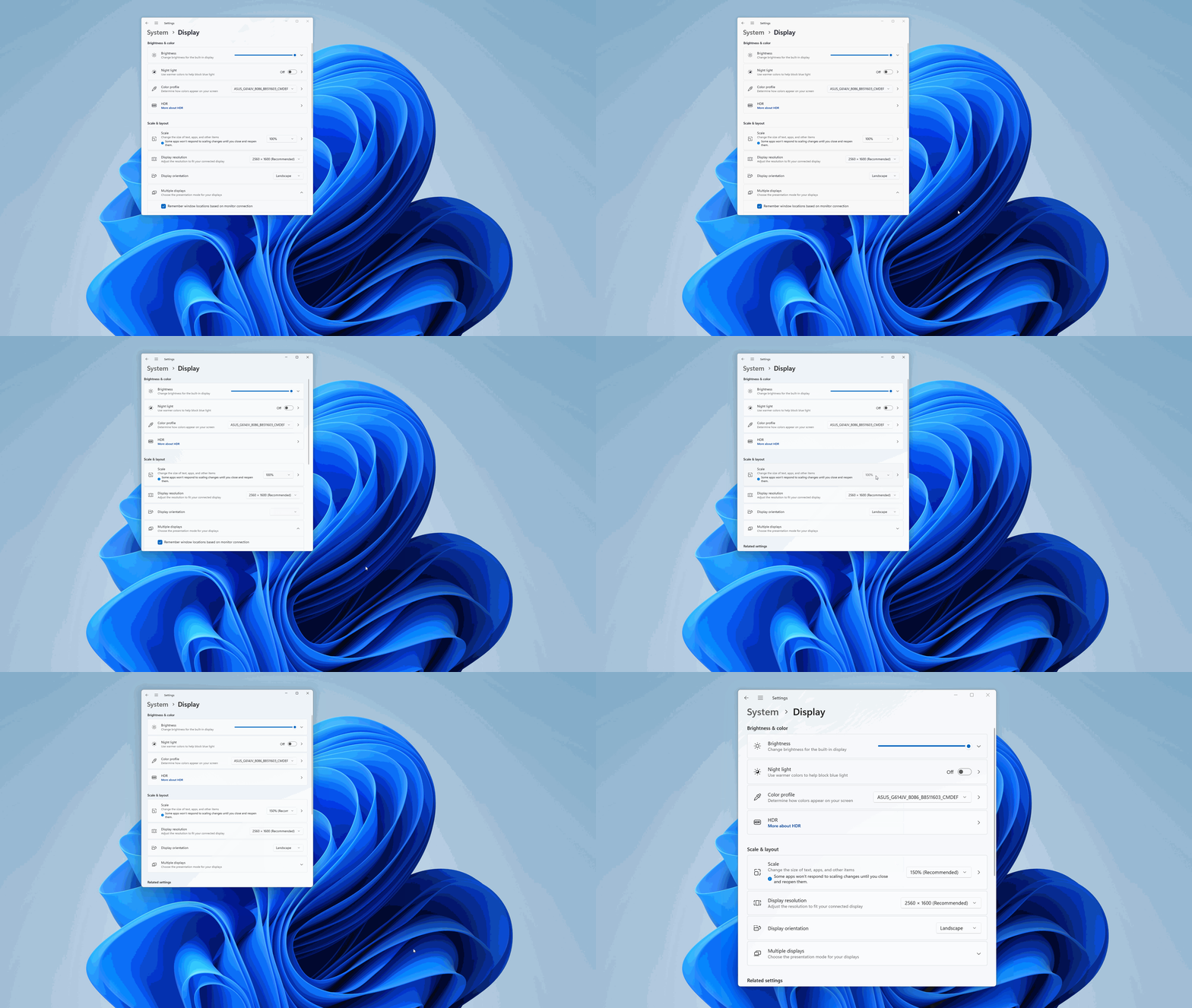
Question 1 : How to enlarge the font of StoryCube?
Answer 1 : Right-click the computer desktop, left-click [Display settings], and select the size you want in Scale & Layout.