[Microsoft AI Feature] Click to Do - Introduction
Click to Do helps you get things done faster by identifying text and images on your screen that you can take actions with. Click to Do analyzes what's on screen and then you can choose the text or image you want to take action on.
The analysis of this screenshot is always performed locally on your device. Analysis only begins after you actively engage with Click to Do and ends when you exit Click to Do. Click to Do only identifies text and images, not the content of those text or images. It does not analyze any content in, for example, minimized applications that are not on your screen.
Content is only shared if you choose to complete an action like Search the web. You’ll notice that when Click to Do is active, your cursor is blue and white. The cursor also changes shape depending on the type of info beneath it. What you can do with the info changes based on what kind of content Click to Do detects.
Click to Do is a feature in Microsoft. For details, please refer to: Click to Do: do more with what’s on your screen
※ Click to Do feature currently supports only text and images.
Minimum System Requirements
Click to Do supports all Copilot+ laptops.
If your laptop is not a Copilot+ model, please refer to the following information to check if your device supports the Click to Do feature.
Supported processors and an NPU with a minimum of 40 TOPS are required: AMD Ryzen™ AI 300 series, Intel® Core™ Ultra 200V series, Snapdragon® X, Snapdragon® X Plus, Snapdragon® X Elite
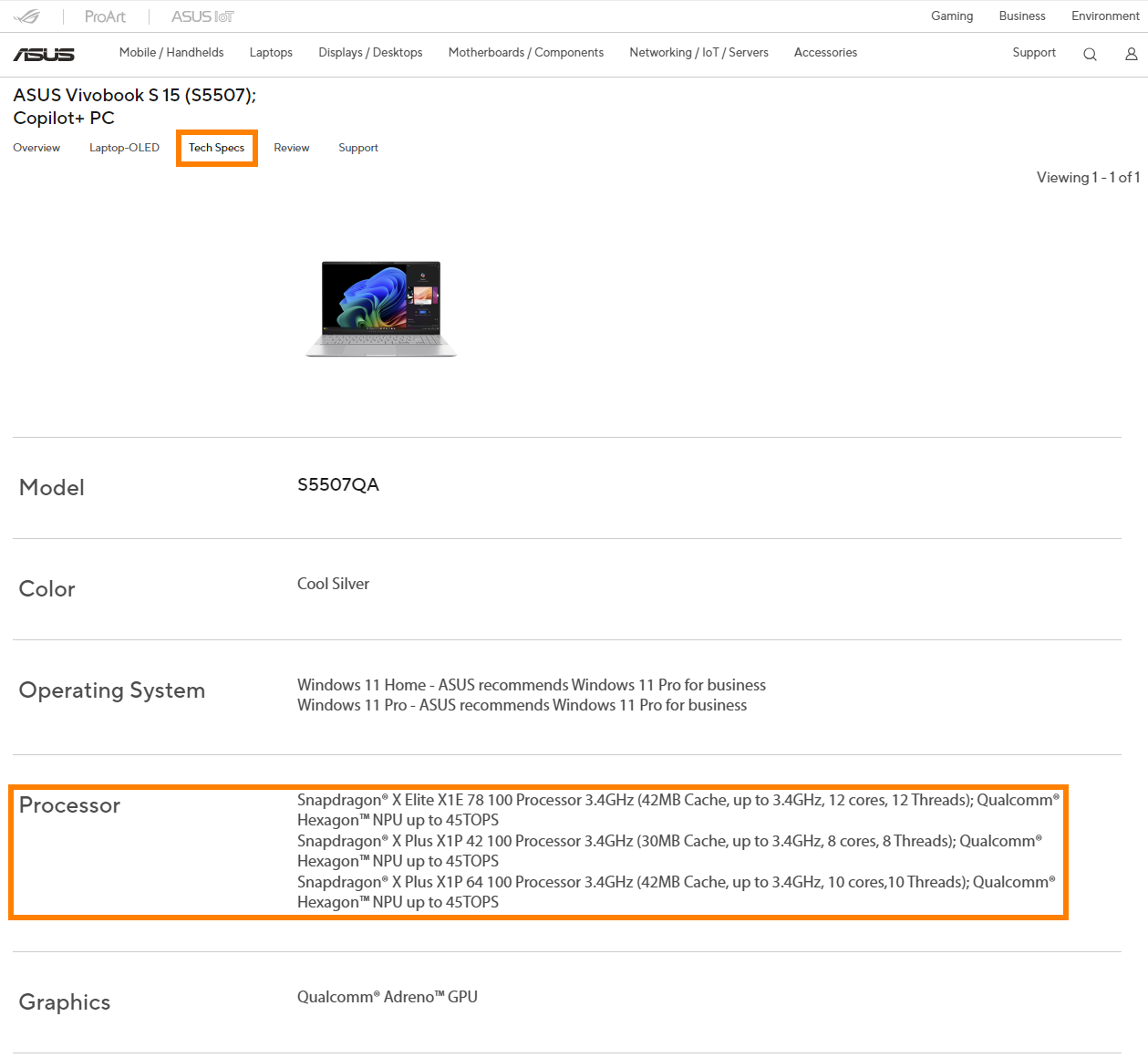
If you're unsure about your laptop's NPU performance, visit the ASUS official website, search for your laptop model in the top-right corner, Click [Tech Specs] -> [Processor], and check if the NPU’s TOPS meets Click to Do’s requirement (≥40 TOPS). (Take S5507QA as an example)
Operating System Requirement
A Copilot+ PC
- 40 TOPS NPU (neural processing unit)
- 16 GB RAM
- 8 logical processors
- 256 GB storage capacity
⚠️To display the Click to Do entry point from Snipping Tool, Snipping Tool version 11.2411.20.0, or later is required.
How to use Click to Do?
Simply use Windows key + mouse click or Windows key + Q to enter Click to Do and take actions on what you clicked. You can also enter Click to Do through a right swipe on touch enabled PCs, or from the Snipping Tool menu if Snipping Tool is installed. If you ever need, you can also search for Click to Do from Windows Search to select and take actions on what you see.
A. Click to Do does more with text.
When you highlight text with Click to Do, you’re given the following options. More intelligent text actions are available when your default language is set to English, at least 10 words are selected, and you’re signed in with either a Microsoft account or Microsoft Entra account. Intelligent text actions, powered by the Phi Silica small language model and the NPU, ①[include] :
- Copy: Copies the selected text to the clipboard
- Open with: Opens the selected text in a text editor like Notepad
- Search the web: Does a search for the selected text using Microsoft Edge and Bing
- Summarize: Briefly outlines the main points of the selected text
- Create a bulleted list: Creates a bulleted list of key details from the selected text
- Rewrite (Casual): Revises the selected text using a casual tone
- Rewrite (Formal): Revises the selected text using a formal tone
- Rewrite (Refine): Revises the selected text, making grammatical improvements
- Draft with Copilot in Word: sends the selected text to Copilot in Word
⚠️Most of the aforementioned functions are not supported in the European Economic Area (EEA) region and China.

B. Click to Do does more with images.
If you select an image you’re given the following ②[options] :
- Copy: Copies the image to the clipboard
- Save as: Save the image to a specified location
- Share: Opens the share files option for the image file
- Open with: Open the image with an app such as Photos, Snipping Tool, or Paint
- Visual search with Bing: Does a visual search using Bing using your default web browser
- Blur background with Photos: Blur the background with the Photos app
- Erase objects with Photos: Erase unwanted objects in the image with the Photos app
- Remove background with Paint: Remove the background of the image with Paint

C. Click to Do does more with content.
When you highlight either text or images with Click to Do, you’re given an option to Ask Copilot. Copilot opens with your content in the prompt box. Copilot then becomes the provider for completing the action as the selected content is handed off from Click to Do to Copilot.
If your device is part of your work or school’s organization, Ask Microsoft 365 Copilot is shown instead of Ask Copilot.
D. Disable Click to Do.
By default, Click to Do is enabled for Copilot+ PCs. While it can’t be removed, you can disable or enable it from the following location:
Open Settings, then go to > ③ [Privacy & security > Click to Do].
Set the Click to Do ④[setting] to :
- On: Click to Do is enabled (default)
- Off: Click to Do is disabled

Q&A
(1) My laptop meets the minimum requirements and has updated Windows to the latest version, so why can't I find Click to Do?
Click to Do requires the use of NPU. Please follow the steps below to check whether the NPU driver meets the minimum requirements.
Right-click the Windows icon in the lower left corner of the Windows desktop, then click [Device Manager]. Find and expand [Neural processors] in Device Manager. Quickly click [NPU Compute Accelerator Device] twice with the left mouse button. Click [Details] in the new window to query the current NPU driver version.
- AMD NPU minimum driver version: 32.0.203.240
- Intel NPU minimum driver version: 32.0.100.3717

If your laptop's NPU driver does not reach the minimum version, you can update it manually.
Please go to the ASUS official website, find your laptop in the search box in the upper right corner, and then find and install the driver in [Support] -> [Diver & Tools] -> [Chipset].
- For AMD platform Laptops, please select [AMD Graphics Driver] to download and install.
- For Intel platform Laptops, please select [Intel NPU Driver] to download and install.
AMD Graphics Driver (Include NPU Driver)

Intel NPU Driver

The above information comes from Microsoft's official website. If you have any questions, please contact Microsoft for further information.
If you would like to learn more about Copilot+ PC, please visit the [Frequently asked questions] & [Copilot+ PC and Windows AI features] sections at the following link: Shop Copilot+ PCs: A New Era of Windows AI PCs and Laptops | Microsoft Windows