[Microsoft AI Feature] Configure the agent in Windows Settings - Introduction
The agent in Windows Settings is a feature that uses on-device AI to help you find and change settings on your PC. It can also help you troubleshoot issues by providing recommendations and automating tasks based on your input.
The agent guides users through finding and changing settings, offering relevant information and recommendations. With user permission, it can automate the process of changing settings. This feature enhances search within Windows Settings by enabling natural language queries and utilizing an AI model for intelligent search suggestions.
For details, please refer to: Configure the agent in Windows Settings
Minimum System Requirements
The agent in Windows Settings supports all Copilot+ laptops.
If your laptop is not a Copilot+ model, please refer to the following information to check if your device supports The agent in Windows Settings feature.
Supported processors and an NPU with a minimum of 40 TOPS are required: AMD Ryzen™ AI 300 series, Intel® Core™ Ultra 200V series, Snapdragon® X, Snapdragon® X Plus, Snapdragon® X Elite
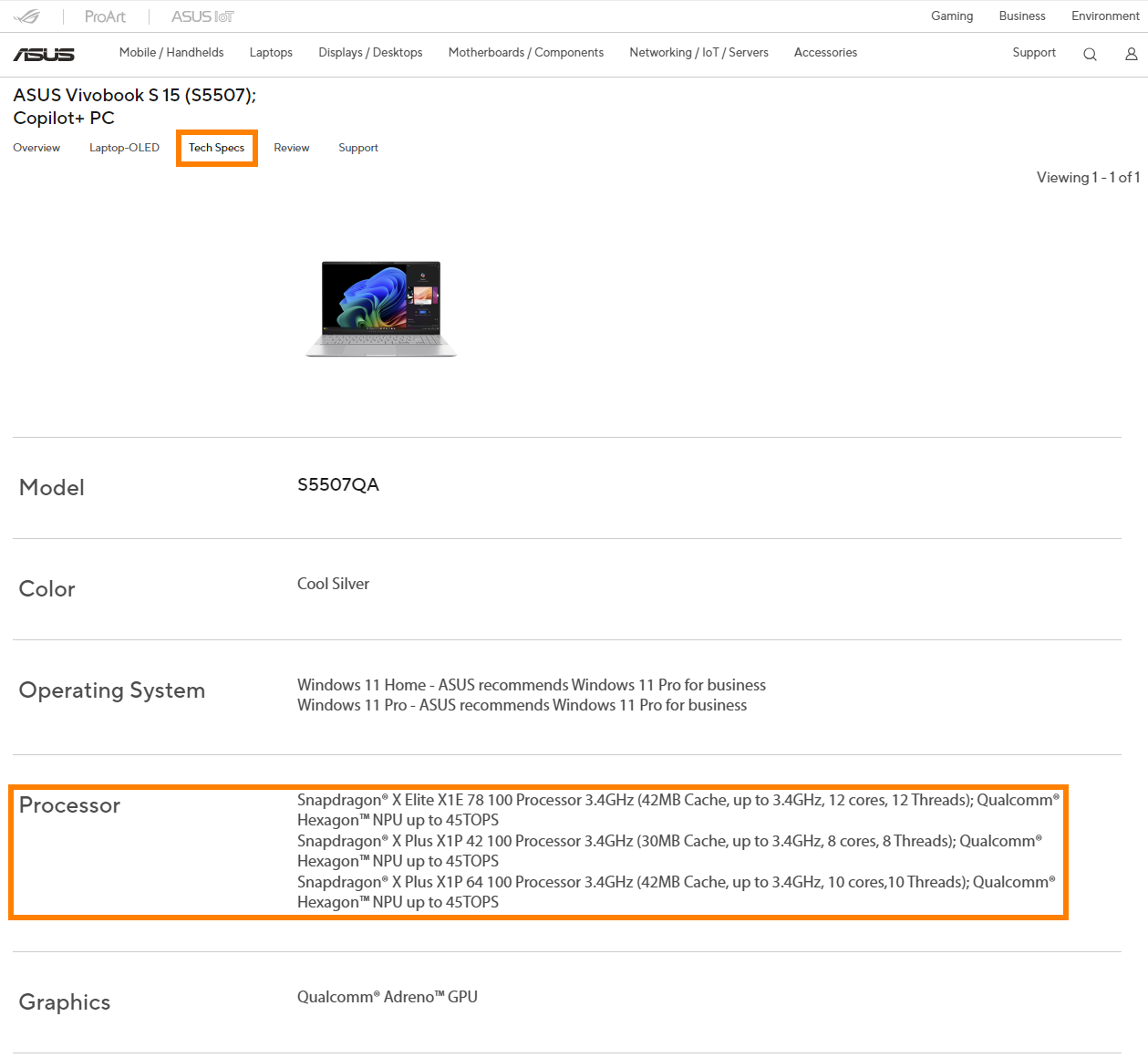
If you're unsure about your laptop's NPU performance, visit the ASUS official website, search for your laptop model in the top-right corner, Click [Tech Specs] -> [Processor], and check if the NPU’s TOPS meets The agent in Windows Settings’ requirement (≥40 TOPS). (Take S5507QA as an example)
Operating System Requirement
- Windows 11, version 24H2 with 26100.6725 and later
- A Copilot+ PC
- Qualcomm Snapdragon. Intel and AMD support will be available at a later time
- The device must have enabled the temporary enterprise feature control policy setting
Language and geography requirements
- Language: English only
- Geography: All countries, except Canada and China
How to use "the agent in Settings"?
If the agent is enabled, users can access it by opening Settings and typing their question in the ①[search box]. The agent provides ②[relevant information and recommendations] based on the user's input.

How to configurate "the agent in Settings"?
(1) Search for ①[Edit group policy] in the search bar (or access the Local Group Policy Editor by alternative methods).

(2) Navigate to the following policy location in the left pane of the Local Group Policy Editor :
Computer Configuration > Administrative Templates > Windows Components > Windows AI
(3) In the right pane of ②[Windows AI], double click on the ③[Disable Settings agentic search experience] policy to edit it.

(4) If you want to Enable Settings Search Agent, Select ④[Not Configured].
If you want to Disable Settings Search Agent, Select ⑤[Enabled].
After selecting, click on ⑥[OK].

(5) After disabling the agent in Settings, typing questions in the ⑦[search box] will no longer trigger the agent to provide relevant information.

Q&A
(1) My laptop meets the minimum requirements and has updated Windows to the latest version, so why can't I find The agent in Windows Settings?
The agent in Windows Settings requires the use of NPU. Please follow the steps below to check whether the NPU driver meets the minimum requirements.
Right-click the Windows icon in the lower left corner of the Windows desktop, then click [Device Manager]. Find and expand [Neural processors] in Device Manager. Quickly click [NPU Compute Accelerator Device] twice with the left mouse button. Click [Details] in the new window to query the current NPU driver version.
- AMD NPU minimum driver version: 32.0.203.240
- Intel NPU minimum driver version: 32.0.100.3717

If your laptop's NPU driver does not reach the minimum version, you can update it manually.
Please go to the ASUS official website, find your laptop in the search box in the upper right corner, and then find and install the driver in [Support] -> [Diver & Tools] -> [Chipset].
- For AMD platform Laptops, please select [AMD Graphics Driver] to download and install.
- For Intel platform Laptops, please select [Intel NPU Driver] to download and install.
AMD Graphics Driver (Include NPU Driver)

Intel NPU Driver

The above information comes from Microsoft's official website. If you have any questions, please contact Microsoft for further information.
If you would like to learn more about Copilot+ PC, please visit the [Frequently asked questions] & [Copilot+ PC and Windows AI features] sections at the following link: Shop Copilot+ PCs: A New Era of Windows AI PCs and Laptops | Microsoft Windows