[All-in-One PC] ASUS VeriView introduction
Table of Contents
ASUS VeriView provides a fully customizable display and builds connections with customers to gain brand loyalty. This innovative second touchscreen enables businesses to advertise and share content with customers.
Main function
- Content display
- Sharing screen
- Project text and QR Code
Use scenarios
- Hotel Check in, airport check in, restaurant reservation information
- Project QR code, relevant film text and pictures
Supported file
- Image file: jpg,png,jpeg,bmp
- video file: mp4,avi
- txt file
Currently, ASUS VeriView only supports All-in-One PCs with ScreenPad (You can check specification page on ASUS official website ). It will be pre-installed in All-in-One PCs with ScreenPad. You can also download it from ASUS official website. For detailed operation, please refer to here.
If you want to remove ASUS VeriView, please refer to here.
Sharing Settings:
Screen Switch: Set it on when you want to use ASUS VeriView
Brightness: You can adjust the brightness here

Content Display
1. Select [Upload New Content]①.
2. Select the Image/Video②。
3. Click [Apply]③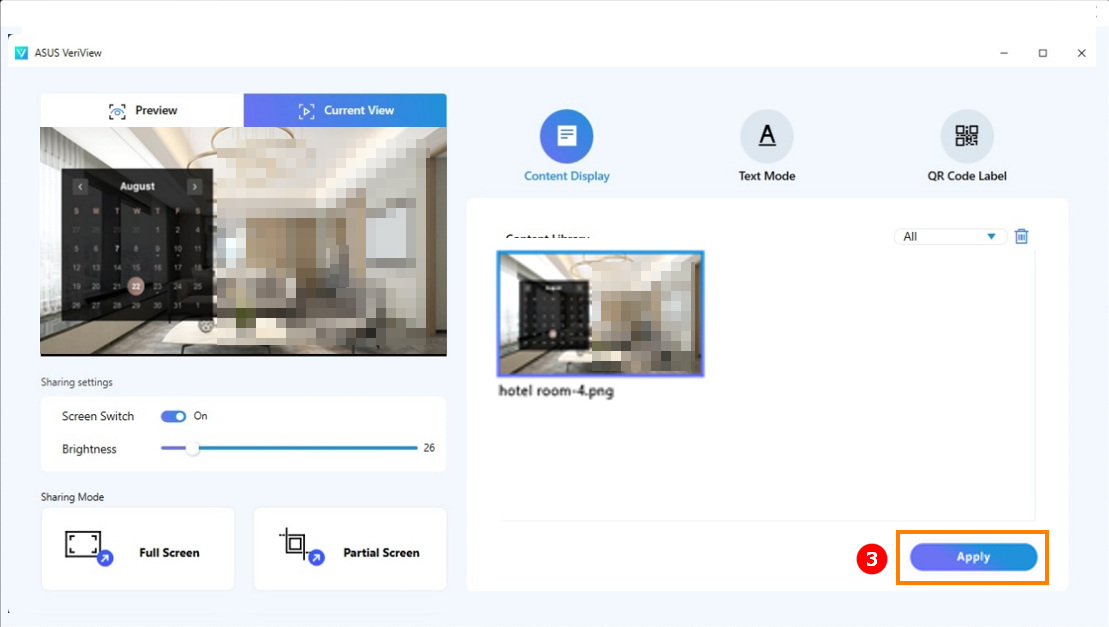
4. The content will be displayed on screenpad as below shown.

Text Mode
1. Edit text① and click [Apply]②。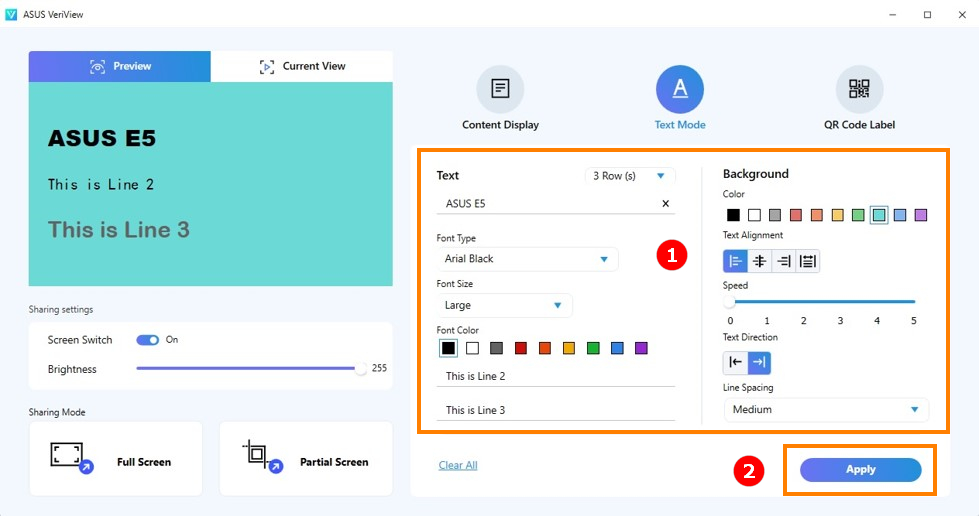
2. Texts will show on screenpad as below shown.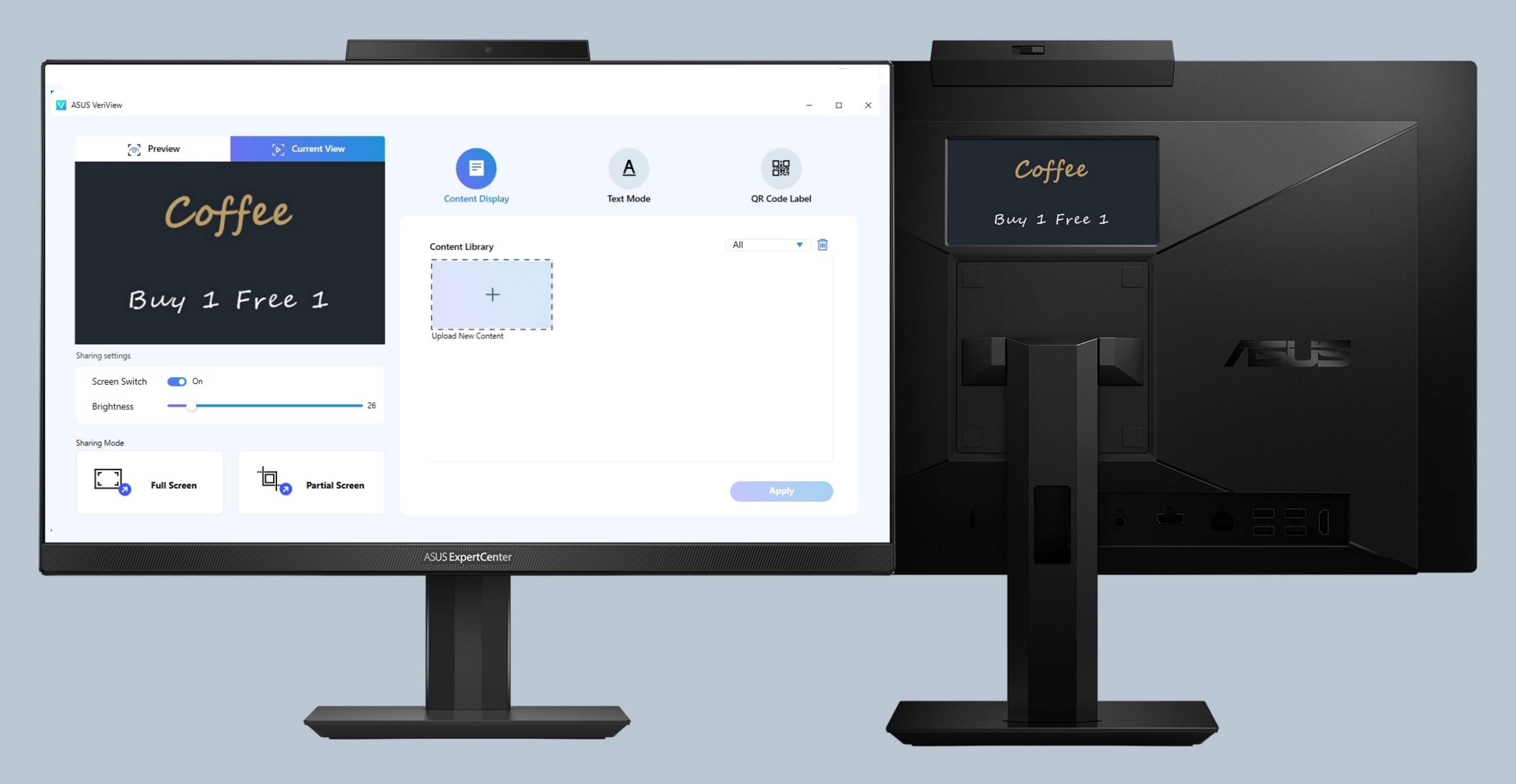
QR Code Label
- Key in Title & Subtitle, input website link and upload the logo, then click [Generate]①。
- Select the QR code you want to show②。
- Click [Apply]③。
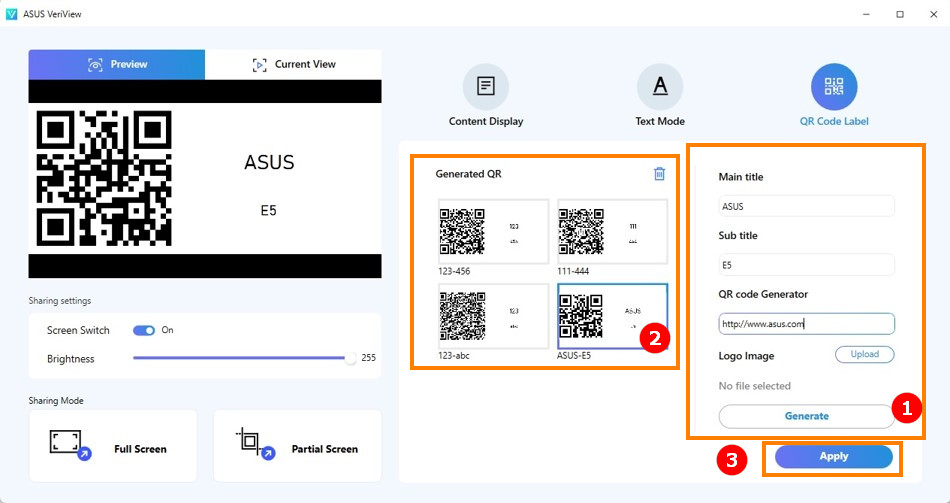
- It will appear on screenpad as below shown.

Sharing Options
You can select to share full screen or partial screen here.
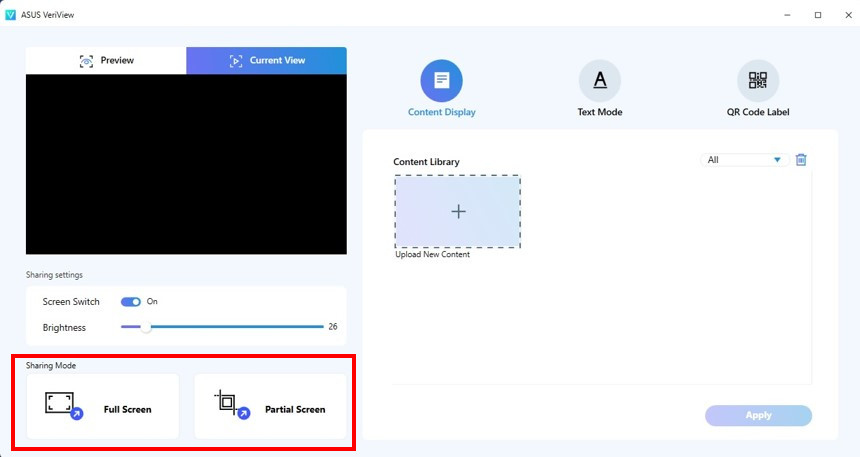
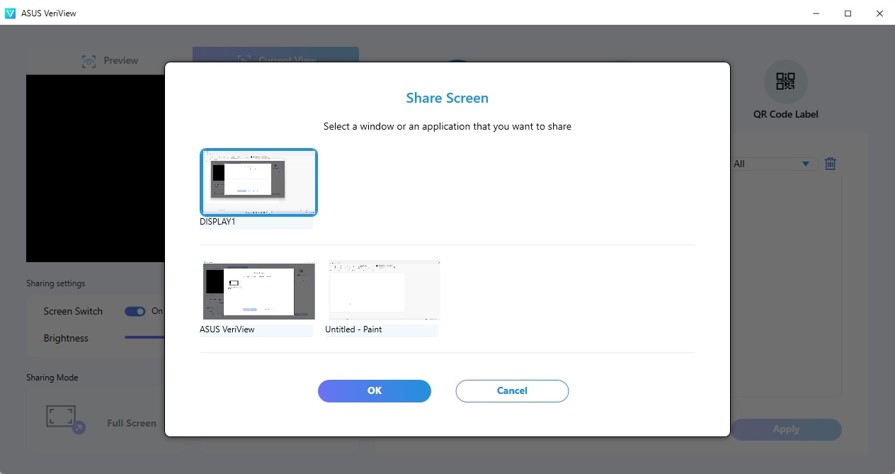
Full Screen: You can do full screen sharing here.

When full screen sharing is selected, this page will pop up, which allows users to select the screen to be posted to screenpad
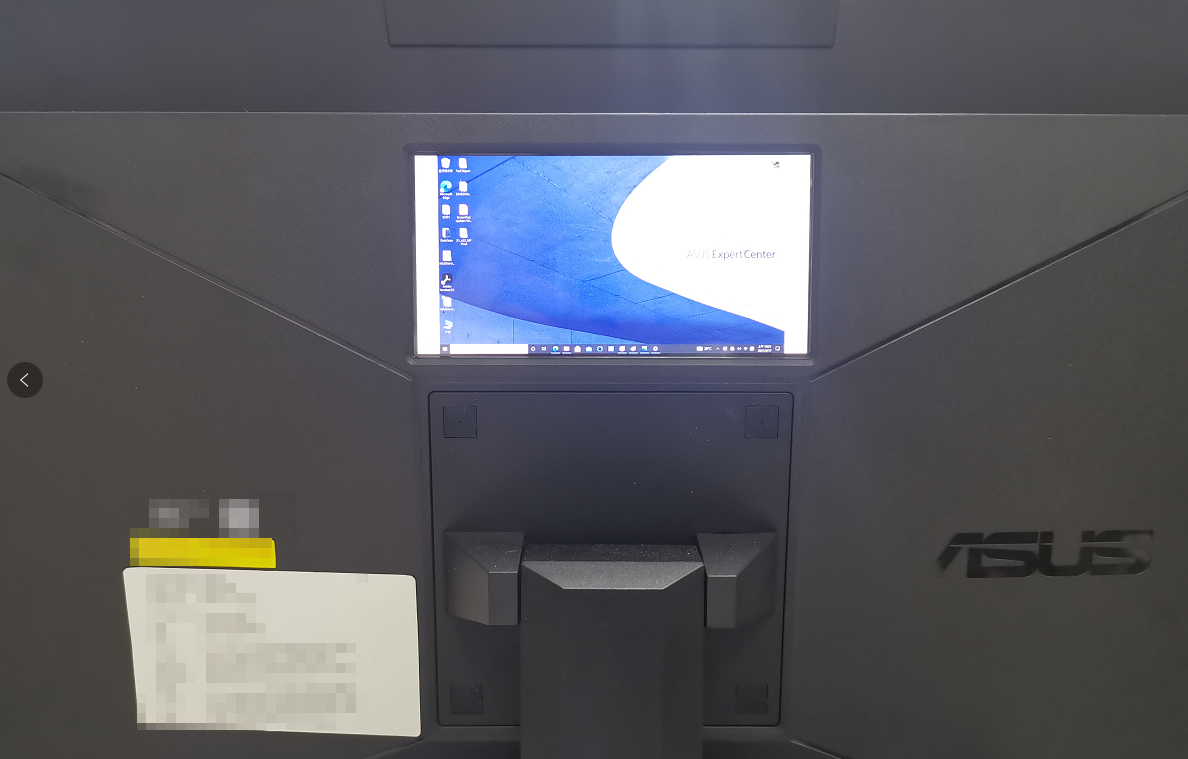
The following is a full screen sharing picture.
Partial Screen: You can do partial screen sharing here.
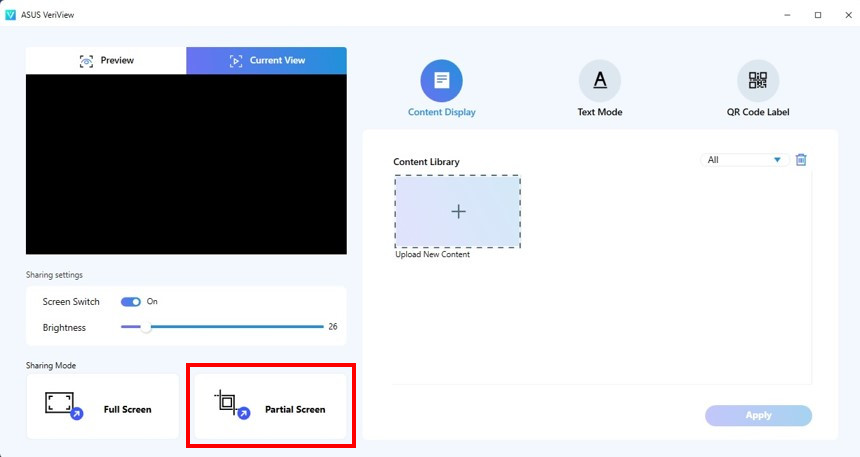
In partial screen. you can choose three modes: Customized, Fixed Ratio and Full Screen.
- Customized: You can drag to adjust the size to display on screenpad.
- Fixed Ratio: Select the display size according to the length width ratio of screenpad
- Full Screen: Full screen delivery

The customized displayed as below shown.
