[Wireless Router] How to set up Parental Controls?(WebGUI)
To provide you more detailed instruction, you can also click ASUS YouTube video link below to know more about how to set up Parental Controls on ASUS Router.
https://www.youtube.com/watch?v=lBdDZD2a3CM
https://www.youtube.com/watch?v=eCj4VP9bNF4
What is Parental Controls?
ASUS Wireless Router with Trend Micro provides real-time network monitoring to detect malware, viruses, and intrusions before they can reach your PC or device. Parental Controls let you schedule times that a connected device is able to access the Internet. You can also restrict unwanted websites and apps.
Prepare
1. Please first confirm that your router supports Parental Controls features. You can visit the ASUS official website to check the detailed specifications.
The image below is an example of the specifications from the official website.

2. Please update your router firmware to the latest version. For instruction about how to update the firmware, please refer to the FAQ How to update the firmware of your router to the latest version
You can set up your ASUS router via Web GUI
Web & Apps Filters : Web & Apps Filters allows you to block access to unwanted websites and apps.(Only supported on selected models.)
Step 1. Connect your computer to the router via wired or WiFi connection and enter your router's LAN IP or router URL http://www.asusrouter.com to the WEB GUI.

Note: Please refer to How to enter the router setting page to learn more.
Step 2. Key in your router's username and password to log in.
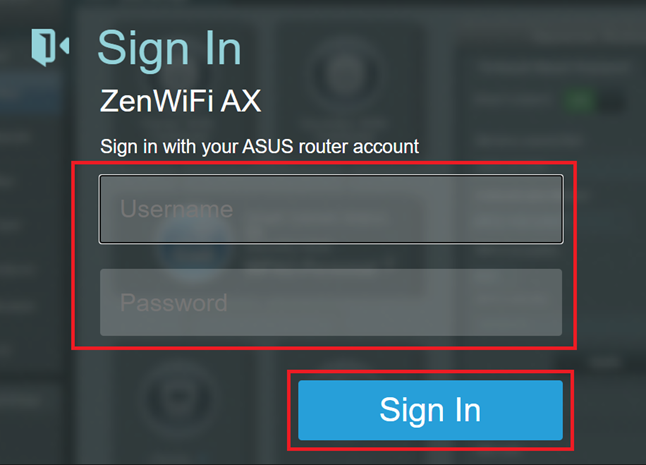
Note: If you forget the user name and/or password, please restore the router to the factory default status and setup.
Please refer to How to reset the router to factory default setting for how to restore the router to default status.
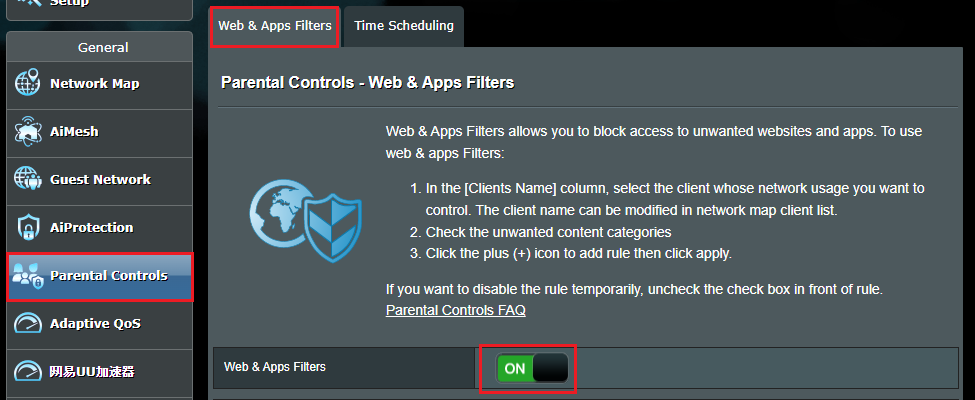
Step 3. Go to [Parental Controls] > [Web & Apps Filters] or [AiProtection]> [Parental Controls] > [Web & Apps Filters]
And enabled in Web & Apps Filters.
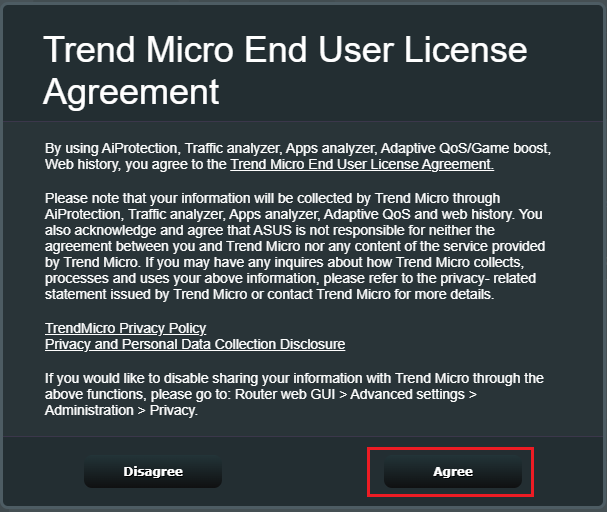
Step 4. Click [Agree]
By using AiProtection, Traffic analyzer, Apps analyzer, Adaptive QoS/Game boost, Web history, you agree to the [Trend Micro End User License Agreement].
(Only Trend Micro-supported models will display the content shown below)
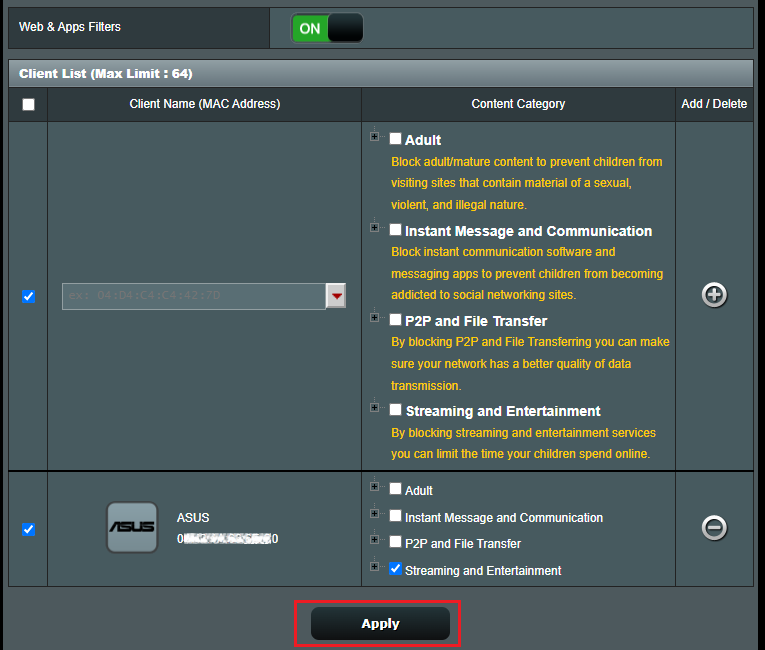
Step 5. Client List
5-1 Select the devices for which you want to restrict the Client Name (MAC Address).
5-2 Click the category or subcategory that you want to block on the Content Category.
5-3 Click  button to add a profile.
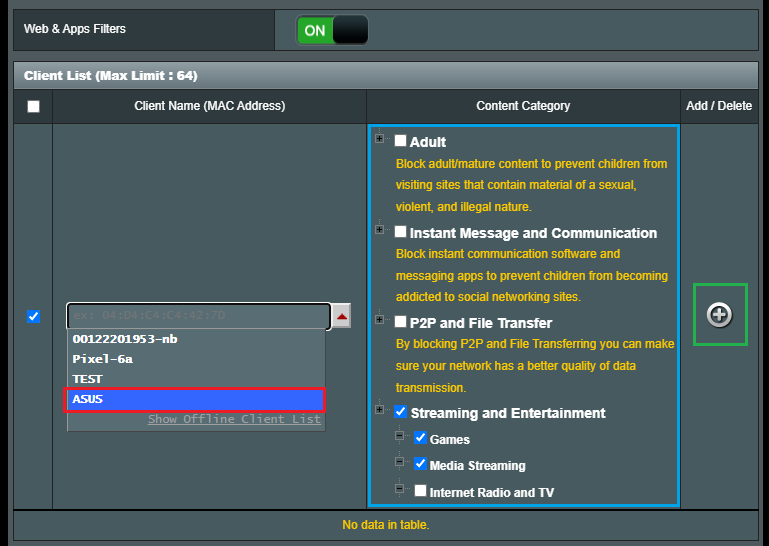
5-4 Click [Apply] to save the setting.
Time Scheduling : This feature allows you to set up a scheduled time for specific devices' Internet access.
Step 1. Connect your computer to the router via wired or WiFi connection and enter your router's LAN IP or router URL http://www.asusrouter.com to the WEB GUI.
Note: Please refer to How to enter the router setting page(Web GUI) to learn more.
Step 2. ;Key in your router's username and password to log in.
Note: If you forget the user name and/or password, please restore the router to the factory default status and setup.
Please refer to How to reset the router to factory default setting for how to restore the router to default status.
Step 3. Go to [Parental Controls] > [Time Scheduling] or [AiProtection]> [Parental Controls] > [Time Scheduling]
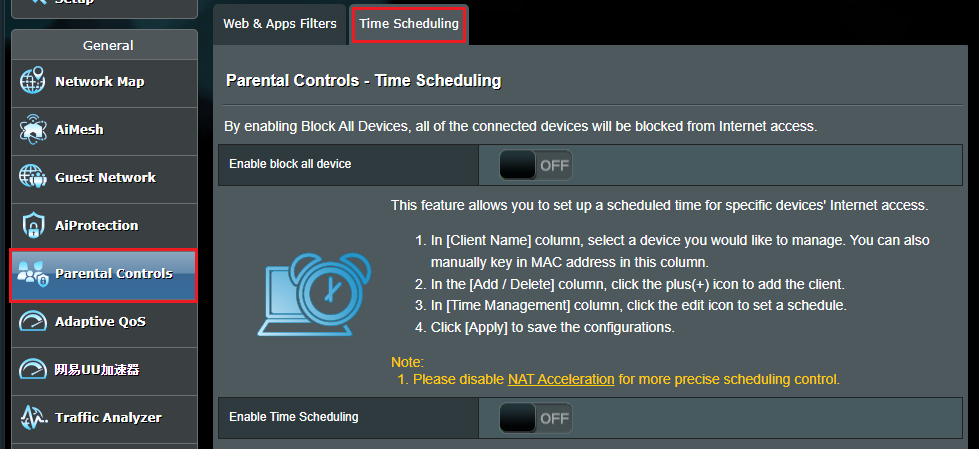
Step 4. Set Time Scheduling
a. Eable Time Scheduling
a-1 Enable block all device.
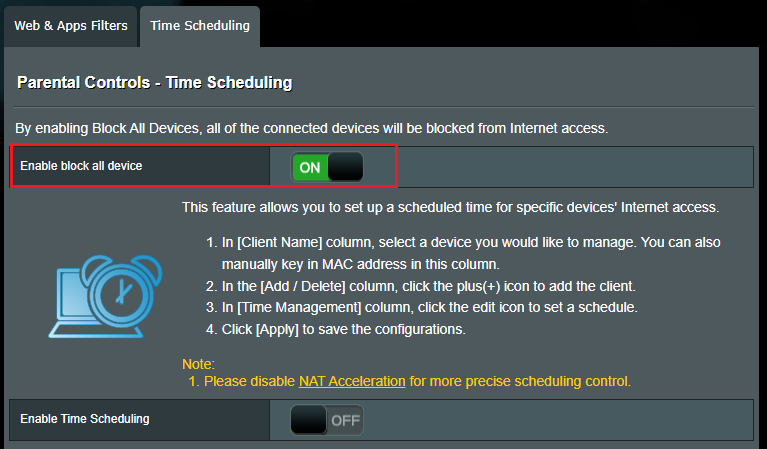
a-2 By enabling Block All Devices, all of the connected devices will be blocked from Internet access.
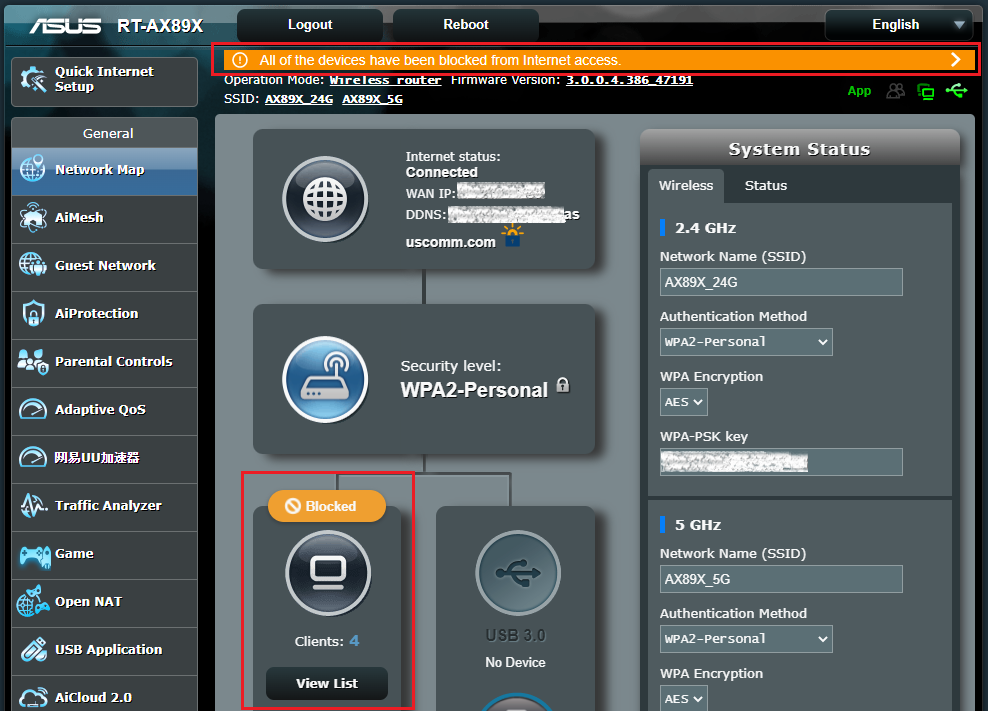
b. Setup Time Scheduling
b-1 Enable Time Scheduling.
This feature allows you to set up a scheduled time for specific devices’ Internet access.
Note: Check if system time is the same with your time zone. How to check ASUS router system time and set up NTP server
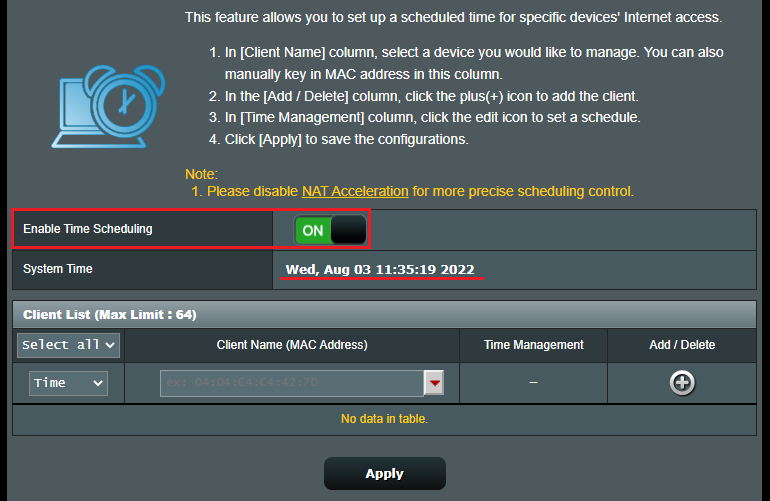
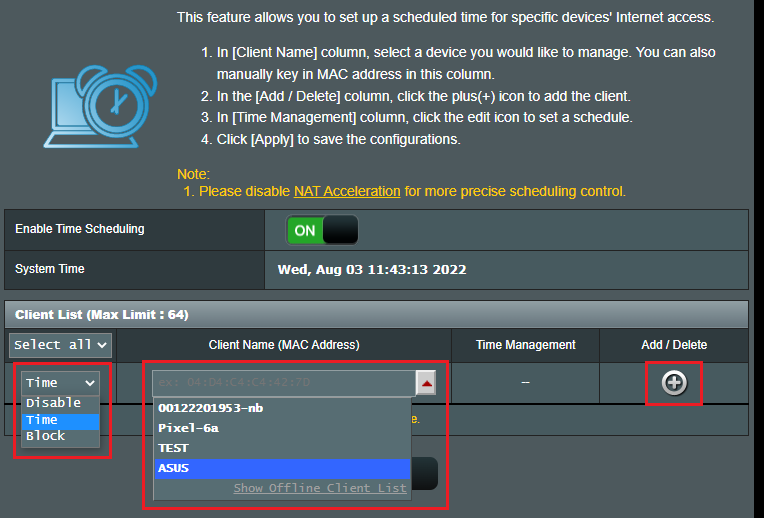
b-2 Select the devices for which you want to restrict the Client Name (MAC Address).
You can mark the type used (Disable, Time, Block)
Click button
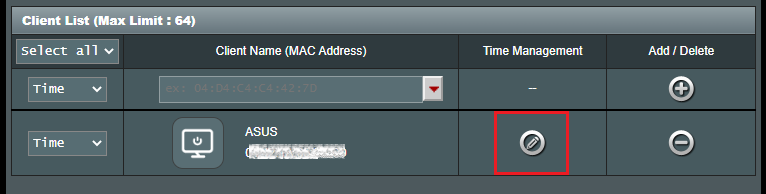
b-4 Click edit  button to set time scheduling.
b-5 Click  to change the time scheduling mode.
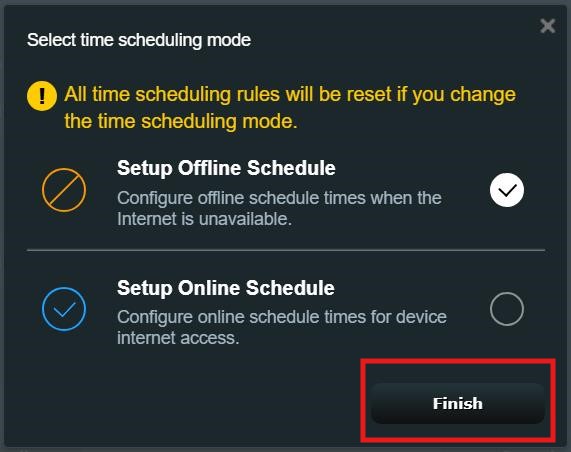
Select time scheduling mode and click [Finish].
- Setup Offline Schedule: Configure offline schedule times when the Internet is unavailable.
- Setup Online Schedule: Configure online schedule times for device Internet access.
Note: [Setup Online Schedule] feature is only supported by certain models. If your router does not support this feature, please skip this step.
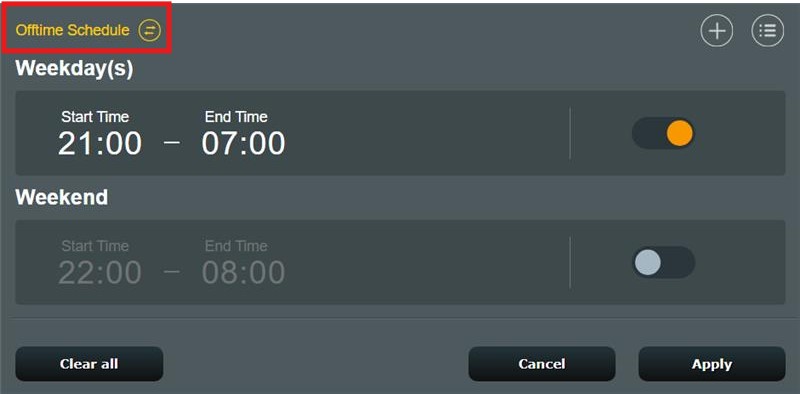
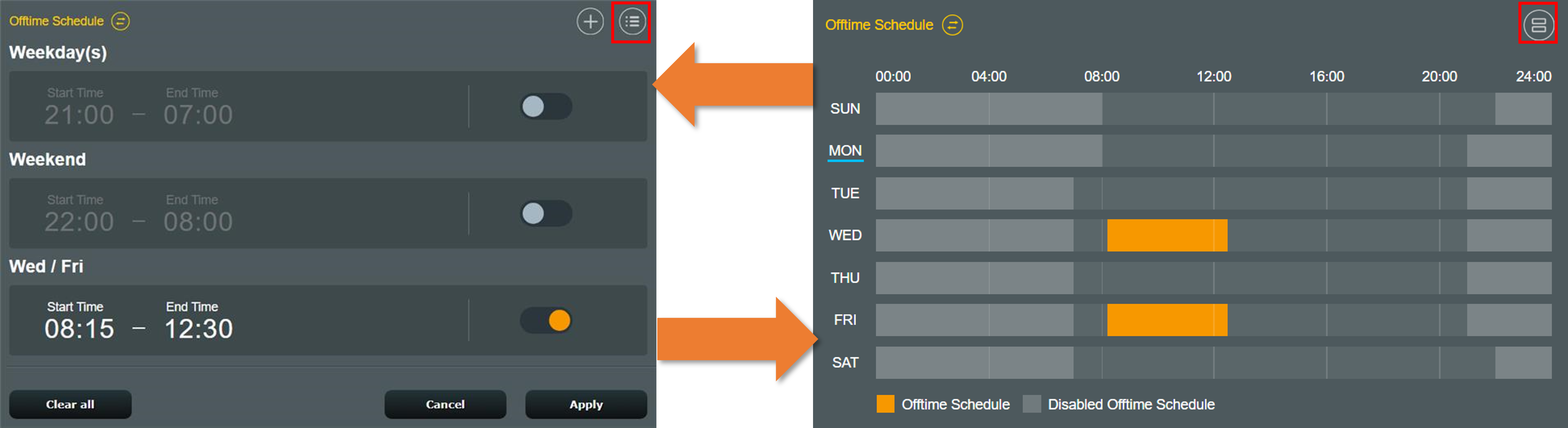
Take Setup Offline Schedule for example.
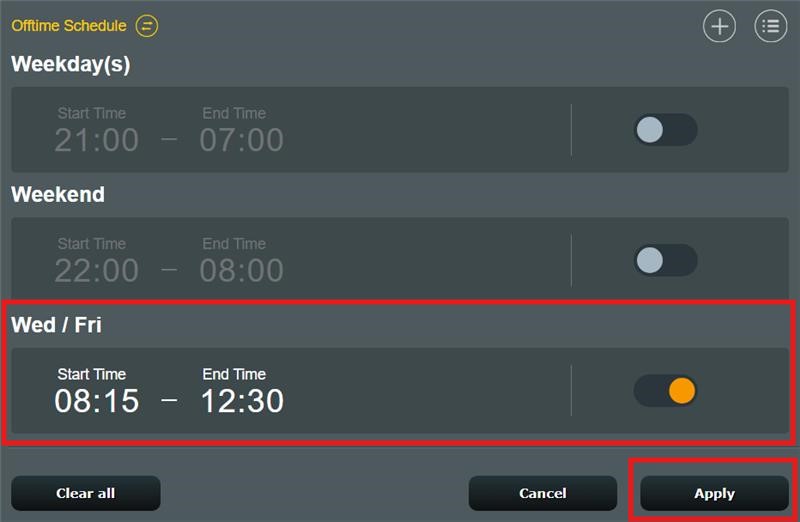
You can quickly set up two offline schedules and click [Apply] to complete the setting.
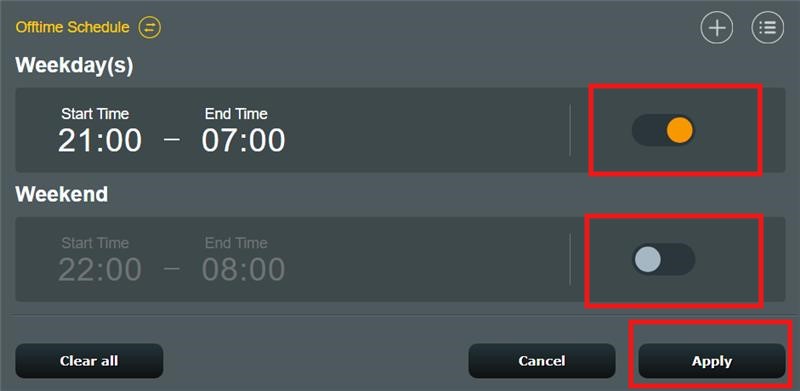
If you want to choose a different time, you can click  and set it.
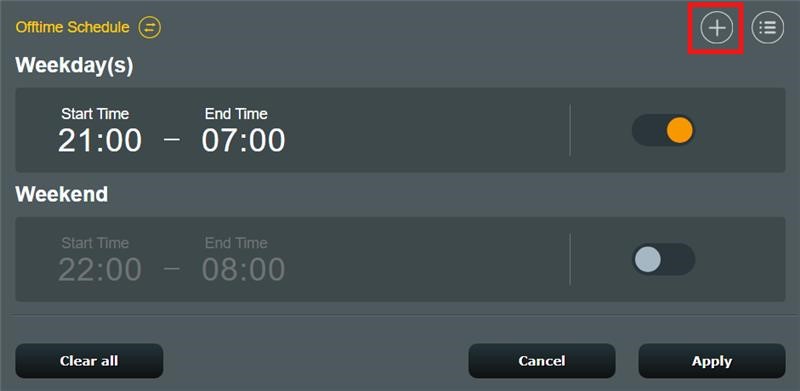
You need to set up Start Time to End Time and weeks, then click [Finish] to save the setting.
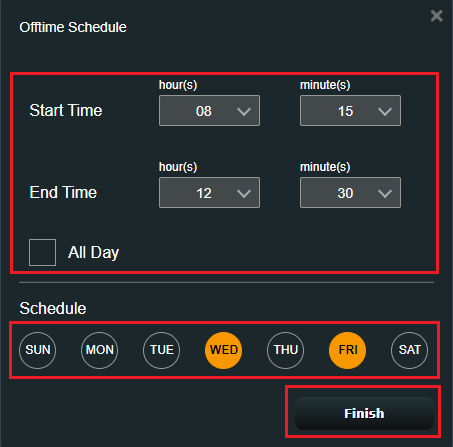
Confirm whether the offtime schedule is set up correctly.

Click [Apply] to complete the setting.
FAQ
1. How to delete a time schedule?
Below is the example screenshot, move the mouse over the time schedule.
Click delete  button and click [Apply] to save the setting.

2. When my device (such as a phone or computer) is currently set to be offline (restricted from internet access), can it still access the router's settings page to make configurations?
Yes, the parental control on the computer only prevents the device from accessing the internet during specific times, but it can still connect to the router and enter the settings page after entering the router username and password.
3. How to troubleshoot if the scheduling settings are not working correctly after being set?
a. Please check if the system time on your router is correct, please refer to the FAQ [Wireless Router] How to check ASUS router system time and set up NTP server?
b. Please check if the device you selected or the MAC address you entered is correct, please refer to the FAQ [Wireless Router] How to check the information of devices connected to ASUS router?
c. Please make sure you are using the latest router firmware version.
How to check and update your router's firmware version., please refer to the FAQ [Wireless Router] How to update the firmware of your router to the latest version ?
d. Please restore the router to its factory settings, and then follow the instructions in this guide to complete the setup.
How to restore the router to factory default settings, please refer to the FAQ [Wireless Router] How to reset the router to factory default setting?
4. How to block specific devices from accessing specific/malicious websites?
ASUS routers currently do not support website blocking on specific devices(e.g. phone, laptop).
If the specific device you want to set up is a Windows device or a Chromebook, please refer to the FAQ below.
5. I can use parent control in the router mode, but why I can't find it when change router to AP mode?
The parent control is available in router mode only, due to NAT function and relevant management was dealing by primary AP (router/modem, etc.) in other kinds of operation mode.
May refer to the FAQ for more information of operation mode : [Wireless Router] Introduction of Operation Mode
How to get the (Utility / Firmware)?
You can download the latest drivers, software, firmware and user manuals in the ASUS Download Center.
If you need more information about the ASUS Download Center, please refer this link.