ប្រធានបទពាក់ព័ន្ធ
[AiProtection] How to receive notifications from AiProtection?
ASUS AiProtection leverages powerful cybersecurity solutions and cloud data centers from Trend Micro ™ to shield your smart home and all connected devices from cyber threats.
How to receive notifications from AiProtection?
You can set up notifications through the ASUS Router App.
Step 1. Please enable AiProtection first, please refer to the [AiProtection] How to set Network Protection in ASUS Router ?
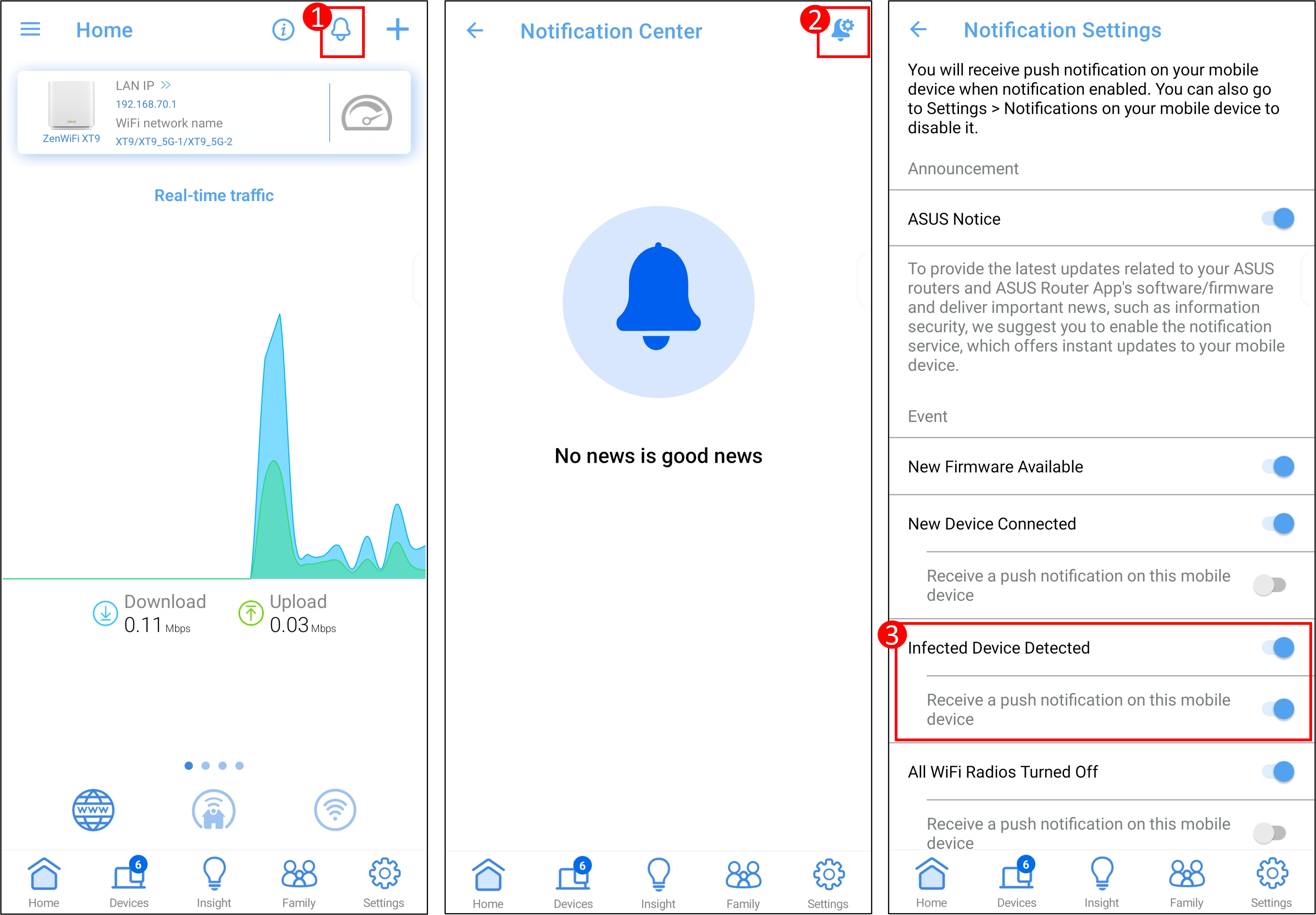
Step 2. Login to App and tap the icon above to enter the notification center > tap the icon
 at the top right to access the notification settings > enable [Infected Device Detected] and [Receive a push notification on this mobile device].
Note:
1. Please first confirm that your router supports AiProtection features. You can visit the ASUS official website to check the detailed specifications.
2. Please update your router firmware to the latest version. For instruction about how to update the firmware, please refer the FAQ [Wireless Router] How to update the firmware of your router to the latest version via ASUS Router App?
3. Please install the ASUS router app on your smart phone device first. Please make sure your ASUS Router App version is up to date.
For the information of how to install the ASUS router app, please refer to
[Wireless Router] How to set up ASUS WiFi router via ASUS Router App? (QIS, Quick Internet Setup)
[Wireless Router]How to manage multiple ASUS routers by ASUS router app?
4. When the ASUS router is set to Access Point (AP) mode, the AiProtection feature is not supported.
5. When WAN link aggregation and dual WAN load balancing modes are enabled, the AiProtection feature cannot be used simultaneously. AiProtection can only be utilized when there is a single WAN network source or in dual WAN failover mode.
6. About blocked malicious websites, please refer to Trend Micro https://global.sitesafety.trendmicro.com/
7. If the router's firmware and the router app are updated to the latest versions, but the option doesn't show up in the app's notification settings, it means this router doesn't support that feature.
How to get the (Utility / Firmware)?
You can download the latest drivers, software, firmware and user manuals in the ASUS Download Center.
If you need more information about the ASUS Download Center, please refer this link.