[NUC] Hoe UEFI Shell gebruiken om je NUC te updaten met Visual BIOS
Oplossing
De UEFI Flash BIOS update-hulpprogramma stelt je in staat om de Visual BIOS bij te werken vanuit de EFI Shell.
| Opmerking | De meeste NUCs die vanaf 2019 zijn geleverd, gebruiken de Aptio V* BIOS-core en niet de Visual BIOS. |
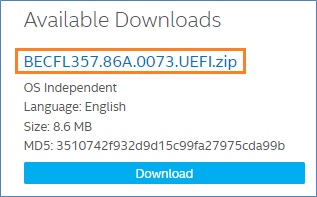
1. Download het UEFI Flash BIOS Update-bestand (*.UEFI.zip). Bijvoorbeeld:
Volg de link om te leren hoe je BIOS voor het bijbehorende model downloadt: [NUC] Waar kan ik het BIOS-bestand downloaden?
2. Dubbelklik op *.UEFI.zip om de bestanden uit te pakken.
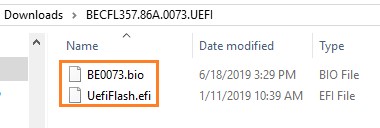
3. Kopieer UefiFlash.efi en het .bio-bestand naar het opstartbare USB-apparaat.
4. Verbind de USB-stick met een poort op de NUC.
5. Configureer de BIOS van de doelcomputer om op te starten naar de EFI Shell:
a. Druk op F2 tijdens het starten om het BIOS-menu te openen.
b. Ga naar Geavanceerd > Boot > Secure Boot.
c. Uitschakelen Secure Boot, indien ingeschakeld.
d. Ga naar Geavanceerd > Boot > Bootconfiguratie.
e. In het Bootapparaten venster, inschakelen Interne UEFI Shell.
f. Druk op> F10 om wijzigingen op te slaan en BIOS Setup af te sluiten.
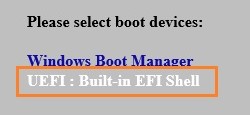
6. Druk op F10 tijdens het opstarten om het Bootmenu te openen.
7. Selecteer UEFI: Ingebouwde EFI Shell.
8. Wijzig de huidige map naar de USB flashdrive door het invoeren van het commando fsX: waarbij X het schijfnummer is van de USB flashdrive uit de apparaat mapping lijst.
Voorbeeld: als jouw USB-stick fs3 is, typ dan fs3: en druk op Enter.
9. Voer bij de opdrachtprompt typ UefiFlash.efi XXX.bio in, waarbij XXX.bio de bestandsnaam is van het .bio-bestand, en druk op Enter.
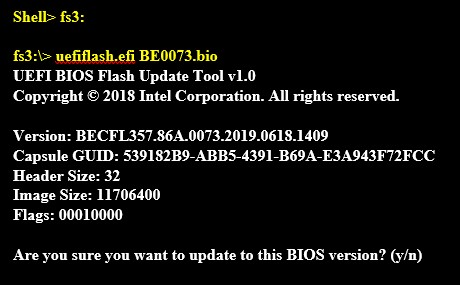
10. Druk op Y om de update te starten.
11. Wacht tot de BIOS-update voltooid is.
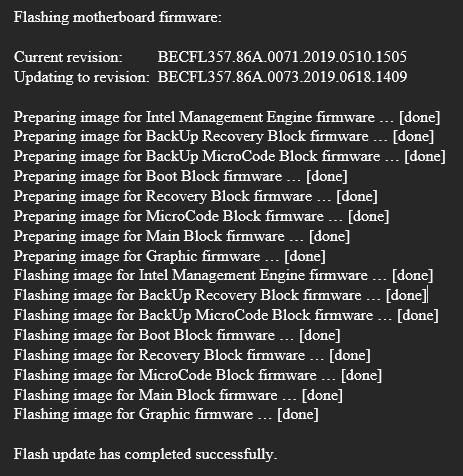
12. De computer zal opnieuw opstarten wanneer het proces is voltooid.
13. Stel het BIOS terug naar de originele instellingen:
a. Start de computer opnieuw op.
b. Druk op F2 tijdens het opstarten om BIOS setup te openen.
c. Ga naar Geavanceerd > Boot > Boot Configuratie.
d. Schakel in het Boot-apparatenpaneel Uit Interne UEFI Shell.
e. Ga naar Geavanceerd > Boot > Secure Boot.
f. Schakel Secure Boot in, als dit oorspronkelijk was ingeschakeld.
g. Druk op F10 om wijzigingen op te slaan en BIOS Setup af te sluiten.