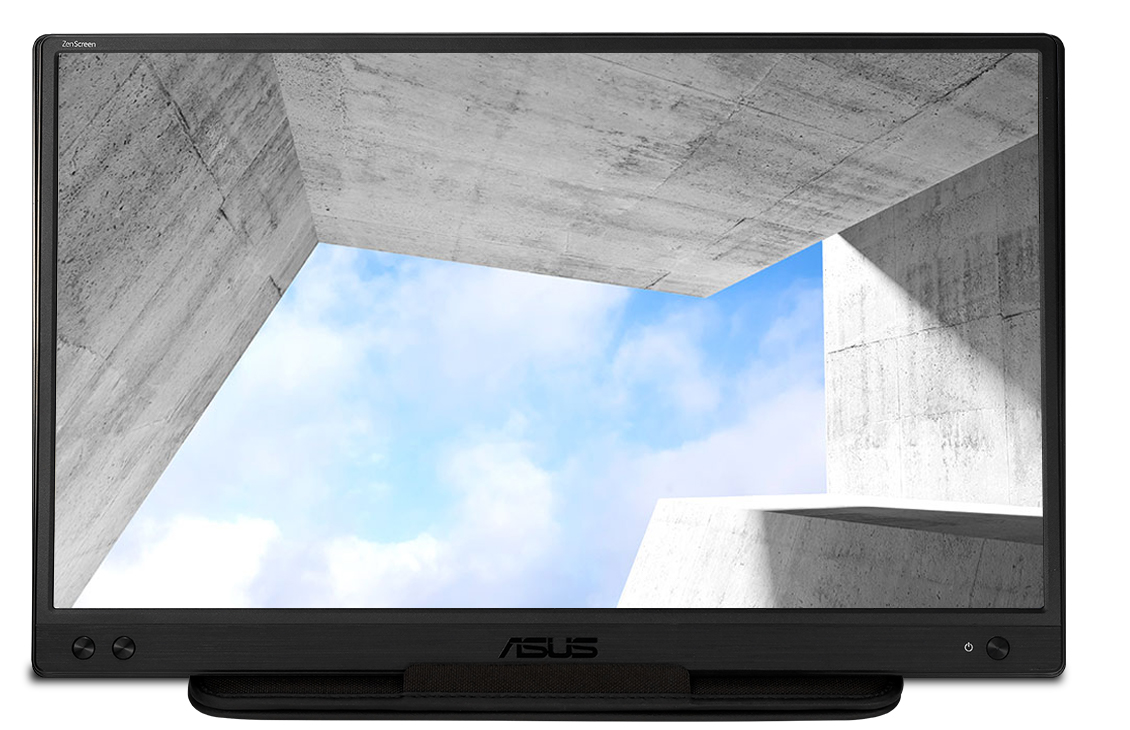
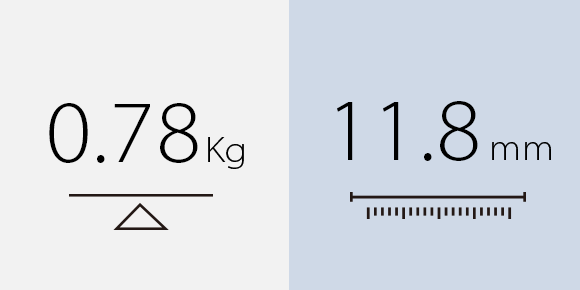
Sleek and portable design
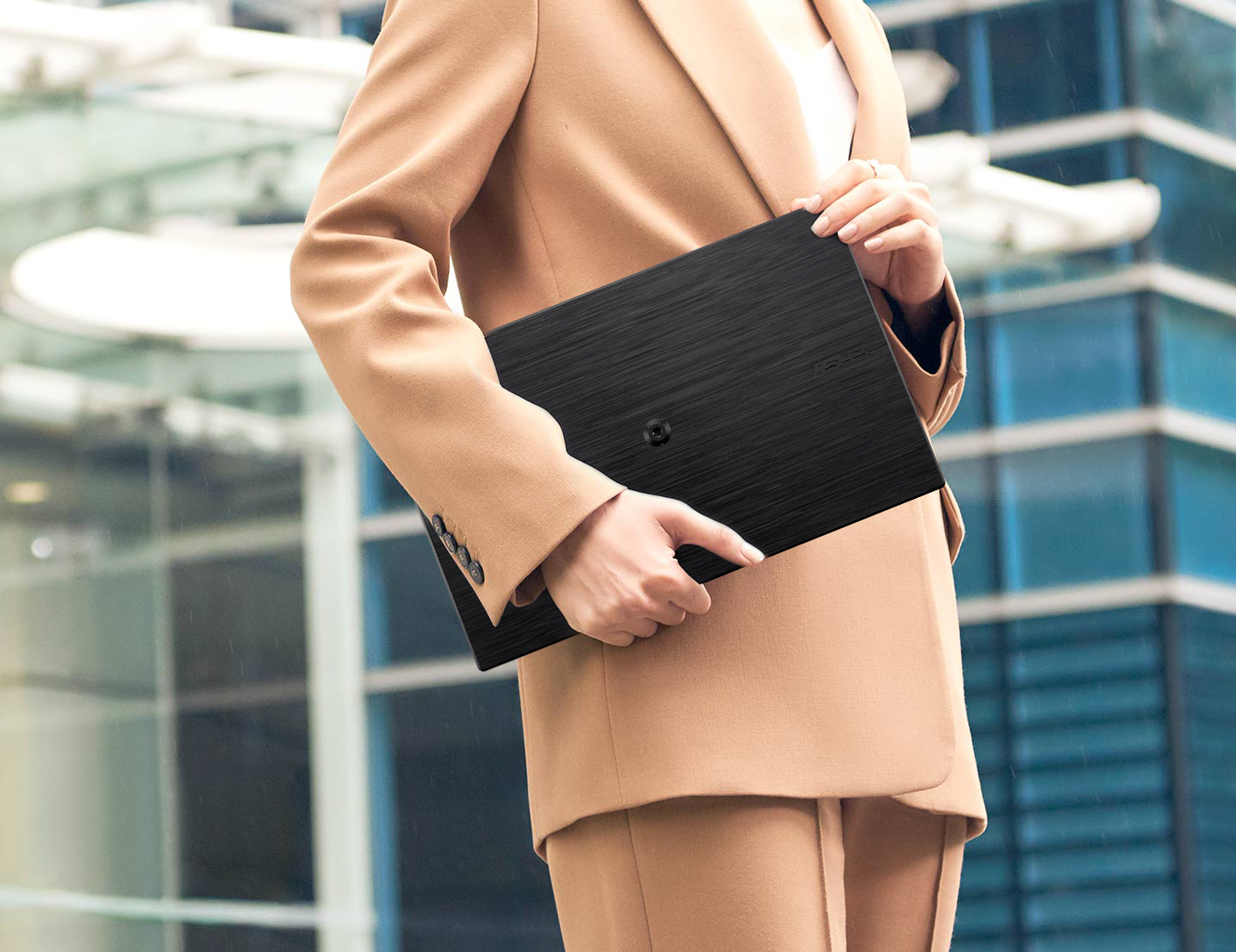
ASUS ZenScreen™ is ideal for life on the road. This sleek portable display is light weight and has a slim profile, so it fits easily in any travel bag and is ready for productivity, anytime and anywhere.
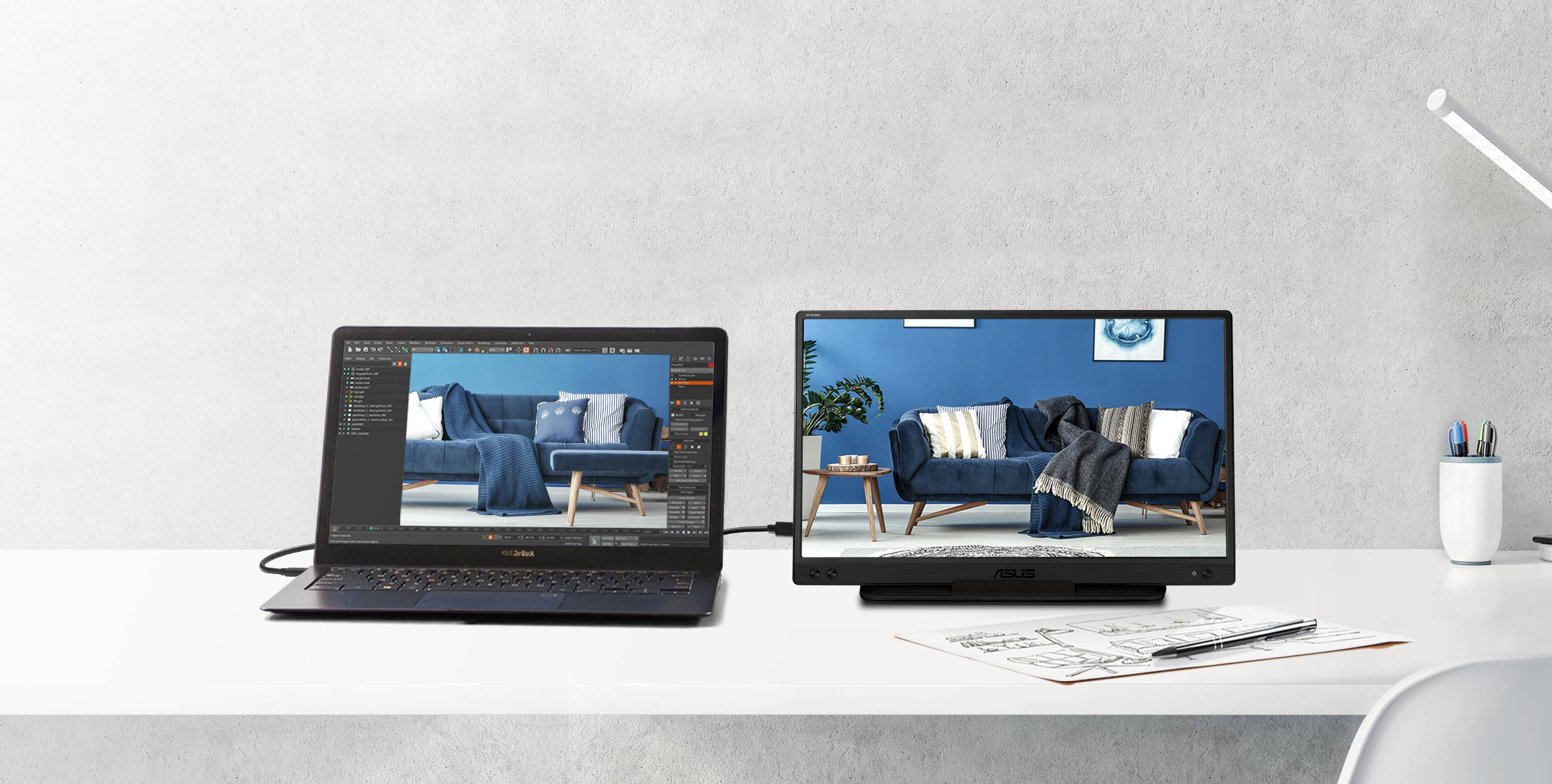
One cable is all you need
ZenScreen MB166C uses a single USB Type-C* connection for both power and video transmission from your host device. This means you have less cables to work with, so you get a neater work area.
How do I identify if my USB-C supports display on portable Monitor?
Note. Need to check whether the USB-C port of your laptop supports the display capability ** prior to use. You can refer to this FAQ: How to identify your laptop USB-C port support DP out function?
Work in comfort
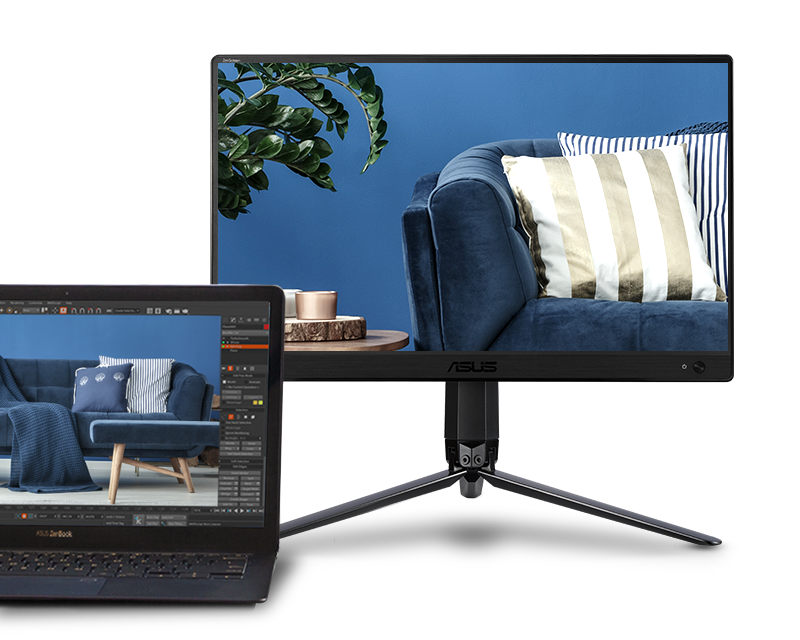
A ¼”-threaded hole at the rear of the monitor lets you to attach ZenScreen MB166C to a conventional tripod1 or table-mount easily.
Work efficiently in portrait and landscape modes
With ASUS DisplayWidget software2, ZenScreen MB166C can automatically sense its orientation and switch the display between landscape and portrait modes while connected to your laptop. Landscape mode is ideal for presentations and spreadsheets, while Portrait mode gives you a perfect view of items such as documents, books or websites.
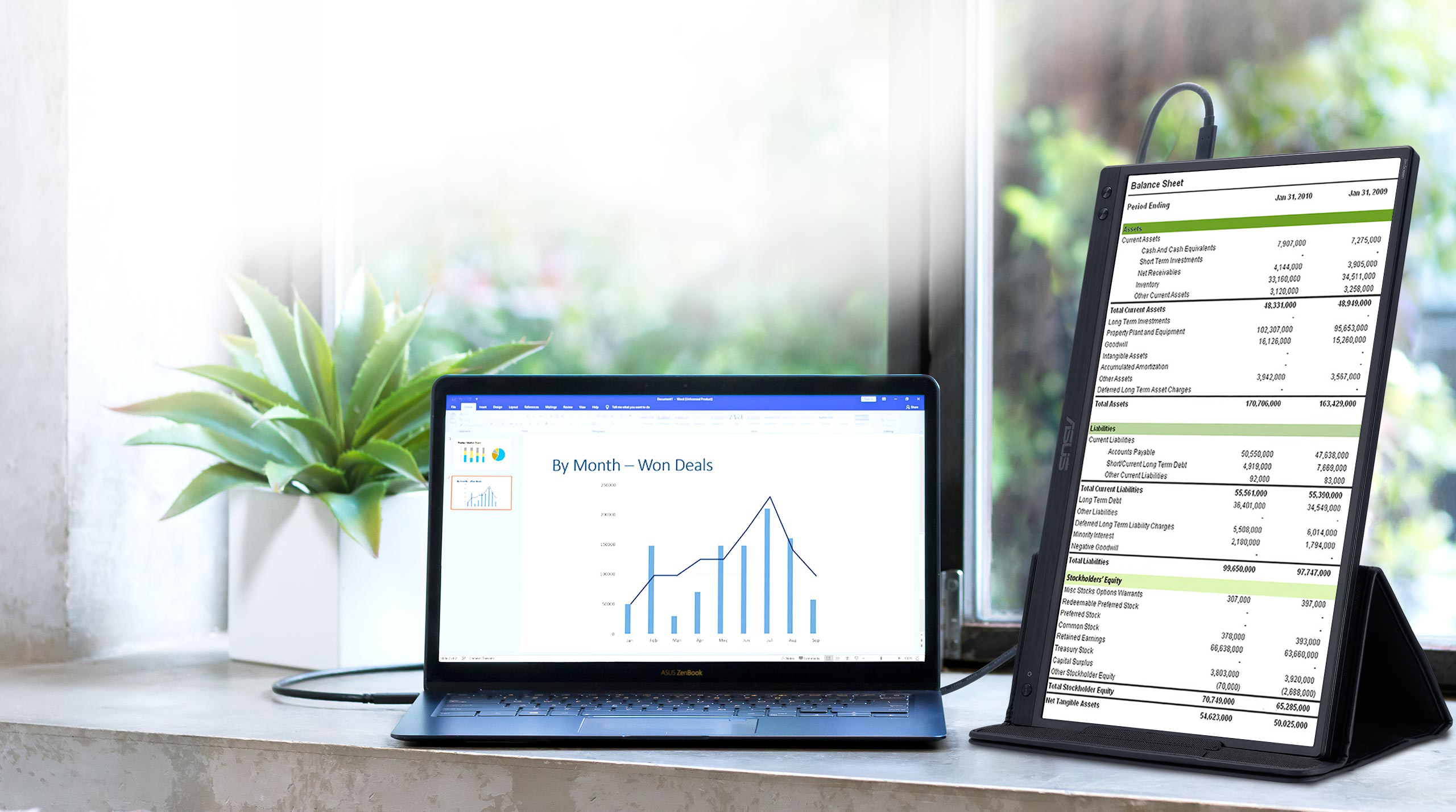
Extend your workspace
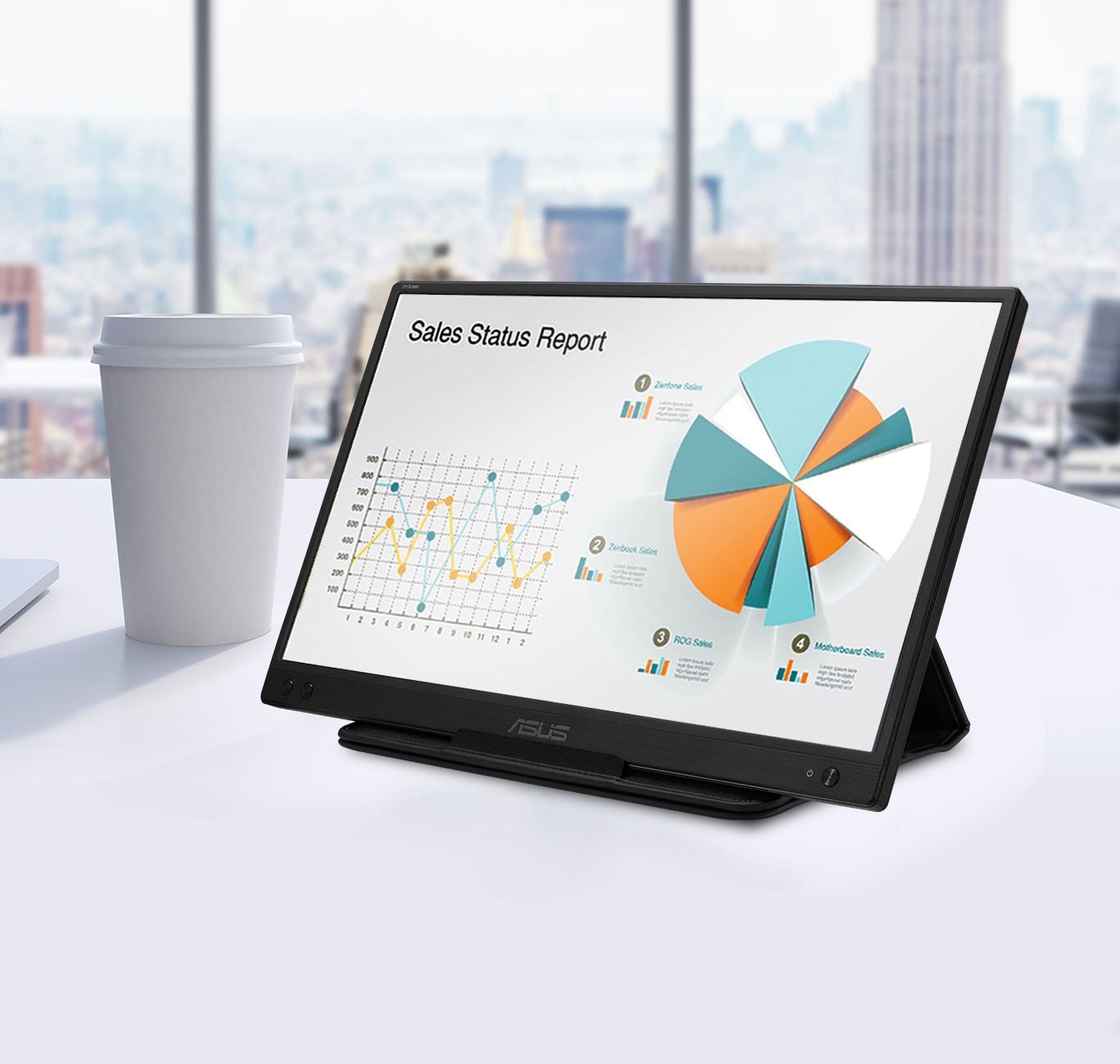
The FHD (1920 x 1080) IPS panel delivers stunning visuals and 178° viewing angles, ensuring you get superb color and contrast even when viewing the screen from off-center positions.
Protect your eyes with ASUS Eye Care technology
ASUS Flicker-free technology
ZenScreen MB166C features TÜV Rheinland-certified ASUS Flicker-free technology to reduce flicker, ensuring comfortable viewing experiences. This technology helps minimize eyestrain and other ailments typically associated with extended hours of viewing.

FAQ
-
Yes, it is compatible with most MacBooks that support USB-C with DisplayPort Alt Mode. Simply connect the monitor to your MacBook using a USB-C to USB-C cable (included). No additional drivers are needed for macOS.
Further information 1): All MacBooks with Thunderbolt 3, Thunderbolt 4, Thunderbolt 5, or USB4 ports support DisplayPort Alt Mode. This includes:
MacBook Pro
MacBook Pro (13", 15", 16") - 2016 and later
All models from 2016 onward feature Thunderbolt 3 or later via USB-C.
Example: MacBook Pro 16" (2019, Intel) - confirmed to support DP Alt Mode 1.
MacBook Air
MacBook Air - 2018 and later
Starting with the 2018 Retina MacBook Air, all models include USB-C with Thunderbolt 3 or later.
Apple Silicon Macs
MacBook Air and MacBook Pro with M1, M2, M3, M4 chips
All Apple Silicon models support DisplayPort Alt Mode over USB-C.
Further information 2): If you don't know how to identify the ports on the MacBook, please refer to https://support.apple.com/109523
✅ Tip: For older MacBooks without USB-C, you can use the mini-HDMI port with a appropriate compatible adapter. -
Yes, all ASUS's portable monitors can support portrait mode. Here are two ways to enable this function:
- Use ASUS Software DisplayWidget Center
- Download the latest software from ASUS site https://www.asus.com/content/monitor-software-osd-displaywidgetcenter/
- Run the app on PC. Then The screen content will automatically adjust when the monitor is physically rotated between landscape and portrait modes.
- If the auto-rotation is disabled, manually adjust rotation degree angle under in Splendid -> Image -> Rotation in DisplayWidget Center.
-
Use OSD
- Manually adjust the OSD settings on your PC to switch enable portrait mode.
For Windows: Go to Display Settings -> Orientation -> Portrait
For MacOS: System Settings -> Displays-> Rotation - Use ASUS Software DisplayWidget Center
-
Not necessarily.
• For those device supports DisplayPort Alt Mode, when connected via USB-C to a laptop, it can draw power directly from the device.
• For HDMI connections, you'll need to supply power via the other USB-C port using a USB-C power adapter
✅ Tip: Using external power adaptor can improve brightness and stability.
✅ Tip: Use the bundled USB-C cable. It can transfer power and signal at the same time. -
Absolutely!
• USB-C laptops : Use a USB-C to USB-C cable. If your laptop does not support USB-C DP Alt mode (support power and video transmission), please use HDMI connection and USB-C adaptor as power outlet.
• HDMI laptops : Use a mini-HDMI to HDMI cable and connect power via HDMI port and external power supply through USB-C port.
✅ Tip: Most modern laptops are compatible. No drivers are needed for Windows/macOS/Linux.
✅ Tip: If your laptop's USB-C port can't support DP Alt Mode, use HDMI port for signal and USB-C adapter to supply power.
✅ Compatible USB-C Ports
Not all USB-C ports support power and video transmission—some only handle data or charging.
See the image below for which USB-C ports work with ASUS ZenScreen portable monitor.
-
Yes, you can connect via HDMI port with XBOX and PlayStation series or Nintendo switch with its included dock.
- Tripod is not included with ZenScreen MB166C
- Software required. Auto Rotate function only works with Windows OS.