Related Topics
[LCD Monitor]ASUS DisplayWidget Center (MacOS) User Guide and FAQ
To provide you more detailed instruction, you can also click ASUS YouTube video link below to know more about How to Easily Change Screen Settings in ASUS DisplayWidget Center
https://youtu.be/fyEqB5PVGU0
ASUS DisplayWidget Center is a custom-built app for ASUS monitors that allows you to control monitor settings such as brightness, contrast, and color temperature, all with just a few clicks of your mouse.
How to confirm the supported models
You can check the product specifications on ASUS official website.
(Example:ROG Swift OLED PG34WCDM ) 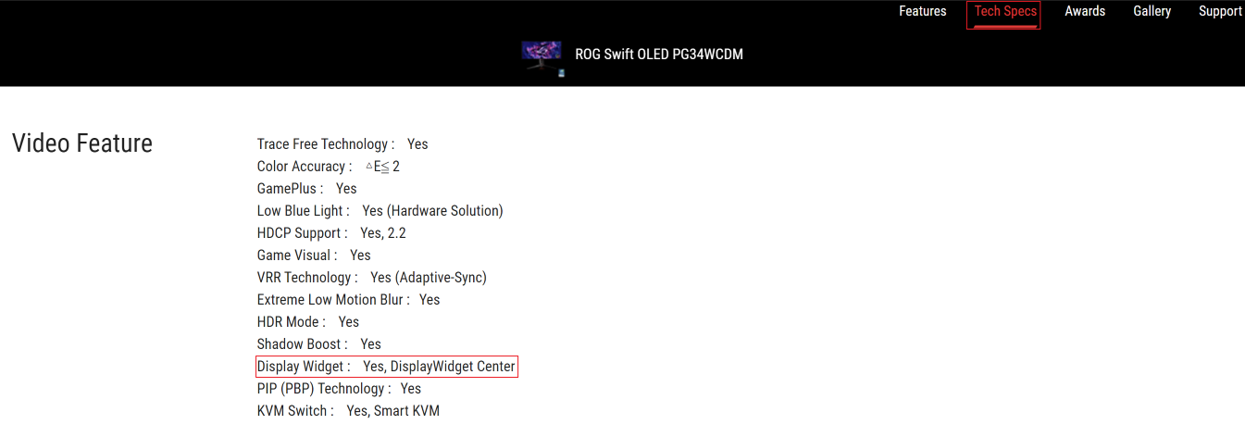

B. Install ASUS DisplayWidget Center
1. Double-click the installer. On the Introduction screen, click Continue.

2. On the License screen, review the EULA, then click Continue.

3. A prompt appears — click Agree to accept the license (Disagree cancels the install).

4. On the Installation screen, a password prompt appears — enter your login password, click Install Software.

5. Wait for installation to finish, reach the Summary screen, click Close.
C. ASUS DisplayWidget Center Function Description
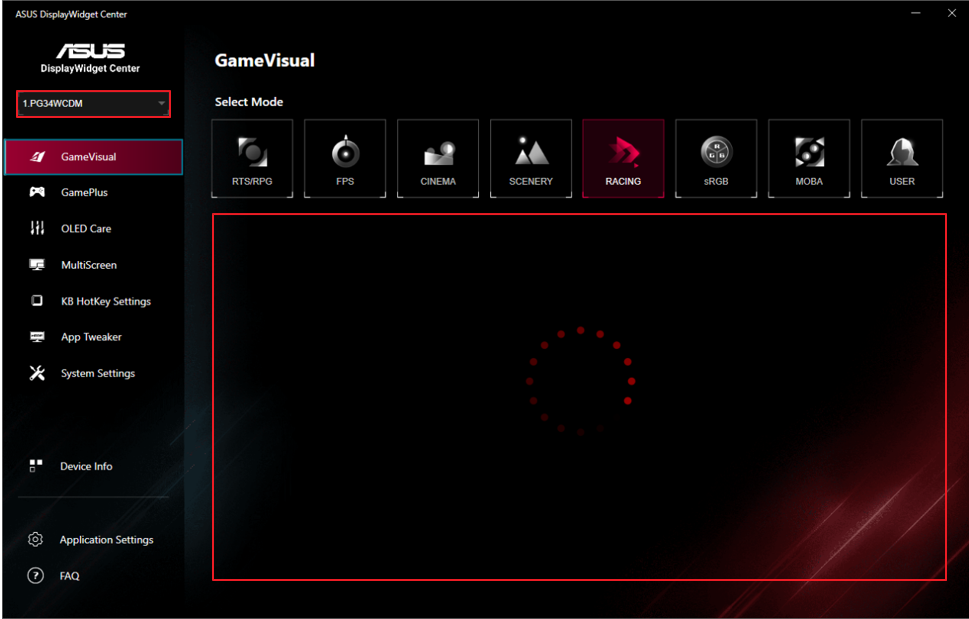
1. Open ASUS DisplayWidget Center, as below picture.
- Configure monitor device. to start using the function.
2. Function Description
You can control the scene mode* of the screen from the computer according to your requirement.
(1).GameVisual: 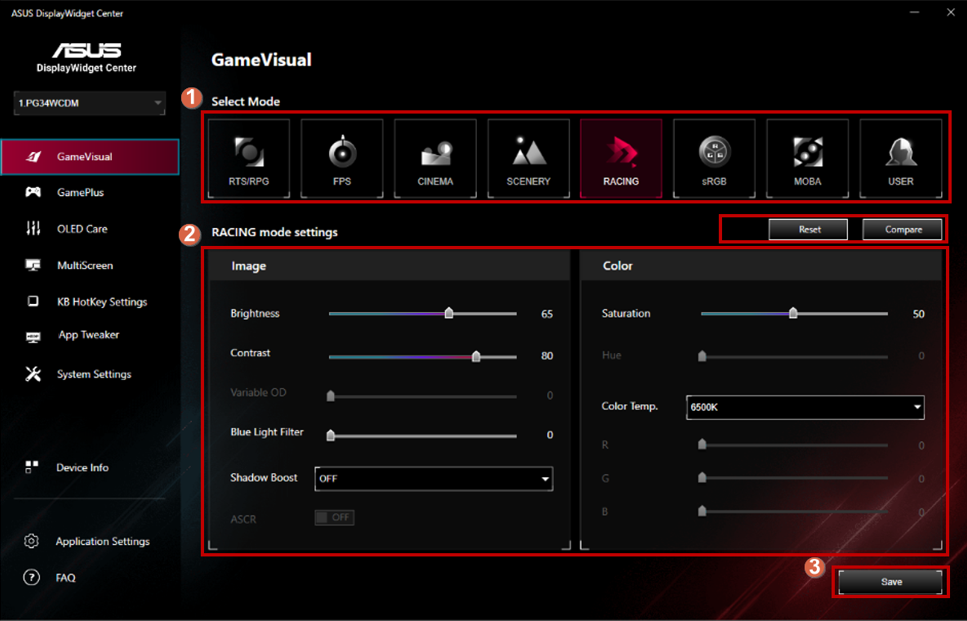
*If you want to use GameVisual situational function mode, please turn off HDR first.
*To check if GameVisual is supported, please refer to Q&A: Q5.
① Select your favorite mode.
- RTS/RPG mode: a mode suitable for playing real-time strategy games (RTS)/role-playing games (RPG).
- FPS mode: a mode suitable for enjoying first-person shooter games.
- Movie mode: a mode suitable for watching movies.
- Scenery mode: a mode suitable for displaying Scenery photos.
- Racing mode: a mode suitable for enjoying racing video games.
- sRGB mode: a mode suitable for viewing photos and pictures on a computer.
- MOBA mode: Multiplayer online battle arena (MOBA) game mode.
- User Mode: More items are adjustable in the Color menu.
②.You can manually adjust the detailed settings of each mode, such as: brightness, contrast, saturation, blue light filter and shadow acceleration, etc.
(2).Splendid:
You can control the scene mode* of the screen from the computer according to your requirement.
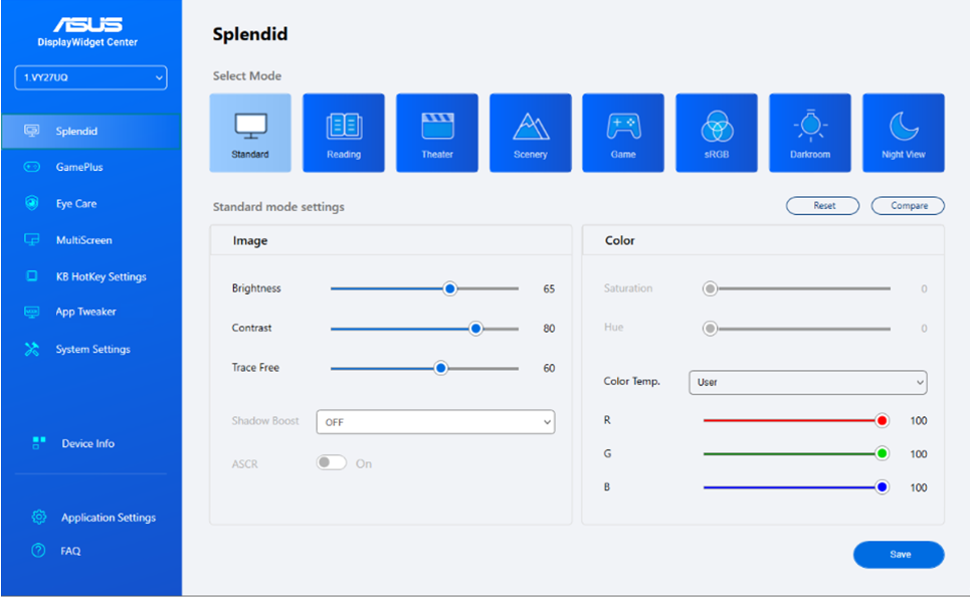
*If you want to use Splendid situational function mode, please turn off HDR first.
*To check if Splendid is supported, please refer to Q&A: Q5.
- Standard Mode: Best choice for document editing with Splendid Video Enhancement.
- sRGB Mode: Best choice for viewing photos and graphics from PCs.
- Scenery Mode: Best choice for scenery photo display with Splendid Video Enhancement.
- Theater Mode: Best choice for movies with Splendid Video Enhancement.
- Game Mode: Best choice for game playing with Splendid Video Enhancement.
- Night View Mode: Best choice for dark-scene games or movies with Splendid Video Enhancement.
- Reading Mode: This is the best choice for book reading.
- Darkroom Mode: This is the best choice for a weak ambient light environment.
(3).Preset:
You can control the scene mode* of the screen from the computer according to your requirement.
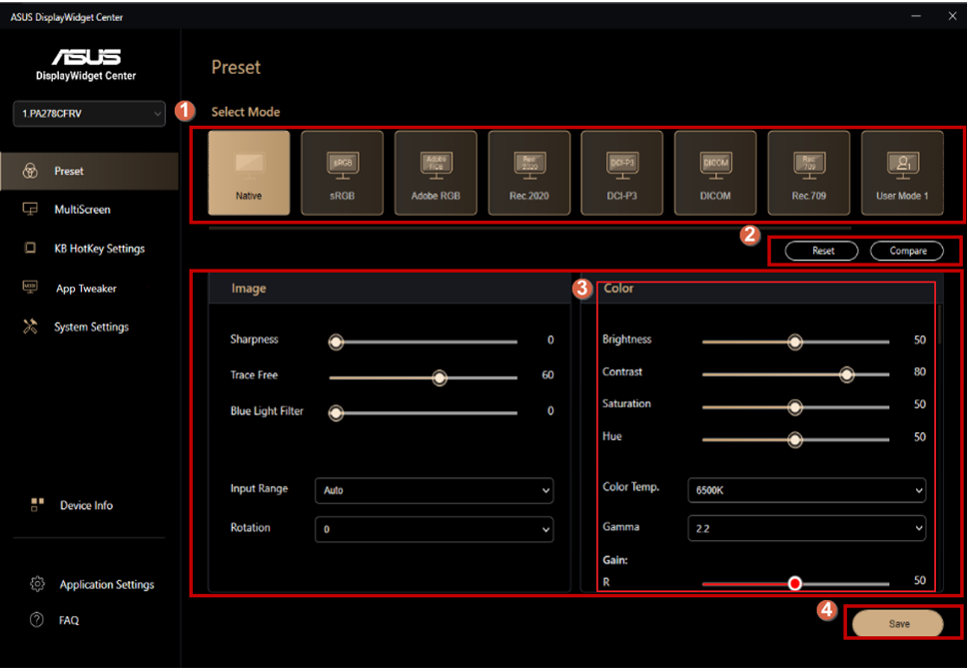
*If you want to use Preset situational function mode, please turn off HDR first.
*To check if Preset is supported, please refer to Q&A: Q5.
①Select your favorite mode.
- Native Mode: Best choice for document editing.
- sRGB Mode: Compatible with sRGB color space, sRGB mode is the best choice for document editing.
- Adobe RGB Mode: Compatible with Adobe RGB color space.
- Rec.2020 Mode: Compatible with Rec.2020 color space.
- DCI-P3 Mode: Compatible with DCI-P3 color space.
- DICOM Mode: Compatible with DICOM standard, best choice for medical image checking.
- Rec. 709 Mode: Compatible with Rec. 709 color space.
- HDR: High Dynamic Range. Contains three HDR modes (PQ Optimized, PQ Clip, and PQ Basic).
②Reset to pervious settings / compare with pervious settings.
③Adjust detail settings.
④Save your settings.
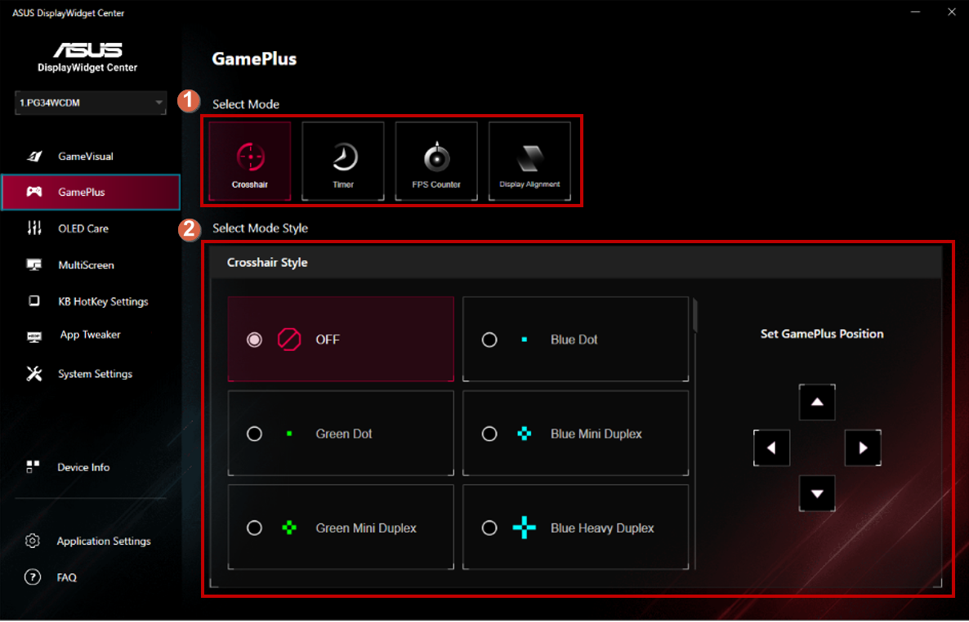
(4).GamePlus:
-Crosshair:
①Select the desired GamePlus mode.
②Select the desired crosshair style and adjust crosshair position.
-Timer:
①Select the desired GamePlus mode.
②Select the desired timer style and adjust timer position. 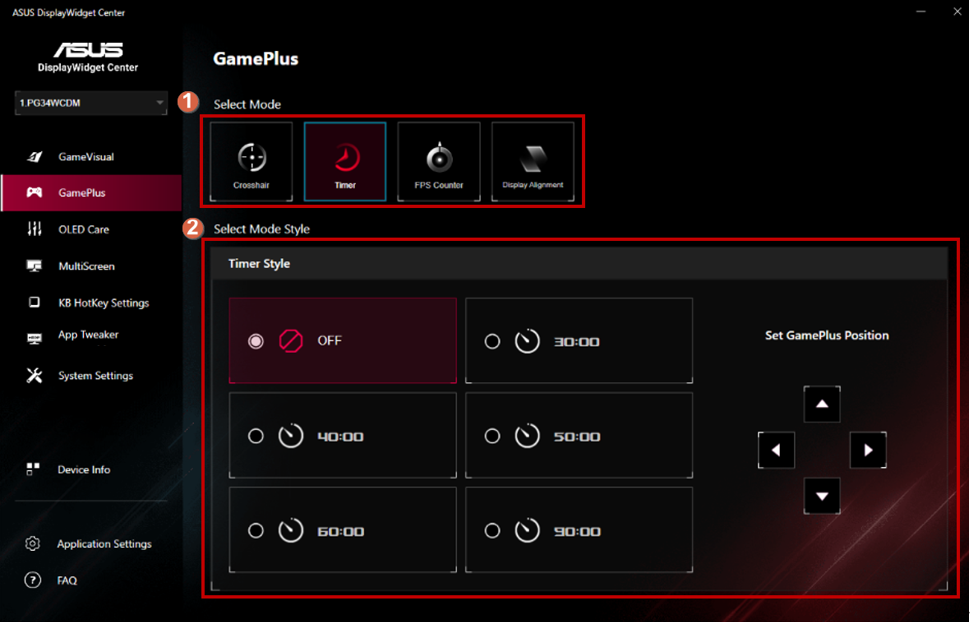
-FPS Counter:
①Select the desired GamePlus mode.
②Select the desired FPS Counter style and adjust FPS Counter position. 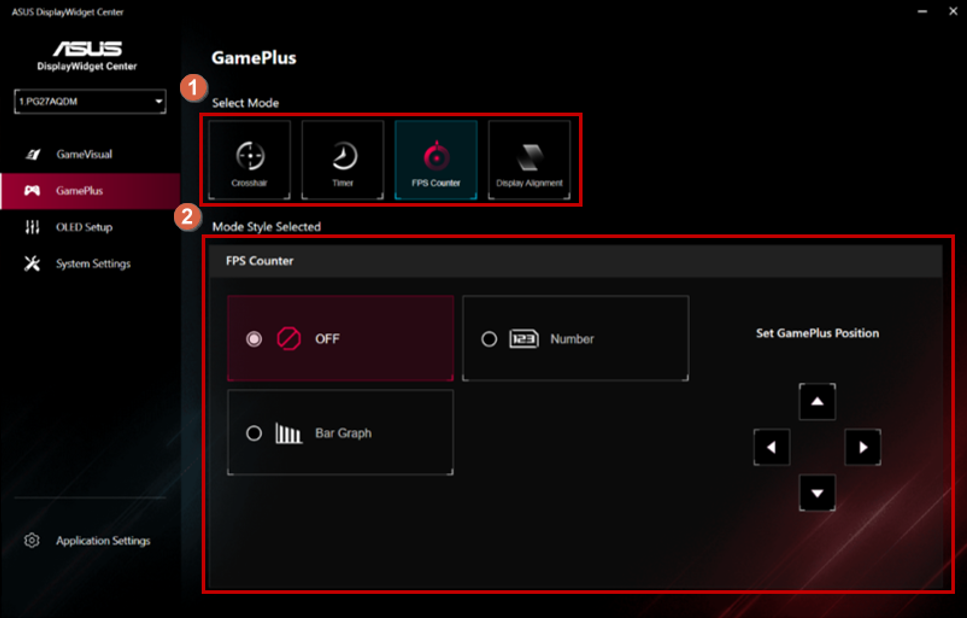
-Display Alignment:
①Select the desired GamePlus mode.
②Select the desired Display Alignment style and adjust Display Alignment position. 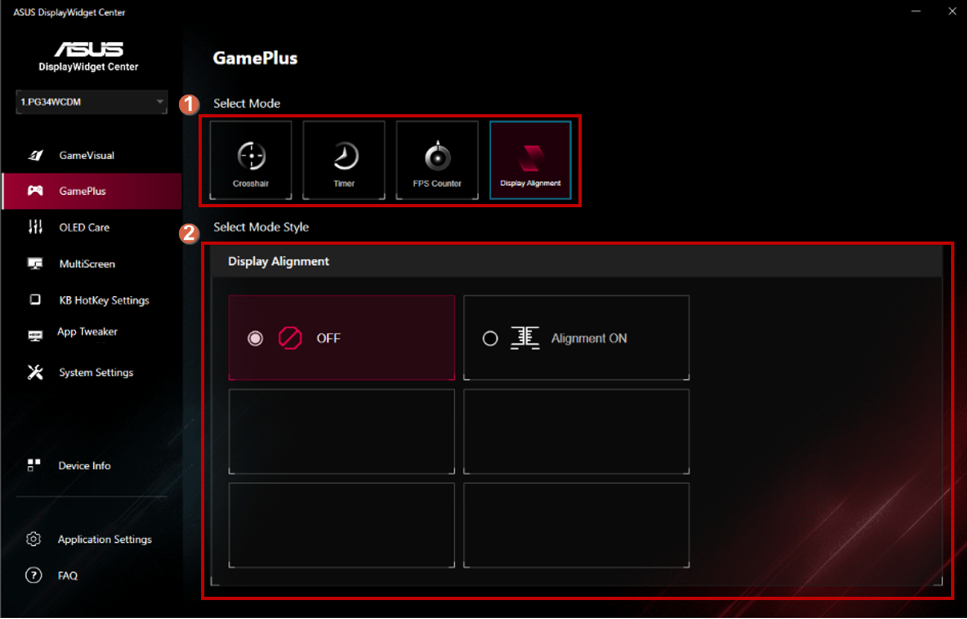
* It supports by product spec.
(5).OLED Care:
Adjust OLED setup item. 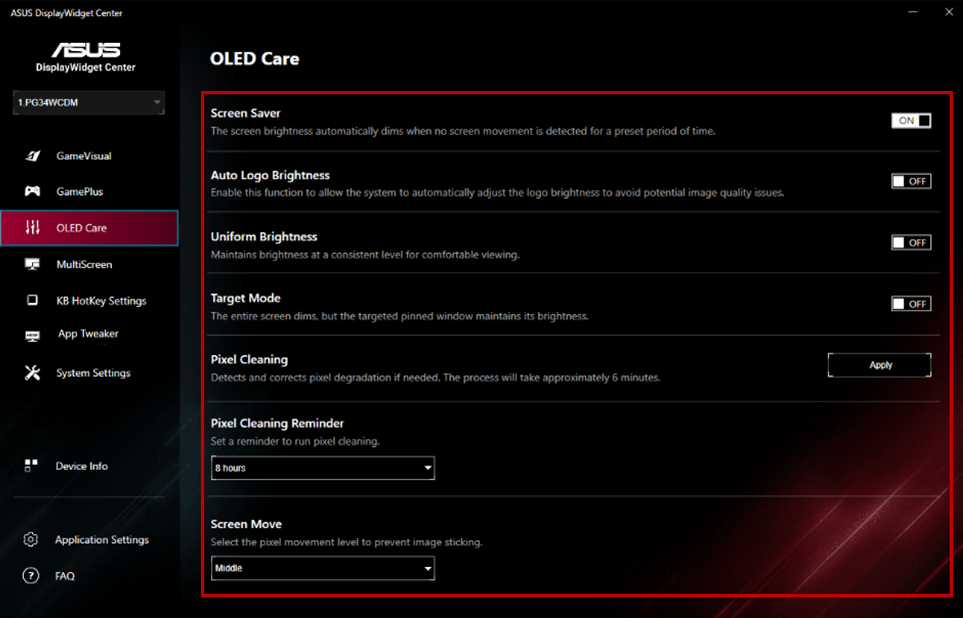
* The function supports by product spec.
(6).Eye Care:
Adjust Eye care function (Ex, Blue Light Filter, Color Augmentation, Rest Reminder) 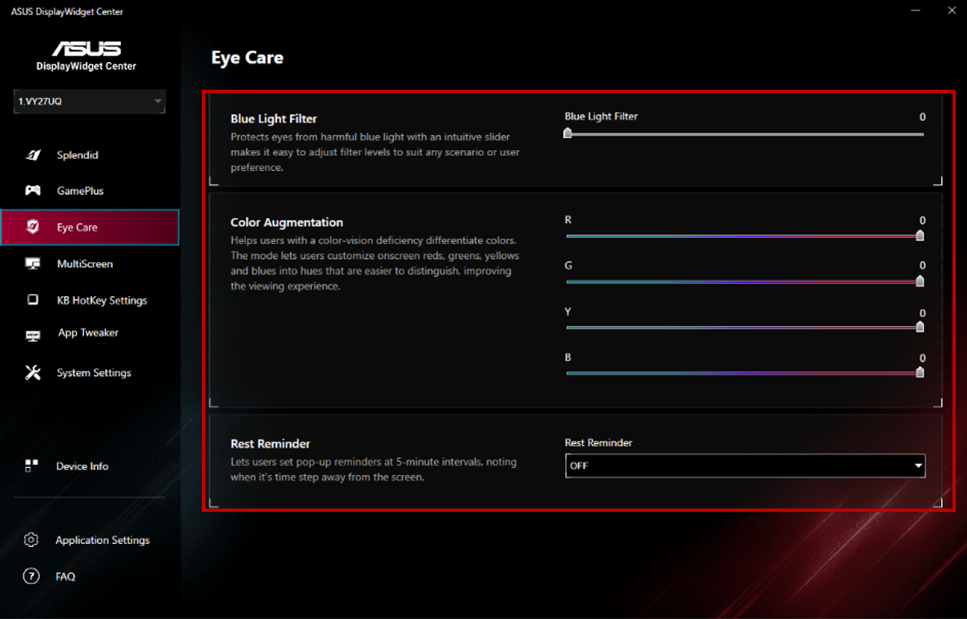
*The function supports by product spec.
(7).MultiScreen:
- MultiFrame
① Select MultiScreen function.
② Choose your preferred layout. 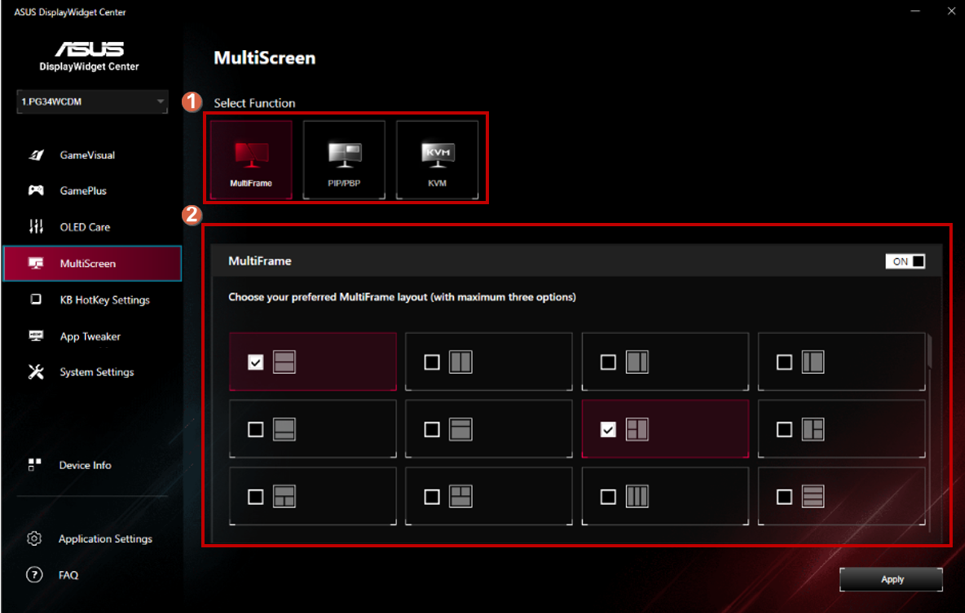
-PIP/PBP:
① Select MultiScreen function.
② Choose your preferred PIP/PBP mode. 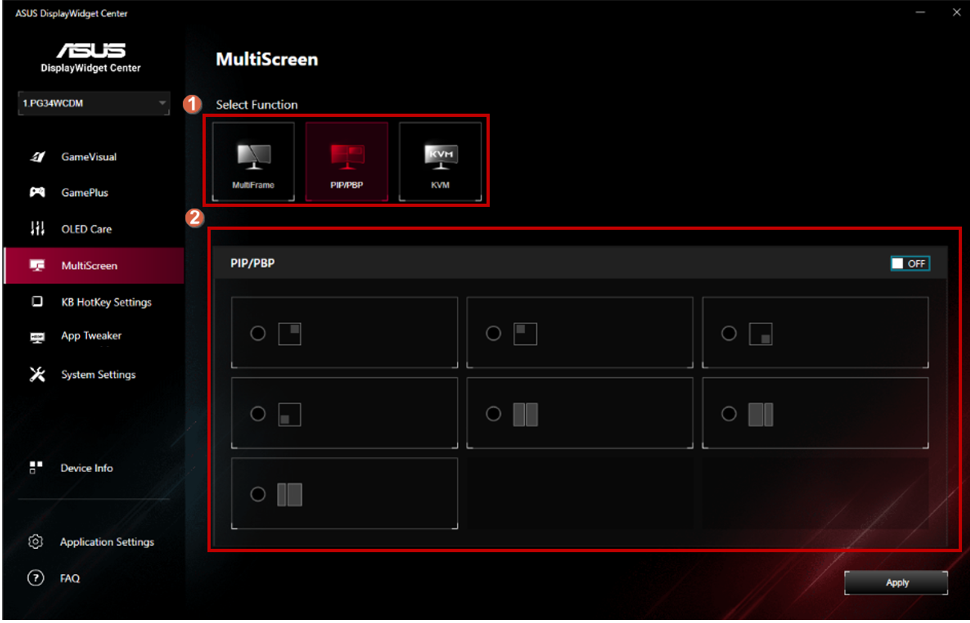
* The function supports by product spec.
-KVM:
① Select MultiScreen function.
② Smart KVM Switch.
③ HotKey for KVM switch. 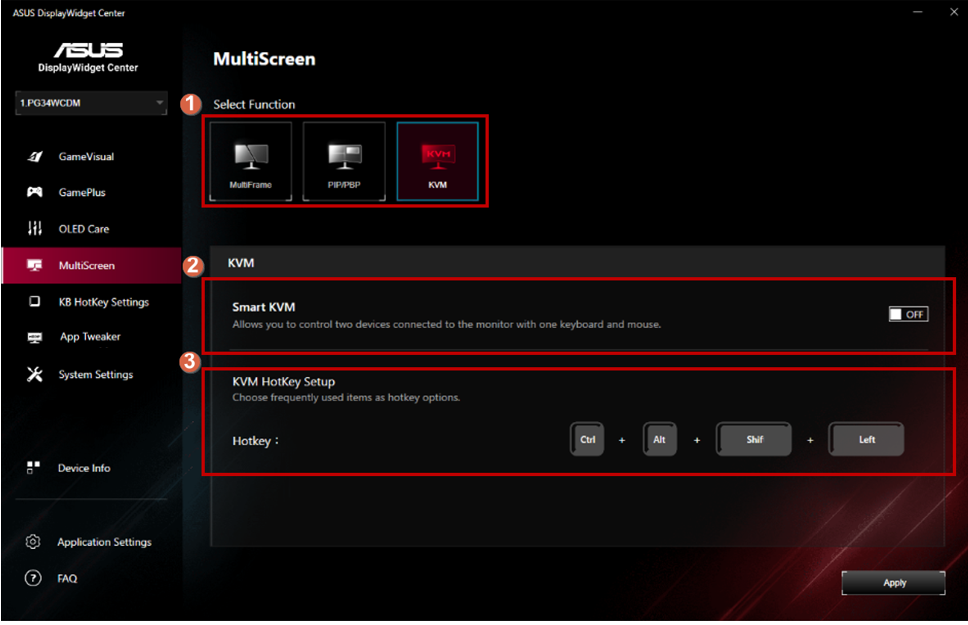
*The function supports by product spec.
(8).KB HotKey Settings:
①HotKey Settings for OSD function. 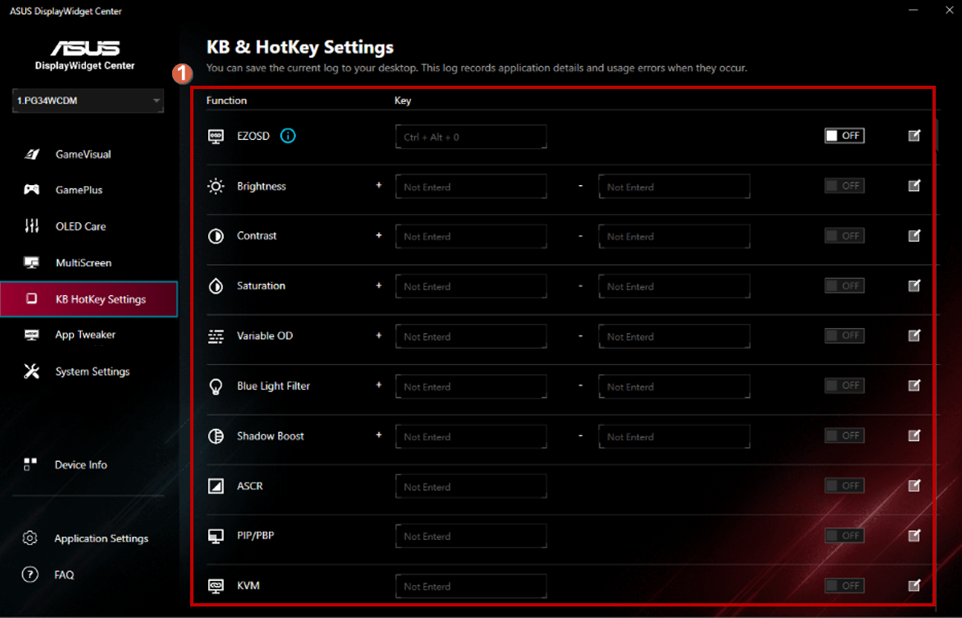
(9).APP Tweaker:
①App Tweaker On/Off Switch.
②Apply the preferred mode on selected app. 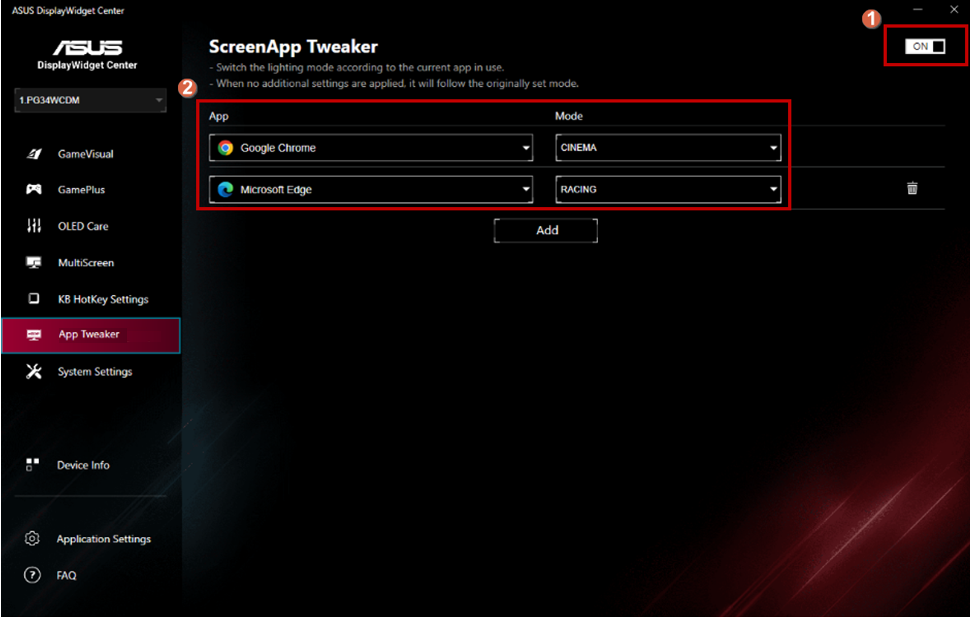
(10).Device info:
①Output E-Color report.
②Copy the device’s information. 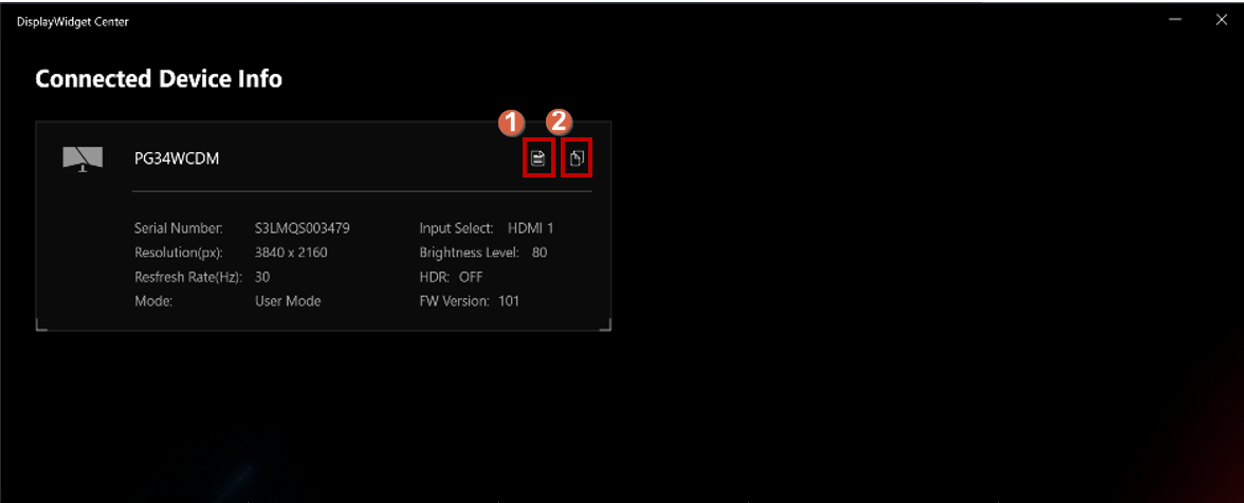
(11).System Settings :
①Hotkey for Windows HDR function.
②Hotkey for Windows task-bar function.
③Hotkey for Windows background color theme.
④Display device’s power setting. 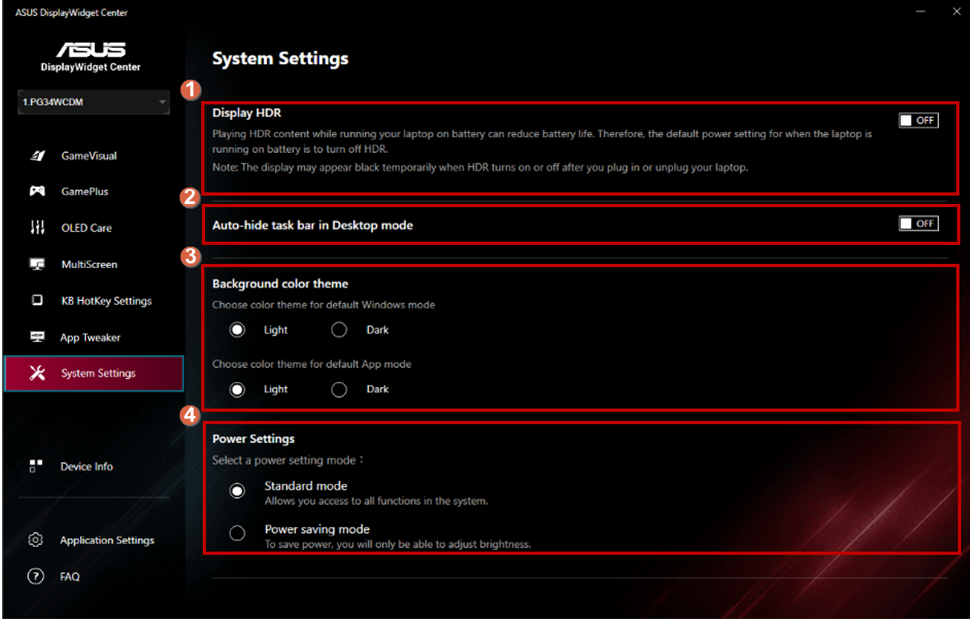
(12).Application Settings :
①App version update checker->Select the desired mode to remind.
②Select the language you need.
③Select your favorite App theme.
④Record your system data when the usage errors they occur. 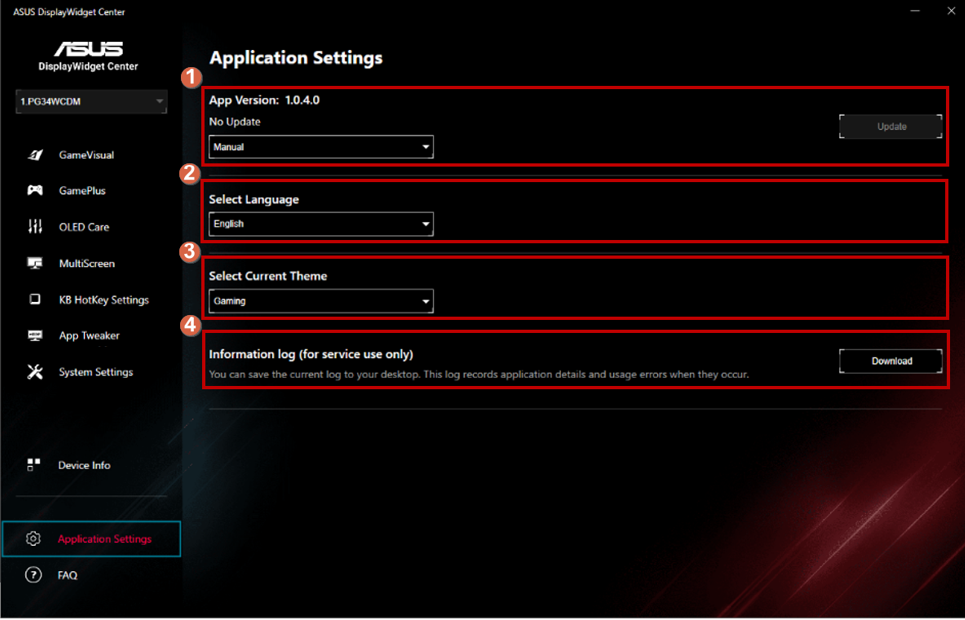
D. Question and Answer
Question 1. How to activate Mac brightness control ?
Answer:
• Permission Operations: Please ensure that both Accessibility and Input Monitoring permissions are granted. Alternatively, you can try removing and then re-granting these permissions.Launch DisplayWidget Center from Applications.
1.1 When prompted, click "Go to Settings" to open Privacy & Security > Accessibility.
1.2 Enable the toggle for DisplayWidget Center.
1.3 Go to Privacy & Security > Input Monitoring, enable DisplayWidget Center, then choose "Quit & Reopen" when prompted.
1.4 Confirm the app relaunches and loads normally, indicating both permissions are active.
This walkthrough grants Accessibility and Input Monitoring access so DisplayWidget Center can read hotkeys and control the display.
Operation Video Link :
Question 2. How to set up App Tweaker for Mac ?
Answer :
2.1 Open the App Tweaker tab and enable the feature toggle.
2.2 Add a rule: choose an app from "Choose App".
2.3 Set the Mode to a target color profile.
2.4 Switch focus to the selected app to trigger the rule.
Example: Choose App = Zed, Mode = sRGB. Whenever Zed becomes the active app, the display automatically switches to sRGB; switching away restores the previous mode.
Operation Video Link :
Question 3. How to set up Hotkey for Mac ?
Answer:
l Note: This is a macOS limitation where modifier keys cannot be triggered alone
3.1 Open the HotKey tab, showing shortcuts for Brightness, Contrast, Blue Light Filter, etc.
3.2 Click the edit icon next to the feature you want to rebind.
3.3 Record new key combinations for the two shortcut slots.
3.4 Click "Save" to confirm the new shortcut.
Example: For Brightness, record Cmd+Opt+- (decrease) and Cmd+Opt+= (increase), then Save. The updated shortcuts appear in the HotKey list.
Operation Video Link :
Question 4. How to enable scroll bar for Mac ?
Answer:
l Note for Mac users with Touchpad: It is normal for the scroll bar not to appear on the UI until you start scrolling.
4.1 In macOS System Settings, search "scroll" and open Scroll Bar Behavior.
4.2 Toggle "Show scroll bars" between "When scrolling" and "Always", then revert to "Automatically based on mouse or trackpad".
4.3 Switch back to DisplayWidget Center and open a dropdown to confirm the scrollbar style updates accordingly.
Operation Video Link :