หัวข้อที่เกี่ยวข้อง
[Chromebook] เรียนรู้วิธีใช้ทัชแพดของ Chromebook
ท่าทางสัมผัสช่วยให้คุณดำเนินงานและเข้าถึงการตั้งค่าต่างๆ บน Chromebook ของคุณได้ โปรดดูภาพประกอบด้านล่างสำหรับคำแนะนำเกี่ยวกับท่าทางสัมผัสของทัชแพด
สารบัญ:
ย้ายจุด
คุณสามารถแตะที่ใดก็ได้บนทัชแพดเพื่อเปิดใช้งานตัวชี้ จากนั้นเลื่อนนิ้วของคุณบนทัชแพดเพื่อเลื่อนตัวชี้บนหน้าจอ
| Gesture | Action |
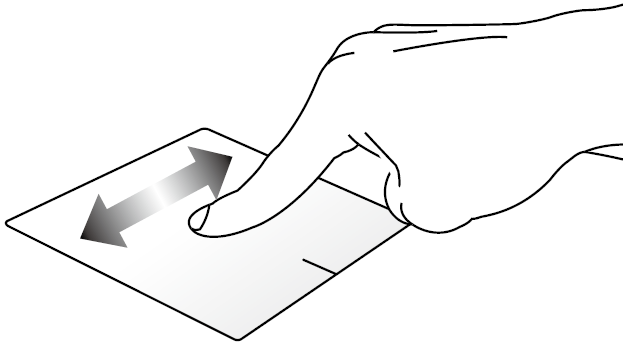 | Slide horizontally |
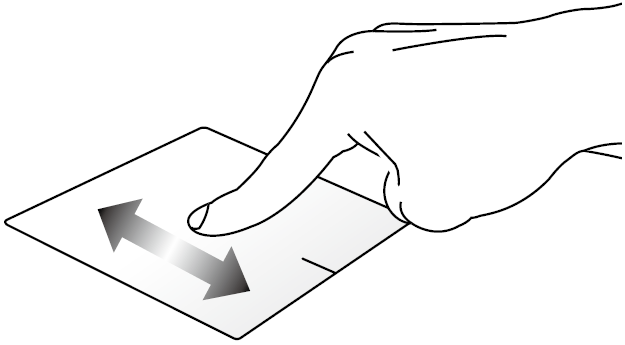 | Slide vertically |
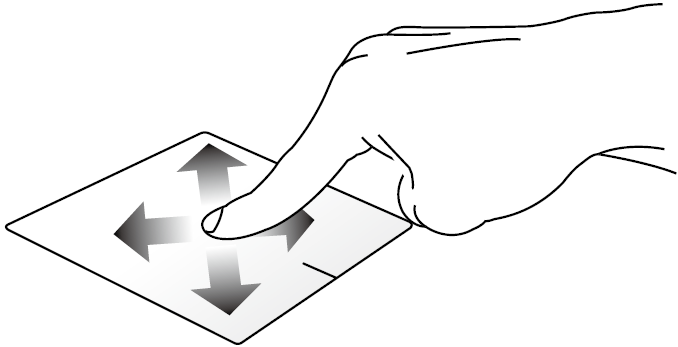 | Slide diagonally |
ท่าทางด้วยนิ้วเดียว
| Gesture | Action | Description |
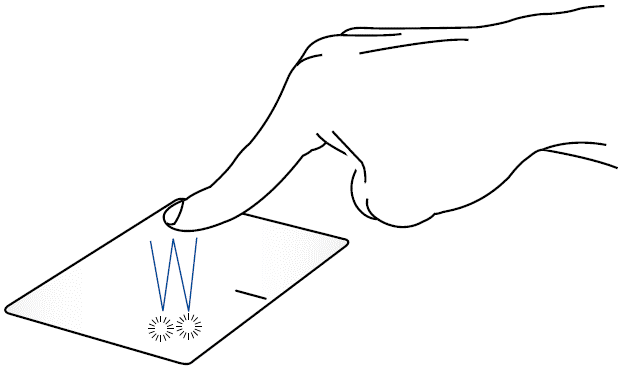 | Tap/Double-tap |
|
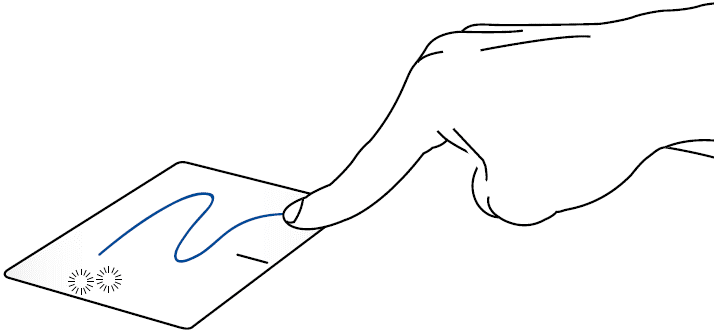 | Drag and drop | Tap on an active screen then slide the same finger without lifting it off the touchpad. To drop the screen to its new location, lift your finger from the touchpad. |
ท่าทางสองนิ้ว
| Gesture | Action | Description |
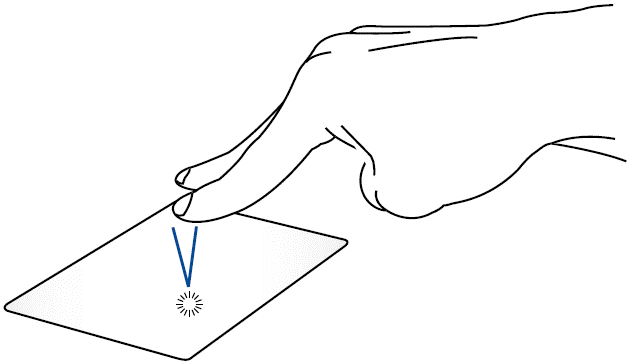 | Tap | Tap two fingers on the touchpad to simulate the right-click function. |
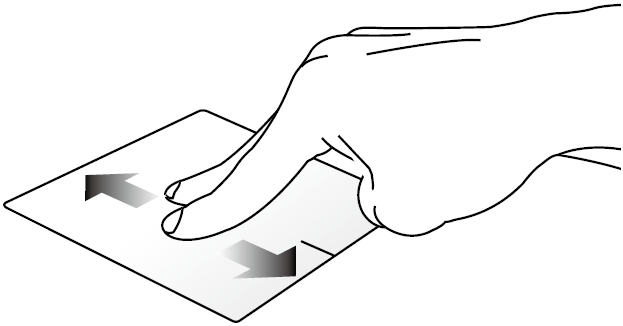 | Two-finger scroll (up/down) | Slide two fingers to scroll up or down. |
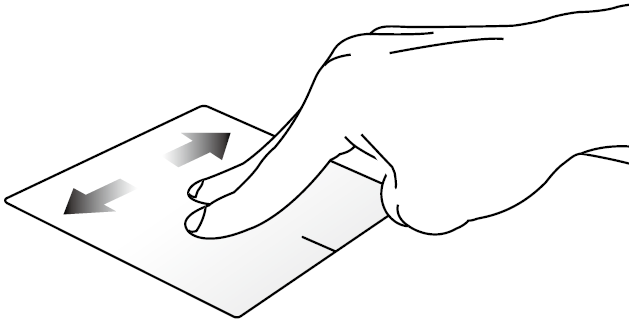 | Two-finger scroll (left/right) | Slide two fingers to scroll left or right. |
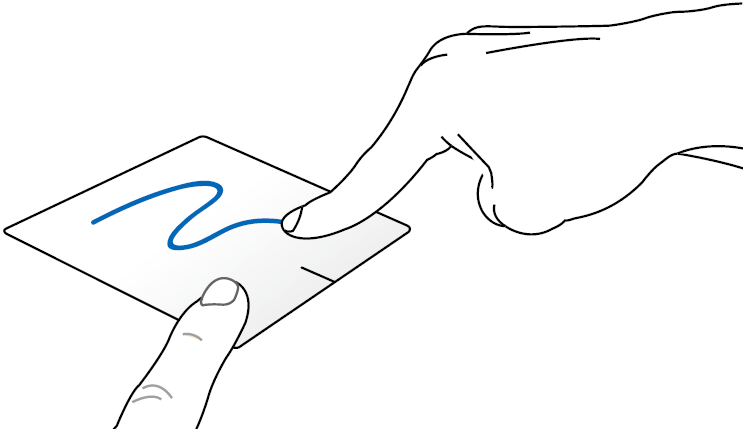 | Drag and drop | Select an item then press and hold the touchpad. Using your other finger, slide on the touchpad to drag the item, lift your finger off the button to drop the item. |
ท่าทางสามนิ้ว
| Gesture | Action | Description |
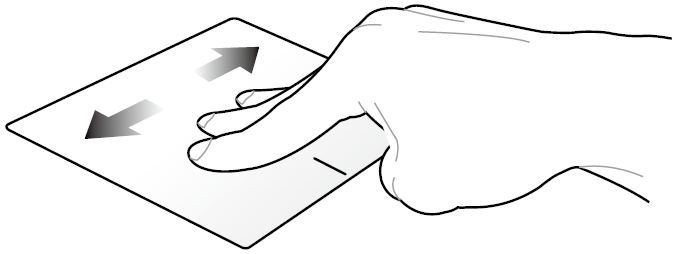 | Swipe left/Swipe right | If you opened multiple tabs on your web browser, swipe three fingers left or right to switch between these tabs. |
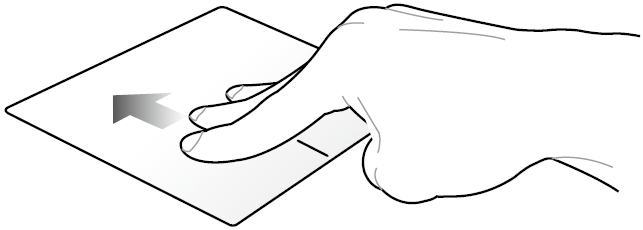 | Swipe up | Swipe up to see an overview of all the screens currently opened on Chromebook. |
การปรับแต่งทัชแพดของคุณ
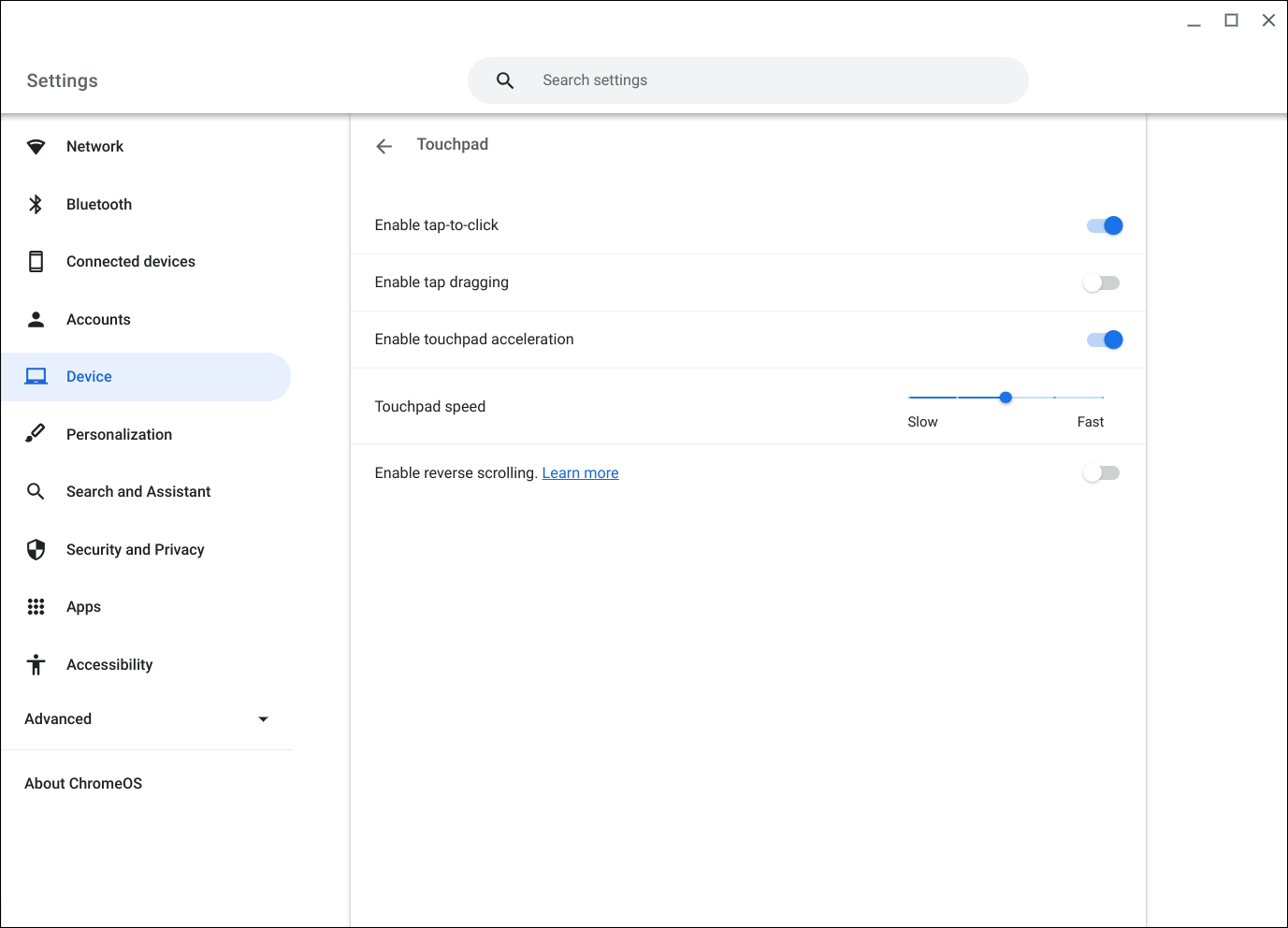
หากคุณต้องการแก้ไขการตั้งค่า เช่น การคลิกทัชแพด การลาก ทิศทางการเลื่อน หรือความเร็วในการเลื่อนเคอร์เซอร์ โปรดทำตามขั้นตอนด้านล่าง:
- คลิกที่ [Status bar]① ซึ่งอยู่ที่มุมล่างขวาของหน้าจอ จากนั้นคลิก [Settings]②

- ในการตั้งค่า คลิก [Device]③ จากนั้นเลือก [Touchpad]④
หมายเหตุ: หาก Chromebook ของคุณเชื่อมต่อกับเมาส์ การตั้งค่าอาจปรากฏเป็น 'ทัชแพดและเมาส์'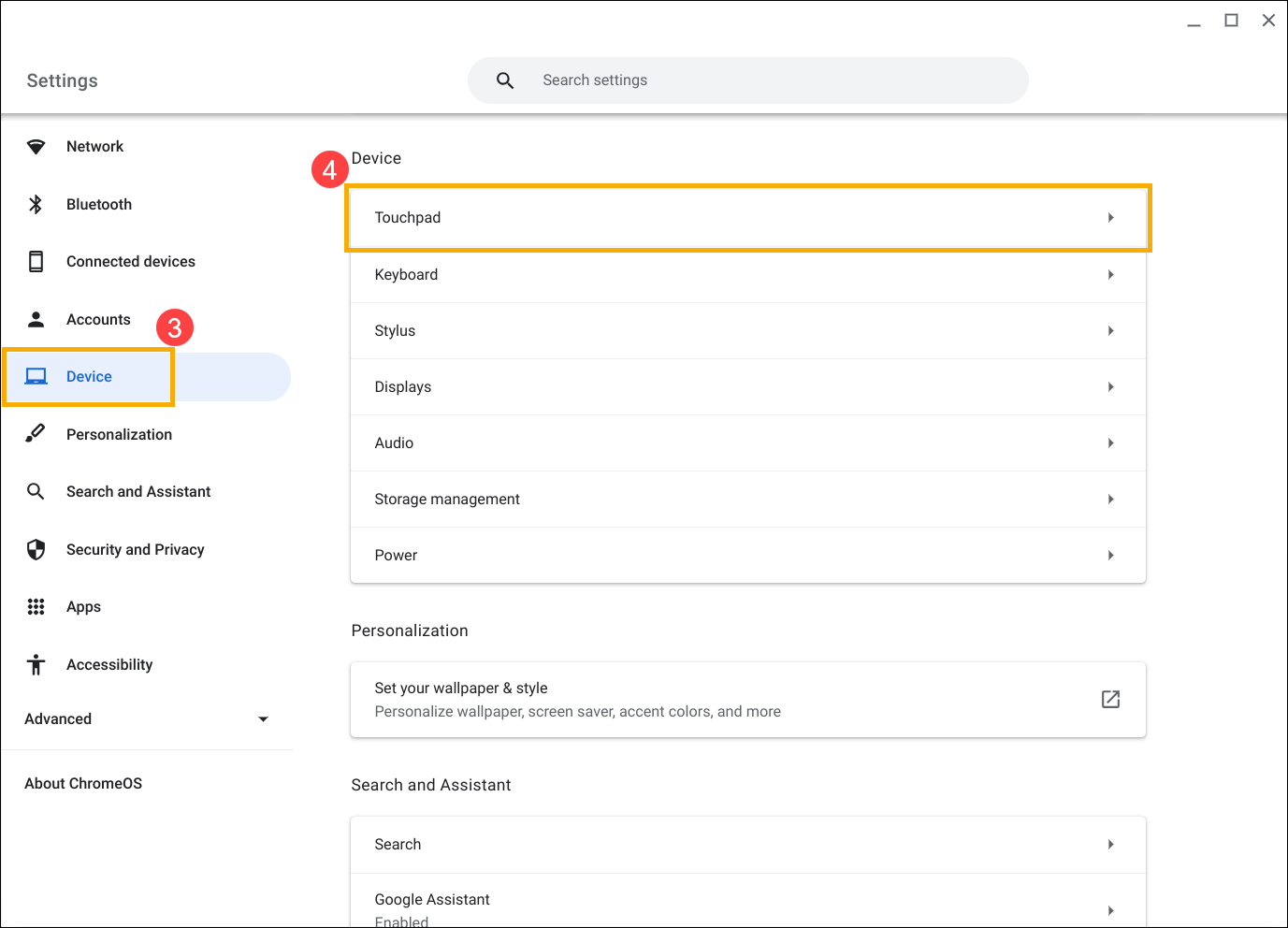
- ภายในการตั้งค่าทัชแพด คุณสามารถปรับแต่งได้ตามความต้องการ
คุณยังสามารถดูวิธีใช้ Google Chromebook บนเว็บไซต์อย่างเป็นทางการสำหรับข้อมูลโดยละเอียดเพิ่มเติม: