GlideX Frequently Asked Question (FAQ)
[Notebook/Desktop/AIO] GlideX - Introduction
[GlideX] How to enable USB debugging for Android devices?
[GlideX] How to connect device(s) via Wi-Fi or USB cable
[GlideX] Cannot use GlideX Remote Desktop?
[GlideX] Learn how to send feedback to GlideX
[GlideX] Cannot connect your devices to use Shared Cam in third-party video-communication services?
[GlideX] Cannot find the device you want to connect in the device list on GlideX?
[GlideX] Bluetooth pairing problems
[GlideX] Cannot connect your Devices via Bluetooth to use Communication in GlideX?
[GlideX] How to switch from 2.4GHz to 5GHz for a better screen sharing experience?
[Notebook/Desktop/AIO] GlideX - Introduction
ASUS GlideX is a cross-device screen sharing solution. Wired or wireless connections can be used to create a larger and better space for work or entertainment. It supports Windows, macOS, iOS, and Android, and provides deeper optimization on ASUS devices to reduce latency and provide smoother controls. Start here, then explore the tools that help you create, present, and stay in sync with ease.
※ ASUS GlideX supports integration with ASUS Control Panel. For detailed steps, please refer to: ASUS Control Panel - Introduction | Official Support | ASUS Global
※ The Unify Control feature now supports file transfer and clipboard text synchronization between devices. Click here to go to the Unify Control feature introduction.
1. Requirements for the PC side and mobile device side
6. User Center - Account login
10. File transfer and URL sharing
1. Requirements for the PC side and mobile device side:
PC side:
- Supports Windows PCs and connections via LAN, Wi‑Fi, or USB.
- Windows OS: Windows 10/11 64-bit (version 1909 and later) (Please note that ASUS GlideX does not support Windows S mode)
- Graphics driver supports H.264 codec
Mobile device side:
- iOS devices require 14.0 and later
- Android devices require 9.0 and later
- Network requirements: Mobile network, Wi-Fi, Personal hotspot, and Bluetooth
- Supported mobile devices: iPhone, iPad, Android Phone, Android Pad
2. First time opening ASUS GlideX
When opening ASUS GlideX on the PC for the first time, the following screen may appear. Please follow the recommended steps.
(1) Search for ①[ASUS GlideX] in the search bar at the lower-left corner of the PC desktop, then click ②[ASUS GlideX], and ASUS GlideX will open.

(2) Click ③[Next].

(3) On the Privacy Notice page, click ④[Confirm].

(4) On the ASUS GlideX app download page, if ASUS GlideX is not installed on your mobile device, please download the ⑤[ASUS GlideX] app. Click ⑥[Next].

(5) ASUS GlideX will enter the app Device Map.

To ensure ASUS GlideX works properly on the mobile device side, please enable the following permissions. We recommend enabling all permissions before using ASUS GlideX.
Tap [More] in the upper-right corner, tap [Permission management], and open the permission management page.
Necessary
- Nearby devices - This allows your device to connect wirelessly to nearby devices.
Screen Mirror
- Display over other apps - This lets you cast your mobile device screen to your PC.
- Screen recording - This lets you cast your mobile device screen to your PC.
QR Code Scanner
- Access the camera - This lets you scan a QR Code from the ASUS GlideX Windows app.
Unify Control
- Display over other apps - Allows your mobile device to detect when a mouse is close to the screen boundary.
File Transfer
- Access this device’s location - This allows your device to search for and connect to nearby devices via Bluetooth.
- Use location information - This allows your device to search for and connect to nearby devices over Wi‑Fi.

Shared Cam
- Access the microphone - Allow access to the microphone to record audio while recording video using SharedCam and transfer that recording to your PC.
- Access the camera - This allows ASUS GlideX to take pictures/videos, and lets you turn your mobile device into a webcam.
- Allow to modify system settings - This lets your device lower screen brightness while using it as a webcam to save your mobile device's battery.
- Display over other apps - This allows you to display ASUS GlideX's Shared Cam on your phone's screen.
Communication
- Access this device's location - This allows your device to search for and connect to nearby devices via Bluetooth.
- Use location information - This allows your device to search for and connect to nearby devices over Wi-Fi.
Notifications
- Notification access - This lets ASUS GlideX sync your mobile notifications to your paired PC.
App Streaming
- Display over other apps - This lets you cast your mobile device screen to your PC.
- Screen Recording - Open multiple mobile apps on your computer.
Phone Album
- Display over other apps - Allows you to confirm the deletion of phone album photos on your computer without bringing ASUS GlideX to the foreground.
- Access Storage - This lets you send photos, videos, or files with others, and save photos, videos, or files to your device.

Necessary - Local network access. This lets you be able to be discovered and connect to devices on the networkyou use.
Unify Control - Bluetooth Pairing. This will allow GlideX to connect to your PC via Bluetooth and enable Unify Control.
File transfer - Access photos, media, and files on your device. Allow ASUS GlideX limited access to the photo library to transfer photos and video clips, This will also allow ASUS GlideX to save photos and video clips that it receives back to the photo library.
File transfer - Bluetooth Pairing. This will allow GlideX to connect to your PC via Bluetooth and enable File transfer.

Shared Cam - Access the microphone. Allow access to the microphone to record audio while recording video using Shared Cam and transfer that recording to your PC.
Shared Cam - Access the camera. This lets you scan a QR Code from the ASUS GlideX Windows app.
Shared Cam - Access photos, media, and files on your device. Allow ASUS GlideX access to the photo library to transfer photos and video clips and to save any photos and video clips received to it.

Communication - Bluetooth Pairing. This will allow ASUS GlideX to connect to your PC via Bluetooth and enable Communication.
Phone Album - files on Access photos, media, and your device. Allow ASUS ASUS GlideX limited access to the photo library to transfer photos andvideo clips. This will also allow ASUS GlideX to save photos and video clips that it receives back to the photo library.
Others - Access the camera. This lets you scan a QR Code from the ASUS GlideX Windows app.
Others - Notification access. This lets ASUS GlideX forward notifications to your mobile device.

ASUS GlideX is divided into an ASUS Exclusive Version and a General Version.
As long as any one of the connected devices is an ASUS device that supports ASUS GlideX (whether a phone or a computer), you can use the ASUS Exclusive Version and enjoy the full GlideX feature set.
After installing ASUS GlideX, please tap [Device Version] on the Device Map to view the plan currently available to you.
The differences between the ASUS Exclusive Version and the General Version are as follows:
(1) Available Features
- ASUS Exclusive Version: All GlideX features are available, including Extend, Mirror, Unify Control, File Transfer, Communication, Remote Access, and Shared Camera.
General Version: Only Extend, Mirror, Unified Control, and File Transfer are available.
(2) Number of Connected Devices
- ASUS Exclusive Version: Depending on the feature type, different features support different numbers of devices connected simultaneously.
General Version: Fewer devices can be connected, and limitations vary by feature.
(3) Video Transmission Quality
- ASUS Exclusive Version: Supports native image quality (up to 2K/60).
General Version: Supports up to FHD (1080p/60) image quality.
※ Native image quality (2K/60): Actual image quality, resolution, and refresh rate may vary depending on your network environment and hardware specifications. Actual performance may be higher or lower than 2K/60.
※ Mac devices currently support only Extend and Unify Control.
※ The ASUS Exclusive Version is determined based on the devices currently connected. As long as any one of the connected devices is an ASUS device that supports ASUS GlideX, you can enjoy ASUS Exclusive Version features during the connection. After disconnection, if no ASUS device is connected, it will revert to General Version features.

(1) After launching ASUS GlideX, as long as Wi‑Fi and Bluetooth are enabled on your device, you can search for nearby connectable devices in Device Map. Once you find a device, you can tap it directly to start using various features.
Device Map - Device Map will display the currently discovered ①[Devices]. You can drag a device into [Trusted Devices]. If you still cannot find the device you want to add, you can use a mobile device to scan the ②[QR Code] to pair/bind.
If the device you want to connect does not appear on Device Map and your device cannot scan a QR Code, you can tap [All Devices] at the bottom to check whether the device you want to add is listed.

(2) You can set frequently used devices as Trusted devices. Set them up as follows:
• Drag the peripheral device into the central [Trusted devices] area.
• Or click the device to open the function menu, then click the [Trusted devices] tab in the upper-left corner of the function menu.
After completion, the other device will receive a trust request notification. Once the other party agrees, the trust relationship will be established. Trusted devices are a one-way setting. After it is established, when this device initiates a connection in the future, it can use GlideX functions directly without requiring confirmation from the other device again.

(3) If the device map does not show the device you want to connect to, you can search using the following methods:
• Use your phone or computer to scan the [QR Code] in the center of the home page to quickly establish a connection and select the function you want to use.
• Click [All devices] at the bottom to browse and search for connectable devices.

(4) Click a device to open the [Function menu] and quickly use features such as Extend, Mirror, Co-Control, and File transfer.
After a function successfully establishes a connection, it will be displayed on the device on the home page. You can also click the device at any time and switch to other functions via the function menu. For detailed settings of each function, please go to the function tabs on the left to configure.
※ For quick file transfer, in addition to enabling File transfer via the function menu, you can also drag files directly to the target device to start file transfer.

(5) If the message “Cloud service devices are not supported” appears during the connection process, it usually indicates that the current network environment cannot meet ASUS GlideX’s connection requirements. It is recommended to switch to a different network environment, or enable a mobile hotspot on one of the devices and then try connecting again.

6. User Center - Account login
Before using the features, we strongly recommend that you sign in to your ASUS member account on the connected devices.
Signing in with the same account on both devices can eliminate the second confirmation step, which otherwise requires manual approval on the device.
(1) Click ①[User Center], then click ②[Account login].

(2) Enter your ③[Account and password], then click [Sign in].

(3) Enter the ④[Verification code] received in the email used to register your account.

(4) Click ⑤[OK].

(5) Click ⑥[Sign in on mobile device], a QR Code will be generated. You can use the camera on the mobile device to scan and sign in, eliminating the cumbersome manual account sign-in steps.

(1) On the ASUS GlideX device map, click ①[Mirror].
To avoid the content being too long, the following steps are introduced using a signed-in ASUS member account to remove second confirmation.
If the wireless network connected to the PC is 2.4G, please click the link below to switch the wireless network to 5G: [GlideX] How to switch from 2.4GHz to 5GHz for a better screen sharing experience? | Official Support | ASUS Global
If you use an Android device to connect to the PC via USB cable, you need to enable USB debugging first. Please click the link below: [GlideX] How to enable USB debugging for Android devices? | Official Support | ASUS Global

(2) After the connection is successful, the following screen will be displayed. In the sidebar on the left of the mobile device, from top to bottom are [PC Control], [Keyboard & Mouse] toggle button, [Speaker] toggle button, [Settings] button, [Mobile device control] button, and [Mirror control] toggle button.
To use the PC mouse* on the mobile device, please tap the mirrored screen to switch to mirror mouse mode. To exit this mode, press Esc. In addition, you can customize pointer speed according to the mobile system:
· Android devices: Tap the [Settings] button to adjust the speed
· iOS devices: Go to your mobile device [Settings] > [General] > [Trackpad & Mouse]. We recommend dragging the “Tracking Speed” slider to the lowest. At the same time, turn off [Natural Scrolling] to keep your scrolling behavior consistent with the PC.
Go to your mobile device [Settings] > [Accessibility] > [Touch] > turn on [AssistiveTouch], or ask Siri to turn on [AssistiveTouch].
The audio function requires Windows 10 20H1 (inclusive) or later. If it is a lower version, it is recommended that you upgrade the PC operating system. Currently, ASUS GlideX supports streaming stereo music.

(3) If you want to use the PC’s mouse and keyboard to control the mobile device, or use the PC speakers to play the mobile device’s media sound, please click ②[PC Control] on the left, then click ③[Start Bluetooth pairing]. A pop-up window will appear on the mobile device; click ④[Allow].
If you encounter any problems during Bluetooth pairing, please click this link: [GlideX] Bluetooth pairing problems | Official Support | ASUS Global

(4) Please confirm whether the ⑤[Pairing code] on the PC and mobile device are the same, then click ⑥[Pair] on both the PC and mobile device. If pairing fails, unpair both sides on the Bluetooth pairing page of the PC and mobile device, then manually pair again on the Bluetooth pairing page.

(5) How do you switch the image quality for mirroring or extending? If your network is unstable, it is recommended to switch to 5 GHz WiFi, or click ⑦[Settings], and in ⑧[Manual Mode] use Dynamic adjustment mode or connect via a USB data cable to enjoy a better experience.

※ ASUS GlideX supports integration with ASUS Control Panel. For detailed steps, please refer to: ASUS Control Panel - Introduction | Official Support | ASUS Global
(1) Click ①[Extend], then click ②[Device].
※ The Extend feature supports ASUS exclusive plan users connecting two devices at the same time. The devices can be other computers or mobile devices.

(2) After connection is complete, the added device will be used as an extended screen for the PC. Now ASUS GlideX is connected to two devices at the same time; click ②[Device preferences].

(3) You can modify the display status of the connected device ③[Extend/Duplicate]. In [Rearrange displays/devices], you can set the relative positions of the screens. After setting, please click ④[Apply]. In ⑤[Streaming Quality] on the right, you can set the image quality of the two extended screens.

(1) Click ①[Unify Control], then click ②[Device].
※ The Unify Control feature supports ASUS exclusive plan users connecting two devices at the same time. The devices can be other computers or mobile devices.

(2) After the device connection is complete, the following screen will appear. When you drag a file on the desktop, ③[Device icon] will appear. You can drag the file into the icon to achieve quick file transfer between devices. The received file is in the receiving device’s [File Manager->Downloads] folder.
Unify Control also supports dragging files to a folder on the connected device, and the file will be transferred directly to that folder. If the destination folder on the receiving device is not selected, the received file is in the receiving device’s [File Manager->Downloads] folder.
※ The Unify Control transfer function uses wireless network bandwidth for transmission and does not consume your mobile data. Please feel free to use it.
※ The Unify Control transfer function does not limit the size of files to be transferred, and the transfer speed varies depending on your network.

(3) When using Unify Control, you may encounter issues such as not being able to find the mouse. ASUS GlideX supports the ④[Show when shaking the mouse] function to help you confirm which display device the mouse is currently on. Click ⑤[Preference] to edit the relative positions of the connected devices.
※ If you do not want this screen to appear, please turn it off in [Preference].

(4) Adjust the relative positions between devices in ⑤[Display/Device Rearrangement]. Adjust mouse speed and other settings in ⑥[Control option].

(5) ASUS GlideX supports seamless copy. For example, you purchased an activation code for a game on your phone, and you need to manually enter this long activation code on your PC, which is easy to enter incorrectly.
Now with the ASUS GlideX seamless copy feature, you can copy text on any device, and then paste it on another device, enabling seamless pasting of the text you just copied.
※ The seamless copy feature of Unify Control currently only supports interaction between Windows PCs and Android devices.

10. File transfer and URL sharing
File transfer and URL sharing require two devices to be connected to the network, or already connected via Bluetooth, and [Discoverable] is enabled, and [File transfer] is enabled.
If you encounter issues when using this feature, please refer to: [GlideX] Cannot find the device you want to connect in the device list on GlideX? | Official Support | ASUS Global
※ File transfer is divided into two types:
· Transfer files from the PC side to other devices (receiving device can be PC side or mobile side)
· Transfer files from the mobile side to other devices (receiving device can be PC side or mobile side)
The following demonstrates transferring files from the PC side to the phone as an example.
(1) Click ①[File transfer], click ②[Add], select ③[File], and click ④[Open]. You can also manually drag files into the dialog box.

(2) Select ⑤[Device] to send.

(3) After the transfer is complete, the file is in the receiving device’s [File Manager->Downloads] folder.

If you encounter issues when using this feature, please refer to: [GlideX] Cannot find the device you want to connect in the device list on GlideX? | Official Support | ASUS Global
(1) Click ①[Communication], and use your mobile device to scan ②[QR Code] to pair.

(2) Click ③[OK].

(3) Enter or select the contact you want to send to, enter the message you want to send, and click Send to quickly send messages on the PC.

(4) Click ①[Notification]. If you enable the notification function for the first time and see [No data] or similar and cannot use this feature, click ②[Go to settings].

(5) In ③[Communication device], enable [Receive mobile device notifications on PC], and then you can receive notifications received by the mobile device on the PC.

(6) Call - Click ①[Call]. You can dial directly in ②[Dial], or select a contact in ③[History or Contacts] and then make a call.
※ During calls, the system will use Bluetooth to transmit sound by default, meaning it uses the PC microphone and speakers for the call. If you want to use the mobile device for the call, please go to the mobile device call page [Bluetooth] -> [Select audio output] -> [Receiver].

(1) Click ①[Phone Album], then click ②[Device].

(2) Download files from phone to PC - Select the ③[File] you want. You can also click ④[Select all], click ⑤[Download] to download files to the PC. A ⑥[Pop-up] will appear in the lower-right corner of the PC to inform you of the transfer status. You can choose the album display option in ⑦[Options] in the upper-right corner.

(3) Transfer files from PC to phone - Click ①[Copy to phone], select the ②[File] you want to transfer, click ③[Open] to transfer the file to the phone’s Downloads directory.

The Shared Cam feature connects devices and uses your mobile device camera as the PC camera, allowing you to use this feature as the camera source in third-party video services.
Shared Cam requires devices to be connected to the same network. If you encounter issues when using this feature, please refer to: [GlideX] Cannot connect your devices to use Shared Cam in third-party video-communication services? | Official Support | ASUS Global
(1) Click ①[Shared Cam], click ②[Device].

(2) Connection successful. Using the system camera as an example: on the system camera preview page, you can click ③[Switch] to switch the system camera to ASUS GlideX. When using third-party software for live streaming or recording video, you can add the mobile device camera view into the video.
※ When using Shared Cam on the mobile device, to save power, if the mobile device screen times out with no operation for more than 1 minute, it will enter idle mode. You only need to tap the mobile device screen once to return to Shared Cam.
※ [Choose to take photos or videos]. This feature allows you to take photos or videos while using video services, and instantly send your notes or work to the PC via file transfer and share them with others.
※ The image transmission status between the mobile device and the connected machine has two states: a. Image streaming b. Image interrupted. Based on whether video services are enabled on the PC side during device connection: the former indicates you are using video services and the image is being transmitted to the PC; the latter indicates the PC is not using video services and the image is not being transmitted to the PC.

(4) If you open an application that uses the camera on the PC first - such as Camera - the following screen may appear. This means ASUS GlideX Shared Cam has not been enabled yet. Please enable it on the mobile device side.

(5) After the connection is complete, the PC side will display the left screen, and the mobile device side will display the right screen.

(1) Click ①[App Streaming], click ②[Device].
※ Currently only supports ASUS phones: ASUS Zenfone 11 Ultra, ASUS Zenfone 12 Ultra, ROG phone 9.

(2) Enter the ③[OTP verification code] displayed on the mobile device.

(3) After binding is complete, you can click ④[Apps], and the app ⑤[Window] will be displayed. App Streaming is similar to the Mirror feature, but when you use App Streaming, the phone can still use other functions, as if the phone splits off a screen to the PC.
Use apps simultaneously - After the device connection is complete, you can see the list of all apps on the phone, and use up to 4 apps at the same time to optimize productivity.
Two-way file transfer - After the device connection is complete, you can drag documents from the PC to the phone app window, and also drag documents within the phone app window to the PC, enabling quick file transfer between devices.
※ Behavior on the phone side varies depending on whether the phone app supports dragging files and saving files.
※ Two-way copy and paste - After the device connection is complete, you can copy text from the PC and paste it into the phone app window, and also copy text within the phone app window and paste it into the PC.
※ Recently used - Remembers the 5 most recently used apps.
※ Favorites - Remembers your 10 favorite apps.

Remote access requires the PC side and mobile device side to be signed in to the same ASUS member account, and the Remote Access feature on the PC side has been enabled.
When using Remote Access for the first time, the system will send an email to your mailbox. You need to manually click it in the mailbox to enable Remote Access (because it will access your PC data, it needs to confirm it is you to prevent privacy leaks).
After that, each time the mobile device uses Remote Access, the system will send a notification email to your mailbox to ensure your privacy and security.
If you encounter issues when using this feature, please refer to: [GlideX] Cannot use GlideX Remote Desktop? | Official Support | ASUS Global
(1) Click ①[Remote Access], click ②[Start].

(2) Generate ③[QR Code and pairing code]. Use the mobile device camera to scan the QR Code displayed on the PC side to pair successfully.

(3) Enable [Remote file access] on the mobile device. Click ④[Folder]. You can select ⑤[File] on the PC side, then click ⑥[Download] to the mobile device’s Downloads folder. You can also click ⑦[Add] in this folder to upload files from the mobile device to the PC.

(4) Enable [Remote desktop] on the mobile device. As shown below, the remote screen supports using the phone to control the PC. In the ⑧[Menu] in the upper-left corner, you can toggle the virtual keyboard, enable finger control, disconnect, and other functions.

If you find any issues or have any feedback about ASUS GlideX, please provide feedback through the desktop or mobile app. For related instructions, please refer to: [GlideX] Learn how to send feedback to GlideX | Official Support | ASUS Global
Question 1: How to enlarge the font in ASUS GlideX?
Answer 1: Right-click on the PC desktop, left-click [Display settings], and select the desired size under [Scale and layout].

[GlideX] How to enable USB debugging for Android devices?
To connect your Android mobile device and your personal computer with a USB cable, please make sure you complete the following steps:
- Enable the [Developer option]
- Enable the [USB debugging settings]
- Allow [USB debugging] when plugging in the USB cable
Steps required to enable USB cable connection vary depending on the brand of your device.
- Samsung, Google, Sony, OnePlus: Go to Settings > Tap About Phone > Tap Build number 7 times to enable Developer options. Then go to System > Developer options > Turn on USB debugging, and tap OK on the Allow USB debugging pop-up dialog.
- Huawei: Go to Settings > Tap About Phone > Tap Build number 7 times to enable Developer options. Then go to System & updates > Developer options > Turn on USB debugging. And turn on the Allow USB debugging pop-up dialog after plugging your phone with USB cable.
- Mi: Go to Settings > Tap My device > Tap All specs > Tap MIUI version 7 times and go back. Then go to Additional Settings > Developer options, and turn on Developer options > Turn on USB debugging. And tap Accept for the pop-up dialog after counting. Turn on Install via USB and USB debugging (Security settings), and tap Next step after counting > Tap Accept after counting.
- Oppo: Go to Settings > Tap About Phone > Tap Build number 7 times to enable Developer options. Then go to Additional Settings > Developer options, and turn on USB debugging, and tap OK on the Allow USB debugging pop-up dialog.
- Realme: Go to Settings > Tap About Phone > Tap Version > Tap Build number 7 times to enable Developer options. Then go to Additional Settings > Developer options > Turn on USB debugging, and tap OK on the Allow USB debugging pop-up dialog.
- Vivo: Go to Settings > Tap More settings > Tap About phone > Tap Software version 7 times. Then go to Developer options > Turn on Developer options and tap OK for development settings. Next, turn on USB debugging, and tap OK on the Allow USB debugging pop-up dialog.
- LG: Ensure the developer menu is enabled in system About phone > Software info and tap Builder number for several times. And ensure USB debugging is enabled in the developer menu. Then go to Settings > Tethering & networks and switch on USB tethering.
In the following, take ASUS Zenfone for example:
Make sure that the developer options and USB debugging of your mobile device have been configured, and you allow USB debugging after plugging in the USB cable.
Swipe left on GlideX [Home], tap on [USB Connection Settings], tap on the [Developer Options]. In [Software Information] page, and tap on [Build Number] seven times in a row to turn on the developer options.
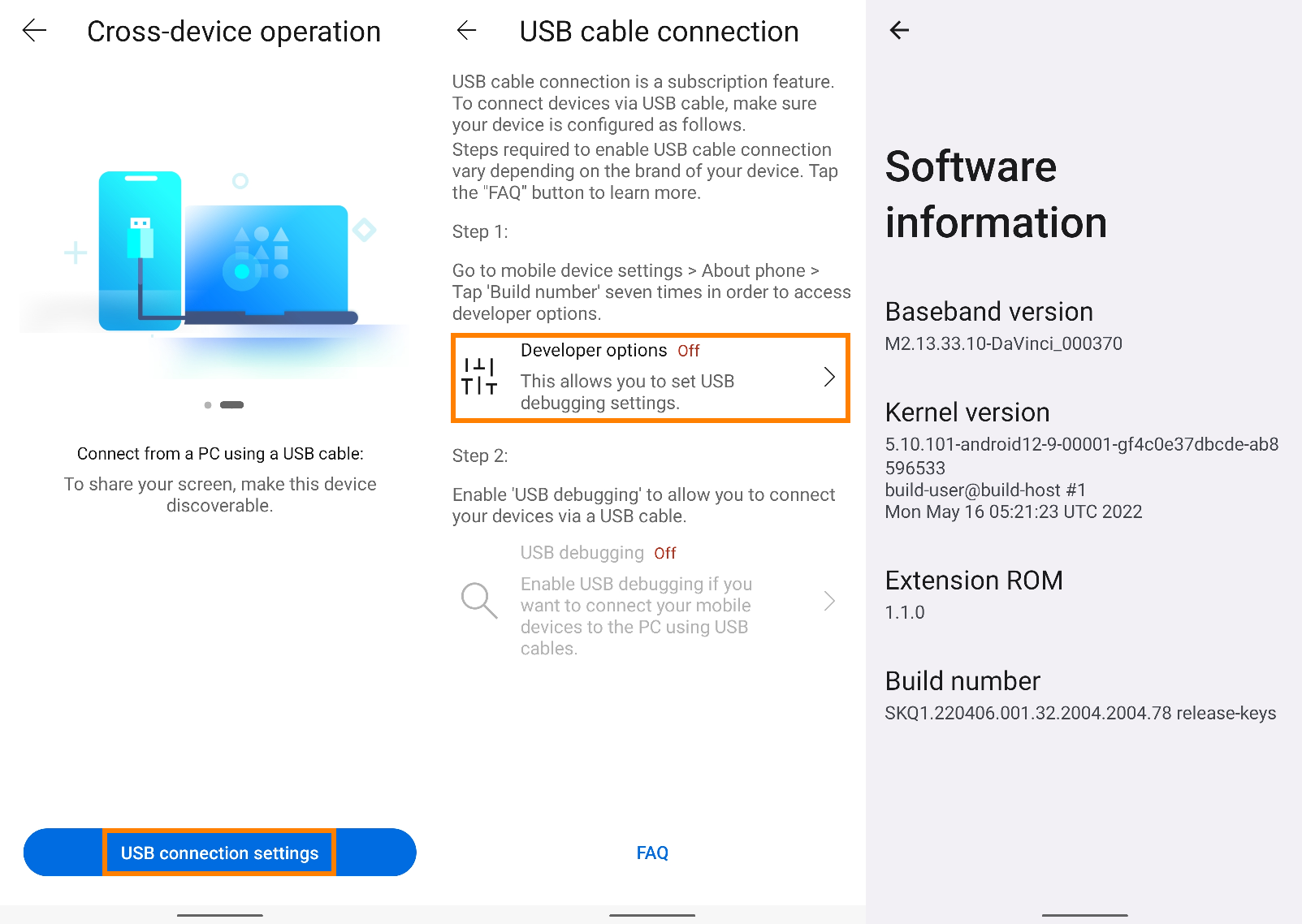
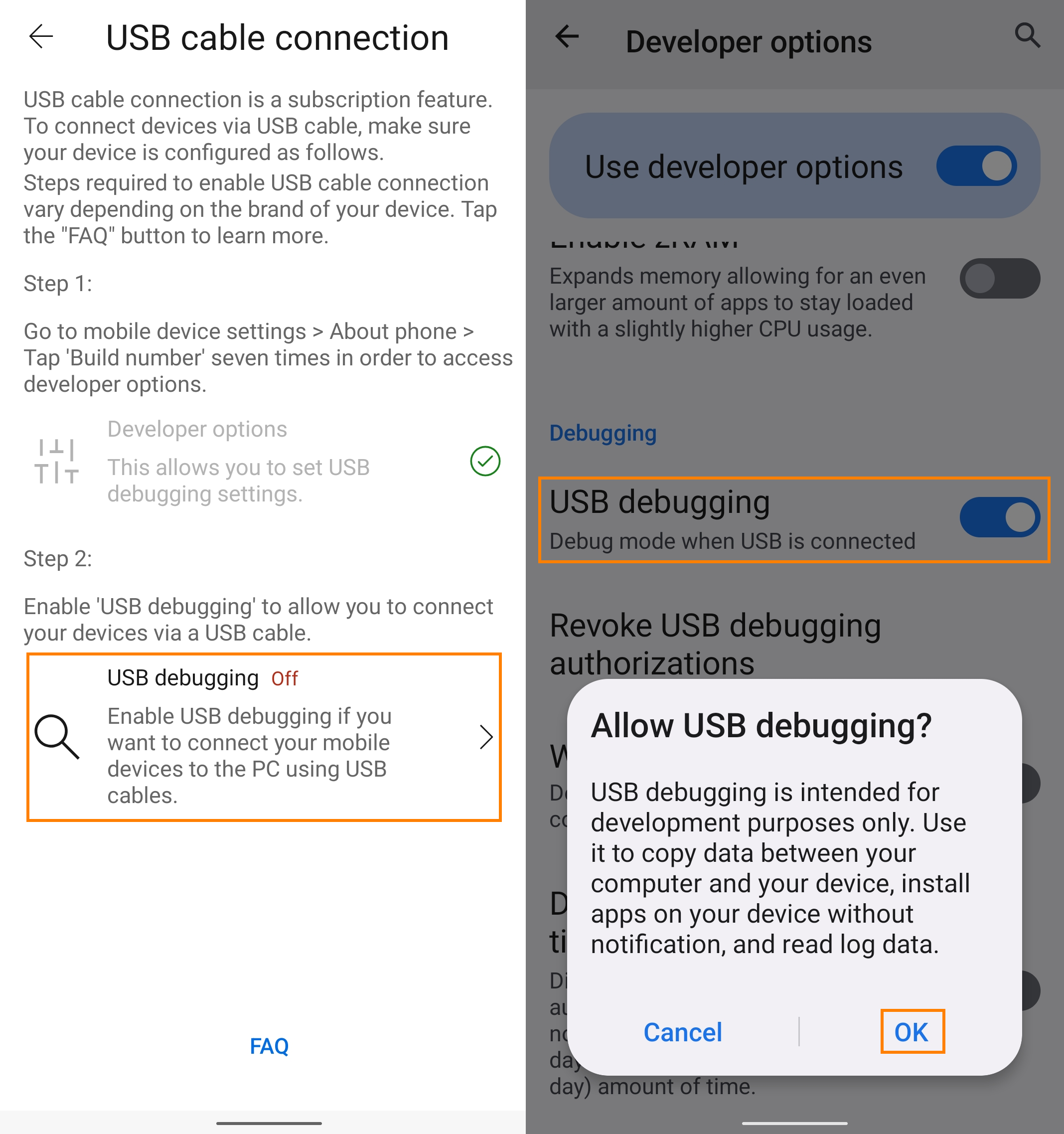
When the developer options is turned on, go back to the USB cable connection page. Tap on [USB debugging], or in [Developer options] and tap on [USB Debugging], a pop-up window will appear, tap on [OK], and USB Debuging detection will turn on. Connect your computer and mobile device by using a USB cable, and a pop-up window will appear on the mobile device, tap on [Always allow from this computer], then tap [Allow], and then tap [Yes] to connect your computer and mobile device.
[GlideX] How to connect device(s) via Wi-Fi or USB cable
To enable Screen Mirror and Screen Extend, connect to your mobile device from a PC that is on the same Wi-Fi network or using a USB cable. Please be noted that the connection via the same Wi-Fi is limited in some network environment, for example, office or school environment using public hotspot. We suggest you use the trusted Wi-Fi.
Troubleshooting for iOS device users
Troubleshooting for Android device users
Troubleshooting for iOS device users
Please make sure iOS device meets the requirements below:
(1) The discoverability for Screen Mirror and Screen Extend is turned on.
(2) Your GlideX mobile app is enabled so that it is visible to PC, and that the screen of the mobile device is not locked.
Choose the connection method
1. Connect a device from a PC that is on the same Wi-Fi
You can connect to your iOS device directly.
2. Connect a device from a PC using a USB cable.
Download and install iTunes (Windows 64 bit) on your computer. You must use Apple or MFi-certified Lightning Cable to connect an Apple iPhone or iPad to your PC. Please make sure that your iPhone or iPad is recognized in iTunes on Windows. (If you are stuck at this step, please refer to Apple support for help and restart AMDS accordingly.) And then, tap [Trust] on the [Trust This Computer?] dialog.
When you connect your mobile device to the GlideX on your computer, your mobile device is displayed and a USB-connected icon appears.
2. Troubleshooting for Android device users
Please make sure you meet the requirements below:
(1) Tap on the [Discoverability] function, and turn on the [Screen Mirror & Screen Extend] function.
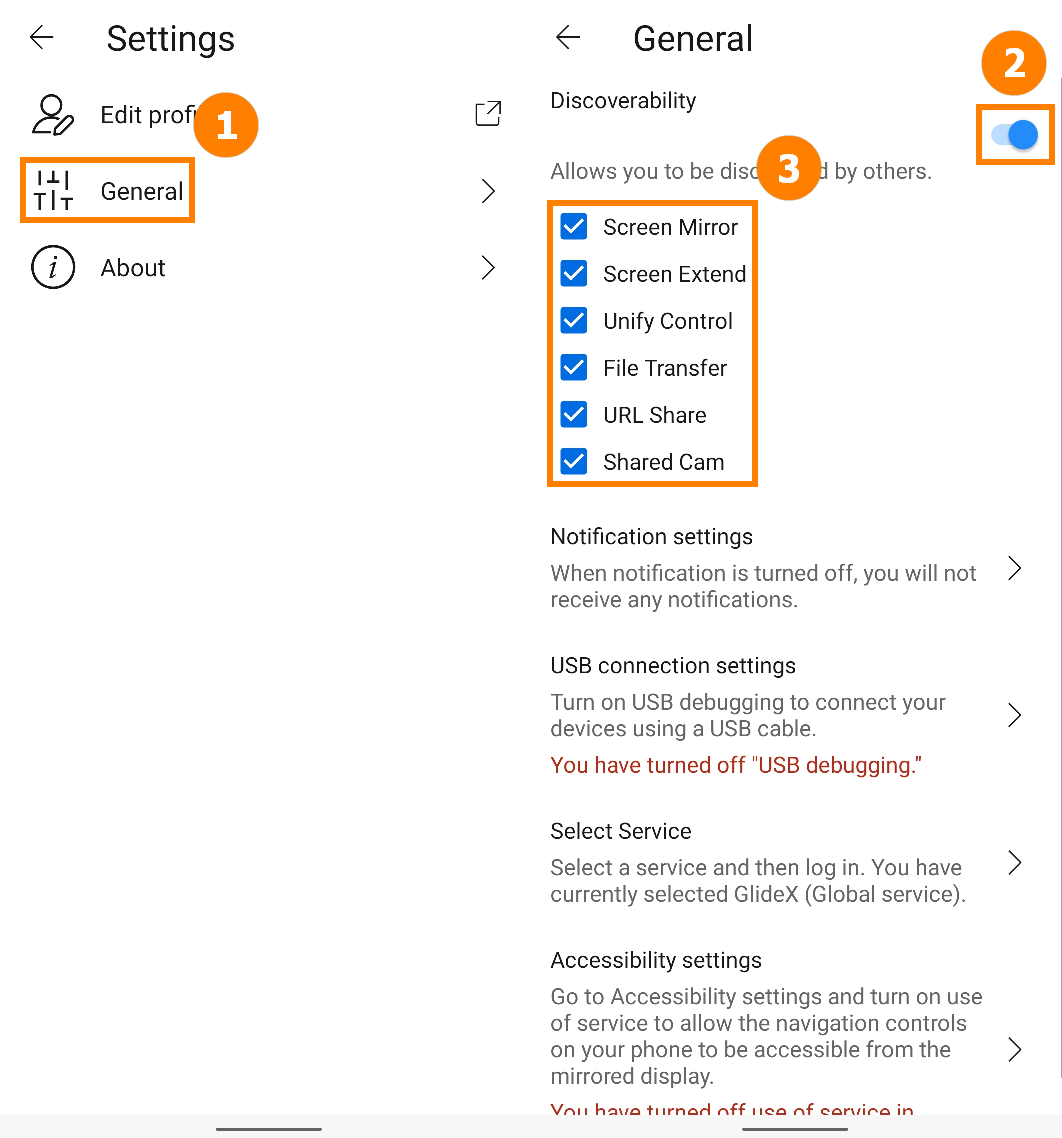
(2) Your GlideX mobile app is open so that it is visible to PC, and that the screen of the mobile device is not locked.
Choose the connection method
1. Connect a device from a PC that is on the same Wi-Fi
You can connect to your Android device directly.
2. Connect a device from a PC using a USB cable.
Make sure that the developer options and USB debugging of your mobile device have been configured, and you allow USB debugging after plugging in the USB cable.
Swipe left on GlideX [Home], tap on [USB Connection Settings], tap on the [Developer Options]. In [Software Information] page, and tap on [Build Number] seven times in a row to turn on the developer options (Opening the "Developer options" varies from mobile device to mobile device, search the web for how your mobile device opens or click here.).
When the developer options is turned on, go back to the USB cable connection page. Tap on [USB debugging], or in [Developer options] and tap on [USB Debugging], a pop-up window will appear, tap on [OK], and USB Debuging detection will turn on. Connect your computer and mobile device by using a USB cable, and a pop-up window will appear on the mobile device, tap on [Always allow from this computer], then tap [Allow], and then tap [Yes] to connect your computer and mobile device.
When you connect your mobile device to the GlideX on your computer, your mobile device is displayed and a USB-connected icon appears.
[GlideX] Cannot use GlideX Remote Desktop?
If you want to use the GlideX Remote Desktop function, please confirm whether the computer and mobile device meet the following requirements:
- The computer operating system needs to be Windows 10/11 Pro version
- GlideX PC App and GlideX Mobile App have logged in to the same ASUS member account
- The system login password has been set on the computer
- The Remote Desktop function of the system has been turned on on the computer
*GlideX Remote Desktop function currently only supports Windows 10/11 Pro version*
*GlideX Remote Desktop currently is exclusively available for Windwos 10 local user account (an offline account)*
1. In GlideX side please click the [Information] (" " symbol) icon to enter the [Password] interface in the system settings and add an account password. (If you have already set the account password, please ignore this step)
2. After setting the password, please click the GlideX side [Open Settings], go to the [Remote Desktop] interface in the system settings, and click to enable the Remote Desktop function.
3. If you are using the Remote Desktop function for the first time, a pop-up window [Mail Sent] will appear, please go to your mailbox and click the Activation link.
4. Please click GlideX side [Bind a mobile device via Pairing Code], a new window will pop up. Please also click [Bind a computer via pairing code] on the mobile device side, and then scan the [QR code] on the computer screen, or fill in [pairing code].
5. After the pairing is successful, the computer and mobile devices will display the following screen.
6. When using the Remote Desktop function, please make sure your computer is in standby mode and keep internet connection.
[GlideX] Learn how to send feedback to GlideX
If you encounter problems or have any feedback on GlideX, please follow the instructions below to provide feedback through the GlideX Windows and Mobile App for further assistance from the GlideX team:
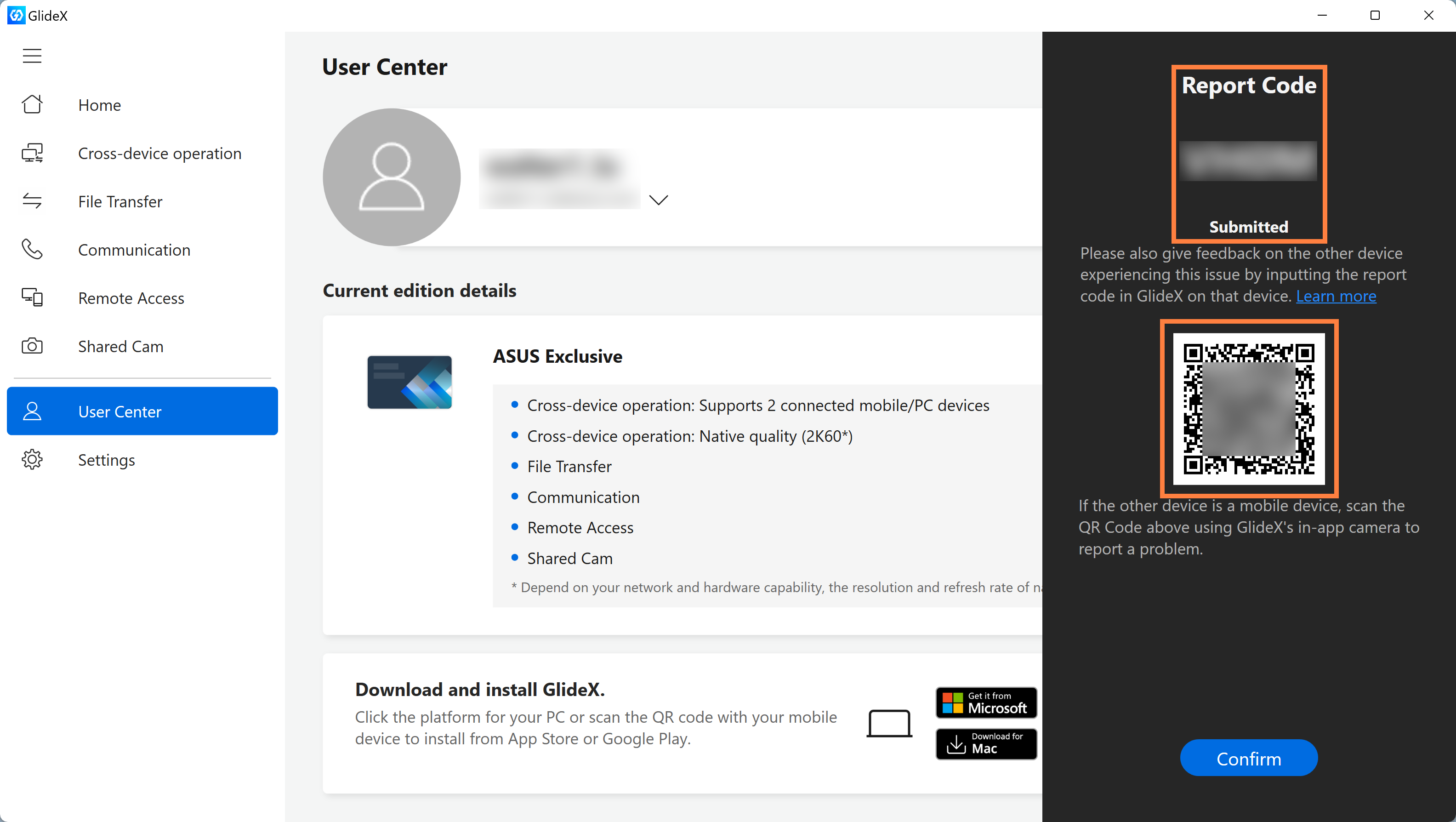
※ At present, the feedback function of GlideX is only available on the computer side, please use the camera on the mobile device to scan the QR Code generated by the computer to continue to report your problem, so that ASUS engineers can solve your problem more accurately.
※ If you have a second computer using GlideX, you can enter the report code generated by the first computer to quickly report your problem without having to fill it in again.
- Feedback from the GlideX App on computer side
- Enter the Report Code into GlideX on another computer
- Feedback from the GlideX App on mobile side
Feedback from the GlideX App on computer side
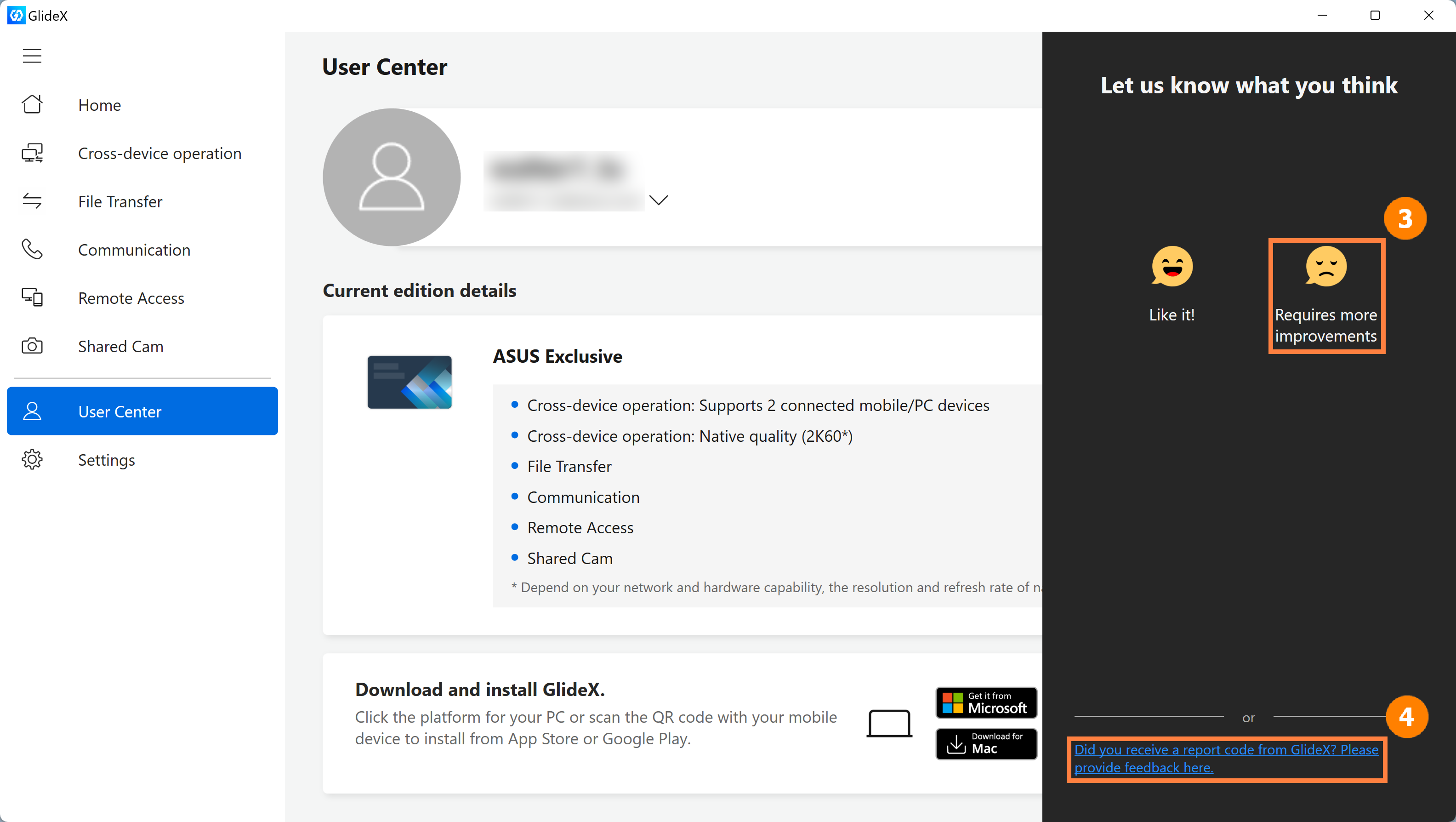
(1) Go to ①[User Center] and click ②[Feedback] in the upper right corner of the page.
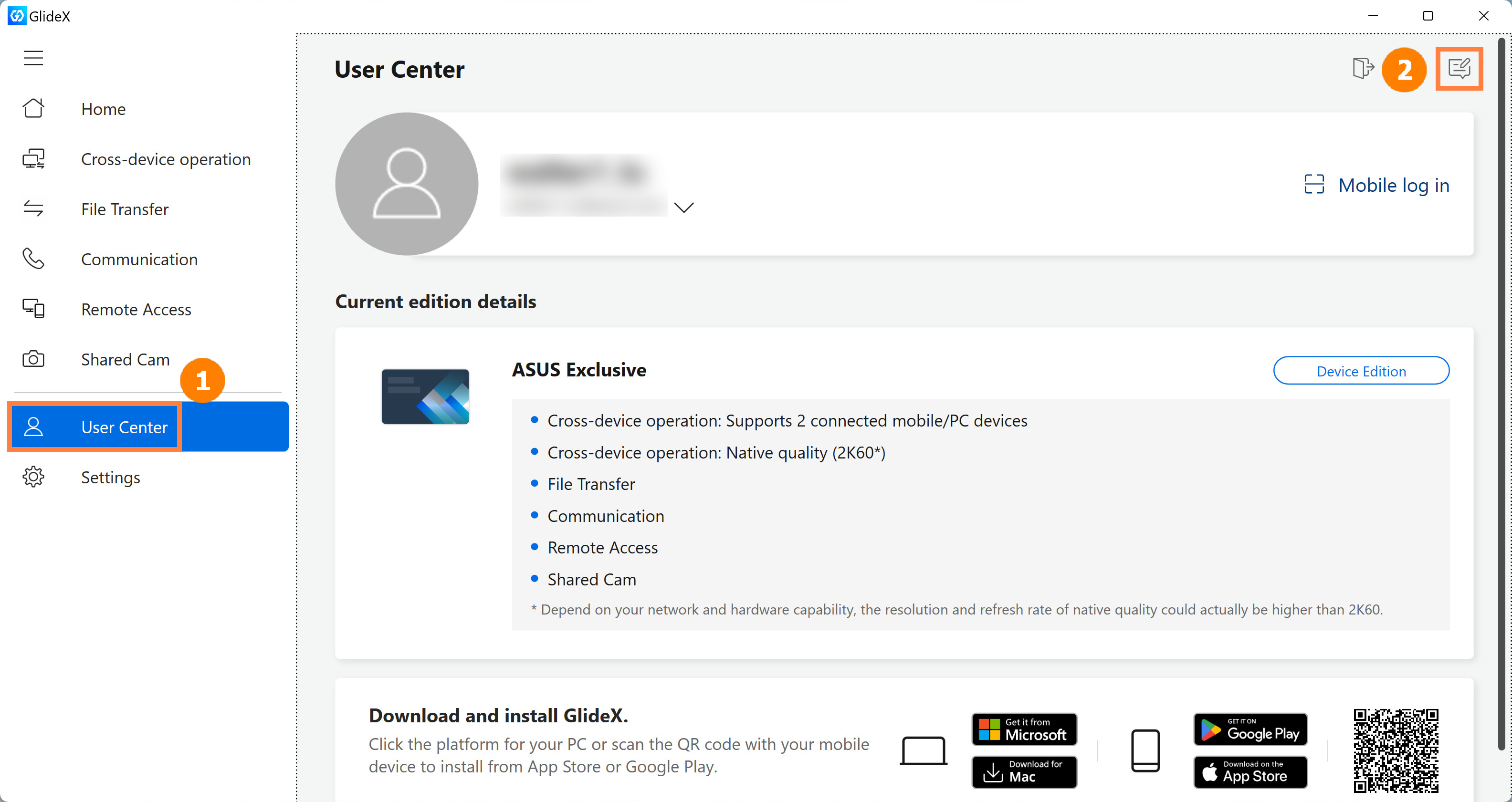
(2) If you have not yet received a Report Code from the GlideX Mobile App, select ③[Requires more improvements], and if you already have a Report Code, select ④[Did you receive a report code from GlideX? Please provide feedback here].
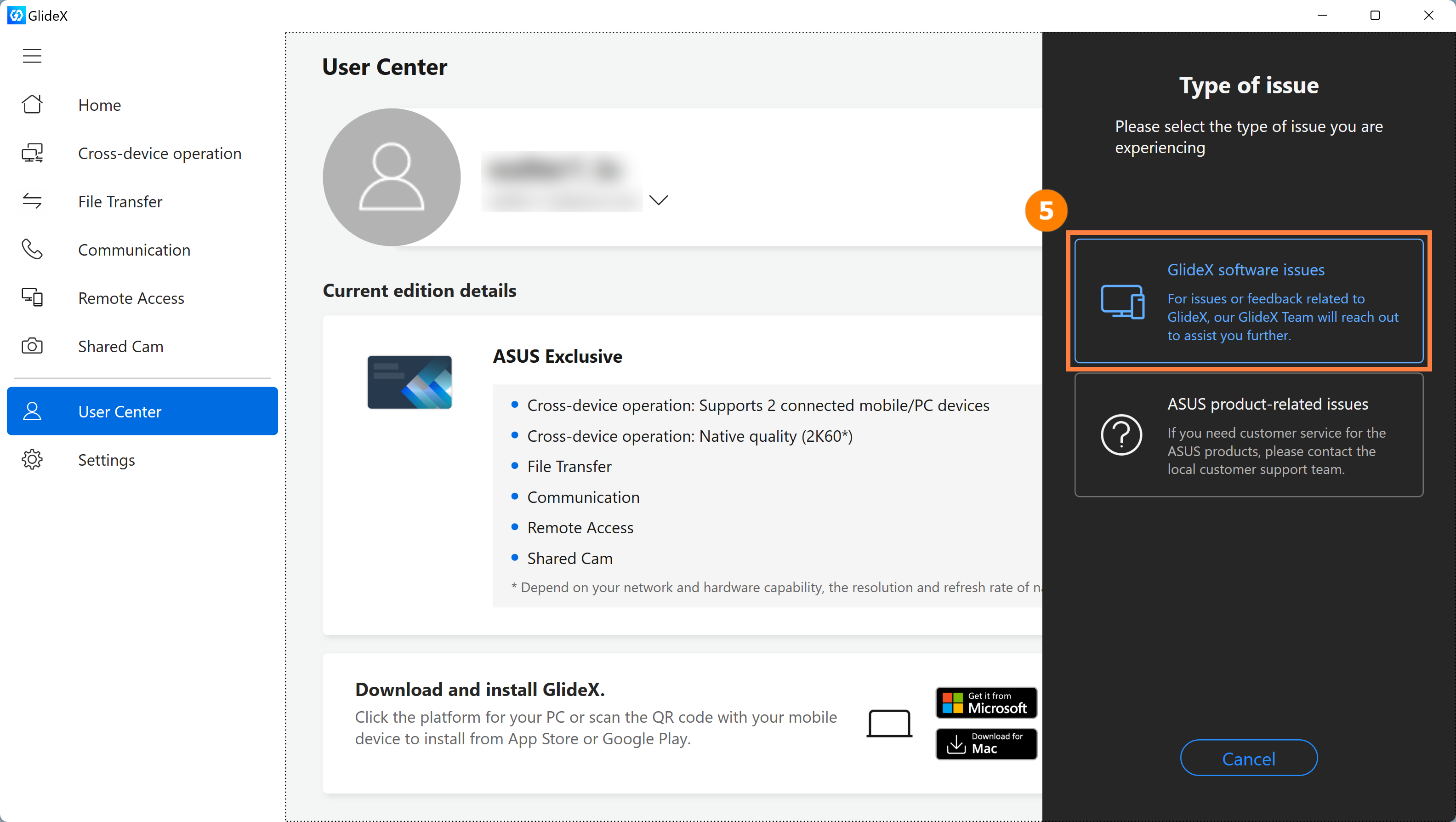
(3) Click ⑤[GlideX software isssues].
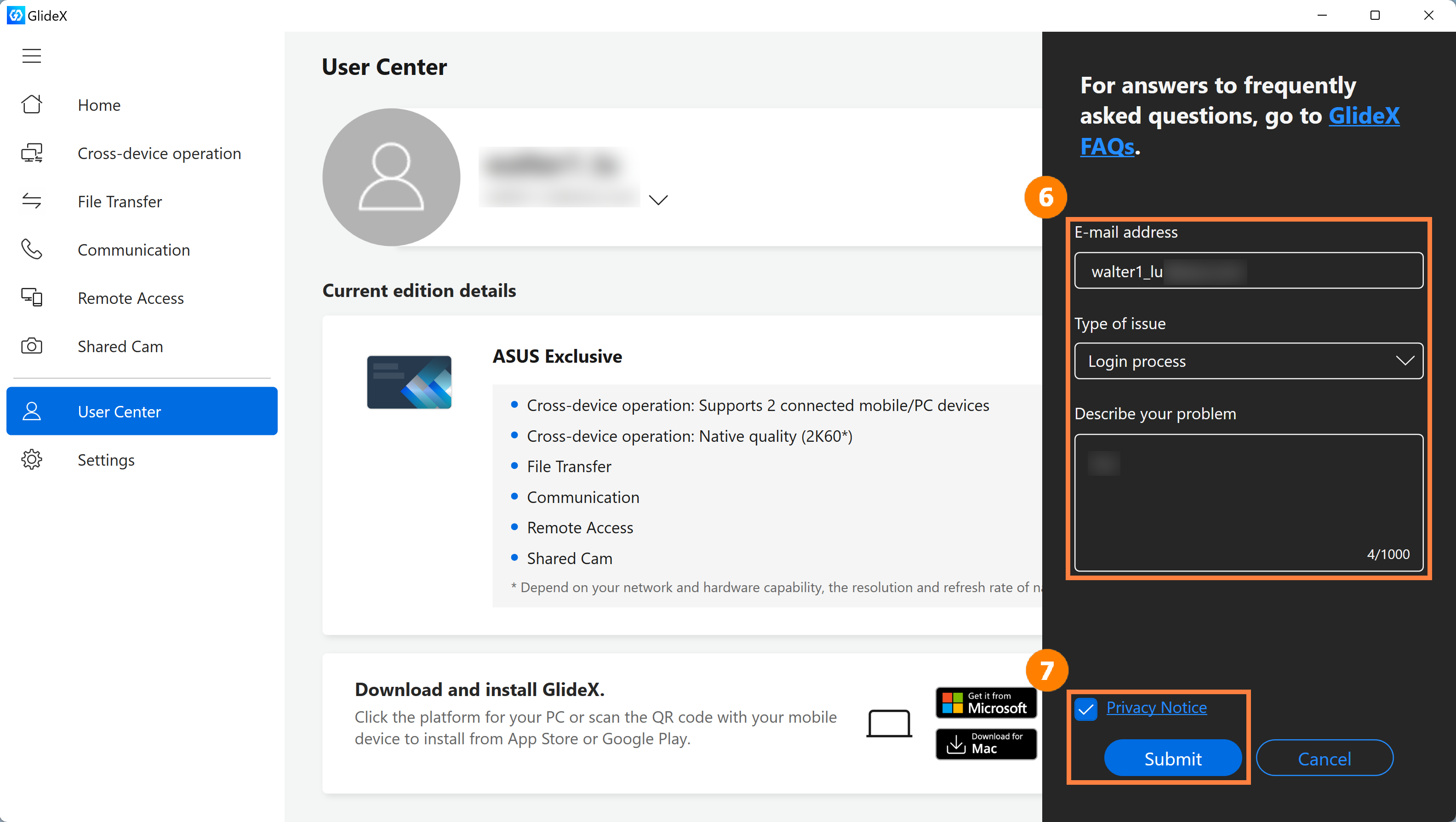
(4) Fill in your contact information and the problem you encounter in the ⑥[input box], and click agree ⑦[Privacy Notice & Submit].
(5) You will receive a Report Code, please go to other devices using GlideX to continue to report your problem.
2. Enter the Report Code into GlideX on another computer
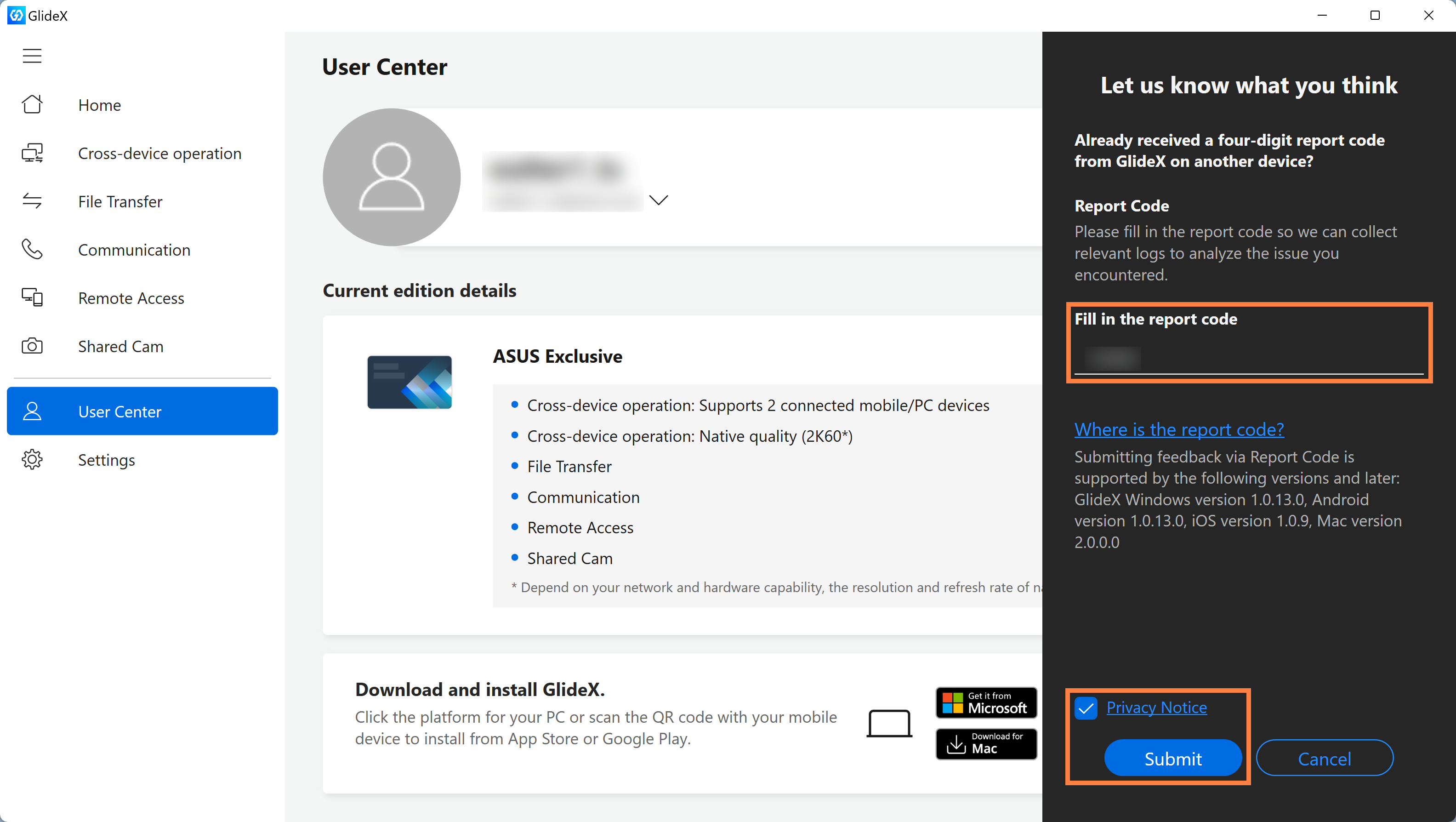
If you click [Did you receive a report code from GlideX? Please provide feedback here] on another computer, you will be taken to the following screen, please enter the [Report Code] on this page, and then click [Privacy Notice & Submit].
3. Feedback from the GlideX App on mobile side
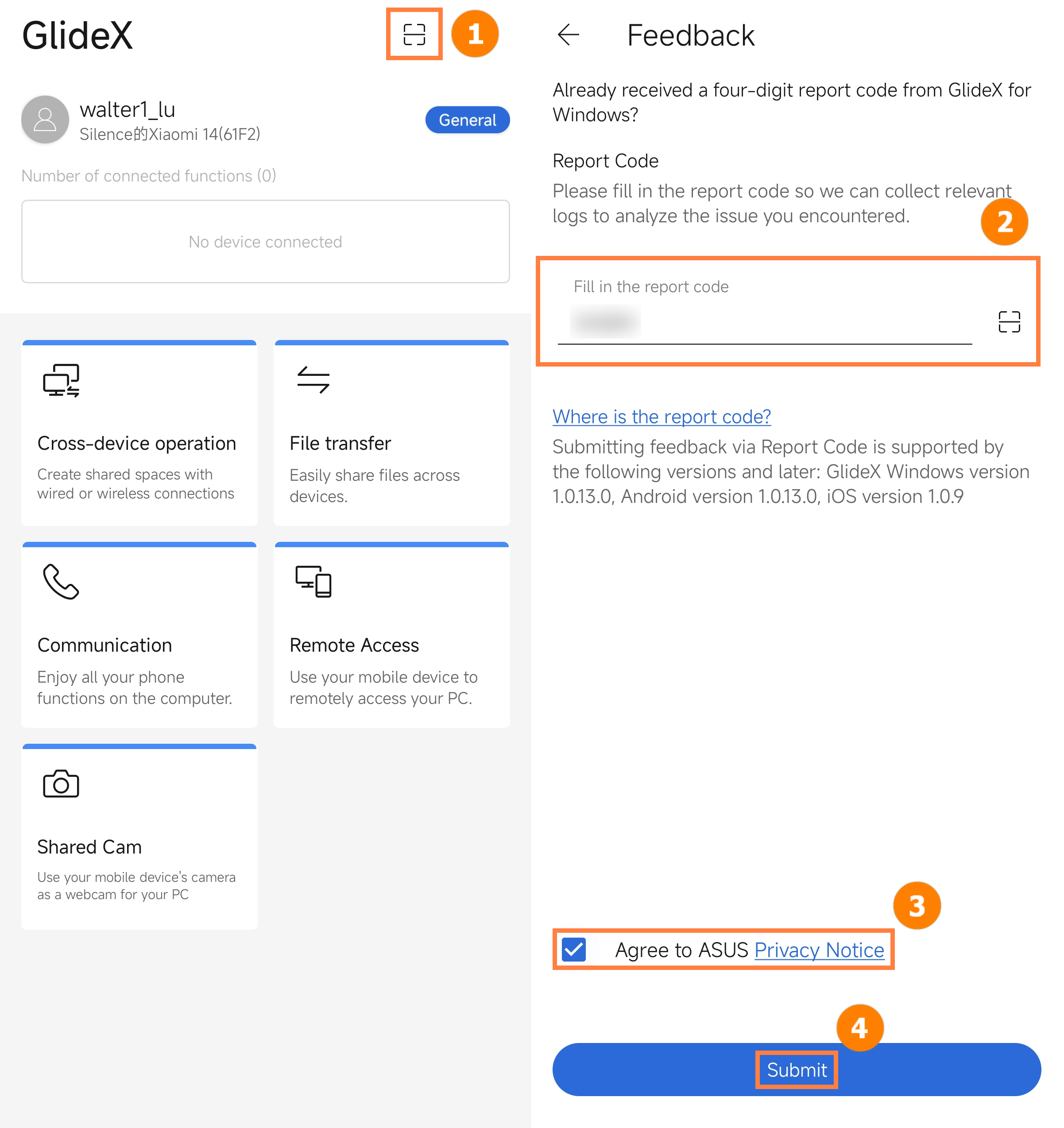
Click ①[Scan] to scan the QR Code displayed on the computer, and the system will automatically fill in ②[Report Code], click ③[Agree to ASUS Privacy Notice], and click ④[Submit].
[GlideX] Cannot connect your devices to use Shared Cam in third-party video-communication services?
Please first ensure that GlideX PC application requires 3.1.0.0 or later version; ASUS System Control Interface 3.0.9.30 or later version, and that GlideX mobile device application requires Android: 2.2.1.10 or later version;iOS: 2.2.2 or later version. Besides, the third-party communication app you use supports higher resolution*.
*Currently, GlideX Shared Cam supports 1080p resolution.
1. Before using GlideX Shared Cam to start your meeting, video chatting, or live streaming in a third-party video-communication service, please set up the following:
①Go to GlideX Settings > Shared Cam, and connect a device.
Please connect your PC and mobile device to the same Wi-Fi, and make your mobile device discoverable in GlideX mobile device app > Settings > switch on the toggle of Discoverability > enable Shared Cam.
②Please select Link to GlideX -Shared Cam in a third-party communication app > Settings > Video device.
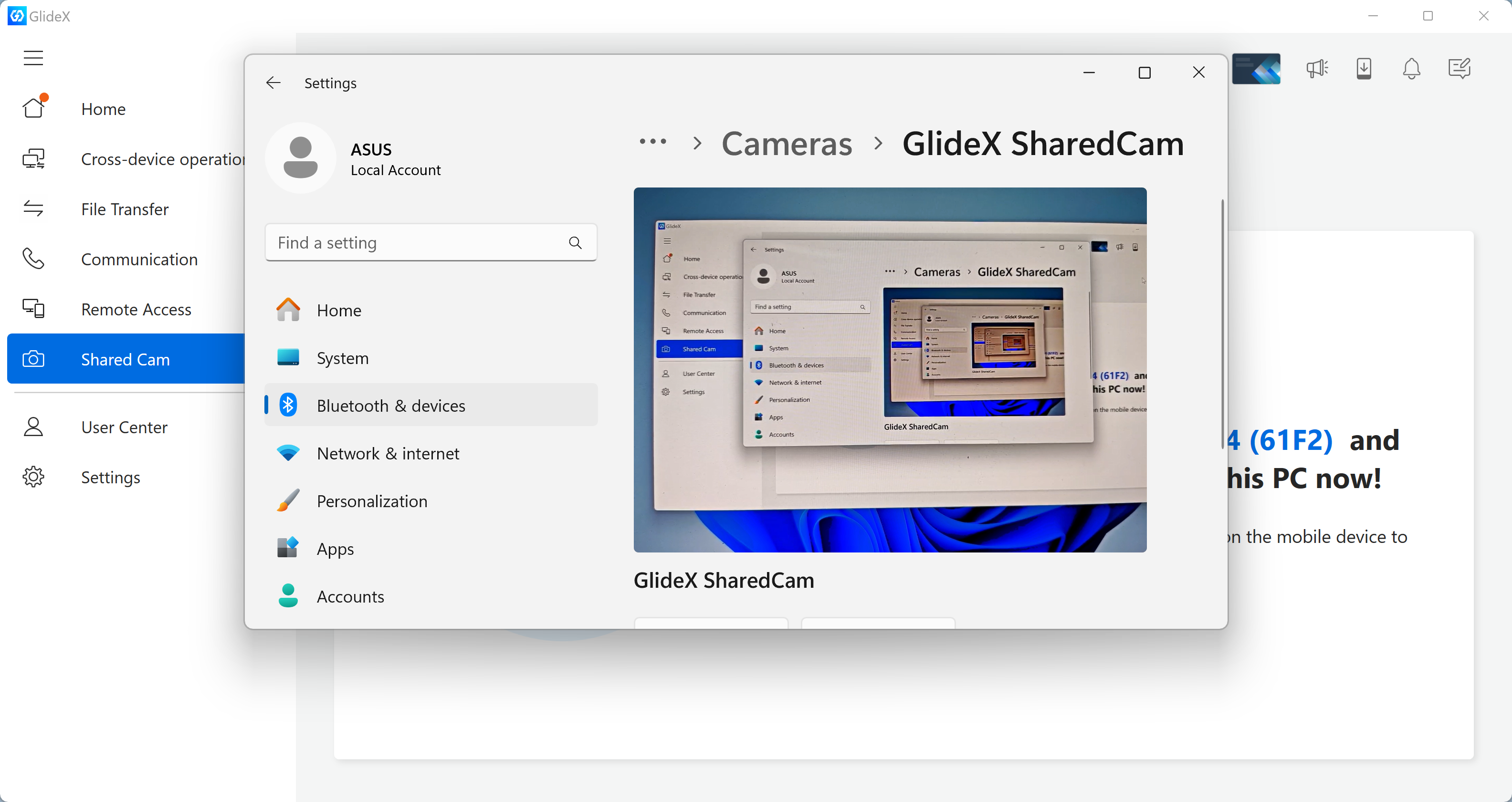
③Please allow the permissions of GlideX Shared Cam.
④Please ensure that there are no other applications enabling a camera device.
2. If your devices can not be connected and a pop-up dialog showing that "Connection Failed" on a third-party communication app, please follow the instructions:
①You might forget to accept the connection request in the notification on your selected mobile device.
Please select your mobile device again and accept the connection request.
②Your selected mobile device and PC might be accidentally under different Wi-Fi.
Please ensure your devices connect to the same Wi-Fi, and try it again.
3. If you want to use GlideX-Shared Cam, but your video picture does not show on the window of video-communication service, please follow the instructions:
①If you see the screenshot below, it means that you have not connected your devices. Please go to GlideX Settings > Shared Cam, and connect a device.
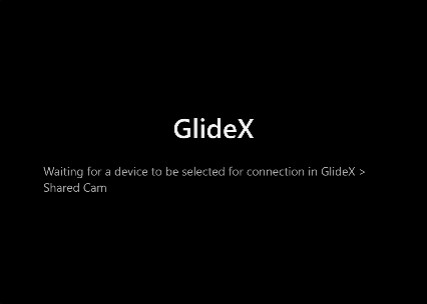
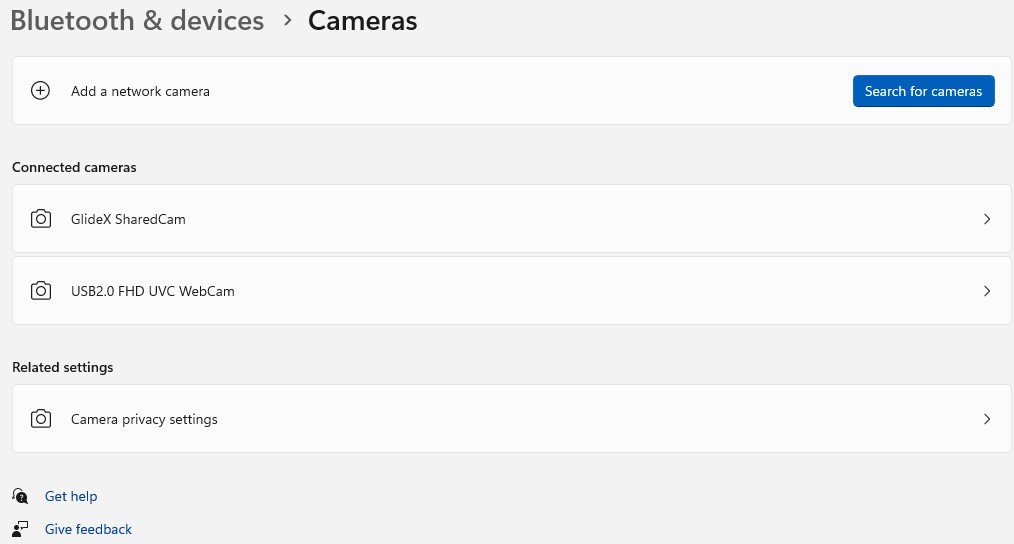
②If you see the screenshot below, it means that you have not opened the GlideX Shared Cam page. Please go back to the Shared Cam page to ensure your video picture is transferred to the connecting PC.

[GlideX] Cannot find the device you want to connect in the device list on GlideX?
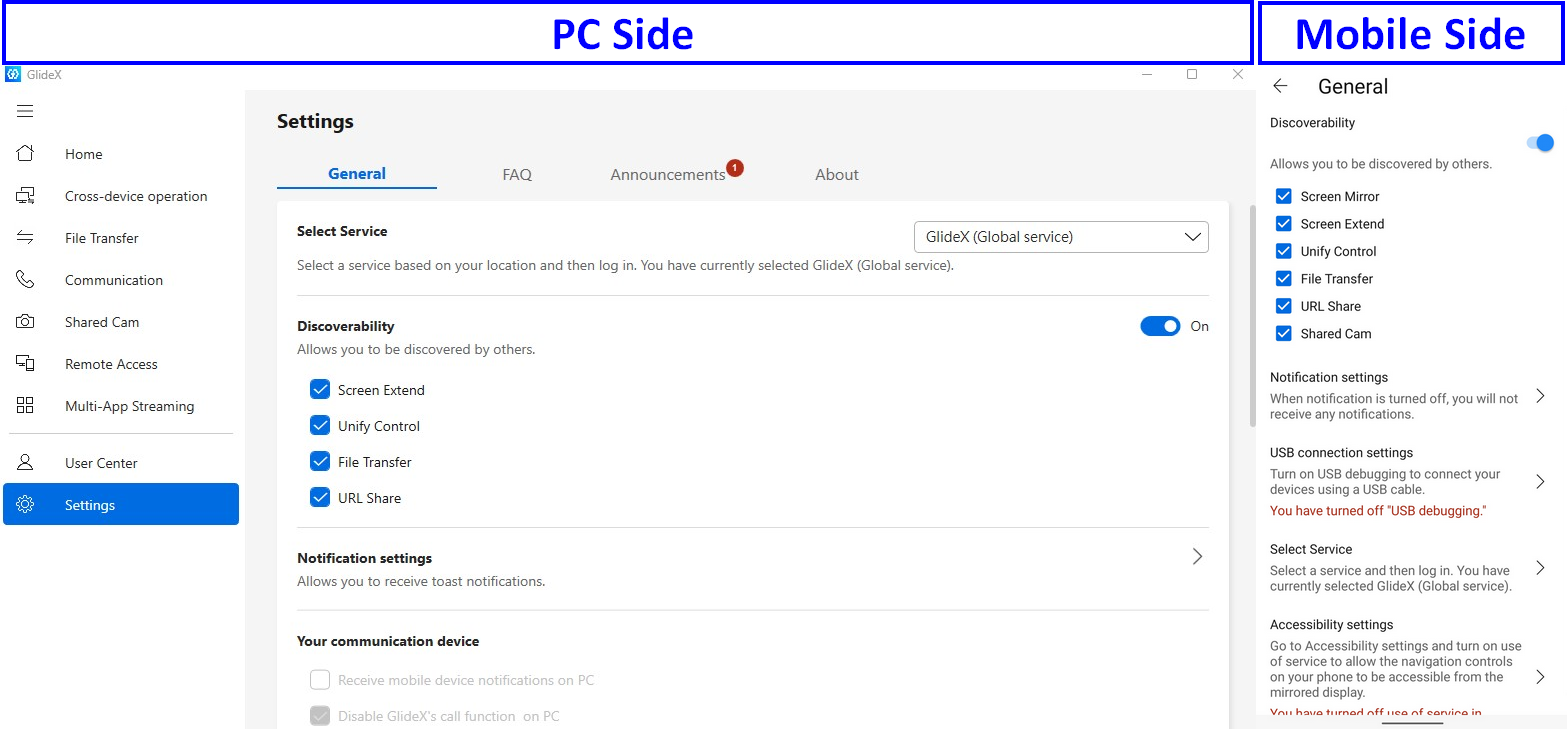
Before you send and receive files or URL, please make sure your device and the PC or mobile device you want to connect satisfy the following conditions:
- It has turned on Discoverability in Settings on GlideX.
- It has Wi-Fi turned on.
- It has Bluetooth turned on and within Bluetooth range.
- If it is an Android device, please grant GlideX permission for “location access” to allow the device to be discovered.
- If it is an iOS (iPad/iPhone) device, please keep GlideX mobile app in the foreground.
[GlideX] Bluetooth pairing problems
If you want to use the GlideX Screen Mirror [PC Control] function, please make sure that your devices are connected successfully. If not, please try to follow below instructions.
1. Pair devices in the correct way to pair device's Bluetooth.
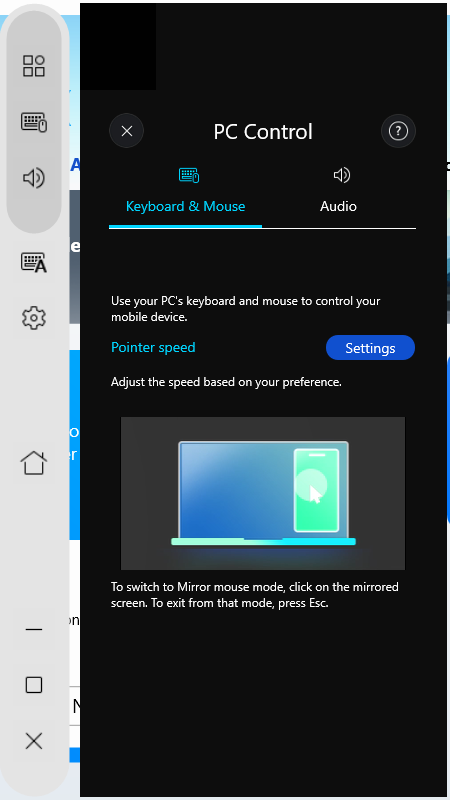
After enabling Screen Mirror, select [PC Control ] button > click [Start Bluetooth Pairing] button to connect devices; if you have successfully paired the devices via Bluetooth, please also click [Start Bluetooth Pairing] button to enable function connection.
1.1 If you are an Android user
- Make sure you allow your mobile devices to be visible to other devices during the pairing process.
- If you failed to pair, please go to mobile device [Settings] > [Bluetooth] device list, and make sure that the PC device you are going to pair is showed. Then, tap the device to trigger the connection with the PC.
1.2 If you are an iOS user
- Make sure you open and stay on the Bluetooth Settings screen until you complete the steps to pair your PC.
- If you failed to pair, please go to mobile device [Settings] > [Bluetooth] device list, and make sure that the PC device you are going to pair is showed. Then, tap the device to trigger the connection with the PC
If the screen shows the “Keyboard & Mouse” and “Audio” functionalities, that means the Bluetooth paired successful.
2. You have paired devices successfully before, but cannot paired them again?
Please go to Bluetooth system page on the PC and mobile device to remove the devices. After completely removing, try to pair them again. Please refer to the steps below:
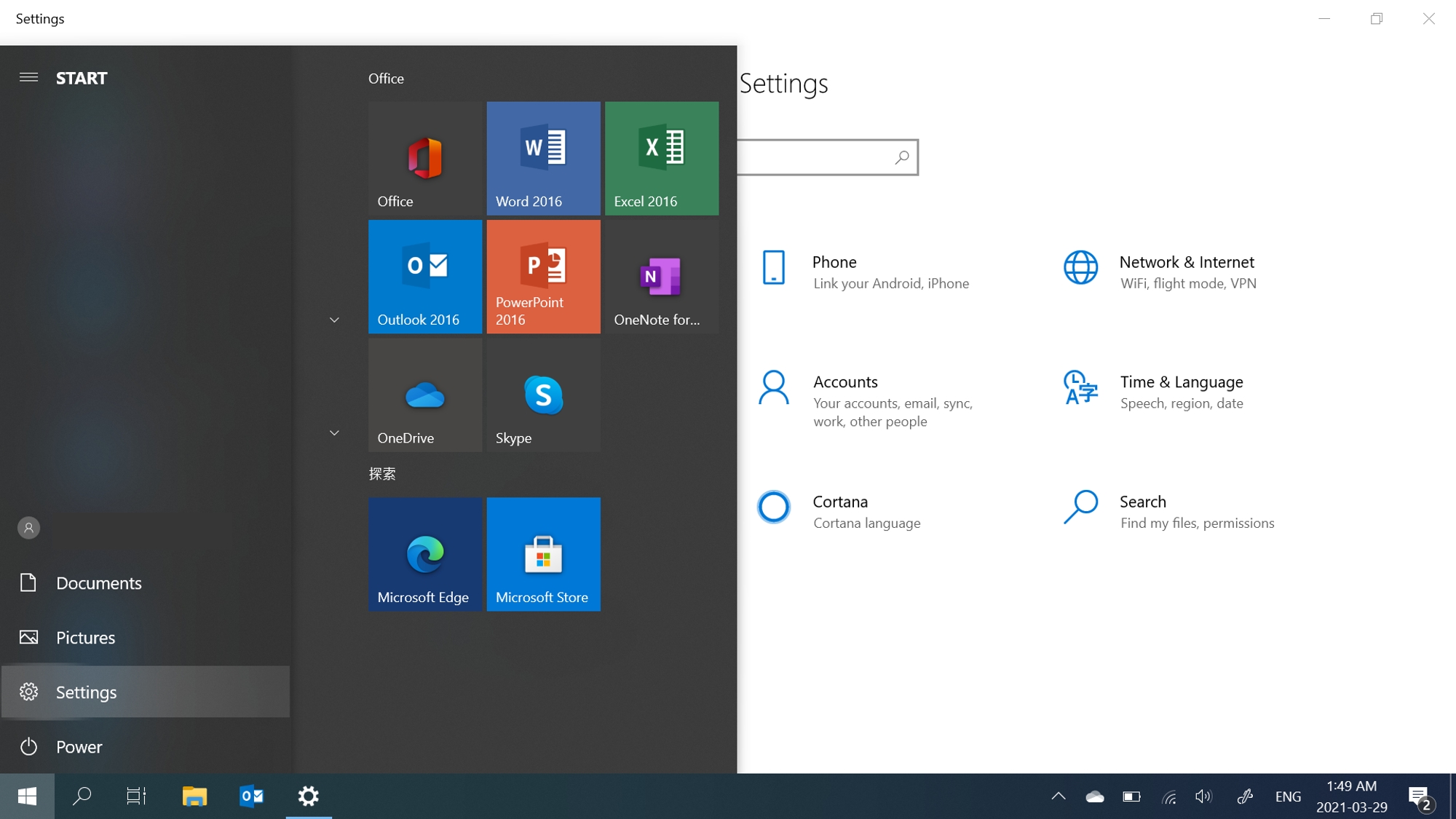
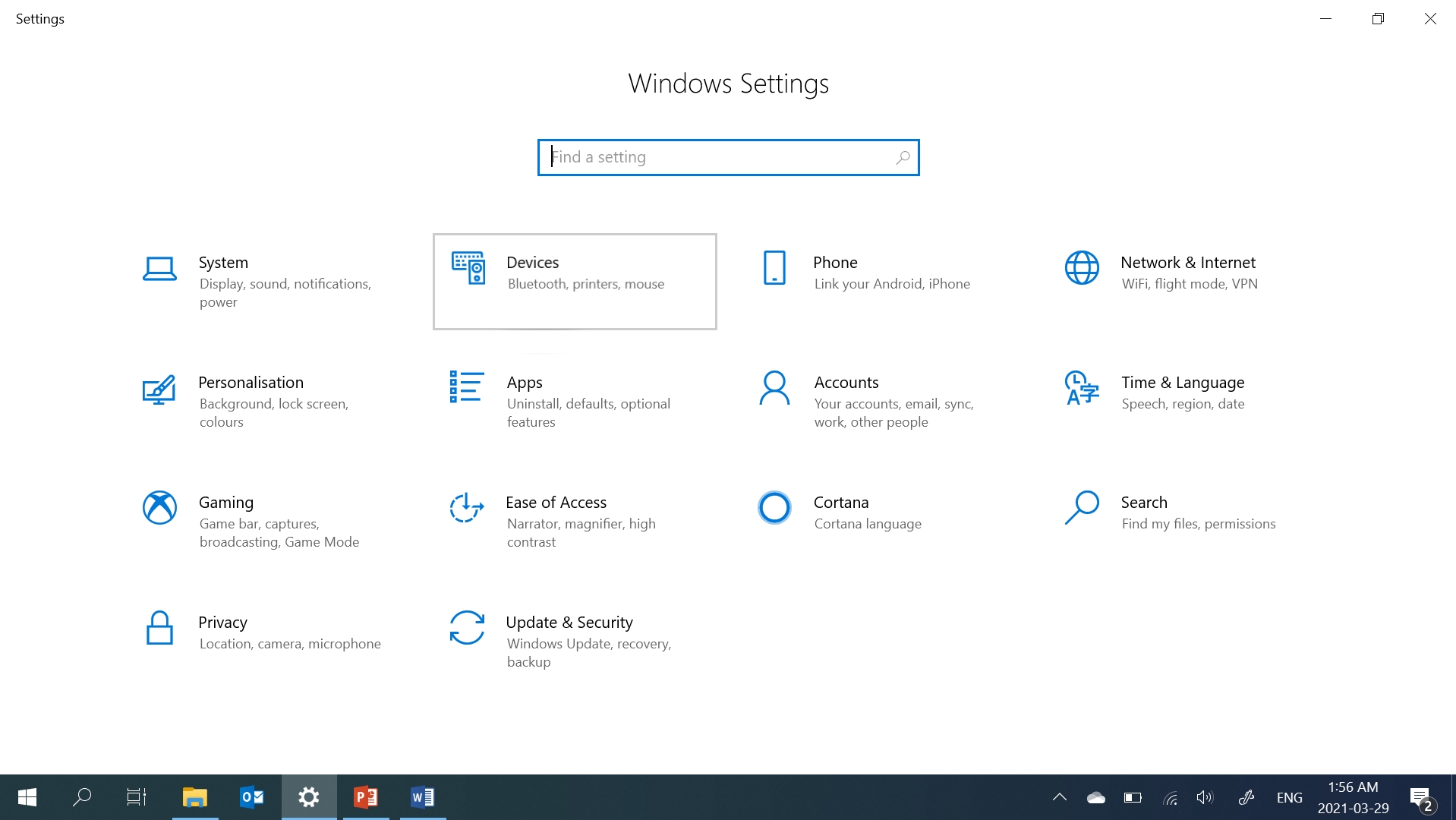
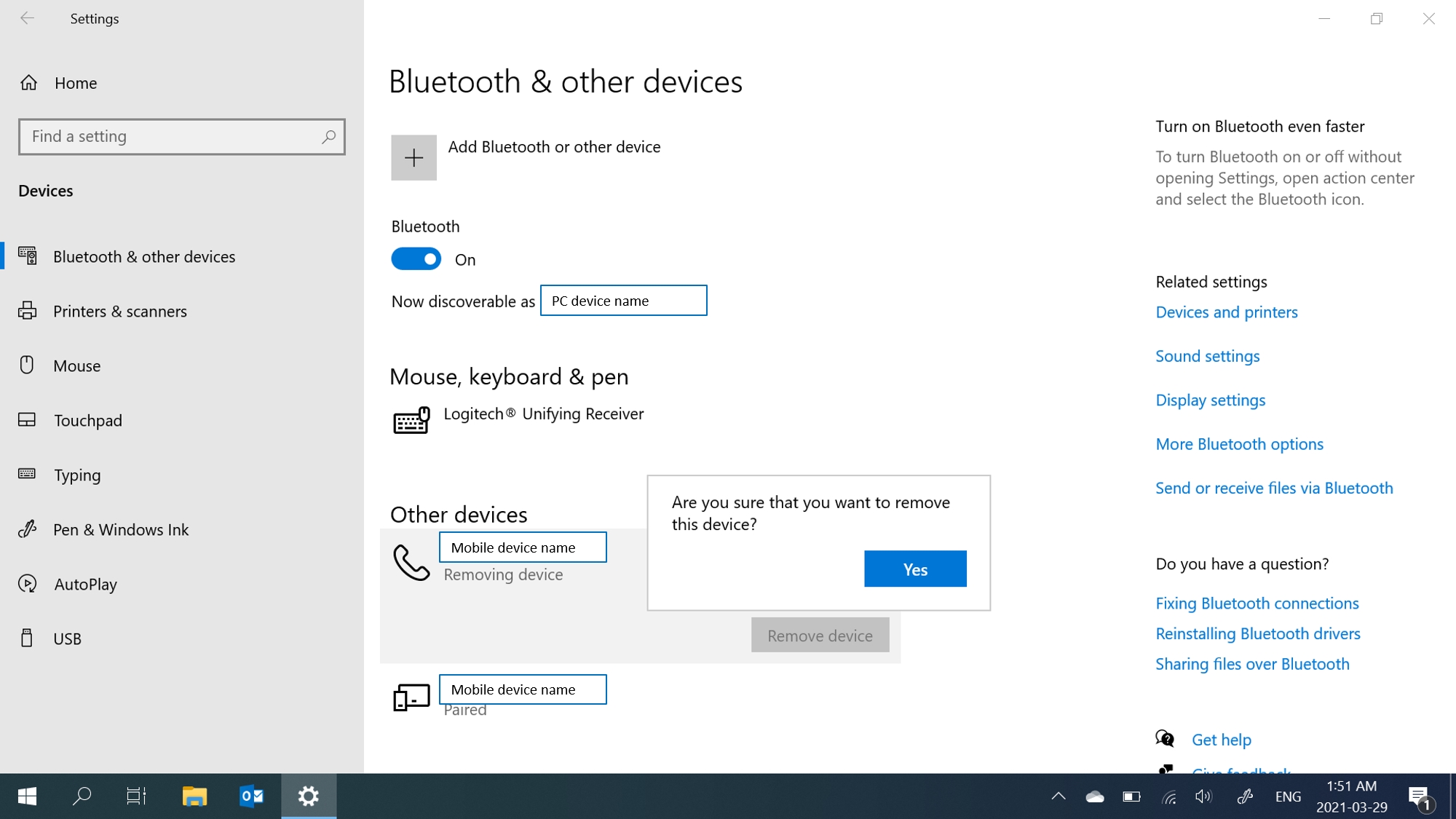
2.1 PC Side - Remove the device in the Settings: Select [Start], then select [Settings] > [Devices] > [Bluetooth & other devices]. In Bluetooth, select the device you’re having problems connecting to, and then select [Remove device] > [Yes].
2.2 Mobile device side - Remove the device in the Settings: Go to the Bluetooth Settings page on mobile > Tap the connected PC > Tap [Unpair]. After removing the Bluetooth device, then pair devices again
2.3 Confirm that there is no paired device you had problems connected to on the Bluetooth setting page of the PC and the mobile device side, which means that the Bluetooth pairing is completely done. Please try to pair the devices again.
※ If re-pairing does not solve the problem, please turn off Bluetooth on your computer and mobile device and turn it on and try to pair the device again.
3. When Bluetooth does not work, or Bluetooth is lost
- Reset Bluetooth settings: Turn off your PC's and Mobile's Bluetooth settings, and turn them on again.
- Make sure airplane mode is off: Select [Start], then select [Settings] > [Network & Internet] > [Airplane mode]. Make sure “Airplane mode” is turned off. Then, turn Bluetooth on: Select [Start], then select [Settings] > [Devices] > [Bluetooth & other devices].
- Make sure Bluetooth works: Please check in the taskbar and select [action center] in the bottom right corner or go to [Settings] to ensure that your PC supports Bluetooth, and that Bluetooth is not missing. If the Bluetooth button is missing, please try to update to the latest driver or restart your PC.
- If you encounter the notification request of Bluetooth pairing repeatedly pops up, please restart your PC and try again.
*For more information about the Bluetooth problem, please refer to Microsoft official information to repair Bluetooth device.
[GlideX] Cannot connect your Devices via Bluetooth to use Communication in GlideX?
If you want to use the GlideX Communication function, please make sure that your devices are connected successfully. If not, please try to follow below instructions.
1. When Bluetooth does not work or Bluetooth is lost
- Make sure airplane mode is off: Select Start, then select Settings > Network & Internet > Airplane mode. Make sure Airplane mode is turned off. Then, turn Bluetooth on: Select Start, then select Settings > Devices > Bluetooth & other devices.
- Make sure Bluetooth works: Please check in the taskbar, and select “action center” in the bottom right corner or go to “Settings” to ensure that your PC supports Bluetooth, and that Bluetooth is not missing. If the Bluetooth button is missing, please try to update to the latest driver or restart your PC.
- If you encounter the notification request of Bluetooth pairing repeatedly pops up, please restart your PC and try again.
*For more information about the Bluetooth problem, please refer to Microsoft official information to repair Bluetooth device.
2. Pair devices in the correct way in GlideX
2.1 If you are an Android user
Please open the GlideX mobile device application tap “Start to connect to computer via Bluetooth” in “Communications”.
2.2 If you are an iOS user
Please open the Link to GlideX mobile device application “Side menu” > tap “Start to connect to computer via Bluetooth” in “Communications”.
3. You have paired devices successfully before, but cannot paired them again? Please go to GlideX and the Bluetooth system page on the PC and mobile device to remove the devices. After completely removing, try to pair them again. Please refer to the steps below:
3.1 PC Side
- Disconnect the device in GlideX:
Open the “GlideX” PC App > Click the drop-down list of connected devices on the “Communication” page, select the currently connected device, and click the “Disconnect” button.
*If your device is an iOS system, GlideX Communication does not support the "App" function.
- Remove the device in the Settings:
Select “Start”, then select “Settings” > “Devices” > “Bluetooth & other devices”. In Bluetooth, select the device you’re having problems connecting to, and then select “Remove device” > “Yes.”
3.2 Mobile device side
- Unpair the device on GlideX:
Open “GlideX” mobile app > Tap the connected device > Tap “Unpair” button.
- Remove the device in the Settings:
Go to the Bluetooth Settings page on mobile > Tap the connected PC > Tap “Unpair”.
4. After removing the Bluetooth device, then pair devices again. Confirm that there is no paired device you had problems connected to on the Bluetooth setting page of the PC and the mobile device side, which means that the Bluetooth pairing is completely done. Please follow the GlideX steps to try to pair the device again.
[GlideX] How to switch from 2.4GHz to 5GHz for a better screen sharing experience?
Differences between 2.4GHz and 5GHz networks
Note: Channels supported by 2.4GHz and 5GH vary according to regional/national regulatory restrictions.
By distance comparison, the transmission distance of 2.4GHz signal is farther than 5GHz, but the speed is slower than 5GHz, and although the signal transmission distance is short, it can be faster. In terms of frequency band usage, in addition to WiFI will use 2.4 GHz band, Bluetooth, home wireless phones are in use, some household appliances such as flulights, microwave ovens, refrigerators may be in this band, and thus produce interference to wireless channels, so the connection in the 2.4GHz band, network transmission is unstable or vulnerable to interference leading to poor quality of the connection. Routers and personal hotspots are therefore recommended to use a 5GHz network.
The WiFi router
1. Check whether your router supports 5GHz.
2. Set up 5GHz as instructed by your router's user manual.
3. Connect your computer and mobile device to the 5GHz band of your set-up router, and your computer and mobile device will have better speed, better characterization, and better screen sharing when connected to the same WiFi network and using 5GHz. (compared to 2.4 GHz WiFi network)
Turn on and set up the computer's 5GHz hotspot
If your computer supports WiFi and has 5GHz hotspot sharing, you can share it through your computer's 5GHz hotspot, so that your mobile device can connect to your computer hotspot.
(At this point, the mobile device will use the computer's network, please note the network traffic consumption).
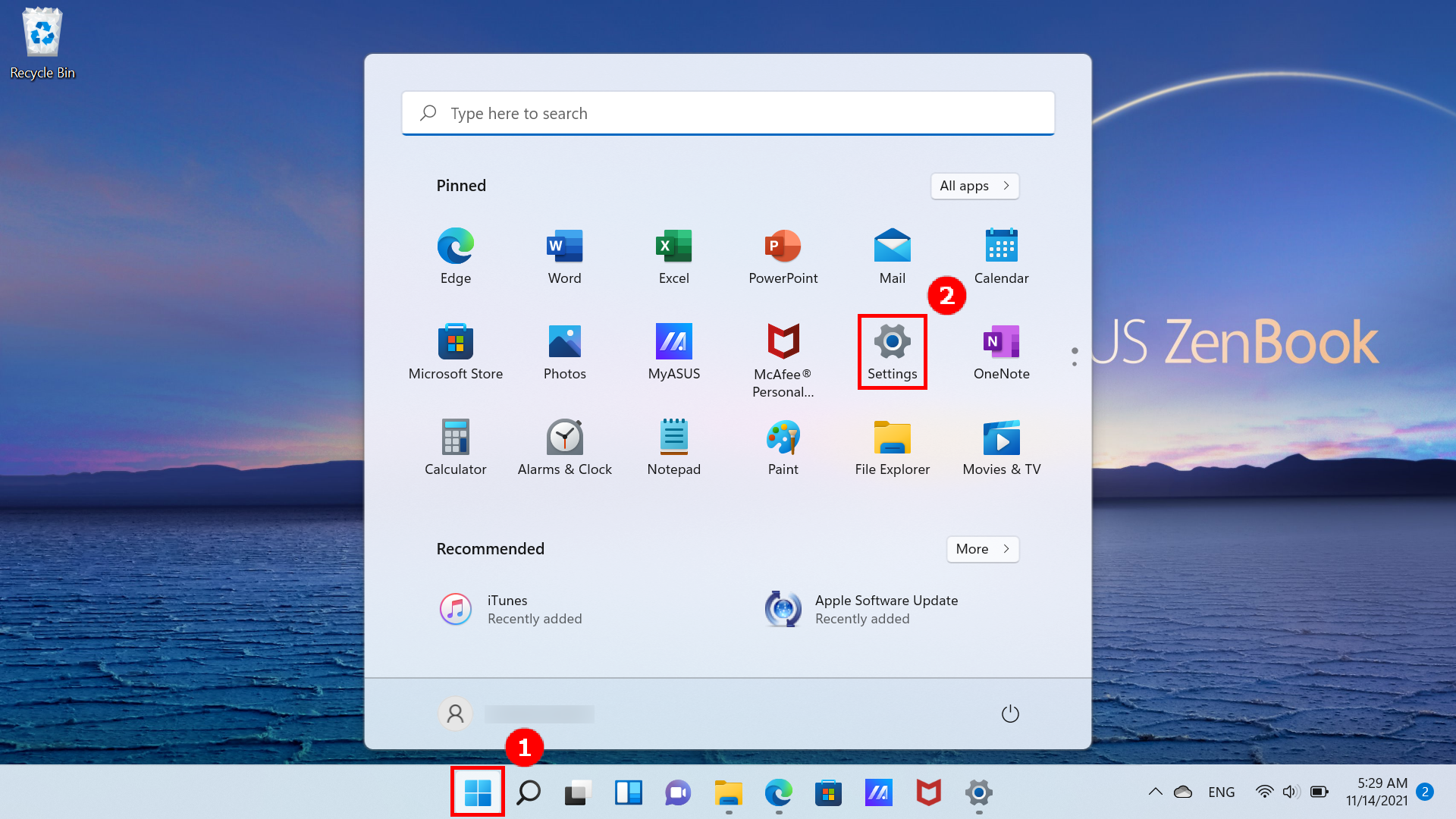
1. Click on the [Start]① icon at the bottom of your desktop and click on [Settings]②.
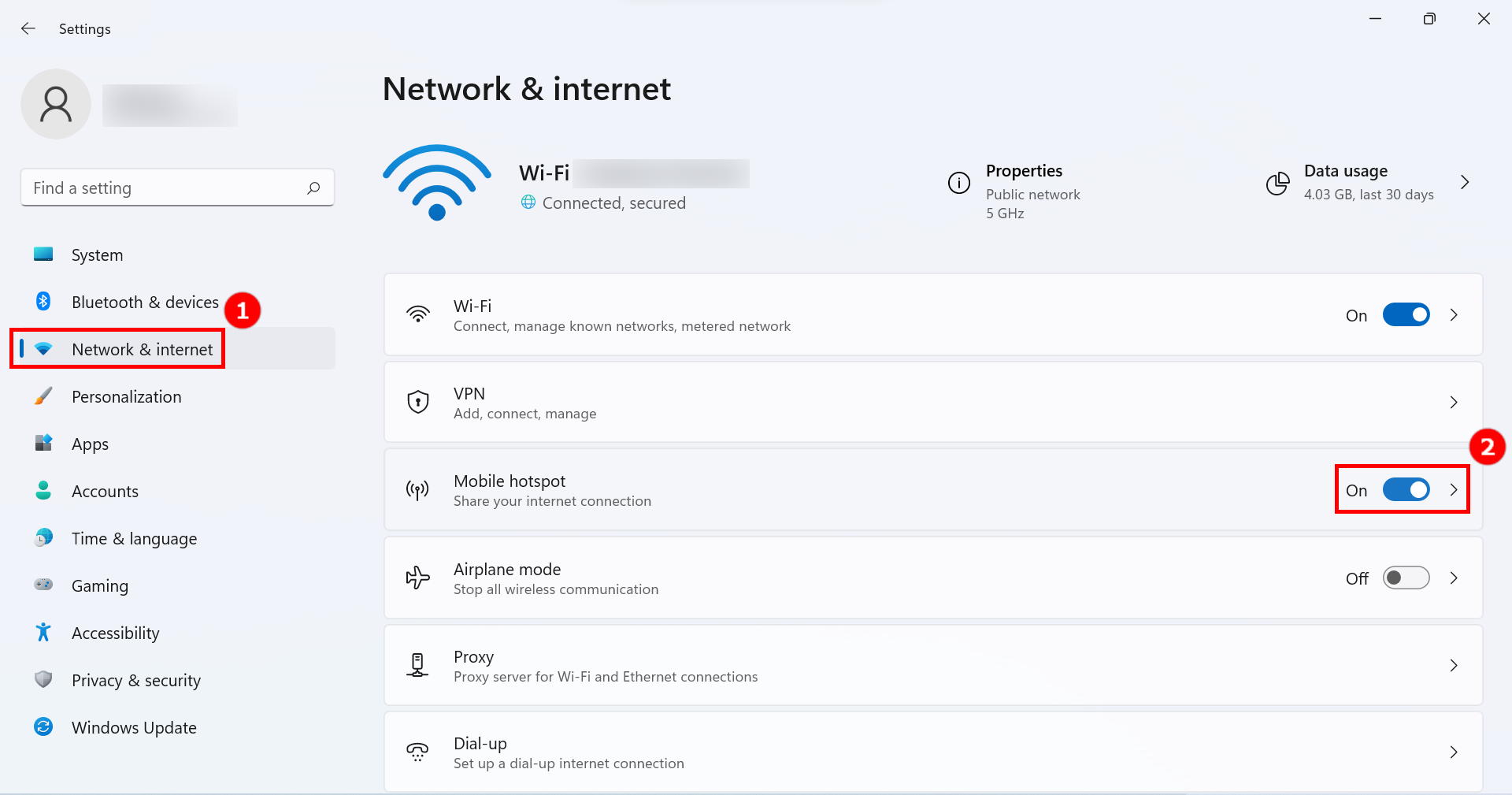
2. Click on [Network & Internet]① on the left side of the settings page, switch on the [Mobile Hotspots]② toggle, and then click on the small arrow on the right side of the [toggle] to open the Mobile Hotspot Settings page.
3. Click [Edit]① at the bottom of the mobile hotspot page.
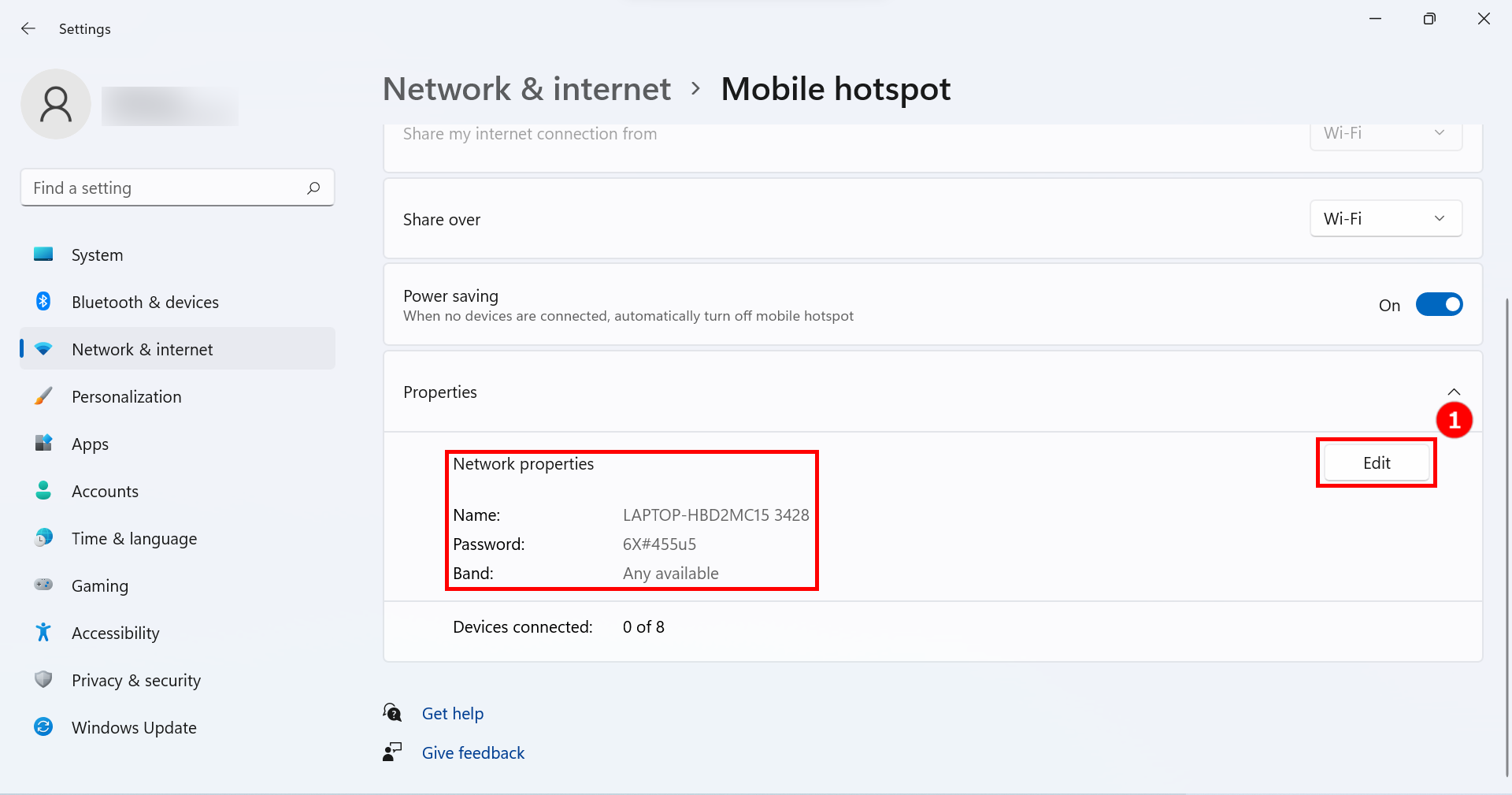
4. Click on the [Network Band]①, click on [5 GHz]③ and click on [Save]④ to complete the modification.
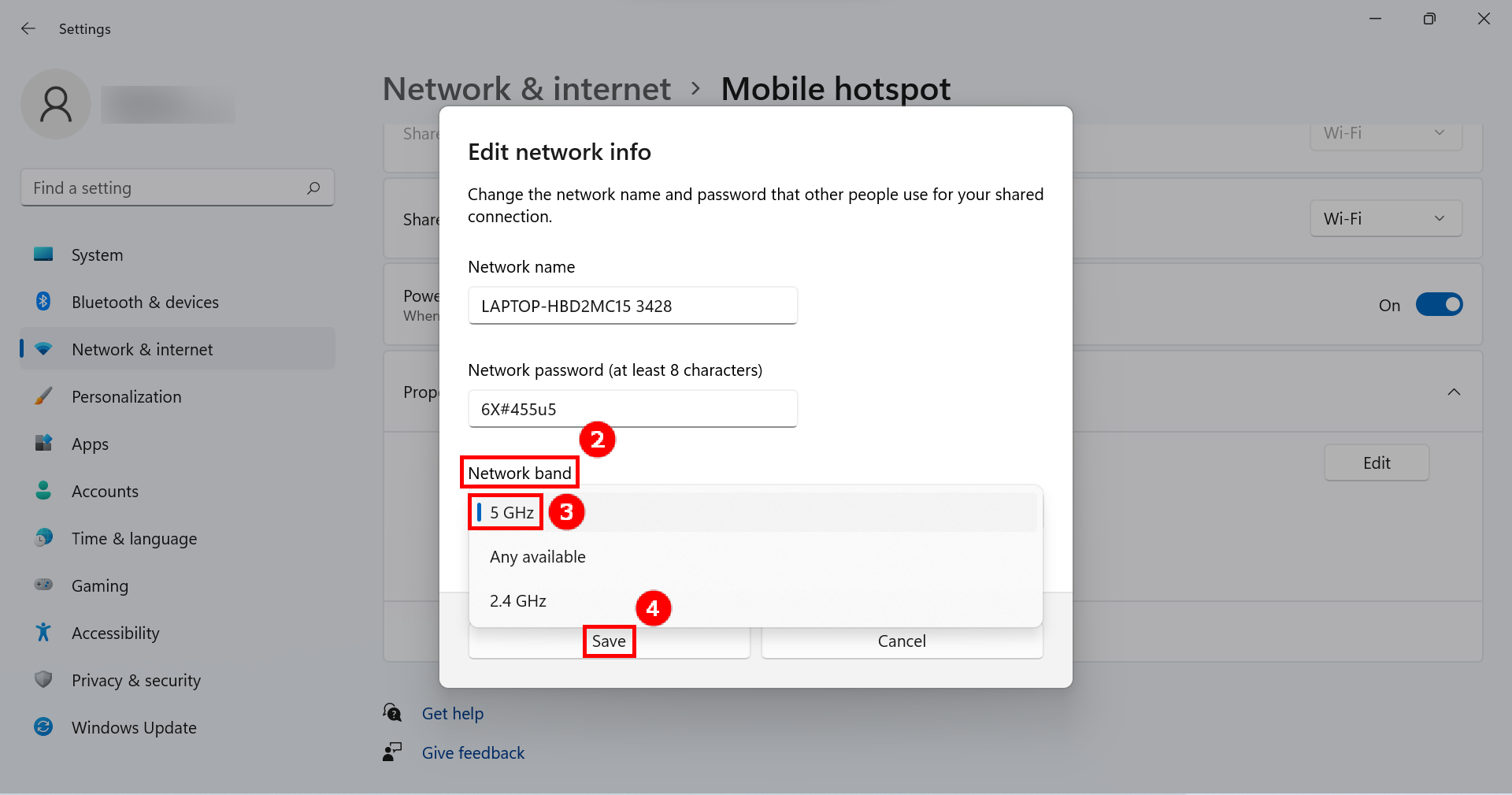
5. On your mobile device, select the 5GHz hotspot sharing connection you just set up on your computer. At this point, operating the computer side of the GlideX connected mobile device for Screen Mirror & Screen Extend, there will be better connection speed, better stability, better screen sharing experience.
Turn on and set up the 5GHz hotspot on the mobile device side
If your mobile device supports 5GHz hotspot sharing, you can connect your PC to your mobile device hotspot through your mobile device's 5GHz hotspot sharing.
(At this point, the computer will use the mobile device's network, please note the network traffic consumption).
1. On the mobile device settings page, tap [Network & Internet]①, tap on [Hotspot & Tethering]②, tap[toggle]③ to turn on Wi-Fi hotspot, tap on [Wi-Fi hotspot]④, tap [AP band]⑤, select the [5.0 GHz band]⑥ in the bottom pop-up window.
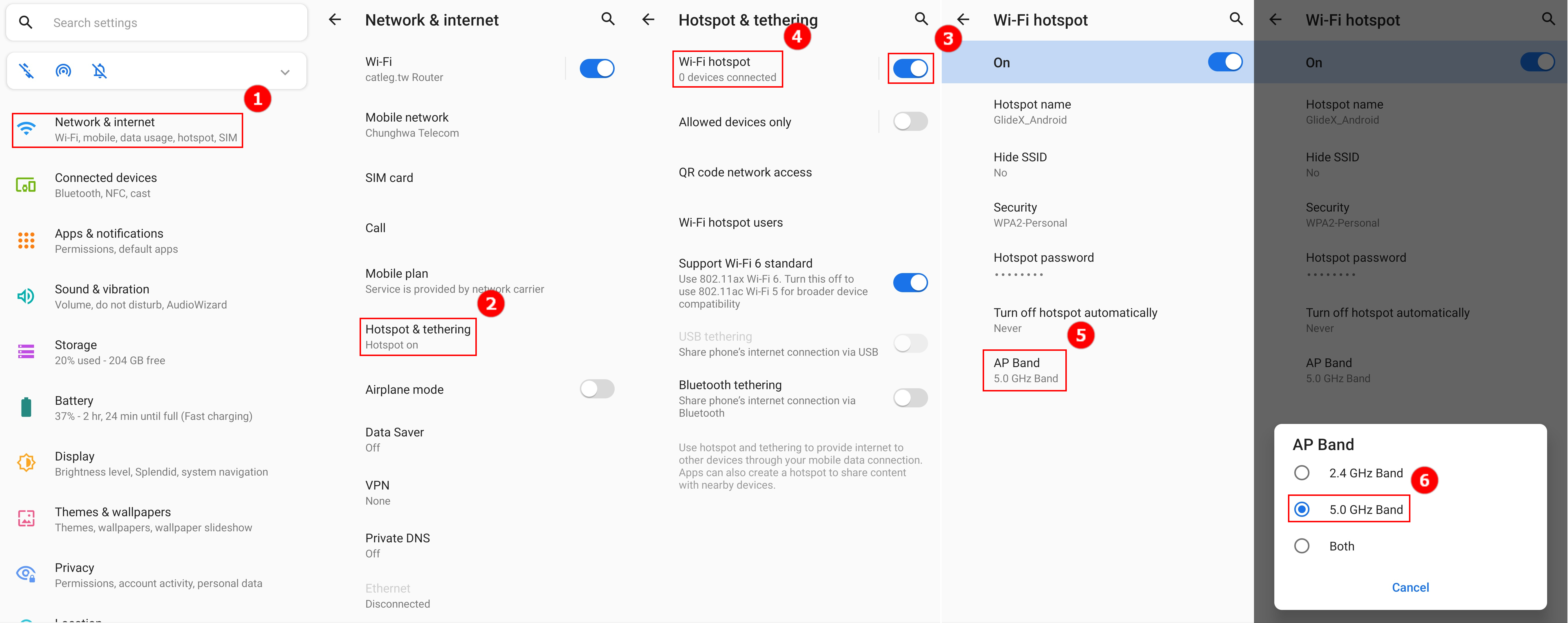
2. On your computer, select the 5GHz hotspot sharing connection just set up by your mobile device. At this point, operating the computer side of the GlideX connected mobile device for Screen Mirror & Screen Extend, there will be better connection speed, better stability, better screen sharing experience.