Relative Topices
- How to search and download Drivers, Utilities, BIOS, and User Manuals
- How to install Windows 10 driver when you can't find [setup.exe] or [install.exe] ?
- [Windows 11/10] Check for BIOS or Driver Updates
- Installation Procedure for AMD Chipset Drivers
- [Notebook] The suggested sequence of installation drivers
[Windows 11/10] How to Install Drivers and Firmware from the ASUS Site
Applicable Products: Notebook, Desktop, All-in-One PC, Gaming Handheld, Motherboard, MiniPC, ASUS NUC
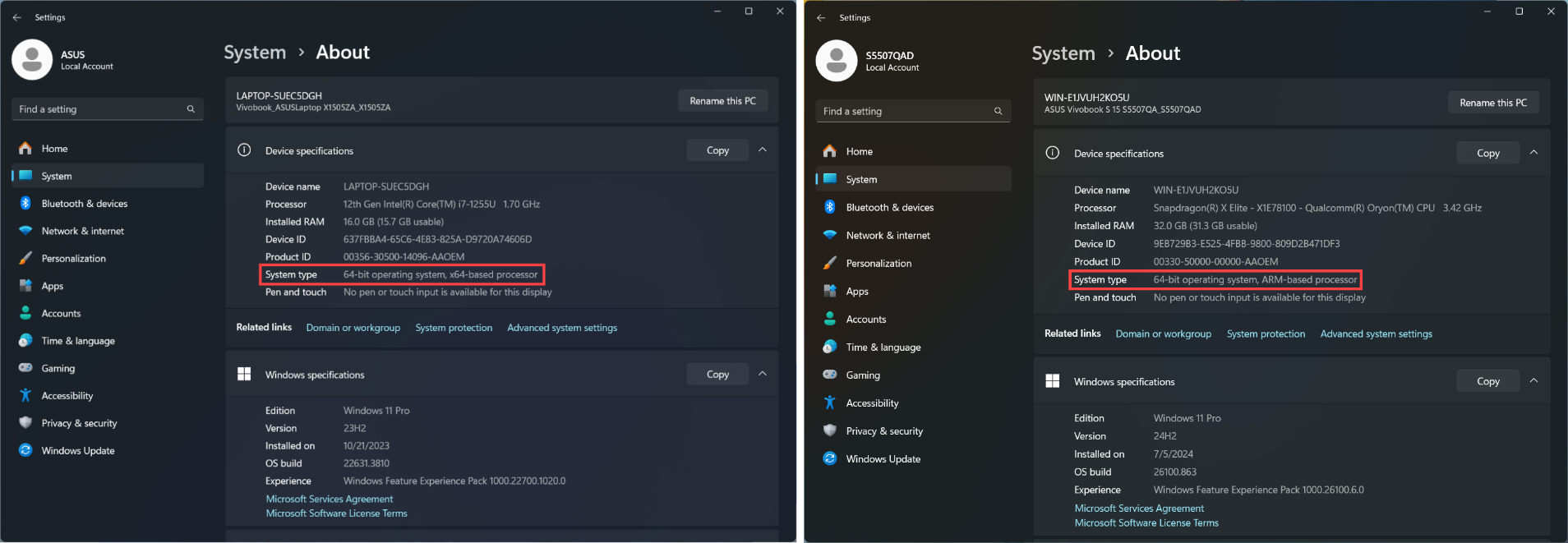
Note: The following installation method is exclusively applicable to devices with x86/x64 architecture. For devices with ARM architecture (such as the Qualcomm® CPU platform), please Click Here to learn How to install the driver for ARM-based devices.
Note: How to determine the architecture of your device
Navigate to Windows Settings > System > About. Here, you can view the architecture of your device under System type. (The image on the left shows an x64 architecture; the image on the right shows an ARM architecture.)
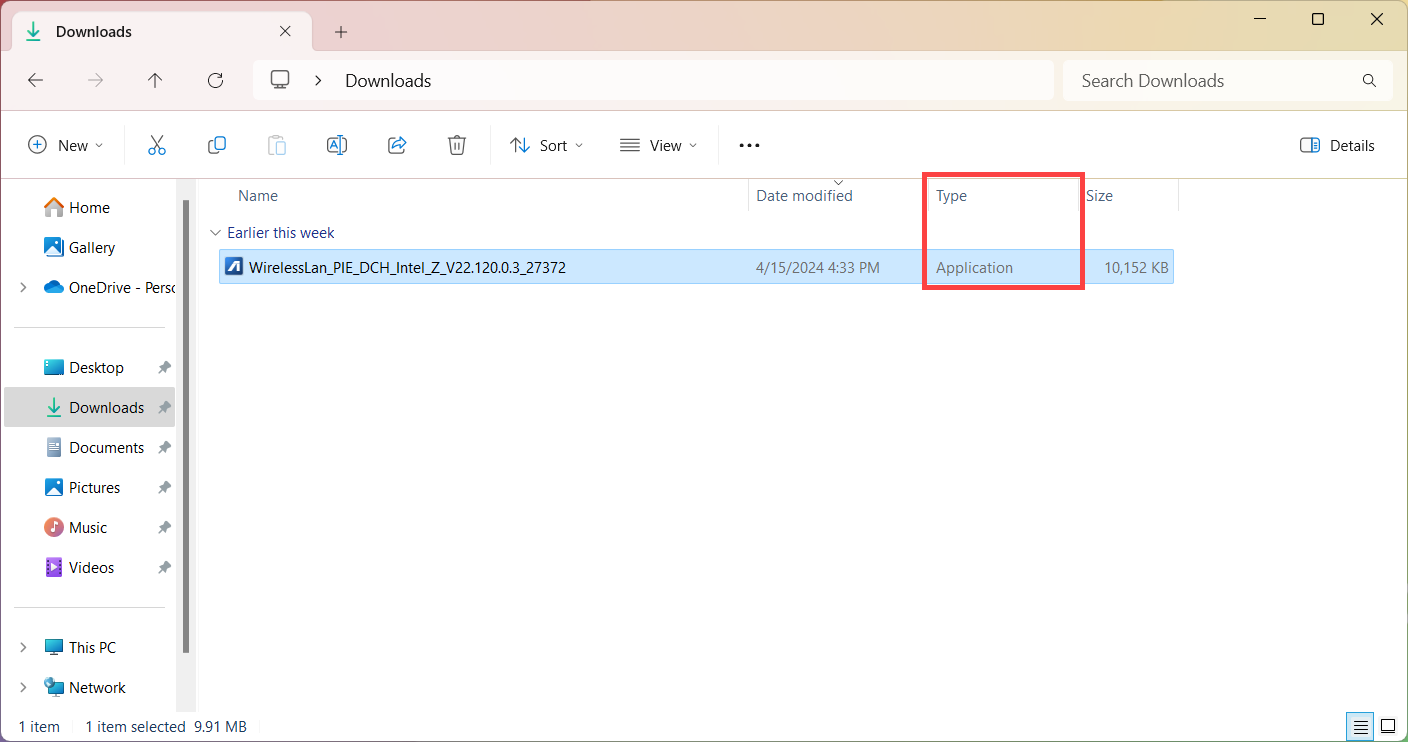
This article explains how to install drivers and firmware downloaded from the ASUS support website when the file type is an application (.exe). If the file you downloaded from the ASUS support website is not in this format, please refer to this article: How to Install Drivers When [setup.exe] or [install.exe] Cannot Be Found.
Note: If you need to reinstall the operating system, you can refer to this article for the recommended order of installing drivers: Recommended Order for Installing Drivers.
Note: In addition to manually downloading and installing drivers and firmware from the ASUS Support website, the Windows operating system may also deliver certain BIOS, firmware, and driver updates through Windows Update. This streamlined update mechanism helps users obtain the latest feature enhancements, security patches, and other essential system updates. You can refer to this article to learn How to update the system and BIOS using Windows Update.
Note: The following illustrations may vary slightly depending on your product model or application version.
How to Install Drivers and Firmware (x86/x64 Architecture Devices)
- Search for and download the driver or firmware you need to install. Learn more about How to search and download drivers or firmware.
- After downloading, double-click the file you just downloaded to begin the installation process①. (Using the WirelessLan_PIE_DCH_Intel_Z_V22.120.0.3_27372 wireless network driver as an example)
Note: If you downloaded a compressed file, right-click and choose 'Extract All' first.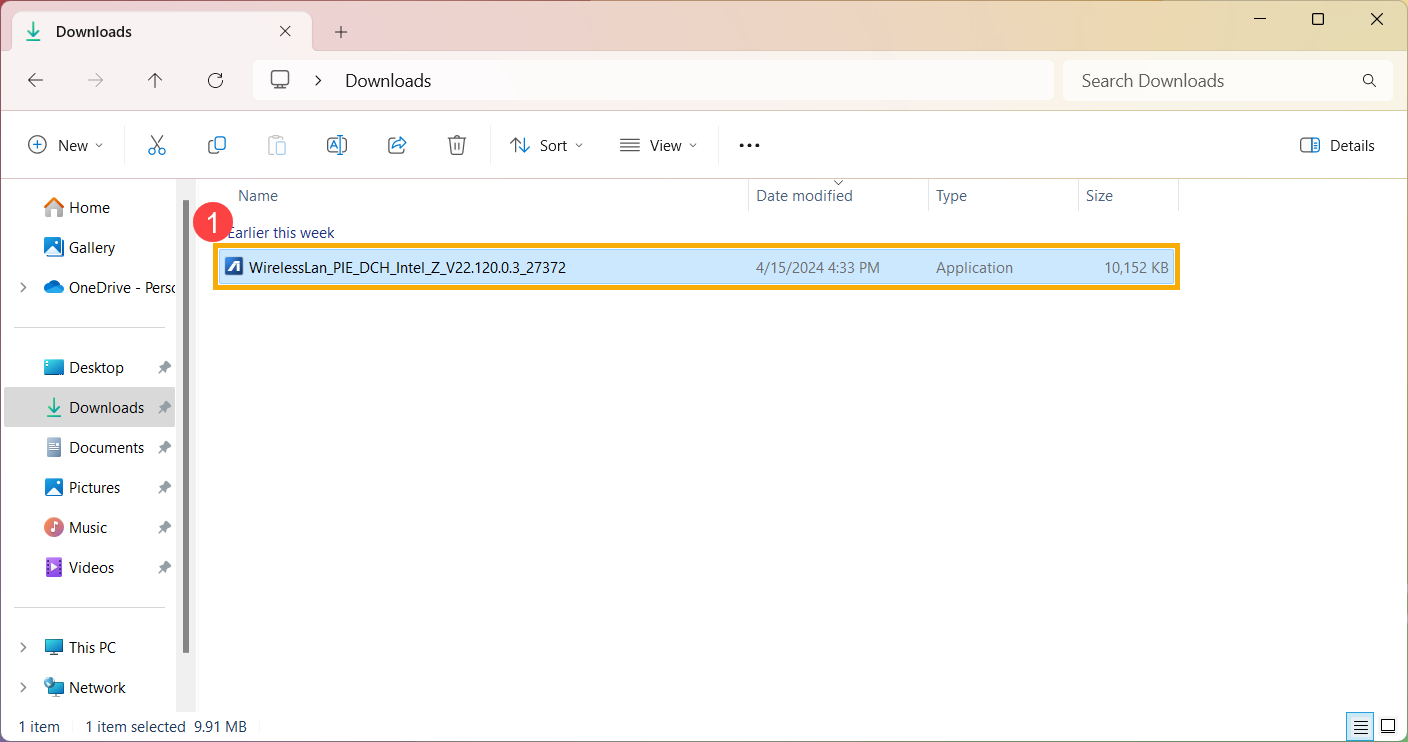
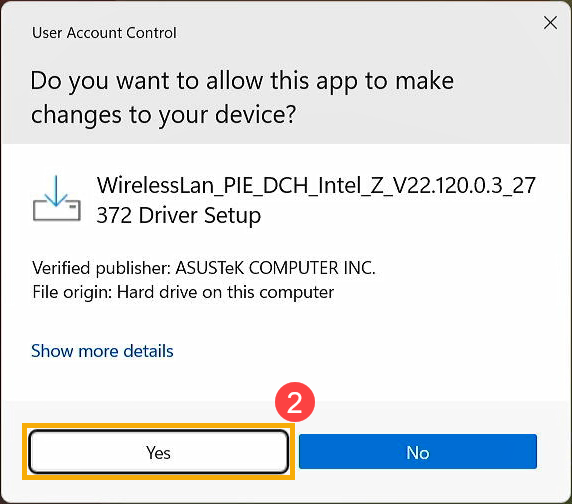
- If a User Account Control window appears, click [Yes]②.
- Choose the language you want to use in the installation program③, then click [OK]④.
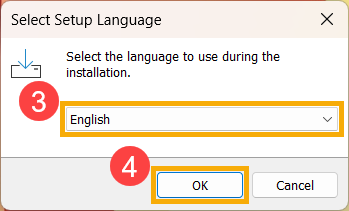
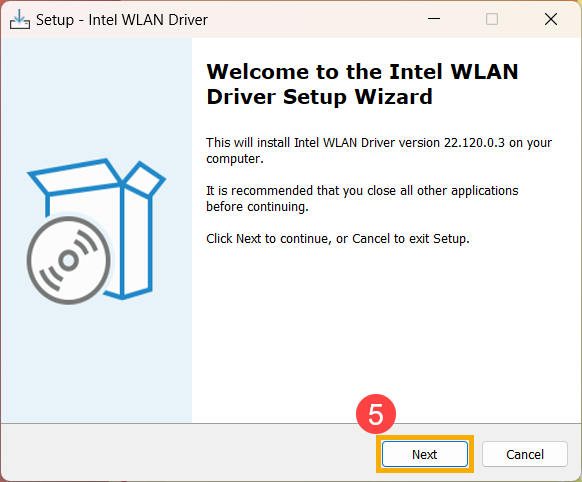
- After the installation program starts, click [Next]⑤ to continue the installation.
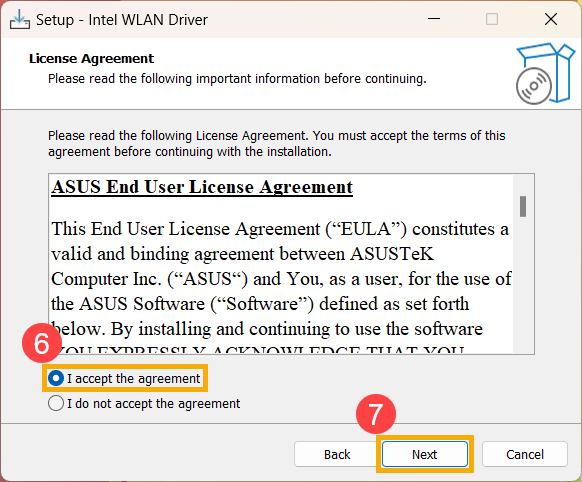
- Please read the ASUS End User Software License Agreement carefully. After confirming, check [I accept the agreement]⑥, then click [Next]⑦ to continue the installation.
- Choose the action you want to take for this file. Check [Install]⑧, then click [Next]⑨ to continue the installation.
Note: If you choose to extract, this process will only extract the files without installing.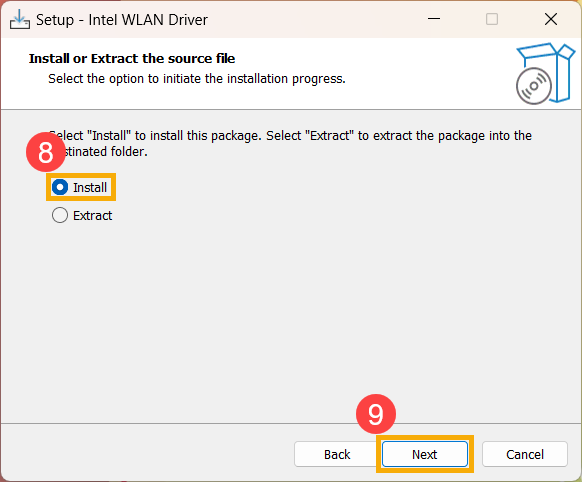
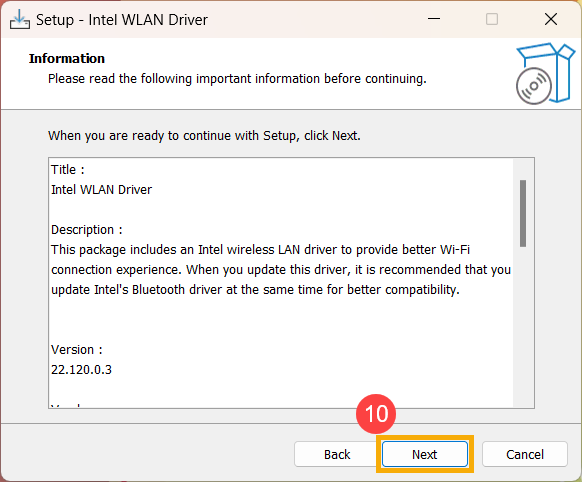
- Please read the following important information before continuing the installation. Then click [Next]⑩ to continue the installation.
- The installation program is ready to install the driver or firmware. Click [Install]⑪ to begin the installation.
Note: Installing drivers or firmware may take some time. During the installation, ensure that your device is connected to power and do not force a shutdown to avoid any abnormal issues.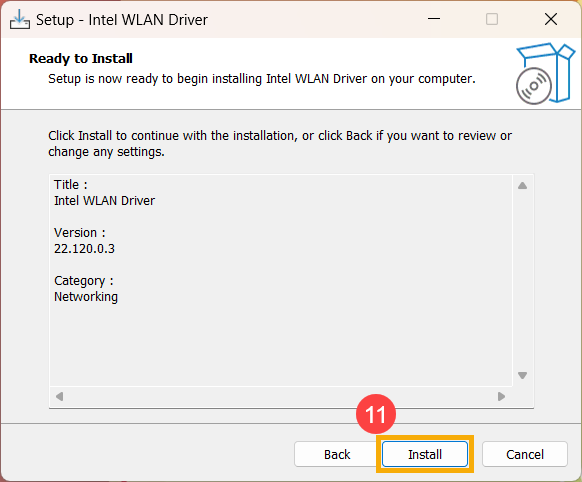
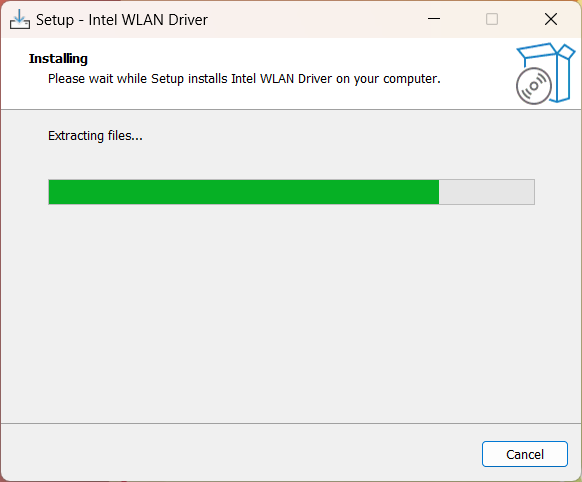
- The installation program is installing the driver or firmware. Please wait for the installation to complete.
- Some drivers or firmware may require restarting your device to complete the setup. Check [Yes, restart the computer now]⑫, then click [Finish]⑬. The device will restart.
Note: Before restarting your device, make sure to save your data to avoid any data loss.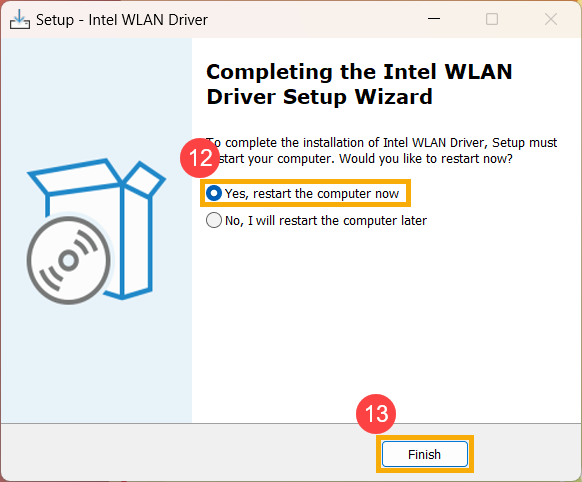
Firmware Update Instructions
- During installation, some firmware packages may display a firmware update screen, indicating that the device is currently undergoing a firmware update.
Note: Your device may also receive a system notification that automatically initiates a firmware update and displays a similar update screen. In such cases, no manual action is required. During the firmware update process, ensure that the device is connected to a power source and do not force the system to shut down, as doing so may cause unexpected issues.
Note: If the following message appears, the device must have a battery level above 20% and be connected to AC power before the firmware update can proceed. Please connect the power adapter and wait until the battery level exceeds 20%; the firmware update will then start automatically.
- The device is currently performing the firmware update. Please wait patiently until the process is completed.

- When the following screen appears, it indicates that the firmware update has been successfully completed. The device will restart several times before booting into the Windows operating system.

How to install the driver with ARM-based devices
- Go to the ASUS support site with your device’s model name, here you can learn more about How to search and download drivers.
Note: To download the corresponding driver file, please refer to How to check the model name. - After accessing the product support download page, locate the latest version of the Board Support Package① under the Driver Package category, and then click [Download]②.
Note: This package includes BIOS, System, Multimedia, Peripherals and Connectivity drivers. Utilizing this package will update both the BIOS and drivers to the latest versions.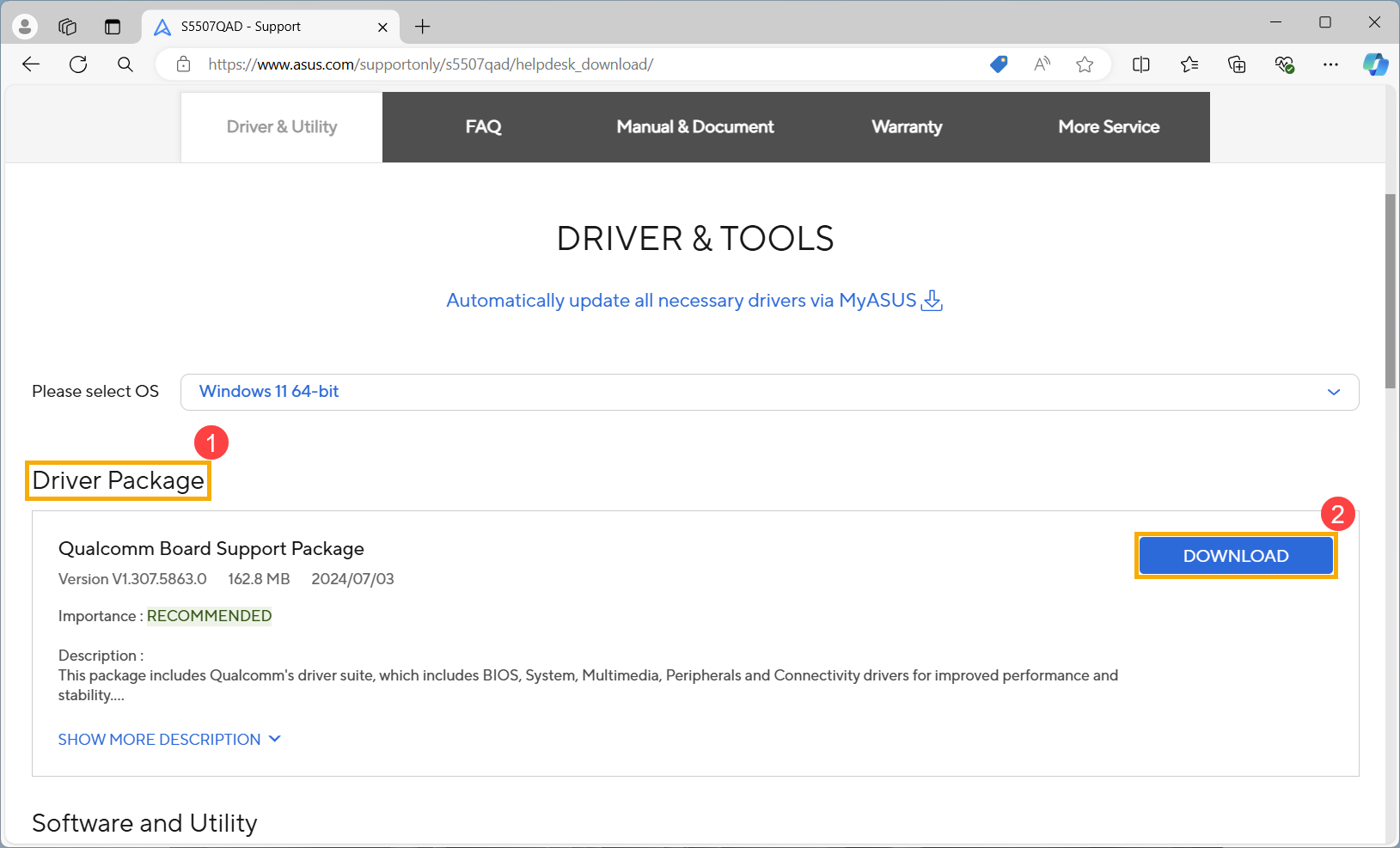
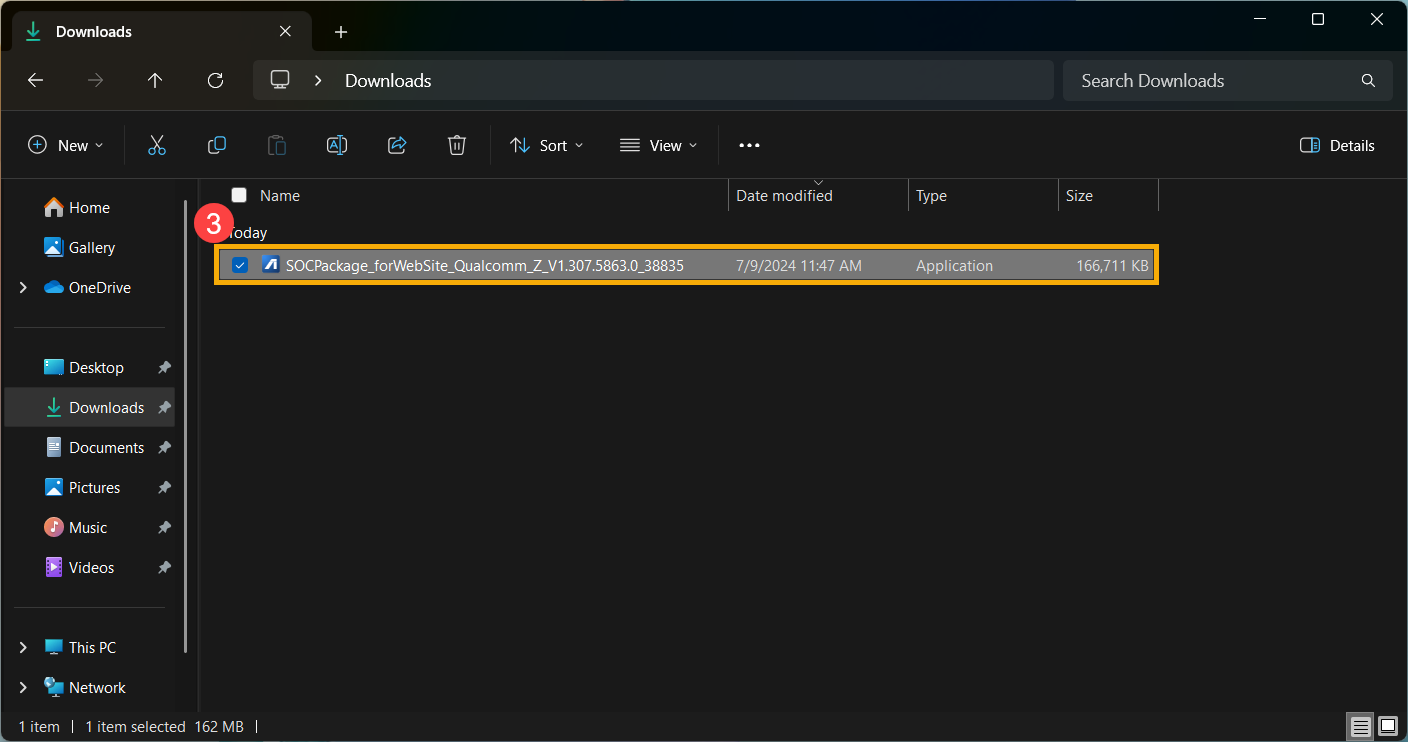
- After downloading, double-click the file you just downloaded to begin the BSP installation process③.
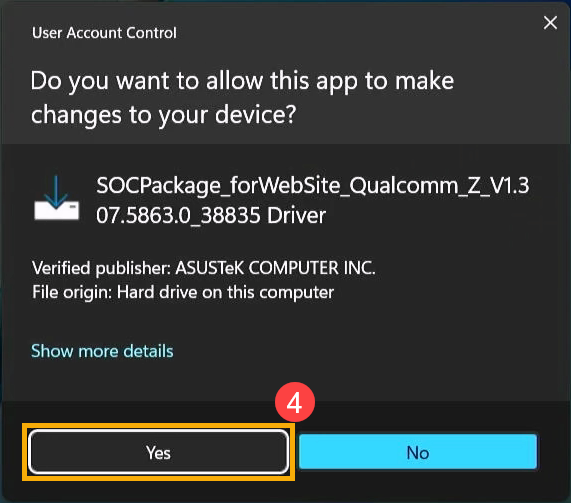
- If a User Account Control window appears, click [Yes]④.
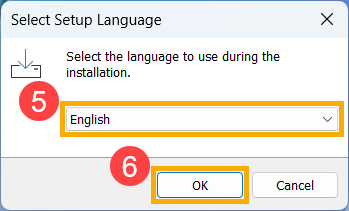
- Choose the language you want to use in the installation program⑤, then click [OK]⑥.
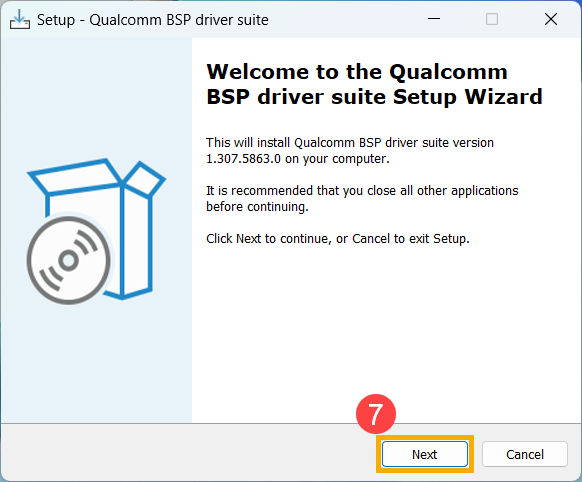
- The setup wizard will guide you to start the BSP installation process, click [Next]⑦.
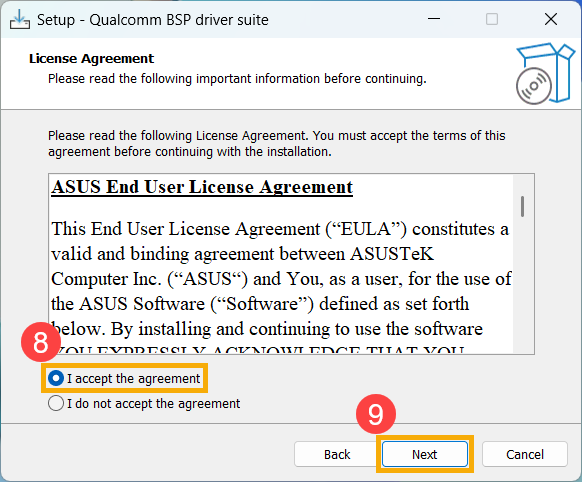
- Please read the License Agreement, and check the box to [I accept the agreement]⑧ and then select [Next]⑨.
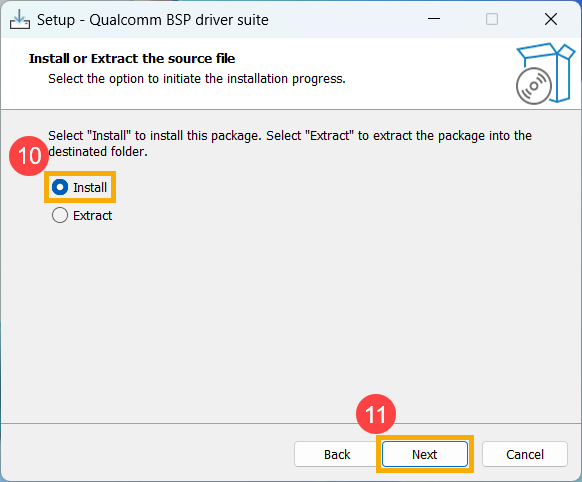
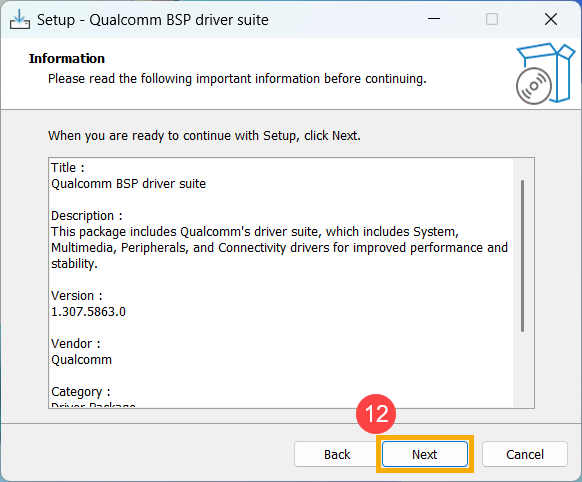
- Follow the indicator to process the BSP update installation.
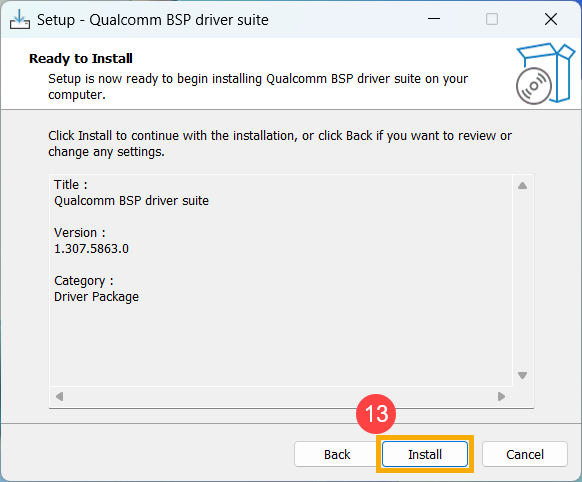
- Select [Yes, restart the computer now]⑭, then click [Finish]⑮. The device will restart and enter the update screen.
Note: Before restarting the device, please ensure to save your work to prevent any data loss.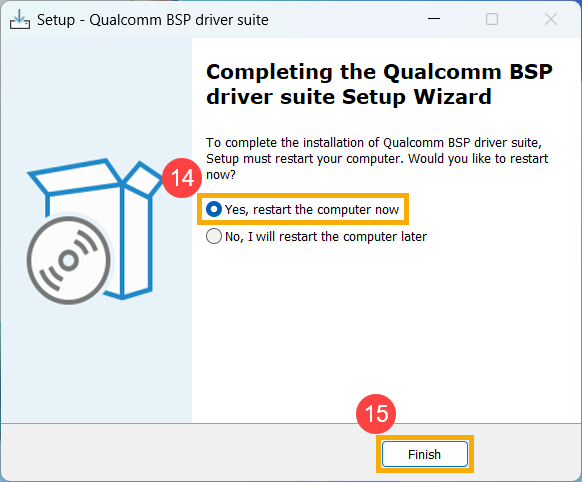
- The device is currently undergoing an update.
Note: Ensure that the device is connected to power and do not force shutdown during the update to prevent any abnormal issues.
- Upon completion of the update, the device will automatically reboot into the Windows operating system.