[NAS] How to use Seagate IronWolf Health Management?
If you are using a Seagate IronWolf or IronWolf Pro series hard disk with a capacity more than 4TB(capacity less than 4TB not supported), just navigate to [Storage Manager] → [Disk] → [Disk Doctor] and the [IronWolf Health Management] window will appear. You can use this function to schedule or immediately carry out a scan.
https://www.seagate.com/internal-hard-drives/hdd/ironwolf/
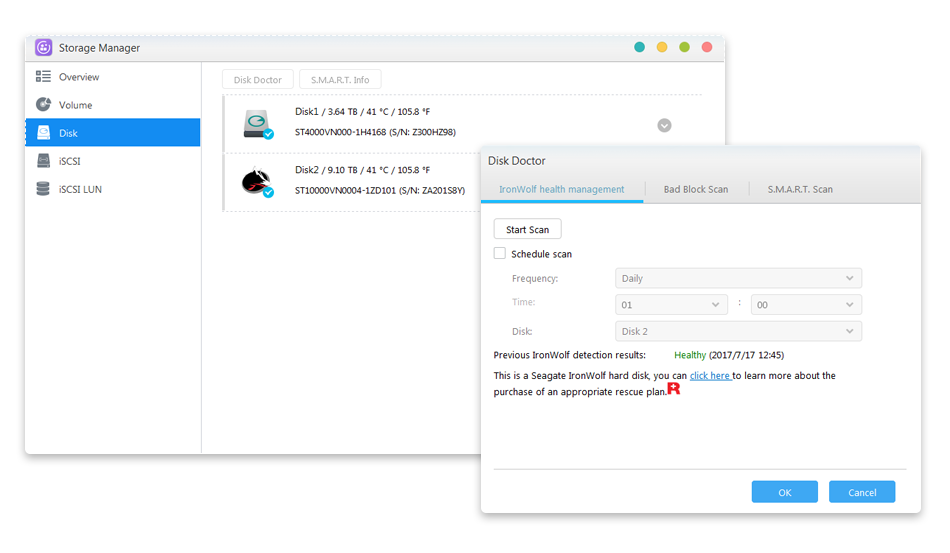
After using IronWolf Health Management to scan your hard disks, the results will be shown either as “healthy” or a numerical output code. Please see the chart below to see the suggestions represented by the codes.
|
Output Codes |
Test Result |
Suggestion |
|
100 |
Notification |
Abnormally high operating temperature has been detected. Please ensure rear ventilation ports are not blocked, and try to lower the ambient temperature. Alternatively, go to Settings > Hardware > Fan Control to increase fan speed. |
|
101 |
Notification |
Connection issue on your NAS and hard drive interface has been detected. Please ensure the hard drive is properly installed in the chassis or drive tray, and that the tray is properly installed in your NAS. |
|
102 |
Notification |
Excessive physical shock to the hard drive has been detected. Please ensure your hard drive and NAS are placed on a stable surface. |
|
105 |
Notification |
Excessive vibration has been detected. Please ensure you NAS is placed on a stable surface. |
|
106 |
Notification |
Excessive host resets have been detected. Please ensure the hard drive is properly installed in the chassis or drive tray, and perform a power cycle. |
|
>=200 |
Warning |
IHM has spotted some errors and a full SMART scan has been automatically triggered for your convenience. If the scan fails, please contact Seagate Customer Care. |
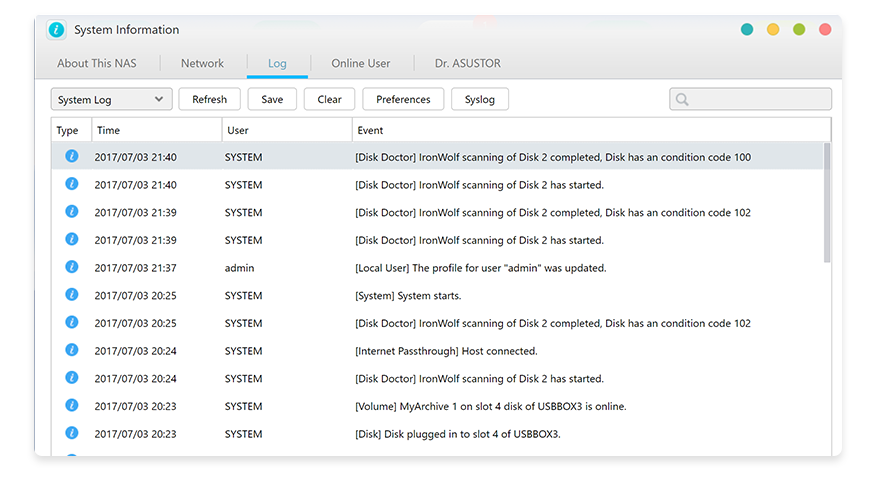
After a scan is complete, all scan result codes will be recorded in the ADM event log. In the future, just open the event log to take a look at any previous IHM scan results.