[Chromebook] Zero-touch enrollment (ZTE)
Zero-touch enrollment (ZTE)
Chrome OS zero-touch enrollment is an alternative to manually enrolling devices, where a pre-provisioning partner (device manufacturer, distributor or reseller) sends instructions to Google to automatically enroll a Chrome device into a customer’s domain after a device is turned on and connected to the internet. For more details, please refer to Chrome Enterprise and Education Help.
Note: If a business user would like to import the Zero-touch enrollment feature, please have the system administrator contact ASUS.
How to use Zero-touch enrollment
- Press Power Button to enter Welcome screen. Then press the Alt + V key to confirm whether the upper-right corner ZTE is checked and ADID and SN values are correct①.
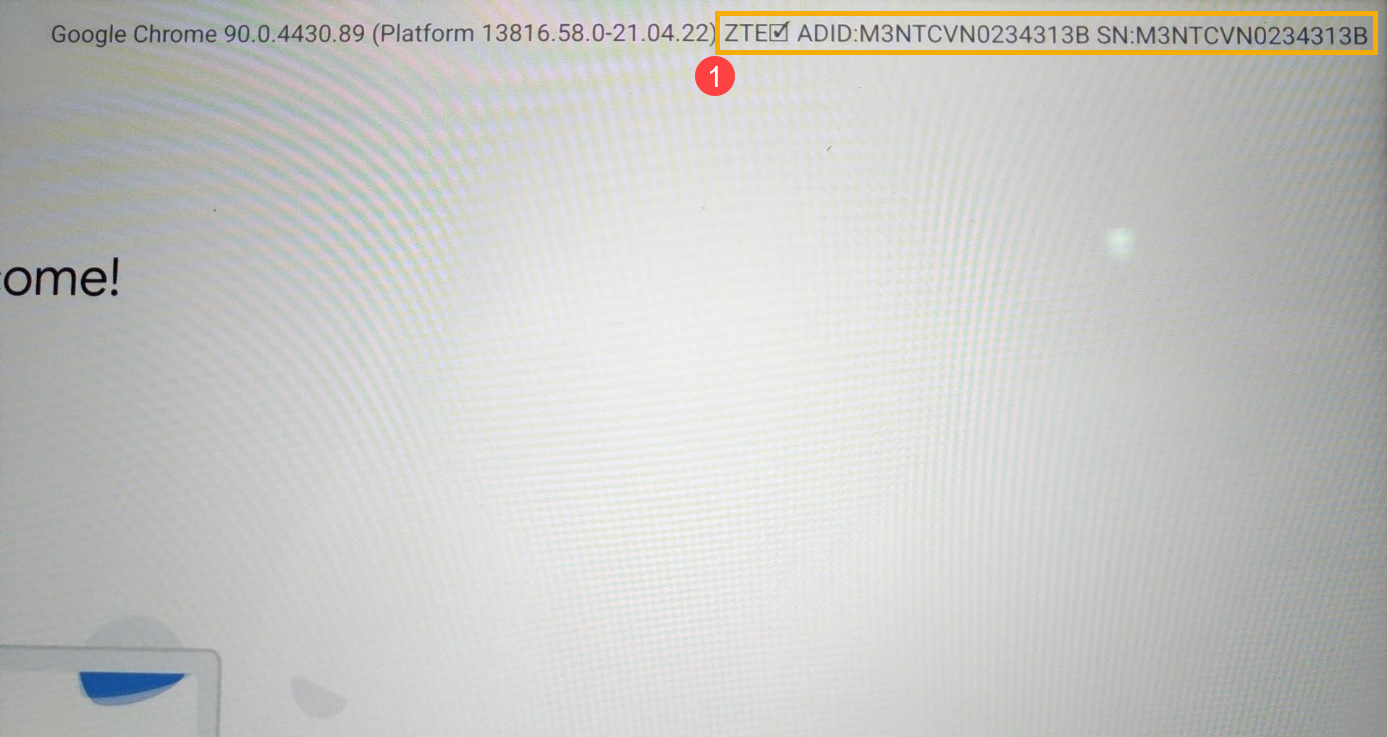
- If ADID and SN are correct, please click [Let’s go]②.
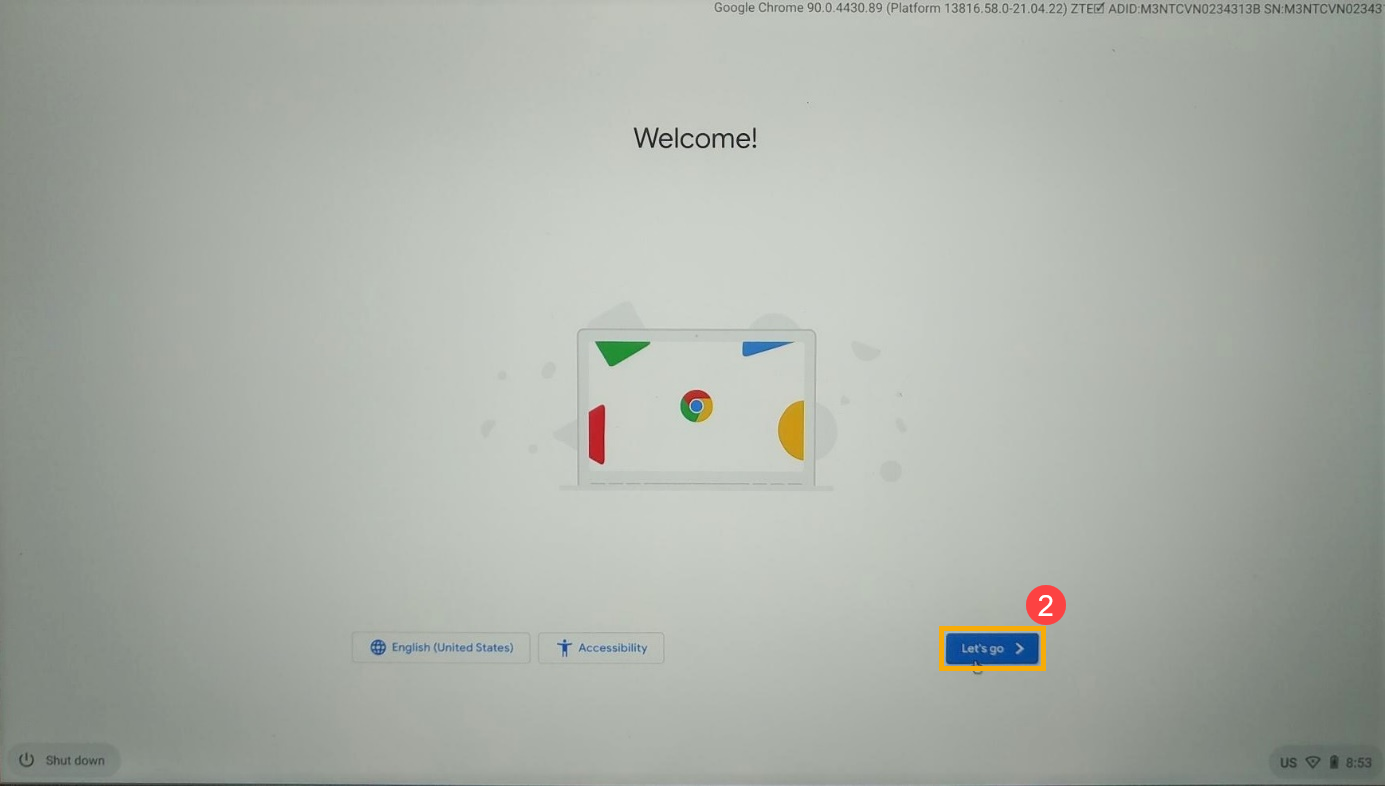
- Choose a Wi-Fi connection, and then click [Next]③.
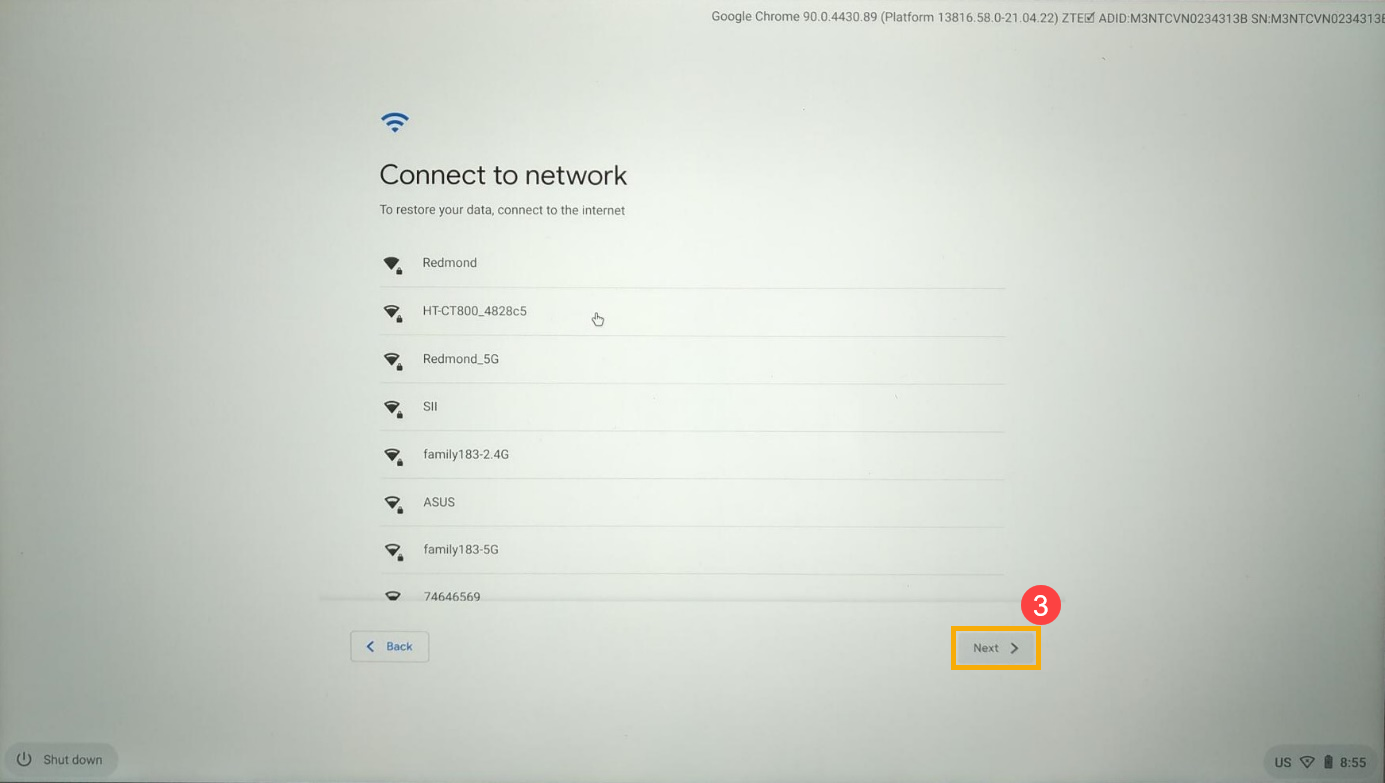
- Please read Google terms of service, and then click [Accept and continue]④.
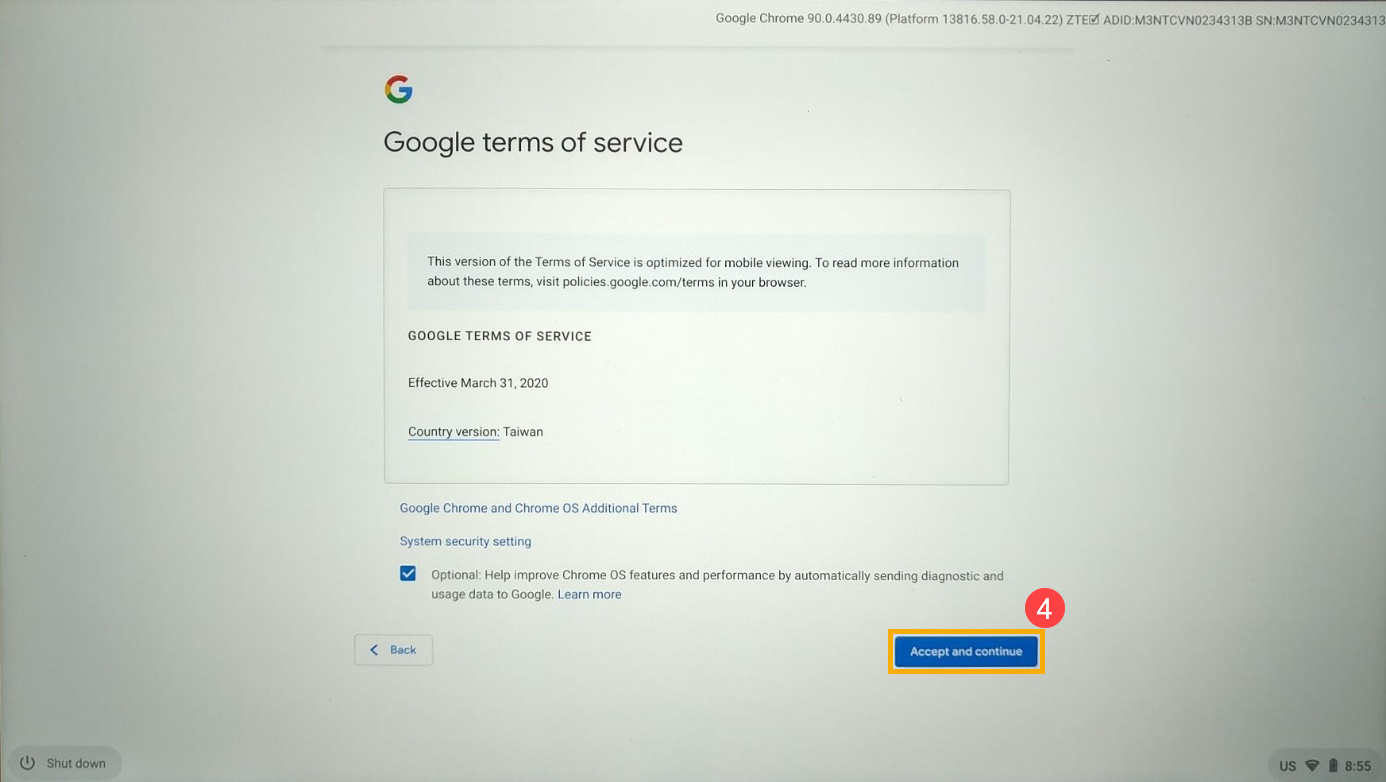
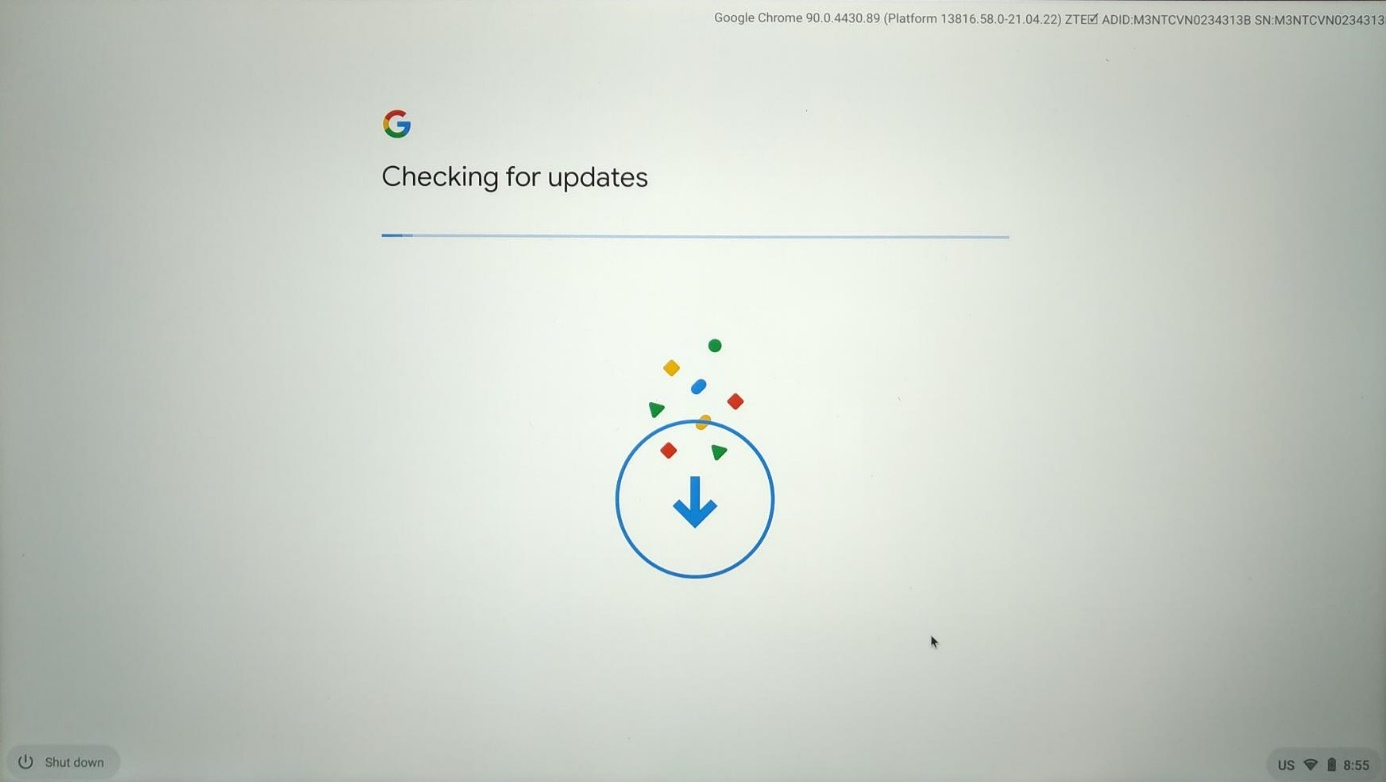
- Chromebook is checking for updates, please wait patiently.
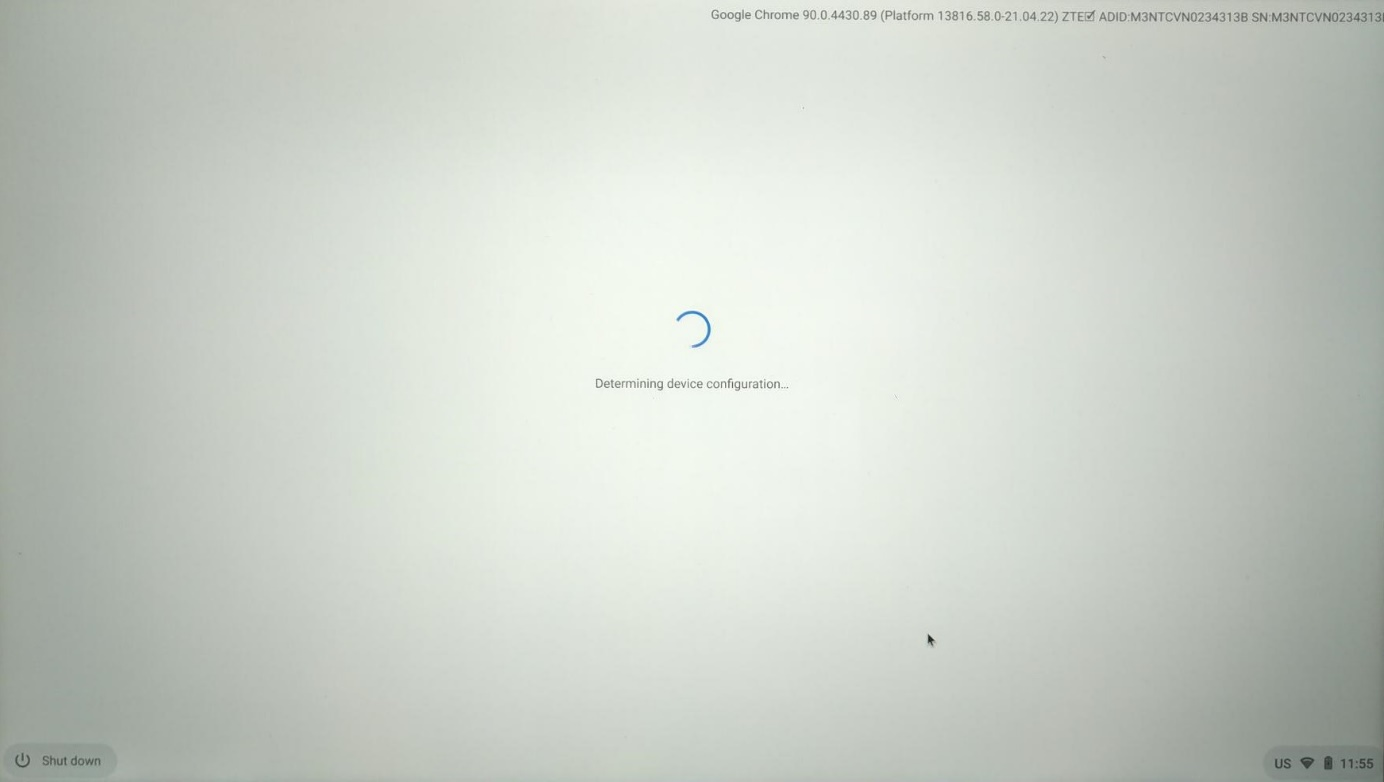
- Chromebook is determining device configuration, please wait patiently.
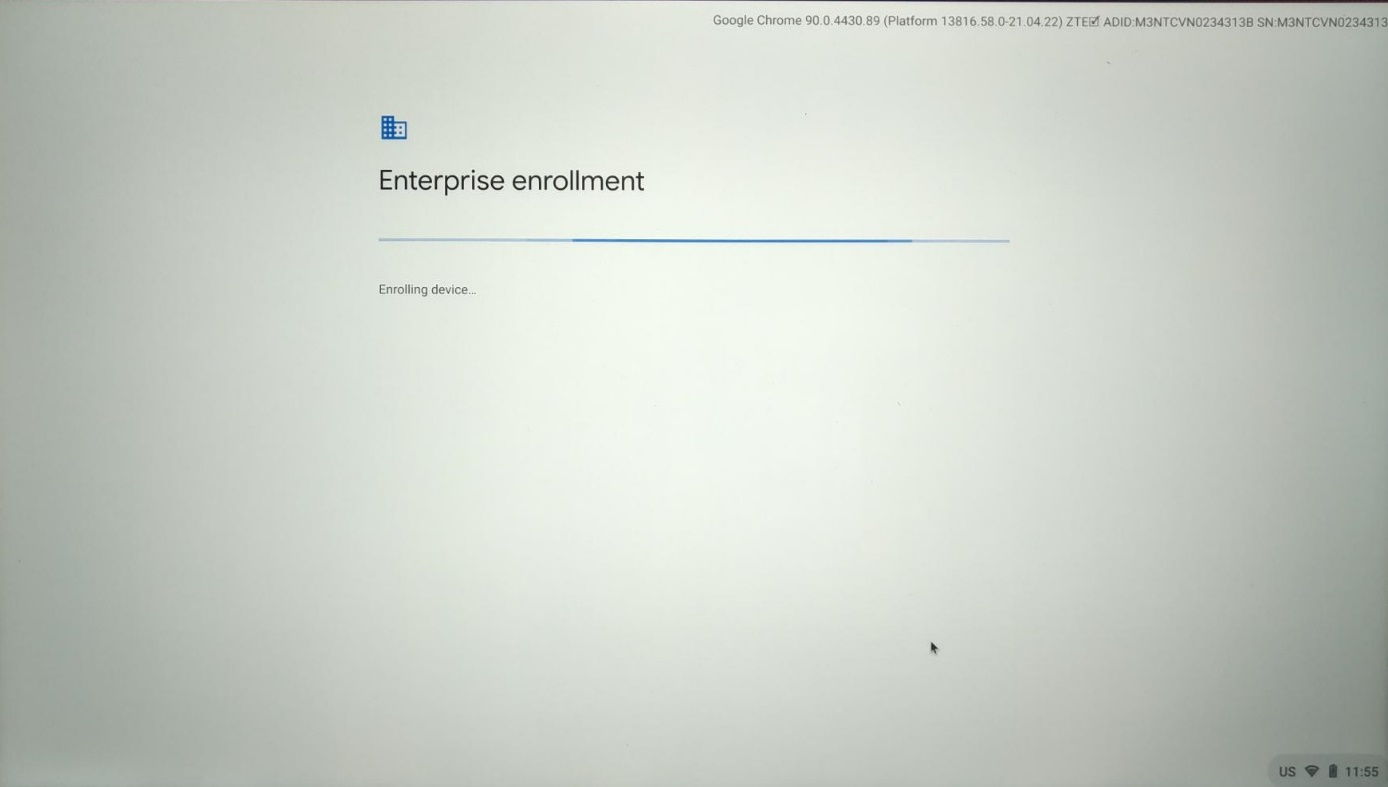
- Chromebook is enrolling device, please wait patiently.
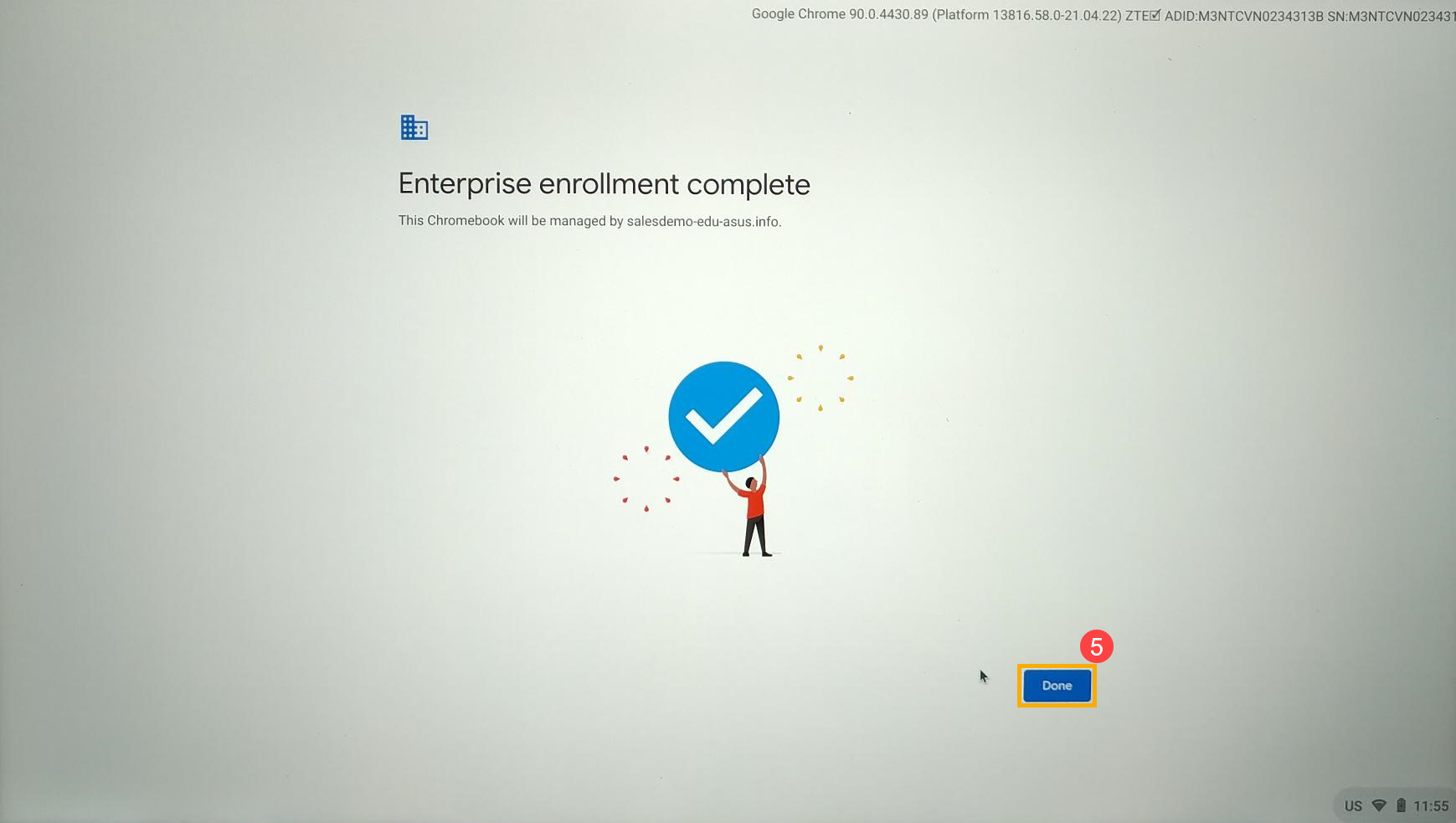
- After the Enterprise enrollment complete notice shows up, Zero-touch enrollment is finished. Please click [Done]⑤ to use your Chromebook.
If you encounter any issues with the above steps, please record a video during the enrollment process. Then, please contact ASUS and provide your ADID, SN, Hardware model, Domain, and Device pre-provision token.
Zero-touch enrollment Q&A
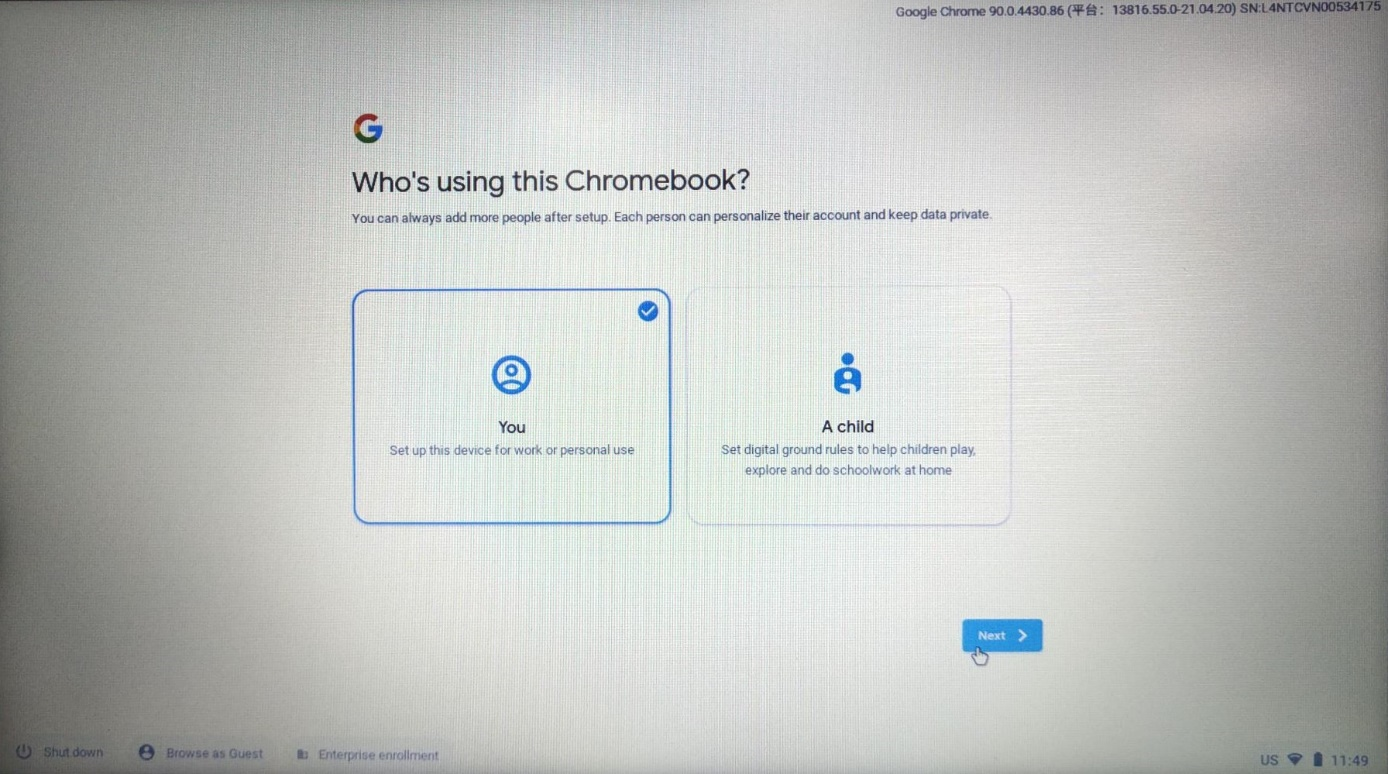
Q1: If I see “Who’s using this Chromebook” instead of “Enterprise enrollment” during the enrollment process, what can I do?
A1: Please contact Google and provide your ADID and SN. You can press the Alt + V key to see ADID and SN values in the upper-right corner.
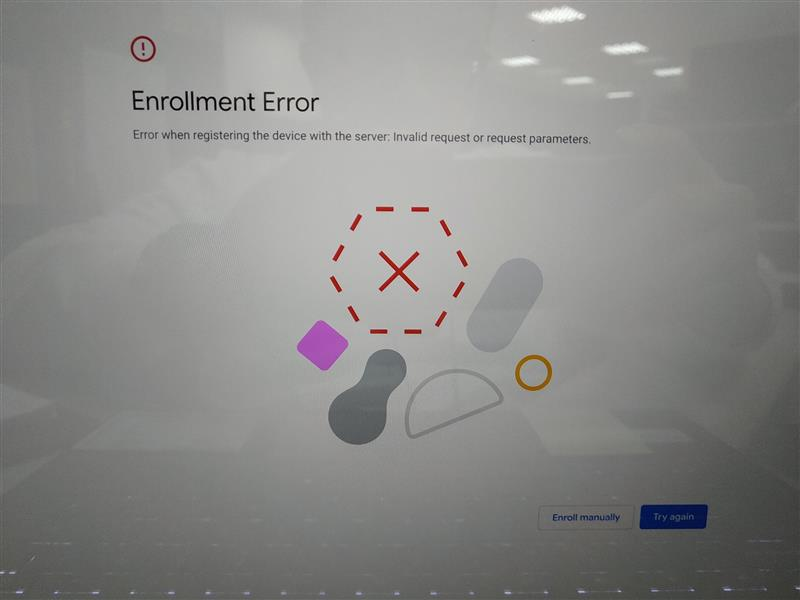
Q2: If I see “Enrollment Error” instead of “Enterprise enrollment complete”, what can I do?
A2. Please contact Google and provide your ADID and SN. You can press the Alt + V key to see ADID and SN values in the upper-right corner.
Any questions, you may visit Google support web (https://support.google.com/chrome/a/answer/10130175) to have more information.