Relative Topices
[Wireless Router] How to Set Up Guest Network Pro After Wireless Network Function Adjustment?
With the WiFi 7 router, we have adjusted the function of wireless network settings. Previously, users could only configure each band separately. With the adjustment, users can now adjust different bands simultaneously under the same SSID, enhancing user experience and operational convenience.
Key features for users to quickly understand network configuration:
- Adjust different bands at once under the same SSID.
- Intuitive user interface.
- Separate displays for the main network and guest network.
- Icons displaying the number of connected devices and frequency band status.
Important Notes:
- Some wireless network features may vary depending on the firmware version.
- You can configure your ASUS router via the Web GUI or ASUS Router App.
- The availability of 2.4 GHz, 5 GHz, and 6 GHz WiFi channels depends on local regulations and restrictions.
- If your PC network card and router both support 6 GHz but your country/region does not allow it, you may not be able to use the 6 GHz band.
- ASUS routers come with different functionalities depending on the model. Please check ASUS product specifications to confirm which frequency bands are supported.
Interface 1: Firmware Version 3.0.0.6.102_35404 and Later
Changes in the Interface After Firmware Update:
- [General Settings] > [Guest Network] renamed to [Network].
- [Advanced Settings] > [Guest Network Pro] renamed to [Network].
- [Main Network Settings] moved to [Network].
A. Setting Up WiFi Using ASUS Router App
Configuring the Main Network:
(1) Login to App and tap [ Settings ] > [ Network ] > [ Main network profile ].
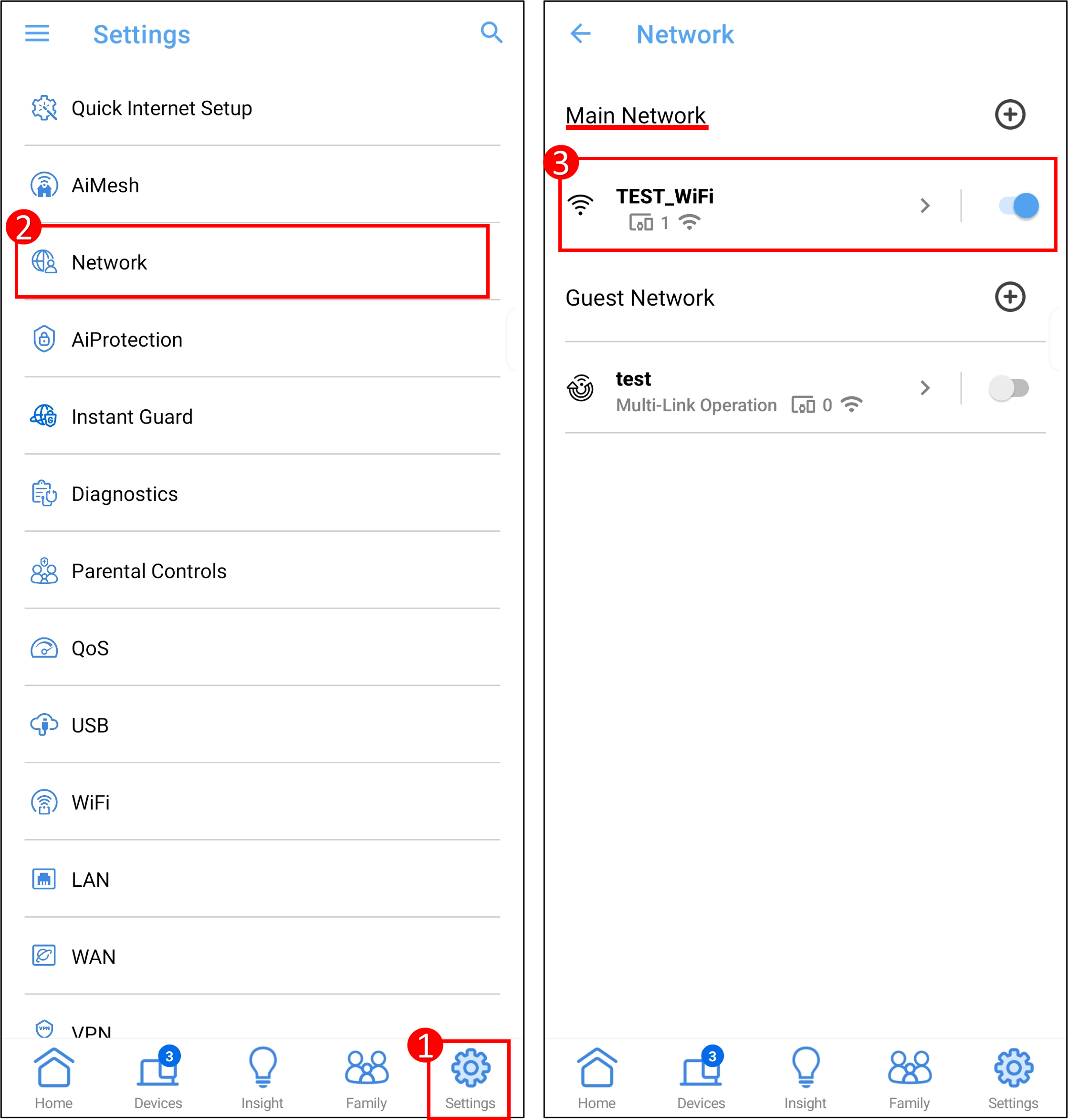
(2) Tap on Network Name (SSID) and password to modify it. And [ Apply ] to save the settings.
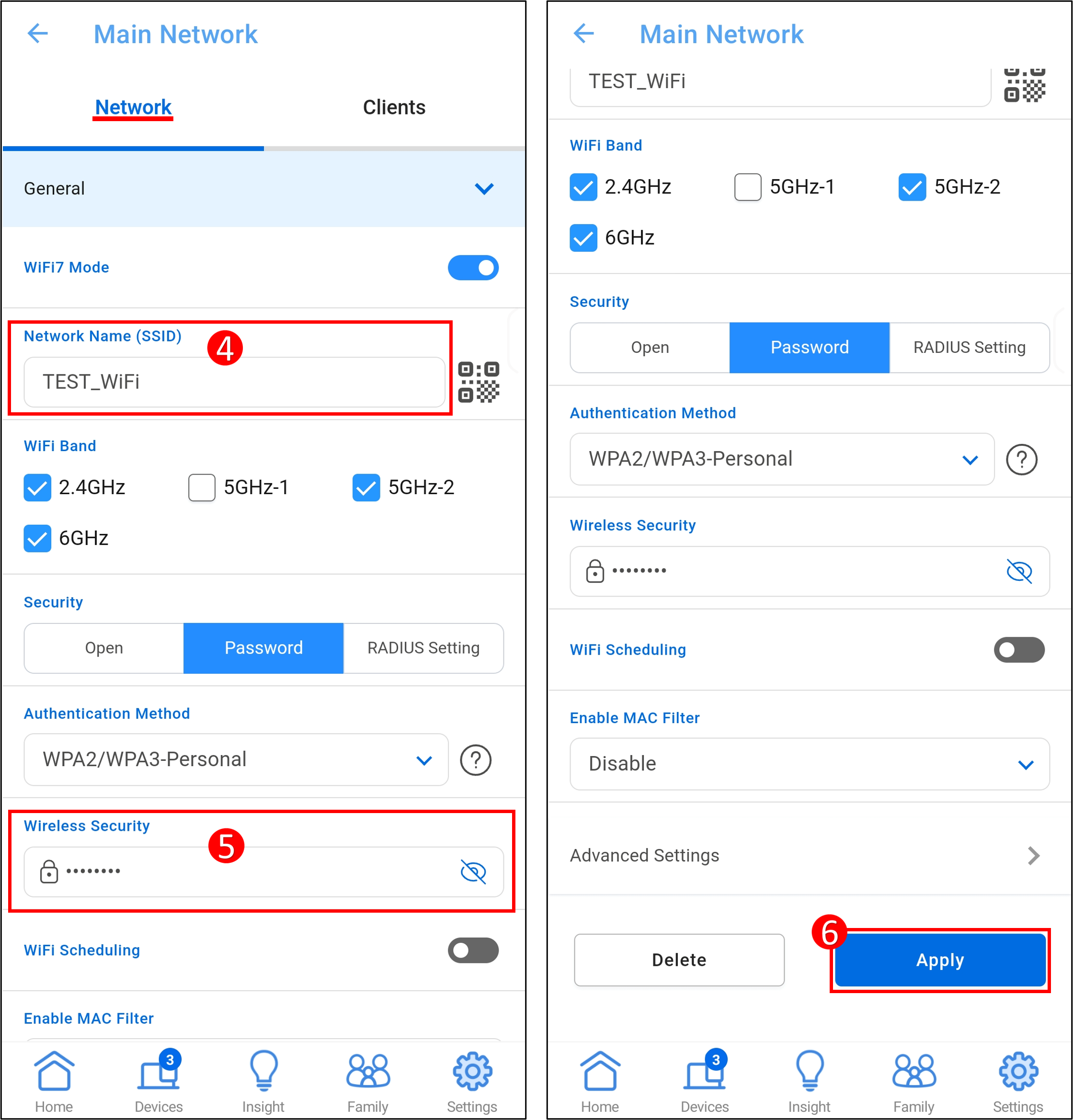
Adding Additional WiFi Bands(WiFi Networks):
Click the [+] icon next to [Main Network] to add a WiFi network. After setting the network name and password, select one or multiple WiFi bands, then click [Apply] to save the configuration. The WiFi network has been successfully added.

Setting Up Guest Network (Smart Home Master or Guest Network Pro, Depending on Model) :
(1) Open the ASUS Router App, then go to [Settings] > [Network].

(2) Click the [+] icon next to [Guest Network] to add a guest network.

(3) After setting the network name and other information, click [Apply] to save the configuration. The guest network has been successfully added.

B. Setting Up WiFi Using ASUS Router Web GUI
Configuring the Main Network:
(1) Connect your computer to the router via wired or WiFi connection and enter your router's LAN IP or router URL http://www.asusrouter.com to the WEB GUI.

(2) Key in your router's username and password to log in.
Note: If you forget the user name and/or password, please restore the router to the factory default status and setup.
Please refer to [Wireless Router] How to reset the router to factory default setting? for how to restore the router to default status.
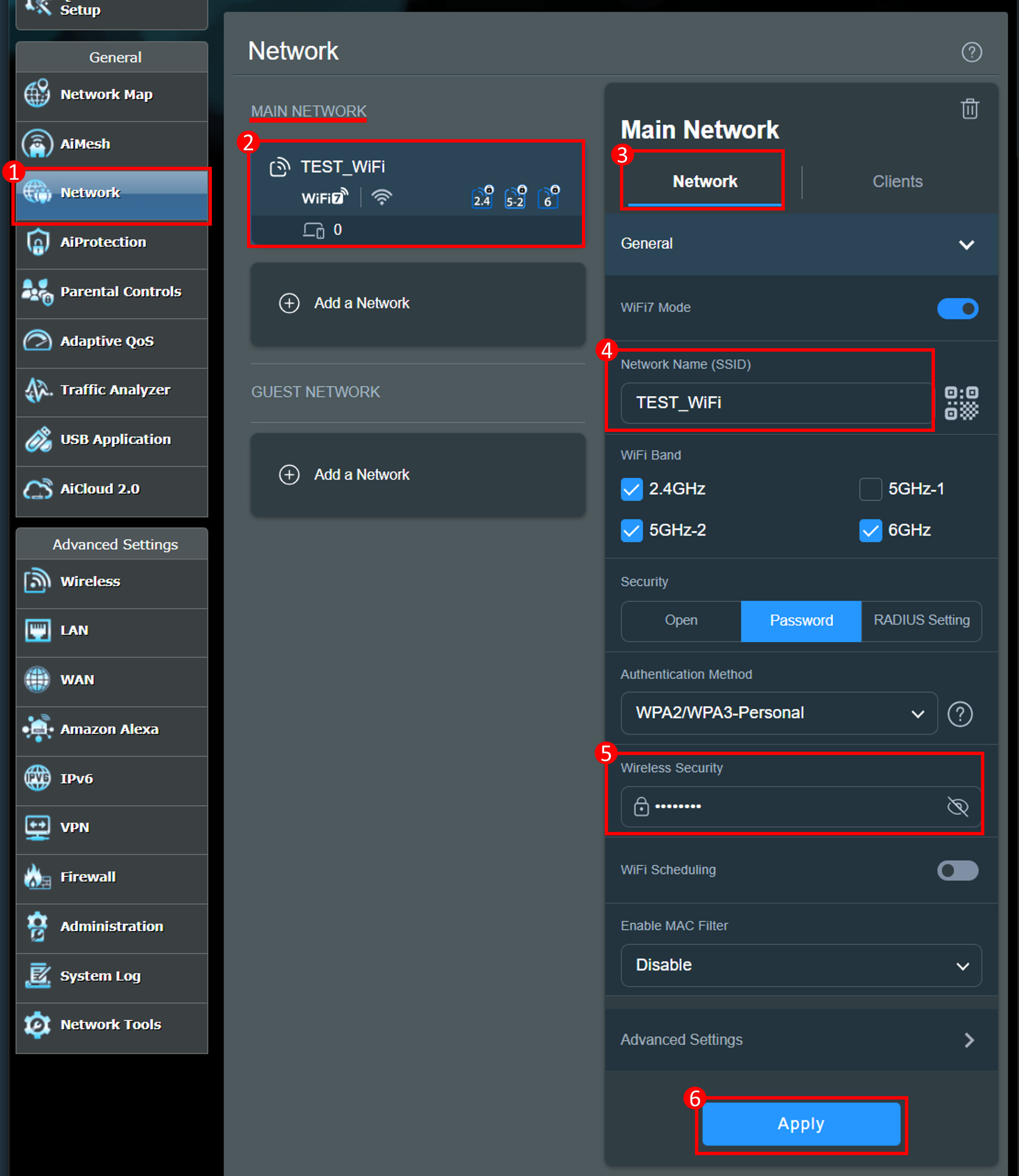
(3) Go to [Network] > [Main network profile]
(4) Click on Network Name (SSID) and password to modify it. And [ Apply ] to save the settings.
- Network Name (SSID) = Wireless Network WiFi Name
- Wireless Security = Wireless Network WiFi Password
Adding Additional WiFi Bands(WiFi Networks):
(1) Go to [Network] > [Main Network] > [Add a Network].

(2) After setting the network name and password, select one or multiple WiFi bands, then click [Apply] to save the configuration.

(3) WiFi network has been successfully added.

Setting Up Guest Network (Smart Home Master or Guest Network Pro, Depending on Model) :
(1) Go to [Network] > [Guest Network] > [Add Network], then select the network you want to add.

(2) After setting the network name and other information, click [ Apply ] to save the configuration.

(3)The guest network has been successfully added.

Interface 2: Firmware Versions Earlier Than 3.0.0.6.102_35404
A. Setting Up WiFi Using ASUS Router App
Configuring the Main Network:
Enter the App, tap [ Settings ] > [ WiFi ] > [ Wireless Settings ] > [ Network Settings ].

Setting Up Guest Network: Please refer to FAQ [Wireless Router] How to set up Guest Network on ASUS Router?
B. Setting Up WiFi Using ASUS Router Web GUI
Configuring the Main Network:
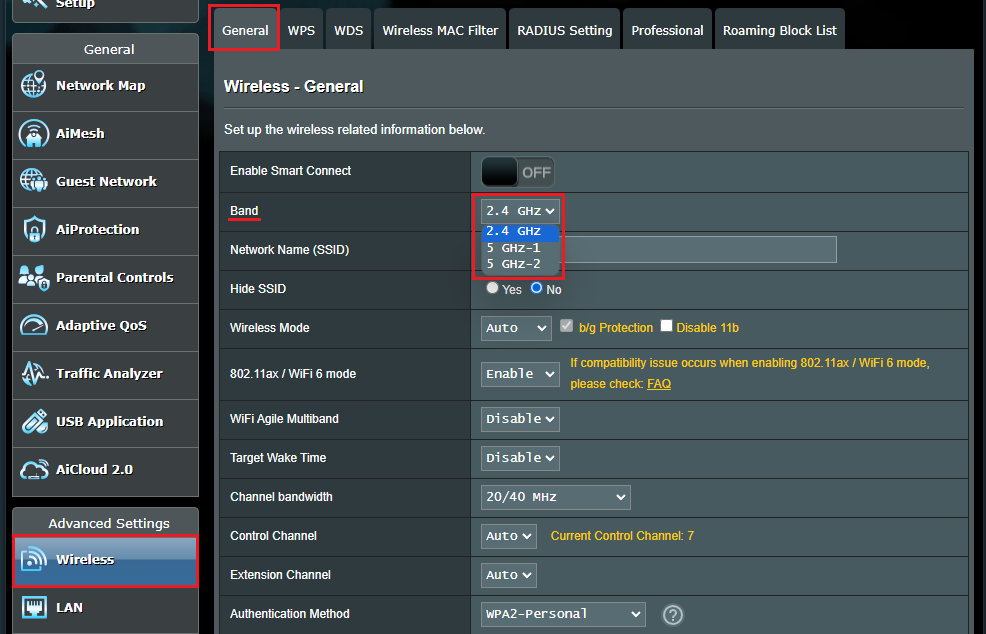
Go to [Wireless] > [General], you can set the wireless network (SSID) name and password for different bands (2.4GHz/ 5GHz-1/ 5GHz-2/ 6GHz, depending on Model) respectively.
Setting Up Guest Network: Please refer to FAQ [Wireless Router] How to set up Guest Network on ASUS Router?
FAQ
1 .WiFi 7 Introduction
- [Technical Sharing] Wi-Fi 7 Introduction
- Which ASUS and ROG products support WiFi 7?
- [Wireless Router]How to ensure WiFi 7 router compatibility with existing ASUS router and connected devices?
How to get the (Utility / Firmware)?
You can download the latest drivers, software, firmware and user manuals in the ASUS Download Center.
If you need more information about the ASUS Download Center, please refer this link.